

Arc Raiders shows small warning icons on screen when network or performance conditions aren’t ideal. They appear in different colors (typically yellow, orange, or red) to reflect severity. Knowing what each icon means—and what you can do about it—helps you decide whether to push a fight, re‑queue, or fix something on your end.
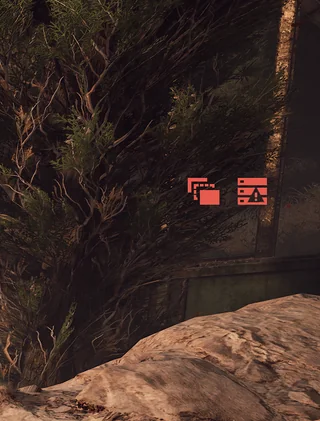
Where these warnings appear and how to read them
- Location: The icons surface during play on the HUD as conditions change, often on the right side of the screen.
- Color:
- Yellow = mild
- orange = moderate
- red = severe
Red during fights usually means you should pause aggressive plays or back out and address the issue.
- Type: Icons flag network issues (packet loss, high ping, jitter), server issues (server performance), and local issues (client performance, shader stutter).
Arc Raiders warning icons
| Icon cue | Meaning | What you may feel | Immediate actions |
|---|---|---|---|
| Down‑moving box/arrow | Packet loss | Shots not registering, rubber‑banding, players not where they appear | Use wired Ethernet, restart router, stop downloads/streams on your network |
| Speedometer | High latency (ping) | Noticeable input delay, sluggish interactions | Select the correct matchmaking region, close background apps, avoid VPNs/proxies |
| Jitter indicator | High jitter (unstable ping) | Random lag spikes, wobbly movement/hit timing | Power‑cycle router, prefer wired (or strong 5 GHz if Wi‑Fi is unavoidable), reduce interference |
| Server rack | Server performance | Widespread hitches or desync affecting your squad or the whole lobby | Leave and re‑queue; if it persists across matches, play again later |
| PC/monitor | Client performance | Low or inconsistent FPS, sluggish inputs | Close background apps, update graphics drivers, lower heavy settings, enable the performance overlay |
| Monitor with “!” | Shader stutter | Brief freezes when new effects, materials, or textures appear | Clear shader cache (PC), play a few matches to pre‑compile, tune graphics to reduce effect load |
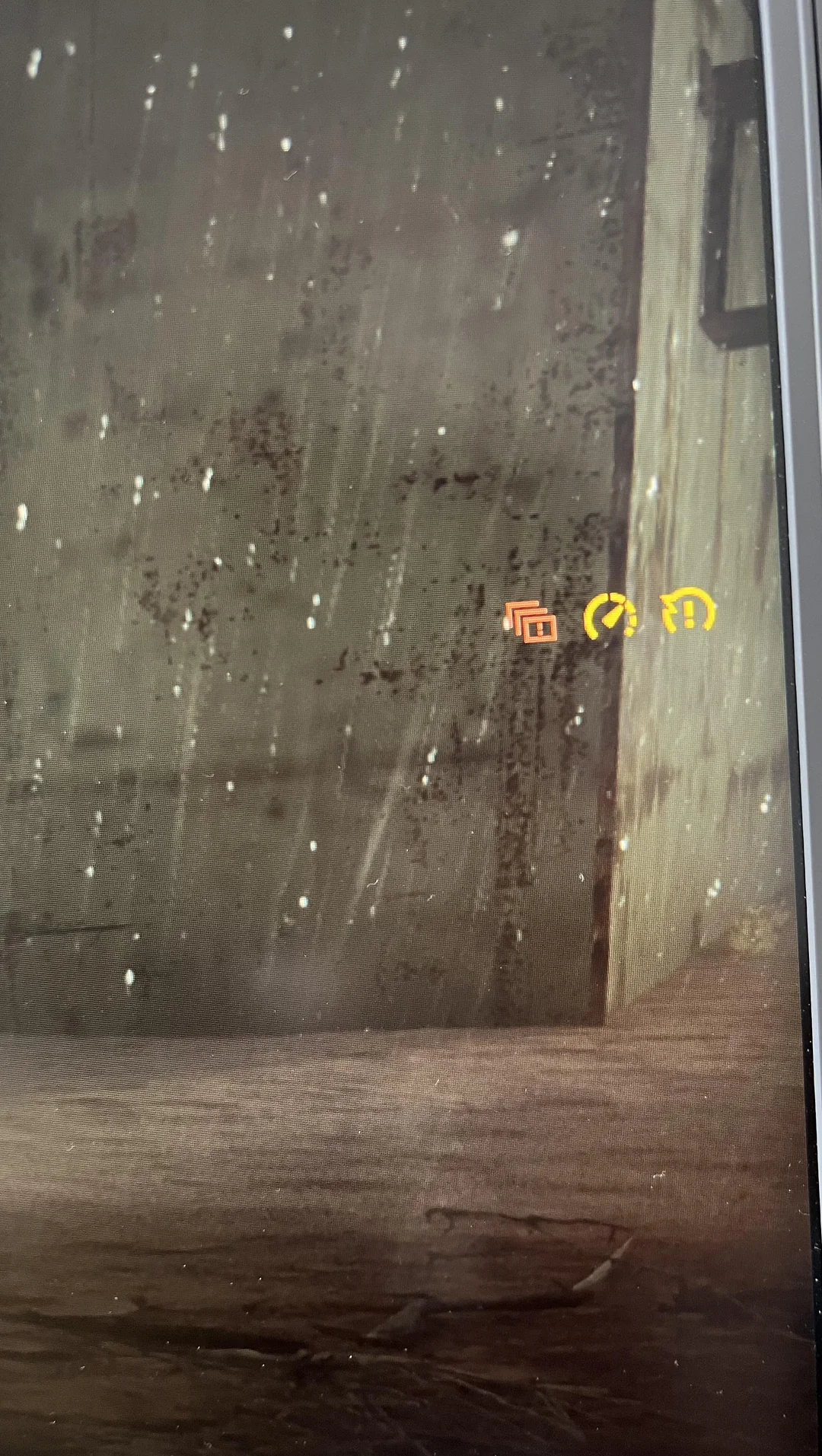
Packet loss (down‑moving box): why it happens and what to do

Packet loss means game data isn’t reaching the server reliably. Even small percentages can cause rubber‑banding, ghost shots, and inconsistent player positions.
- What to try now:
- Connect your PC/console via wired Ethernet.
- Restart your router and modem (unplug both for ~60 seconds; power the modem first, then the router).
- Pause bandwidth‑heavy activity on your network (4K streaming, cloud backups, large downloads).
- When to escalate: If loss persists every session and in other games, contact your ISP to check line quality and routing.
High ping (speedometer): reduce latency you control

High latency adds delay between your inputs and the server’s responses. The game feels slow even when FPS is fine.
- Set the correct region: In settings, choose the matchmaking region closest to your location rather than “Auto.”
- Eliminate local causes: Close launchers or apps downloading updates, browsers streaming video, and cloud‑sync tools during play.
- Avoid extra hops: Don’t use VPNs or proxies while playing; they often increase latency.
- Physical connection: Use Ethernet whenever possible. If you must use Wi‑Fi, keep close to the router on the 5 GHz band.
High jitter: smooth out an unstable connection

Jitter is the variation in ping over time. You’ll see micro‑spikes that make hits, animations, and movement feel uneven.
- Stabilize your link:
- Power‑cycle your router and modem.
- Prioritize wired; avoid congested Wi‑Fi channels and 2.4 GHz if you cannot wire in.
- Ensure no one on your network is saturating upload with video calls, cloud backups, or streaming.
- If jitter appears across multiple games at similar times of day, it may be neighborhood or ISP congestion; try off‑peak hours or ask your ISP about line noise and buffering.
Server performance: know when it’s not you

This warning indicates a problem on the current game server that can affect many players at once. There’s nothing to fix locally.
- Best options:
- Back out and re‑queue to a fresh match.
- If you see the warning repeatedly across different lobbies, take a break and try later.
- Tip: Avoid high‑risk fights while this icon is red; expect desync until you change matches.
Client performance (PC/monitor): regain stable FPS and inputs

This warning points to your machine struggling to render frames or process inputs quickly enough. You may not be GPU‑limited; background software, drivers, and settings often cause spikes.
- Close background loads: Disable overlays and recorders, close browsers and launchers, pause cloud‑sync and RGB suites.
- Update your graphics driver: Use your GPU’s official software to install the latest Game Ready driver.
- Lower heavy options first: Set Shadows and Effects to Low, turn off Motion Blur and Depth of Field, and reduce Global Illumination. Enable DLSS/FSR on Quality or Balanced if supported.
- Turn on the in‑game performance overlay: In Video > Advanced, enable the detailed performance overlay to see CPU/GPU frame time and confirm the bottleneck.
- Thermals and power: Ensure your system runs in a high‑performance power mode and components aren’t overheating.
Shader stutter (monitor with exclamation): minimize first‑use hitches

Shader stutter occurs when the game compiles shaders for new effects, materials, or textures. You’ll feel brief freezes when a visual plays for the first time, then smoother repeats afterward.
- Compile and clean:
- Play a couple of matches to “warm” common shaders.
- Clear the shader cache on PC if stutters persist between sessions; then relaunch to rebuild a clean cache.
- Reduce effect load: Lower Effects and Post‑Processing to cut the number of unique shaders invoked in combat.
- Storage matters: Install the game on an SSD to prevent asset streaming hitches that can resemble shader stutter.
When to keep playing—and when to step away
- Yellow icons: Proceed, but avoid high‑stakes pushes; keep an eye on changes.
- Orange icons: Take cover and reassess; apply quick fixes (pause downloads, close apps, switch to wired if possible).
- Red icons:
- Network (packet loss/ping/jitter): Back out after combat, fix connection, and re‑queue.
- Server performance: Leave the match; try a new lobby.
- Client: Lower settings, restart the game, or reboot if frame pacing remains unstable.
Treat the icons as early warnings, not just clutter. If you translate them into a quick action—wire in, pick the right region, re‑queue, or trim your settings—you protect firefights from desync, preserve your gear, and keep raids decided by aim and strategy instead of conditions you could have avoided.