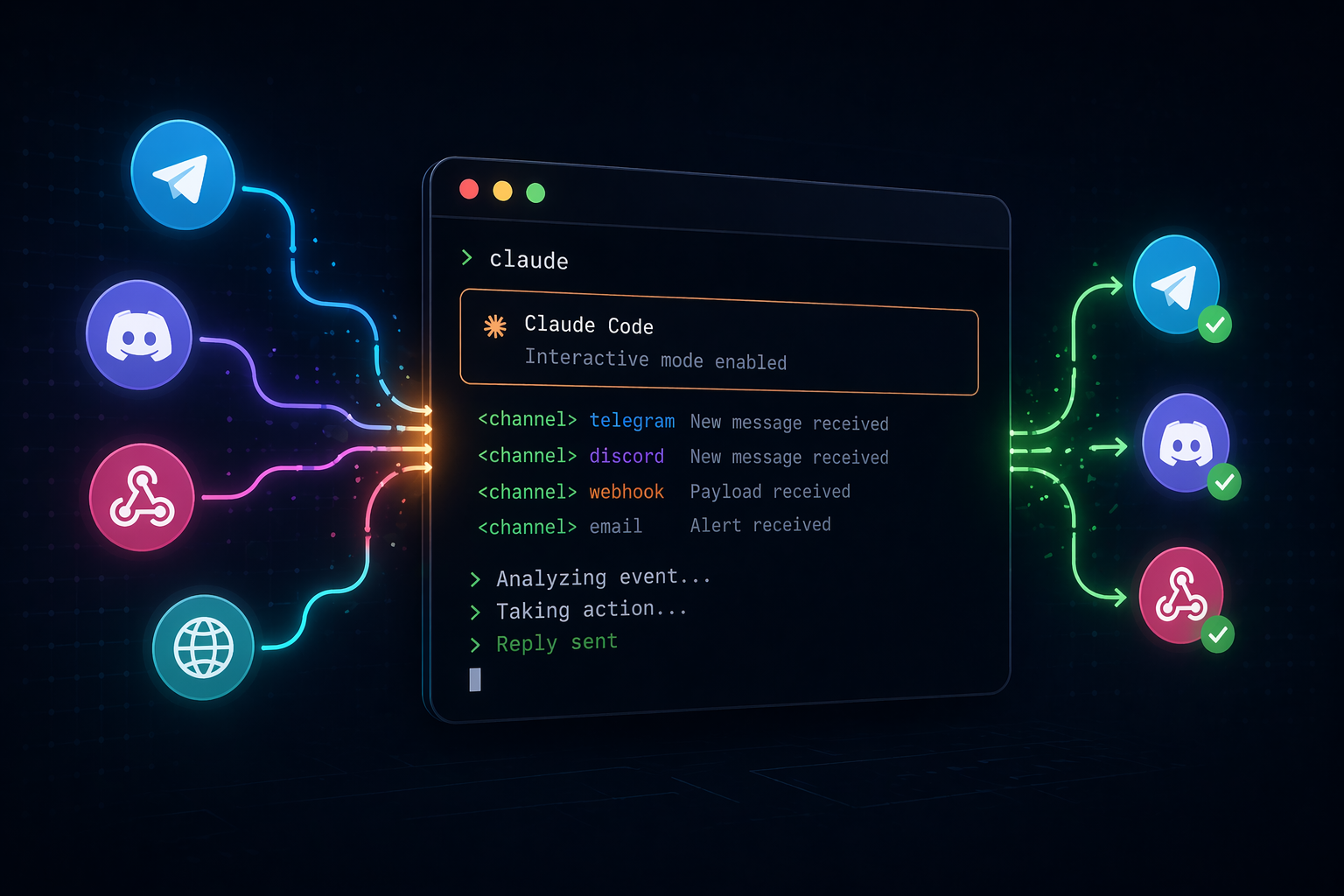
Claude Code Channels turn a running terminal session into something that listens. Instead of sitting idle between prompts, the session can receive Telegram DMs, Discord messages, iMessages, CI webhooks, monitoring alerts, or anything else capable of firing an HTTP request. Claude reads the event as it arrives, acts on it, and can reply back through the same pipe if the channel is two-way.
What a channel actually is
Under the hood, a channel is just a Model Context Protocol server that Claude Code spawns as a subprocess and talks to over stdio. The server declares a claude/channel capability, which tells Claude Code to register a notification listener. When something happens outside the terminal, the server emits an event, and that event lands inside Claude’s context wrapped in a <channel> tag.
Two shapes are common. One-way channels forward alerts or webhook payloads so Claude can act without replying. Two-way channels add a reply tool so Claude can send messages back, which is what makes Telegram, Discord, and iMessage feel like a chat bridge rather than a notification firehose.
Requirements and limits
| Requirement | Detail |
|---|---|
| Claude Code version | v2.1.80 or later; permission relay needs v2.1.81+ |
| Authentication | claude.ai login only (no API key or console auth) |
| Plan | Available on Pro and Max; Team/Enterprise must opt in via channelsEnabled |
| Runtime | Bun for official plugins; Node or Deno work for custom builds |
| Session state | Events only arrive while the session is open |
| Status | Research preview; flags and protocol may change |
The session-open constraint matters. Close the terminal and the bot goes quiet. For always-on setups, the session needs to live in a persistent terminal, tmux window, or background process.
Supported channels in the research preview
Four plugins ship in the official marketplace: Telegram, Discord, iMessage, and fakechat. Each one is a Bun script you install with /plugin install <name>@claude-plugins-official and enable at launch with the --channels flag.
| Channel | What it needs | Pairing model |
|---|---|---|
| Telegram | Bot token from BotFather | DM the bot, receive a code, run /telegram:access pair <code> |
| Discord | Bot token + Message Content Intent + server invite | DM the bot, receive a code, run /discord:access pair <code> |
| iMessage | macOS with Full Disk Access for Terminal/iTerm | Self-chat auto-allows; other handles added with /imessage:access allow |
| fakechat | Nothing external; runs on localhost | Open the browser UI on the local port |
Fakechat is the sanity check. Install it, restart Claude Code with claude --channels plugin:fakechat@claude-plugins-official, open the localhost page, and confirm messages round-trip before wiring up a real platform.
Setting up Telegram
/newbot. Give it a display name and a username ending in bot, then copy the token it returns./plugin install telegram@claude-plugins-official. If the marketplace is missing, add it with /plugin marketplace add anthropics/claude-plugins-official and reload./telegram:configure <token>. The credential is written to ~/.claude/channels/telegram/.env.claude --channels plugin:telegram@claude-plugins-official. The plugin starts polling for messages./telegram:access pair <code>, then lock things down with /telegram:access policy allowlist so only your account can reach the session.Setting up Discord
bot scope and grant View Channels, Send Messages, Send Messages in Threads, Read Message History, Attach Files, and Add Reactions. Open the generated URL and authorize the bot into your server./plugin install discord@claude-plugins-official, then /reload-plugins so the configure command appears./discord:configure <token>, then restart Claude Code using claude --channels plugin:discord@claude-plugins-official./discord:access pair <code> followed by /discord:access policy allowlist.How messages arrive in Claude’s context
When the channel server emits an event, it calls mcp.notification() with method notifications/claude/channel and two params: content, which becomes the body of a <channel> tag, and an optional meta map, whose entries become attributes on that tag. Meta keys must be plain identifiers (letters, digits, underscores); hyphens get dropped silently.
A CI alert from a custom webhook channel might look like this once it reaches Claude:
<channel source="webhook" severity="high" run_id="1234">
build failed on main: https://ci.example.com/run/1234
</channel>
The source attribute is set from the server’s configured name automatically. Attributes like chat_id or severity give Claude routing context, which matters when a reply tool needs to know which conversation to answer.
Building a minimal webhook channel
The shortest useful custom channel is a single Bun file that listens on a local port and forwards every POST body to Claude. It declares the claude/channel capability, connects over stdio, and pushes notifications as requests arrive.
#!/usr/bin/env bun
import { Server } from '@modelcontextprotocol/sdk/server/index.js'
import { StdioServerTransport } from '@modelcontextprotocol/sdk/server/stdio.js'

const mcp = new Server(
  { name: 'webhook', version: '0.0.1' },
  {
    capabilities: { experimental: { 'claude/channel': {} } },
    instructions: 'Events arrive as <channel source="webhook" ...>. One-way: read and act, no reply.',
  },
)

await mcp.connect(new StdioServerTransport())

Bun.serve({
  port: 8788,
  hostname: '127.0.0.1',
  async fetch(req) {
    const body = await req.text()
    await mcp.notification({
      method: 'notifications/claude/channel',
      params: {
        content: body,
        meta: { path: new URL(req.url).pathname, method: req.method },
      },
    })
    return new Response('ok')
  },
})
webhook.ts – one-way channel
Register it in .mcp.json with {"mcpServers": {"webhook": {"command": "bun", "args": ["./webhook.ts"]}}}. Custom servers aren’t on the research-preview allowlist, so launch Claude Code with claude --dangerously-load-development-channels server:webhook. A curl -X POST localhost:8788 -d "build failed" in another terminal will now show up inside the session.
Making a channel two-way
Two-way channels add tools: {} to the server capabilities and register a reply tool through the standard MCP handlers. The tool schema typically takes a chat_id and text, and the handler is where the outbound POST to Telegram, Discord, or whatever platform actually happens.
The instructions field becomes critical once replies are involved. It goes into Claude’s system prompt and tells the model which tool to call and which attribute from the inbound <channel> tag to pass back. Skip that, and Claude has no way to know where to route its answer.
One quirk worth flagging: when Claude replies through a channel, the terminal shows the tool call and a short confirmation like sent, but not the reply text. The actual message appears on the remote platform.
Gating inbound messages
Any channel that listens to a chat platform or public endpoint is a prompt injection vector if it forwards messages without a sender check. The fix is an allowlist keyed on the sender’s platform identity, not the chat or room.
const allowed = new Set(loadAllowlist())

if (!allowed.has(message.from.id)) {
  return  // drop silently
}
await mcp.notification({ ... })
In group chats, message.from.id and message.chat.id differ. Gating on the room ID means anyone invited to a shared group can inject prompts. The official Telegram and Discord plugins bootstrap their allowlists via the pairing flow; iMessage detects the user’s own Apple ID addresses at startup and lets them through automatically.
Permission relay on your phone
Permission relay is the piece that closed the biggest usability gap. Before v2.1.81, every tool approval (Bash, Write, Edit) required someone at the terminal to respond. Now, a two-way channel can declare claude/channel/permission: {} under experimental capabilities, and Claude Code will forward approval prompts to the channel in parallel with the local dialog.
The flow uses two notification methods. Outbound from Claude Code is notifications/claude/channel/permission_request, carrying four fields:
| Field | Contents |
|---|---|
request_id | Five lowercase letters, never l (avoids confusion with 1 or I on phones) |
tool_name | The tool being requested, e.g. Bash or Write |
description | Human-readable summary of the call |
input_preview | Tool arguments as JSON, truncated to ~200 characters |
The channel server formats those fields into a message like Reply "yes abcde" or "no abcde" and sends it through the platform API. When the user replies, the inbound handler parses the verdict and emits notifications/claude/channel/permission with request_id and behavior set to allow or deny.
Both the terminal dialog and the remote prompt stay live simultaneously. Whichever answer arrives first wins; the other is dropped. Relay covers tool-use approvals only. Project trust prompts and MCP server consent dialogs still have to be handled at the local terminal.
How to confirm everything is wired up
A few checks verify the plumbing end to end. Run /mcp inside Claude Code to see whether the channel server connected. A red X or “Failed to connect” usually points to a missing dependency or an import error in the server file; the stderr trace lives at ~/.claude/debug/<session-id>.txt.
If curl or the platform fails with connection refused, the port is either not bound yet or held by a stale process from a prior run. lsof -i :<port> shows the culprit, and killing it before restarting the session clears things up.
When a channel event reaches Claude, the terminal shows the inbound <channel> tag and Claude’s next action. When Claude replies through a two-way channel, the terminal shows the tool call and a “sent” confirmation, while the actual reply text appears on the platform the message came from.
Packaging and distribution
A finished channel becomes shareable by wrapping it in a plugin and publishing it to a marketplace. Users then install it with /plugin install and enable it per session with --channels plugin:<name>@<marketplace>.
During the research preview, anything outside the Anthropic-curated allowlist still requires --dangerously-load-development-channels to load, even from a private marketplace. Channel plugins submitted to the official marketplace go through a security review before being added. On Team and Enterprise plans, admins can override the default allowlist with their own allowedChannelPlugins list.
The ceiling for channels isn’t really “text Claude from your phone.” It’s agent orchestration, on-call automation, CI triage that starts before you open your laptop, and bidirectional chat with systems that never had a natural way to reach a developer’s terminal. The messaging integrations are the easy demo. The webhook pattern is where the design actually opens up.