

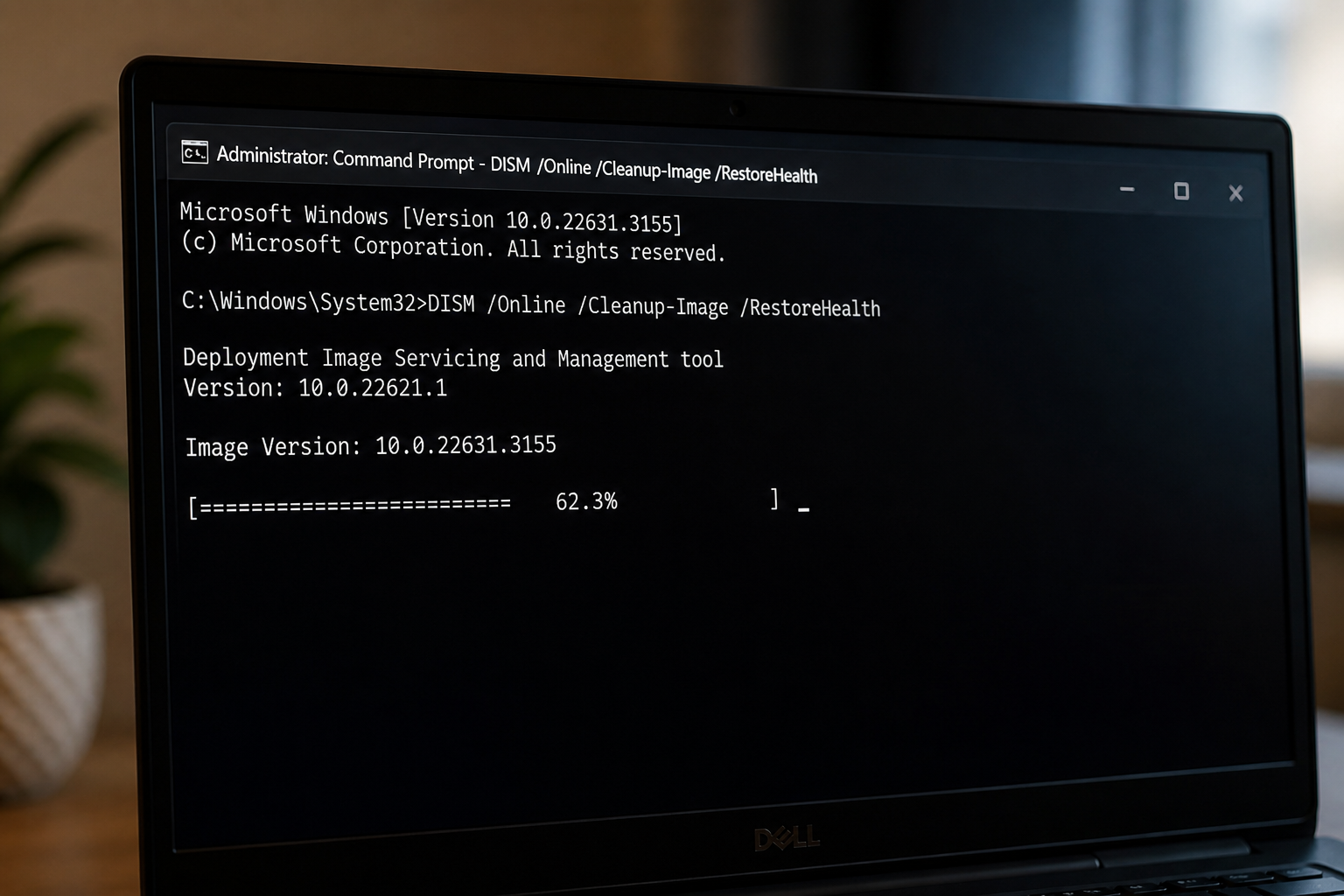
The DISM /Online /Cleanup-Image /RestoreHealth command on Windows 11 routinely appears frozen at 62.3% for long stretches. In most cases the scan is not stuck at all. The progress bar pauses at fixed checkpoints while DISM compares component store payloads against a clean source, and 62.3% is the longest of those checkpoints when corruption is actually present.
Quick answer: Leave the Command Prompt window open and wait. If the disk activity light is still flickering, DISM is working. Only intervene if the percentage has not moved for several hours or the disk is completely idle.
Why DISM pauses at 62.3% on Windows 11
DISM displays progress in coarse increments rather than a smooth percentage. The tool checks the Windows component store, downloads replacement payloads from Windows Update, and writes them back into the image. Each of those phases produces a visible pause. The 62.3% mark is where DISM is verifying or fetching corrupted components, and the more damage it finds, the longer that step lasts.
On a healthy system the command finishes in a few minutes. On systems with deeper corruption, with a slow disk, or with a slow connection to Windows Update, the same command can sit at 62.3% for 30 minutes to several hours before jumping straight to 100%.
How to tell if DISM is still working or actually frozen
Before doing anything else, confirm whether the process is alive. A visual freeze is not the same as a hung process.
| Signal | Still working | Actually stuck |
|---|---|---|
| Disk activity LED | Flickering or solid | Completely idle for 10+ minutes |
| Task Manager → Details → DISM.exe / TiWorker.exe | CPU or disk above 0% | 0% CPU and 0 MB/s disk for 10+ minutes |
| Network usage | Small steady traffic on Windows Update | Zero traffic and no cached source set |
| CBS log timestamp | Recent writes within the last few minutes | No new entries for an hour or more |
The CBS log lives at C:\Windows\Logs\CBS\CBS.log. Open it in Notepad while the scan runs. If new lines are still being appended, DISM is still doing real work and you should wait.
Fix DISM stuck at 62.3% on Windows 11
If verification confirms the process is genuinely hung, close the window and work through the methods below in order. Each method assumes you launch Command Prompt or Windows Terminal with Run as administrator. Running it as a standard user is the single most common reason the scan stalls early.
Method 1: Restart and rerun DISM with administrator rights
cmd, right-click Command Prompt, and choose Run as administrator. Confirm the User Account Control prompt.DISM.exe /Online /Cleanup-Image /RestoreHealthVerification: the command finishes with the message The restore operation completed successfully, and the prompt returns control to you.
Method 2: Repair the disk first with CHKDSK
Bad sectors or a dirty NTFS volume will cause DISM to pause indefinitely while it tries to read or write the same component repeatedly. Fixing the file system first removes that bottleneck.
/x flag dismounts the volume so the scan can complete on reboot.chkdsk C: /f /r /xY when prompted to schedule the check at the next restart, then reboot. After Windows comes back, rerun DISM /Online /Cleanup-Image /RestoreHealth.Verification: CHKDSK reports the number of bad sectors found and whether they were repaired. DISM should now progress past 62.3% within minutes rather than hours.
Method 3: Point DISM at a known-good source from a Windows 11 ISO
When DISM cannot reach Windows Update, or the cached payloads on Microsoft’s servers do not match your build, it stalls at 62.3% trying to download files that never arrive. Supplying a local source from an ISO removes that dependency.
E:. Inside that drive, locate \sources\install.wim or \sources\install.esd.E: with your mounted drive letter and adjust the index if your edition is not Pro (1 = Home, 6 = Pro in most builds).DISM /Online /Cleanup-Image /RestoreHealth /Source:WIM:E:\sources\install.wim:6 /LimitAccessThe /LimitAccess flag stops DISM from trying Windows Update at all, which is the part that causes the long hang at 62.3%.
Verification: progress moves past 62.3% within a few minutes, and the success message appears at 100%.
Method 4: Run StartComponentCleanup, then SFC
If RestoreHealth completes but the underlying problem returns, the component store has stale superseded packages that keep getting flagged. Cleaning them out and following with SFC closes the loop.
DISM.exe /Online /Cleanup-Image /StartComponentCleanupsfc /scannowVerification: SFC reports either Windows Resource Protection did not find any integrity violations or successfully repaired them. Both outcomes mean the system files now match the image.
Common reasons DISM does not move past 62.3%
- The Command Prompt was not launched as administrator, so DISM cannot write to the component store.
- The system drive is failing or has unrepaired bad sectors that block reads on specific payloads.
- Windows Update is blocked by a corporate proxy, VPN, metered connection, or a third-party firewall.
- The Windows Update, Cryptographic Services, MSI Installer, or BITS service is stopped. Restart them with
net start wuauserv,net start cryptsvc,net start bits, andnet start msiserverbefore rerunning DISM. - Free space on the system drive is below a few gigabytes, which prevents DISM from staging downloaded components.
- Available memory is very low. DISM is happier with at least 4 GB of RAM free during the scan.
When to stop repairing and do an in-place upgrade
If DISM reports The source files could not be found or finishes but SFC keeps detecting the same corruption afterward, the image damage is beyond what RestoreHealth can patch. The reliable next step is an in-place upgrade using the Windows 11 ISO, choosing Keep personal files and apps on the Ready to install screen. That replaces every system component while preserving user data, and it resolves the underlying state that was making DISM hang at 62.3% in the first place.
Tip: before any of this, plug a laptop into AC power. DISM and CHKDSK both write heavily to disk, and a battery cutoff mid-scan can corrupt the very component store you are trying to repair.



