

Arc Raiders can feel choppy in several different ways, even on powerful hardware. Pinning down which pattern you have is the first step toward a fix.
| What you see | FPS counter | Most likely issue |
|---|---|---|
| Game feels sluggish all the time, camera pans are rough, combat is visibly choppy | Often below 60 and unstable | Low FPS or GPU‑bound |
| Short freezes or huge drops (e.g. 200 → 10 FPS) every few seconds or minutes | Spikes down briefly, then returns to normal | CPU throttling, storage I/O, overlays, or engine stutter |
| Movement looks “jittery” when turning, but FPS counter is high and stable | Stays high (e.g. 100+) | Unreal Engine 5 micro stutter or frame‑time spikes |
| Rubber‑banding, teleporting, delayed hit registration while FPS feels fine | Stable | Network lag or packet loss |
| Even menus, cutscenes or the entire desktop stutter while the game is running | Varies | System‑wide CPU/VRM throttling, drivers, or background apps |
Keep this in mind as you try fixes. If Discord calls or other apps also stutter, treat it as a whole‑system issue, not just an in‑game setting problem.
Start with high‑impact basics
Several simple actions solve a large share of performance complaints, including severe stutter on high‑end GPUs.
Step 1: Update your GPU drivers to the latest Game Ready / optimized release for Arc Raiders using NVIDIA App, AMD Software: Adrenalin Edition, or Intel’s Arc driver tool. Fresh drivers often fix stutter and frame drops introduced by older versions.
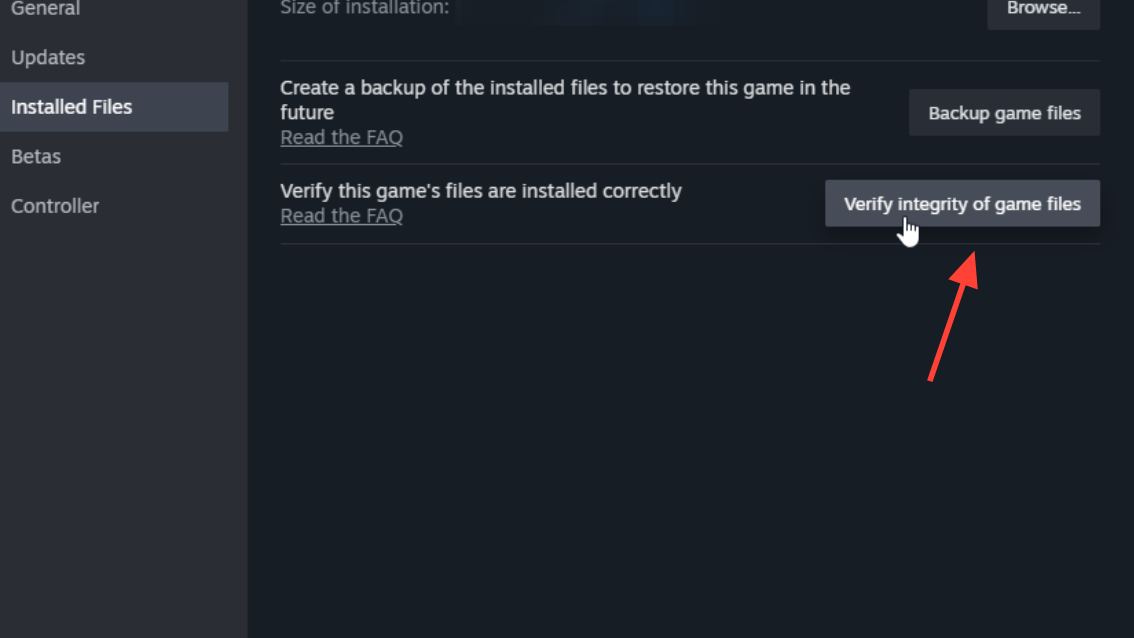
Step 2: Verify the game files in your launcher. On Steam, open Properties → Installed Files → Verify integrity. Corrupted or partially updated files can cause recurring hitches, especially after a patch.
Step 3: Make sure Arc Raiders is installed on an SSD, not a hard drive. Unreal Engine 5 streams assets constantly; mechanical disks and very slow SSDs produce long frame‑time spikes when new areas or effects load.
Step 4: Test with a low graphics preset. Set Overall Quality to Low, disable ray tracing, and keep DLSS/FSR on Quality or Balanced. If stutter barely improves when you drop settings to minimum, the bottleneck is probably not raw GPU power.
Overlays and background software causing stutter
Many players see massive frame drops or micro stutter every few seconds that disappear as soon as overlays and helper software are disabled. Arc Raiders is particularly sensitive to anything that hooks into the rendering pipeline.
Common culprits include:
- Discord overlay, especially when streaming your screen or using rich presence
- Steam overlay
- NVIDIA ShadowPlay / GeForce Experience in‑game overlay
- AMD overlay and performance metrics
- Xbox Game Bar and related Windows gaming overlays
- Razer Synapse and high‑polling USB peripherals
- Browser processes such as Opera GX consuming a large amount of RAM/CPU
Step 1: Turn off in‑game overlays for Discord, Steam, NVIDIA, AMD and any RGB or peripheral software. Do this globally or at least for Arc Raiders. Many players report an instant transition from “unplayable” to smooth once Discord’s overlay is disabled.
Step 2: Disable Xbox Game Bar in Windows settings and close any unnecessary monitoring tools (frame‑time graphs, OSDs, hardware meters). These tools attach to the game and can create frame‑time spikes, even if FPS looks high.
Step 3: If you use Razer Synapse or similar peripheral suites, test with those tools closed and your mouse or keyboard plugged in directly. In some cases, USB or polling issues have caused regular 1‑second system hitches.
After each round of changes, launch a raid and pay attention to whether the pattern of stutter changes. If your frame‑time graph goes from spiking every few seconds to staying mostly flat, overlays were at least part of the problem.
Fullscreen mode, frame generation and launch options
Display mode and advanced rendering features have a visible impact on smoothness and input response.
Step 1: In the Arc Raiders graphics settings, switch from borderless to exclusive fullscreen and restart the game. Several players with heavy stutter in menus and lobbies see it disappear when the game runs in true fullscreen instead of being treated as a background window.
Step 2: If fullscreen toggles alone do not stick, add Steam launch options such as: -fullscreen -ResX=1920 -ResY=1080 Replace the resolution values with your monitor’s native resolution. This forces the game into exclusive fullscreen at that resolution.
Step 3: Treat frame generation carefully. DLSS or FSR upscaling (Quality/Balanced) is generally good for FPS, but enabling frame generation on top can increase input lag. If you notice delayed aim or extra “floatiness” during firefights, keep upscaling on but disable frame generation and see if the game feels more consistent.
CPU throttling, Ryzen X3D chips and ECO modes
Arc Raiders is heavily multi‑threaded and can push CPUs and motherboard power delivery harder than many other games. On some systems this leads to thermal or power throttling, which shows up as big, rhythmic frame drops or entire‑PC stutters.
Typical signs include:
- FPS dropping from high values (e.g. 140–200) to single digits for a second, then recovering
- CPU temperature shooting toward 90°C or higher during raids
- Whole system freezing briefly, including Discord audio or other apps
Step 1: Monitor CPU temperature and clocks while playing. If your processor sits near its thermal limit or clocks drop sharply at the exact moment stutters occur, it is almost certainly throttling.
Step 2: On many AMD systems, enabling an ECO or reduced‑power mode in the BIOS stabilizes performance. This lowers CPU power draw and temperature slightly, but often removes the brutal 1‑second frame collapses that come from overheating or VRM limits.
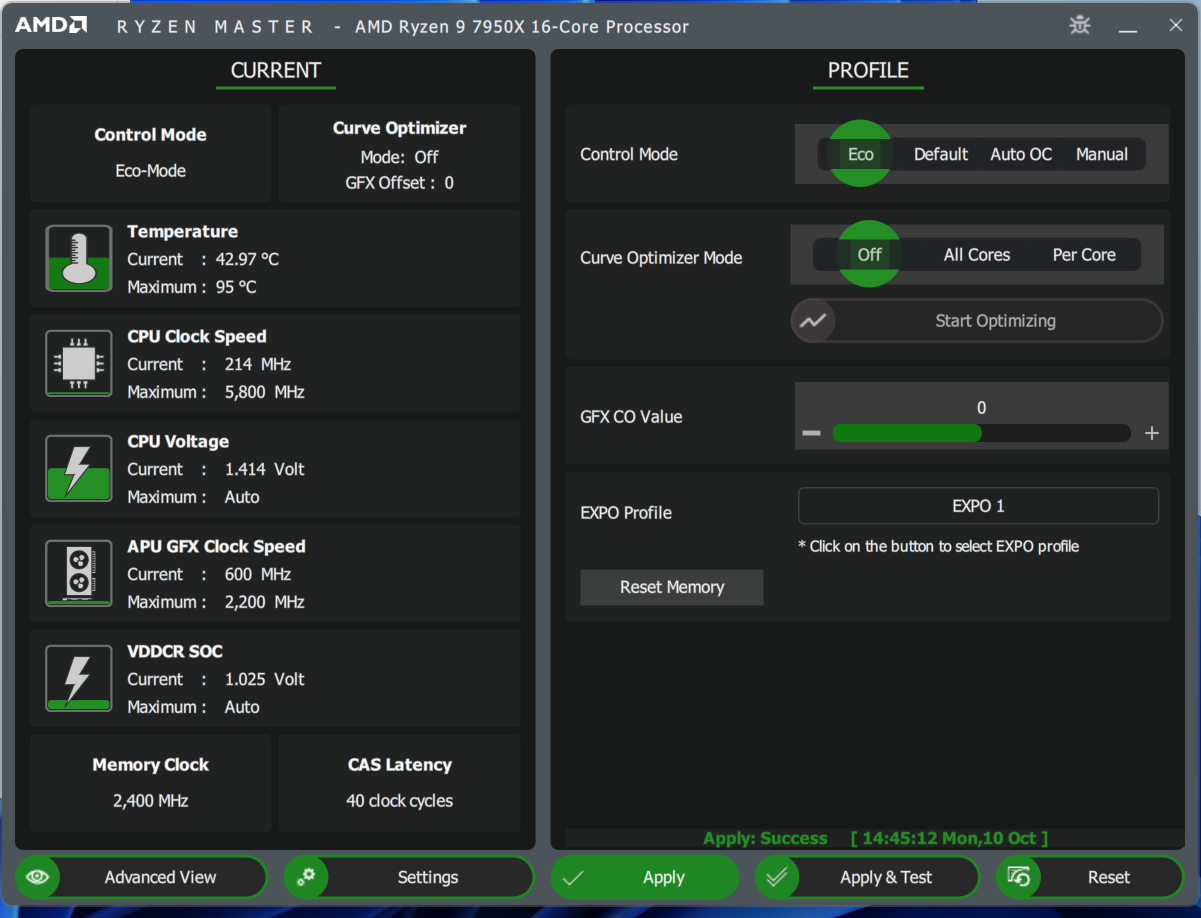
Step 3: Update your motherboard BIOS and chipset drivers, especially on Ryzen 7000/8000 X3D CPUs. Some users only eliminated stutter after a BIOS update improved power management and core parking behavior.
Step 4: Ensure your case airflow and CPU cooling are adequate. If VRM temperatures on lower‑end boards climb too high, the board can throttle the CPU every few minutes, matching the kind of recurring stutter many players describe.
Note: Reducing CPU power slightly with ECO modes usually costs much less performance than the severe dips and freezes caused by repeated thermal throttling.
Storage speed and Unreal Engine 5 asset streaming
Arc Raiders streams a large volume of data from storage during play. Unreal Engine 5 relies heavily on fast, low‑latency reads for textures and world data. When the drive cannot keep up, the result is long hitching even on GPUs like RTX 4090.
One common pattern is a powerful CPU/GPU paired with a large but slow NVMe SSD using QLC NAND and no DRAM (for example, some “value” 4 TB drives). Under heavy streaming, these drives can collapse in performance and cause:
- 0.5–1 second freezes when turning or entering new areas
- Screen tearing right during the freeze
- Yellow in‑game warnings related to streaming or I/O
Step 1: Check which drive Arc Raiders is installed on and look up whether it is a DRAM‑less QLC model or a TLC SSD with DRAM. Models like Crucial P2/P3 are examples of the former; drives such as WD Black SN8100, Samsung 990 PRO or SN850X are TLC with DRAM and handle sustained streaming much better.
Step 2: If the game currently lives on a DRAM‑less NVMe or, worse, a mechanical HDD, move it onto a faster SSD. Even switching from a QLC NVMe to a TLC, DRAM‑equipped SSD can completely eliminate the one‑second freezing some high‑end systems experience in Arc Raiders.
Step 3: Match texture quality to your GPU’s VRAM. Running maximum textures on a 4 GB or 6 GB card forces constant swapping between VRAM and system memory, which again depends on storage speed and adds stutter.
Windows settings and driver‑level tuning
Beyond in‑game options, a few operating system settings have a measurable effect on frame‑time stability.
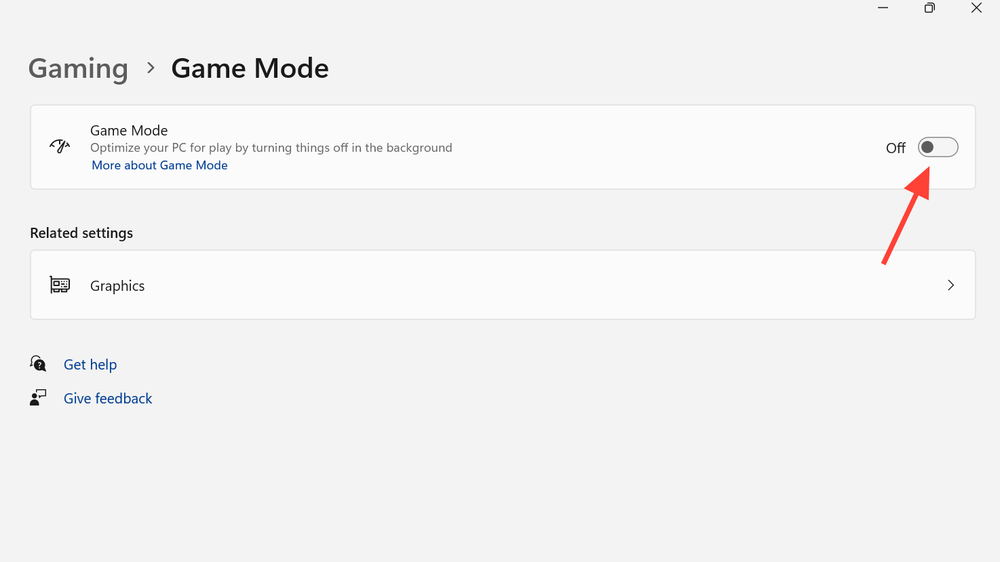
Step 1: In Windows, enable Game Mode and set the power plan or power mode to a high‑performance option. This keeps the CPU from down‑clocking aggressively during combat.
Step 2: Enable Hardware‑accelerated GPU scheduling (HAGS) in Windows graphics settings if your GPU supports it, then restart. HAGS can reduce latency in some configurations, particularly with modern NVIDIA and AMD drivers.
Step 3: Consider disabling Core Isolation’s Memory Integrity feature only if you understand the security trade‑off. It can consume a noticeable slice of CPU resources; turning it off may free headroom for heavily threaded UE5 titles, but you lose a layer of protection against certain attacks.
Step 4: In the NVIDIA Control Panel or AMD Software, set the power mode for Arc Raiders to a maximum‑performance profile and turn on low‑latency features (NVIDIA Reflex / Low Latency Mode, or Radeon Anti‑Lag). Keep V‑Sync off at the driver level and use G‑Sync/FreeSync where available instead.
Tip: Apply changes for Arc Raiders specifically rather than globally so other applications are not affected unnecessarily.
Distinguishing network lag from performance stutter
Many players describe “lag” when the real problem is network latency rather than rendering. The fixes are different, so it helps to separate the two.
You are likely dealing with network issues if:
- Character movement snaps backward or forward (“rubber‑banding”)
- Enemies take damage a moment after you shoot, or you die behind cover
- FPS counter stays high while the game feels delayed
Step 1: Test in an offline training or tutorial environment if available. If micro stutter disappears there but returns in live matches, latency or server issues are involved.
Step 2: Use a wired Ethernet connection instead of Wi‑Fi whenever possible. Wi‑Fi interference introduces packet loss and spike‑y ping that feel like random stutter during fights.
Step 3: Close downloads, video streams and other heavy network usage on your PC and in your household, then try a few matches on the geographically closest Arc Raiders server region.
If FPS is stable and movements still feel delayed despite these steps, the bottleneck is likely outside your PC (routing or servers), and no amount of graphics tweaking will fully solve it.
When nothing seems to fix Arc Raiders stutter
A minority of players still see heavy stutter after exhausting driver updates, overlays, BIOS updates, cooling fixes, storage moves, and display mode tweaks. In those situations, the remaining options are limited but clear.
Step 1: Capture a short video along with metrics such as FPS, frame‑time graph, CPU/GPU usage and temperatures while the issue occurs. This makes it much easier for support teams to understand what is happening.
Step 2: Open a ticket with the game’s official support, including your full hardware specification, driver versions, and the diagnostics above. Some combinations of hardware, especially newer CPUs and GPUs, may require engine‑level fixes in future patches.
Step 3: If you are within the refund window on your platform and the game remains unplayable after reasonable troubleshooting, consider requesting a refund rather than continuing to fight the same issue.
Most stutter and lag cases in Arc Raiders fall into a few recurring buckets: overlays and monitoring tools injecting into the game, CPU or VRM overheating on modern high‑core chips, slow or DRAM‑less SSDs struggling with UE5 streaming, or network latency masquerading as “performance” problems. Working through those systematically offers the best chance of turning an erratic experience into a smooth one.