

Hytale’s early access launch is putting real pressure on the new launcher and patch servers, and a lot of players are hitting stalled downloads or blunt error messages when they try to grab the game. The problems are frustrating, but in most cases they come down to a handful of predictable issues: overloaded patch servers, a confused launcher state, or local security software blocking the installer.
Typical Hytale launcher errors you might see
The launcher problems fall into a few broad categories:
- Download stuck during “Installing” or patching – the progress bar stops moving, often during “patch 0”.
- Stream or INTERNAL_ERROR messages – for example:
stream error: stream ID 1; INTERNAL_ERROR; received from peerwhile downloading a file such ashttps://game-patches.hytale.com/patches/windows/amd64/release/0/1.pw. - Installer silently failing or never opening – double-clicking the installer appears to do nothing.
- Download failing immediately – the launcher reports that it cannot download or apply an update as soon as you hit install.
Most download stalls are the result of launch-day server load, which causes patch downloads to break mid-stream. Silent failures are more often caused by aggressive antivirus or endpoint protection that quarantines the installer or blocks it from writing files.
Fix Hytale download stuck or patch 0 errors
When the launcher hangs on a patch or shows an INTERNAL_ERROR message, you are usually dealing with a broken patch session rather than a permanent problem with your account or purchase. The fastest way to clear that bad session is to restart the install flow from inside the launcher.
Step 1: When you see the download or installation get stuck, look for the Relaunch button in the launcher. Click it once and wait until the launcher fully restarts to its home screen.
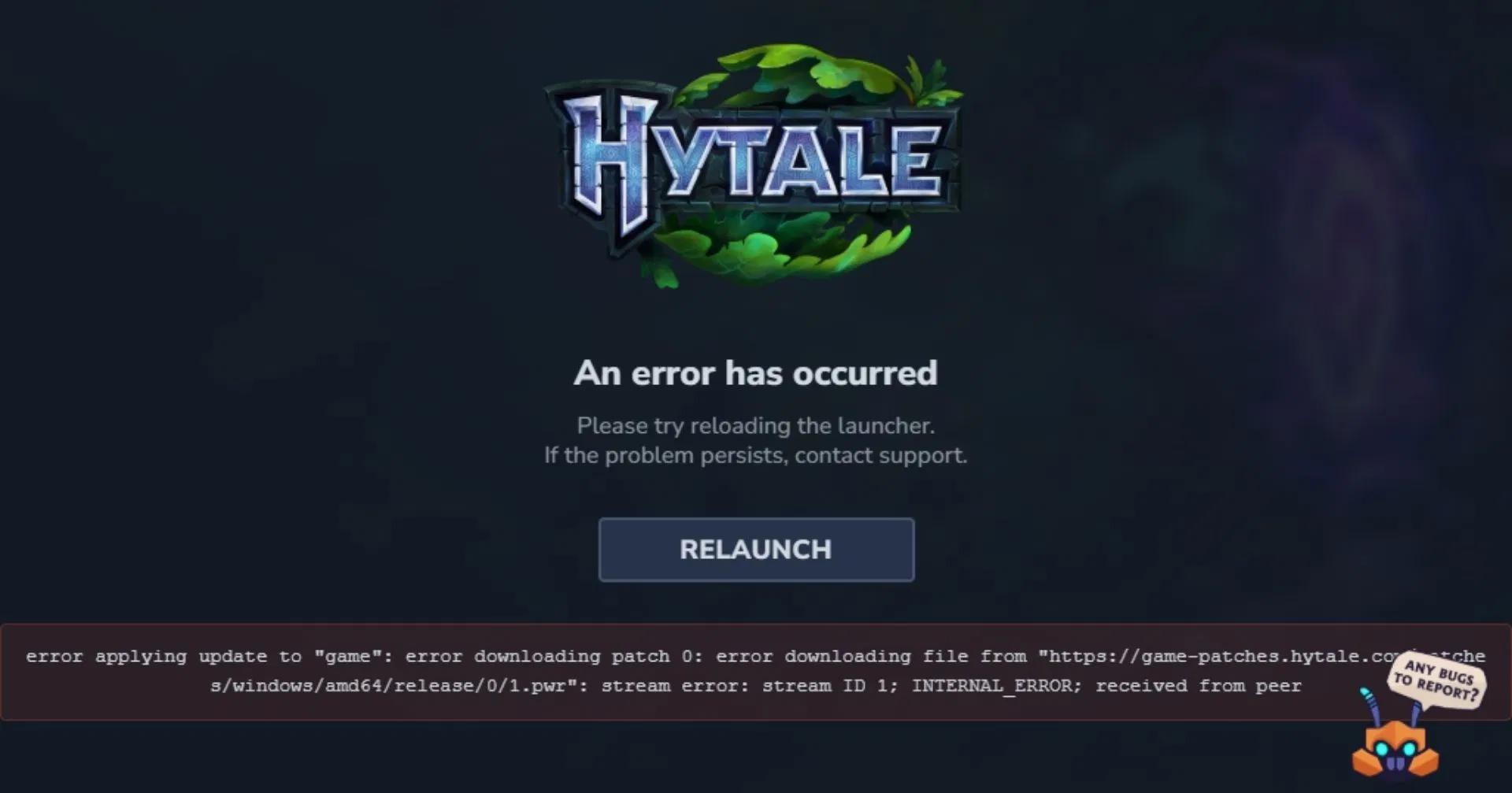
Step 2: On the home screen, select Hytale and click Install again. This forces a fresh attempt to download the current patch, including “patch 0” if that is where it failed.
Step 3: Leave the launcher alone for several minutes even if the progress bar appears slow. Under launch-day load, patch servers can be inconsistent; brief stalls are normal as long as the client eventually moves forward.
If the exact same INTERNAL_ERROR appears repeatedly after relaunching, the patch servers may still be under heavy strain. In that situation, spacing out retries rather than hammering the button every few seconds tends to work better.
Fix Hytale launcher download failing immediately
When the launcher refuses to even begin the download or fails almost instantly, the local install state may be corrupted. Resetting or reinstalling the launcher usually resolves this.
Step 1: Open the Hytale launcher.
Step 2: Click the gear icon in the top-left corner to open launcher settings.
Step 3: Go to the section labelled Uninstall. In that view, click Reset Game Settings to clear cached configuration and local game data for Hytale while leaving the launcher itself in place.
Step 4: After the reset completes, click Relaunch from the same screen so the launcher restarts cleanly.
Step 5: Once it reopens on the home screen, hit Install again to trigger a fresh download attempt.
If a full reset still does not help, fully uninstall the launcher from your system and download a fresh copy from the official Hytale site at https://hytale.com/download. Then reinstall it and sign back in before trying to install the game again.
Fix installer not running because of antivirus or endpoint protection
Another class of failure happens before the launcher ever appears. On some PCs, especially those managed by security suites like RAV Endpoint Protection, the installer for Hytale or its launcher is blocked or silently quarantined.
Step 1: If you double-click the installer and nothing happens, open your security software’s dashboard. On RAV Endpoint Protection, check any recent notifications or pop‑ups referencing Hytale or Installer.exe.
Step 2: Locate the blocked item in the security software’s quarantine or “blocked threats” section. Mark the Hytale installer and launcher as allowed or add them to the allowed list, following the prompts inside that security tool.
Step 3: Run the Hytale installer again after adding the exception. This time, keep an eye on new pop‑ups from the security suite and explicitly allow any further actions it requests for Hytale.
For other antivirus products, the names and menus will differ but the logic is the same: review recent blocks, restore the Hytale installer if it was quarantined, and create an exception so the launcher can install and update the game without being interrupted.
Run the Hytale launcher with administrator rights
In some Windows setups, the launcher may not be able to write game files to the chosen install directory with normal user permissions. Running it as an administrator can help when downloads keep failing during the “applying update” stage without a clear error.
Step 1: Close the Hytale launcher completely. Make sure its icon disappears from the taskbar and system tray.
Step 2: Right‑click the Hytale launcher shortcut or executable and choose Run as administrator.
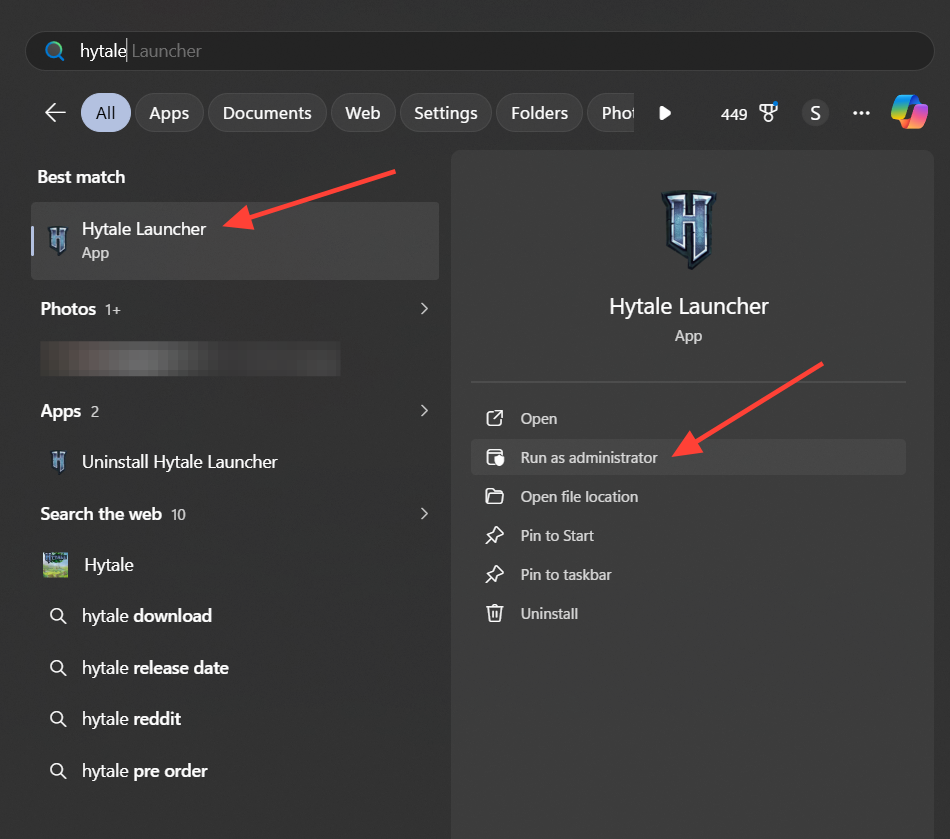
Step 3: Approve the User Account Control prompt. Once the launcher opens, try the installation again from the home screen.
Note: Running as administrator is mainly useful for diagnosing permission issues. If this consistently fixes the problem, consider adjusting the install path to a folder your normal user account can fully control, rather than relying on elevated rights every time.
When to try a different network or a VPN
There are cases where local configuration is fine but the route between your ISP and the Hytale patch servers is unstable. Symptoms include downloads that never start, or downloads that fail rapidly even after reinstalling and resetting the launcher.
Step 1: If possible, switch to a different network for a single install attempt. For example, move from home Wi‑Fi to a wired connection, or temporarily use a mobile hotspot.
Step 2: If a second network is not available or behaves the same way, test with a reputable VPN. Connect to a nearby region, then open the launcher and attempt the download again.
Step 3: Once the initial game download and first patch have completed successfully, you can usually disconnect the VPN and play normally. The heaviest load is during the first install; regular patch downloads are smaller.
Changing networks or using a VPN will not fix issues caused by antivirus, permissions, or corrupted launcher state, so combine this with the other fixes rather than relying on it alone.
Check for known launch issues and report persistent bugs
Hytale is explicitly launching in early access, which means rough edges are expected and patches will land quickly. The developers ask players to report bugs directly so launcher and download issues can be prioritized and fixed.
Step 1: After you have tried relaunching, resetting, reinstalling, checking security tools, and testing another network, head to the official Hytale support site at https://support.hytale.com if the launcher still fails.
Step 2: Submit a ticket with the exact error text (for example, the INTERNAL_ERROR stream message), the rough time it occurs, and any troubleshooting steps you have already taken. Include a launcher log if the support form provides a way to attach it.
Step 3: Join the Hytale community Discord from the link on https://hytale.com if you want real‑time confirmation that others are seeing the same issue. Community channels often surface widespread launcher problems before formal support updates arrive.
Once the initial rush of players subsides and the team has a chance to tune the patch infrastructure, launcher reliability should improve. For now, relaunching, resetting, watching your security tools, and being patient with the servers are usually enough to get Hytale onto your system.