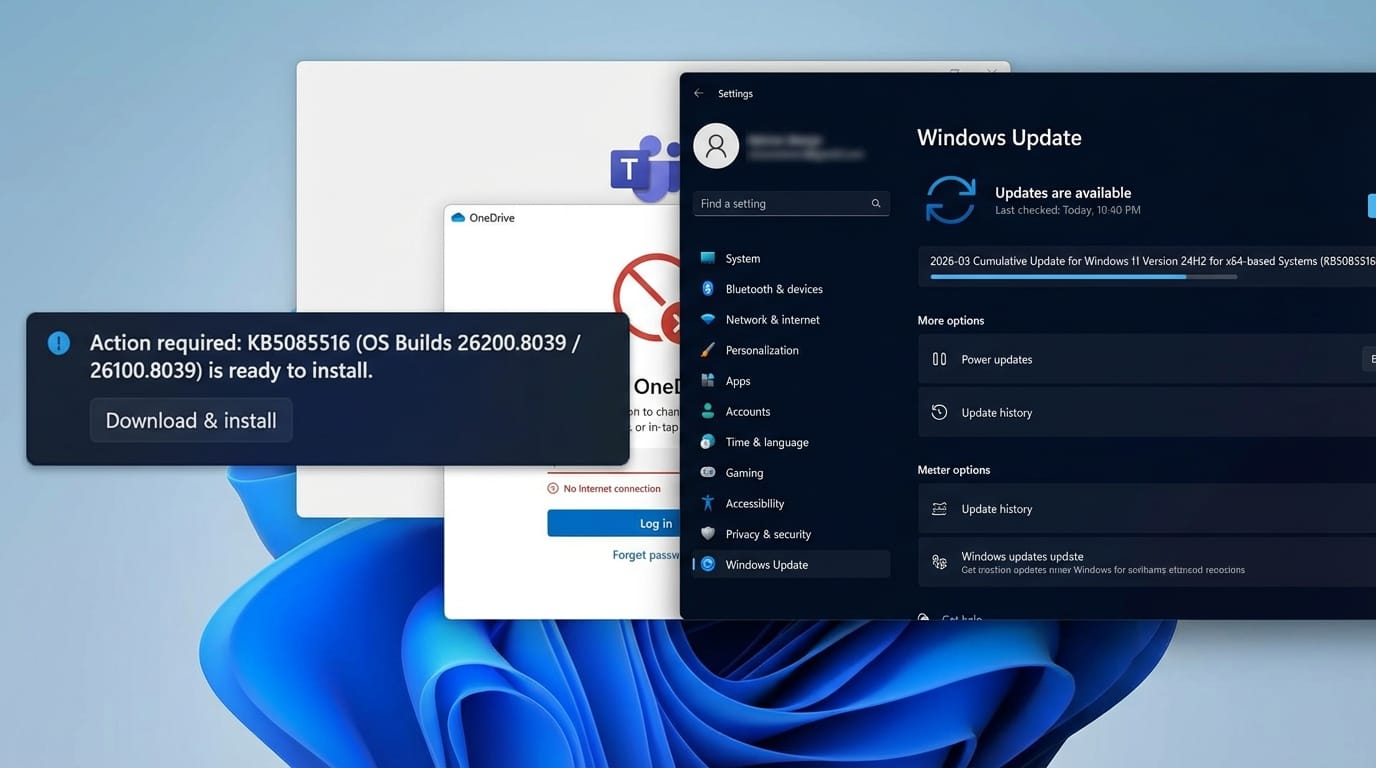
On March 10, 2026, Microsoft shipped KB5079473 as part of its regular Patch Tuesday cycle for Windows 11 versions 24H2 and 25H2. The update introduced several new features, but it also carried a significant side effect: some users began seeing a “no Internet” error whenever they tried to sign in to apps with a Microsoft account — even though their device was clearly online. Eleven days later, Microsoft released KB5085516, an emergency out-of-band (OOB) patch that specifically targets this authentication failure.
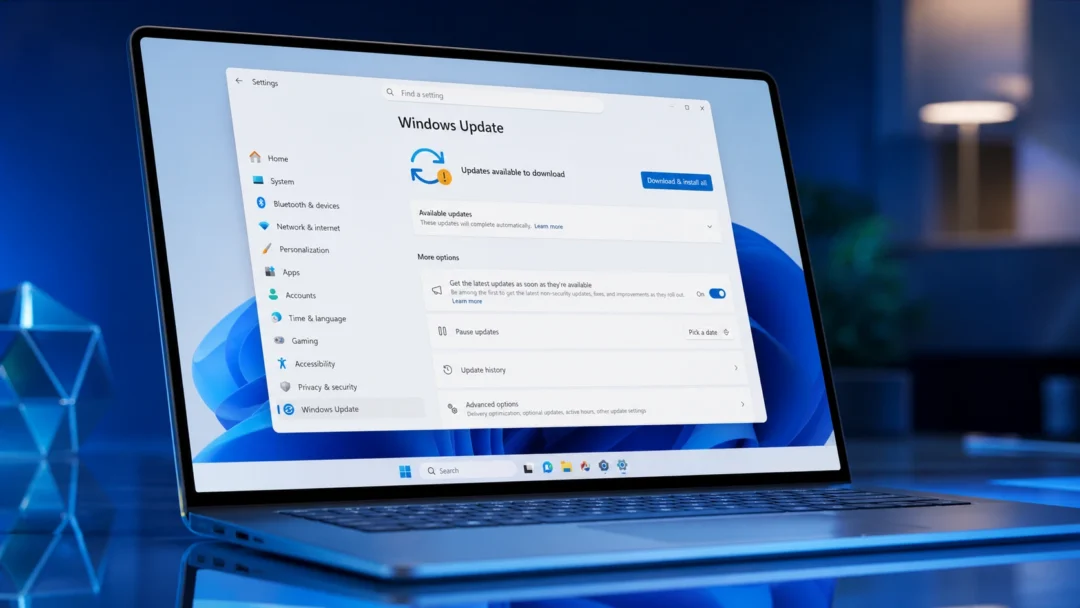
Quick answer: If you’re getting a false “no Internet” error when signing in to Microsoft apps after the March 2026 Patch Tuesday update, install KB5085516 through Settings → Windows Update → Download & install. The patch is optional and won’t download automatically unless you have “Get the latest updates as soon as they’re available” enabled.
What KB5079473 broke and who is affected
The bug introduced by KB5079473 (OS Builds 26200.8037 / 26100.8037) disrupts the Microsoft account authentication flow at the OS level. When a device enters a specific network connectivity state, Windows incorrectly reports that no internet connection exists. That false signal propagates to every app that relies on a Microsoft account for sign-in, including Microsoft Teams (free), OneDrive, Outlook, Word, PowerPoint, Excel, and Copilot. In Office apps, the programs themselves still launch, but cloud-dependent features like downloading fonts or templates fail silently because the apps cannot reach Microsoft’s servers.
User reports indicate the problem extends beyond the headline apps. The Microsoft Store and Feedback Hub also return error code 0x800704cf with the message “You’ll need the Internet for this. It doesn’t look like you’re connected to the Internet.” Standard troubleshooting steps — resetting network settings, verifying TLS configurations, running wsreset.exe, switching DNS providers, or connecting through a VPN — do not resolve the issue because the fault sits inside the Windows installation itself, not in individual apps or network hardware.
Microsoft has noted that the problem can sometimes resolve on its own when the device’s network connectivity state changes. However, restarting the PC without an active internet connection may push it back into the broken state, making the fix unreliable without the patch.
KB5085516 build numbers and scope
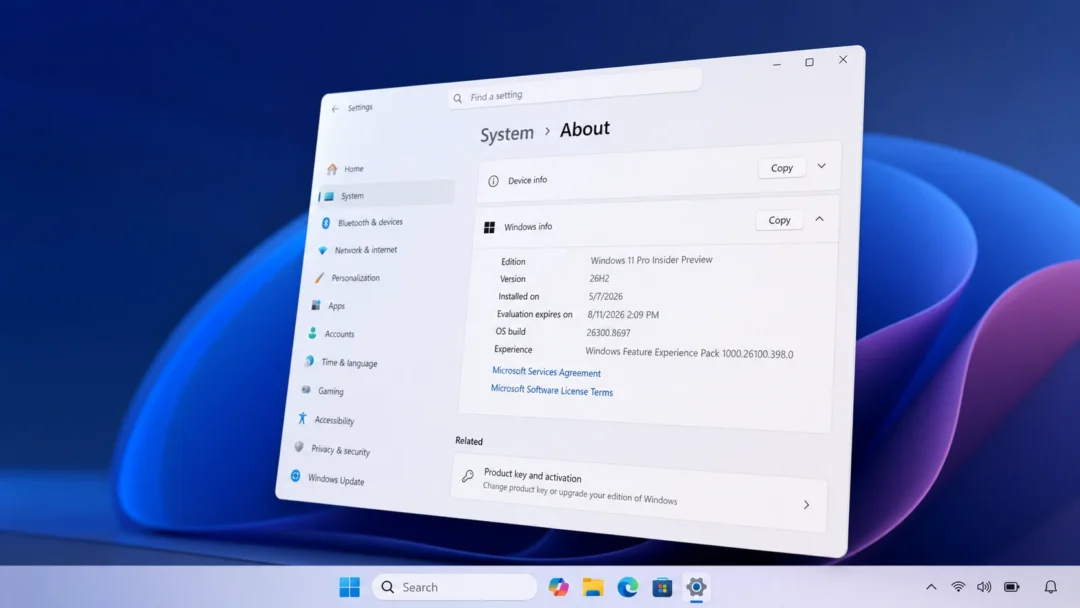
KB5085516 is a cumulative out-of-band update released on March 21, 2026. It rolls up all previous security and non-security changes from KB5079473 and adds the targeted fix for the Microsoft account sign-in failure. It applies to both current feature update branches of Windows 11.
| Windows 11 version | New OS build after KB5085516 |
|---|---|
| 25H2 | 26200.8039 |
| 24H2 | 26100.8039 |
The update also ships a servicing stack update (KB5083532, version 26100.8035) bundled inside the same package, along with refreshed AI component versions for Image Search, Content Extraction, and Semantic Analysis (all updated to 1.2602.1451.0). Microsoft is not currently aware of any new issues introduced by this patch.
Install KB5085516 through Windows Update
Install KB5085516 from the Microsoft Update Catalog
If Windows Update itself is giving you trouble — some users have reported error 0x80073712 (“The component store has been corrupted”) or the update rolling back during installation — you can grab the standalone installer instead.
.msu file that matches your architecture (x64 or ARM64)..msu file and follow the prompts. The Windows Update Standalone Installer will handle the rest. Restart your PC when prompted.IT admin deployment with Intune or Windows Autopatch
Enterprise administrators managing fleets through Microsoft Intune can push KB5085516 as an expedited quality update. The same applies to organizations using Windows Autopatch, which supports expedited deployment through the Microsoft Graph API. Because the bug only affects personal Microsoft account sign-ins and not Entra ID authentication, most corporate environments are unlikely to see the symptom — but mixed-use devices or BYOD scenarios may still warrant the patch.
Removing KB5085516 if needed
Because the update ships as a combined servicing stack update (SSU) and cumulative update (LCU), you cannot uninstall it using the standard wusa.exe /uninstall method. Instead, use the DISM command-line tool. First, identify the LCU package name:
DISM /online /get-packages
Find the LCU package name
Then remove it with:
DISM /online /Remove-Package /PackageName:[LCU_PACKAGE_NAME]
Remove the LCU
Note that the SSU portion cannot be removed after installation. Microsoft also recommends against uninstalling security updates in general, since doing so re-exposes the system to previously patched vulnerabilities.
Should you install it?
If you’re running Windows 11 24H2 or 25H2 with KB5079473 already installed and you’ve experienced the “no Internet” sign-in error in any Microsoft app, KB5085516 is the direct fix. There’s no workaround that reliably resolves the problem without this patch. If your system has been stable and you haven’t noticed any sign-in issues, the update is safe to skip for now — its contents will be folded into the next scheduled cumulative update anyway.
The broader pattern is worth noting. The January 2026 update (KB5074109) caused blue-screen crashes and GPU performance problems on some systems. The March 2026 Patch Tuesday release was considerably less disruptive, but the Microsoft account sign-in bug still required an emergency fix within two weeks. For users who prefer to wait before installing monthly updates, this cycle reinforces the value of pausing updates briefly and monitoring community feedback before committing.