

Bot lobbies in Fortnite Chapter 7 let you practice mechanics, complete challenges, or earn easier wins by matching with AI-controlled opponents instead of human players. A specific combination of settings forces the game to fill your match with bots, but the method only works in Solo mode. Duo, Trio, and Squad modes require cross-platform play enabled, so attempting this technique in those modes will redirect you to the settings menu.
Quick answer: Set matchmaking region to Auto, disable cross-platform play, change friend invite permission to "No One", set party joinability to "Invite Only", and enable a 5-second hidden matchmaking delay. Queue Solo mode only.
Configure matchmaking and privacy settings
Open the main menu and navigate to Settings. The following adjustments work together to reduce the pool of available human players, prompting the matchmaking system to fill slots with bots.
Step 1: Select the GAME tab (gear icon). Scroll to the LANGUAGE AND REGION section. Set Matchmaking Region to AUTO. Apply the change.
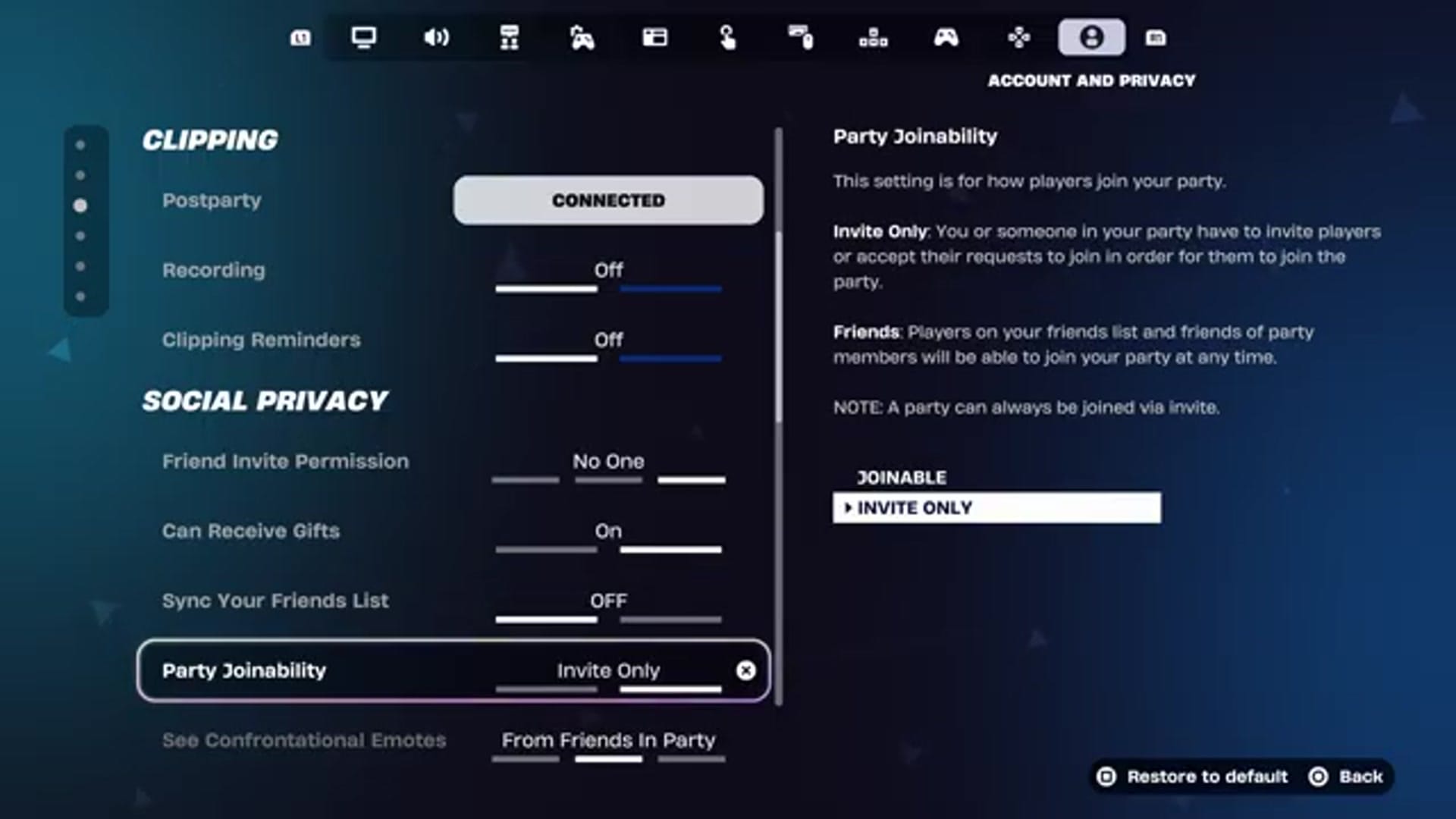
Step 2: Switch to the ACCOUNT AND PRIVACY tab (person icon). Under SOCIAL PRIVACY, change Friend Invite Permission from "Anyone" to No One. This removes pending invites and restricts who can send friend requests.
Step 3: In the same section, set Party Joinability to Invite Only. This controls how other players join your party.
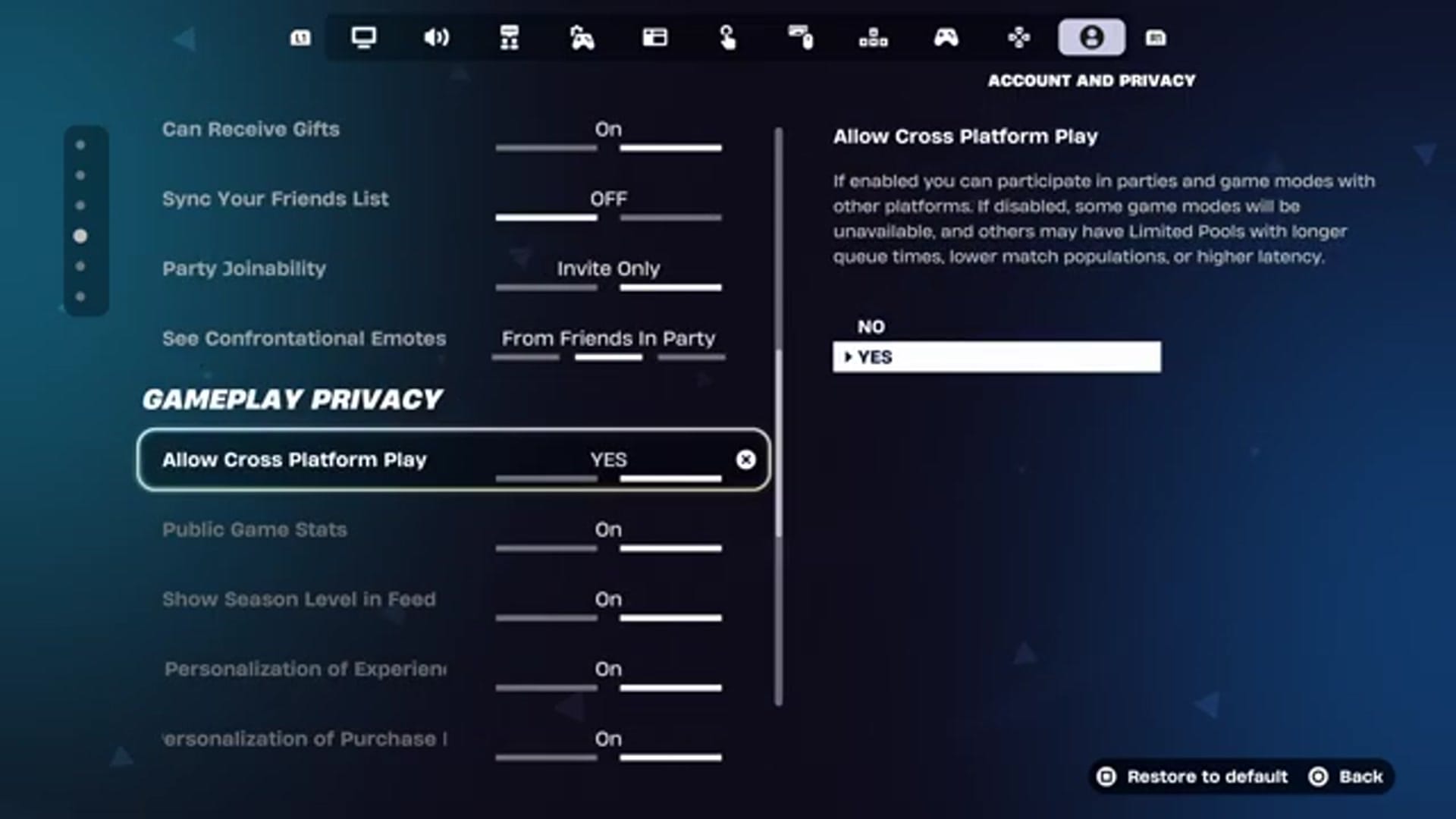
Step 4: Scroll down to the GAMEPLAY PRIVACY section. Change Allow Cross Platform Play to NO. A prompt will appear explaining that disabling this setting limits you to players on the same platform. Confirm the change.
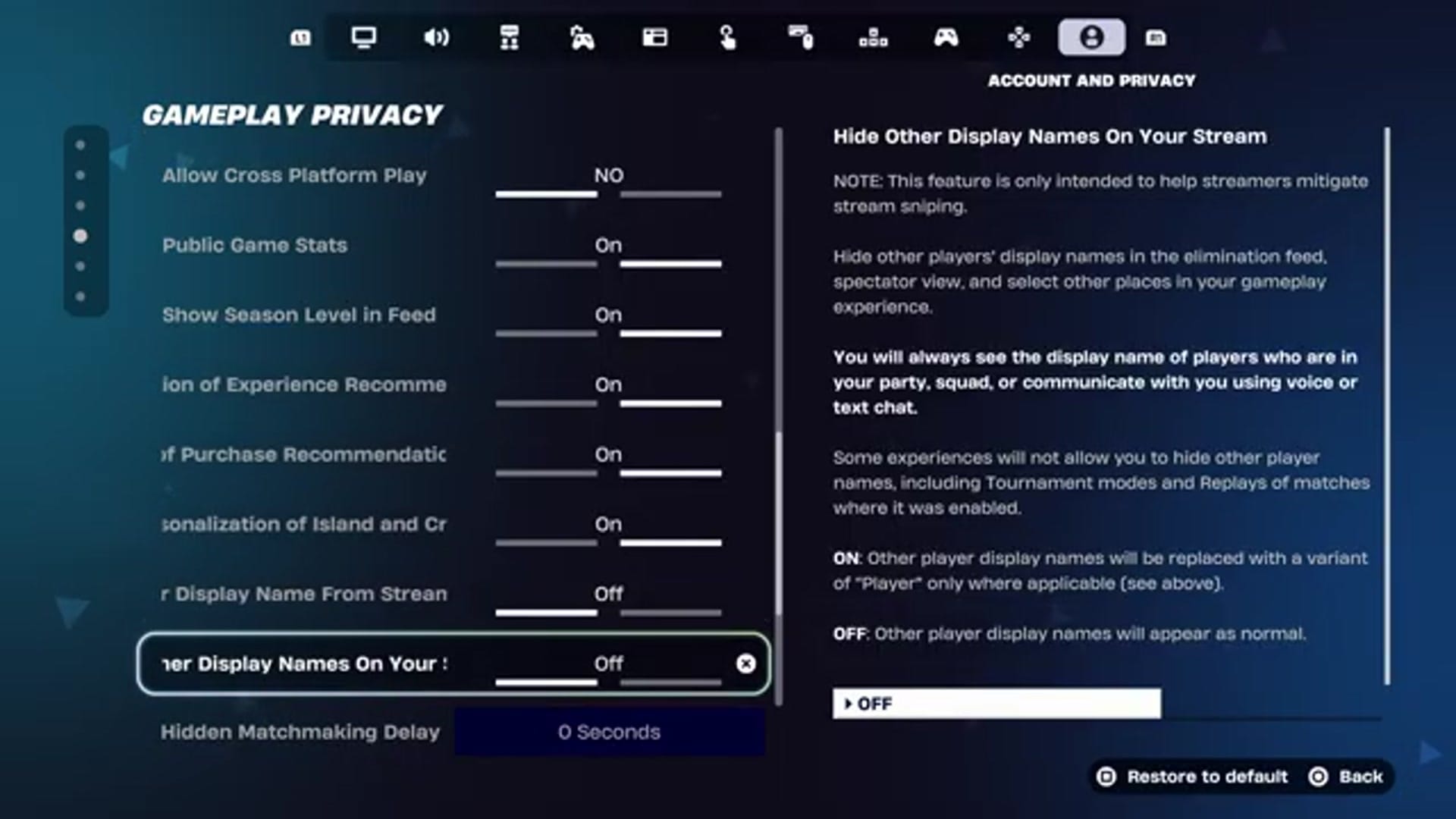
Step 5: Scroll to Hidden Matchmaking Delay at the bottom of the privacy settings. Change the delay from 0 Seconds to 5 Seconds. This delay helps prevent joining others on the same console network. Apply the setting.
Queue Solo mode
Return to the main lobby. Open the mode selection menu and choose Solo. Do not attempt Duo, Trio, or Squad; those modes require cross-platform play enabled. When you select a mode that needs cross-platform play, a GO TO SETTING button replaces the "PLAY" button, redirecting you to the cross-platform toggle.
Step 1: With Solo selected, press PLAY. The status text above the button will change from "Finding Server" to Hidden Matchmaking Delay with a countdown. This confirms the settings are active.
Step 2: Wait for the countdown to finish and the match to load. The lobby will contain a higher proportion of AI opponents. You can cancel matchmaking at any time before the match starts.
Verify bot presence
Once in the match, bot behavior is distinct from human players. Bots move predictably, build simple structures, and react slowly to threats. They often stand still or walk in straight lines. Eliminating multiple opponents quickly without resistance indicates a bot-heavy lobby. The match will feel noticeably easier than standard Solo games.
Revert settings for normal matchmaking
To return to standard matchmaking with human players, reverse the changes. Open Settings and navigate to the ACCOUNT AND PRIVACY tab.
Step 1: Under SOCIAL PRIVACY, change Friend Invite Permission back to your preferred setting (for example, "Anyone").
Step 2: Change Party Joinability back to your preference.
Step 3: Under GAMEPLAY PRIVACY, set Allow Cross Platform Play to YES.
Step 4: Scroll to Hidden Matchmaking Delay and change it back to 0 Seconds. Apply the changes.
You can now queue any mode with normal matchmaking.
This method exploits the matchmaking system's reliance on cross-platform pools and privacy restrictions. Disabling cross-platform play limits the available player base to your console or platform, and the privacy settings further narrow the pool. The 5-second delay ensures you do not accidentally join a friend or nearby player on the same network. The technique works consistently in Solo mode across PC, Xbox, PlayStation, and Nintendo Switch. Duo, Trio, and Squad modes remain unavailable with cross-platform play disabled, so the method is strictly for Solo practice or challenge completion.