

Switching between AI assistants becomes frustrating when you lose months or years of accumulated context. Claude now offers a dedicated memory import feature that lets you transfer your stored memories and preferences from ChatGPT, Google Gemini, Microsoft Copilot, or other AI services. The process works on both free and paid Claude accounts and typically takes under five minutes for the core transfer.
Quick answer: Go to claude.ai/import-memory, copy the provided extraction prompt, paste it into ChatGPT (or your current AI), copy the output, then paste it back into Claude and click "Add to memory."
Use Claude's Official Memory Import Tool
Claude has a dedicated import page that generates the exact prompt you need. You don't have to write anything yourself or figure out what to ask your old AI for.
Step 1: Open your Claude account at claude.ai. Click your profile picture in the bottom-left corner, then go to Settings → Capabilities. Look for the "Import memory from other AI providers" option and click Start import. Alternatively, navigate directly to claude.ai/import-memory.
Step 2: A window appears with two fields. The first contains a pre-written extraction prompt. Click the Copy button to grab it. The prompt asks your current AI to list every stored memory, personal detail, response preference, project, tool, and workflow it has learned about you, formatted as dated entries in a single code block.
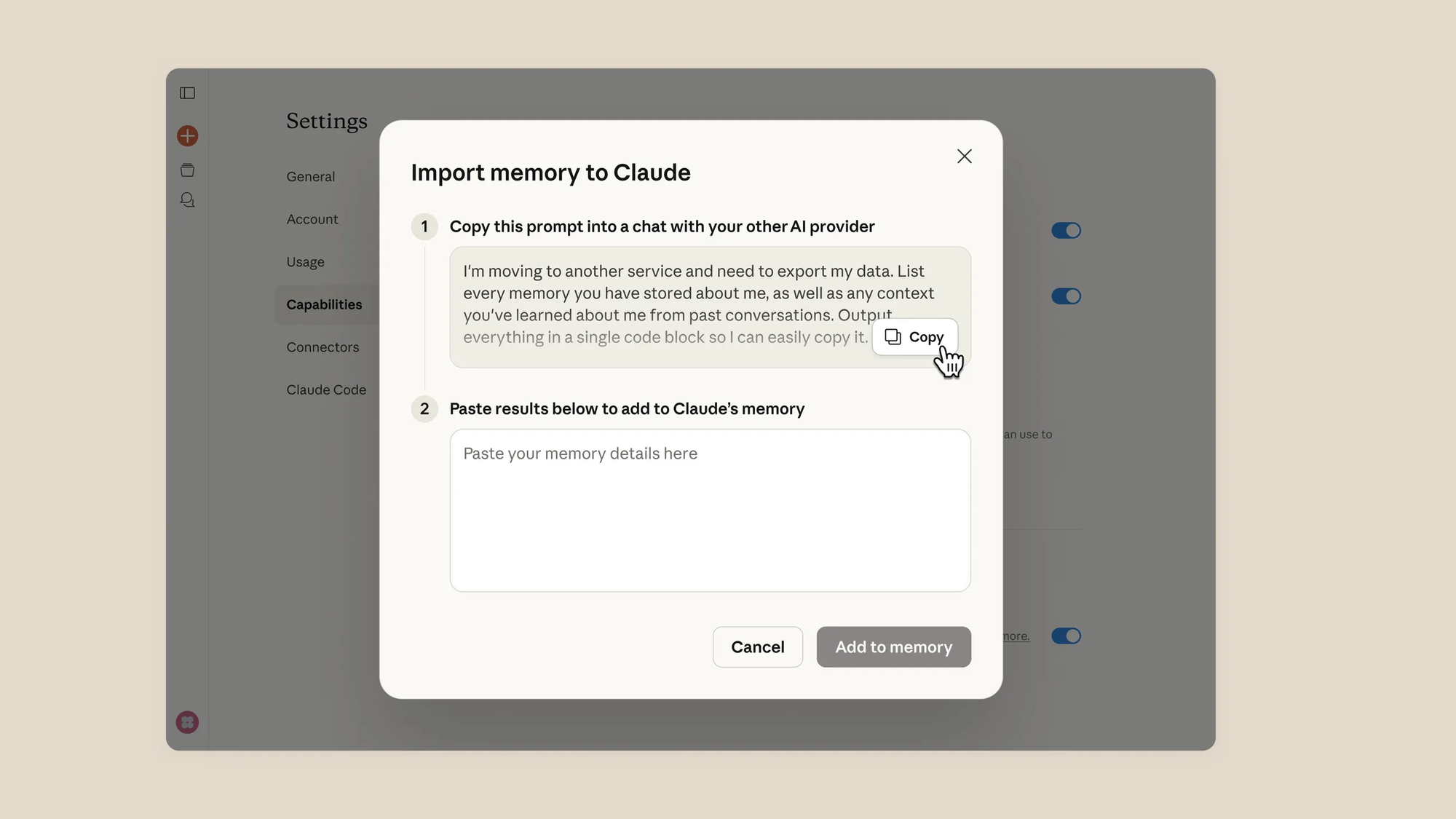
Step 3: Open ChatGPT (or whichever AI you're migrating from) and paste the copied prompt into a new conversation. Submit it and wait for the full response. The AI will output a structured list of everything it has stored about you.
Step 4: Copy the entire output from your old AI. Return to Claude's import window and paste it into the second field. Click Add to memory. After a few seconds, Claude displays a formatted list of the memories it has stored.
Note: Imported memories can take up to 24 hours to fully propagate, since Claude processes memory updates in daily synthesis cycles. You can verify what stuck by opening a new chat and asking Claude what it knows about you.
Get Better Results from ChatGPT Before Exporting
The default extraction prompt works, but ChatGPT sometimes returns only a handful of memories if its settings aren't configured to dig deeper. Before running the prompt, open ChatGPT and go to your profile picture → Personalization. Make sure Reference saved memories, Referenced browser memories, and Reference chat history are all turned on.
Switching ChatGPT's model also helps. In the model picker, select a thinking-capable model (such as one with extended reasoning) rather than the default. Thinking models cycle through more retrieval passes and tend to surface significantly more stored context about you. In testing, users have found that a thinking model pulls out substantially more memories than the standard model does from the same account.
If you also have Custom Instructions set up in ChatGPT, copy those separately. They contain explicit preferences and rules you defined manually, and the extraction prompt may not capture them completely.
Review and Edit Before Importing
Before pasting everything into Claude, it's worth spending a few minutes reading through the exported memories. AI memory systems accumulate outdated assumptions, incorrect inferences, and context from projects you finished long ago. Each memory appears as a separate text string, so you can delete individual lines in any text editor before importing.
This cleanup step matters because Claude will treat everything you import as current, accurate context. Removing stale or wrong entries means Claude starts with a cleaner picture of who you are and how you work.
Migrate ChatGPT Projects to Claude Projects
If you organized work inside ChatGPT Projects — with uploaded files, custom instructions, and topic-specific conversations — those don't transfer automatically through the memory import. Each project needs to be moved individually.
Step 1: Open the ChatGPT project you want to migrate. Run the same extraction prompt inside that project's chat, using a thinking model. This pulls out project-specific memories and context rather than your general account memories.
Step 2: In Claude, create a new Project from the left sidebar. Give it a matching name (for example, "Work Context" or "Product Strategy").
Step 3: Paste the extracted project context into the Project Instructions field. You can also upload any relevant documents that were attached to the ChatGPT project. Every conversation inside that Claude Project will now inherit this context automatically.
After roughly 12 hours, Claude's memory system processes the project-level information, giving you persistent project memories that carry across sessions within that workspace.
Deep Migration for Heavy Users (Full Chat History)
The official import tool handles stored memories well, but it doesn't transfer your full conversation history. If you've used ChatGPT extensively for years and want Claude to understand your thinking patterns, decision-making style, and communication preferences at a deeper level, there's a more thorough approach using the Claude desktop app.
Step 1: In ChatGPT, go to Settings → Data Controls → Export Data. Request a full export. This can take anywhere from a few hours to a full day depending on how much history you have. You'll receive a download link via email containing a zip file.
Step 2: Extract the zip file. Inside, locate the file called chat.html — it contains all your conversations in a single HTML file. For long-time users, this file can be over 100 MB.
Step 3: Open the Claude desktop app (Cowork) and point it at the exported folder, or attach the chat.html file directly to a conversation.
Step 4: Rather than asking Claude to memorize raw chat logs, prompt it to create a condensed cognitive profile. Something along these lines works well:
You're an expert at analyzing conversation history and extracting durable, high-signal knowledge. Review this chat history and identify my core personality traits, working style, active projects, decision-making patterns, and preferences.Processing a large history file takes roughly ten minutes. The output is a distilled abstraction of who you are based on years of conversations — your communication style, recurring topics, how you approach problems, and what you care about.
Step 5: Go to Settings → Capabilities → Memory in Claude and paste the entire abstraction. Add a note for context, such as "Cognitive profile synthesized from prior chat history." This gives Claude a richer understanding than the standard memory import alone.
This method won't replicate every conversation, but it captures roughly 80% of the contextual value from years of usage. You can always return to the raw export folder in the desktop app if you need to reference something specific.
Delete Imported Memories if Needed
If you decide Claude's imported memories are wrong or you want to start fresh, go to Settings → Capabilities → Memory. Hover over the "Memory from your chats" section and click the trash icon to clear everything. You can also turn off the "Generate memory from chat history" toggle to prevent Claude from accumulating new memories going forward. Alternatively, simply tell Claude in a conversation to remove all stored memories, and it will comply.
The memory import covers the fastest path for most people switching to Claude. Power users with years of history benefit from combining the official import with the deeper chat-export method through the desktop app. Either way, the goal is the same: Claude picks up where your previous AI left off, so you spend less time re-explaining yourself and more time getting work done.