

Hytale is a sandbox roleplaying game that mixes open-ended building with structured adventure. Worlds are procedurally generated, with biomes, dungeons, towers, and a wide range of creatures. You can explore and fight in a survival-style campaign, switch into powerful creative tools to build and script, or connect with others through co-op sessions and dedicated servers.
Hytale Early Access status and expectations
Hytale entered Early Access in January 2026. The focus at this stage is on core systems: world exploration, responsive combat, and building, along with tools for creators and community server hosts.
The Early Access build is intentionally unfinished. Players should expect:
- Bugs and instability as features are added and refined.
- Balance changes and content revisions over time.
- Missing accessibility features, including the absence of controller support for now. Details are described on the official accessibility information pages.
The store clearly labels this phase as work in progress. Buying into Early Access means helping test systems and providing feedback while development continues.
Hytale Early Access editions and what they include
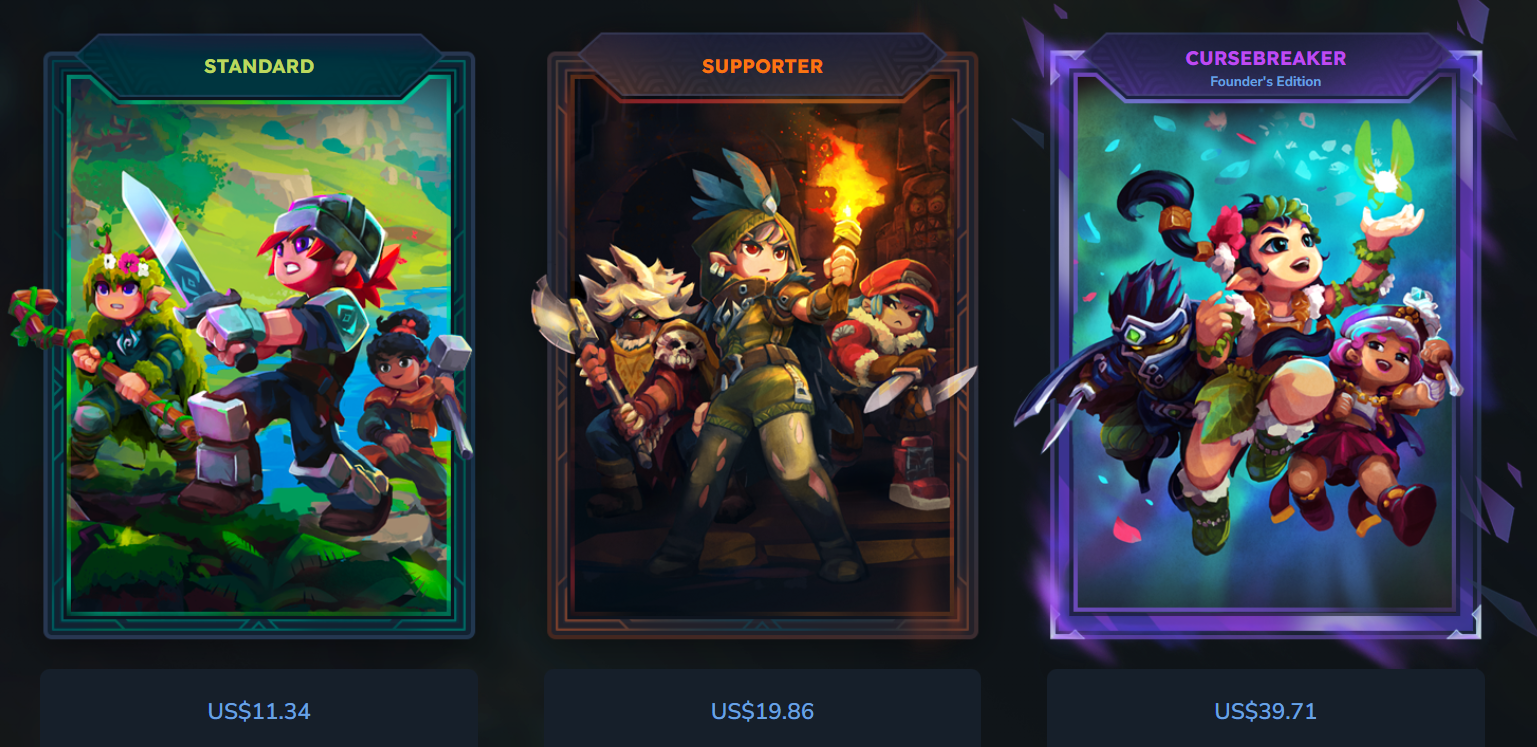
During Early Access, Hytale is sold in three limited editions. Each one grants game access plus cosmetic rewards and a lock on your chosen username. All edition perks remain on your account after Early Access ends, even though the editions themselves are only sold during this period.
| Edition | Main inclusions | Notes |
|---|---|---|
| Standard |
Game access, username reservation, an exclusive Standard cape, and several cosmetic outfits such as the Forest Guardian, Voyager, and Savanna Scout sets. |
Entry-level option for playing the game with a starter bundle of cosmetics. |
| Supporter |
Everything in Standard, plus exclusive Supporter capes and additional outfits including the Featherbound, Scavenger, and Arctic Scout sets, along with cosmetic accessories like Explorer Goggles. |
Targets players who want to contribute more and receive extra cosmetic rewards, with more items planned to be revealed. |
| Cursebreaker |
Everything in Standard and Supporter, plus exclusive Cursebreaker capes and high-end sets such as Hope of Gaia, Void Hero, Pop Star, and Voidbearer. |
The most complete Early Access bundle, with the largest selection of cosmetics and additional rewards announced over time. |
All three editions are described as limited to the Early Access window, but once unlocked, their items are attached permanently to your account.
System requirements for Hytale (minimum and recommended)
Hytale is designed to run on a wide range of modern PCs and Apple Silicon Macs, but there are clear targets for 1080p performance.
| Target | Minimum (1080p, ~30 FPS, 192 view distance) | Recommended (1080p, ~60 FPS, 384 view distance) |
|---|---|---|
| Operating system |
Windows 10 x64 (version 1809) or Windows 11, Linux x64 with Kernel 6.15, or Apple Silicon Mac running macOS Tahoe (26.0). |
Same operating systems as the minimum specification. |
| CPU |
Intel Core i5-7500, AMD Ryzen 3 1200, or any Apple M1 chipset, or an equivalent processor. |
Intel Core i5-10400, AMD Ryzen 5 3600, or any Apple M2 chipset, or an equivalent processor. |
| RAM | 8 GB |
16 GB |
| GPU |
Integrated graphics such as Intel UHD Graphics 620, AMD Radeon Vega 6, or Apple M1, or dedicated cards from the NVIDIA GTX 900 series, AMD Radeon 400 series, or Intel Arc A-series. |
Integrated graphics such as Intel Iris Xe, AMD Radeon 660M, or Apple M2, or the same dedicated families as the minimum specification. |
| Storage | Solid-state drive with at least 10 GB free space. |
Solid-state drive with at least 20 GB free space. |
| Network |
2 Mbit/s download bandwidth for multiplayer. An internet connection is required to download the game and for periodic authentication. Offline play is supported between authentication checks. |
8 Mbit/s download bandwidth for a smoother multiplayer experience. The same internet and offline play conditions apply. |
The game requires a GPU and drivers that support at least OpenGL 4.1. Future builds may also rely on Vulkan 1.3 and DirectX 12, so keeping drivers updated is important, especially on older hardware.
Create a Hytale account and purchase Early Access
During Early Access, Hytale is distributed through the official store rather than storefronts like Steam. A Hytale account is required to buy and access the game.
Step 1: Open the official store at https://store.hytale.com. Use the Login or Register options there to sign in or create a new Hytale account.
Step 2: Choose one of the Early Access editions (Standard, Supporter, or Cursebreaker) and complete the purchase flow. The edition you buy determines which cosmetic rewards and username reservation you receive, but all of them unlock the game itself.
Step 3: After payment is confirmed, ensure that your account shows access to the game. From here, you will be able to download the client and start playing once installation is complete.
Download and install Hytale
Once your account owns an edition, you can install the game on a compatible PC or Apple Silicon Mac.
Step 1: Go to the Download page at https://hytale.com/download while signed in with your Hytale account. Select the installer that matches your operating system.
Step 2: Run the installer and follow the prompts to complete installation on your chosen drive. When you launch Hytale for the first time, sign in with your Hytale account so the game can authenticate your access.
Step 3: After authentication succeeds, you can create worlds, adjust settings, and begin playing. The game may occasionally require an online check to revalidate your license, but singleplayer worlds and compatible modes can be played offline between these checks.
Playing solo in Hytale
Hytale’s core experience is a procedurally generated world that combines exploration, combat, and building. Starting a new world places you into a landscape filled with biomes, structures like towers and dungeons, and creatures with different behaviors.
In survival-style play, you gather resources, craft tools and equipment, and push deeper into the world to uncover secrets and loot. Combat is designed to feel responsive, so positioning, timing, and equipment choices matter when fighting tougher enemies or bosses.
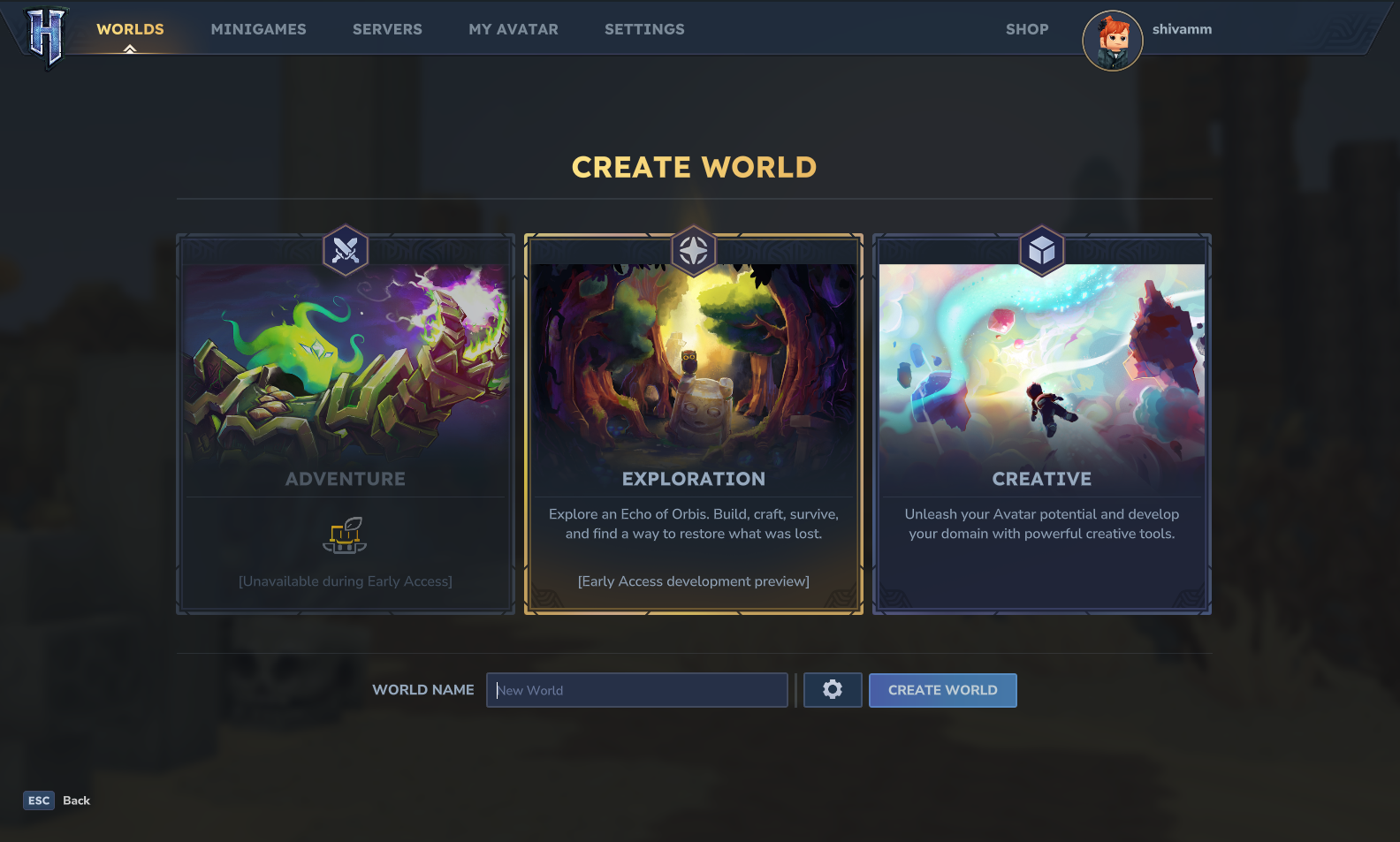
For players who prefer building, there is a Creative Mode that can be enabled in a world. In creative play you can fly freely, place and remove blocks without resource limits, and experiment with explosions and other tools to sculpt terrain or construct detailed buildings. Creative features are central to Hytale’s design and are intended to support everything from small personal projects to complex custom content.
Host a co-op world for friends in Hytale
One of the simplest ways to play with friends is to turn an existing singleplayer world into an online session and share a connection code. Hytale handles network configuration automatically when possible through UPnP.
Step 1: Launch Hytale and load the singleplayer world that you want to share. Wait until the world has finished loading before opening any menus.
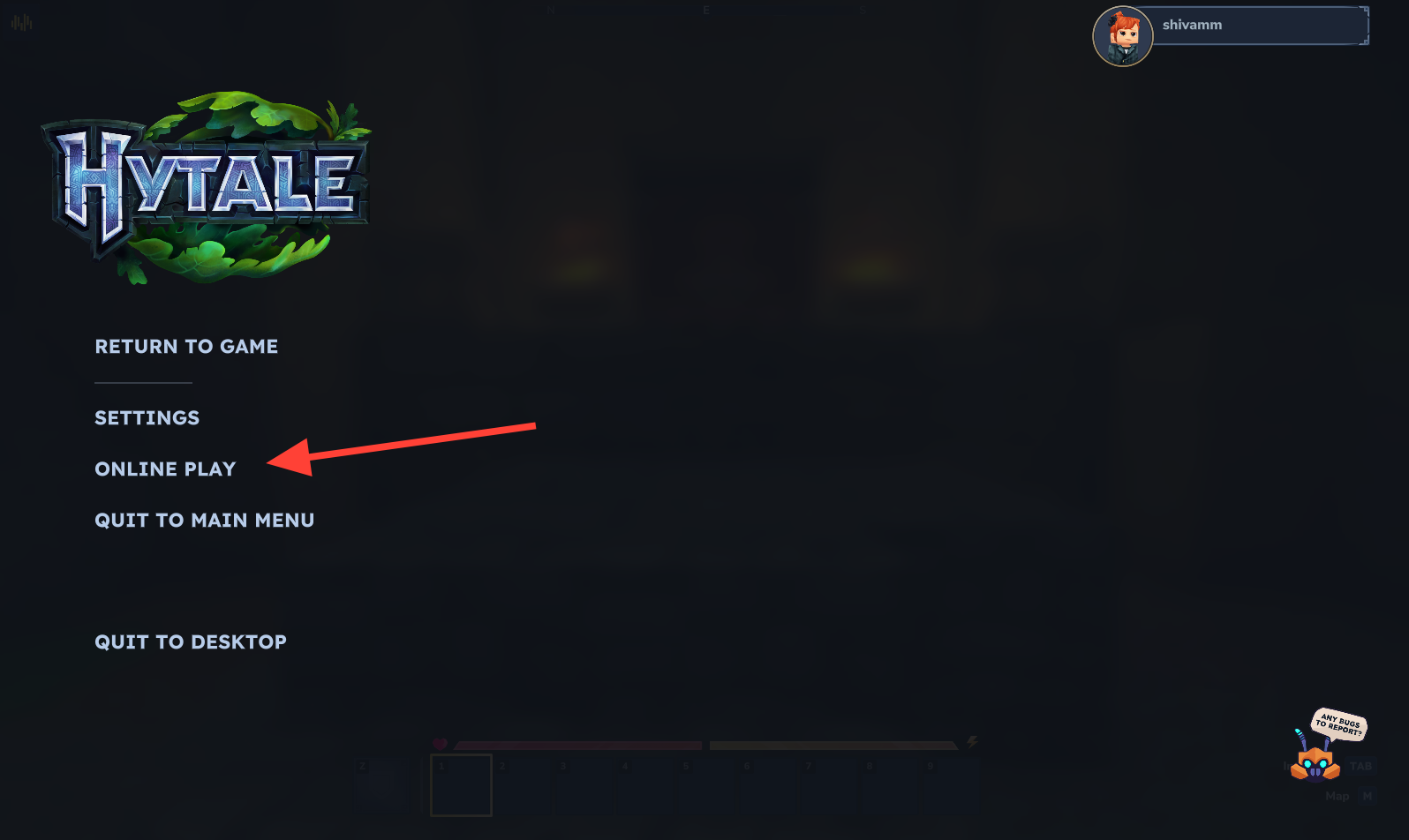
Step 2: Press the Escape key to open the pause menu. From there, select the option labeled “Online Play” to access multiplayer settings for that world.
Step 3: In the Online Play section, enable the setting “Allow Other Players to Join.” This tells the game that this world can accept incoming connections from other players.
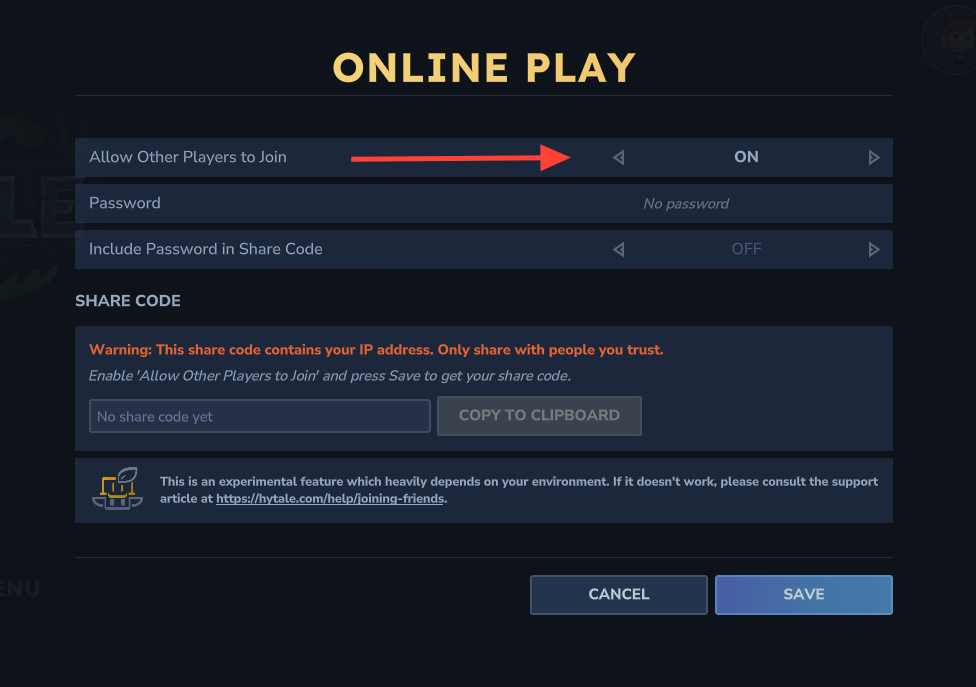
Step 4: (Optional) Set a password for your session if you want an extra layer of privacy. You can also toggle the option to include the password inside the share code, so invited friends do not need to type it separately.
Step 5: Save the changes. Hytale will then attempt to negotiate a connection with your router using UPnP. During this process, the game determines how other players can reach your session.
Step 6: Once the negotiation succeeds, the interface displays a share code, a connection status line such as “Connected via UPnP,” and your NAT Type. The share code uniquely identifies your session for others to join.
Step 7: Use the “Copy to Clipboard” button to copy the share code, then send it directly to friends you trust. The share code includes your IP address, so it should not be posted publicly or shared with strangers.
Join a friend’s world in Hytale
Friends can join your co-op world, or you can join theirs, using the share code generated by the host.
Step 1: From Hytale’s main menu, choose the “Servers” option. This menu covers both share-code sessions and dedicated servers.
Step 2: Select “Join via Code.” A field will appear where you can enter or paste the code from your friend.
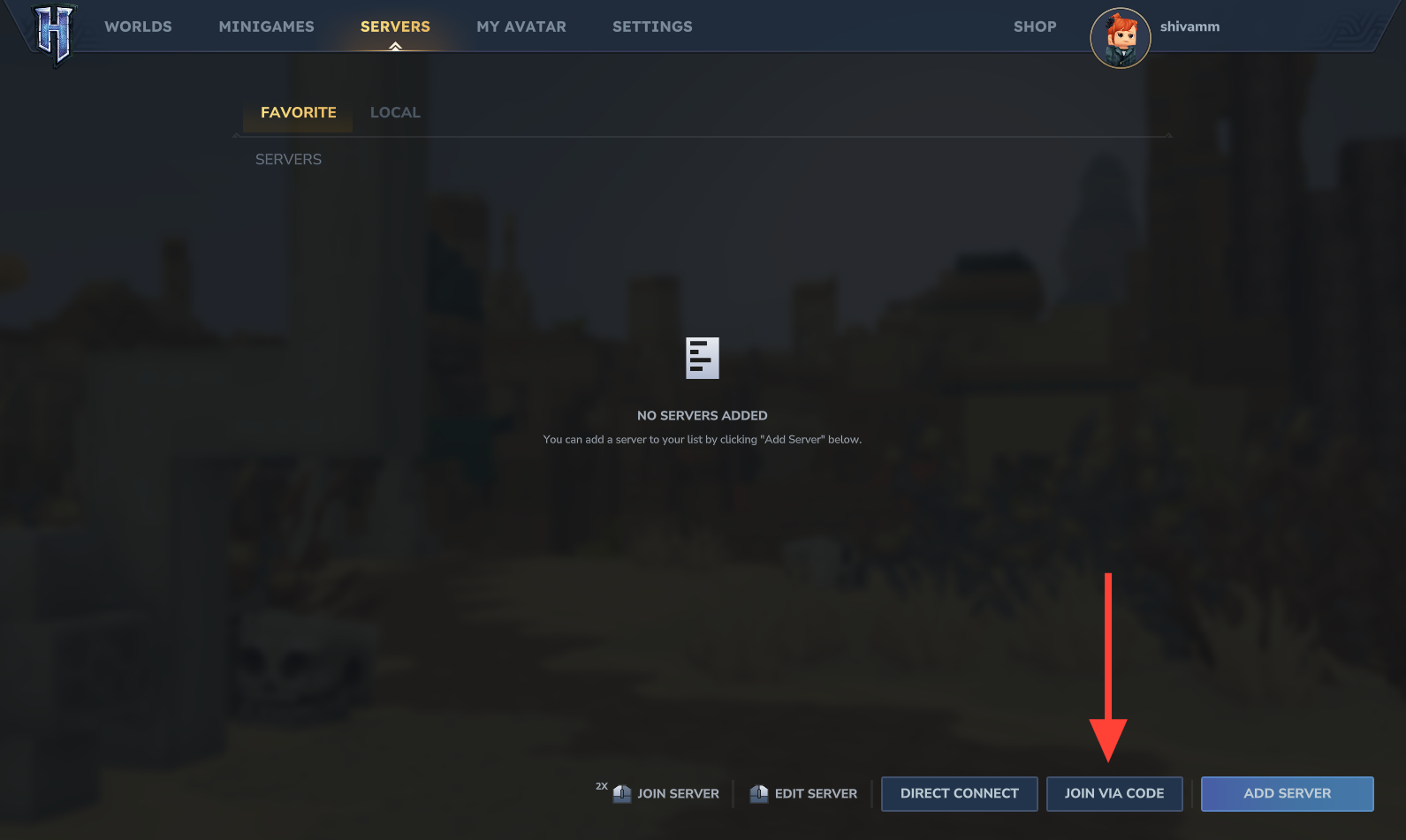
Step 3: Paste the share code you were given. If the host required a password and did not embed it in the code, enter the password when prompted.
Step 4: Click “Connect” and wait while the game establishes a connection. If the host is online and their session is reachable, you will load into their world and can begin playing alongside them.
Use dedicated servers in Hytale
Beyond small co-op sessions, Hytale supports dedicated servers. Dedicated servers run independently of any specific player’s client, allowing persistent worlds that continue existing even when no one is currently online.
Dedicated servers can be rented from hosting providers that are launch-verified for Hytale, including companies such as Nitrado, Apex Hosting, GPORTAL, Shockbyte, and Dathost. These services handle hardware, uptime, and network routing for you. The typical flow is to rent a server from one of these providers, configure it through their control panel, and then give your friends the address or join details they provide.
Because each hosting provider has its own interface and pricing model, the exact steps differ between services. However, all of them present Hytale-specific options and are set up to support the game’s dedicated server software.
Host your own Hytale dedicated server
Players who prefer full control can run their own Hytale server on personal or rented hardware. The development team maintains a dedicated server manual that explains requirements and setup in depth.
Step 1: Open the official Hytale Server Manual. Review the sections on hardware, operating system, and network prerequisites so you understand what the server software expects.
Step 2: Prepare a machine that meets or exceeds those requirements. This can be a home server, a spare PC, or a virtual machine from a cloud provider, as long as it has sufficient performance and stable network connectivity.
Step 3: Follow the installation and configuration instructions in the manual to install the server software, configure world settings, and open the necessary ports. When the server is running, share its connection details with trusted players so they can add it through the Servers menu in the Hytale client.
Playing during Early Access
Hytale’s Early Access phase aims to validate core systems and tools rather than present a final, polished product. The world generator, combat, building systems, and creative and modding tools are all in active development, and their behavior will evolve across updates.
Because of this, it is wise to expect occasional instability, especially around major updates or on launch days when many players are connecting at once. Progression paths, balance, and even world generation rules may change from one version to the next. Treat long-term worlds and builds with that in mind, and keep an eye on official update notes when patches are released.
Once installed and authenticated, Hytale can be enjoyed solo, in small invite-only sessions using share codes, or on persistent dedicated servers with larger communities. Choosing the right way to play depends on whether you value a private adventure, collaborative building with a few friends, or a continually running world that is always there to return to.