

Roblox has turned the old “Friends” system into a broader layer called Connections and added a more selective category on top of it: Trusted Connections. That extra layer is what unlocks Party Voice and chat without filters for most teens, and it comes with strict age checks and real-world ties.
This walkthrough focuses on what Trusted Connections are, who can use them, and the exact paths Roblox offers to add them.
What Trusted Connections are on Roblox
Connections are the standard mutual relationships on Roblox. Trusted Connections are a smaller subset inside that list — people you say you know and trust. Both sides have to opt in; if either player declines or later removes the status, neither side sees the other as a Trusted Connection.
Trusted Connections are available only to users who are both:
- Age-checked as 13 or older, and
- Eligible in their region for the feature rollout.
Once that’s in place, Trusted Connections are what unlock expressive chat features for most teens, including Party Voice and chat without filters in eligible chats and Parties.
Age checks you need before adding Trusted Connections
Trusted Connections sit behind Roblox’s age estimation and verification system. Roblox groups accounts into “under 13”, “13+”, and “18+”, and those labels determine who you can connect to and which chat modes you can use.
Age estimation works like this:
- You take a short selfie-style video.
- A machine learning model estimates your age and assigns an age group to your account.
- If it cannot confidently estimate, your age stays unconfirmed and you do not get Trusted Connections.
- If it estimates you as under 13, Roblox will lock you to the under‑13 group and remove access to teen-and-up features.
Users 13+ can also confirm their age through ID verification. Some support flows now expect both ID verification and facial age estimation before Trusted Connections are unlocked for an account.
Without one of these checks in place, you can still have regular Connections, but not Trusted Connections or the teen/adult chat modes that rely on them.
How Trusted Connections interact with expressive chat features
Trusted Connections exist mainly to control who can use the less filtered chat modes.
| Participants | Age status | How expressive chat unlocks |
|---|---|---|
| Teen ↔ Teen | Both age-checked 13–17 | Party Voice and chat without filters unlock when they add each other as Trusted Connections. |
| Adult ↔ Adult | Both age-checked 18+ | In a 1:1 chat, expressive features upgrade automatically; Trusted Connections are not required for that specific upgrade. |
| Adult ↔ Teen | Adult 18+ and teen 13–17, both age-checked | They can only form a Trusted Connection through real-world channels (phone contacts or QR code). All communication is proactively monitored. |
| Any ↔ Under 13 or not age-checked | At least one user under 13 or unconfirmed | No Trusted Connections. Standard filtered chat applies. |
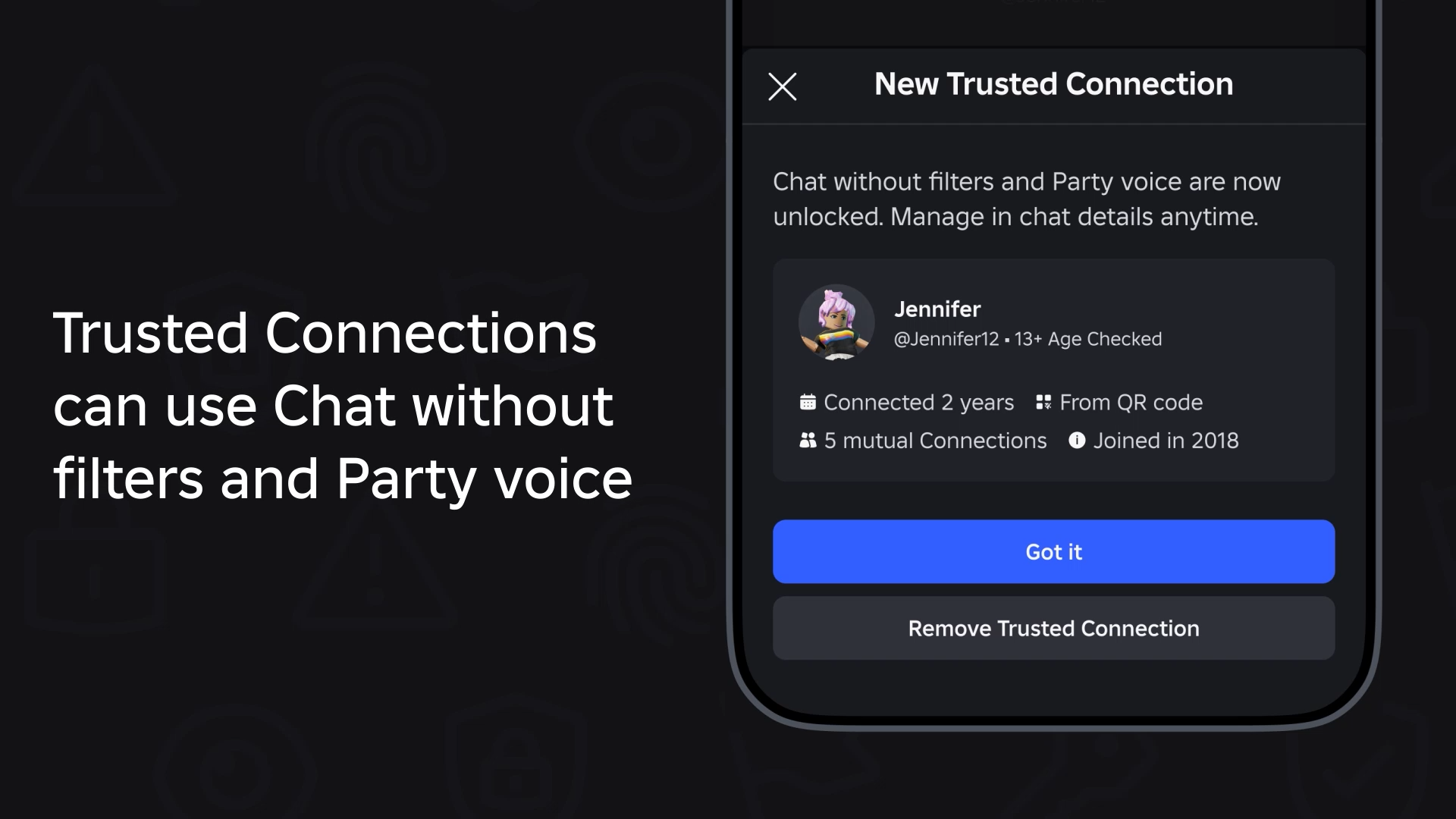
Party Voice itself is a voice layer for Parties with your Connections. Chat without filters reduces automatic text filtering between eligible users, but some content such as non‑Roblox URLs can still be blocked, and Roblox’s Community Standards still apply.
How to add a regular Connection on Roblox
Most relationships on Roblox still start as basic Connections.
Step 1: In the top search bar on the website or app, type the other player’s username and switch the category to People. Open their profile from the search results.
Step 2: On their profile, select Add Connection. If you do not see that button, you are already connected or at the connection limit.
Step 3: Wait for them to respond. If they accept, you will get a system message labeled as an accepted connection request. If they decline, you will see a declined message instead.
You can check pending requests from the Connections entry in the left navigation on desktop; a number next to it shows how many are waiting. Connection requests expire after two years.
How to add Trusted Connections as a teen (ages 13–17)
Teens cannot simply promote any existing Connection to “Trusted” with a toggle. Roblox pushes you through real‑world channels and age checks first.
Step 1: Complete age estimation or ID verification so your account is marked as 13+ and eligible for Trusted Connections.
Step 2: Ask the person you want to trust to also complete age estimation or verification. If they are not age‑checked, they can only be a regular Connection for now.
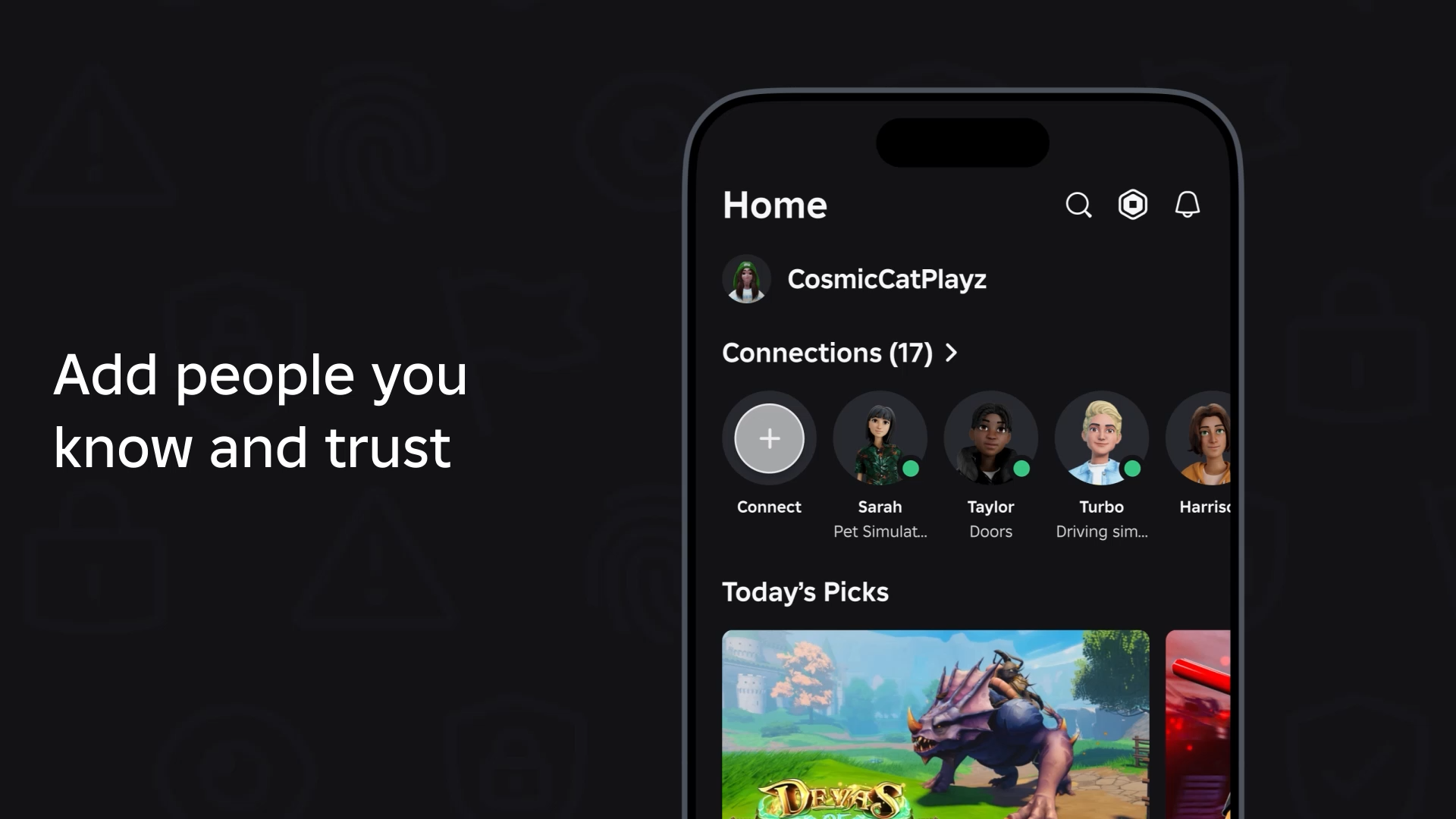
Step 3: On the Roblox Home screen, tap or click the “+” icon at the top to open the Connect page. This is where Roblox surfaces tools like Contact Importer and QR codes.
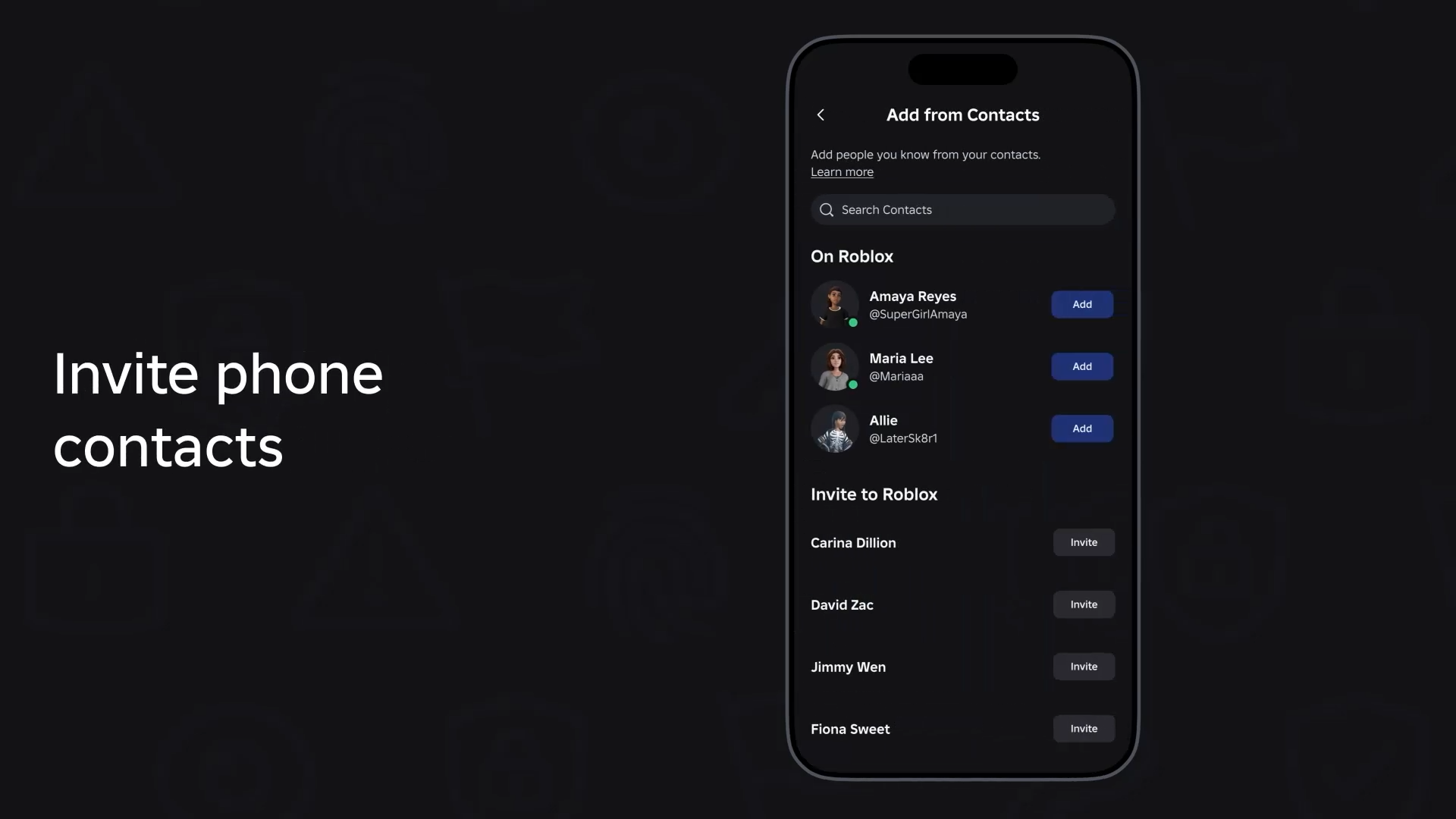
Step 4 (Contact Importer method): Use Contact Importer to match Roblox accounts with people in your phone’s contact list. From there, send or accept connection invitations. When both sides are age‑checked teens and opt in, the relationship can be upgraded to a Trusted Connection.
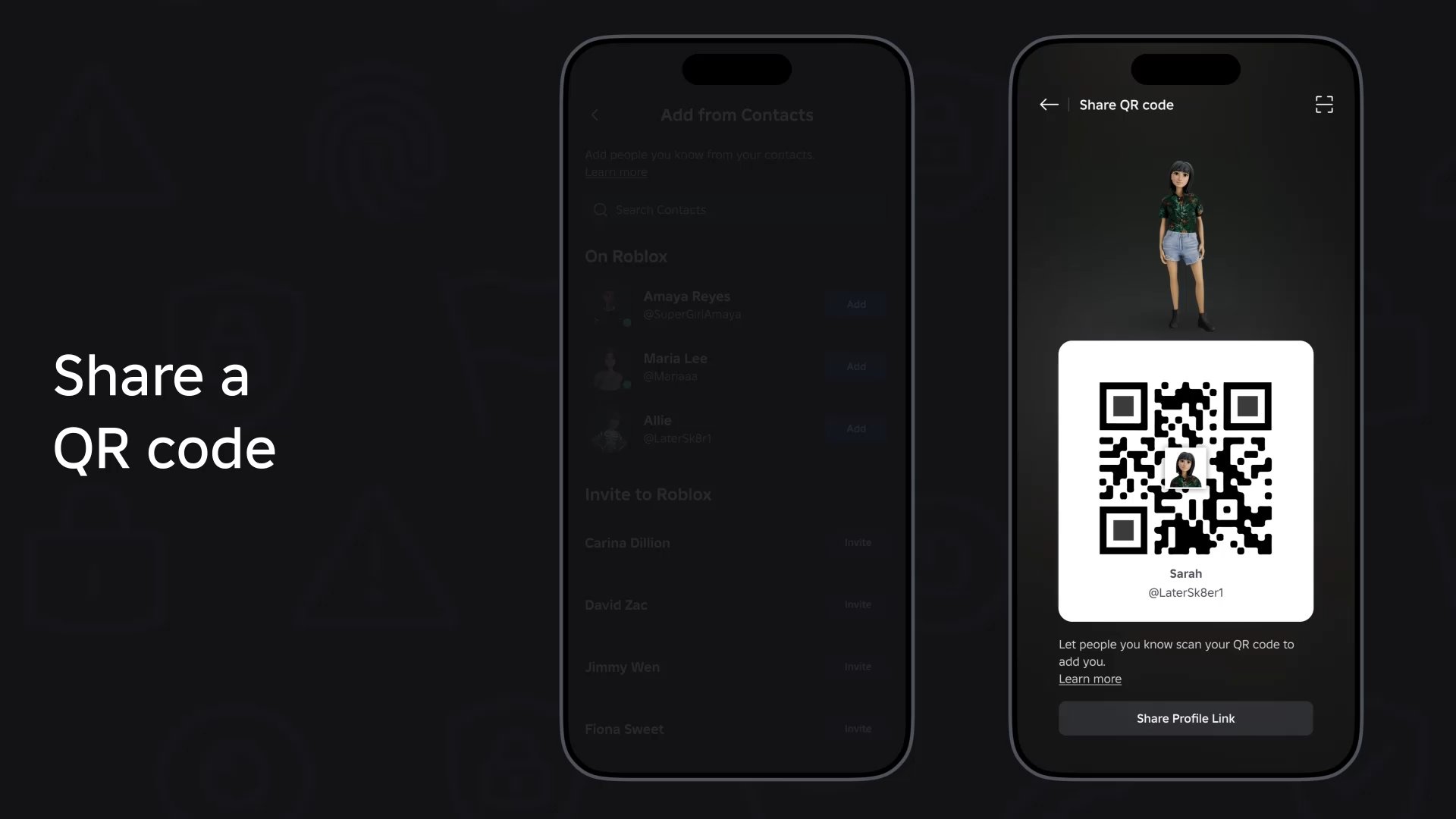
Step 5 (QR code method): Generate your QR code and have your friend scan it from their app, or scan theirs from your device. When both of you are 13–17 and age‑checked, this QR‑based connection can become a Trusted Connection once you both accept.
For age‑checked 13–17 accounts, Trusted Connections currently hinge on these real‑life links. Roblox is also testing a faster in‑app path in select countries where age‑checked teens can upgrade existing Connections to Trusted more directly, but that test is not globally available yet.
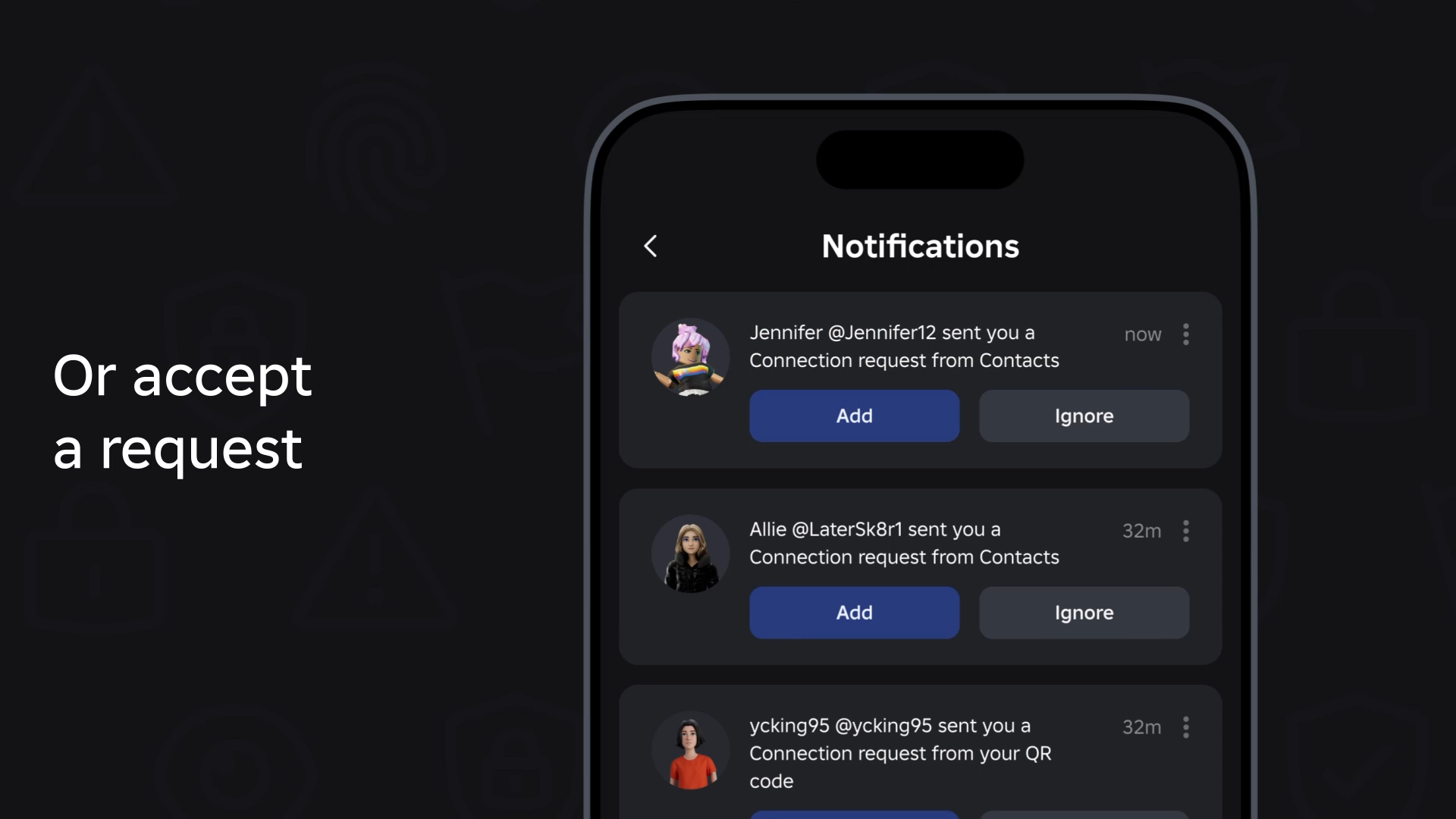
Note: If scanning a QR code or opening its link only takes you to a profile with no “Trusted” option, either Trusted Connections are not yet rolled out to your account, or one of the accounts has not met the full age‑check requirements (including any staged rollouts of facial age estimation).
How to add Trusted Connections as an adult (18+)
For adults, there are two different situations: connecting with other adults and connecting with teens.
Adults with other adults (18+ ↔ 18+)
Step 1: Make sure both accounts are age‑checked as 18+. This usually means successful age estimation or ID verification that puts each account into the 18+ group.
Step 2: Start or open a 1:1 chat between the two accounts. When both are confirmed 18+, Roblox automatically upgrades that conversation to expressive chat — including Party Voice and chat without filters — without requiring a Trusted Connection flag.
You can still add each other as regular Connections for easier access in your list, but the expressive chat upgrade in 1:1 is tied to age, not the Trusted label.
Adults with teens (18+ ↔ 13–17)
Cross‑age Trusted Connections between an adult and a teen are tightly controlled.
Step 1: Both the adult and the teen must be age‑checked. The adult needs to be in the 18+ group; the teen must be 13–17.
Step 2: Use a real‑life channel to create the connection. Roblox limits this to Contact Importer (matching a phone contact) or a QR scan. The idea is that Trusted status reflects a preexisting real‑life relationship such as family or classmates, not someone met randomly in a game.
Step 3: Once both sides accept through one of these real‑world methods, the relationship can appear as a Trusted Connection, and expressive chat features may unlock where Roblox allows them. All of these cross‑age communications are proactively monitored.
Adults cannot bypass these requirements; there is no in‑app shortcut to mark a random teen Connection as Trusted.
Limitations for users under 13 and unverified accounts
Users whose accounts are in the under‑13 group, or who never complete age estimation/verification, cannot use Trusted Connections. They can still have standard Connections and use the usual filtered text chat where it is allowed by parental controls and experience settings, but Roblox blocks Trusted status and the associated less‑filtered chat features.
This is by design. Trusted Connections and expressive chat are framed as teen‑and‑up features, with additional safeguards when adults are involved.
How to remove or downgrade a Trusted Connection
Trusted status is not permanent. Either side can change it at any time.
Step 1: Open the profile of the player you no longer want to keep as a Trusted Connection.
Step 2: From the profile menu, choose Remove Trusted Connection. This keeps you connected at the normal level but removes the Trusted flag on both sides.
Step 3: If you want to cut the relationship entirely, choose Remove Connection instead. That removes them from your Connections list and vice versa.
If a Trusted Connection behaves in a way that violates Roblox’s Community Standards, you can use the standard Report Abuse flow from their profile or from within a game. Trusted status does not shield anyone from moderation.
What information Trusted Connections can see about you
Roblox surfaces a little extra context when you form Trusted Connections, especially between age‑checked accounts.
- Everyone can see your Roblox username and how long your account has existed.
- Eligible age‑checked Connections may also see your age group (for example, under 13, 13+, or 18+) and your account country based on account activity when they add you as a Trusted Connection.
The idea is to give both sides more clarity about who they are adding at the “trusted” level. If you are not comfortable sharing that context, the platform’s own recommendation is simple: do not complete age estimation and do not attempt to form Trusted Connections.
Safety rules that still apply to Trusted Connections
Chat without filters does not mean anything goes. Roblox’s Community Standards still apply across all communication modes, including:
- Prohibitions on hate speech, harassment, and threats.
- Rules against sexual content and exploitation, including grooming behavior.
- Restrictions on explicit, illegal, or otherwise unsafe content.
Roblox also advises against sharing personal or sensitive information in any chat, filtered or not — things like full names, home addresses, phone numbers, and financial details. Even in Trusted Connections and less‑filtered chats, those disclosures can create offline risks.
If you see something that violates the rules, the Report Abuse tools are still the primary channel to flag it for moderation.
Trusted Connections sit at the intersection of social design, safety rules, and new communication features on Roblox. To actually use Party Voice or chat without filters with people you trust, you need to clear the age checks, upgrade the right relationships through QR codes or contacts, and understand where Roblox automatically upgrades chats for adults. Once those pieces are in place, the Trusted label becomes a precise switch for when the platform relaxes its filters — and when it does not.