

Hytale is built to be social. The game treats almost every world as a server, whether you are playing solo or with a large group, and it gives you multiple ways to share that space with friends.
There are three main paths to multiplayer:
- Opening your singleplayer world and letting friends join via a share code
- Joining someone else’s world with their code
- Playing on a dedicated server, either rented from a host or run on your own hardware
Each option has different trade-offs for convenience, stability, and how much network setup you need to touch.
Hytale friend joins: How the share code system works
When you turn a singleplayer world “online”, Hytale quietly does the work of turning your machine into a temporary server. It tries to talk to your router using UPnP (Universal Plug and Play), opens a port if it can, and then generates a short share code.
That code is more than just a lobby ID. It is a compressed, encrypted bundle of connection “candidates” that can include:
- Your local network address, so devices on the same LAN can connect quickly
- Your public IP and mapped port from the router, if UPnP worked
- Any VPN addresses from tools like Tailscale
- IPv6 addresses when your ISP supports them
When a friend pastes your code, their client walks through those candidates in priority order. It starts with options that should be fastest and most reliable (local network, VPN tunnels), then falls back to public IP paths that depend on your router and ISP setup.
Codes are time-limited and can include a password. They also expose your IP addresses to whoever receives them, so they should only go to people you trust in private chats.
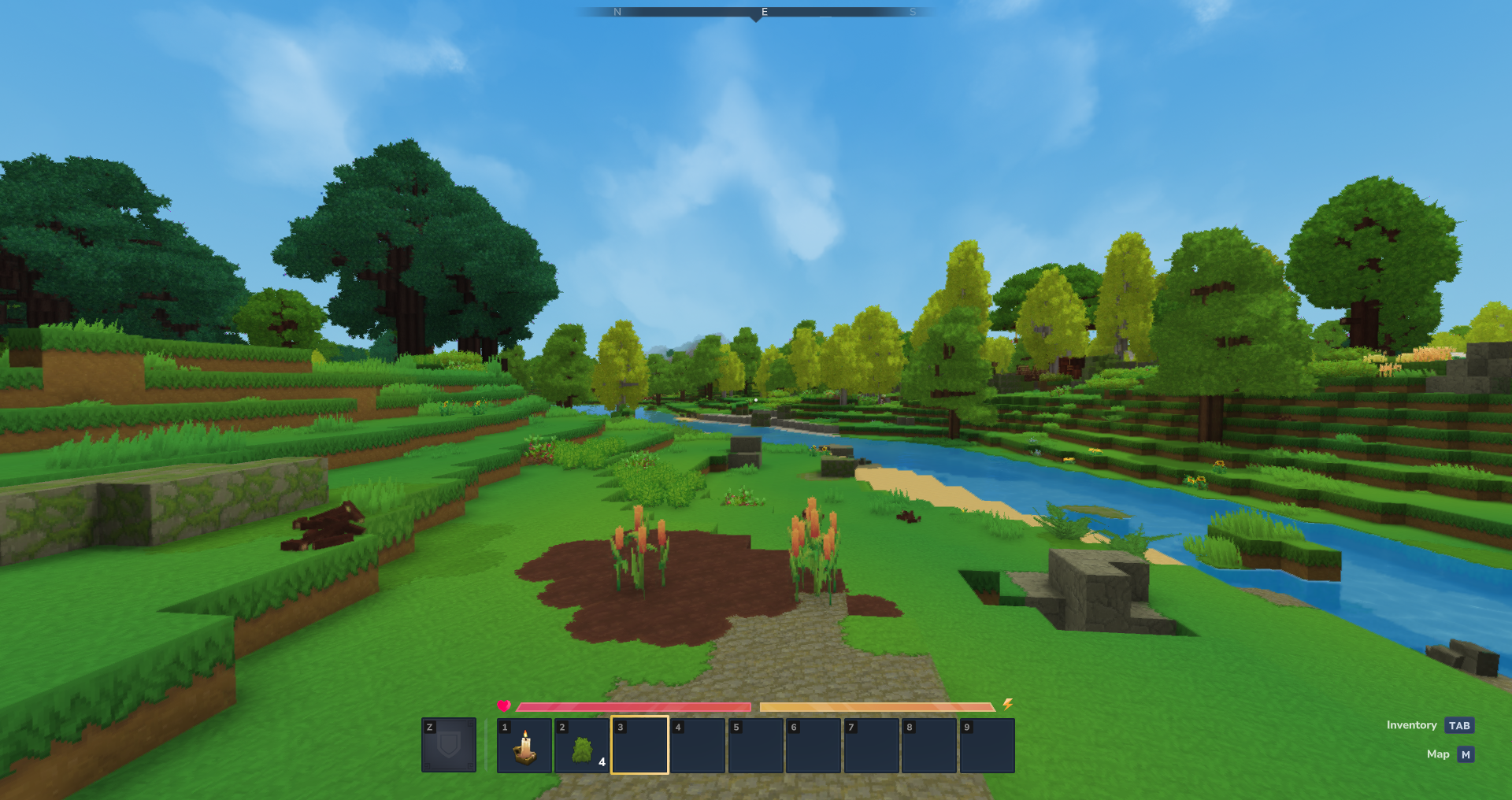
Host a Hytale world for your friends from singleplayer
Turning a solo world into a small multiplayer session is usually the simplest way to play together, especially for a handful of friends who are online at the same time.
Step 1: Start Hytale and load into the singleplayer world you want to share. Let the world finish loading so you are in control of your character.
Step 2: Press ESC to open the pause menu. From there, select the Online Play option to view multiplayer settings for this world.
Step 3: Switch the Allow Other Players to Join toggle to ON. This is what turns your current session into a joinable host.
Step 4: (Optional) Set a password if you only want specific people to connect. If you prefer not to share both a code and a separate password, enable the option to Include Password in Share Code.
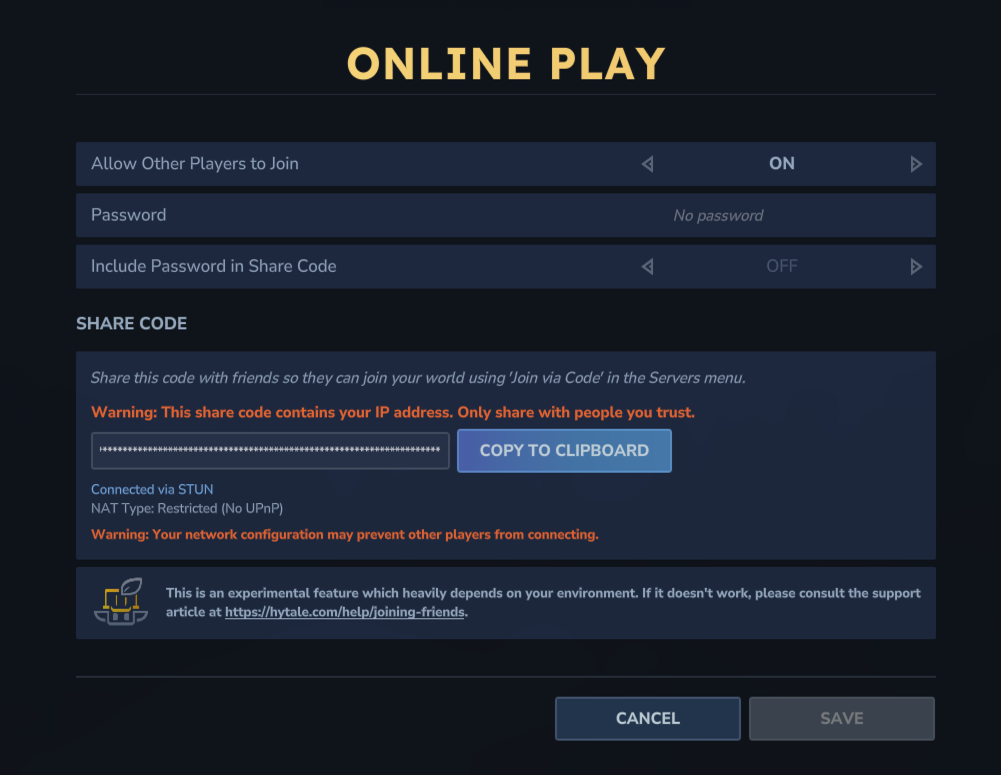
Step 5: Click Save. Hytale will now attempt UPnP negotiation with your router and build a connection profile.
After a short pause, you should see:
- A share code in the text field
- A status line describing how you are reachable (for example, via UPnP)
- A NAT Type label describing your network environment
Step 6: Use the Copy to Clipboard button next to the share code and send it directly to your friends over a private chat.
Once they join, they appear in your world as if it were a regular multiplayer server. Your machine is doing both server and client work, so performance and player capacity are limited by your hardware.
Note: The host must stay online. When you quit that world or close the game, friends are disconnected. For long-running worlds where people play at different times, a dedicated server is a better fit.
Join a friend’s Hytale world by share code
Connecting to someone else’s session is symmetrical to hosting, but all the networking work is on their side.
Step 1: From the main menu, open the Servers section. This is where you can browse servers and manually join a host.
Step 2: Select Join via Code. A text field appears for the share code.
Step 3: Paste the code your friend sent you into the field. If they did not embed the password in that code, type the password in the separate box.
Step 4: Click Connect. Hytale will try each connection candidate described in the code until one works or all fail.
The first attempts are usually local or VPN addresses, then IPv6, then any public IP path the host’s router exposes. If everything fails, the join request times out.
When friend codes fail: Common network issues and quick checks
Friend joins rely entirely on direct connections between players. There is no relay infrastructure sitting in the middle to carry traffic when your routers and ISPs refuse to cooperate, so some setups will not work without extra configuration.
Share code does not appear
If you hit Save in Online Play and no code appears, or an error is shown, Hytale probably could not negotiate any usable path out from your network.
| Typical cause | What to try |
|---|---|
| UPnP is turned off on the router | Log into your router’s admin page and enable UPnP, then try again. |
| Router has no UPnP feature | Use manual port forwarding or switch to solutions like Tailscale or a dedicated server. |
| You are behind multiple routers (Double NAT) | Enable UPnP on every router in the chain or connect your PC directly to the main router. |
| Local firewall blocks UPnP traffic | Allow Hytale through your operating system firewall and any third-party security tools. |
Friend gets timeouts or cannot connect
Sometimes the host can generate a code, but incoming connections still fail. That usually points to ISP-level constraints or strict filtering.
| Typical cause | What to try |
|---|---|
| Carrier-Grade NAT (CGNAT) | Your ISP shares a single public IPv4 address across many customers, so inbound ports cannot be opened. Use IPv6 if available, have someone on a different provider host, or use a VPN solution such as Tailscale. |
| Inbound firewall blocking game traffic | Ensure Hytale is allowed for both private and public networks in your firewall settings. |
| UPnP port mapping expired | Reopen the Online Play menu and click Save again to refresh mappings. |
| Antivirus or security suite interference | Temporarily disable or add Hytale as an exception, then test again. |
| ISP blocks game ports | Contact your ISP or bypass this with a VPN overlay such as Tailscale. |
Check whether you are behind CGNAT
To understand if CGNAT is in the way, you can compare the IP address your router sees with the one the wider internet sees.
Step 1: Open your router’s admin page and note the WAN IP displayed there.
Step 2: From a browser, look up your public IP address by using a simple “what is my IP” lookup and note that value.
Step 3: Compare the two. If they are different, or if your router shows only a private-range address (starting with 10.x, 192.168.x, or 172.16–31.x), your ISP is likely doing CGNAT or Double NAT.
In that case, direct friend joins on IPv4 are often not possible without a workaround.

Manual port forwarding for Hytale friend hosting
If UPnP cannot help but you do have a real public IP on your router, manual port forwarding can replace the automatic mapping step.
Step 1: On the host machine, open the Online Play settings for your world and note the UDP port value shown. Hytale can assign different ports for different sessions, so check it each time.
Step 2: Log into your router’s configuration interface and find the port forwarding section. The exact label differs by brand, but it is often under “NAT”, “Virtual Server”, or “Port Forwarding”.
Step 3: Create a new rule that forwards the noted UDP port to your PC’s local IP address. Make sure the protocol is set to UDP or UDP/Any, not just TCP.
Step 4: Apply the changes on the router, then go back to Hytale’s Online Play menu and click Save again to regenerate the share code using the forwarded port.
Friends can now use the new code. The game will include the forwarded port in the candidate list, and your router will know where to send that traffic.
Use Tailscale to bypass strict NAT and firewalls
Peer-to-peer VPN tools like Tailscale are a powerful way around CGNAT, student housing setups, or ISPs that block unsolicited inbound connections. Tailscale builds a private, encrypted network between your devices and assigns each one a virtual IP address.
Hytale is aware of those virtual addresses. When Tailscale is running on both the host and the clients, the game adds those VPN addresses as high-priority candidates inside the share code. The client then uses the Tailscale tunnel to connect, skipping problematic router rules entirely.
Step 1: Install Tailscale on both your PC and your friends’ machines from the official downloads page at tailscale.com/download.
Step 2: Each player signs into Tailscale with a supported identity provider and joins the same Tailscale network.
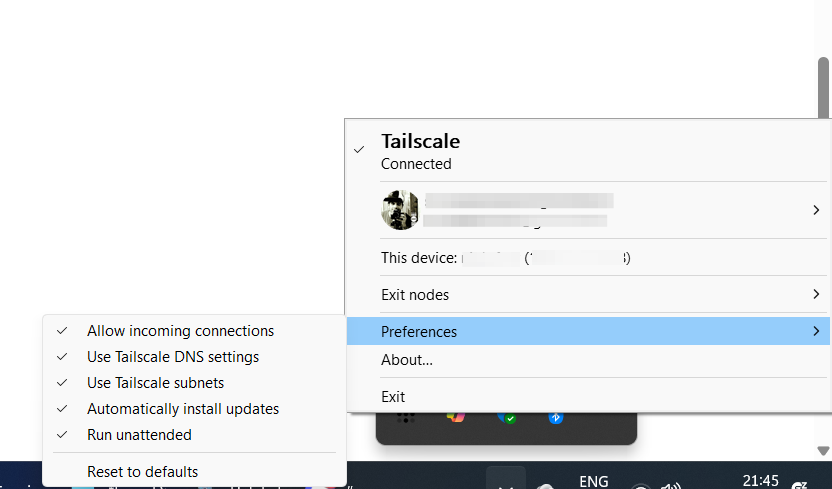
Step 3: Once everyone is connected in Tailscale, the host reopens the Online Play menu in Hytale and clicks Save again to generate a fresh share code that now includes Tailscale candidates.
Step 4: Share this new code with your friends and have them connect as usual via Join via Code.
Tailscale’s peer-to-peer tunnels are encrypted and typically offer better latency than bouncing through a remote relay. For small groups who cannot get normal friend joins working, this is often the cleanest fix.
Play Hytale together on a dedicated server
When you want a world that lives beyond the host’s play session, or you are organizing a larger SMP-style community, a dedicated Hytale server becomes more practical than ad hoc hosting.
Compared with friend joins, a dedicated server offers:
- Uptime independent of any single player’s PC
- Better performance, since the server is not also rendering the game
- More predictable networking, especially when run in a data center
- Room for more players online at once, limited mainly by the server’s specs and your configuration
Rent a Hytale server from a provider
For most players, renting a server is the least painful way to get a persistent world online. Several “launch verified” hosts work directly with Hytale’s server software and offer streamlined setup flows, one-click installs, and automated updates.
Providers currently in that group include Nitrado, Apex Hosting, GPORTAL, Shockbyte, and Dathost. They handle hardware, bandwidth, and maintenance, and you manage the world through their web panels. Your friends connect just like any other public or private server, using its address in the game’s Servers menu.
You pay a monthly fee, but you avoid the complexities of port forwarding on your home connection and the wear of keeping your own PC on 24/7.
Self-host a Hytale dedicated server
If you prefer direct control or want to run a server on home hardware or a VPS you already rent, Hytale’s standalone server software lets you do that.
Configuration details, command-line options, and best practices are documented in the official Hytale Server Manual. That manual describes how to:
- Download and run the server binary or .jar file
- Configure world settings, permissions, and mods
- Expose the server to the internet through your router or firewall
- Integrate with hosting providers using the official authentication system
Self-hosted servers still need correct networking on your side. For home connections, that often means the same CGNAT and port forwarding concerns as friend hosting; for VPS instances, it means configuring firewall rules in your cloud provider’s console.
Choosing between friend joins and servers for your group
For two or three players who typically log in together, having one person host a world and share a code is usually enough. There is effectively no software setup, and the friend join UI is built directly into the game.
As the group grows, or as people start playing at different hours, a dedicated server becomes more compelling. You are no longer dependent on one person’s hardware or connection, and everyone shares a single persistent world that can survive PC upgrades and reinstalls.
Network realities also matter. If many people in your friend group are stuck behind CGNAT or strict ISP policies, trying to get direct friend joins working for everyone may be frustrating. In those cases, either leaning on Tailscale or centralizing around a hosted server is a more dependable approach.
The upside is that Hytale’s architecture supports all of these paths. You can start with quick, code-based sessions from a singleplayer world, then move to a dedicated server once your group and your ambitions grow.