

Roblox now relies on age checks to decide which features and experiences each account can use. That includes things like Experience chat, Restricted Content, and Party Voice. If an age check goes wrong, it can lock you out of those features or, in some cases, put you in a much younger age group than you expect.
The important detail is that Roblox treats different age checks very differently. Some can be repeated after a while. Others are permanently locked in and cannot be undone, even by support.
How Roblox age checks work
Roblox uses two main methods to check age:
- Facial age estimation estimates your age from images or video of your face.
- ID verification confirms your birthday using an official government ID.
Both methods are managed from your account settings. When you complete them successfully, Roblox places your account into an age group such as 5–8, 9–12, 13–15, 16–17, 18–20, or 21+. That age group then controls which age-limited features you can use.
Facial age estimation is open to a wide range of users, but ID verification is restricted to people who are at least 13 years old and have a valid photo ID such as a driver’s license, passport, or residency card.
What you can redo: Facial age estimation
Facial age estimation is not described as permanent. If Roblox cannot estimate your age from the images you provide, it sends you to ID verification instead. If it does estimate your age, your account is slotted into one of the age groups.
There is no official “Retake” button exposed in the documentation, and players report that once an estimation has completed, trying to start the process again often just shows a “thank you” or completion screen. However, some users have seen the system “reset” itself after waiting a few days, allowing them to attempt facial age estimation again.
In those cases, the only action that worked was to leave the account alone and return later. A typical wait reported is around three to four days before the age estimation flow can be started again instead of redirecting straight to a completion screen.
There is no guaranteed timing for this reset behavior and no documented way to force it. If you are under 18 and a parent has linked their account to yours, they have one opportunity to adjust your birthday directly instead of relying on a new facial scan.
What you cannot redo: ID verification
ID verification is treated as permanent. When you verify your age with a government-issued photo ID, Roblox marks your account as ID-verified and does not allow that status to be removed or reset.
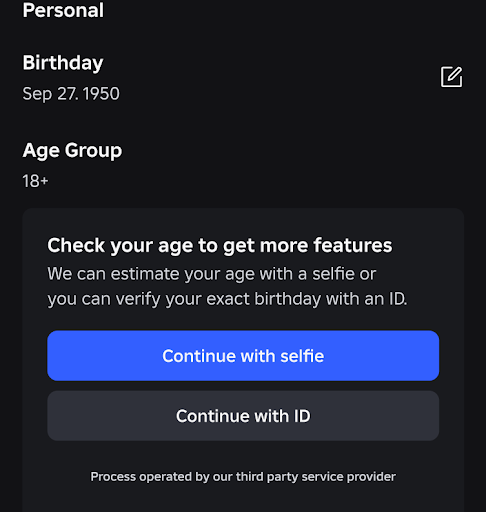
The support documentation is clear on two points:
- Once your ID is verified, that verification cannot be removed or reset.
- Customer support staff cannot manually verify IDs, remove verifications, or change your account settings for you.
That means if you submit the wrong person’s ID, or you use an ID that does not match your actual birthday, there is no supported way to undo that verification on the same account.
For example:
- If you are over 13 but used an ID that made Roblox treat you as under 13, you cannot “restart” ID verification on that account to fix it.
- If you borrowed someone else’s document (for example, a parent’s passport) and passed ID verification, the account will stay linked to that age. There is no official reset.
To start ID verification in the first place, you must be at least 13. The flow is launched from the Account Info section of your settings using the Continue with ID button. The process scans the front and, if available, the barcode on the back of your ID, and takes a selfie to match you to the document. More detail is available in Roblox’s ID Verification support article.
Retrying a Roblox age check
If you are trying to “redo” an age check, the path depends on which method you used and what outcome you want to fix.
Method 1: Wait for facial age estimation to reopen
This is the only case where redoing the age check has been seen to work on the same account, and even then it is not immediate or guaranteed.
Step 1: Stop trying to restart the age estimation for now. When the system has just completed a scan, it often redirects straight to a completion or thank you page instead of letting you try again.
Step 2: Log out of Roblox on all devices where you attempted the age estimation. This reduces the chance that an open session will keep refreshing the finished state.
Step 3: Wait several days without attempting another scan. Reports from players who managed to redo the estimation mention a wait of around three to four days before the flow reset itself and allowed a new attempt.
Step 4: After waiting, log back into your account and go to the Account Info section in your settings. If the facial age estimation flow has reset, you should be prompted to start the process again instead of seeing the previous completion screen.
Note: This approach only helps if Roblox originally used facial age estimation on your account. It does not undo or replace an ID verification that has already been completed.
Method 2: Use ID verification to override an under-13 estimation
If facial age estimation placed you in an under-13 group and you are actually at least 13, Roblox offers a direct path to prove that with an ID. This does not “reset” the age check; it replaces the estimation with a verified birthday.
Step 1: Log in to Roblox and open your account settings. Use the gear icon in a browser or the three-dots “More” menu in the mobile app.
Step 2: Open the Account Info tab, then find the section that shows your birthday and age group.
Step 3: Select Continue with ID. This opens the ID verification flow in a separate window or on your phone.
Step 4: Follow the instructions: scan your government-issued photo ID and then take a selfie when prompted. Allow camera access when asked.
Step 5: Return to your Roblox session and wait for the result. Once the ID has been verified, your birthday is confirmed and your account’s age group is updated based on that.
This route only works if you meet both conditions: you are at least 13, and you have a supported ID document for your region. It is also a one-way action. Once you complete ID verification, that status cannot be cleared or retaken on the same account.
Method 3: Correct a wrongly entered birthday in settings
Age checks are separate from the date of birth stored in your account profile. If the problem is that you typed the wrong birthday when creating the account, Roblox lets you fix that directly in settings for many cases.
Step 1: Log in and open your account settings.
Step 2: Go to the Account Info tab.
Step 3: Click the pencil icon next to the birthday field to edit it.
Step 4: Enter your correct birthday and follow the on-screen prompts. Depending on your age and how big the change is, Roblox may either ask for parental consent or require you to complete ID verification to confirm the new date.
For users under 13, some birthday changes can only be approved by a parent or guardian with a linked parent account. Parents can change their child’s birthday once.
Adjusting the stored birthday does not remove an existing ID verification, but it can fix mistakes where the wrong date was selected originally and no ID check has been done yet.
More detail on this flow is in Roblox’s support article on changing your age and birthday.
What to do if you used the wrong ID
Many of the most frustrating situations come from using the wrong ID during verification. Examples include:
- Using a parent’s passport or driver’s license instead of your own.
- Using someone else’s photo during facial age estimation.
- Submitting a document that is not supported in your region, then finding that you cannot change it.
On a technical level, Roblox treats ID verification as final. There is no documented process to remove or swap a verified ID from an account, and support staff do not have tools to override it.
That leaves only a few options:
- If the age check was only facial age estimation, wait several days to see if the flow becomes available again and then redo it correctly.
- If the age check was full ID verification, use the support contact form to explain the problem and ask if anything can be done. There is no guarantee that changes will be made, but support can at least confirm what is possible for your region and account.
To reach Roblox support, use the contact form at roblox.com/support and select the categories that match account and age verification issues.
In severe cases where an account was verified with someone else’s identity and now has access to age-restricted content, support may need to review it for safety reasons, but there is still no general mechanism documented to “redo” a completed ID verification.
If you are a parent or guardian
Parents have a limited set of tools to correct problems without touching ID verification directly:
- They can link their own account to a child’s account and, once linked, adjust the child’s birthday one time if the wrong date was entered.
- They can provide parental consent for some age-related changes when prompted during a birthday edit.
If a child completed facial age estimation and ended up in the wrong age group, a parent can use that one-time birthday change rather than waiting for a new scan. If a child completed ID verification with someone else’s document, parents should contact Roblox support to flag the issue.
Roblox’s age checks are designed to be hard to bypass, which makes them equally hard to redo when something goes wrong. Facial age estimation can sometimes be tried again after waiting a few days. ID verification is effectively permanent on a given account and cannot be reset through any documented feature. If you are unsure which checks your account has passed, start in Account Info, review the birthday and age group shown there, and then decide whether waiting, ID verification, or a support request is the most appropriate next step.