

Windows 11 Insider Preview build 26220.7535 (KB5072046) is now rolling out to both the Dev and Beta Channels on version 25H2. The build continues Microsoft’s pattern of feature flags controlled by the “Get the latest updates as soon as they’re available” toggle, so what you see immediately will depend on that setting.
Dev and Beta are currently aligned on the same build family. There is a limited window for devices in the Dev Channel to switch down to Beta before Dev moves to a higher build number again; once that happens, switching will be blocked until a later opportunity.
Copilot-powered image descriptions in Narrator
The most visible change is in accessibility. Narrator can now work with Copilot on all Windows 11 devices to generate detailed descriptions of images and on-screen content, extending a capability that was previously limited to Copilot+ PCs.
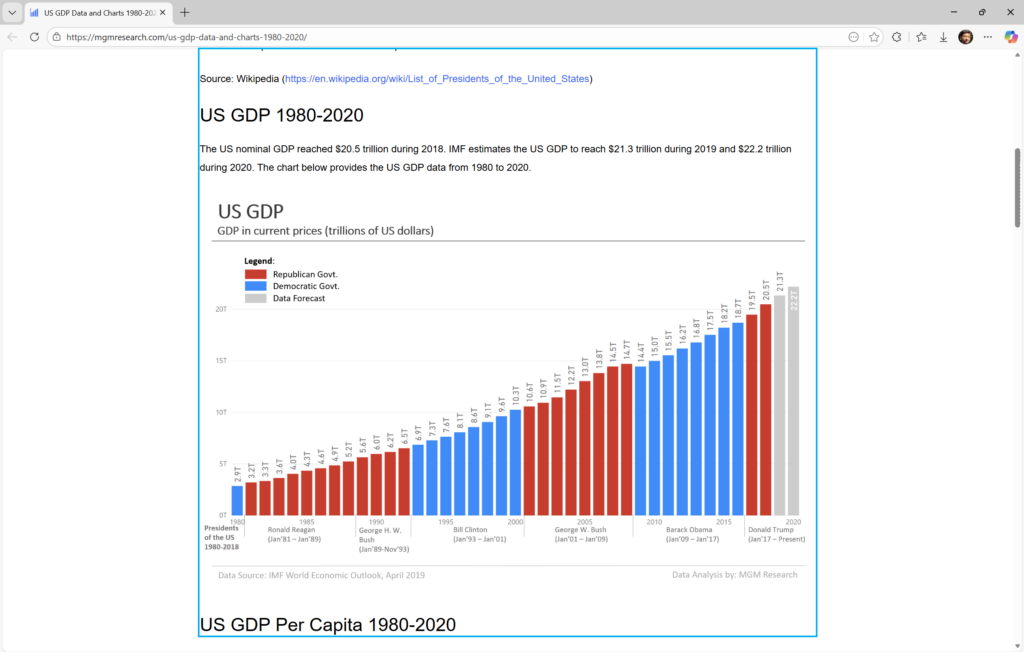
There are two main flows:
- Describe a focused image. Press
Narrator key + Ctrl + Dwhile an image has focus. Narrator sends that image to Copilot and opens a Copilot view where you can ask for a description or follow-up details. - Describe the entire screen. Press
Narrator key + Ctrl + Sto capture and analyze the full screen. Again, Copilot opens with the captured content so you can describe what you need in your own words.
The key privacy detail is that images are only shared when you explicitly invoke these commands. You decide when to send an image, and you can then refine the description by asking about people, objects, labels, layouts, trends, or text that appears in charts and graphs.
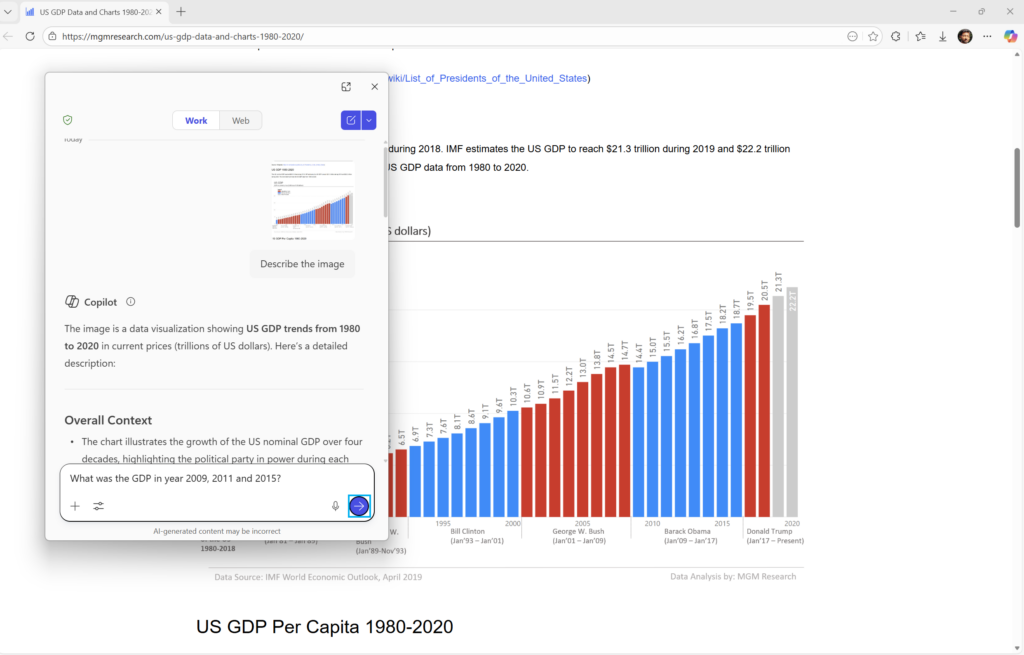
Copilot+ PCs keep an additional advantage. On those devices, Narrator continues to offer instant, on-device image descriptions using local AI. Pressing the same key combinations reads out a rich description without needing to send the image anywhere. If that initial description is not enough, you can choose an option labeled “Ask Copilot” to move into the cloud-backed experience for deeper analysis.
Note: Copilot-powered image descriptions in Narrator are not available in the European Economic Area.
Policy-based uninstall of Microsoft Copilot on managed devices
For enterprises, schools, and other managed environments, the build introduces a user-targeted way to remove the Microsoft Copilot app under specific conditions.
Admins can enable a new Group Policy named RemoveMicrosoftCopilotApp. When that policy is applied, Windows checks for a narrow set of criteria:
- Microsoft 365 Copilot and the standalone Microsoft Copilot app are both present.
- The Microsoft Copilot app was not originally installed by the user.
- The app has not been launched in the last 28 days.
If all of these are true, the system removes the Microsoft Copilot app once for that user. This does not block the user from reinstalling it later if they choose. The policy is available on Enterprise, Pro, and EDU editions of Windows 11.
To configure it, admins use the Group Policy Editor under:
User Configuration > Administrative Templates > Windows AI > Remove Microsoft Copilot AppThis gives organizations a light-touch way to clean up unused Copilot installations while leaving Microsoft 365 Copilot and user choice intact.
Cross Device Resume for apps now supports WNS
For developers, build 26220.7535 extends the Cross Device Resume (XDR) capability that lets users resume apps from their phones on their Windows 11 PCs.
Originally, app developers integrated with XDR using a flow that relied on the Link to Windows app. The new build adds an alternative integration path that uses the Windows Notification System (WNS) instead. The goal is to reach more users while keeping the same continuity experience on Windows.
With the WNS-based approach, apps can use push notifications to drive resume scenarios across devices, rather than depending entirely on the Link to Windows channel. Both integration methods continue to be valid, and developers can choose whichever better fits their architecture or support both in parallel.
Implementation details and code paths are documented under the Cross Device Resume (XDR) section of the Windows apps documentation on Microsoft Learn at https://learn.microsoft.com/windows/apps/develop/windows-integration/integrate-app-continuity.
Windows Spotlight icon refresh
Windows Spotlight—the service that rotates background images and shows “Learn about this picture” prompts on the desktop—gets a small visual tweak. The desktop icon used for Spotlight is being updated to a new design.

This icon refresh began flighting to a small subset of Insiders in late December and continues with this build. The change is cosmetic and does not alter how Spotlight behaves. Some devices will continue to show the older icon until the feature flag reaches them.
Fixes in Start, File Explorer, input, print, and Windows Update
With the “Get the latest updates as soon as they’re available” toggle on, a set of targeted fixes rolls out alongside the new features.
- Start menu dialog layout. A bug in the shutdown flow is addressed where the warning dialog about other users being signed in could be visually truncated by the edge of the Start menu.
- File Explorer stability. An issue that could cause
explorer.exeto crash when opening the desktop context menu is fixed. This should reduce unexpected shell restarts for affected Insiders. - Pen input in Snipping Tool. A visual glitch where inking with a pen could cause a short black flash is resolved.
- Print dialog behavior. Several printing-related problems are corrected:
- Opening print could sometimes spawn two dialogs instead of a single one.
- The close button in the print dialog now uses colors consistent with the rest of the window frame.
- On the Settings page for Printers and Scanners, text that could previously become truncated and unreadable now renders correctly.
- Windows Update settings. A hang that could occur while loading the Windows Update settings page is fixed.
These fixes are being rolled out gradually to devices with the early-updates toggle enabled. Devices with the toggle off will receive them later, once Microsoft completes validation.
Ongoing known issues in build 26220.7535
The build carries forward a set of known problems that are still being investigated.
Xbox full screen experience for PC
The new Xbox full screen experience (FSE) for PC has compatibility edge cases. Some desktop apps can behave unexpectedly when FSE is active, especially those that assume a fixed window size or depend on spawning additional child windows. In those cases, switching out of the full screen experience or using the apps in standard desktop mode avoids the issue.
Taskbar, Start menu, and system tray issues
A cluster of issues affects taskbar-related UI in this build family:
- Start menu not opening on click. On some systems, clicking the Start button does nothing, while pressing the Windows key still opens Start. The same underlying problem can affect the notification center and Quick Settings when invoked through the mouse or touch, although the keyboard shortcuts
WIN + N(notifications) andWIN + A(Quick Settings) continue to function. - Missing system tray icons. Some apps that normally appear in the system tray do not show up for a subset of users. This is under active investigation.
- Autohide taskbar activation. With taskbar autohide enabled, the bar may prematurely appear when you move the pointer near the bottom of the screen, potentially obscuring part of apps that rely on edge interactions.
These issues are not yet resolved in build 26220.7535, so devices that encountered them in earlier 26220 builds can continue to see similar behavior.
Settings, Bluetooth, and Click to Do issues
Beyond the taskbar, there are three additional known issues to be aware of:
- Settings crashes on audio device changes. Interacting with audio devices in Settings can cause the app to terminate unexpectedly on some systems. This is listed as a new known issue and is still being worked on.
- Bluetooth battery levels missing. For some Bluetooth devices, the battery percentage is not displayed even when those devices support reporting it.
- Microsoft 365 Copilot “Click to Do”. On images selected for Click to Do actions, the Microsoft 365 Copilot prompt box may not function if the Microsoft 365 Copilot app itself is not currently running. Restarting or opening the app first is a temporary workaround.
How the Dev and Beta rollout model works in this build
Build 26220.7535 continues the enablement-package model for Windows 11, version 25H2. Rather than a full in-place upgrade, devices already on the 26220 family receive an update that flips on additional 25H2 functionality as it becomes ready.
New features and fixes are usually staged behind two main controls:
- Channel alignment. Both Dev and Beta are currently on the 26220.xxxx series for 25H2. When Dev eventually advances to a higher build number, the paths of the two channels will diverge again.
- “Get the latest updates as soon as they’re available” toggle. Turning this on in Settings > Windows Update moves your device into the front of the controlled rollout for features, improvements, and fixes. Leaving it off means you will still receive them, but at a later point in the validation cycle.
Features introduced through these builds are not guaranteed to ship in the same form—or at all—in general availability releases. Some will change, some will be removed, and others may move into future Windows versions once they are considered ready.
Insiders who want a channel overview and historical build mapping can use Flight Hub at https://aka.ms/flighthub for a snapshot of which builds are in which Insider ring.
For now, build 26220.7535 is a relatively focused update: one meaningful expansion of Copilot-assisted Narrator, a more nuanced Copilot management lever for IT, a deeper XDR hook for developers, a small visual touch in Windows Spotlight, and a short list of practical fixes. The known issues list remains important reading if you rely heavily on Start, the taskbar, or Settings for audio, but the core of the build is about consolidating the 25H2 baseline across Dev and Beta while early-access features continue to fan out through controlled rollouts.