File Explorer has become one of the most common complaints about Windows 11: the window appears slowly, its modern interface draws in visible stages, and simple actions like opening a new tab can feel sluggish even on fast hardware. Microsoft’s latest response is not a rewrite, but a behavioral change called “window preloading.”
Instead of fully initializing File Explorer only when you press Win+E or click its taskbar icon, Windows 11 Insider Preview Build 26220.7271 keeps a File Explorer window preloaded in the background. The goal is to reduce “cold start” delays by doing most of the setup work earlier, then reusing that preloaded instance when you need it.
How File Explorer preloading works in Windows 11
On Windows 11, explorer.exe already runs from boot as the system shell. It drives the desktop, taskbar, Start menu, and some system UI surfaces. That does not mean the File Explorer window itself is fully constructed and ready to show; the modern window frame, tab bar, and XAML/WinUI elements still have to spin up when you open a folder.
The new behavior adds a second layer:
| Component | Previous behavior | With preloading enabled |
|---|---|---|
Shell process (explorer.exe) |
Starts at logon to host desktop, taskbar, Start | Still starts at logon; unchanged |
| File Explorer window UI | Created only when you open Explorer; UI draws in stages | Pre-created in the background and kept ready in RAM |
| Launch experience | Noticeable delay, visible “flash” as controls load | Window appears faster, with less visible construction |
| RAM usage | Memory freed once all Explorer windows are closed | Some memory held even with no visible windows |
In the Insider build notes, Microsoft describes this as preloading File Explorer “in the background” to improve launch performance. Users should not see an extra window or icon; the only visible effect is that the app appears to open more quickly when requested.
Technically, this trades idle memory and a bit of work during or after boot for a faster first launch. The feature does not change the way File Explorer handles navigation, search, thumbnail generation, or network access once it is open.
Where the new preloading option lives
Preloading is controlled by a single checkbox inside File Explorer’s classic Folder Options dialog. On systems where the change has rolled out in the Dev or Beta channels, you can find it here:
| Step | Action |
|---|---|
| 1 | Open File Explorer (for example, with Win+E). |
| 2 | Open the menu (three dots in the toolbar) and choose Options to open Folder Options. |
| 3 | Switch to the View tab. |
| 4 | Look for the checkbox labelled Enable window preloading for faster launch times. |
| 5 | Check it to turn preloading on, or clear it to turn preloading off. |
Microsoft enables this checkbox by default on Insider builds that carry the change. The company is collecting feedback from testers and plans a wider rollout to stable Windows 11 systems in 2026 if the experiment holds up.
What problem Microsoft is trying to solve
Complaint patterns around Windows 11 File Explorer are consistent:
- On first open after a reboot, the window can take around a second or more to fully appear.
- The UI often draws in phases: blank frame, then address bar, then tabs, then toolbar, and finally the contents.
- Opening a new tab can trigger a bright “flash” in dark mode while controls are recreated.
- Heavy integration with OneDrive, “Home” recommendations, and cloud shortcuts can stall when accounts or network paths misbehave.
These issues are visible even on fast SSDs and high‑end CPUs. They are tied less to raw disk throughput and more to the layered UI architecture that mixes classic Win32 code with newer WinUI and XAML surfaces. The modern features—tabs, a redesigned address bar, and cloud hooks—each add initialization work when a new window or tab is created.
Preloading does not untangle that architecture. It attempts instead to move some of that work to a quiet moment, so that when you ask for File Explorer the UI can appear in a single step rather than assembling in front of you.
Impact on performance, boot time, and RAM
Keeping a preloaded File Explorer window in memory has a clear trade-off: faster first-launch times in exchange for some RAM and potential impact on boot or resume performance.
| Aspect | Effect of preloading | What it does not change |
|---|---|---|
| First launch of File Explorer | Typically faster; UI should appear more immediately | Does not make Explorer “snappy” if other shell components are already overloaded |
| Subsequent launches | Little difference; Explorer is usually warm already | Navigation delays caused by slow drives or network shares remain |
| RAM usage | Explorer holds onto a window object and related UI elements while idle | Does not fundamentally change total usage of the Windows shell |
| Boot and sign‑in | More work occurs soon after logon to prepare the preloaded window | Does not address lag from third‑party startup apps or drivers |
| File copy/move speeds | No direct impact | File I/O behavior and queueing are unchanged |
Testing shows that preloading mainly affects perceived responsiveness. Once Explorer is up, the same longstanding issues remain: slow enumeration of network drives, occasional hangs on unavailable SMB paths, lag while generating thumbnails, and pauses when the “Home” view tries to reach an account that is in an odd state.
On PCs with 8 GB of memory or less, any always‑resident process matters more. The preloaded window does not consume massive amounts of memory, but on a tight system, even modest increases can tip multitasking from smooth to borderline. That is why the option to turn it off is important.
How to disable File Explorer preloading
If you prefer predictable RAM usage over slightly faster Explorer launches, or you simply do not like background preloading, the feature is easy to disable.
- Open File Explorer.
- Open Folder Options and go to the View tab.
- Clear the checkbox for Enable window preloading for faster launch times.
- Select OK to apply.
After that, Explorer windows go back to being created on demand. You may see the familiar staggered drawing of tabs and toolbars again when you first open it after logging in, but idle RAM usage should be closer to previous builds.
Note: on some Insider systems, the checkbox appears only after installing the specific cumulative update that carries build 26220.7271 or later. If you do not see the setting, the feature has not been enabled on that machine yet.
Other Windows 11 changes affecting File Explorer
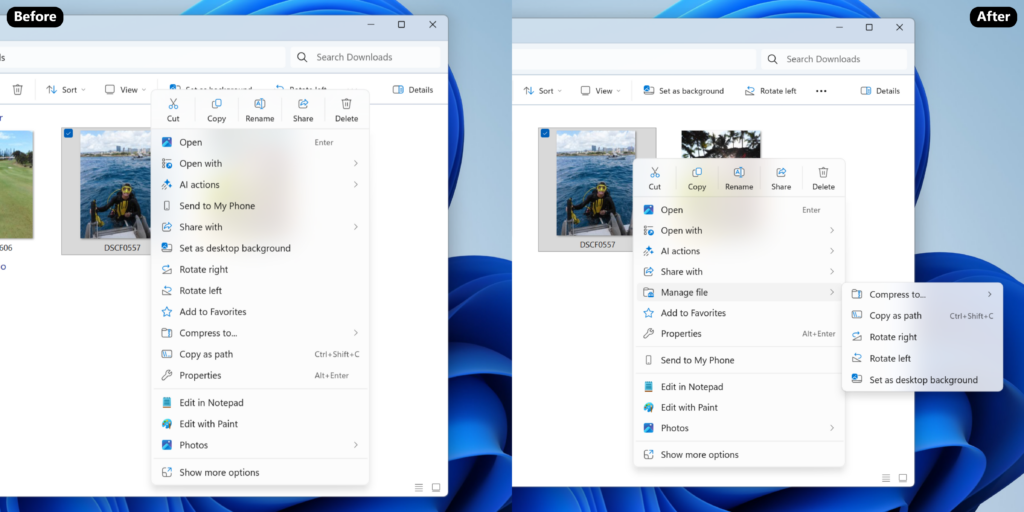
Preloading is arriving alongside a set of smaller but visible changes to File Explorer’s right‑click menu. The goal is to declutter the context menu while still exposing common tools; in practice, it shifts where several frequently used commands live.
| Command | Previous context menu location | New location |
|---|---|---|
| Compress to ZIP file | Top‑level entry in the main menu | Inside a new Manage file flyout |
| Copy as path | Top‑level or under “Show more options” | Inside Manage file |
| Set as desktop background | Top‑level for image files | Inside Manage file |
| Rotate right / Rotate left | Top‑level for images | Inside Manage file |
| Always keep on this device / Free up space | Mixed into the main context menu under OneDrive entries | Grouped inside each provider’s own flyout |
| Open folder location | Further down in the context menu | Moved next to Open and Open with |
The rearrangement is meant to make the context menu more consistent and easier to scan. However, it also adds another layer of nesting for actions some power users reach for constantly, increasing the number of clicks for those workflows.
Why Explorer still feels slower than old versions of Windows
Part of the frustration around preloading comes from a simple comparison: on much slower hardware, Windows 95, 2000, and even 7 could pop open their file managers almost instantly. Today’s machines are vastly more powerful, yet a basic folder window can take longer to feel ready.
Several factors contribute to that difference:
- Layered UI frameworks. Classic Explorer in older versions was written almost entirely in native code with a single toolkit. Windows 11’s Explorer mixes Win32 with XAML, WinUI 3, and islanded components, which all have their own startup costs.
- Cloud and account integration. The “Home” view, Quick Access, and OneDrive hooks all make network calls and account checks. When an account is misconfigured or a cloud provider is slow to respond, the entire UI can feel blocked.
- Legacy behaviors. Explorer still knows how to talk to mapped network drives, old shell extensions, and a wide range of third‑party software. A slow or broken extension can drag down the whole process.
- Search and indexing overhead. Background indexing, content previews, and live search can add CPU and disk load, especially on systems with large libraries and many small files.
Preloading sidesteps only one of these: the visible latency of building the window chrome and modern controls on first open. It does not rewrite the underlying shell, nor does it remove compatibility layers that have accumulated for decades.
Practical steps if File Explorer still lags
Even with preloading enabled, some systems see Explorer hang, stutter, or freeze during normal use. Several recurring triggers show up in user reports and support threads:
- Pinned Quick Access links to offline or flaky SMB/network shares.
- “Home” trying to surface items from a broken or retired Microsoft account.
- OneDrive sign‑in prompts or sync issues visible only when the “Home” page is selected.
When File Explorer feels consistently slow, these measures often help more than preloading:
| Potential issue | Mitigation |
|---|---|
| Pinned network locations in Quick Access | Remove pinned items that point to SMB shares or offline machines; create a regular folder with shortcuts instead. |
| Slow “Home” view | Change the default start folder from Home to “This PC” or a local directory in Folder Options. |
| OneDrive sign‑in loops | Disable OneDrive from startup apps or fully unlink it if you do not use it. |
If Explorer still hangs even after simplifying Quick Access and turning off preloading, the issue is likely deeper—ranging from problematic shell extensions to driver and storage problems. In those cases, isolating third‑party software via a clean boot or new local profile can be more revealing than toggling the preloading checkbox.
File Explorer preloading shows the current direction of Windows 11: instead of stripping features or radically simplifying the shell, the system leans on background work and RAM to paper over slow paths. For some users, that is an acceptable trade; for others, it feels like another band‑aid on an increasingly complex core. The important part is that you can choose which side of that trade‑off you want to live on—and change your mind with a single checkbox.