
A spare laptop gathering dust can act as a second screen for your main computer, giving you room to spread out documents, chat windows, or a game guide without paying for a dedicated monitor. On Windows, this works wirelessly over your home network, so no cables or extra software are strictly required.
Quick answer: On the laptop you want to use as the display, open Settings > System > Projecting to this PC and set it to “Available everywhere.” Then on your main computer, press Windows key + P, choose Connect to a wireless display, and select the laptop from the list.
What you need before you start
The wireless method relies on Miracast, which is built into modern Windows. Both machines need to meet a few conditions for the connection to appear.
| Requirement | Detail |
|---|---|
| Main computer | Desktop or laptop running Windows 10 or later |
| Second display | A separate laptop, also running Windows 10 or later |
| Updates | Both devices on the latest Windows version |
| Network | Both connected to the same Wi-Fi network |
| Power | Both plugged in or fully charged, since acting as a display drains the battery faster |
Set up the laptop as a wireless display
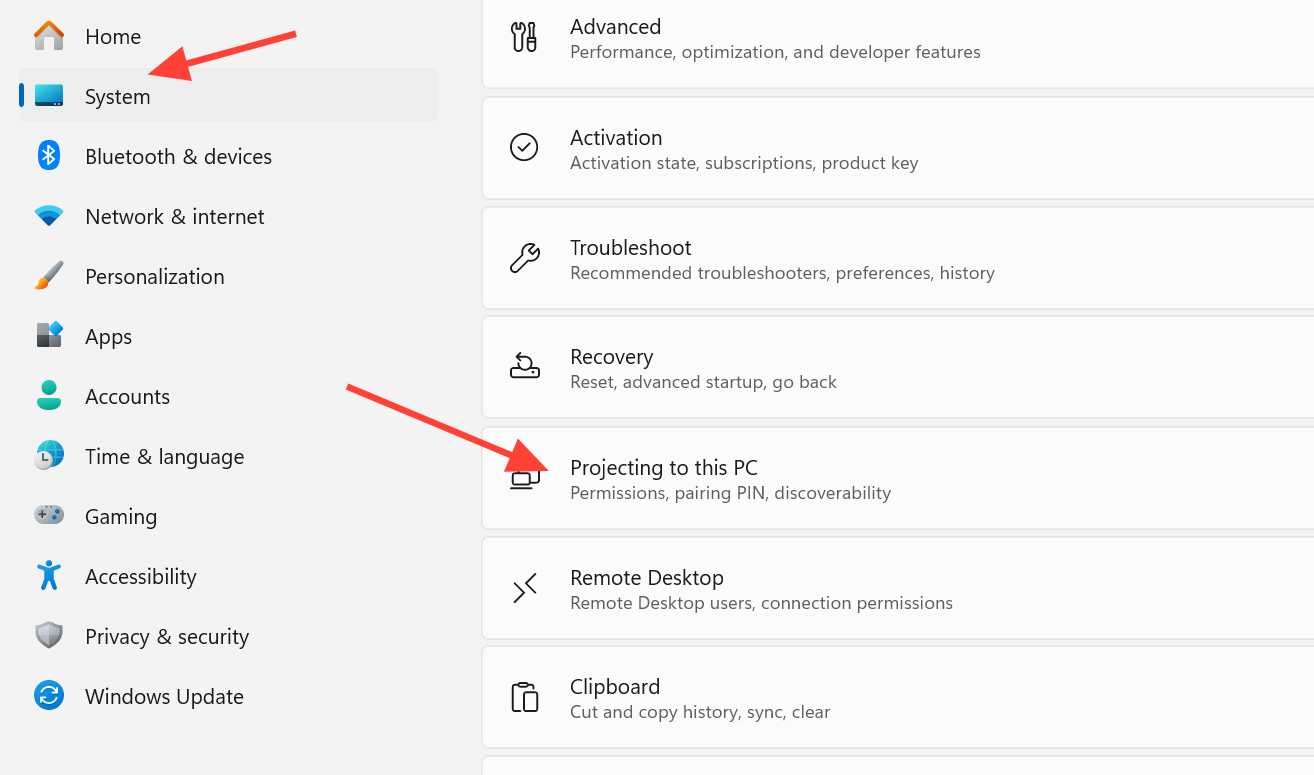
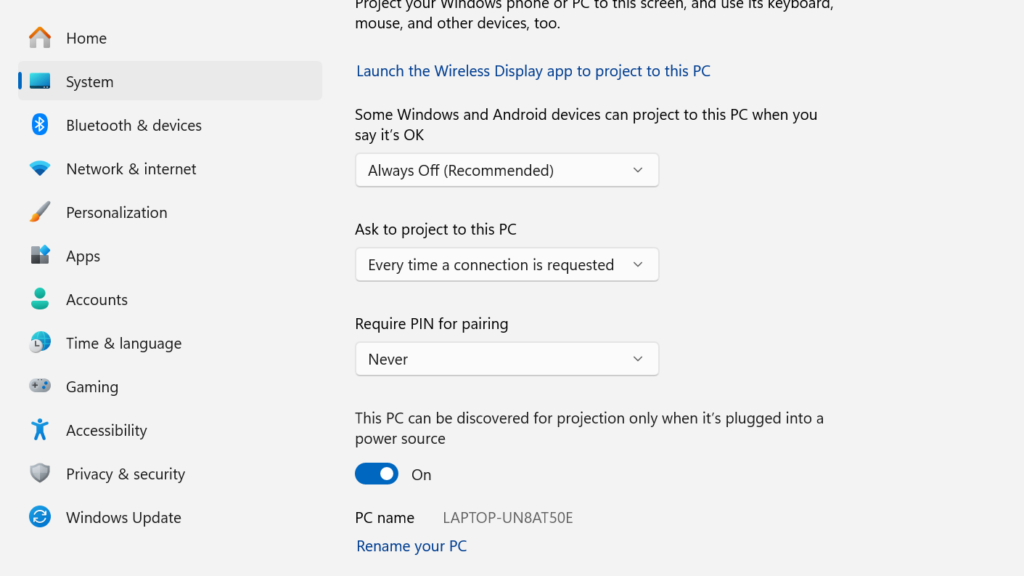
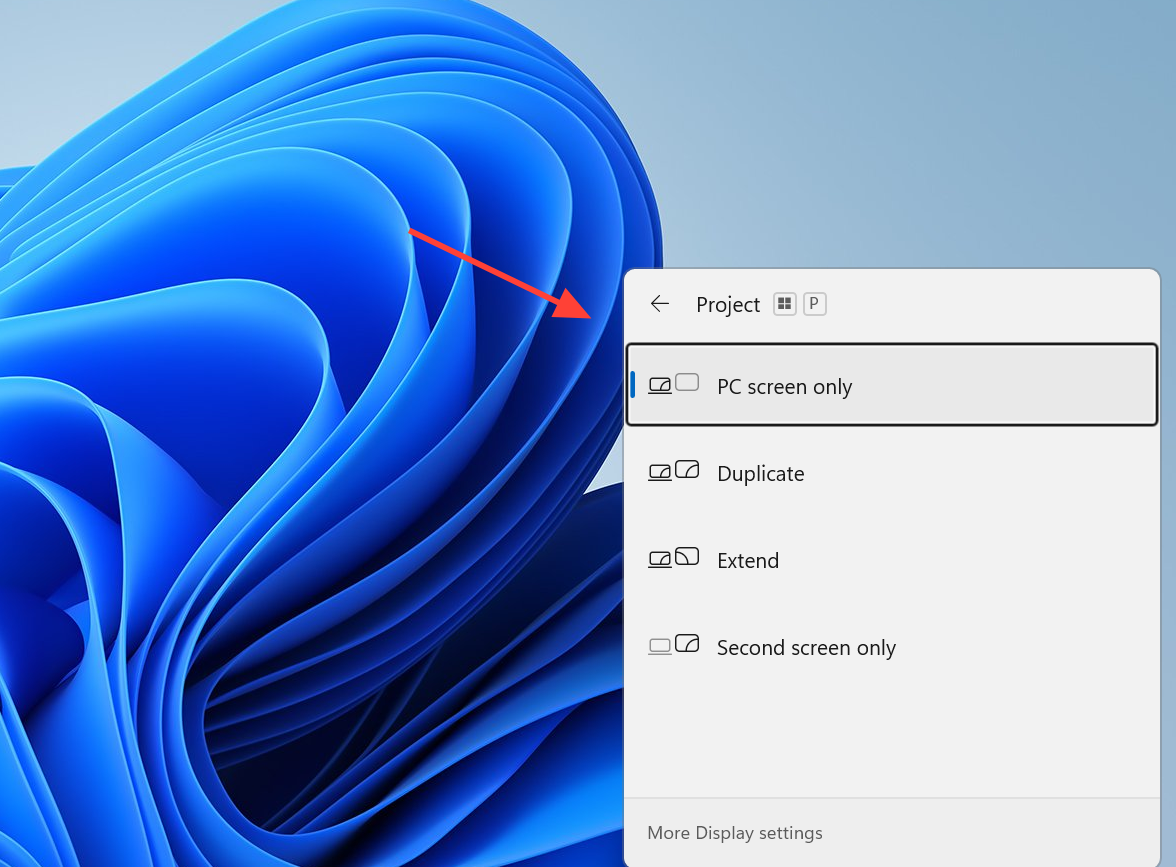
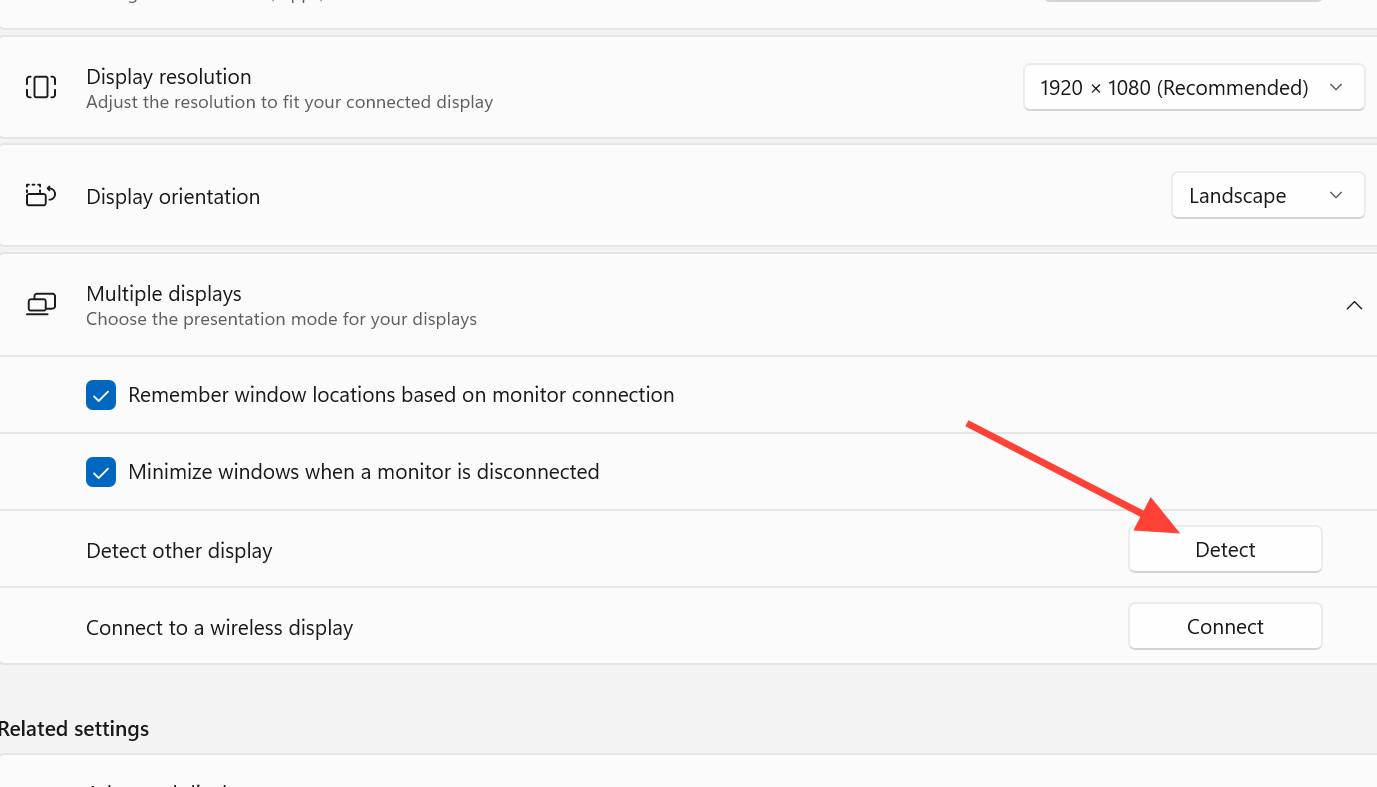
On a Mac, the equivalent path is AirPlay rather than the Windows projection menu, but the idea is the same. You choose the second device from the display or AirPlay options and set it to extend.
How to confirm it worked
When the connection succeeds, the second laptop’s screen switches to show your main computer’s output. In Display settings on the main computer, you will see a second numbered display appear next to the first. Once you choose “Extend these displays,” dragging a window past the edge of your primary screen should move it onto the laptop.
If the laptop never appears in the wireless display list, the usual causes are that the two devices are on different Wi-Fi networks, the receiving laptop is not set to “Available everywhere,” or one machine lacks Miracast support. Older laptops in particular may not support acting as a wireless display at all.
Wired and software alternatives
If wireless is unstable or your hardware is too old, a few other routes exist. One important caveat first: the HDMI or VGA port on most laptops is output-only, so you generally cannot plug your main computer into a laptop and have the laptop’s screen light up. Getting video into a laptop usually needs a laptop with a genuine HDMI input or an added video capture device.
| Method | When to use it |
|---|---|
| Miracast | Built into many Windows devices for wireless screen mirroring with no extra software |
| Third-party display apps | spacedesk or Input Director add compatibility for older or cross-platform setups |
| Remote desktop tools | TeamViewer or Chrome Remote Desktop let one computer control and display on another |
| HDMI input port | Only works on the minority of laptops that actually accept a video input signal |
For the software route, Spacedesk turns a second Windows machine into an extended display over your network. You can grab it from the Spacedesk website and install it on both devices.
Reusing the screen from a dead laptop
If the laptop’s motherboard is dead but the LCD panel still works, you can salvage the screen into a standalone monitor. This is a hardware project rather than a settings change. The panel connects through an LVDS cable, and a laptop’s built-in electronics cannot feed it a normal HDMI or VGA signal on their own.
The key part is an LCD controller board matched to your exact panel. You find the model number printed on the back of the LCD (for example, LP171WX2), then order a controller board flashed for that panel. A basic VGA board can cost around $42, less than a new monitor. Boards commonly include the LVDS cable, an inverter connection, a keypad or remote for controls, and a 12V power adapter, though you usually supply the VGA or HDMI cable yourself.
Note: When taking a laptop apart, unplug it and remove the battery first, and avoid resting the controller board on any metal surface that could short it out.
Limitations to expect
- Wireless connections add slight input lag compared with a directly cabled monitor.
- Video playback can stutter or fall out of sync, and fast gaming or graphics-heavy work is not ideal.
- The laptop used as a display drains its battery faster, so keep it on power.
- A weak Wi-Fi signal makes the link less stable; closing background apps on the second laptop frees up resources.
- Screen quality depends on the second laptop’s panel, which may differ from your main display.
For everyday multitasking, side-by-side documents, or keeping a chat app in view, repurposing a laptop this way is a low-cost way to add screen space with hardware you already own. For color-critical work or high frame rates, a dedicated monitor still delivers steadier performance.



