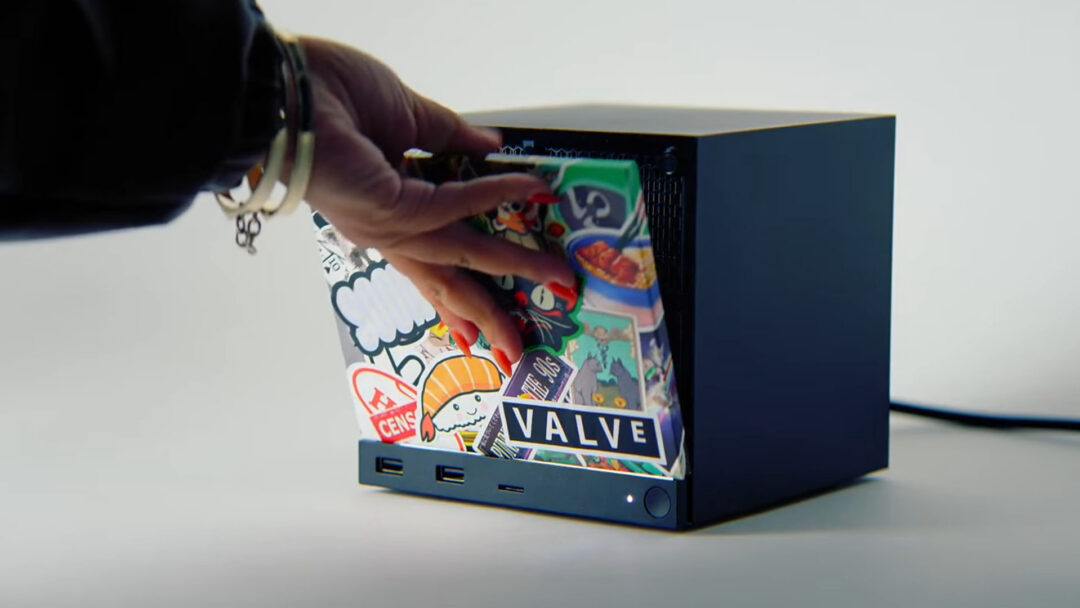
If you own one of Valve’s living-room PCs, you’ve probably noticed that it talks to you through light. The strip along the front and the small indicator dot aren’t just for show — together they form a status system that tells you exactly what your console is doing, whether it’s booting up, downloading a game, or running into a hardware problem. Learning to read these Steam Machine light meanings turns a mysterious glowing box into a device that clearly reports its own health at a glance.
This guide breaks down every default LED pattern the Steam Machine uses, grouped into the three categories Valve organizes them by: normal operation, maintenance routines, and error states. For each one you’ll see the official reference animation, what the light bar and indicator dot are doing, and what it actually means for you.
How the Steam Machine’s LEDs work
The Steam Machine has two separate light elements that work in tandem. The first is the light bar, the wide strip that can glow in different colors, brightness levels, and motion patterns such as breathing, blinking, or filling progressively from one side to the other. The second is the smaller indicator LED, which typically sits solid in white, blue, or red and confirms the machine’s broad power or error state.
It’s worth knowing that the light bar is customizable. In your Steam Machine’s settings under the customization menu, you can change its default color and brightness, so the blue tone shown in most of these examples may look different on a machine that’s been personalized. The patterns and behaviors, however, stay consistent regardless of the color you pick.
Nominal light patterns (normal operation)
These are the patterns you’ll see during everyday use. None of them indicate a problem — they simply reflect the machine powering on, waking, running, or moving data.
Powered off / shutdown
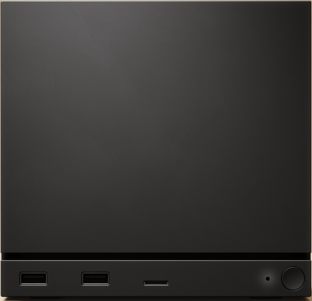
When both the light bar and the indicator LED are completely dark, the Steam Machine is fully shut down. To bring it back to life, you can either power on a Steam Controller that’s paired to the machine’s internal wireless adapter, or simply press the physical power button on the front of the unit.
Standby / sleep
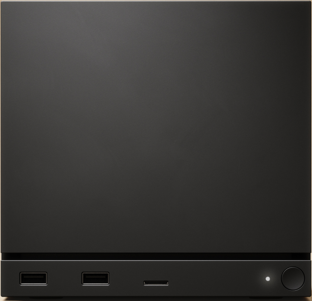
A dark light bar paired with a solid white indicator dot means the machine is resting in standby. You can wake it using a previously connected mouse, keyboard, or controller over Bluetooth or USB. One important caveat: a USB device plugged in while the machine is already asleep won’t rouse it. The device has to stay connected throughout the entire sleep session for the wake command to register.
Booting up
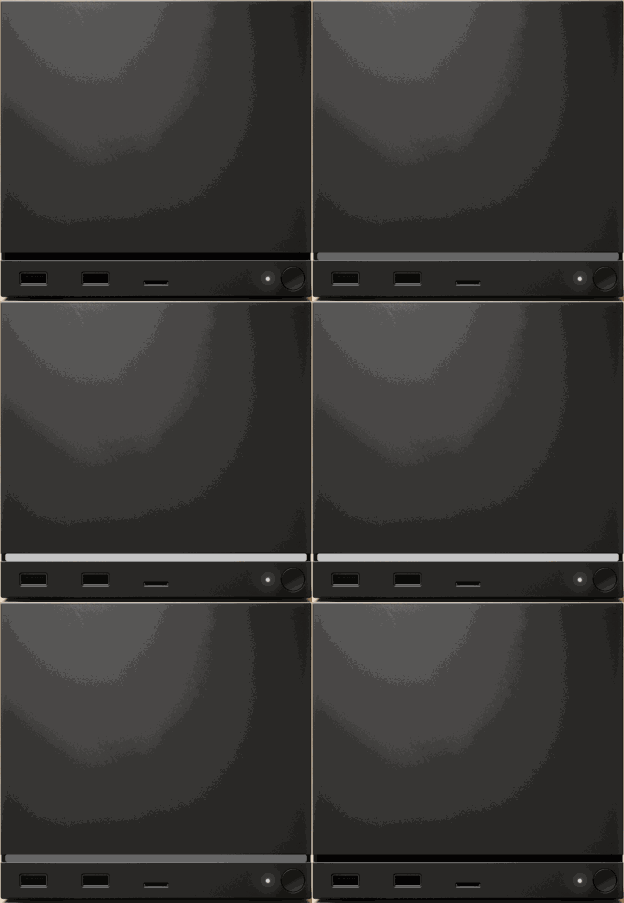
A white light bar that gently pulses or “breathes,” alongside a solid white indicator LED, tells you the Steam Machine is in the middle of booting. This is a brief, transitional state — give it a moment and it will settle into the on state below.
On and ready
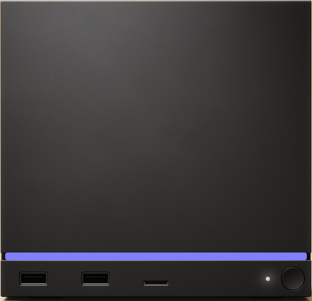
A steady, solid light bar in blue — the default color — with a solid white indicator dot is the “all good” state. The machine has finished booting and is ready to use. Remember that blue is only the factory default; if you’ve customized the light bar, this ready state will simply appear in whatever color and brightness you chose.
Downloading
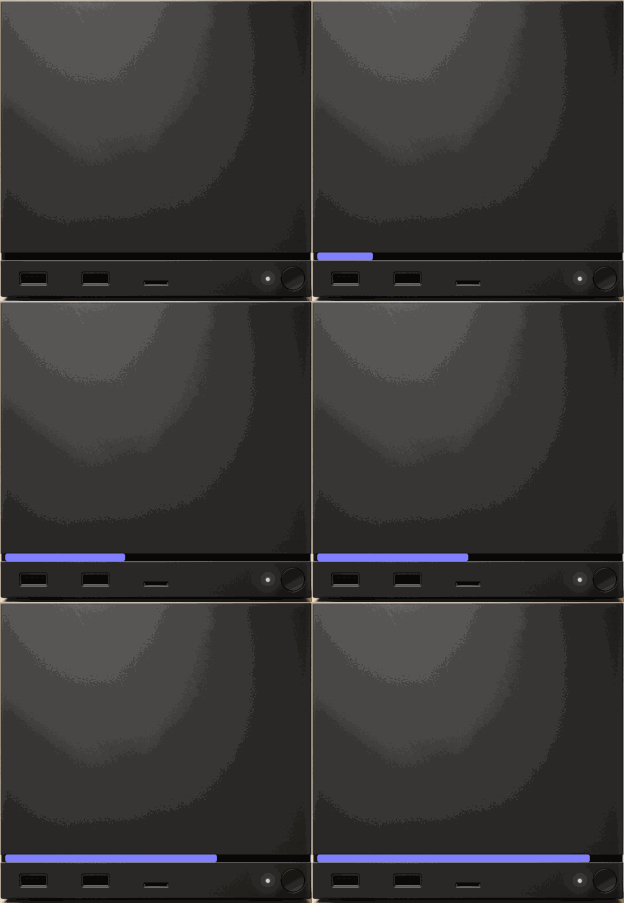
When the blue light bar fills progressively from left to right while the indicator stays solid white, the Steam Machine is actively downloading something. The portion of the bar that’s lit acts as a rough progress meter — the more of the bar that’s filled, the closer the download is to finishing.
Maintenance light patterns
These patterns appear while the machine performs low-level firmware work. They’re normal, but it’s best not to interrupt or unplug the console while you see them.
BIOS recovery in progress
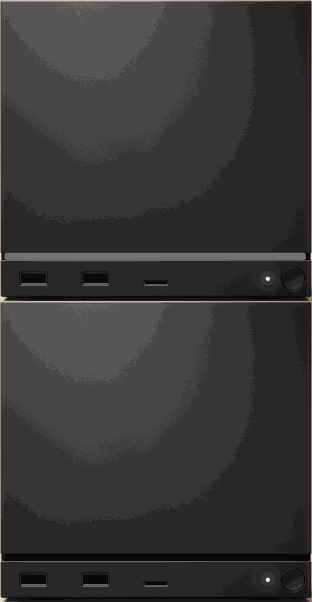
A blinking white light bar with a solid white indicator LED signals that a BIOS recovery is underway. Let the process run its course rather than cutting power to the machine.
BIOS update in progress
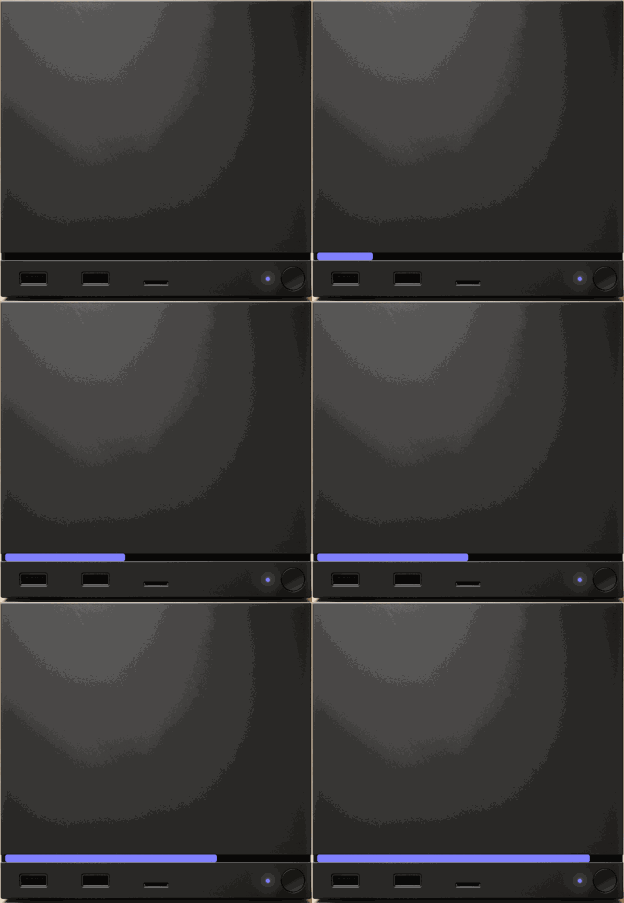
A blue light bar that progresses from left to right combined with a solid blue indicator dot means a BIOS update is being applied. Just like the download pattern, the filled portion of the bar approximates how far along the update is. Keep the machine powered throughout.
Error light patterns
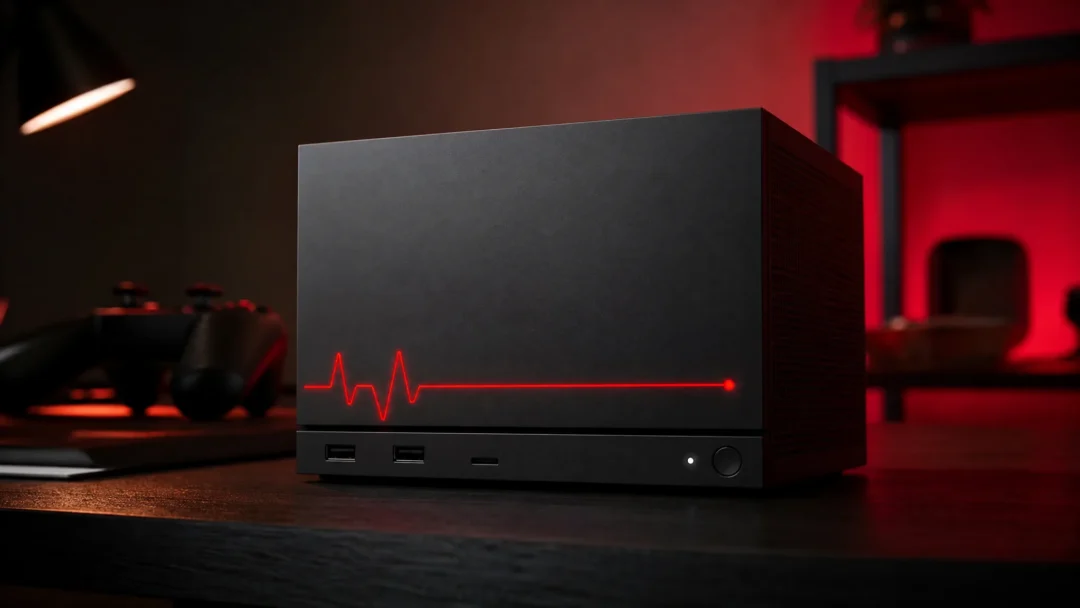
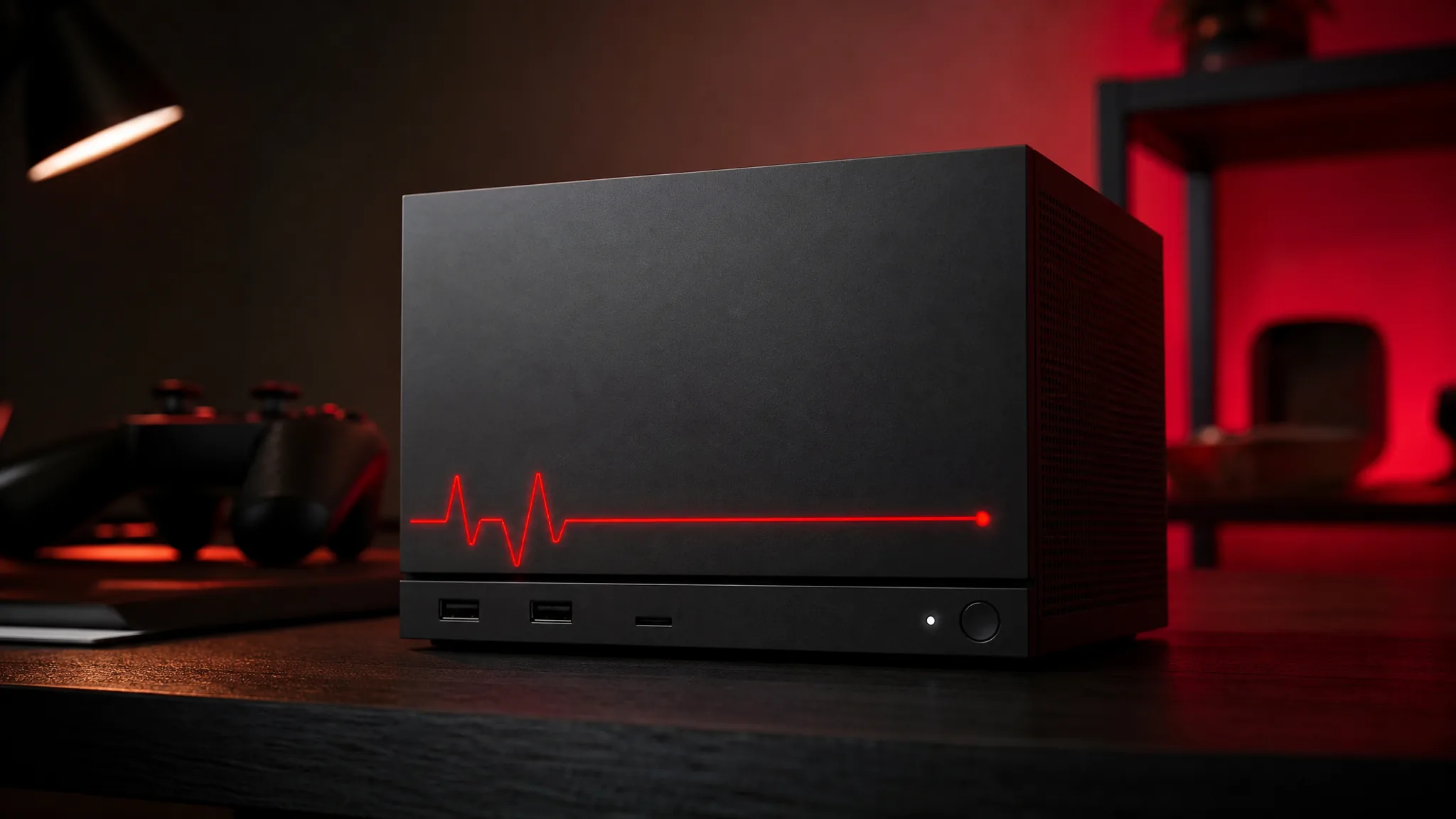
Red is the machine’s warning color, and every pattern in this group points to a hardware fault. If you see any of these, Valve recommends opening a ticket with Steam Support and describing exactly which pattern your machine is showing so they can help diagnose it.
Overheating
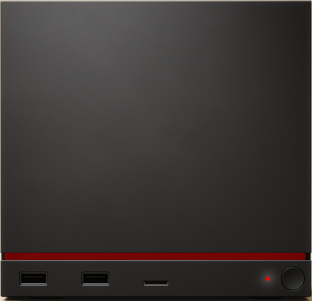
A solid red light bar with a matching solid red indicator LED means the system is overheating — specifically, the CPU has passed 95°C and/or the GPU has passed 90°C. Make sure the machine has adequate ventilation and isn’t boxed into a tight, unventilated space.
Memory (RAM) not detected
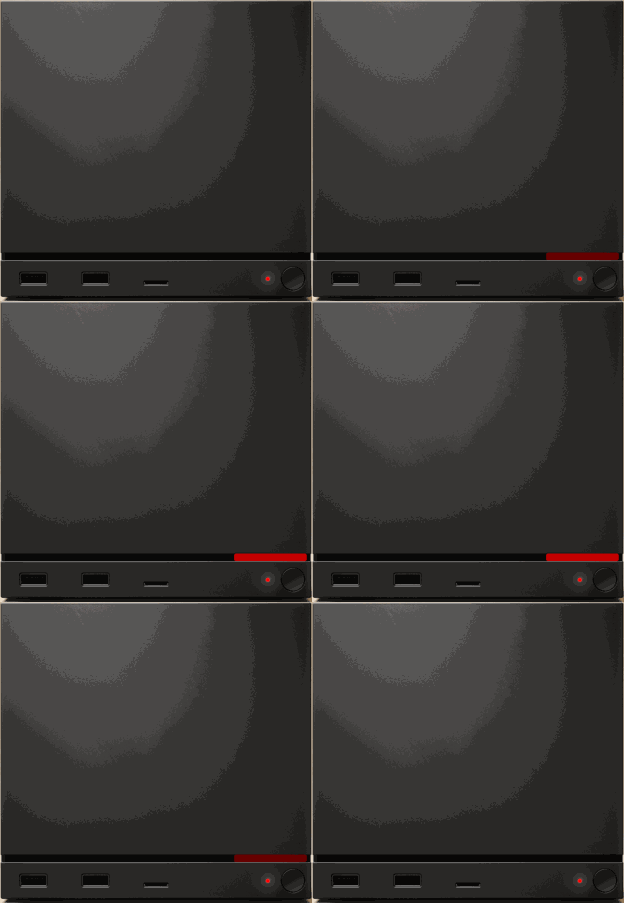
When the fourth quadrant of the light bar breathes red alongside a solid red indicator, the system can’t detect its memory (RAM). This is a hardware-level fault worth reporting to Steam Support.
GPU failure
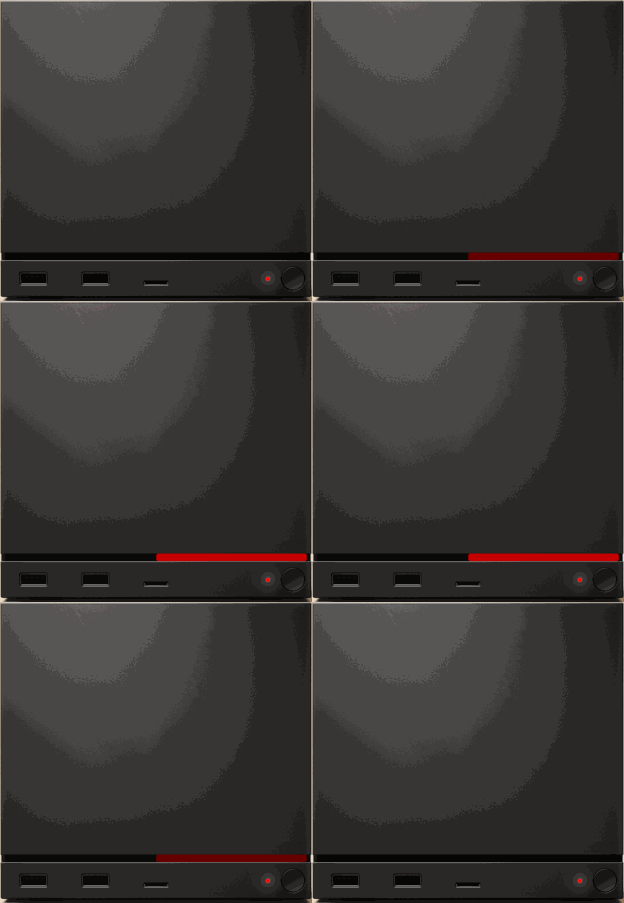
If the right half of the light bar breathes red with a solid red indicator dot, the machine has detected a graphics processor (GPU) failure.
SSD not detected
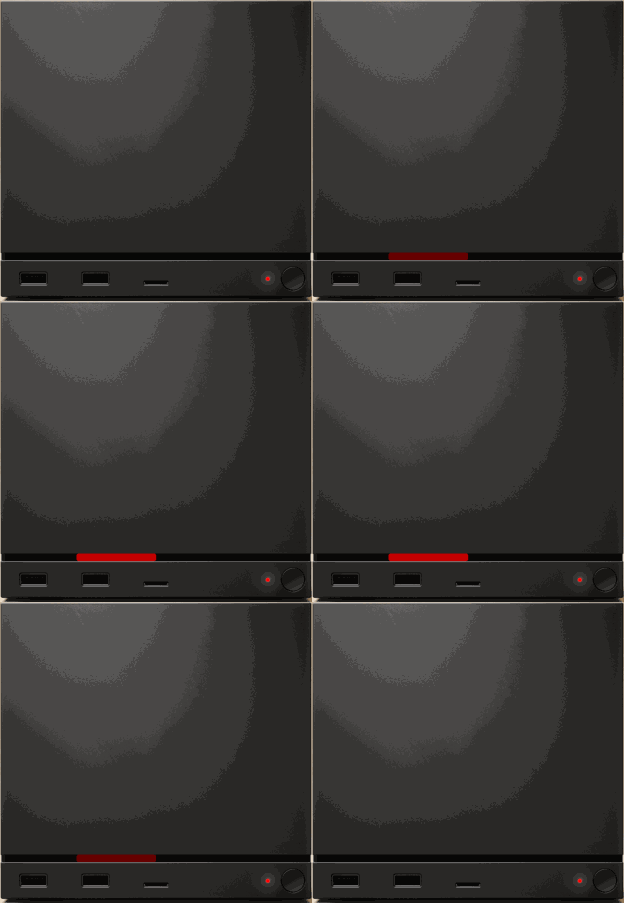
A red breathing pattern in the second quadrant of the light bar, paired with a solid red indicator, means the system can’t detect its SSD storage.
Memory training failure
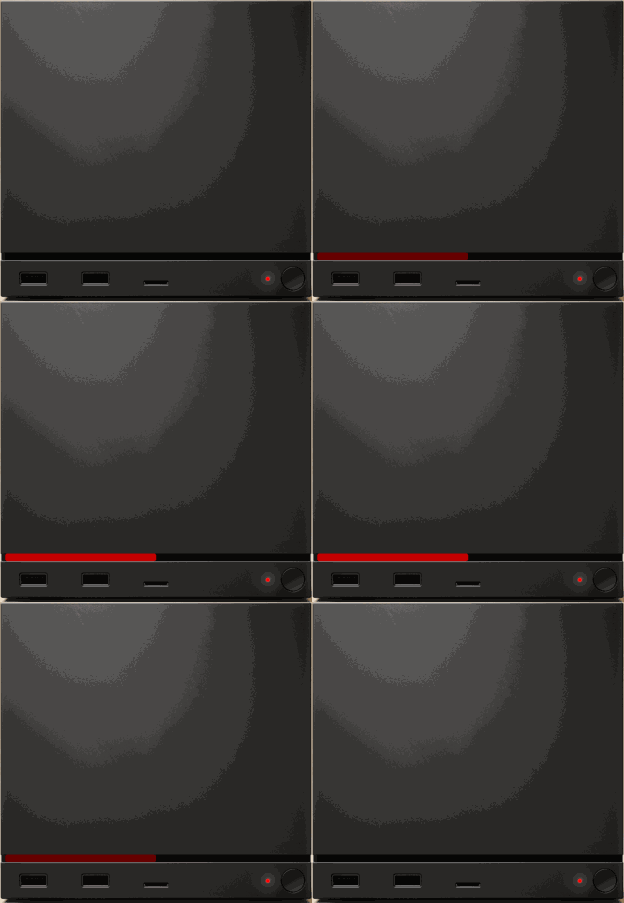
When the left half of the light bar breathes red with a solid red indicator LED, memory training has failed — a low-level initialization step for the RAM didn’t complete successfully.
Quick reference: Steam Machine light meanings at a glance
| Light bar | Indicator LED | What it means |
|---|---|---|
| Off | Off | Fully shut down |
| Off | Solid white | Standby / sleep |
| Breathing white | Solid white | Booting up |
| Solid blue (default) | Solid white | On and ready |
| Blue, filling left to right | Solid white | Downloading |
| Blinking white | Solid white | BIOS recovery in progress |
| Blue, filling left to right | Solid blue | BIOS update in progress |
| Solid red | Solid red | Overheating (CPU >95°C / GPU >90°C) |
| Fourth quadrant breathing red | Solid red | RAM not detected |
| Right half breathing red | Solid red | GPU failure |
| Second quadrant breathing red | Solid red | SSD not detected |
| Left half breathing red | Solid red | Memory training failed |
What to do when you see a red light
Any red pattern is the machine flagging a genuine hardware issue, so it shouldn’t be ignored. For overheating, start with the easy fixes: give the console breathing room, clear away dust, and confirm nothing is blocking the vents. For the RAM, GPU, SSD, and memory-training errors, there’s no user-side toggle that resolves them — the recommended path is to contact Steam Support, tell them precisely which light pattern you’re seeing, and let them walk you through diagnosis or repair.
Frequently asked questions
Can I change the color of my Steam Machine’s light bar?
Yes. The light bar’s color and brightness are customizable from the settings menu under customization. The default is blue, which is why most reference images show that shade, but the underlying patterns behave the same no matter which color you choose.
Why won’t my Steam Machine wake from sleep?
If a solid white indicator shows the machine is in standby but it won’t wake, check how your device is connected. A USB peripheral plugged in after the machine went to sleep won’t wake it — the device needs to have been connected before and remain connected throughout the sleep session. Bluetooth devices and controllers paired to the internal adapter can also wake it.
Is a breathing white light a problem?
No. A breathing white light bar simply means the machine is booting. It’s a normal, temporary state that resolves into the solid ready light once startup finishes.