

The “Connection to online services failed, please try again later” message in ARC Raiders usually means one of two things: either the game’s backend is having a bad day, or your PC can’t reach it cleanly. The trick is quickly figuring out which side is at fault and then working through the fixes that are actually worth your time.
1. Check whether ARC Raiders is down for everyone
Before changing anything on your system, confirm whether this is a wider outage.
Step 1: Look for a spike in reports on outage aggregators and social feeds. If you see a large number of players complaining within the same time window, you are likely dealing with a server-side issue.
Step 2: If it looks like a global problem, there is nothing useful to tweak on your PC. Leave the game closed for a while, then try again later. Many players who kept retrying during past outages found that the game simply started working again once the backend issues were resolved.
2. Confirm your basic network and platform health
Once you are reasonably sure ARC Raiders is not in the middle of a large outage, make sure your own connection and platform are stable.
Step 1: Test your internet connection. Open a browser and load a few different sites; if pages are slow or timing out, reboot your router and modem, then test again.
Step 2: If you are on Wi‑Fi, plug in an Ethernet cable and switch to a wired connection. ARC Raiders is sensitive to short drops and spikes, which are more common on wireless networks.
Step 3: Disable any VPN or proxy. Tunneled traffic can confuse matchmaking and authentication, and several connection errors go away immediately when the VPN is turned off.
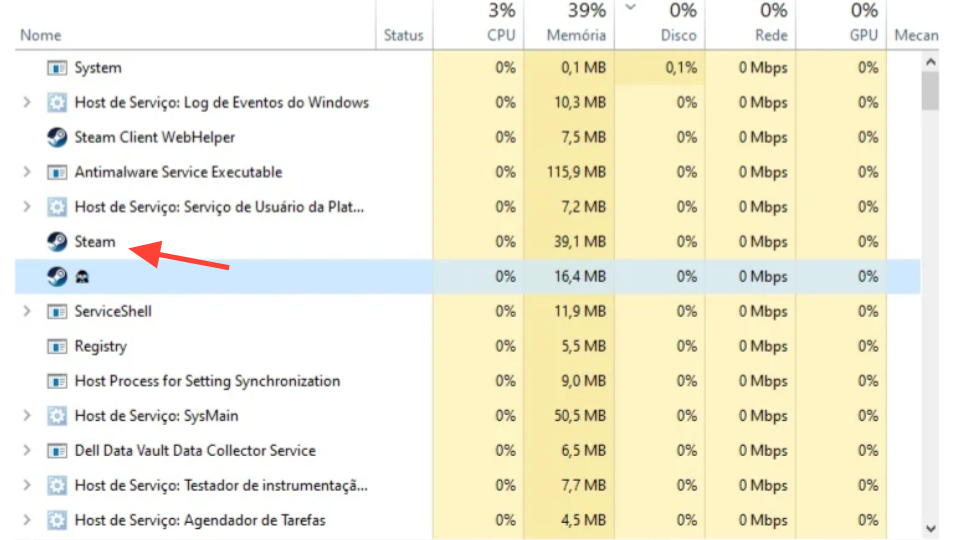
Step 4: Restart Steam completely. Close every Steam process in Task Manager, then launch Steam again and try ARC Raiders. Some players only cleared the error after restarting the Steam client, not just the game.
Step 5: Check for a Steam client update. In the Steam menu, run a manual check for updates and let the client restart if it installs anything. A stale Steam build has blocked access for some users until they updated.
3. Flush and renew your DNS and IP configuration (Windows)
For many PC players, the most reliable local fix has been resetting Windows’ network configuration, especially the DNS cache. This can resolve “Connection to online services failed” and “Online services are currently unavailable” when the problem sits between your PC and ARC Raiders’ servers.
Step 1: Close ARC Raiders and Steam completely.
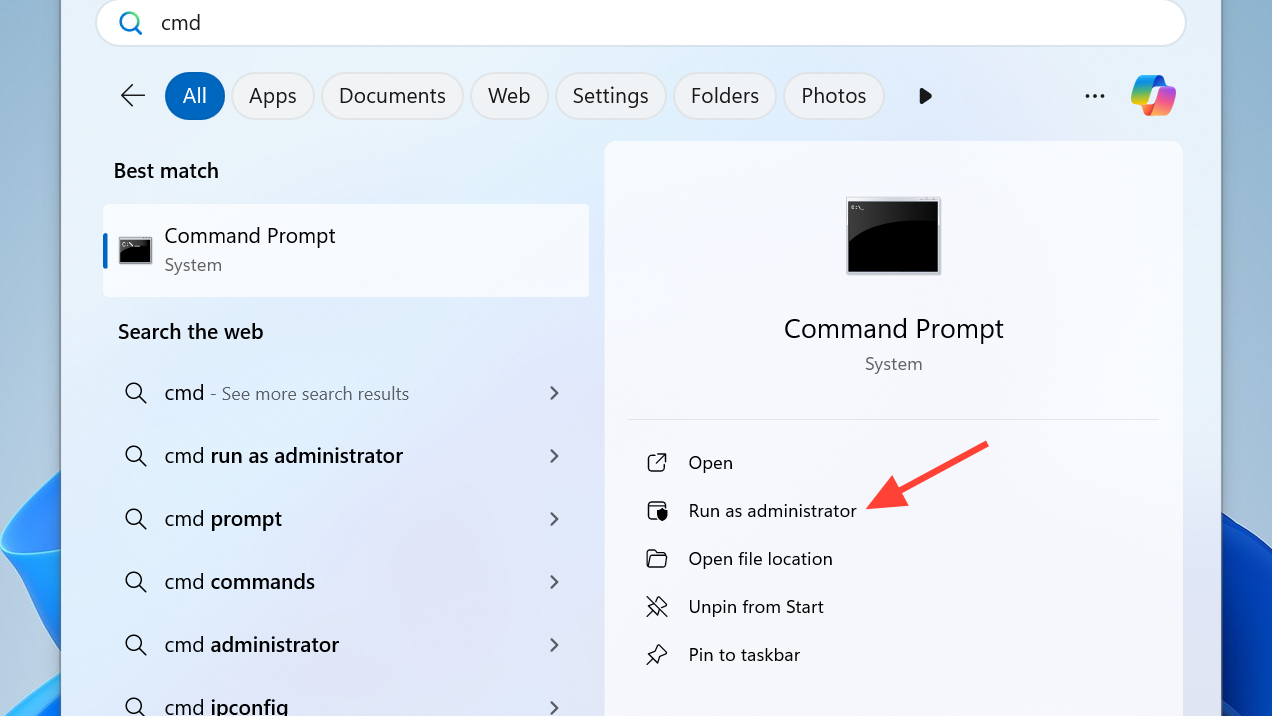
Step 2: Press the Windows key, type cmd, then right‑click Command Prompt and run it as administrator.
Step 3: In the Command Prompt window, reset your IP configuration by entering the following commands one by one, pressing Enter after each:
ipconfig /release
ipconfig /renew
ipconfig /flushdns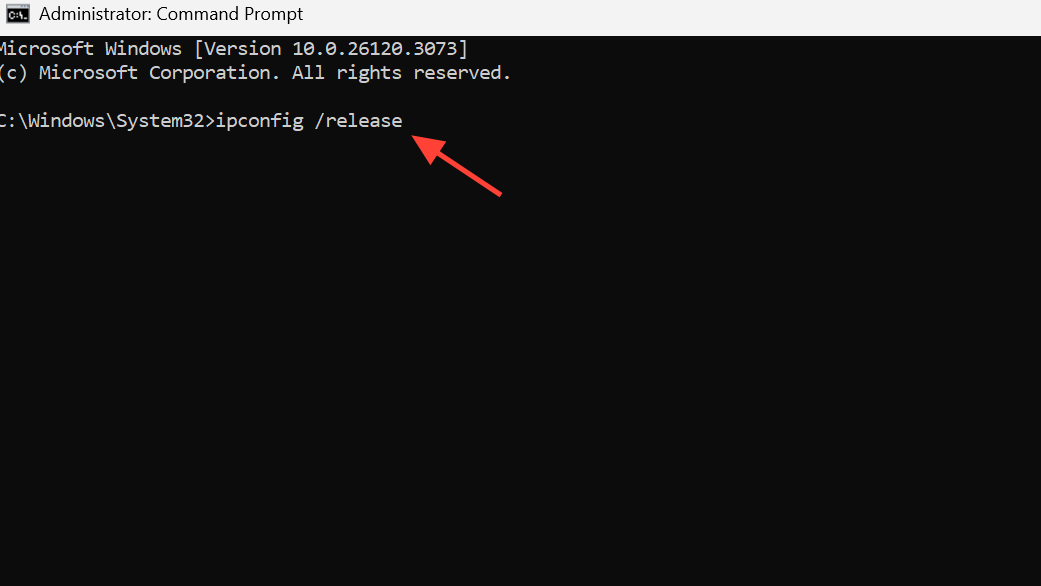
Step 4: When the commands finish, restart your PC. After reboot, launch Steam, then start ARC Raiders again.
Players reporting the exact “The Connection to online services failed, please try again later” pop‑up have frequently cleared it with ipconfig /flushdns, sometimes combined with a full Steam restart.
4. Switch to a public DNS service
If flushing DNS helped temporarily or did nothing, switching away from your ISP’s DNS resolvers can stabilize how your PC finds ARC Raiders’ servers.
| Provider | Primary DNS | Secondary DNS |
|---|---|---|
| Google Public DNS | 8.8.8.8 | 8.8.4.4 |
| Cloudflare DNS | 1.1.1.1 | 1.0.0.1 |
Step 1: Open Windows settings for your active network adapter and locate the DNS configuration.
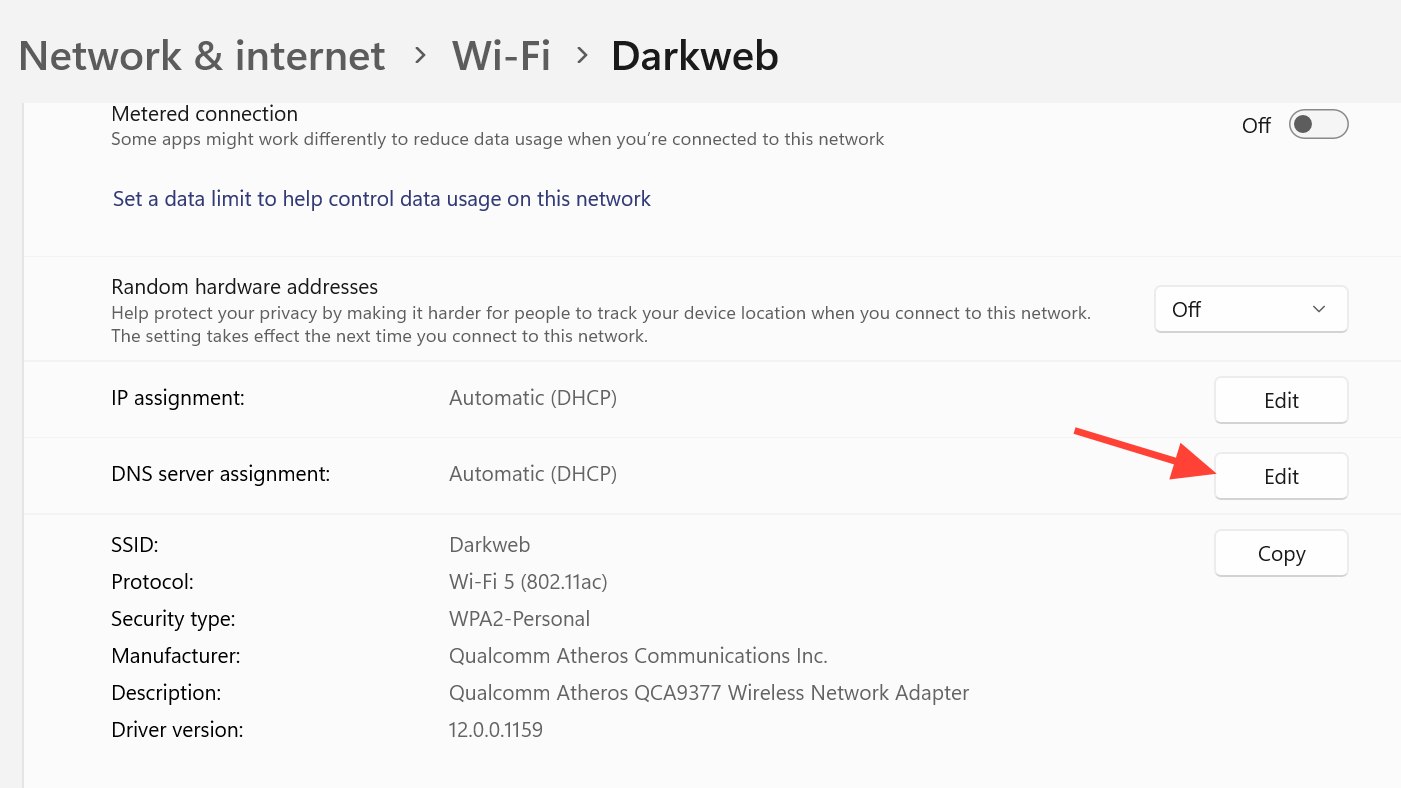
Step 2: Manually set the IPv4 DNS servers to one of the pairs in the table above.
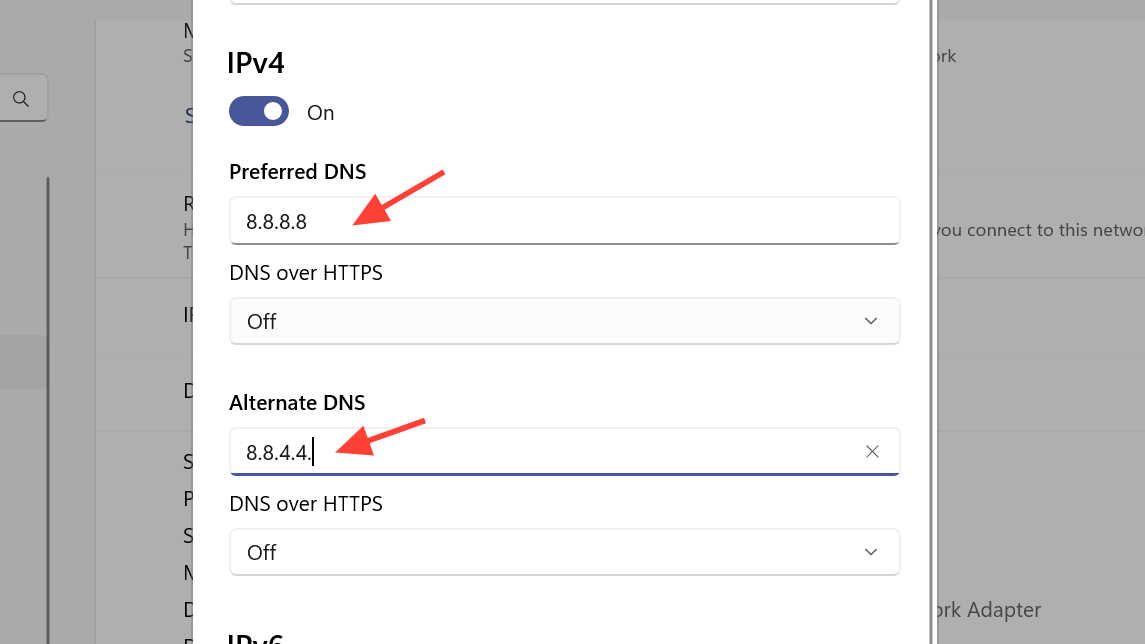
Step 3: Apply the change, then either restart your PC or at least disconnect and reconnect to the network. After that, try launching ARC Raiders again.
Some players have specifically reported that switching to Cloudflare DNS resolved repeated connection failures where everything else on the network looked fine.
5. Ensure your system time and Windows updates are correct
ARC Raiders, like many online games, expects your system clock to be reasonably accurate, and it generally behaves better on a fully patched OS.
Step 1: Right‑click the clock on the Windows taskbar and select the option to adjust date and time.

Step 2: Make sure the time zone matches your actual region. Use the option to sync time with the internet and let Windows correct the clock.
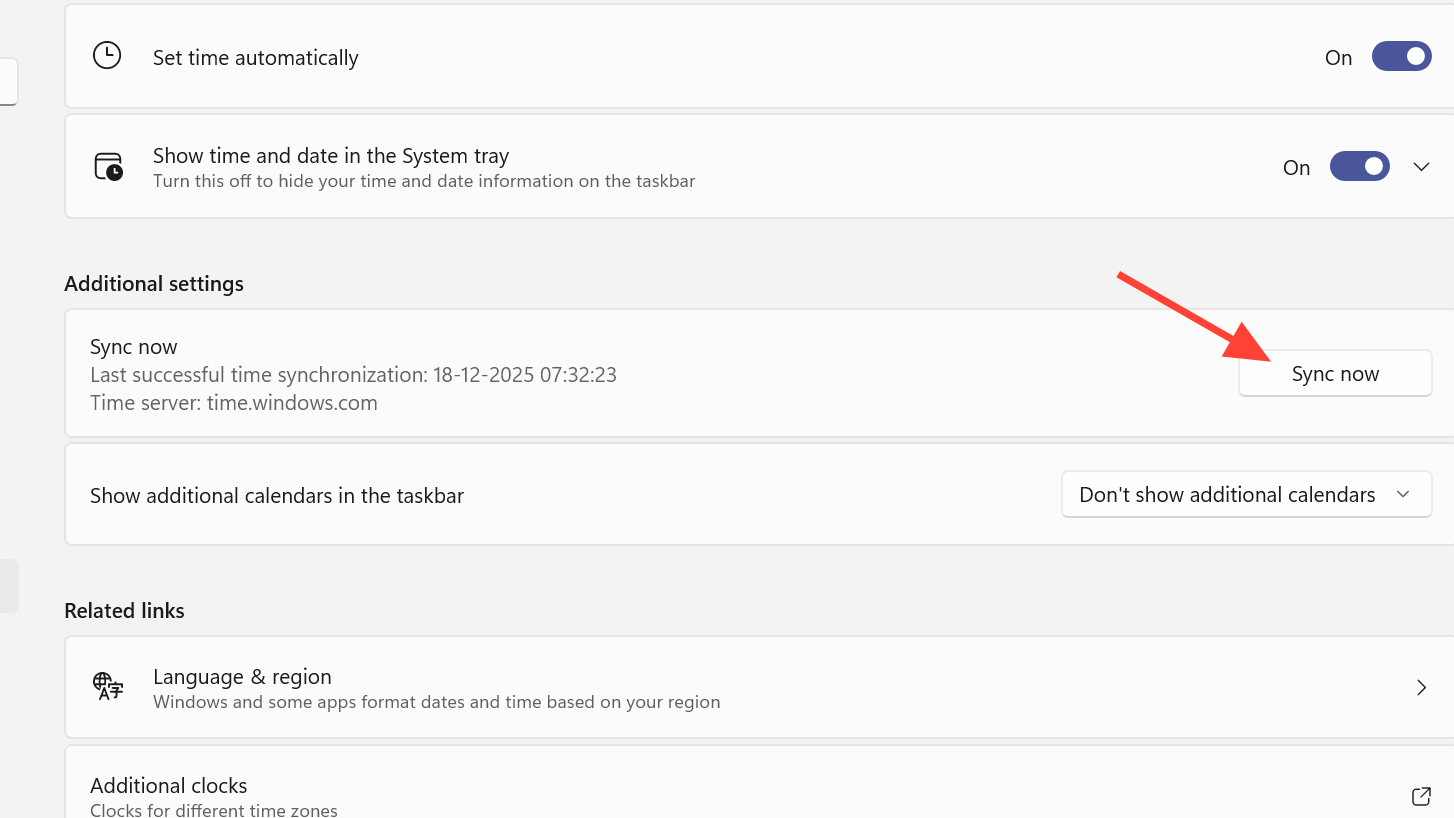
Step 3: Open the Windows Update settings and run a manual check for updates. Install any pending system updates, then restart your PC.
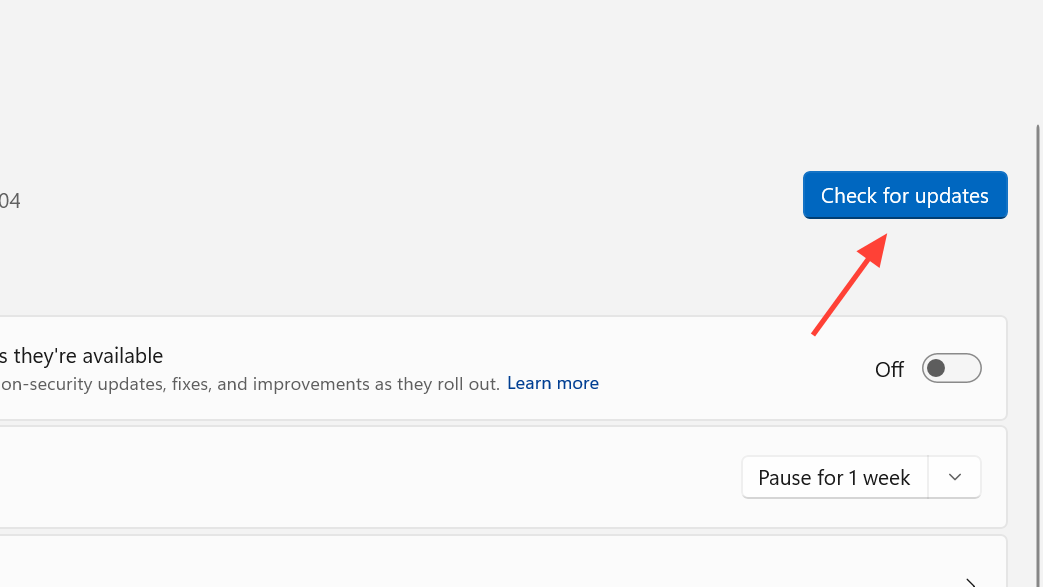
Once the clock and OS are in a healthy state, retry ARC Raiders. A mismatched time or lagging system updates tends to manifest as vague connection errors rather than explicit “time” warnings.
6. Adjust matchmaking region in ARC Raiders
When you do manage to reach the main menus but struggle to connect to raids or matchmaking, server region settings can be part of the problem.
Step 1: On PC, open ARC Raiders, then select the gear icon in the bottom‑right corner of the screen.
Step 2: Go to the Gameplay section, then open the Server option.
Step 3: Set the server selection to Automatic so the game can pick a healthy region for you.
On console, open the Social menu, move to the gear icon on the left, then use Gameplay > Server and set that to Automatic as well.
7. Use Windows’ own network diagnostics
If connection failures persist outside of known outages, it is worth letting Windows scan for common network issues.
Step 1: Open Settings, then go to Network & Internet and select Status or the equivalent overview page.
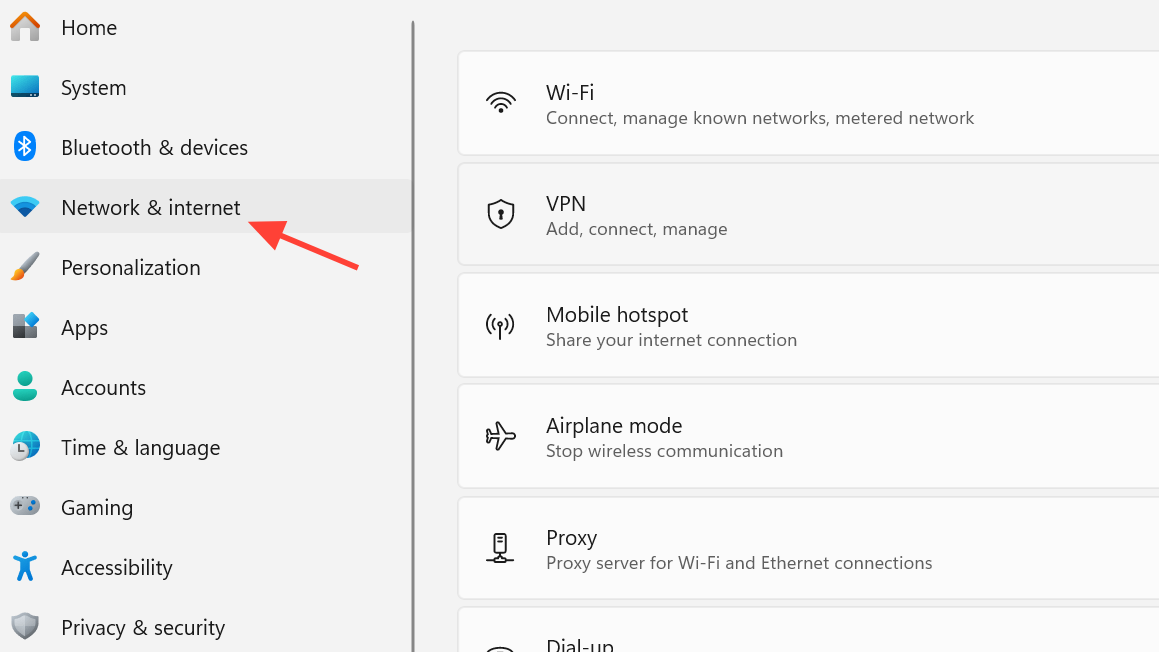
Step 2: Find the advanced network settings entry and launch the built‑in network troubleshooter.
Step 3: Choose your current network connection and follow the prompts. Apply any fixes the troubleshooter recommends, then restart your PC if asked.
This will not fix game‑specific server outages, but it can quietly resolve adapter misconfigurations, driver problems, or broken routing that would otherwise keep ARC Raiders from talking to its backend.
8. Limit Windows background traffic that can destabilize play
Heavy background traffic, especially from Windows Update’s peer‑to‑peer sharing, can add enough jitter to cause disconnects in an extraction shooter.
Step 1: Open Windows Settings and navigate to Update & Security.
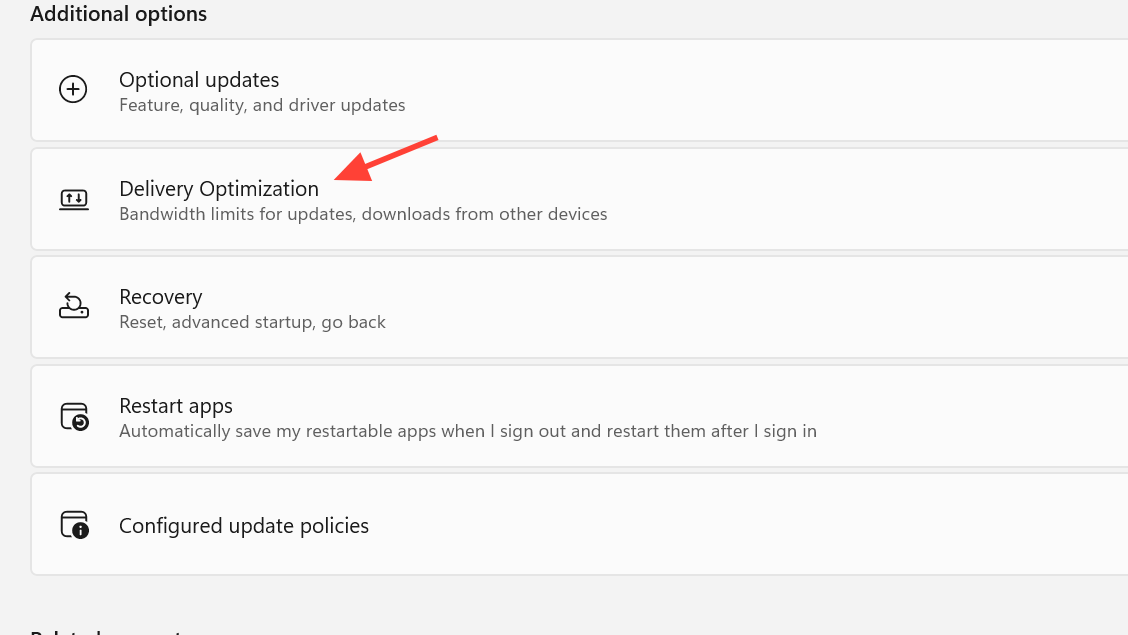
Step 2: Go to Windows Update, then Advanced options, and open Delivery Optimization.
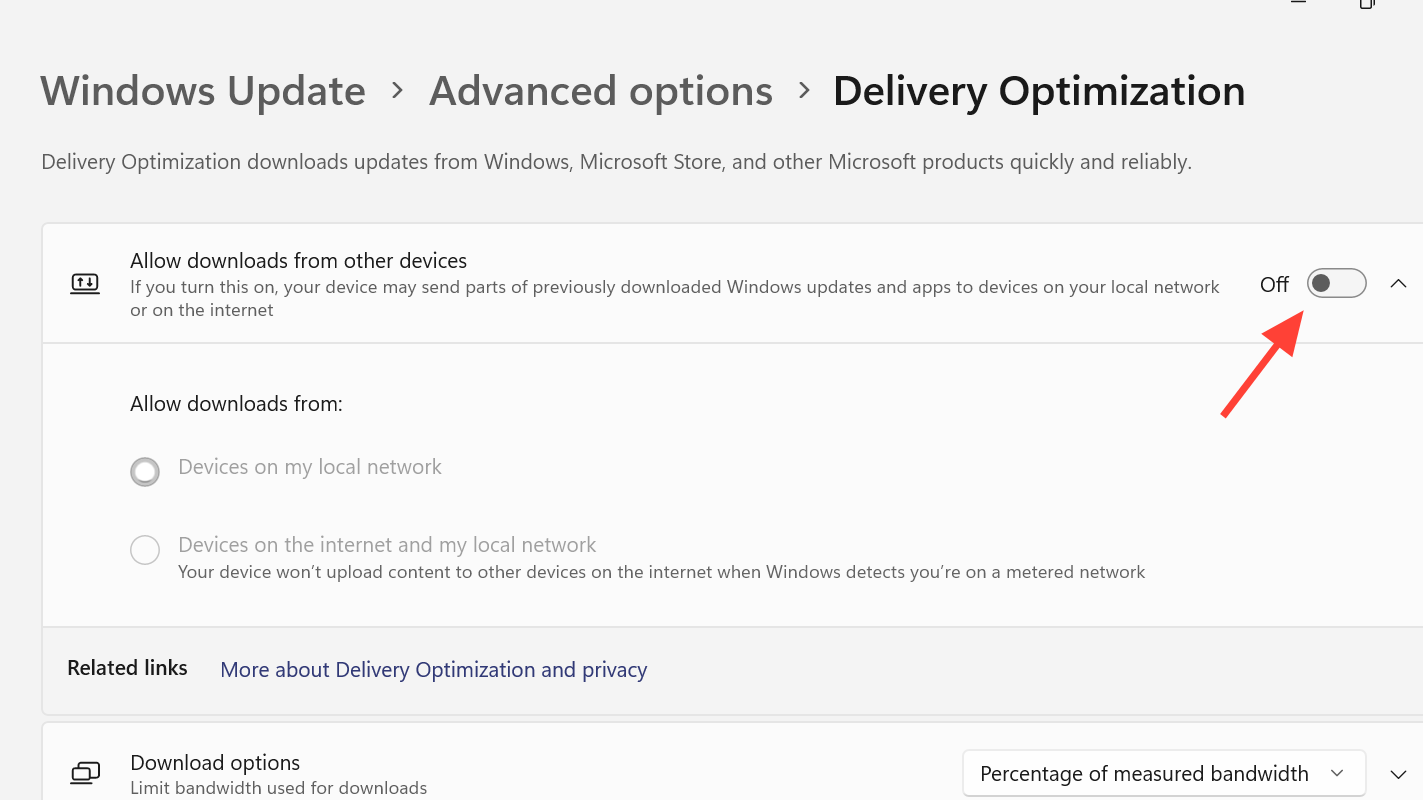
Step 3: Turn off the setting that allows downloads from other PCs. This keeps your upload and download bandwidth focused on your own game traffic instead of distributing updates to other machines.
9. When to stop troubleshooting and contact support
If you have worked through connectivity, DNS, Steam, and system health, and ARC Raiders still refuses to connect while friends in the same region can play, you may be hitting an account‑level or region‑specific issue.
Step 1: Gather key details before you escalate: the exact error message and code (for example “Connection to online services failed” or ARAU0297), your platform, your region, and a rough timestamp of when the problem began.
Step 2: Sign in to the ARC Raiders Help Center at https://id.embark.games/arc-raiders/support and create a support ticket that includes those details and a short list of the troubleshooting steps you have already tried.
Support can investigate server logs and account flags that you cannot see from your end, and they can confirm whether you are running into a known issue tied to specific updates or regions.
ARC Raiders leans heavily on always‑online infrastructure, which means some amount of downtime and mid‑raid disconnects is inevitable. The key is separating genuine outages from fixable local problems. Checking for a wider issue, resetting your network configuration with ipconfig commands, switching DNS, and keeping Steam and Windows current collectively resolve a large share of “Connection to online services failed” errors. When those steps do nothing and many players are hit at once, the only realistic move is to give the servers time to recover.