

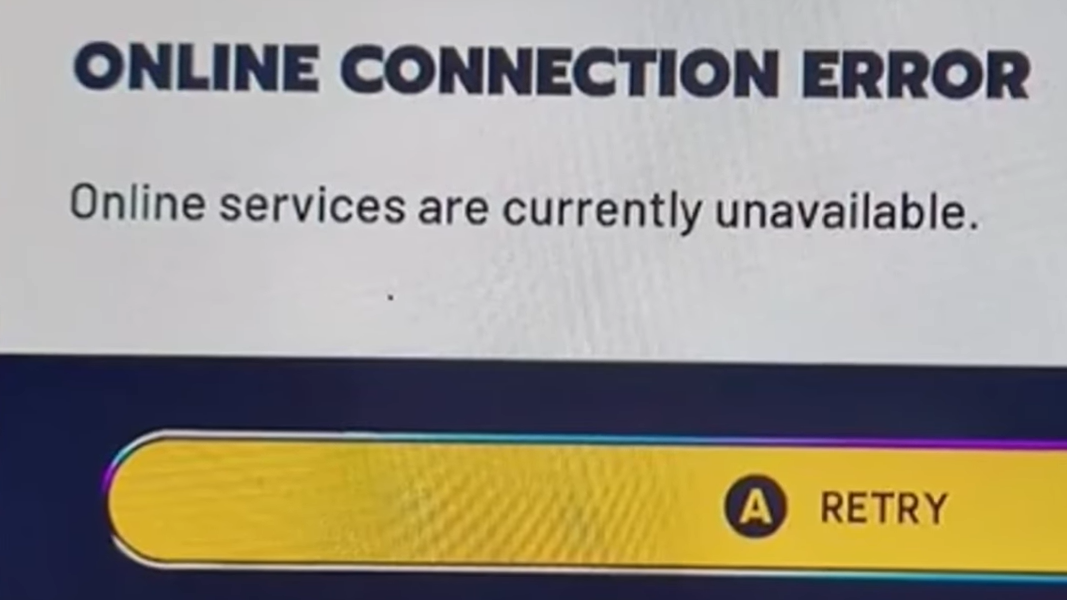
ARC Raiders relies on Embark’s online backend for everything from logging in to matchmaking. When that connection fails, the game blocks you before you even reach the cantina, showing messages like “Online services are currently unavailable” and error codes such as ARAU0297 or similar.
These errors are frustrating because your local internet can look fine, other games work, and simple restarts often do nothing. The problem usually sits somewhere between your system clock, your IP address, and Embark’s authentication service, with occasional full server outages on top.
What ARC Raiders “online services are unavailable” errors usually mean
When ARC Raiders shows “Online Connection Error – Online services are currently unavailable” with a code like ARAU0297, it is not complaining about your bandwidth. It is telling you that the game client cannot complete a clean handshake with Embark’s online services.
That failed handshake tends to fall into a few recurring patterns:
- Authentication problems for your connection – Embark’s auth service refuses or times out your login, sometimes tied to your public IP address. Players behind carrier-grade NAT (multiple households sharing one public IP) run into this more often.
- System clock mismatch – Your PC or console clock is out of sync, so time-based security checks during login fail.
- DNS or routing issues – Your provider’s DNS or route to Embark’s servers sends traffic into a dead end.
- Short-term server outages or overload – ARC Raiders servers simply aren’t responding, or your platform region is temporarily limited.
- Corrupted local game or launcher state – A broken game install, anti-cheat startup, or stale cache blocks the connection before it reaches the servers.
The same underlying issues can show up with slightly different wording or codes across platforms (PC, PS5, Xbox), but the fixes fall into the same small set of levers.
Check for a wider ARC Raiders outage first
Before changing settings or calling your ISP, it is worth checking whether this is a broader backend issue.
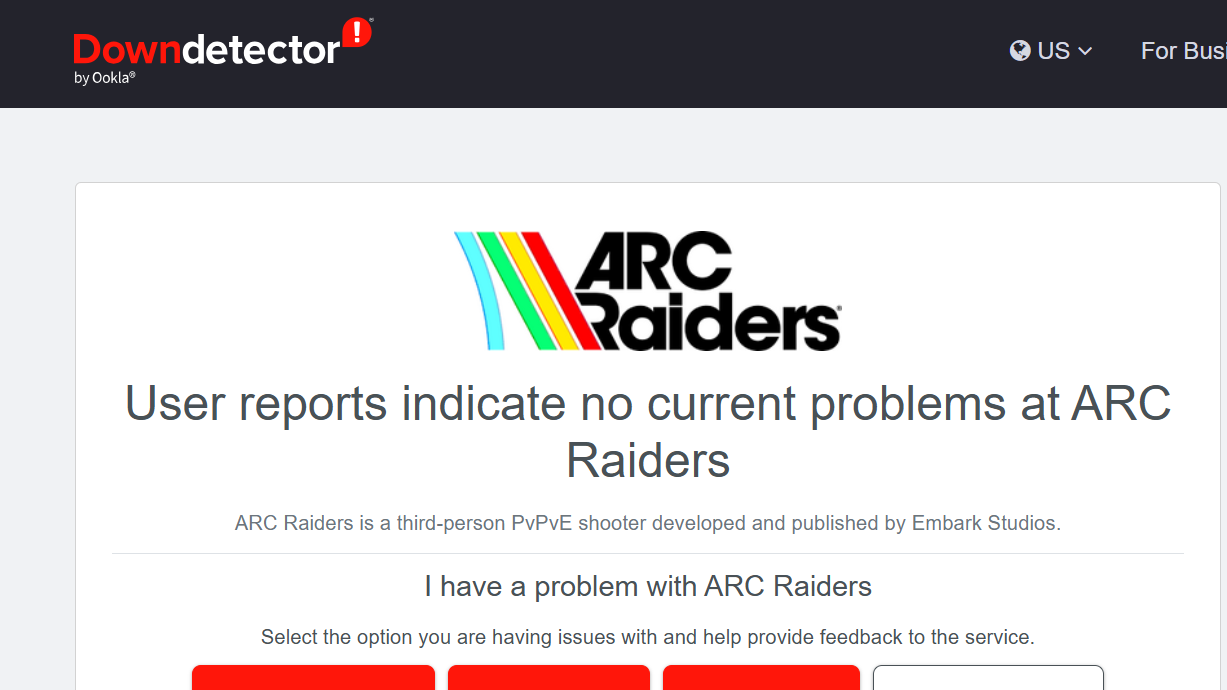
Downdetector’s ARC Raiders page regularly shows spikes in reports focused on Server Connection and Game Launch. When those lines jump, and players across platforms are complaining about online connection errors at the same time, there is little you can do locally besides wait for stability and keep trying to reconnect.
Signs it is not just you:
- Friends on different ISPs or platforms hit similar “online services unavailable” errors at the same time.
- You are suddenly kicked out mid-match and cannot get back in, even though your other online apps keep running.
- Queues hang for several minutes, then drop to connection errors, then later let you back in without changes on your side.
When that happens, retrying periodically is usually more productive than tearing apart your home network.
Fix ARC Raiders “online services unavailable” on PC (Steam / Epic / GeForce NOW)
On PC, the errors around ARAU0297 and similar codes cluster around three things: your system clock, your connection identity (IP and DNS), and the integrity of your install or anti-cheat. Work through them in this order.
Method 1: Sync your Windows clock and time zone
ARC Raiders’ authentication checks are time-sensitive. If Windows thinks it is a different time than Embark’s servers, authentication can silently fail and surface as “online services unavailable.”
Step 1: Open Windows Settings and go to Time & Language > Date & time. Turn Set time automatically and Set time zone automatically on, wait a few seconds, then launch ARC Raiders again.
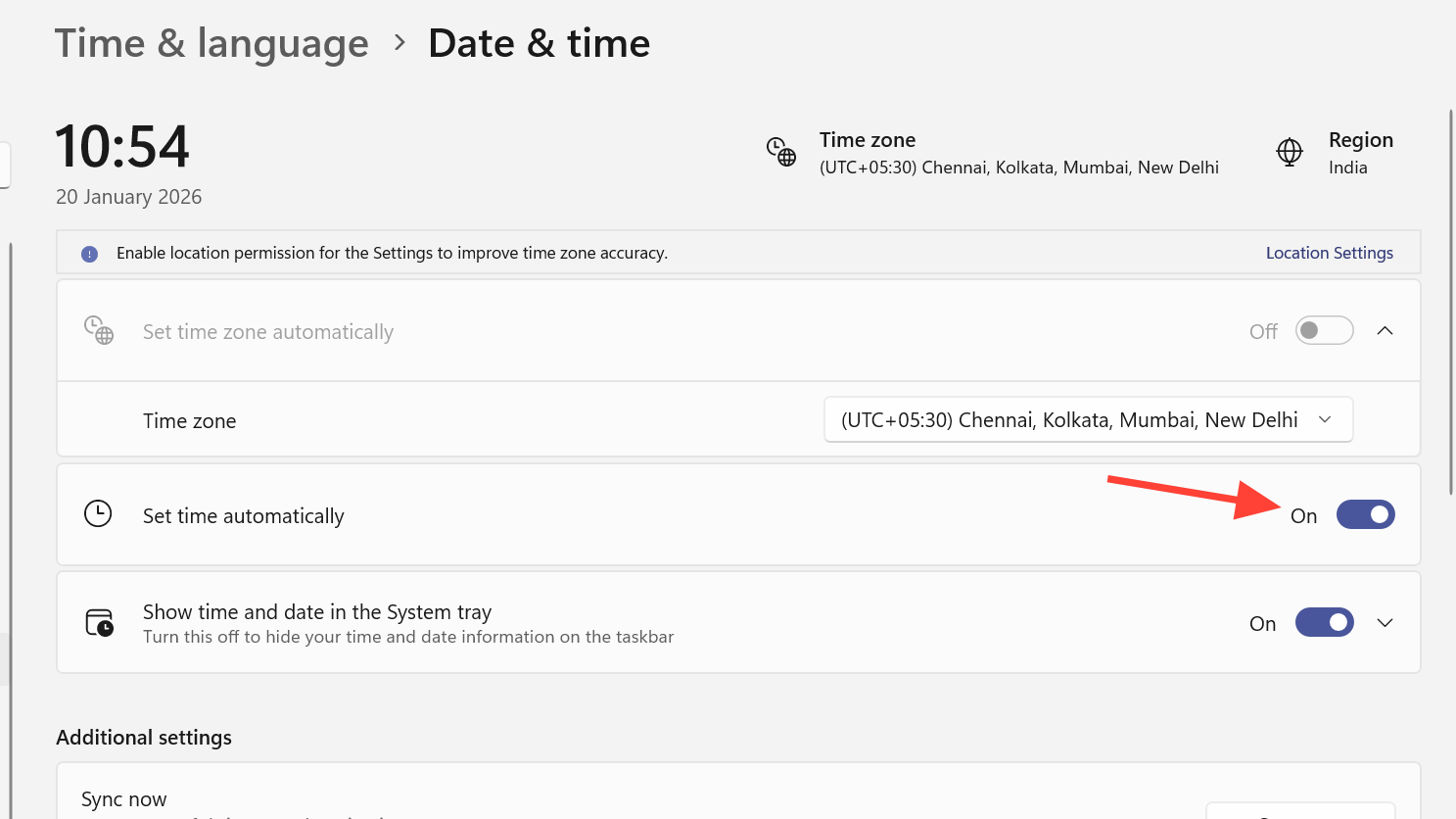
Step 2: If the game still fails, toggle those automatic options off, manually pick your real region, and press the button to sync time with the internet if it is available in your version of Windows. Try launching the game again.
For many players, simply touching these settings forces a full time sync and immediately removes ARAU0297-style errors.
Method 2: Reset your IP and DNS on Windows
Embark’s services track your public IP when you hit authentication. In some cases, that IP effectively becomes “poisoned” for login, especially on dynamic addresses or shared carrier-grade NAT setups. DNS issues can create similar symptoms.
Step 1: Fully power down your modem or router. Leave it off for at least 5 minutes so your ISP has a reason to hand out a new public IP when you power back on. Then reboot your PC and try ARC Raiders again.
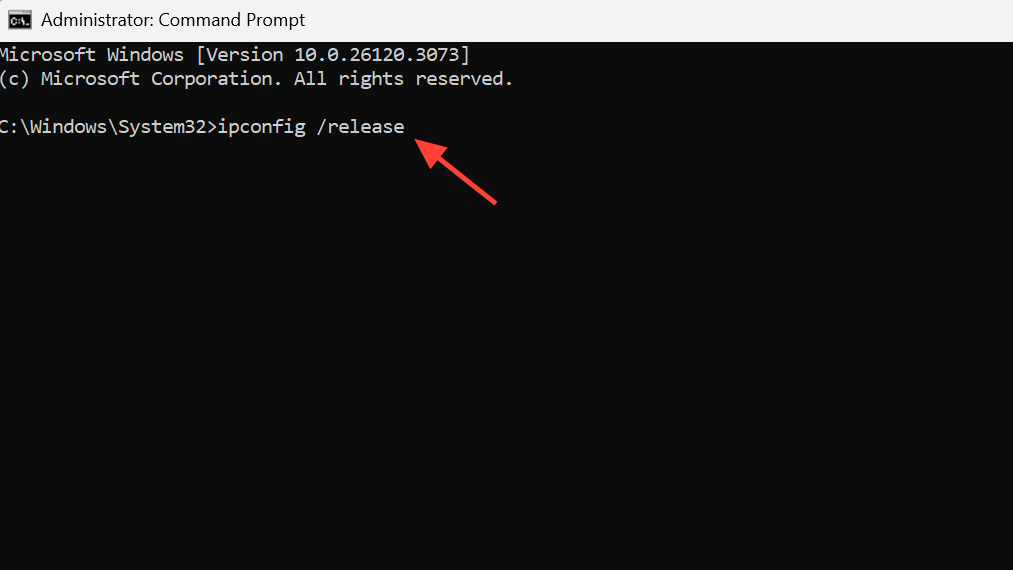
Step 2: If resetting the router does not change anything, renew your local address and DNS cache. Open Command Prompt as Administrator and run these commands one by one:
ipconfig /release
ipconfig /renew
ipconfig /flushdns
Restart your PC, then try to launch to the main menu.
Step 3: Switch to a public DNS. In your active network adapter’s IPv4 settings, set DNS to either Google (8.8.8.8 and 8.8.4.4) or Cloudflare (1.1.1.1 and 1.0.0.1). Save, reconnect, and retry ARC Raiders.
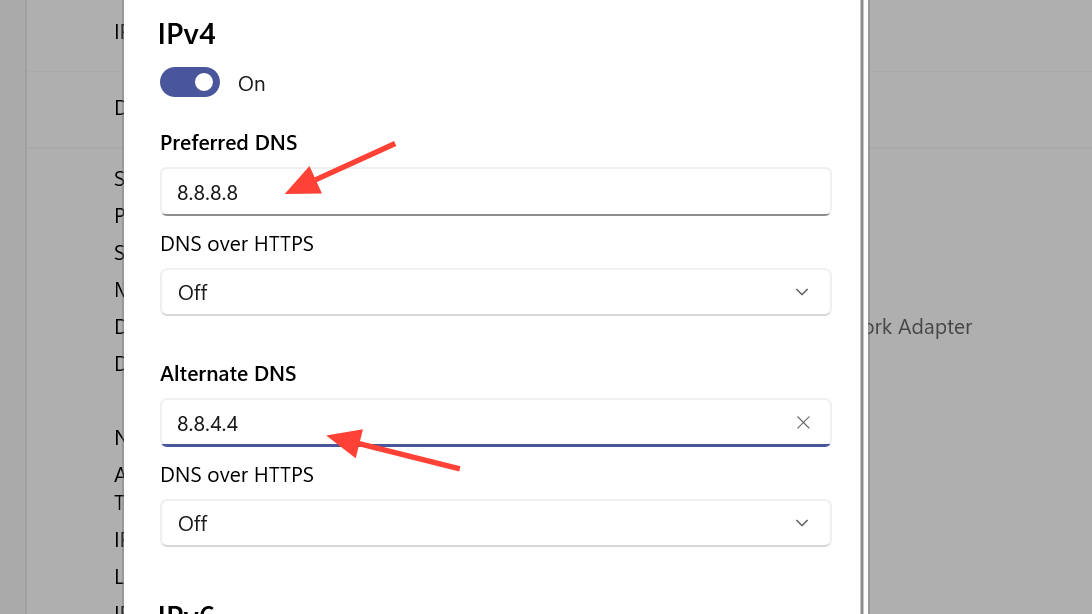
If a new IP instantly solves the error and both ARC Raiders and The Finals work again, the issue was almost certainly tied to your previous IP’s relationship with Embark’s auth service. If you cannot get a new address via reboot, you may need to ask your ISP for a fresh public IP or an updated router.
Method 3: Verify ARC Raiders game files and anti-cheat
Sometimes the online error is the final symptom of a broken client rather than a pure network problem.
Step 1: On Steam, open your Library, right-click ARC Raiders, choose Properties, go to Installed Files, and run Verify integrity of game files. On Epic Games Store, use its equivalent verification option. Let the launcher repair the game and then relaunch.
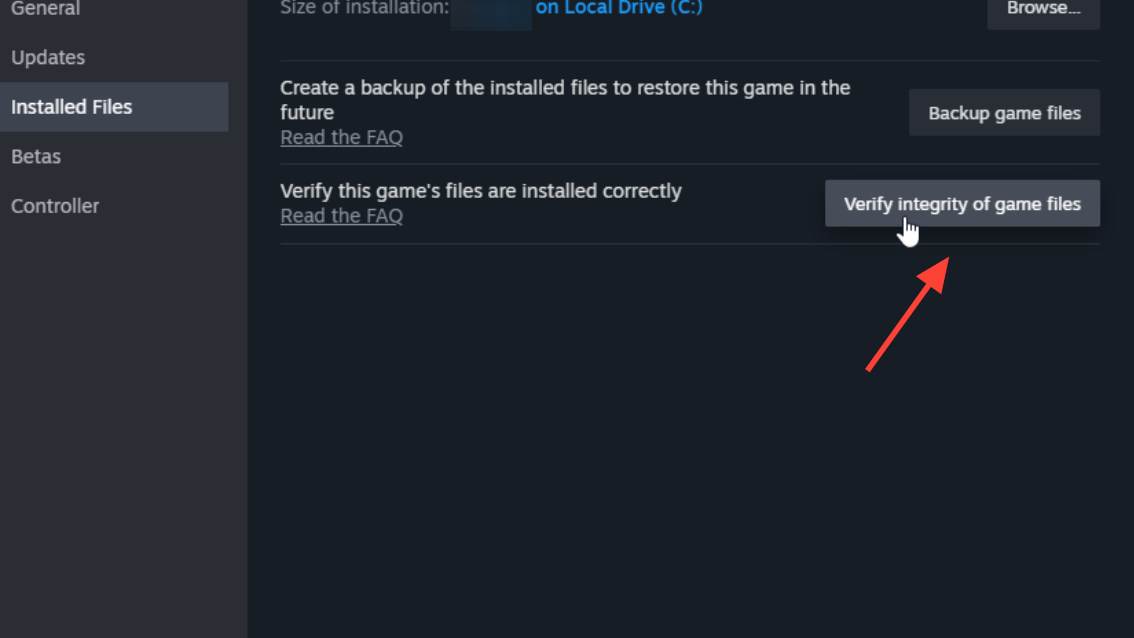
Step 2: If the game still refuses to reach the menu, go to the ARC Raiders install folder under steamapps or the relevant Epic directory and look for the Easy Anti-Cheat launcher file (often named similarly to start_protected_game). Right-click, choose Run as administrator, and let it complete before starting ARC Raiders normally.
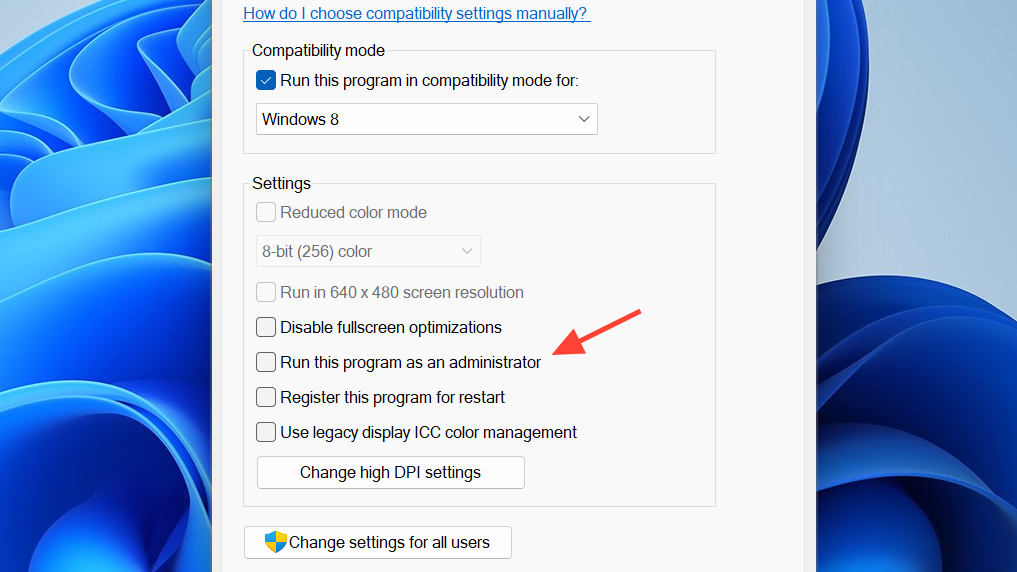
Step 3: If you recently changed hardware, drivers, or system security features and now see integrity or anti-cheat codes (ARAV prefixes), follow Embark’s official anti-cheat troubleshooting at id.embark.games/arc-raiders/support/faq/165-system-integrity-violation-and-error-codes. Enable required Windows security features, close disallowed tools like AutoHotkey or Cheat Engine, and add ARC Raiders and Easy Anti-Cheat to antivirus exceptions.
Method 4: Fix general connection issues on PC
When your whole connection to ARC Raiders feels unstable or you frequently drop during matchmaking, use Embark’s network checklist to clean up your link.
Step 1: Prefer a wired Ethernet connection over Wi‑Fi where possible. If you must use Wi‑Fi, move closer to the access point and avoid heavy background downloads on the same network.
Step 2: Open Windows Settings and use the built-in Network troubleshooter under Network & Internet > Status > Advanced network settings. Let it detect and repair basic issues.
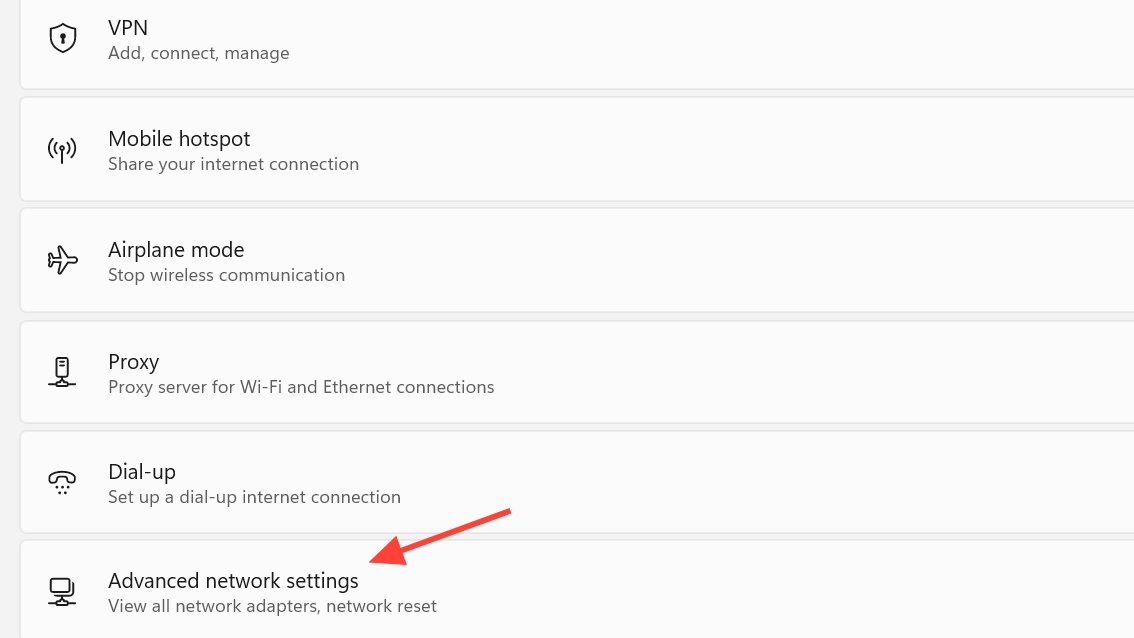
Step 3: Disable Windows peer-to-peer update sharing to free up bandwidth. In Settings > Update & Security > Windows Update > Advanced options > Delivery Optimization, turn off “Allow downloads from other PCs.”
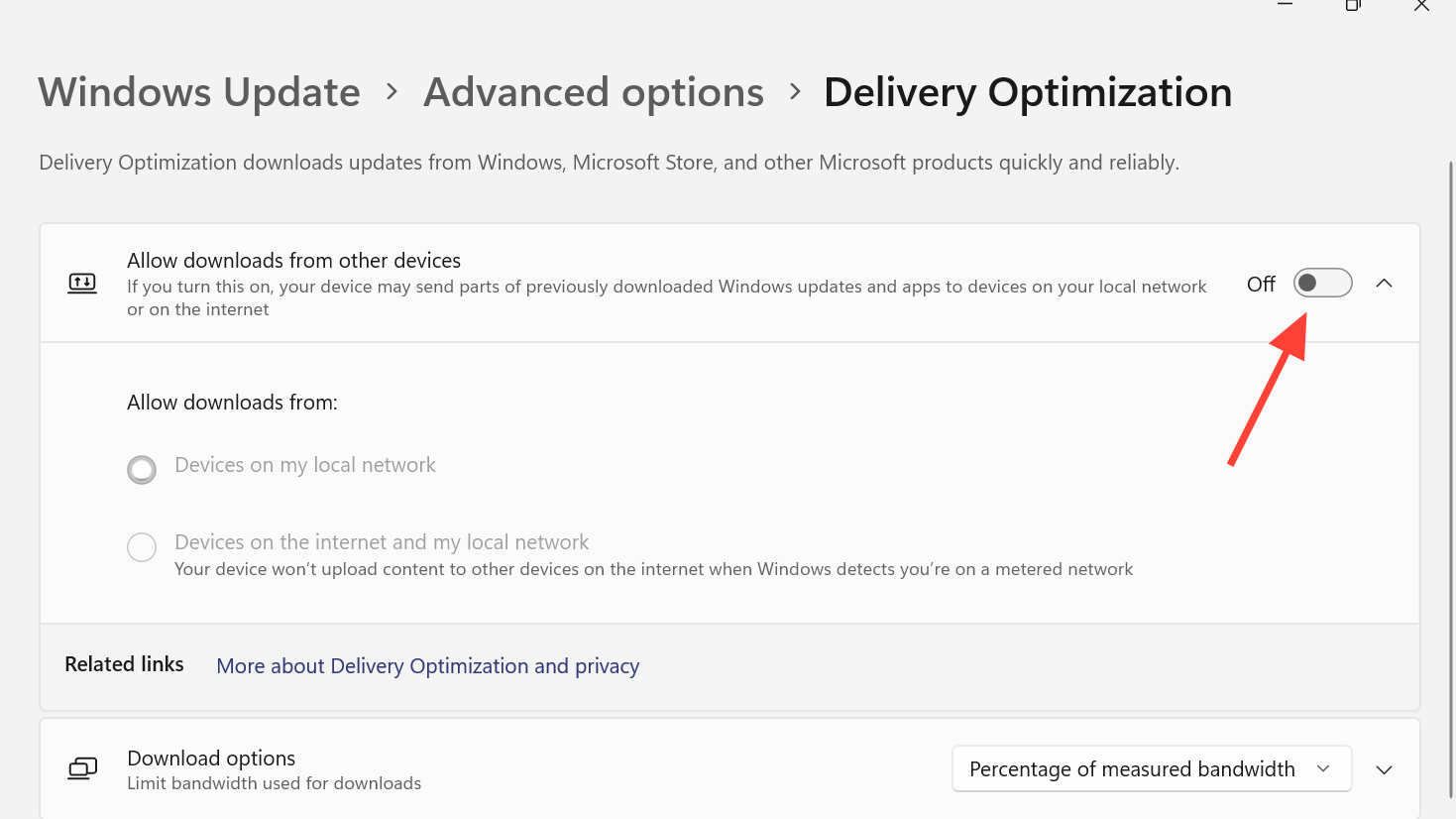
Embark documents these PC-focused connection steps in the official technical support article at id.embark.games/arc-raiders/support/faq/150-troubleshooting-connection-issues---pc.
Fix ARC Raiders “online services unavailable” on PlayStation 5
On PS5, players report the same online connection message with different ARAU or ARRT codes. The underlying triggers mirror PC: clock sync, IP/DNS quirks, and short server outages. Work through the console equivalents.
Method 1: Adjust PS5 date, time, and region
Step 1: On your PS5, go to Settings > System > Date and Time. Turn Set Date and Time via Internet off, then back on, or leave it off and set the correct time, date, and time zone manually. Try launching ARC Raiders after each change.
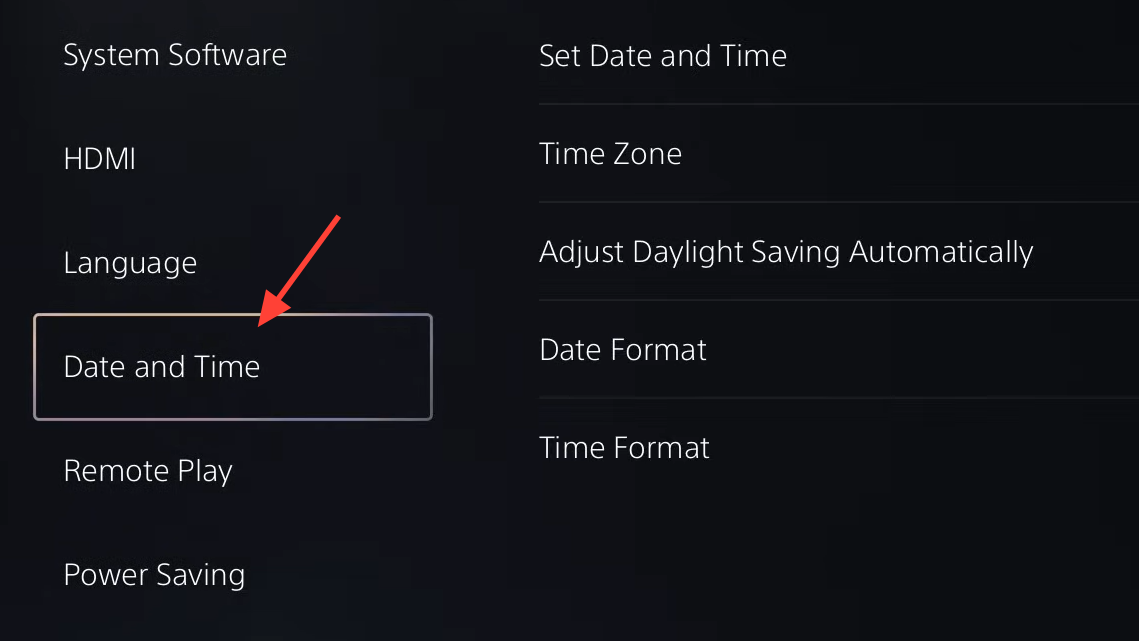
Step 2: Still stuck? In the same Date and Time menu, disable automatic adjustments such as “Set Automatically” for daylight saving changes, then relaunch the game. Multiple players reported that toggling these options, even in surprising combinations, abruptly cleared ARAU0297-style errors.
These small adjustments force the console to resync its clock, which can be enough to satisfy the login checks.
Method 2: Refresh your network and DNS on PS5
Step 1: Power-cycle your router or modem for at least 5 minutes, then reboot the PS5. Once everything is back online, start ARC Raiders and see whether you can reach the cantina.
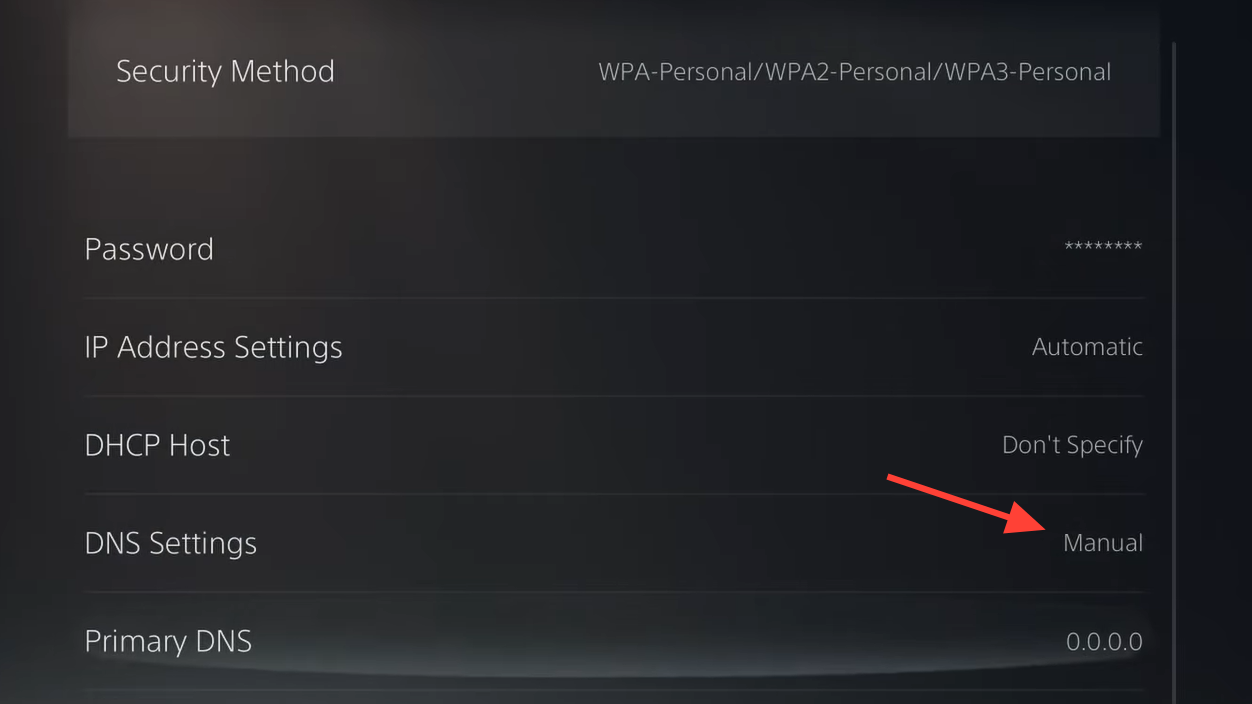
Step 2: To override potentially flaky DNS, go to Settings > Network > Settings > Set Up Internet Connection. Edit your active connection, choose Manual DNS, and set primary and secondary DNS to a public pair such as Google’s 8.8.8.8 and 8.8.4.4. Save and test ARC Raiders.
Step 3: If the error persists and everything else on the console works, there may be a temporary issue between your ISP’s routes and Embark’s servers. In that case, trying again later or from a different network (for example, PS5 tethered through a phone hotspot as a quick test) can confirm that your usual route is the bottleneck.
Method 3: Clear PS5 cache and rebuild database, then relaunch
Step 1: Fully shut down your PS5, then boot into Safe Mode (using the front power button and following Sony’s instructions). Use the options to clear the system cache and rebuild the database.
Step 2: After the console restarts, launch ARC Raiders again. If the online error appeared after crashes or interrupted updates, this refresh can clean up bad state that keeps the client from authenticating cleanly.
As a last resort on PS5, some players have uninstalled ARC Raiders, restored licenses for the game in the PS5 account settings, and then reinstalled. That is heavier than the steps above but can resolve persistent launch quirks tied to your license or install.
Fix ARC Raiders “online services unavailable” on Xbox Series X|S
On Xbox, ARAU0207 and ARAU0297-style errors follow the same pattern: intermittent outages plus local issues with time, networking, or licenses. The Xbox equivalents mirror the fixes on PC and PS5.
Method 1: Check Xbox time and region
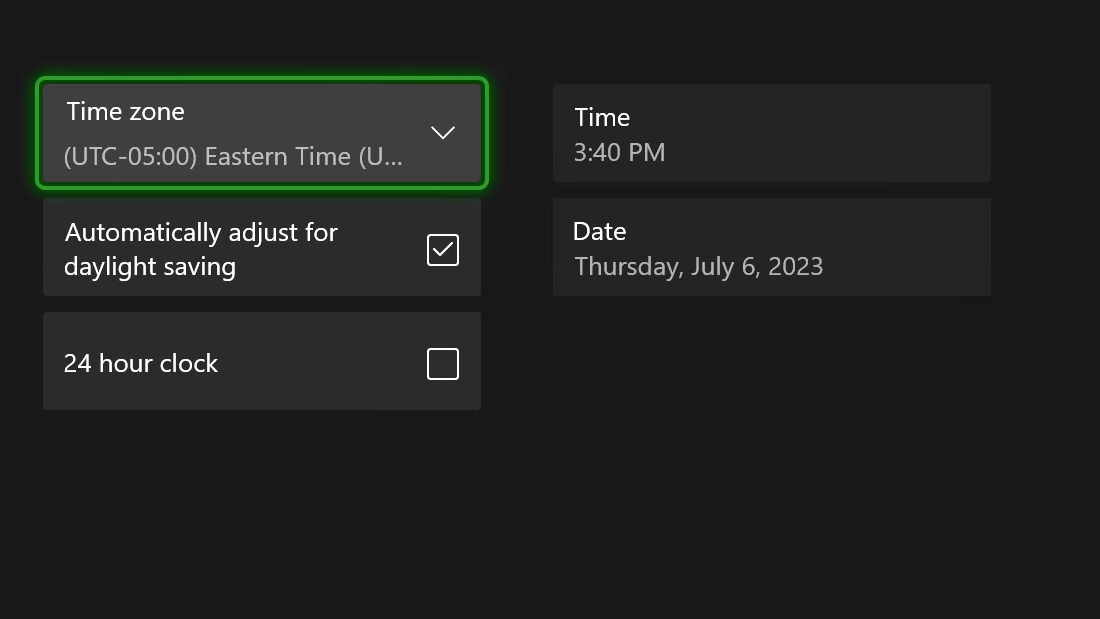
Step 1: Open Settings > System > Time. Turn automatic time off and on, or switch to manual and correct the time, date, and time zone. Test ARC Raiders after applying changes.
Step 2: If you still see the error, experiment with turning off automatic daylight saving adjustments, or briefly set the console to another region and then back. Several players reported that nudging these settings cleared stubborn connection errors.
Method 2: Refresh your IP and DNS on Xbox
Step 1: Power-cycle your router or modem and restart the Xbox once the network returns. This combination often yields a new public IP and a clean path to Embark’s auth service.
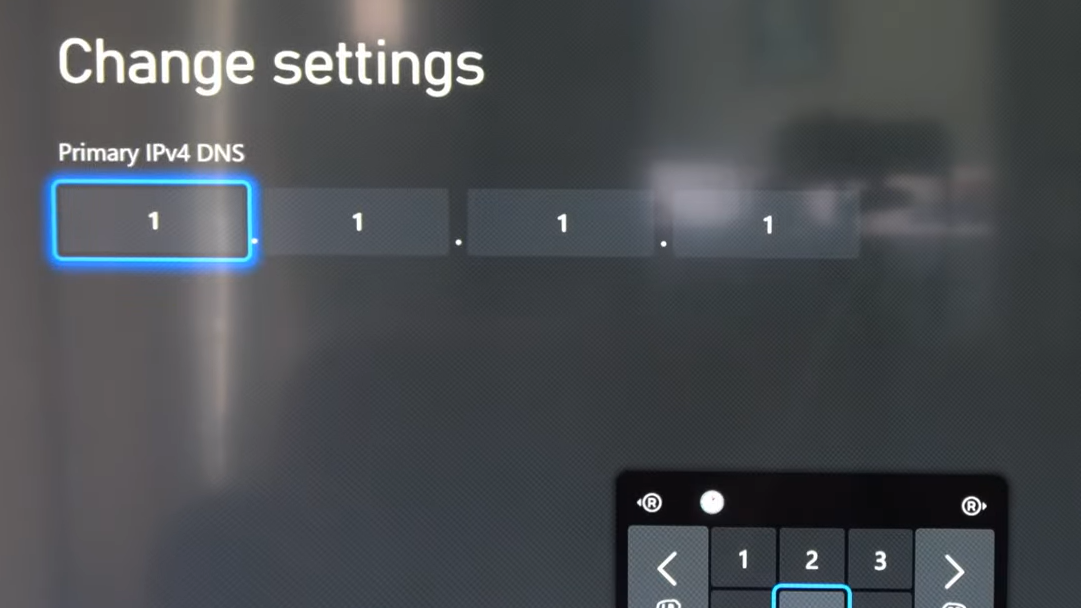
Step 2: To change DNS, go to Settings > General > Network settings > Advanced settings and set DNS manually to a public pair such as Google’s or Cloudflare’s values. Save, run the built-in Xbox network test, then try ARC Raiders.
Some Xbox users report that using cloud gaming works while the installed version does not. That suggests the console’s link to Embark’s service from your home IP is the root issue, not your Xbox account itself.
Method 3: Reinstall and check Xbox licenses only after network steps
Step 1: Once you have worked through time and network fixes, you can try uninstalling ARC Raiders and reinstalling from the Xbox Store page if the error only ever appears on that console.
Step 2: Confirm your game license is valid and associated with the right account, especially if the game behaves differently across cloud, another Xbox, or PC.
Reinstalling alone rarely solves pure backend or IP-related auth problems, so it is worth leaving this until after you have ruled out those more common causes.
Account linking and cross-game effects
ARC Raiders shares authentication infrastructure with Embark’s other titles, including The Finals. When your connection or IP is blocked at the auth layer, both games can fail at the same time.
Two patterns stand out:
- First-launch account creation fails – You try to create an Embark ID from inside ARC Raiders, see an online services error, and then remain locked out on every launch afterward.
- Linked accounts get into a bad state – You link platforms for cross-save, then suddenly online errors appear on PS5 or PC for ARC Raiders and The Finals together.
In those cases, creating or fixing your Embark account directly in the browser is often enough. Log in and manage linked platforms at id.embark.games/id/profile, then restart your platform and try ARC Raiders again. For many players, completing the account link outside the game cleared the error loop.
When to contact Embark support or your ISP
If you have tried:
- Syncing time and date on your PC or console
- Power-cycling router and console/PC, and renewing IP/DNS
- Verifying or reinstalling the game and fixing anti-cheat integrity issues
- Checking that friends or status sites are not showing a broader outage
And you still cannot reach the ARC Raiders main menu for days, the bottleneck is likely outside your direct control.
At that point:
- Contact Embark support through the ARC Raiders Help Center at id.embark.games/arc-raiders/support. Include your platform, region, ISP, error code (for example, ARAU0297), and roughly when the problem started.
- Call your ISP and ask for a new public IP or router if diagnostics show routing issues, especially if a VPN or a mobile hotspot lets ARC Raiders work immediately from the same machine.
Online-only games depend on a chain of systems you do not fully control, from anti-cheat to carrier routing to server capacity. ARC Raiders’ “online services are currently unavailable” errors sit right at that boundary. Working through clock sync, IP/DNS refresh, simple file checks, and account linking covers the vast majority of local problems. If those steps fail and others can play normally, escalating to Embark and your ISP is the most efficient next move.