

Arknights: Endfield lets you download most of the game before launch, so you can log in as soon as the servers open. Preload is shared across PC, mobile, and PS5, with slightly different rules and storage needs on each platform.
Arknights: Endfield preload date and time
Preload for Arknights: Endfield opens on January 20, 2026, at 10:00 AM (UTC+8). That is two days before the global launch on January 22, 2026 (UTC+8), giving enough time to download the full client even on slower connections.
Once your preload finishes, the client will sit on the title screen until servers go live on January 22. Expect a small day-one patch on launch morning before you can start playing.
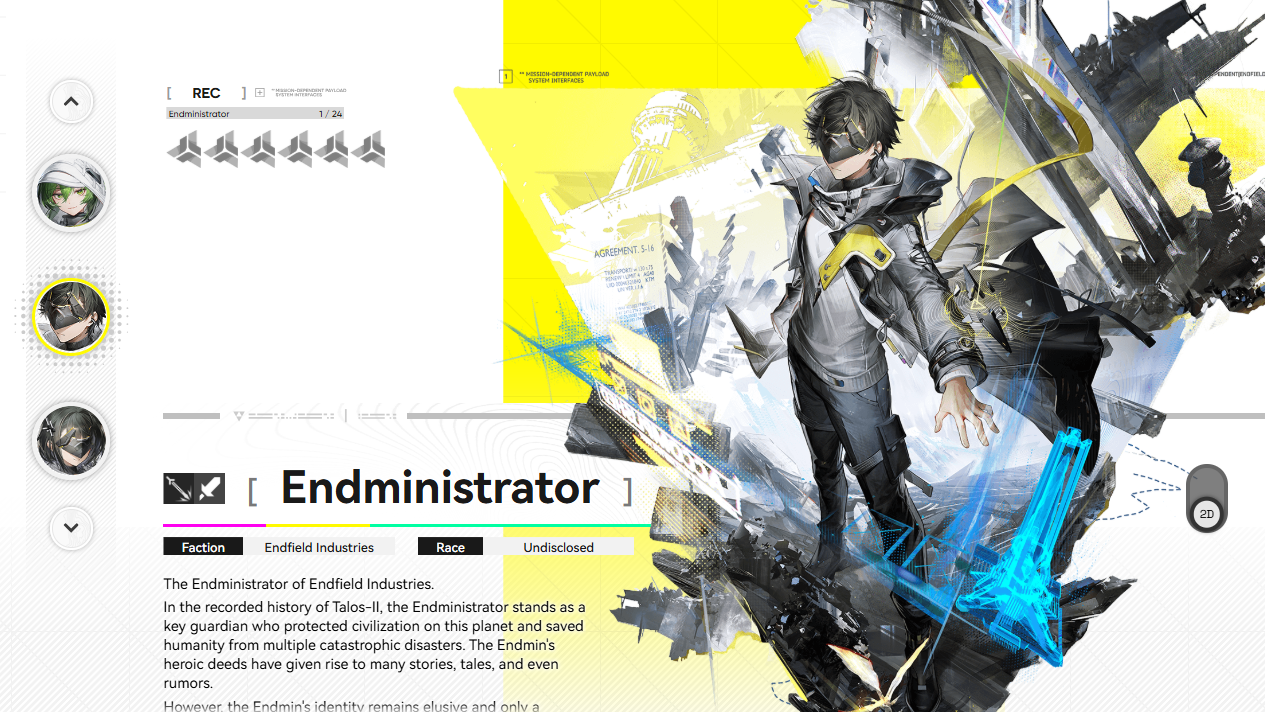
Preload download size and storage requirements
Endfield is large, especially on PC. Make sure you have enough free space before you start the download.
| Platform | Download size | Recommended free space |
|---|---|---|
| PC (launcher / Epic) | ~60 GB main download or ~78 GB preload package | At least 100–120 GB free to cover unpacking and patches |
| PlayStation 5 | ~60 GB (estimated) | At least 80 GB free |
| Android | ~28 GB for full data | 30+ GB free |
| iOS | ~28 GB for full data | 30+ GB free |
On PC, the effective space used during installation can temporarily exceed the final install size because the game unpacks compressed data. Keeping extra headroom also helps with future patches.
How Arknights: Endfield preload works on PC
On PC, you can choose between the official launcher and the Epic Games Store. Both eventually give you the same game client and cross‑platform account support.
Preload on PC with the official launcher
Step 1: Go to the official Endfield site at https://endfield.gryphline.com/en-us from your PC. Download the Windows client installer (the Gryphline launcher) once preload is live.
Step 2: Run the installer and follow the prompts to install the launcher to your preferred drive. Choose a drive with enough headroom for both the launcher and the game files.
Step 3: Open the launcher and sign in or create a Gryphline account. This account is what you will use across PC, mobile, and PS5.
Step 4: In the launcher, locate Arknights: Endfield and start the download. The client will fetch all required packages automatically; you do not need to micromanage individual components.
Step 5: After the progress bar completes, keep the game installed. When servers open on January 22, you can launch directly from the launcher and log in with the same Gryphline account.
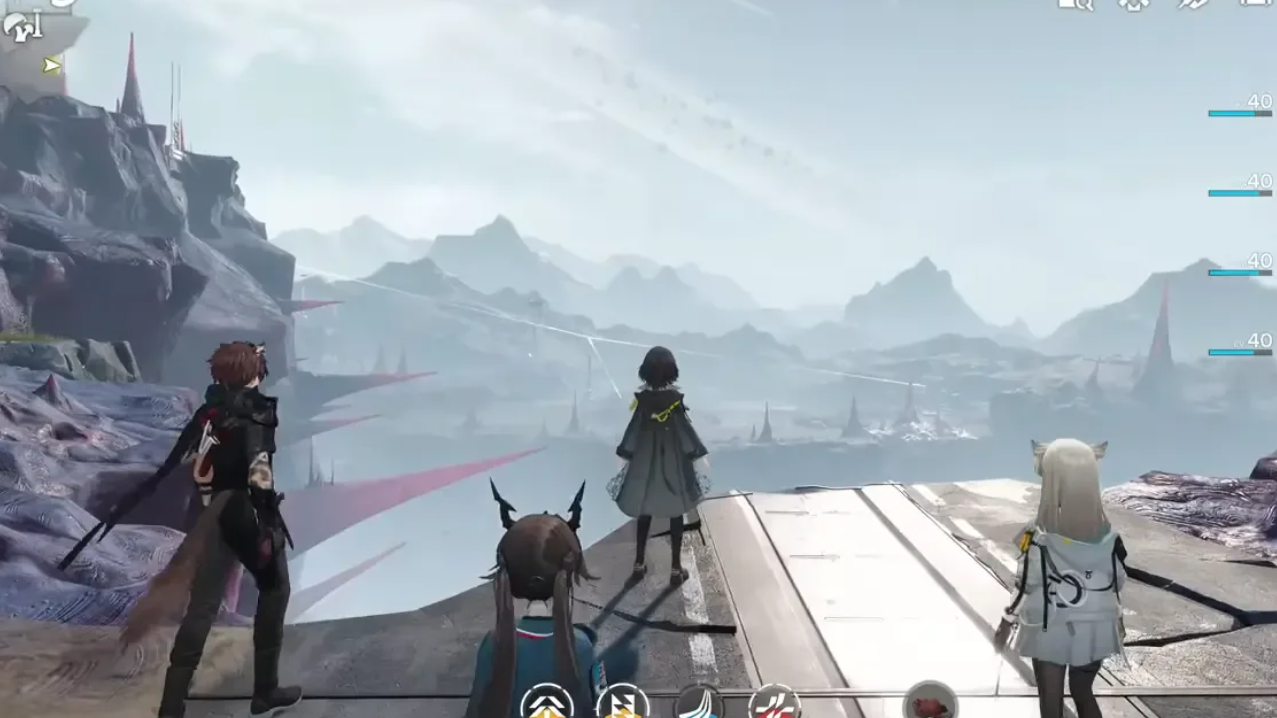
Preload on PC from Epic Games Store
Step 1: Open the Epic Games Launcher on your PC and log in with your Epic account. If you do not have it installed, download it from https://store.epicgames.com first.
Step 2: In the store search bar, type “Arknights: Endfield” and open the game’s store page (Arkights: Endfield on Epic).
Step 3: Add the game to your library if needed, then click the Install button once preload is available. Choose your install drive carefully, keeping the 60+ GB footprint in mind.
Step 4: Let Epic finish the download. When the progress shows as installed, you can launch the game. On first launch, bind or log into your Gryphline account so your progress will carry across platforms.
Epic handles patching after launch, so you will get the day‑one update and future patches through Epic’s normal update pipeline.
How to preload Arknights: Endfield on Android
On Android, preload is essentially a normal install followed by an in‑app data download.
Step 1: On your device, open the Google Play Store listing for Arknights: Endfield at https://play.google.com/store/apps/details?id=com.gryphline.endfield.gp.
Step 2: Tap Install to download the base app. This is only a small portion of the total game size.
Step 3: When the app icon appears, launch Arknights: Endfield. The game will prompt you to download additional data; accept the download over Wi‑Fi if possible.
Step 4: Keep the app open until the resource download finishes. Once complete, you will reach the main title screen but will not be able to log in until the servers open.
How to preload Arknights: Endfield on iOS
The process on iPhone and iPad mirrors Android, but through the App Store.
Step 1: Open the App Store page for Arknights: Endfield at https://apps.apple.com/us/app/arknights-endfield/id6752642477 on your device.
Step 2: Tap the download button to install the app. Ensure you have sufficient free storage before starting.
Step 3: Launch the app once it finishes installing. The game will prompt you to download the full set of game assets.
Step 4: Let the data download complete without closing the app or letting the device power off. Once done, you reach the title screen and are ready for launch day.
If you see an error such as “exception encountered during file retrieval” while downloading in‑game data, restarting the app or switching from mobile data to Wi‑Fi usually resolves transient network issues. If it persists, wait and try again closer to launch.
How to preload Arknights: Endfield on PS5
On PlayStation 5, preload is tied to a paid pre‑order bundle before launch. The base game itself is free‑to‑play at release.
Step 1: On your PS5, open the PlayStation Store page for Arknights: Endfield at https://store.playstation.com/en-in/concept/10009205 or search for the game name directly on the console.
Step 2: Select the Pre‑Order Bundle. This bundle costs around $9.99 / €9.99 and is required if you want pre‑download on PS5 before launch.
Step 3: Complete the pre‑order purchase. Once that is done, the game will be added to your library, and pre‑download will begin automatically when it becomes available on January 20.
Step 4: On your PS5, open Settings > Saved Data and Game/App Settings > Automatic Updates and make sure auto‑download is enabled. This lets the system pull the Endfield client in the background, including when the console is in Rest Mode.
Step 5: After the download completes, check the game tile to confirm it shows as installed. On January 22, you can launch from your library and link or create your Gryphline account when prompted.
If you prefer not to pay for the bundle, you can simply wait until launch day; the free base game will be downloadable then, but you will not have the same early preload window.
Preload on third‑party Android emulators
Endfield does not ship a dedicated PC emulator client, but Android emulators such as BlueStacks or MuMu Player can be used on capable Windows PCs.
Step 1: Install your preferred emulator on PC and sign into Google Play inside the emulator.
Step 2: Open the Google Play listing for Arknights: Endfield inside the emulator and install the game as you would on a real Android device.
Step 3: Launch the game in the emulator and let it download the in‑game data packages to complete preload.
System requirements and why preload matters
Because Endfield targets PC, mobile, and PS5 with modern 3D visuals, minimum and recommended specs matter. Before preloading on PC in particular, check the official system requirements on the Endfield site so you do not download a client your machine cannot run comfortably.
Preloading is especially useful here for three reasons. First, the file size is large enough that a launch‑day download can easily collide with saturated servers and slower speeds. Second, initial patches and hotfixes often arrive in the first hours of release; having the base client in place means you only need to grab small deltas. Third, if you plan to race through early story content to reach dailies and launch rewards quickly, being in‑game the moment servers open is a real advantage.
Once preload is done and your device meets the requirements, there is nothing more to manage. When January 22 rolls around, and servers unlock, log in with your Gryphline account on any platform you have preloaded, grab the day‑one patch if prompted, and you are ready to start pulling for Operators and exploring Talos‑II.