

Quick answer: Battlefield 6's widespread lag is primarily caused by EA's official server routing issues — including players being connected to wrong-region servers — combined with the game's aggressive CPU usage that can hit 100% and trigger stuttering, rubber banding, and slow-motion gameplay. Switching to community servers often eliminates the problem entirely, and creating a user.cfg file with your CPU's thread count can significantly reduce client-side lag on PC.
Two separate problems that look the same
Battlefield 6 lag manifests in a few distinct ways: rubber banding (your character snapping backward), delayed hit registration, enemies teleporting, slow-motion animations, and packet loss indicators on the HUD. These symptoms have been present since the game's October 2025 launch and persisted through Season 1 and beyond. The frustrating part is that two fundamentally different problems produce nearly identical results, making it hard to diagnose what's actually happening on your end.
The first problem is server-side. EA's matchmaking has been routing players to incorrect server regions. European players, for example, have reported being connected to servers in Santiago, Chile, instead of local data centers. This creates massive latency spikes that no amount of hardware upgrades can fix. The telltale sign is that community servers — where you manually pick a nearby server with good ping — run perfectly, while official matchmaking servers are a coin flip.
The second problem is client-side CPU saturation. Battlefield 6's engine struggles with thread scheduling on many processor configurations, pushing CPU usage to 100% and creating a bottleneck that tanks performance regardless of GPU power. Players with RTX 4090s and high-end Ryzen chips have reported the same rubber banding as those on mid-range hardware, because the game's simulation tick rate appears tied to CPU headroom. When the CPU maxes out, your ping effectively rises, and the game enters a sluggish, underwater-feeling state.
EA's server routing is the biggest culprit
The most widespread cause of Battlefield 6 lag has nothing to do with your PC or console. EA's official servers have had persistent issues connecting players to the wrong geographic region. An EA community manager acknowledged the problem on the official forums, marking the latency thread as "currently investigating" and requesting player data, including ISP names and regions, to help the development team track down the routing failures.
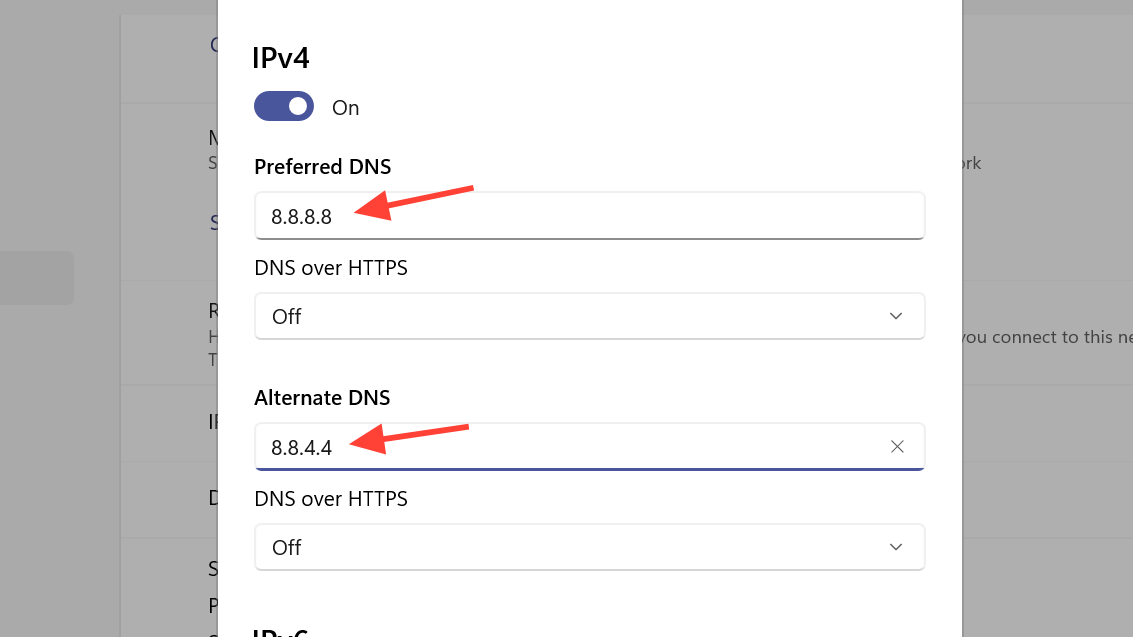
EA also suggested switching DNS providers as a potential workaround — recommending Google DNS or OpenDNS, which can sometimes improve how your ISP resolves EA's server addresses. This fix has worked for some players but not others, which is consistent with a server-side routing problem that varies by ISP and location.
The clearest evidence that servers are the root cause: players across PS5, Xbox Series X, and high-end PCs all experience identical rubber banding in official matchmaking, but community servers with manual region selection run without any lag whatsoever. If your game runs fine in the server browser but falls apart in quickplay, the problem is almost certainly EA's matchmaking putting you on a distant server.
Fix server lag by using community servers and manual region selection
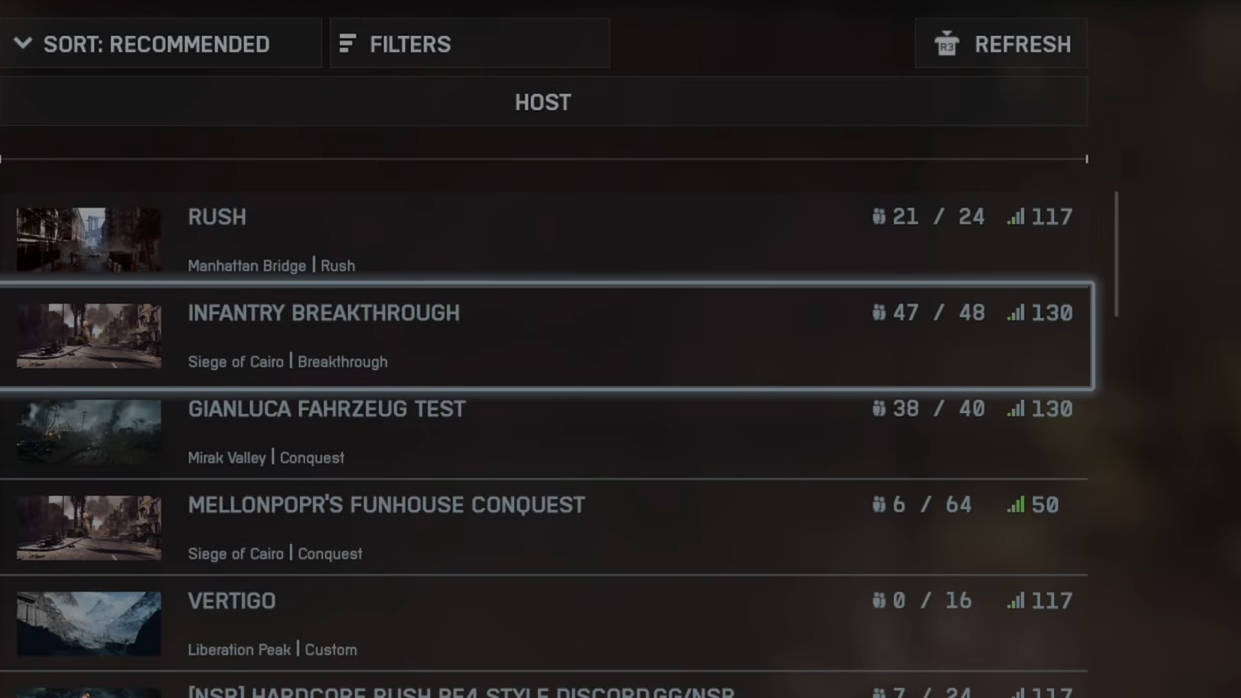
Step 1: Open the server browser instead of using quickplay matchmaking. Look for community servers in your region and select only those showing full green connection bars.
Step 2: If you want to try improving official server connections, switch your DNS. On PC, open Network Connections in Windows, go to your adapter's Properties, select Internet Protocol Version 4 (TCP/IPv4), and set the preferred DNS to 1.1.1.1 with an alternate of 1.0.0.1 (Cloudflare DNS). On the console, you can change the DNS in your network settings to the same addresses. Restart your device afterward.
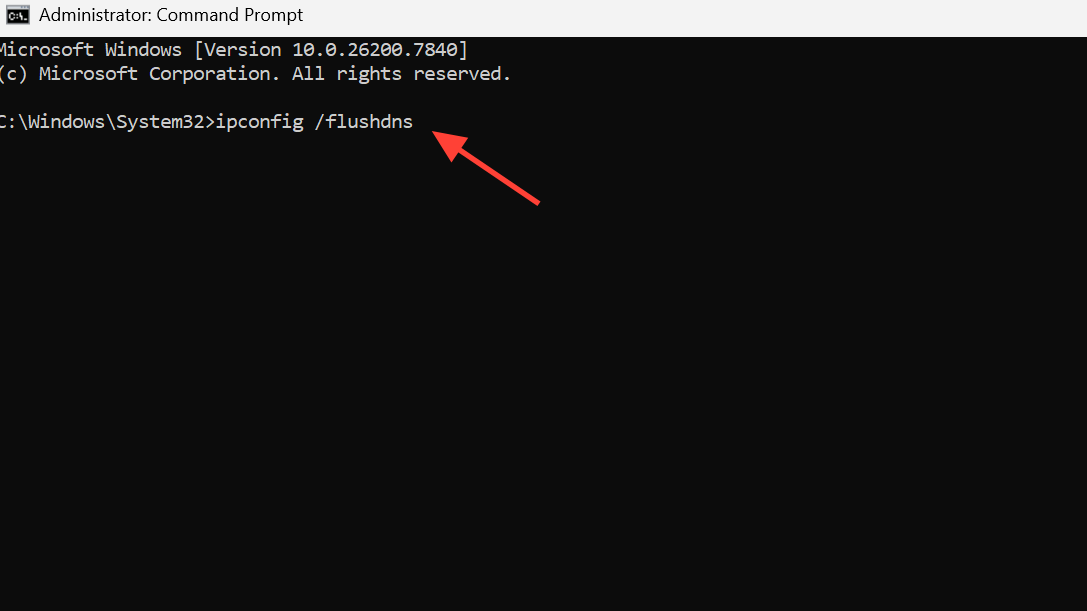
Step 3: Flush your DNS cache on PC by opening Command Prompt as administrator and running ipconfig /flushdns. This clears stale routing data that might be directing you to the wrong server.
CPU bottleneck and the 100% usage problem (PC)
Battlefield 6 is extremely CPU-hungry, and the game's engine does a poor job of distributing work across processor threads. Many PC players see CPU usage spike to 100% during multiplayer matches — particularly on larger maps with heavy destruction and many players nearby — while their GPU sits underutilized at 40–70%. This imbalance causes frame drops, audio tearing, and the same rubber banding symptoms as network lag, because the game ties its simulation speed to available CPU headroom.
The problem affects a wide range of processors, from older Intel i5s to current-gen i9s and Ryzen 7 chips. It tends to be worse on CPUs with fewer cores or slower single-thread performance, but even players with Ryzen 5800X3D and i9-12900K systems have reported it. The firing range runs perfectly at 200+ FPS, but the moment you enter a populated multiplayer match, everything degrades.
Create a user.cfg file to manage CPU thread allocation
The most effective client-side fix is creating a configuration file that tells the game how to use your CPU's cores and threads. This has reduced CPU usage from 100% down to 40–70% for many players.
Step 1: Navigate to your Battlefield 6 installation folder. On Steam, this is typically something like C:\SteamLibrary\steamapps\common\Battlefield 6.
Step 2: Create a new text file and name it user.cfg (make sure it's not saved as user.cfg.txt — you may need to change the "Save as type" to "All files").
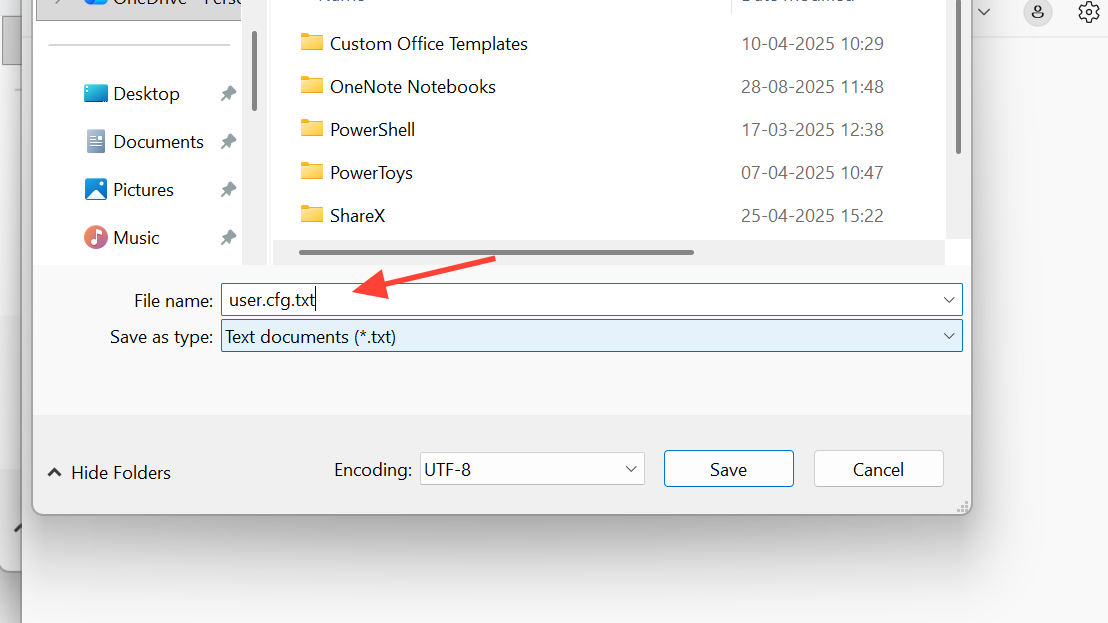
Step 3: Add the following lines, adjusting the numbers to match your CPU. The first two values should equal your physical core count, and GstRender.Thread.MaxProcessorCount should equal your total logical processors (threads).
Thread.ProcessorCount 8
Thread.MaxProcessorCount 8
Thread.MinFreeProcessorCount 0
Thread.JobThreadPriority 0
GstRender.Thread.MaxProcessorCount 16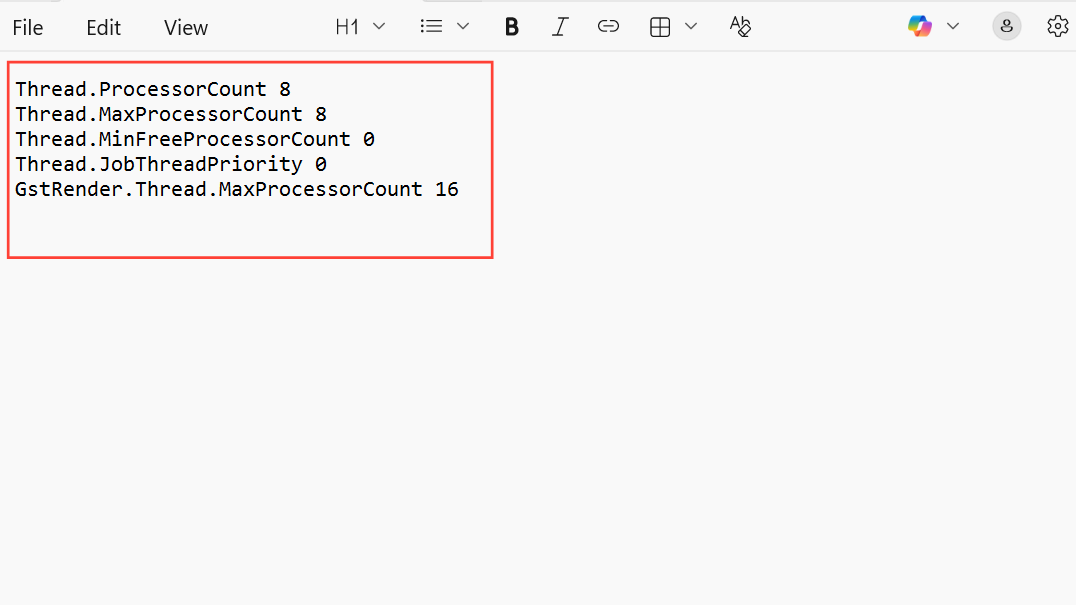
For example, a Ryzen 7 5800X with 8 cores and 16 threads would use the values above. An Intel i5-13600K with 14 cores and 20 threads would use 14, 14, and 20 respectively. You can check your core and thread count in Task Manager under the Performance tab.
Step 4: Save the file and launch the game. The improvement should be immediate — lower CPU usage, smoother frame pacing, and reduced rubber banding in multiplayer.
Enable XMP in BIOS for RAM speed
Many motherboards ship with RAM running at default JEDEC speeds rather than the rated XMP speed you paid for. Battlefield 6 is particularly sensitive to memory bandwidth, and running RAM at 2133 MHz instead of its rated 3200 or 3600 MHz can create a significant CPU bottleneck.
Step 1: Restart your PC and enter BIOS (usually by pressing Delete or F2 during boot — check your motherboard manual).
Step 2: Find the XMP or A-XMP/EXPO profile setting. On ASUS boards, it's typically in the AI Tweaker or Advanced tab. On Gigabyte boards, look under the Tweaker section. Enable Profile 1.
Step 3: Save and exit BIOS. You can verify the change in Task Manager under Performance → Memory, where the speed should now show your RAM's rated frequency.
Enabling XMP alone has completely resolved lag for some players. For others, it provides a partial improvement that works best in combination with the user.cfg fix above.
Additional PC fixes worth trying
Disable GeForce Experience Instant Replay. NVIDIA's background recording feature conflicts with Battlefield 6 specifically, causing severe frame drops even when the overlay reports high FPS. Press Alt+Z to open the GeForce overlay and toggle Instant Replay off. This does not affect other games.
Turn off Discord and voice chat overlays. The Discord overlay and Battlefield's built-in voice chat overlay have both been linked to lag spikes during gameplay. Disabling them and restarting the game has fixed the issue for some players.
Disable gameplay data sharing. In Battlefield 6's system settings, there's a "gameplay data sharing" toggle. Turning it off and restarting the game has eliminated lag for some players, likely by reducing background telemetry traffic.
Lower CPU-heavy graphics settings. Effects quality, local lighting, and sun shadows are the most CPU-intensive settings in Battlefield 6. Dropping these to Low can free up enough CPU headroom to prevent the 100% usage spiral, even if your GPU could handle higher settings.
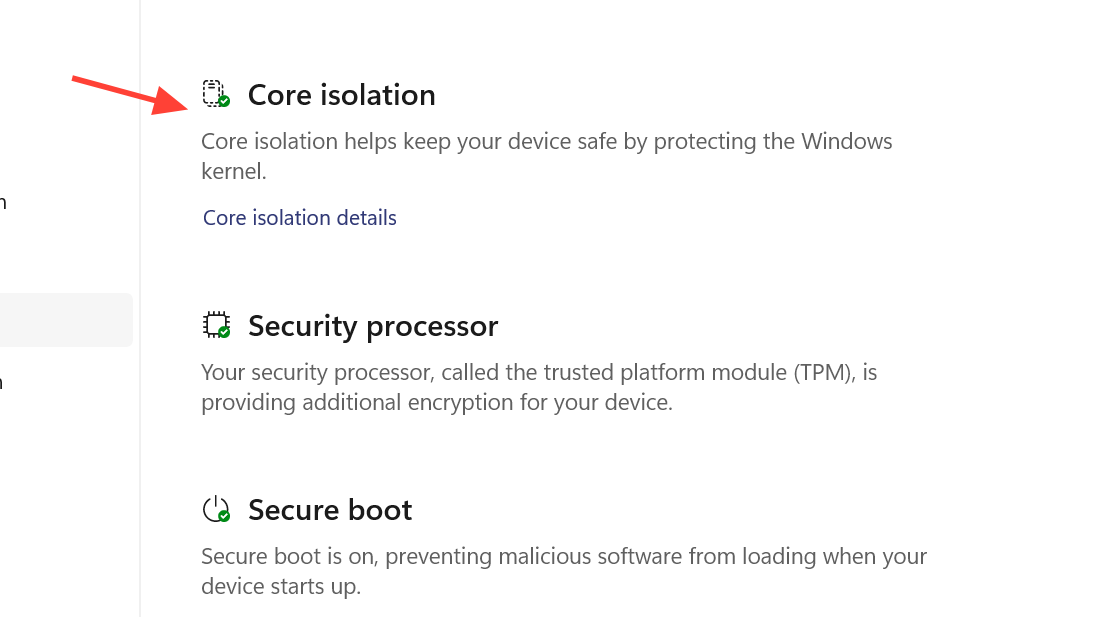
Disable Windows Memory Integrity. On Windows 11, search for "Core isolation" in Windows Security and dismiss or disable Memory Integrity. On Windows 10, turn it off directly. This removes a virtualization layer that can add CPU overhead during gaming.
Console-specific issues (PS5 and Xbox Series X)
Console players don't have access to user.cfg tweaks or BIOS settings, which means the server routing problem is essentially the only variable they can address. PS5 and Xbox Series X players have reported the same rubber banding, packet loss indicators, and teleporting enemies as PC users — often with gigabit internet connections and the console set to Performance mode.
The most reliable workaround on console is the same as PC: use the server browser to join community servers in your region rather than relying on quickplay matchmaking. Changing your console's DNS settings to Cloudflare (1.1.1.1 / 1.0.0.1) or Google (8.8.8.8 / 8.8.4.4) may also help.
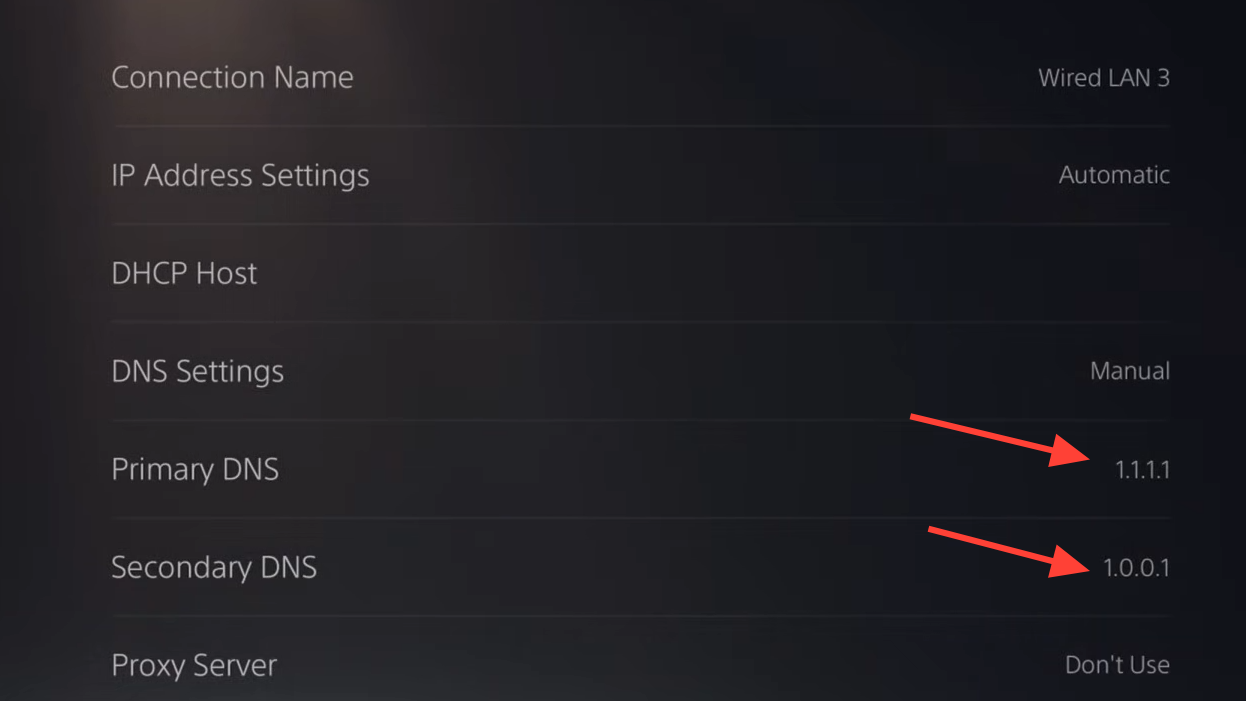
Some PS5 players have found that fully restarting the console (not just putting it in rest mode) temporarily resolves stuttering, suggesting the game may have a memory leak or caching issue on that platform.
Hardware that seems to avoid the worst problems
Players who report zero lag issues tend to share a few common traits: 32GB or more of fast RAM (DDR4 3200 MHz+ or DDR5), a modern CPU with strong single-thread performance, and a wired Ethernet connection. Systems with 32GB of DDR5 at 6000 MT/s, for example, have been largely trouble-free. Meanwhile, 16GB of slower DDR4 paired with an older 6-core CPU is a recipe for the worst rubber banding, especially on large Conquest maps.
That said, even top-tier hardware doesn't guarantee a smooth experience. Players with RTX 5070s, 64GB of RAM, and Ryzen X3D processors have still encountered unplayable rubber banding, which points firmly back to the server-side routing problem as the dominant issue. Hardware upgrades can help with the CPU bottleneck half of the equation, but they can't fix being connected to a server on the wrong continent.
Battlefield 6's lag problem is real, widespread, and has persisted for months since launch. EA has acknowledged the server routing issue and stated it is investigating, but no definitive server-side fix has been deployed yet. In the meantime, community servers remain the most reliable way to play without lag, and the user.cfg thread configuration fix is the single most effective client-side improvement for PC players dealing with CPU-related stuttering.