

Black Ops 7 quietly turns the HUD into something you can actually tune, not just tolerate. You can strip it down to a near‑legacy Zombies look, push everything to the bottom of the screen, or keep the full modern readout with a Dark Aether‑themed skin.
This explainer walks through where the key settings live, what the preset layouts change, how themes work, and the exact toggles you need for a cleaner, more classic HUD.
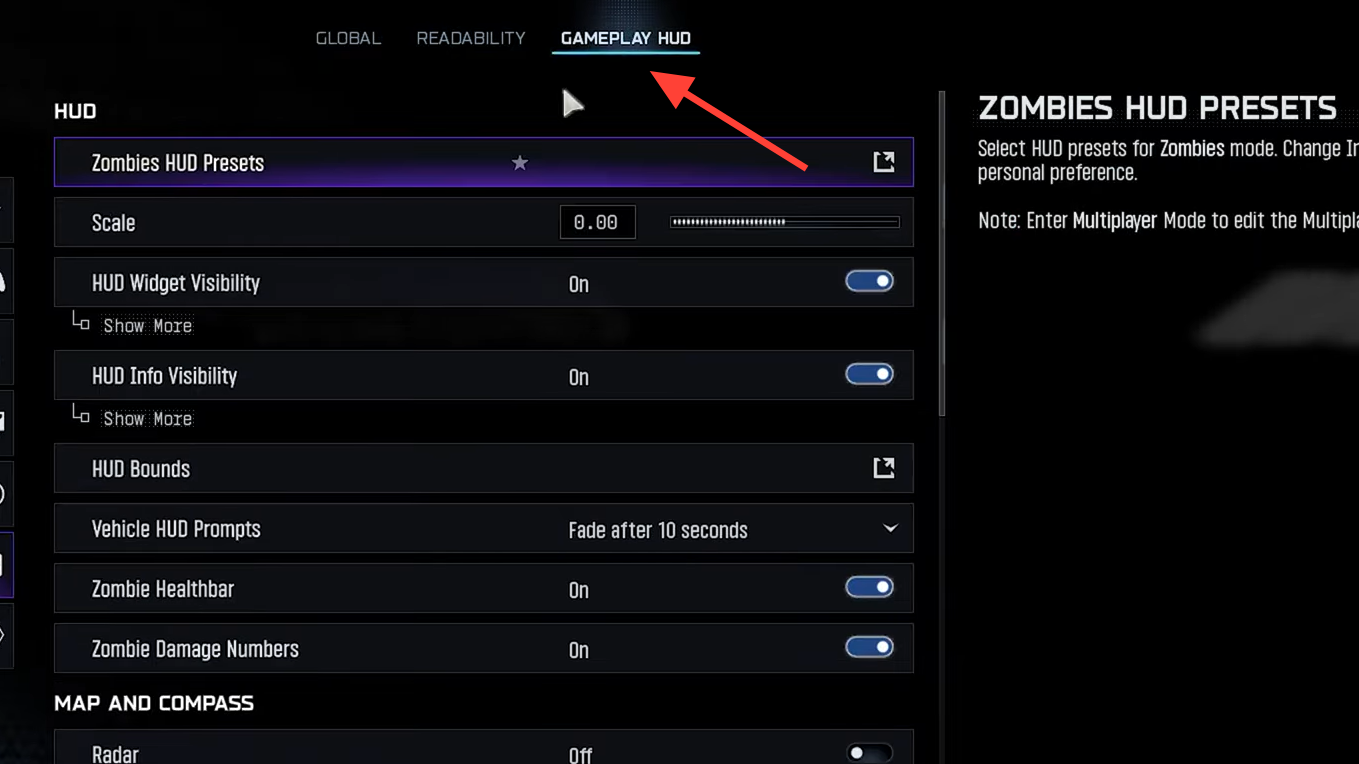
Open the Black Ops 7 HUD customization menus
There are two places you’ll use most:
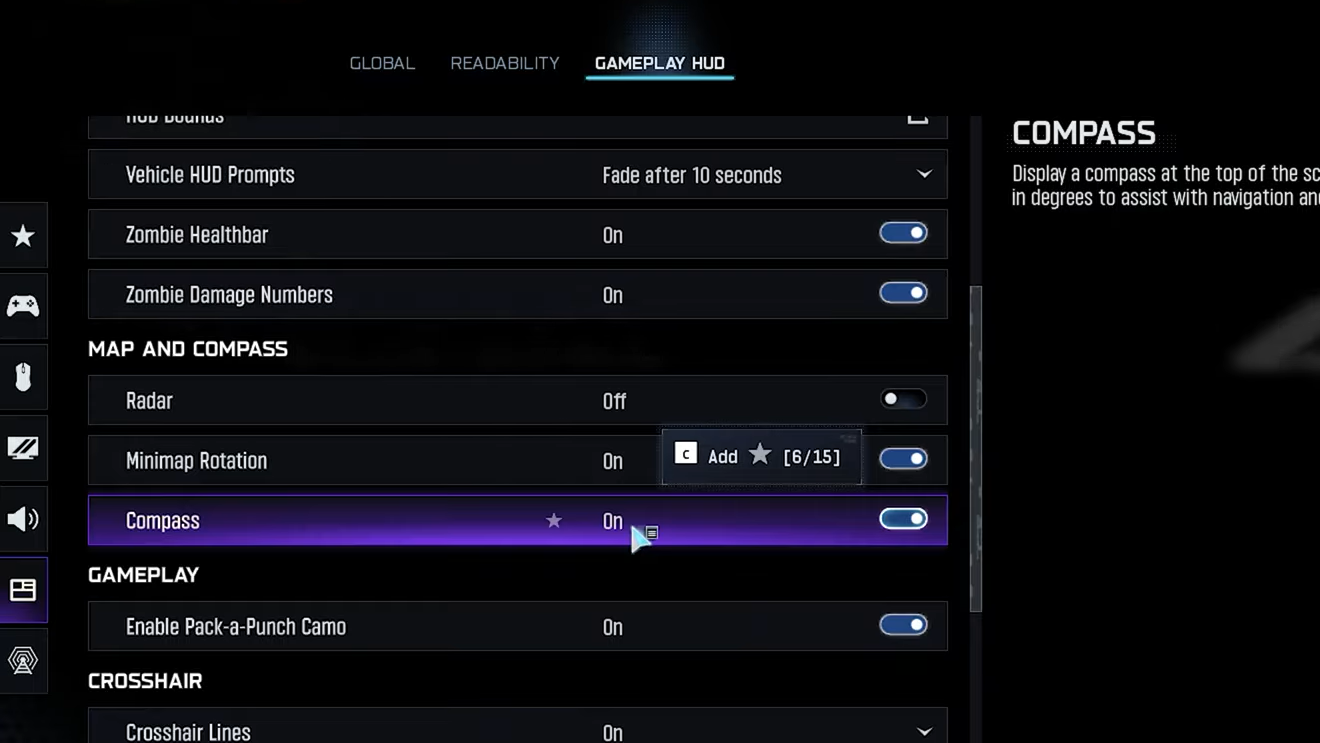
- Settings > Interface > Gameplay HUD – core HUD controls: scale, bounds, widget visibility, health bars, damage numbers.
- Career > Customize > HUD Presets – layout presets and HUD themes (including the Zombies‑centric Aetherium look).
From the Gameplay HUD section of the Interface, you can adjust the overall size of the HUD, how close it sits to the edge of the screen, and which pieces of information appear at all.
| Setting group | What it controls |
|---|---|
| HUD Bounds | How far HUD elements are inset from the edges of your display. |
| Scale | Global size of HUD text and icons. |
| HUD Widget Visibility | On/off switches for minimap, compass, loadout info, GobbleGums, and more. |
| HUD Info Visibility | On/off switches for names, medals, feeds, and notifications. |
| Radar / Minimap options | 2D radar behavior and minimap rotation. |
| Zombie Healthbars / Damage Numbers | Whether enemies show health and floating damage values. |
Use HUD layouts to move core elements around
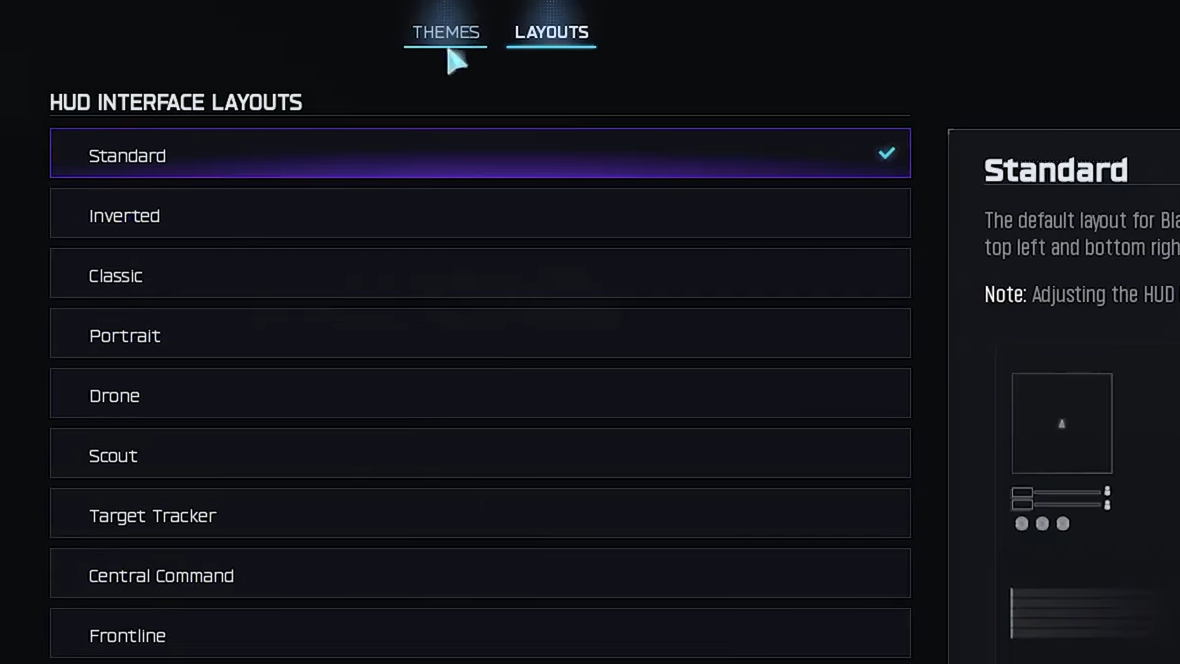
Rather than dragging elements individually, Black Ops 7 leans on nine predefined HUD layouts. These live under Career > Customize > HUD Presets and control where your minimap, compass, player widget, equipment, and objective text sit on screen.
| Layout | Style summary | Key placement choices |
|---|---|---|
| Standard | Baseline Call of Duty layout. | Minimap top left, compass top center, player bottom left, equipment bottom right. |
| Inverted | Mirrors Standard left/right. | Minimap top right, player and equipment swapped compared to Standard. |
| Classic | Black Ops 2‑style placement. | Minimap top right, player bottom left, equipment bottom right. |
| Portrait | Vertical stack for tall videos. | Core info aligned along the vertical center, tuned for clips and reels. |
| Drone | Remote‑camera feel. | Minimap top center, compass bottom center, player and equipment mid‑left/right. |
| Scout | Objectives at the top, navigation at the bottom. | Minimap and player bottom left, compass bottom center, objectives top left. |
| Target Tracker | Navigation clustered at bottom center. | Minimap and compass bottom center, player bottom left, equipment bottom right. |
| Central Command | Navigation and loadout pulled inward. | Minimap bottom center, compass top center, player widget next to minimap. |
| Frontline | Everything along the bottom. | Minimap, compass, player, and equipment form a single bottom band. |
The idea is simple: pick the layout that roughly matches how your eyes move. If you check the minimap constantly, layouts that pin it bottom‑center (Target Tracker, Central Command, Frontline) cut down on darting between corners.
Strip the HUD back with widget visibility toggles
Once you’ve picked a layout, the next step is deciding what should exist at all. That’s where the widget and info visibility menus matter.
In Settings > Interface > Gameplay HUD, open the HUD Widget Visibility submenu.
| HUD widget toggle | Effect when turned off |
|---|---|
| Loadout Information | Hides weapon, ammo, and equipment readout block. |
| Minimap Visibility | Removes the minimap entirely. |
| Compass | Removes the directional bar at the top or bottom. |
| Scorestreak Widget | Hides scorestreak/Support progress widgets. |
| Mission Tracker | Hides on‑screen objective text and trackers. |
| GobbleGums | Hides GobbleGum slots in Zombies and Dead Ops Arcade. |
| Squad Widget | Hides teammates’ status bars. |
| Round Numbers | Hides round counter in Zombies. |
| Perks | Hides your Perk‑a‑Cola list in Zombies. |
Below that, the HUD Info Visibility submenu lets you silence most of the constant pop‑ups:
| HUD info toggle | What disappears |
|---|---|
| Player Names | Nameplates above players; you can keep full names or reduce them. |
| Player & Streak Toasts | On‑screen banners for streaks and personal events. |
| Medals & Notifications | Medal pops and system messages. |
| Score Feed | Rolling list of earned points. |
| Elimination Feed | Kill feed. |
| Elimination ID | Detailed info about who you eliminated or who eliminated you. |
| In‑Game Text Chat | Chat overlay; audio chat is separate. |
Many Zombies players now run with almost everything off except loadout info, squad widget, GobbleGums, perks, and round number. That leaves enemies and the environment front and center instead of UI clutter.
Turn off zombie health bars and damage numbers
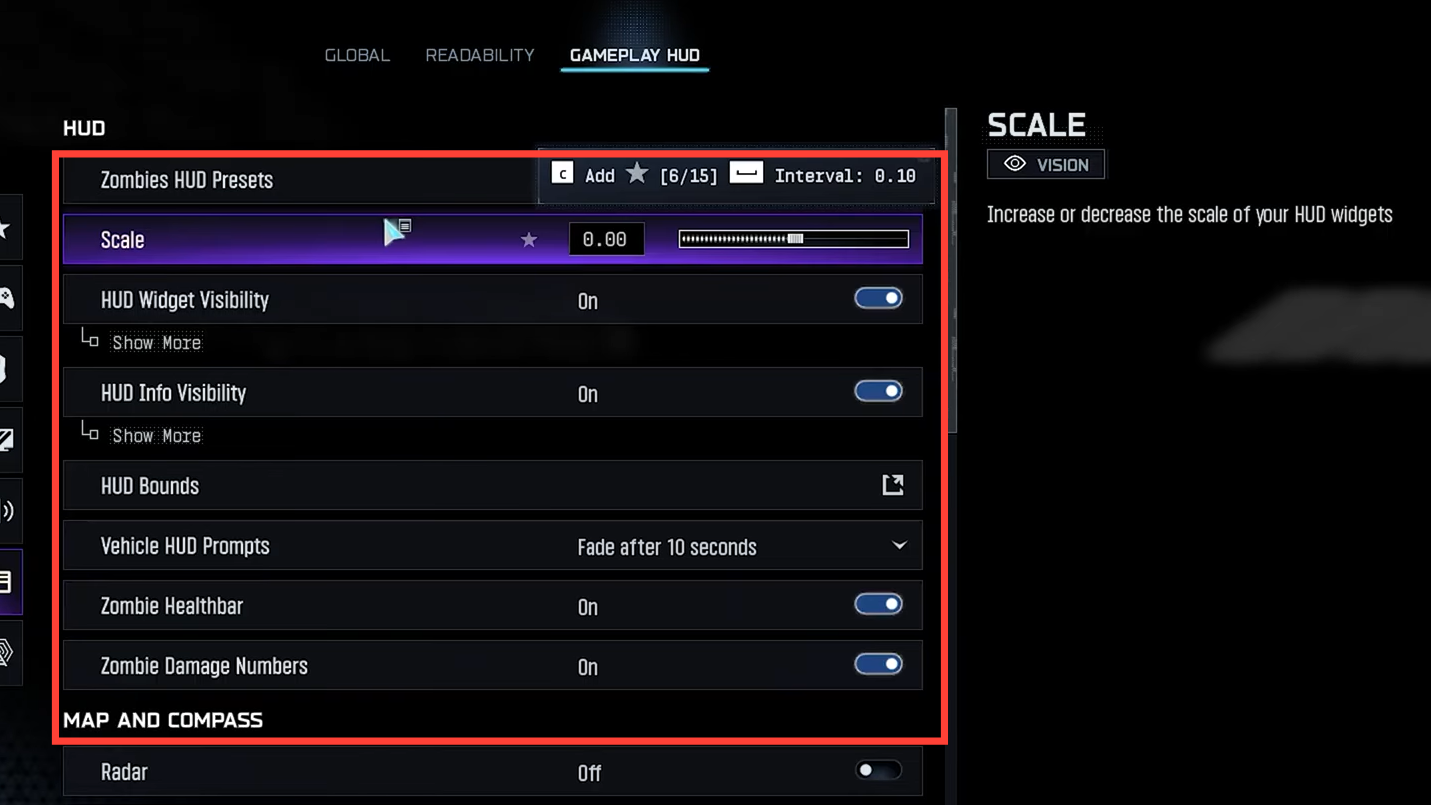
Black Ops 7 lets you decide whether to see health bars and damage numbers on zombies and special enemies. Both options live in the same Gameplay HUD section of the Interface menu:
- Zombie Healthbar – toggles the bar above enemy heads.
- Zombie Damage Numbers – toggles floating numbers when you hit enemies.
Turning both off gets you closer to earlier Zombies entries, where feedback came from hitmarkers, sound, and animations instead of floating UI. Keeping them on is useful if you’re testing Augments, Ammo Mods, or trying to track exactly how quickly elites are melting.
Apply HUD themes like Aetherium
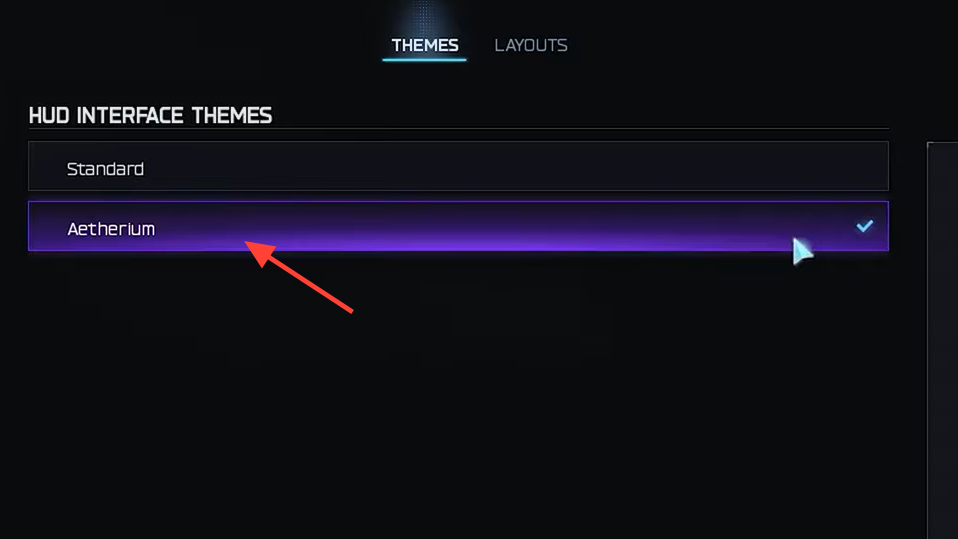
Layouts decide where things sit; themes decide how they look. Black Ops 7 launches with two HUD themes:
- Standard – the base UI skin used across modes.
- Aetherium – a Zombies‑focused theme with Dark Aether styling.
The Aetherium theme is enabled from the same HUD Presets menu:
- Open Career > Customize > Zombies HUD Presets.
- Choose Aetherium in the Theme section.
- Pick any layout (Classic, Standard, etc.) beneath it.
The visual changes are mostly cosmetic: borders, frames, icon treatments, and flourishes that tie into the Dark Aether aesthetic. Mechanics and positions still depend on your chosen layout and visibility settings.
Black Ops 7 also supports separate HUD presets for Zombies and multiplayer, so you can run a stripped Aetherium layout in Zombies and keep a fuller Standard layout in PvP without constantly reconfiguring between matches.
Recreate a classic Zombies HUD layout
If you want Black Ops 7 to feel closer to earlier Zombies games, the game exposes a preset combination that does most of the work for you. The official recommendation mirrors what many players already do manually.
First, set the theme and layout from the Zombies side:
- Go to Career > Customize > Zombies HUD Presets.
- Set Theme to Aetherium.
- Set Layout to Classic.
Then refine the HUD content from the Interface settings while you’re in the Zombies menus:
- Open Settings > Interface > Gameplay HUD.
- Set HUD Widget Visibility to On, then configure:
- Loadout Information: On
- Minimap Visibility: Off
- Compass: Off
- Scorestreak Widget: Off
- Mission Tracker: Off
- GobbleGums: On
- Squad Widget: On
- Round Numbers: On
- Perks: On
- Set HUD Info Visibility to On, then configure:
- Player Names: Full Name (or your preference)
- Player & Streak Toasts: Off
- Medals and Notifications: Off
- Score Feed: Off
- Elimination Feed: Off
- Elimination ID: Off
- In‑Game Text Chat: On (if you still want chat visible)
- Set Zombie Healthbar to Off.
- Set Zombie Damage Numbers to Off.
That combination drops the minimap, compass, constant medal spam, and numeric feedback, while keeping perks, rounds, GobbleGums, and your squad visible in the corners. You end up with a layout that reads immediately as “Zombies” without the modern UI noise layered on top.
Adjust interface colors and accessibility
Black Ops 7 also lets you change the color of many HUD elements from the Interface > Readability > Color Customization menu.
| Color option | What you can change |
|---|---|
| Colorblind presets | Palette sets for Protanopia, Deuteranopia, Tritanopia. |
| Custom profile | Individual colors for teammates, party, enemies, neutrals. |
| Interface vs. world | Separate intensity and filters for UI and in‑game visuals. |
If default team and enemy colors blend into certain maps, a quick pass through this menu does more than any layout tweak to keep the HUD readable in the middle of hectic fights.
For colorblind players, start with the preset closest to your needs, then adjust the custom profile so enemy markers and player widgets stay obvious even with a minimal HUD.
Black Ops 7’s HUD system is much closer to a toolkit than a fixed overlay. Between layouts, visibility toggles, the Aetherium theme, and color controls, you can build something that feels like a legacy Zombies screen, an esports‑style PvP layout, or a clutter‑free solo setup. The only real work is spending a few minutes in the Interface and Career menus before you queue for your next match—once it’s saved, the game remembers your choices so you can focus on the part that actually matters: staying alive.