

The “DirectX 12 is not supported on your system” popup in Code Vein II appears when the game cannot initialize DirectX 12 with your current Windows, GPU, or launch configuration. The message can appear even on systems that nominally support DirectX 12 if drivers, Windows, or the game install are out of sync.
Quick answer: Restart Windows with pending updates installed, confirm DirectX 12 and a compatible GPU, update graphics drivers, verify Code Vein II’s game files, then remove any -dx12/-d3d12 launch arguments and, if needed, force -dx11/-d3d11 or -vulkan.
Code Vein II DirectX 12 error: required PC specs
Code Vein II requires Windows 11, a DirectX 12–capable GPU, and a 64‑bit CPU and OS. If your hardware does not meet these minimums, the DirectX 12 error will not be resolved by software changes.
| Requirement | Minimum spec for Code Vein II |
|---|---|
| OS | Windows 11 (64‑bit) |
| CPU | Intel Core i5‑9600K / AMD Ryzen 5 3600 |
| RAM | 16 GB |
| GPU | Nvidia GeForce GTX 1660 Super / AMD Radeon RX 5700 / Intel Arc B570 |
| DirectX | Version 12 |
| Storage | 70 GB free (SSD recommended for better performance) |
If you use an integrated GPU such as Intel UHD Graphics 630, performance will be far below the intended level, and the game may not launch at all, even if DirectX 12 is present on the system. In that case, the only reliable fix is upgrading to a GPU at or above the minimum spec.
Check DirectX 12 support in Windows
Confirm that Windows is reporting DirectX 12 and a DirectX 12‑capable GPU:
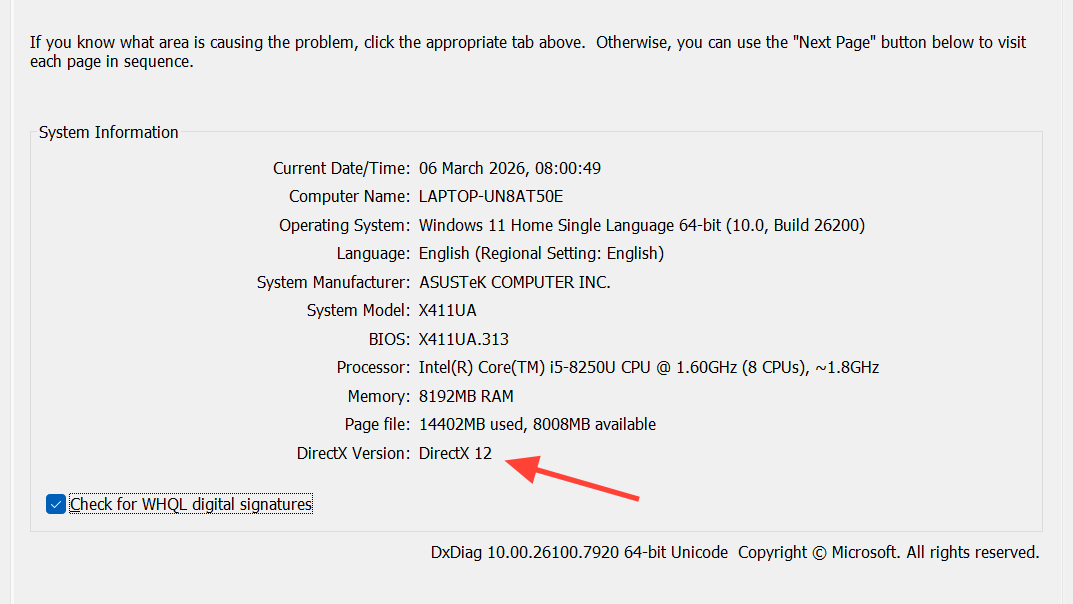
Press Windows + R, type dxdiag, and press Enter. In the System tab, look at DirectX Version at the bottom:
- Shows DirectX 12 – the runtime is present.
- Shows an earlier version – install the current DirectX runtime.
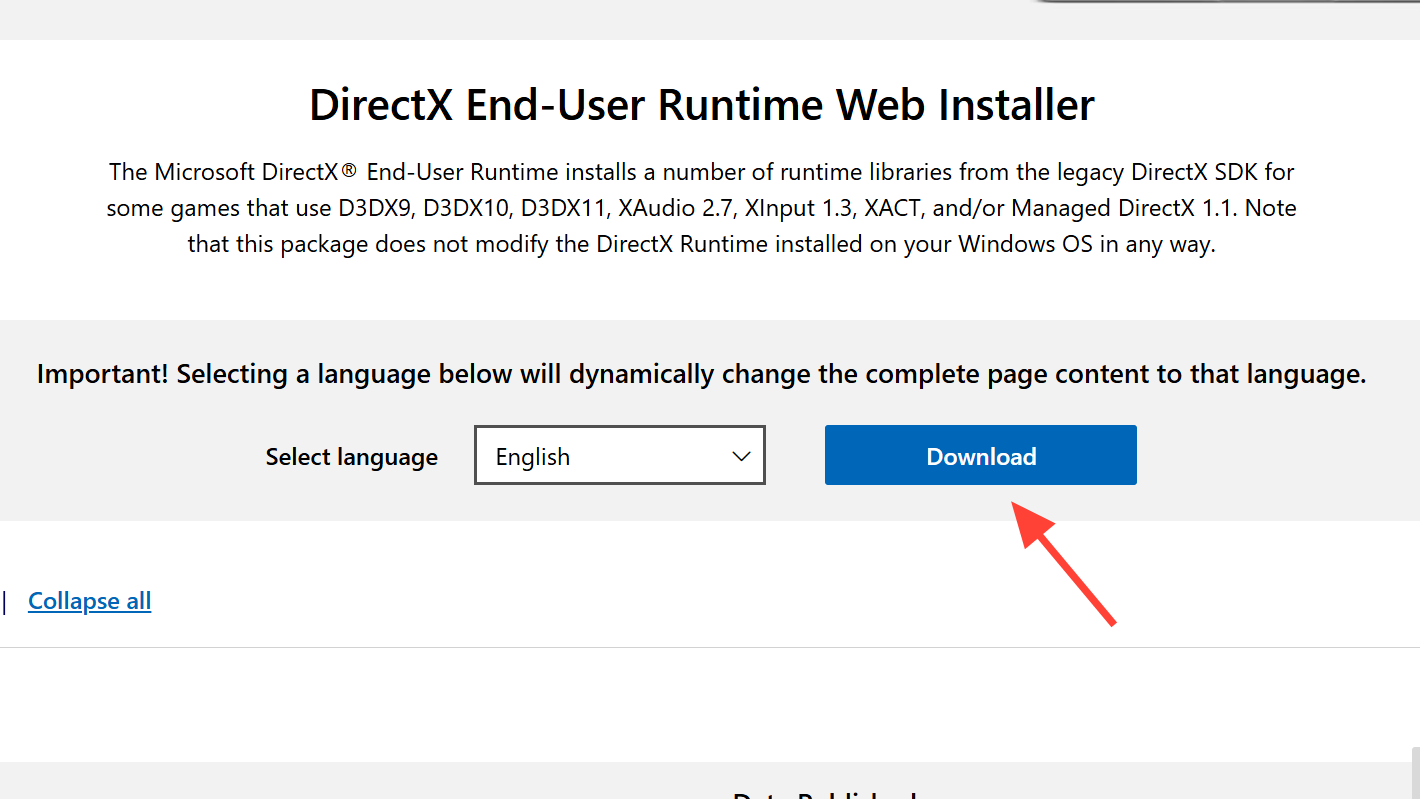
To install or refresh DirectX, download the DirectX End‑User Runtime Web Installer from Microsoft at microsoft.com/download/details.aspx?id=35 and complete the setup.
In the Display tab(s) of dxdiag, confirm that the active GPU is listed and that Feature Levels include at least 12_0 or 12_1. If the GPU does not support a DirectX 12 feature level, Code Vein II cannot use DX12 on that hardware.
Restart Windows and install pending updates
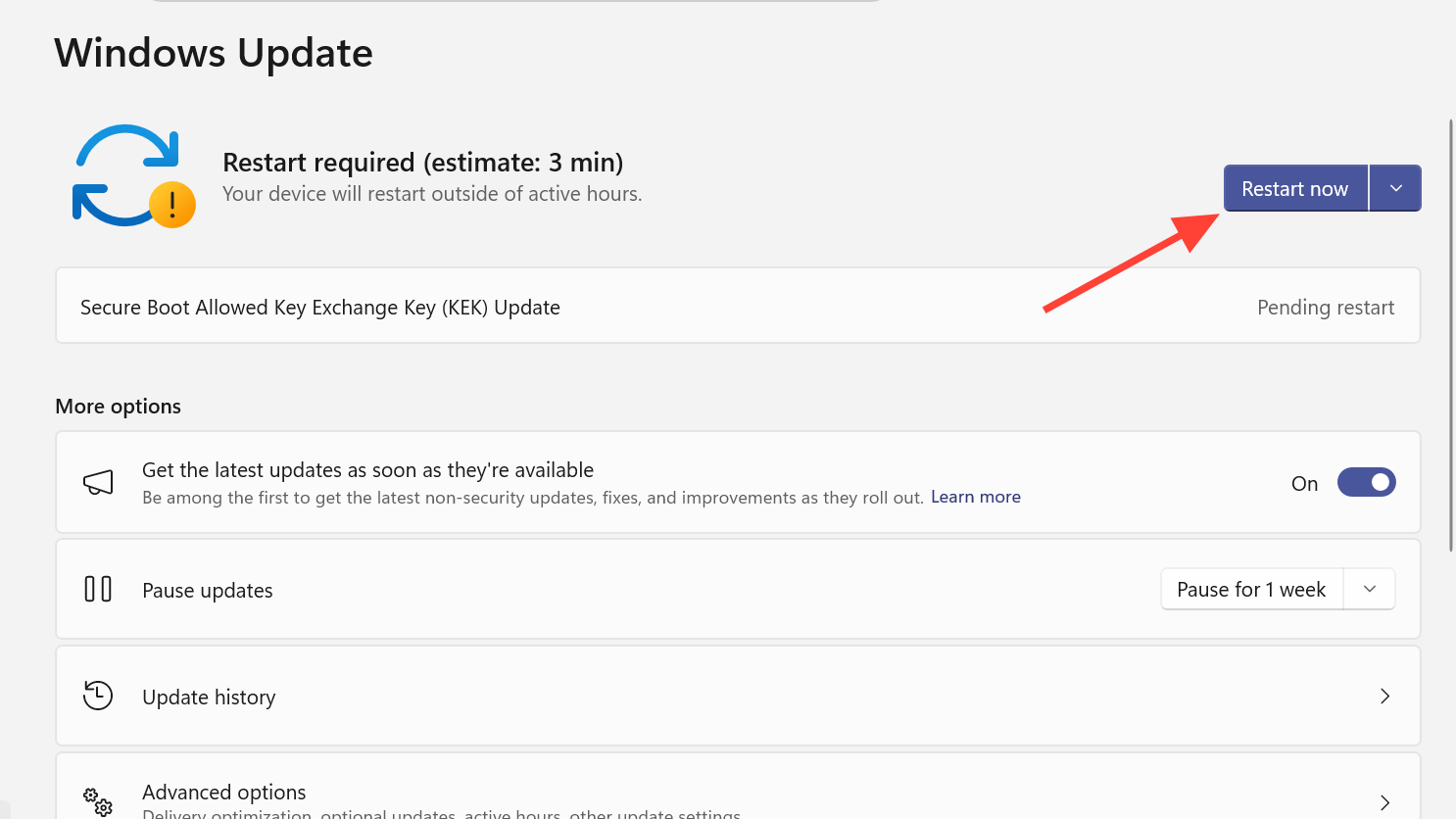
Pending Windows updates can leave DirectX or the graphics stack in an incomplete state. Use a full restart that applies updates:
- Close Code Vein II and the launcher (Steam or Epic Games Launcher).
- Open the Start menu, select the power icon, then choose Restart or Update and restart if offered.
After rebooting, run your launcher as Administrator and start Code Vein II again. If the error disappears and you reach shader compilation or the title screen, the DirectX 12 check has succeeded.
Update your graphics driver
Outdated or generic display drivers commonly cause DirectX 12 initialization failures. Update directly from the GPU vendor:
- Nvidia GPUs: install the latest Game Ready driver using the Nvidia App from nvidia.com/en-eu/software/nvidia-app.
- AMD GPUs: download the current Adrenalin driver from amd.com/en/support/download/drivers.html.
- Intel GPUs (including Intel Arc): use Intel’s auto-detect tool at intel.com/content/www/us/en/support/detect.html.
Alternatively, you can let Windows search:
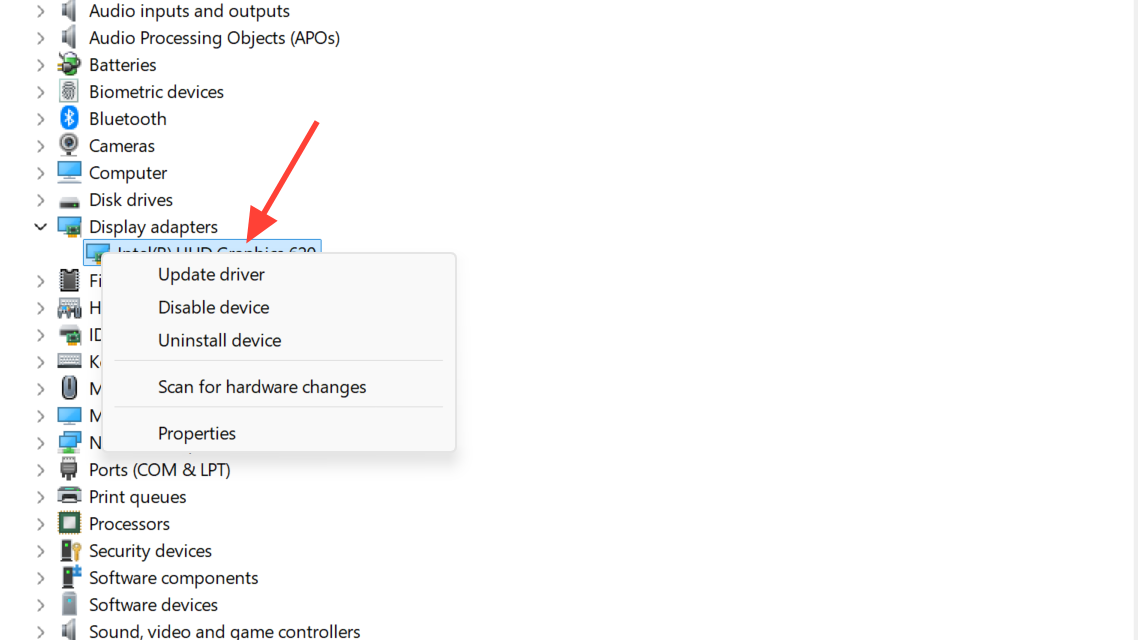
Open Device Manager from Windows Search, expand Display adapters, right‑click your main GPU, choose Update driver, then Search automatically for drivers.
After updating, restart the PC, then launch Code Vein II again. If the error is gone and the game progresses to loading shaders, the driver update resolved the DirectX 12 handshake.
Verify Code Vein II game files
Corrupted or incomplete game files can block the engine from loading DirectX 12 correctly. Use the launcher’s verification function to repair the installation.
Verify files in Epic Games Launcher
To repair the Epic installation:
- Open Epic Games Launcher.
- Open the Library and locate Code Vein II.
- Click the three dots beside the game name, then select Manage.
- Use the Verify option.
Wait until the verification finishes, then close and reopen the launcher before trying to start Code Vein II again.
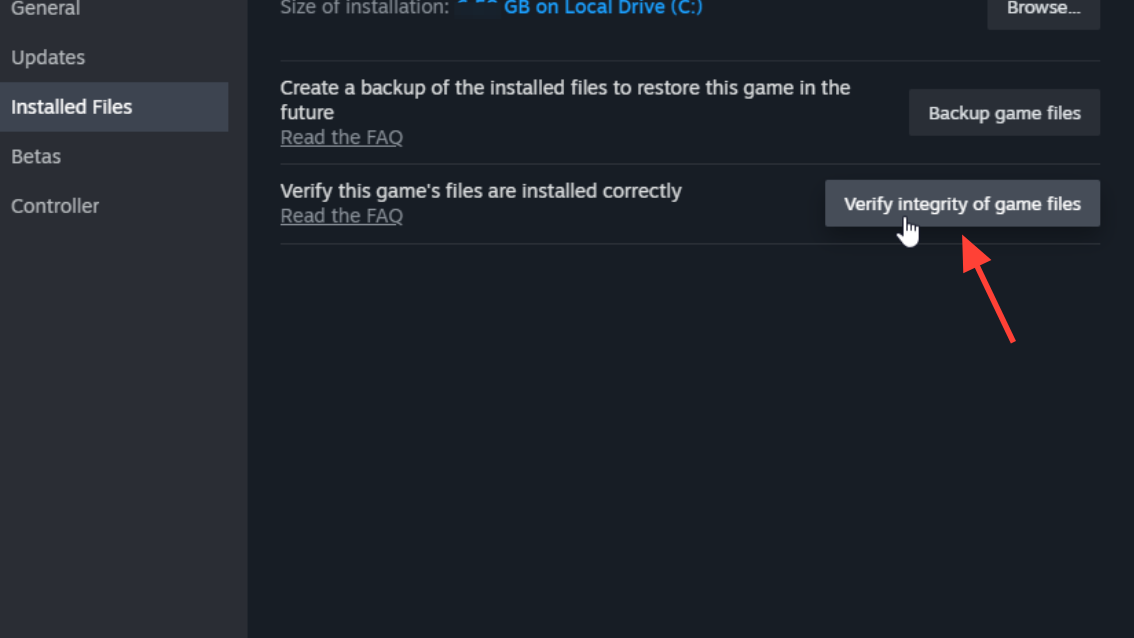
Verify files in Steam
To repair the Steam installation:
- Open Steam and go to your Library.
- Right‑click Code Vein II and select Properties.
- Select the Installed Files tab.
- Click Verify integrity of game files….
When the verification completes, start the game again. If the DirectX 12 error was caused by a missing or damaged file, it will no longer appear, and the game will proceed to the next loading stage.
Remove or adjust DirectX launch options
The error text references the -dx12 or -d3d12 command‑line arguments. These flags can be added manually in launch options and may force a broken DX12 path. Clearing them or forcing a different API can let you bypass the check.
Epic Games Launcher launch options
To set or change Epic launch options:
- Open Epic Games Launcher and go to the Library.
- Find Code Vein II, click the three dots, then Manage.
- Enable Launch Options.
In the launch options box:
- Clear any
-dx12or-d3d12strings. - To force DirectX 11, enter
-d3d11. - To try Vulkan, enter
-vulkan.
Launch the game. If the DX12 pop-up disappears and the game reaches shader compilation or the main menu, the alternative API is being used successfully.
Steam launch options
To change Steam launch options:
- Open Steam and go to your Library.
- Right‑click Code Vein II and select Properties.
- In the General tab, locate Launch Options.
Use one of these strings:
- To clear a forced DX12 path, remove any
-dx12or-d3d12. - To force DirectX 11, enter
-dx11or-d3d11. - To use Vulkan, enter
-vulkan.
Close the properties window and start Code Vein II. If the game now opens without the DX12 error, the launch arguments were the cause.
When the error persists on a supported system
If all of the following are true:
- Windows reports DirectX 12 in dxdiag.
- Your GPU meets or exceeds the listed minimum spec with DirectX 12 feature level 12_0 or 12_1.
- Graphics drivers and Windows are fully updated.
- Game files have been verified, and launch options have been cleared or adjusted.
And the same pop-up still appears at every launch, the remaining cause is likely an engine‑side compatibility issue that requires a patch.
In that case, collect your DXDiag report and basic hardware details and open a support ticket with Bandai Namco through the official support portal at support.bandainamcoent.com. Once a hotfix is released that relaxes or corrects the DirectX 12 detection, the error will disappear without further action on your side.
How to confirm the DirectX 12 error is resolved
You know the DirectX 12 issue is fixed when:
- The “DirectX 12 is not supported on your system” pop-up no longer appears on launch.
- Code Vein II proceeds to shader compilation, the title screen, or in‑game without closing to the desktop.
If the game now reaches a different crash or black screen, the DirectX 12 initialization has succeeded, and any new problem is unrelated to the original DX12 error.