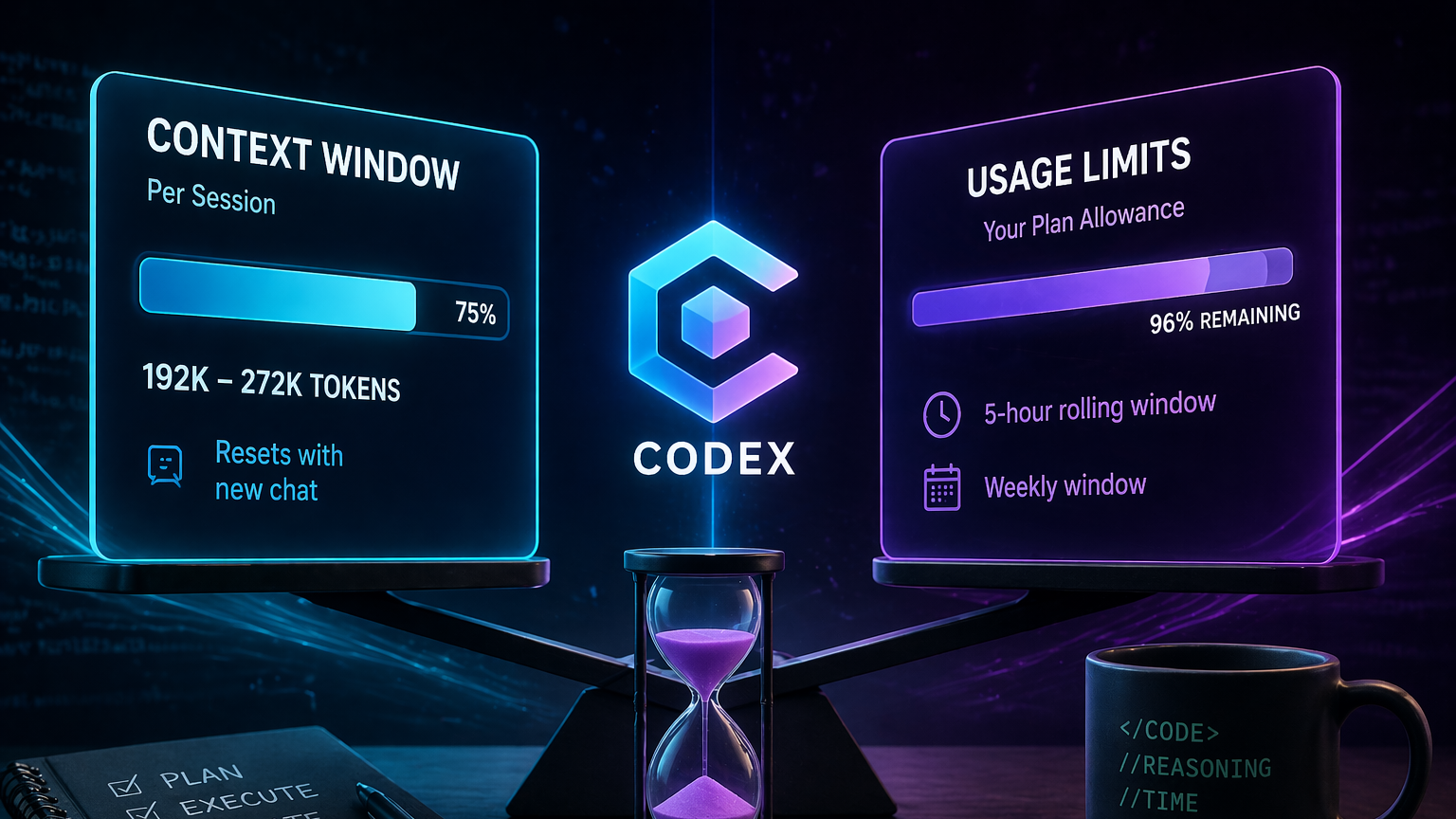
Codex, OpenAI’s coding agent, doesn’t have a single “token limit” that works the way most people expect. There are actually two separate numbers to track: the model’s context window (how much code and conversation it can hold in one session) and the plan-level usage limits tied to your ChatGPT subscription (how much work you can do in a rolling time window). Mixing the two up is the main reason people get surprised when a percentage counter jumps or collapses.
Context window vs. usage limit
The context window is a per-session ceiling on how much text the model can process at once, measured in tokens. Recent Codex coding models support large windows — on the order of 272,000 input tokens with up to 128,000 output tokens for GPT‑5.3‑codex, and earlier codex‑1 builds supported roughly 192,000 tokens of combined context. When you start a fresh chat, that counter begins near zero and climbs as the conversation, file reads, and tool calls accumulate.
The usage limit is different. It governs how much total work your ChatGPT account can send to Codex inside a rolling 5‑hour window and a weekly window. This is the limit that resets on a schedule, and it’s the one most users actually run into during a normal workday.
What the percentages in the Codex UI mean
The Codex IDE extension and CLI surface a line like Rate Limits Remaining: 5h 96%, Weekly 94%. The word that matters there is remaining. 96% means you still have 96% of your 5‑hour allowance left, not that you’ve burned through almost all of it. The context window indicator, which sometimes shows very large percentages like 2356% in third‑party wrappers, is a separate gauge and occasionally misreports due to UI bugs in non‑official clients.
| Indicator | What it measures | Resets |
|---|---|---|
| Context window % | How full the current chat session is with tokens | When you start a new chat |
| 5h rate limit % | Remaining allowance in the current 5‑hour window | Rolling 5 hours |
| Weekly rate limit % | Remaining allowance for the week | Rolling 7 days |
Which plans include Codex
Codex is included with ChatGPT Plus, Pro, Business, and Enterprise/Edu. Free and Go tiers have had temporary access during limited promotional periods, and paid plans have periodically received 2x rate limit boosts. The exact message counts per window are published on OpenAI’s Codex pricing page, and the official overview of plan access sits in the Codex help article.
OpenAI’s own documentation gives a wide range — often cited as 300 to 1,500 messages per 5 hours on Pro — because a single “message” can mean very different amounts of work depending on the size of your codebase, how long the agent reasons, and whether tasks run locally or in the cloud.
Why a single message can burn a big chunk of the window
The usage system is not purely message‑counted. In practice, the dominant cost driver is how long the agent spends reasoning. A quick edit on a small file might consume a fraction of a percent, while a multi‑minute agentic run that reads many files, plans, executes tools, and iterates can eat 20% or more of a 5‑hour window in one go.
A useful mental model: think of your plan as including a certain number of reasoning minutes per 5‑hour window, not a fixed number of messages. The longer Codex thinks before answering, the more of that budget it draws down.
Practical drain rates by plan
These numbers come from community testing rather than published specs, so treat them as working estimates, not guarantees. They’re still useful for planning.
| Plan + Model | Approx. reasoning minutes per 5h | Cost per minute |
|---|---|---|
| Plus + GPT‑5.4 | ~40 min | ~2.5% |
| Plus + GPT‑5.3 | ~60 min | ~1.66% |
| Business + GPT‑5.4 | ~12.5 min | ~8% |
| Business + GPT‑5.3 | ~18.75 min | ~5.33% |
| Pro (5x) | Several times Plus | Effectively much lower |
Two takeaways from the table. First, picking a slightly less aggressive model (for example, GPT‑5.3 over GPT‑5.4) can meaningfully extend your working time on the same plan. Second, Business currently includes noticeably less reasoning allowance than Plus, which is why a Business seat can feel tighter than a personal Plus subscription on the same workload.
Context window limits you’ll actually hit
For most coding tasks, the 192k–272k token context window is generous enough that you won’t run out mid‑session. Where it does matter: very large monorepos, long multi‑file refactors, or sessions where the agent has already read many files and accumulated a long tool‑call history. When the context fills, start a new chat rather than letting the model silently truncate older parts of the conversation.
How to stretch your Codex allowance
A few habits make a real difference over a working day:
- Keep prompts specific and scoped. Vague prompts trigger longer reasoning chains.
- Plan the hard thinking in ChatGPT (cheaper against your allowance), then hand Codex concrete, narrow tasks.
- Lower the reasoning level for small, mechanical edits. Reserve high reasoning for genuinely complex problems.
- Break large tasks into a few focused sessions instead of one long open‑ended agent run.
- Start a new chat when the current session’s context window climbs past roughly 50% — it prevents the model from re‑processing bloated history on every turn.
Where to check your remaining limits
In the Codex IDE extension, the rate limit line appears in the status area at the bottom of the Codex panel. In some editors it’s tucked behind the local/cloud toggle — click that control to expand the details. The CLI surfaces the same information at the end of long runs. Keep in mind that the number represents what’s left, so watch for it falling toward single digits rather than climbing.
If you’re running Codex through a third‑party wrapper like a Cursor extension, the percentage you see may be the session context window rather than your plan allowance, and it can display values above 100% during certain UI states. For an authoritative number, check the official Codex client.