

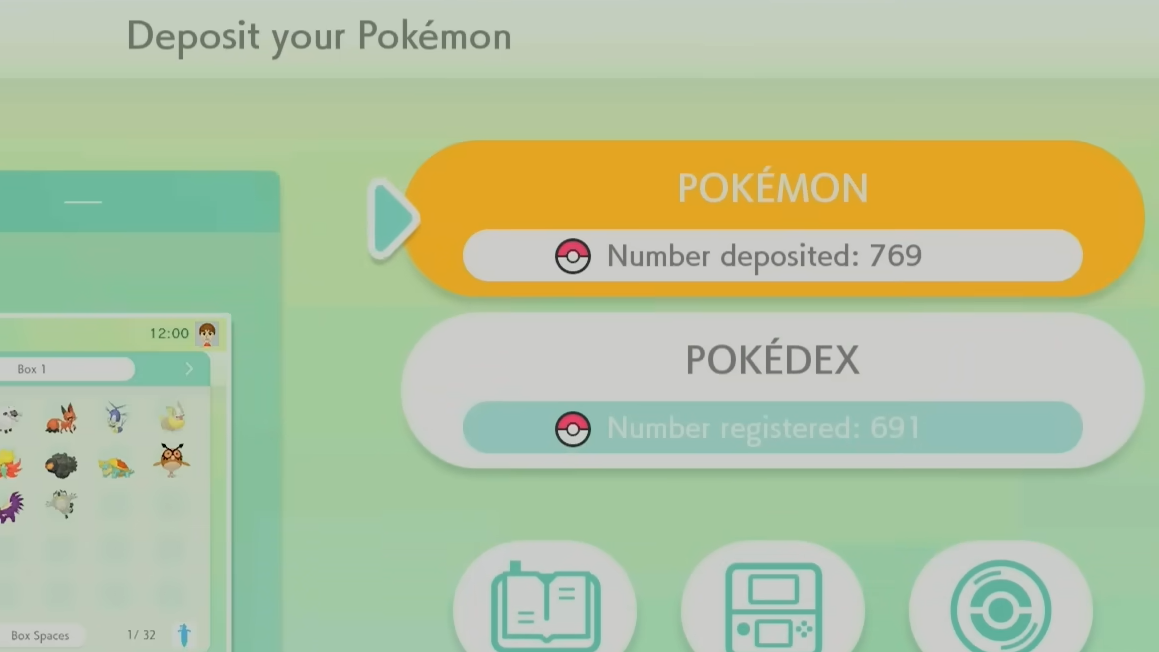
Pokémon Champions doesn't use a traditional catch-and-train loop. Instead, you recruit Pokémon at Roster Ranch or bring them in from Pokémon HOME as visitors. Linking the two apps lets you field battle-ready Pokémon from Pokémon Legends: Z‑A, Pokémon GO, and other main-series titles — all without spending a single Victory Point.
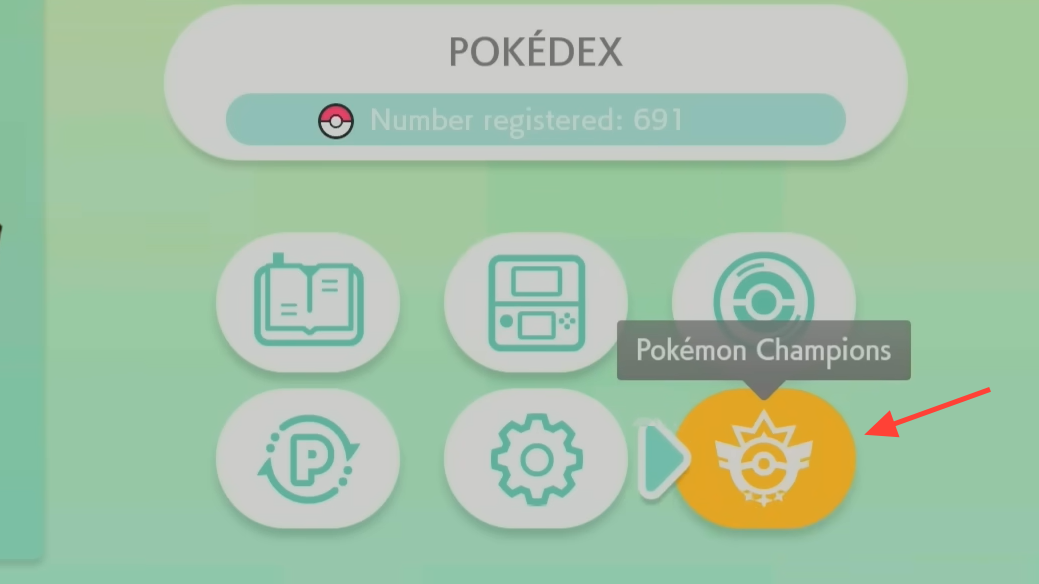
Quick answer: Open Pokémon HOME on your Nintendo Switch, tap the Pokémon Champions icon in the bottom-right corner, select the Pokémon you want to link, then open Pokémon Champions and collect them from the Recruit menu under "Collect from Pokémon HOME."
Prerequisites before you start
Both apps need to be installed on the same Nintendo Switch, and both must be tied to the same Nintendo Account. Pokémon Champions is free to play, but you must have completed its tutorial and chosen a starter Pokémon before HOME can detect an active account. If you skip the tutorial, the connection check will fail.
Pokémon HOME is available on Nintendo Switch and compatible mobile devices. The free Basic plan gives you a single box of 30 Pokémon, which is enough to fill all five Battle Teams in Champions. A paid Premium plan expands storage significantly, but linking itself is not locked behind Premium.
Linking Pokémon from HOME to Champions
Step 1: Open the Pokémon HOME app on your Nintendo Switch. On the main menu, look for the round Pokémon Champions icon in the bottom-right area of the screen, just above the Nintendo eShop button. Tap it.
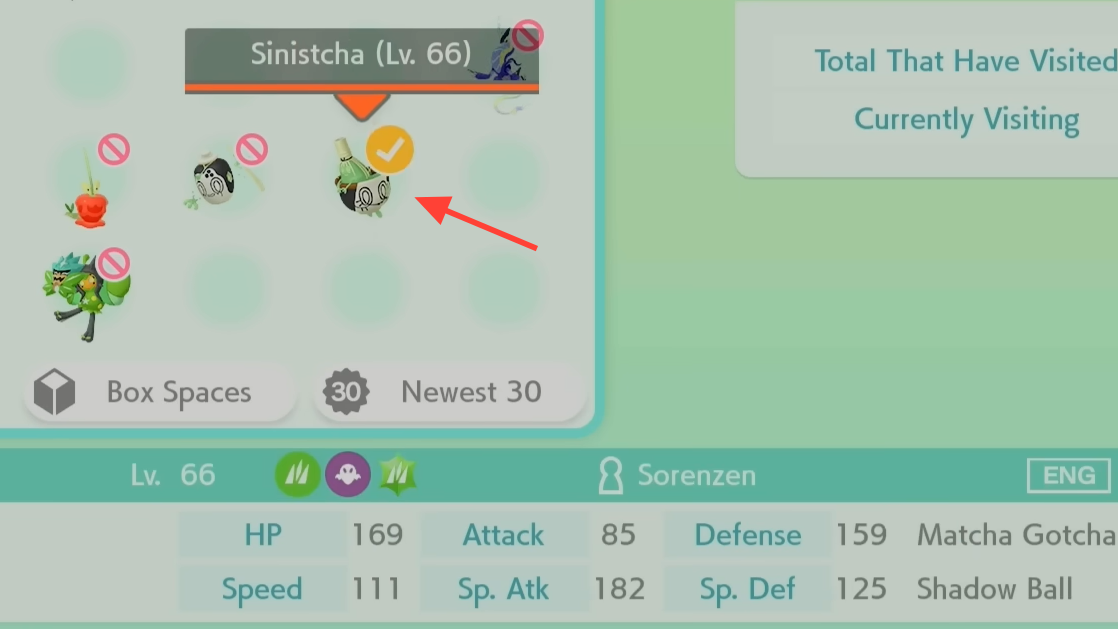
Step 2: HOME will automatically verify that a Pokémon Champions account exists on the same Nintendo Account. Once confirmed, you'll see your HOME boxes. Browse through them and select the Pokémon you want to send as visitors to Champions. This works like placing Pokémon into a Battle Box — they are not permanently transferred out of HOME.
Step 3: After selecting your Pokémon, press Y to confirm the link. You can send up to 30 Pokémon per batch, though you'll need matching box space in Champions to receive them.
Step 4: Switch over to Pokémon Champions. Navigate to the Recruit menu and select Collect from Pokémon HOME. Your linked Pokémon will appear and be ready for battle.
Sending Pokémon back to HOME
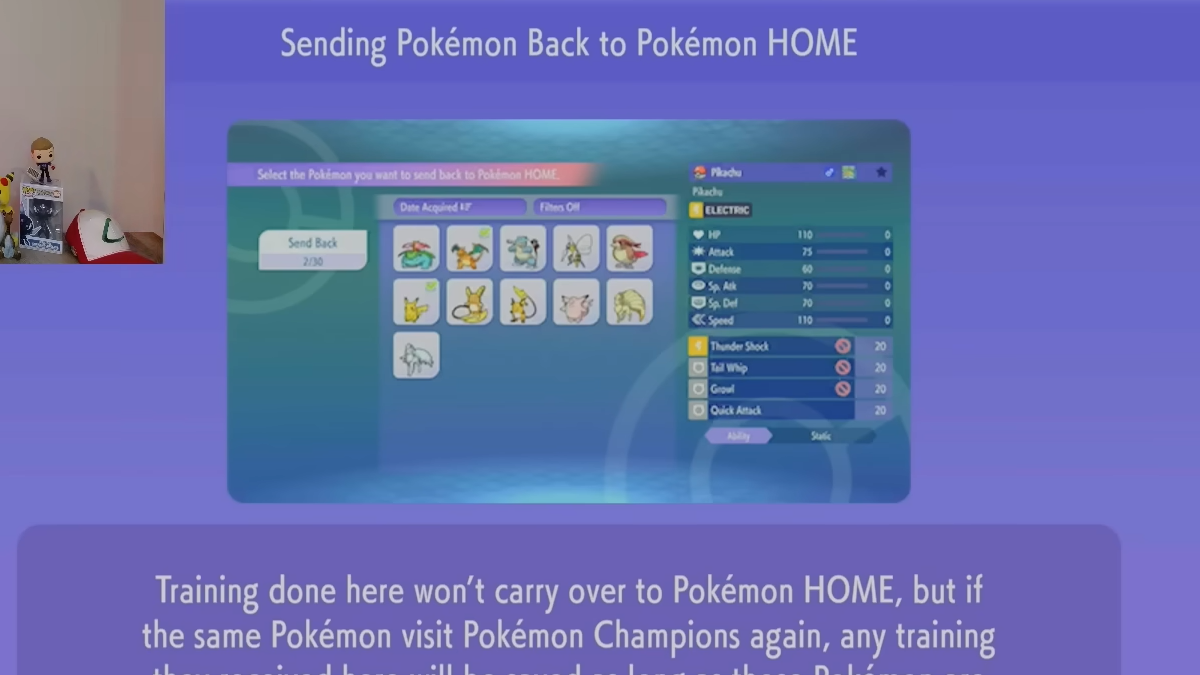
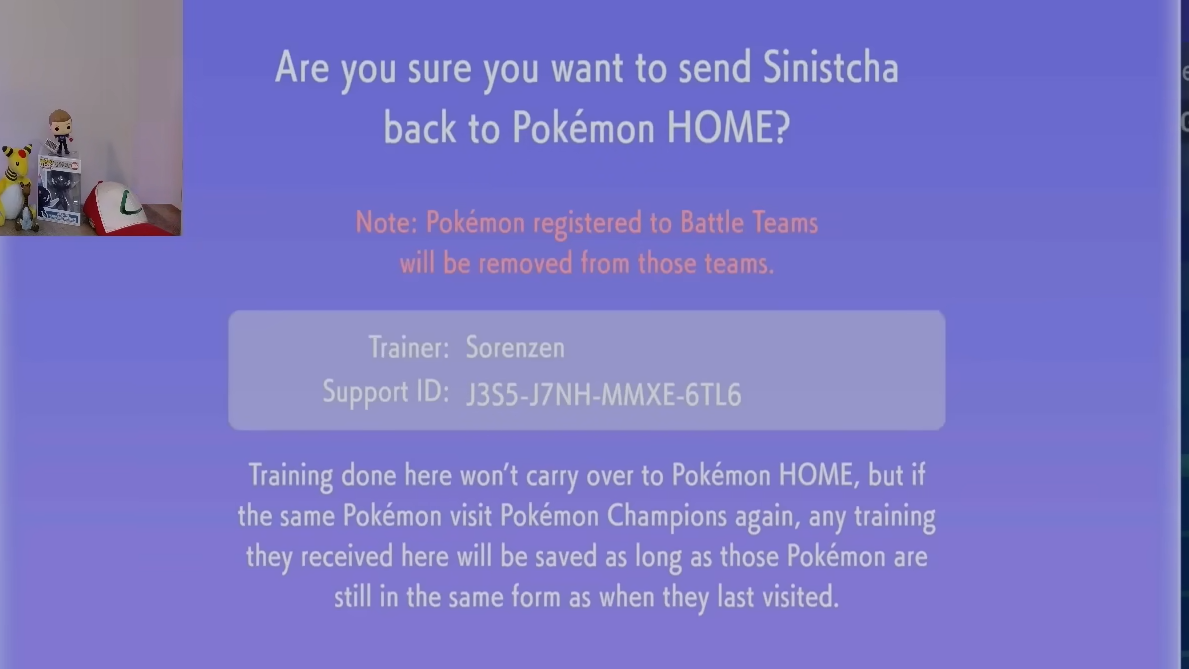
Visitors from HOME can return at any time. Inside Pokémon Champions, go to the Recruit menu and choose Send Back to Pokémon HOME. The Pokémon will reappear in your HOME boxes at their original level and with their original stats intact. Any changes Champions made — such as setting all IVs to 31 or adjusting the Pokémon to its Level 50 state — revert once the Pokémon is back in HOME.
One important restriction: Pokémon that you recruit natively inside Pokémon Champions cannot be deposited into HOME. The connection is one-directional for recruited Pokémon.
What transfers and what changes
| Attribute | Behavior in Champions |
|---|---|
| EVs | Transfer as-is from the original game |
| Natures (including Mints) | Transfer as-is |
| Moves | Transfer as-is |
| Abilities | Transfer as-is |
| Shininess | Preserved |
| Ball type | Preserved |
| Marks | Preserved |
| IVs | Set to 31 across the board in Champions (original IVs remain unchanged in HOME) |
| Level | Automatically set to Level 50 state; original level is preserved in HOME |
The fact that EVs and Mint-adjusted Natures carry over is a significant advantage. You can fully EV-train a Pokémon in Pokémon Legends: Z‑A, Pokémon Scarlet, Pokémon Violet, or any compatible title and bring it into Champions battle-ready — no VP spent on training.
Because IVs are universally set to 31 in Champions, there's no benefit to breeding for specific IV spreads (like 0 Speed) for use in this game. A Pokémon with 0 Speed IVs in HOME will still function at 31 Speed IVs inside Champions, though its original 0 Speed IV remains untouched when it returns to HOME.
The one-shot training rule
This is the single most important caveat of the linking system. If you plan to pre-train Pokémon in another game before sending them to Champions, make sure the EV spread, Nature, Ability, and moveset are exactly what you want on the first transfer. After that initial visit, Champions treats those values as a snapshot. Edits made in other games afterward are simply ignored by Champions.
Training done inside Champions, however, does not overwrite the Pokémon's data in HOME. The two remain independent after the initial snapshot. You can freely adjust stats within Champions using VP or Training Tickets without worrying about corrupting your Pokémon's build in its home game.
Box space requirements
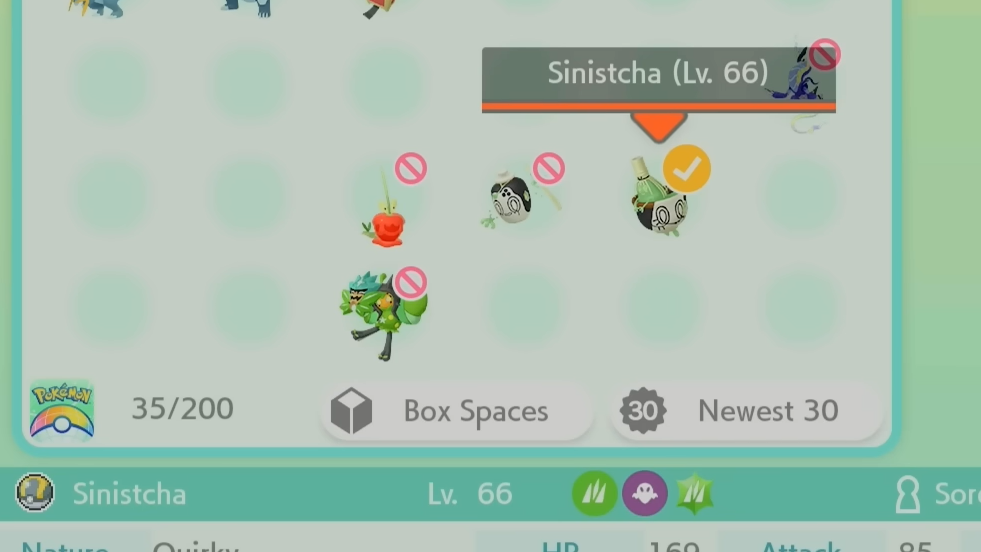
You need available box space in both HOME and Champions. The Pokémon stays linked in HOME (it occupies a HOME slot the entire time it's visiting Champions), and it also occupies a slot in Champions. You cannot bypass Champions' box limit by linking more Pokémon than you have room for.
With the free Basic HOME plan, 30 slots are enough to populate Champions' five Battle Teams. If you want a larger roster of visitors, a Premium HOME subscription provides more box space. On the Champions side, box capacity can be expanded up to 1,000 slots, though you can only transfer in 30 Pokémon at a time per batch.
Troubleshooting a failed connection
If HOME doesn't detect your Champions account, the most common cause is that you haven't actually started playing the game. Simply downloading Pokémon Champions isn't enough — you need to complete the tutorial and pick your starter. After doing so, reopen HOME and try the Champions icon again.
Also, confirm that both apps are signed into the same Nintendo Account. If you use multiple accounts on your Switch, it's easy to have HOME on one profile and Champions on another, which will prevent the link from establishing.
Linking Pokémon HOME to Pokémon Champions is straightforward once both apps are set up on the same account. The real strategic value lies in pre-training your Pokémon in a main-series game where EV training and Nature adjustments are cheaper and more familiar — just remember that the first transfer locks in those stats for Champions permanently. Plan your builds carefully before hitting that confirm button.