

Roblox Steal a Brainrot does not support private server creation directly from PlayStation 4, PlayStation 5, Xbox One, or Xbox Series X consoles. Console players must use a secondary Roblox account on a mobile device or PC to create the server, then join it from their main console account. This method prevents other players from stealing items and allows uninterrupted trading between accounts.
Quick answer: Create a free secondary Roblox account, use it on mobile or PC to purchase and configure a private server for 79 Robux, enable friend joining, then join the server from your console account through the connections menu.
Requirements for Console Private Servers
Console versions of Roblox lack the server browser interface available on PC and mobile. You need a secondary Roblox account accessible through a smartphone or computer to create and configure the private server. The main console account joins through the friends or connections list after the secondary account hosts the server.
Private servers for Steal a Brainrot cost 79 Robux per month. Some other Roblox games offer free private servers, but Steal a Brainrot requires this subscription. The cost renews automatically unless canceled.
Create a Secondary Roblox Account
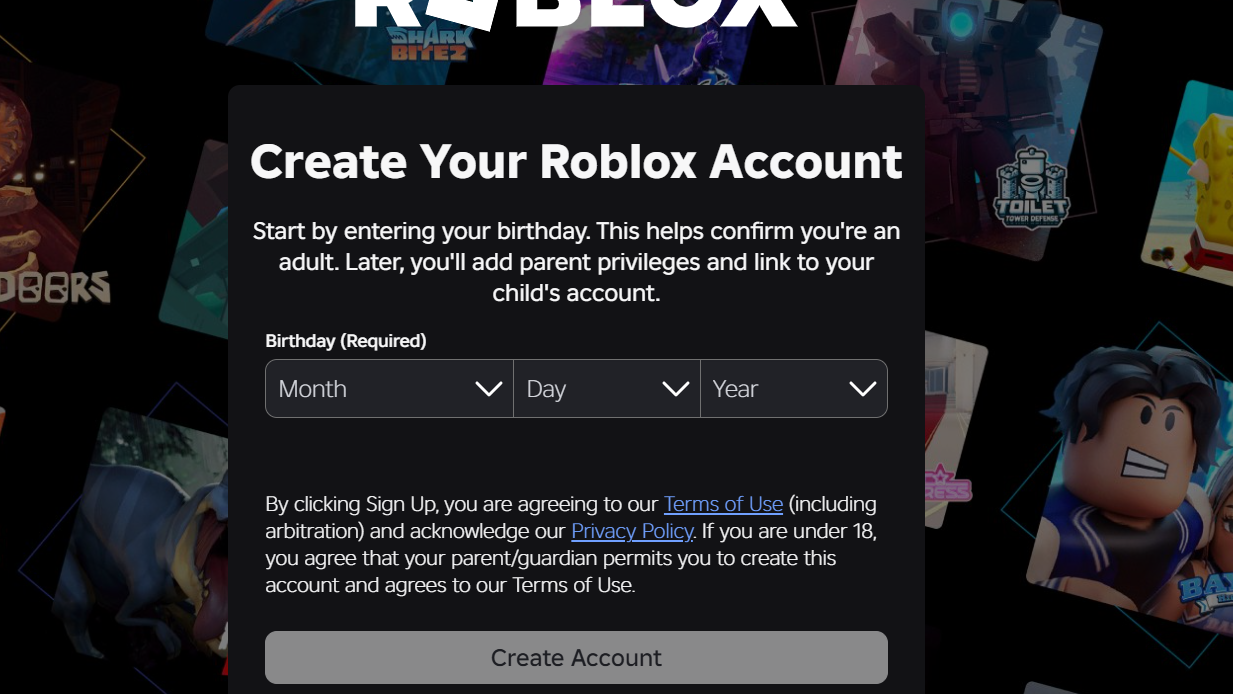
Step 1: Open a web browser or the Roblox app on your mobile device or PC. Navigate to the Roblox sign-up page and create a new account with a different email address from your main account.
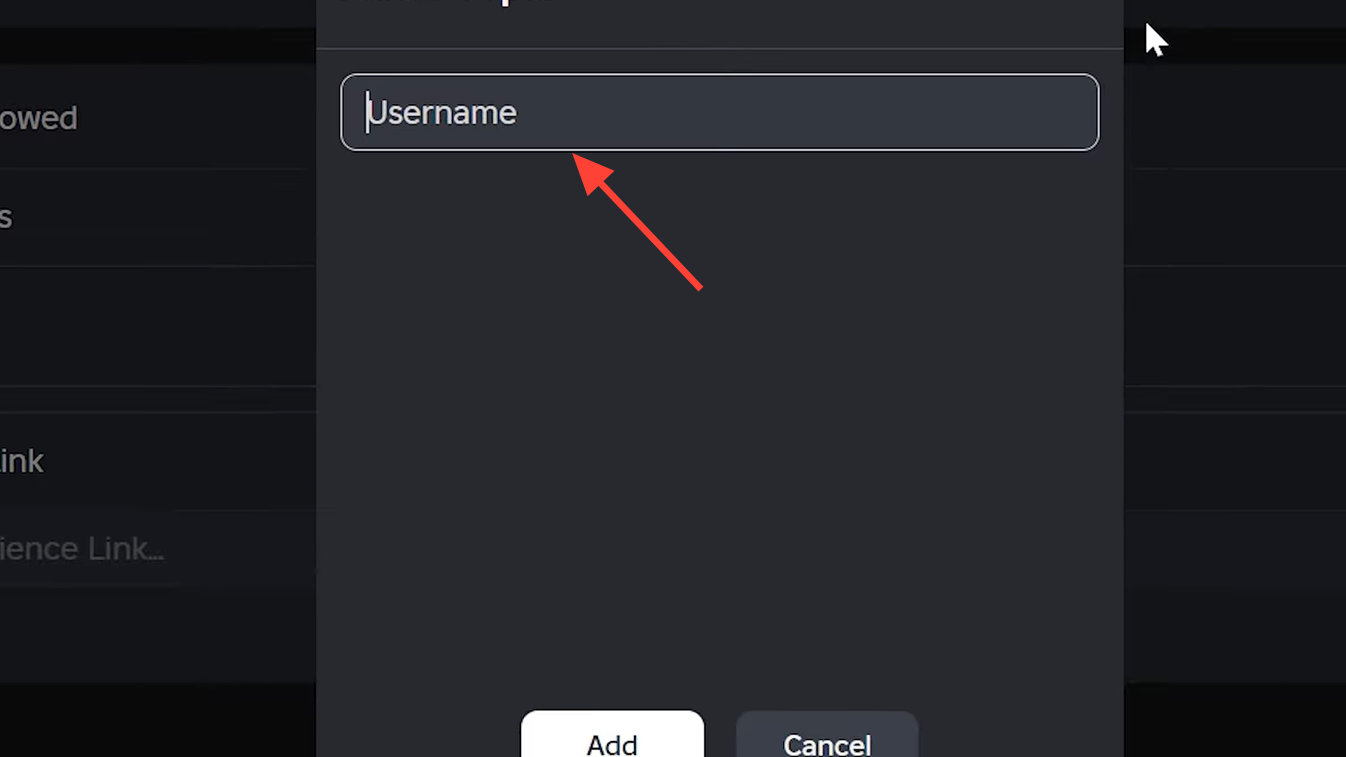
Step 2: Add your main console account as a friend. Search for your main account username in the people search, then send a connection request.
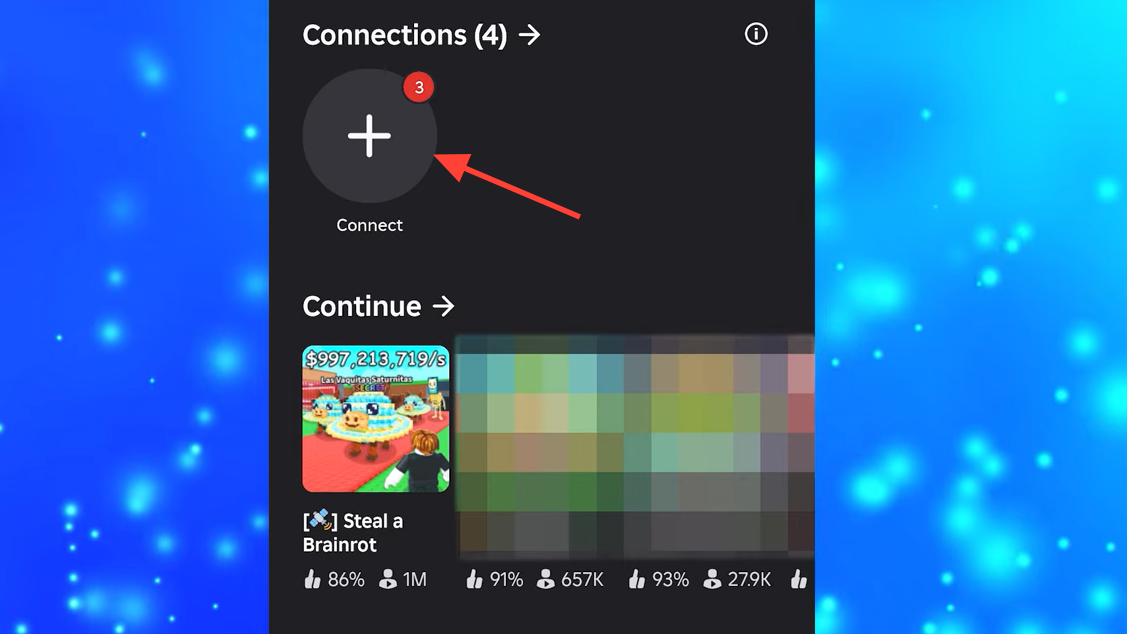
Step 3: Accept the friend request on your console. Open Roblox on your PlayStation or Xbox, go to notifications, and accept the pending connection from your secondary account.
Purchase and Configure the Private Server
Step 1: Log into your secondary account on mobile or PC. Search for Steal a Brainrot in the Roblox game library and open the game page.
Step 2: Scroll down to the Servers section near the bottom of the game page. Tap or click Servers to open the server browser.
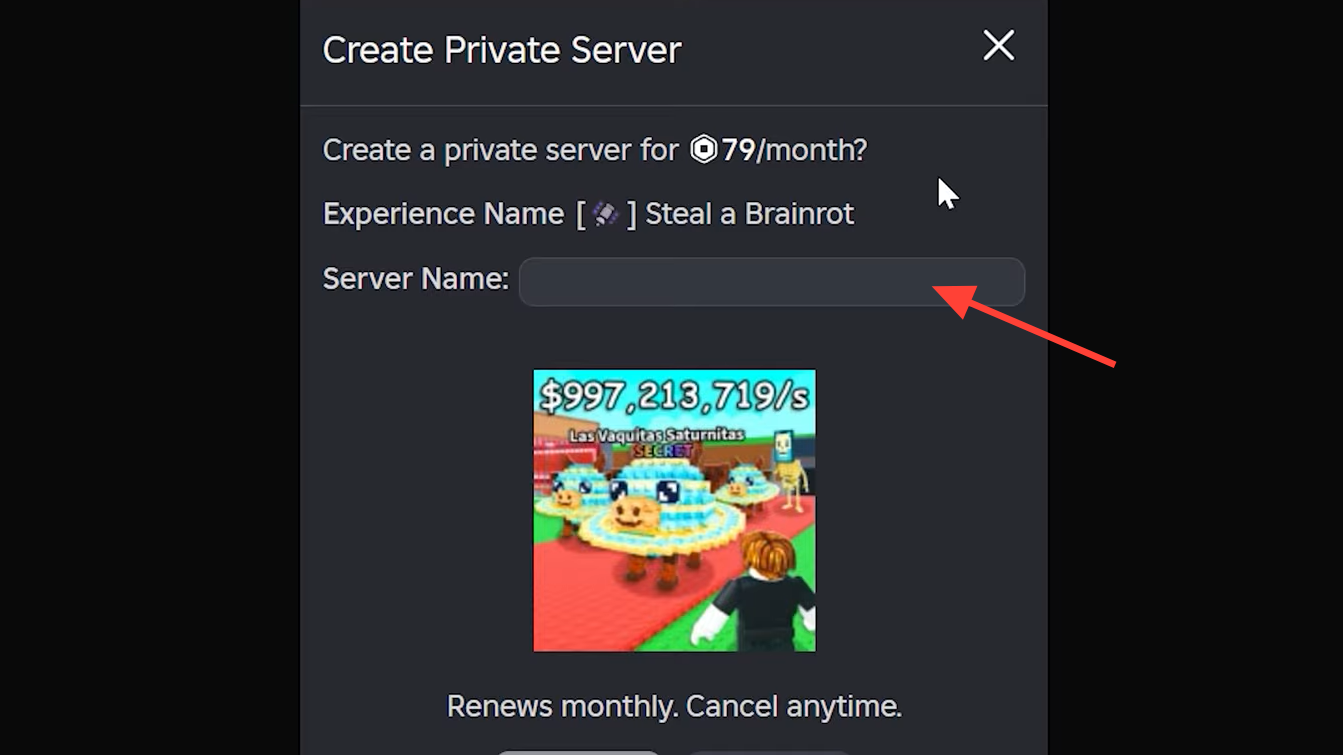
Step 3: Select Create Private Server. Enter a name for your server and choose Subscribe to purchase the server for 79 Robux monthly. If you do not have enough Robux, purchase the required amount through the Robux store before proceeding.
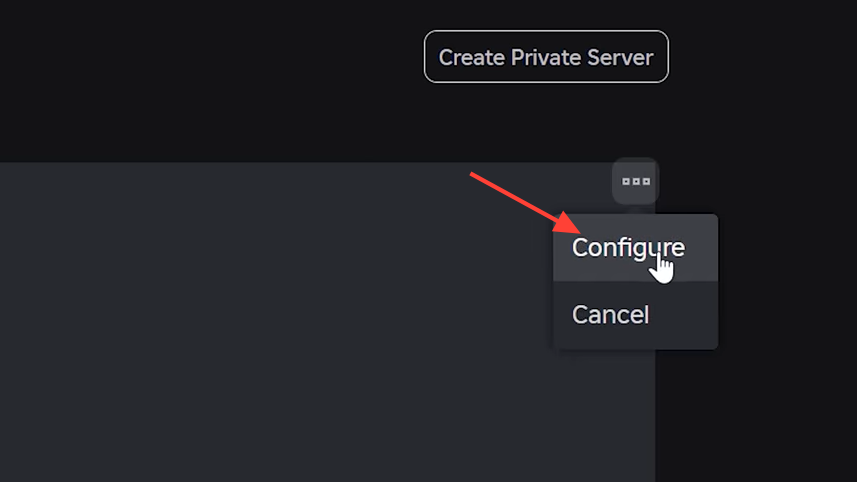
Step 4: Tap the three-dot menu icon next to your newly created private server. Select Configure from the menu options.
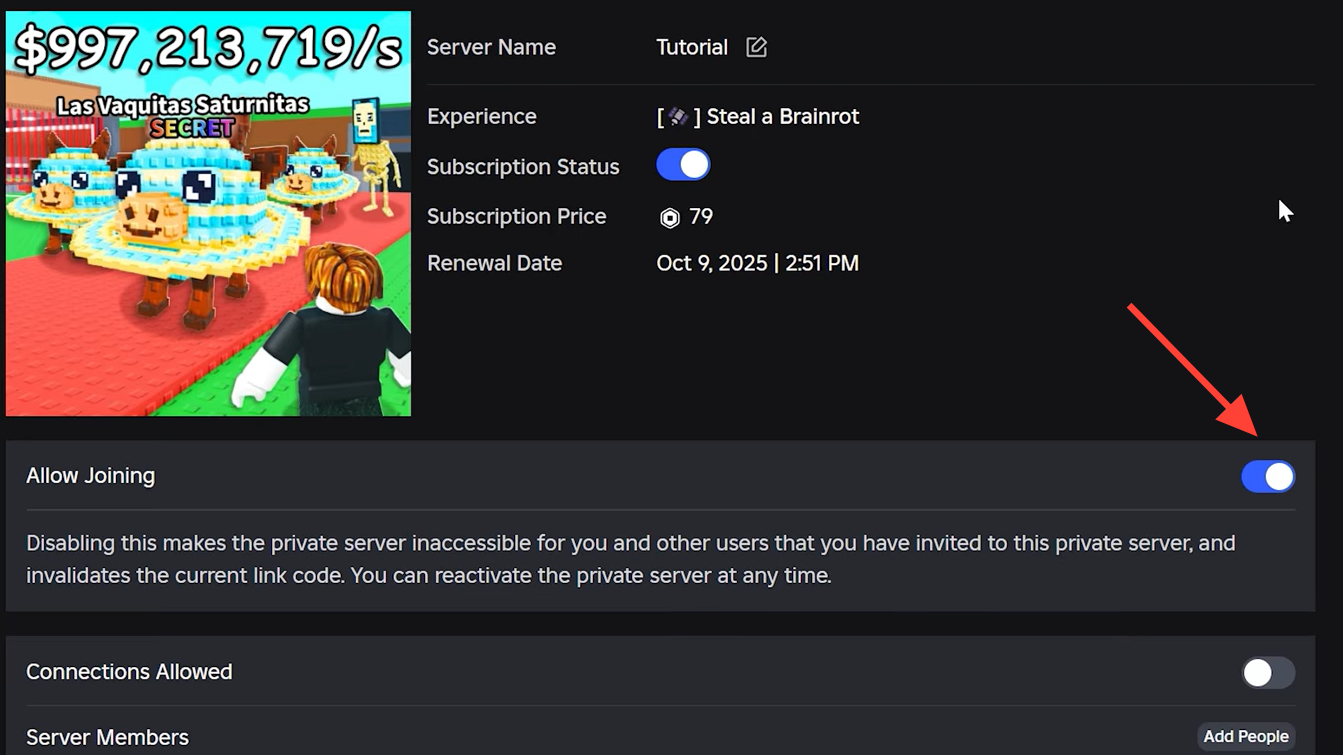
Step 5: Enable the Allow Friends to Join toggle. This setting permits your main console account to join the server. Without this enabled, your console account cannot access the private server, even if you are friends.
Join the Private Server from Console
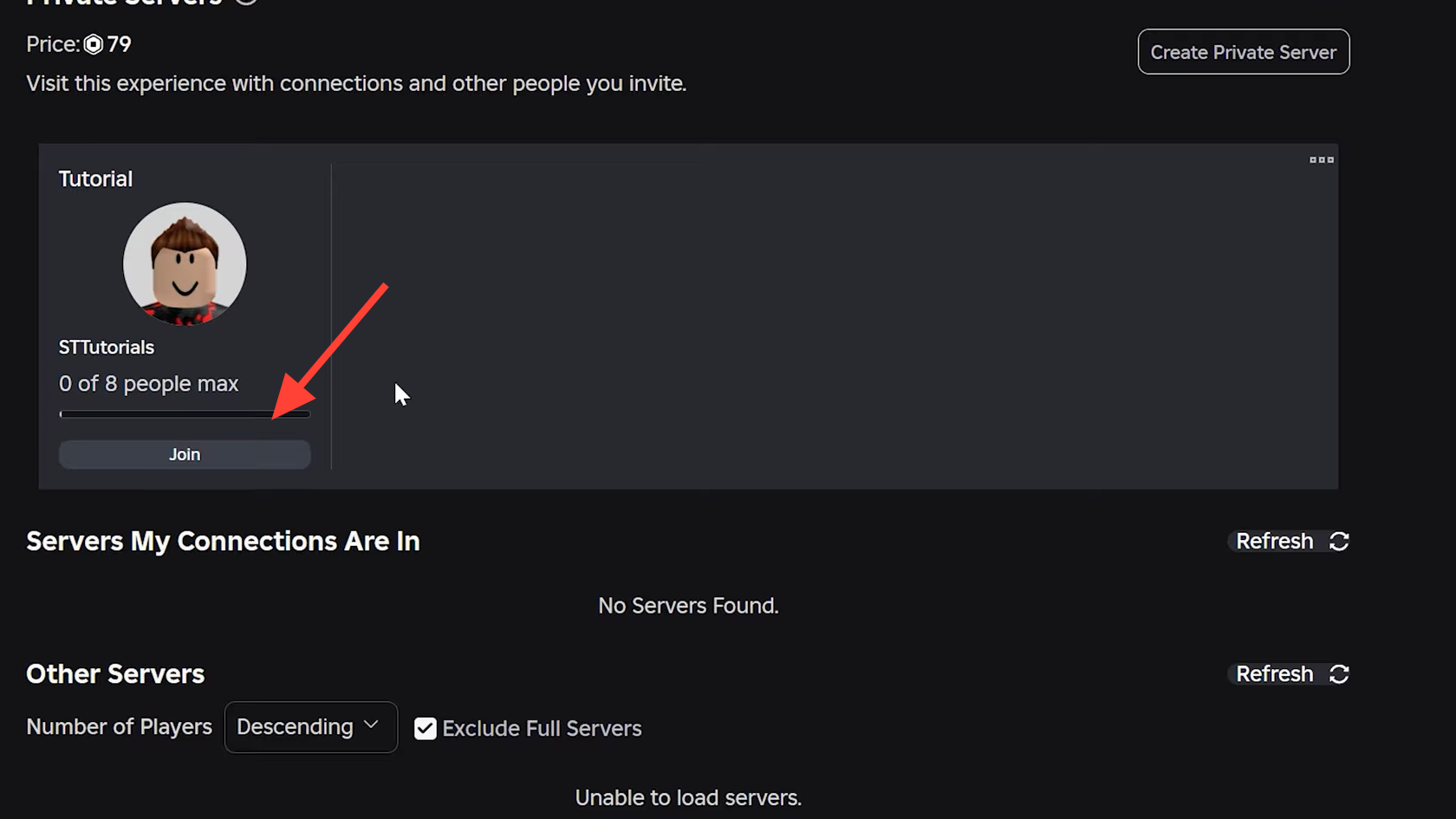
Step 1: Use your secondary account on mobile or PC to join the private server you created. Tap or click Join next to the server name in the Servers section.
Step 2: Switch to your console and open Roblox on your main account. Navigate to the Connections or Friends menu.
Step 3: Locate your secondary account in the connections list. The account should display as currently playing Steal a Brainrot. Select the account and choose Join to enter the private server.
The console loads you into the private server. Textures may take a moment to render fully, but you will be alone in the server instance with only accounts you explicitly invite.
Manage or Cancel the Subscription
Private server subscriptions renew each month automatically. To cancel, log in to your secondary account on mobile or PC and navigate to the Steal a Brainrot game page. Scroll to Servers, tap the three-dot menu next to your private server, and select Cancel Subscription.
The server remains active until the current billing period ends. The cancellation confirmation displays the expiration date. After that date, the server becomes inaccessible unless you renew the subscription.
Verification and Common Issues
You know the private server works when your console account loads into an empty instance of Steal a Brainrot with no other players present. The server name you created appears in the server list on your secondary account.
If your console account cannot join, verify that Allow Friends to Join is enabled in the server configuration. The secondary account must remain online and inside the private server for the console account to join through the connections menu. If the secondary account leaves the server, the console account loses the join option until the secondary account rejoins.
Some players report that the private server does not appear in the connections list immediately. Wait a few seconds after the secondary account joins, then refresh the connections menu on console. If the issue persists, restart the Roblox app on console and check again.