

Where Winds Meet players on PC, mobile, and GeForce NOW periodically hit a "[10] abnormal account information" error that blocks login entirely. The message can appear after a mid-session crash, after a game update, or seemingly at random — and it looks identical whether the cause is a temporary server-side outage, an account ban, or a corrupted local cache.
Quick answer: Check whether Epic Online Services or the game servers are down before troubleshooting locally. If many players are locked out at the same time, the error is almost certainly a platform outage and will resolve on its own. If only your account is affected and you have not used cheats, clear your launcher cache, run the game as administrator, and verify your network connection.
Why the error appears — three distinct causes
Where Winds Meet authenticates through multiple layers at once. Your NetEase/Everstone game account, your store platform (Epic Games, Steam, or the standalone launcher), and Epic Online Services all need to agree on your identity before the client lets you in. When any layer fails, the game falls back to the same generic "abnormal account information" message regardless of the real problem. This makes diagnosis harder than it should be.
The three scenarios that produce the error are fundamentally different. Platform-wide login outages — particularly Epic Online Services going down — lock out large numbers of players simultaneously. This happened notably during the December 2024 holiday period and again following the v1.3 patch in early February 2026. Account enforcement actions by the Eastwind Pavilion anti-cheat system also surface the same wording, but in that case, the block is intentional and permanent or time-limited. Finally, local client or network problems such as stale authentication tokens, corrupted cache files, or firewall interference can trigger the error even when servers are healthy.
Rule out a platform outage first
If you see the error and immediately start reinstalling the game, you may waste an hour on something that fixes itself in minutes. The fastest check is whether other players are reporting the same lockout right now. The Where Winds Meet subreddit and the GeForce NOW subreddit both light up quickly when Epic Online Services goes down. During past incidents, Epic's own status page briefly showed services as "operational" before flipping back to degraded, so a single green checkmark there does not guarantee stability.
A reliable test is to try logging in through a different platform. If your Epic-linked account fails but a Steam-linked account on the same PC works fine, the problem is almost certainly on Epic's side. Similarly, if the game loads on mobile but not on PC (or vice versa), the issue is platform-specific rather than account-wide.
When the outage is confirmed, the only real fix is patience. Past incidents have resolved within one to three hours, though some players reported intermittent access — able to log in briefly, then kicked out again — before full stability returned.
Rule out an account ban
The development team at Everstone Studio publishes ban waves on the official Where Winds Meet website under "Account Suspension for Violations." Between November 15 and December 5, 2025, roughly 5,000 accounts were suspended for cheating, speed hacks, and third-party tools. Banned accounts see login failures that look identical to the generic error but never resolve through local troubleshooting.
If you suspect your account was flagged incorrectly, the official support channel is wherewindsmeet@global.netease.com. Include your account ID, the platform you use, and the exact error message. The team reviews appeals on a case-by-case basis, with penalties ranging from leaderboard removal and mode restrictions to permanent bans depending on the violation.
Clear Epic Games Launcher cache and relaunch
When the servers are stable and your account is clean, the most common local fix targets stale authentication data stored by the Epic Games Launcher.
Step 1: Close Where Winds Meet completely, then exit the Epic Games Launcher — make sure it is not still running in the system tray.
Step 2: Open File Explorer and navigate to the Epic Launcher's local app data directory. Look for the EpicGamesLauncher folder, then the Saved subfolder. Delete the webcache folder inside it. For a more thorough reset, delete the entire Saved folder.
Step 3: Right-click the Epic Games Launcher shortcut and select "Run as administrator." Once it opens, launch Where Winds Meet from inside the launcher rather than double-clicking the game executable directly. This forces a fresh login token to be generated.
If the error clears and you reach the main menu, the problem was a corrupted token. You should not need to repeat this process unless another crash or update breaks the cache again.
Run the game executable as administrator
Some players never reach the login screen because the game's anti-cheat and networking components lack the system privileges they need. This is especially common after Windows updates or permission changes.
Step 1: Navigate to your Where Winds Meet install folder. Inside it, open Engine → Binaries → Win64 and locate WWM.exe.
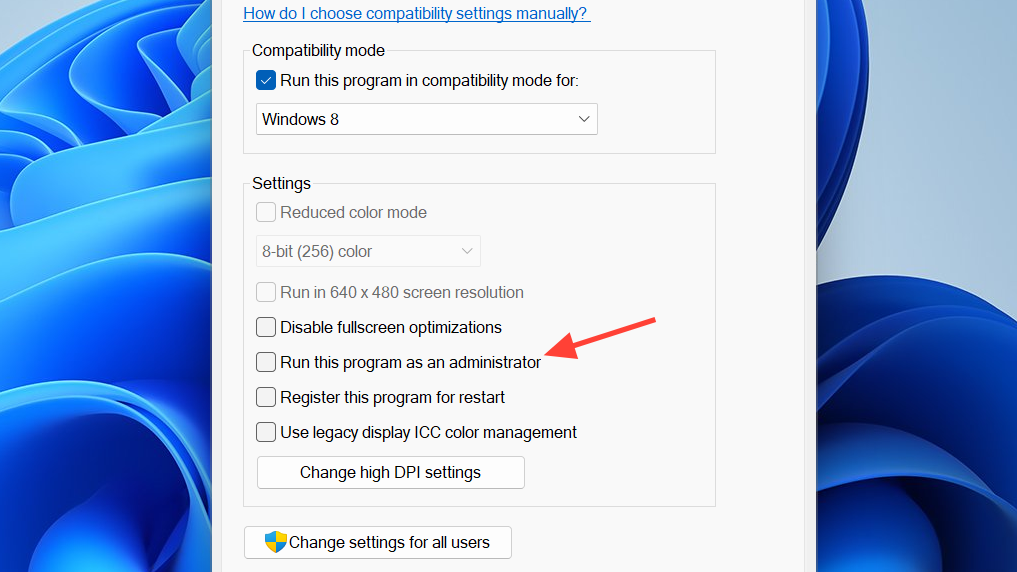
Step 2: Right-click WWM.exe, open Properties, go to the Compatibility tab, and enable "Run this program as an administrator." Confirm with OK.
Step 3: Launch the game through this executable (or create a desktop shortcut to it) and approve the UAC prompt. If the login succeeds, the privilege restriction was the bottleneck.
Adjust firewall and Windows security settings
Windows Defender's controlled folder access and firewall rules can silently block the game's network calls, producing login errors that mimic server-side problems.
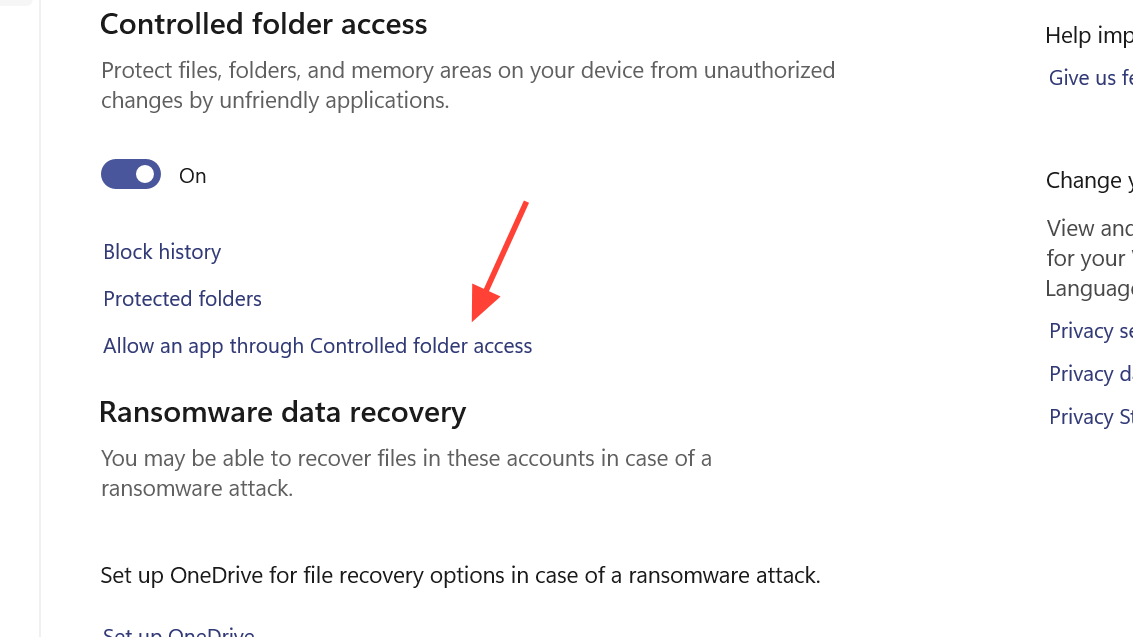
To allow the game through controlled folder access, open Windows Security → Virus & threat protection → Manage ransomware protection → Allow an app through controlled folder access. Browse to the same WWM.exe in Engine\Binaries\Win64 and add it.
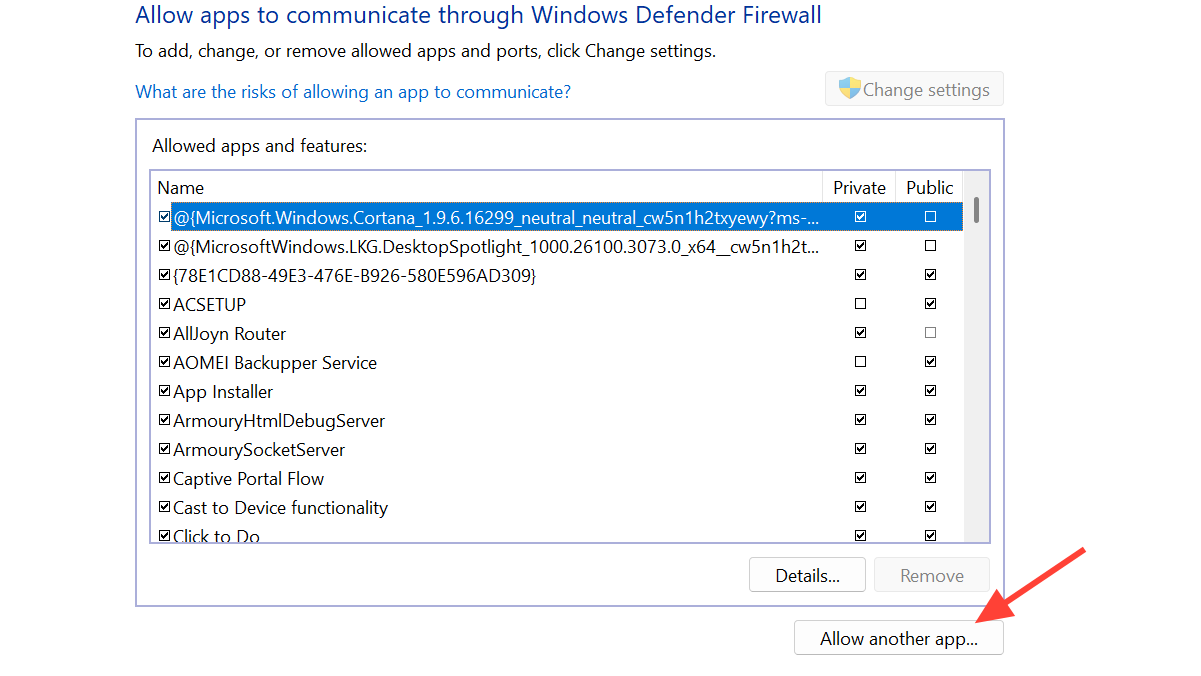
For the firewall, go to Windows Security → Firewall & network protection → Allow an app through firewall. Click "Change settings," then "Allow another app," and add WWM.exe. Make sure both private and public network types are checked. If you run a third-party antivirus or firewall, add the same executable to its allow list or temporarily disable it while testing.
Network fixes that have worked for players
The game's login handshake is sensitive to DNS resolution failures and unstable connections. A few targeted network changes can help when other fixes have not.
Switch connection type. Multiple players have resolved the error simply by toggling between Wi-Fi and mobile data, or between mobile data and a wired Ethernet connection. If one network path fails, try another before doing anything more invasive.
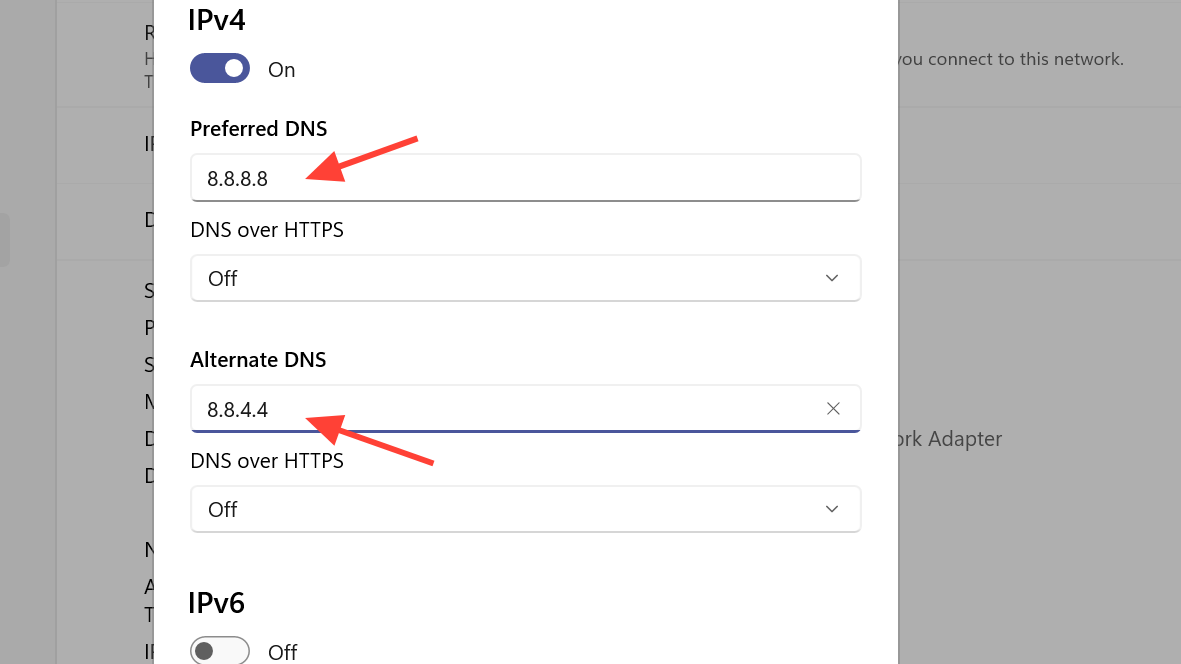
Change DNS servers. Open your active network adapter's IPv4 properties and set the DNS servers manually to 8.8.8.8 (preferred) and 8.8.4.4 (alternate). Some players also find that temporarily disabling IPv6 on the same adapter resolves intermittent login failures. You can re-enable IPv6 once logins stabilize.
Restart your router. A full power cycle of your modem and router forces new routing paths and clears stuck sessions that may interfere with the authentication handshake.
GeForce NOW and cloud streaming specifics
Players on GeForce NOW face an extra layer of difficulty because they cannot freely interact with the remote desktop environment. After the v1.3 update in early February 2026, many GeForce NOW users reported that the game showed a "Start" button instead of "Resume," followed immediately by the abnormal account error. Verifying files, reinstalling, and changing DNS within the GeForce NOW session did not help.
When the error hits on GeForce NOW and appears to be widespread, the most effective approach is to end the streaming session entirely, wait for the platform issue to clear, and then start a fresh session. If the problem persists after other players confirm they can log in again, use the "Send Feedback" button within GeForce NOW to report the bug so the service team can coordinate with NetEase.
Verify game files on Steam
If you play through Steam and hit the same error during a period when servers appear stable, a file integrity check can catch corrupted authentication components.
Step 1: Open Steam, go to your Library, right-click Where Winds Meet, and open Properties.
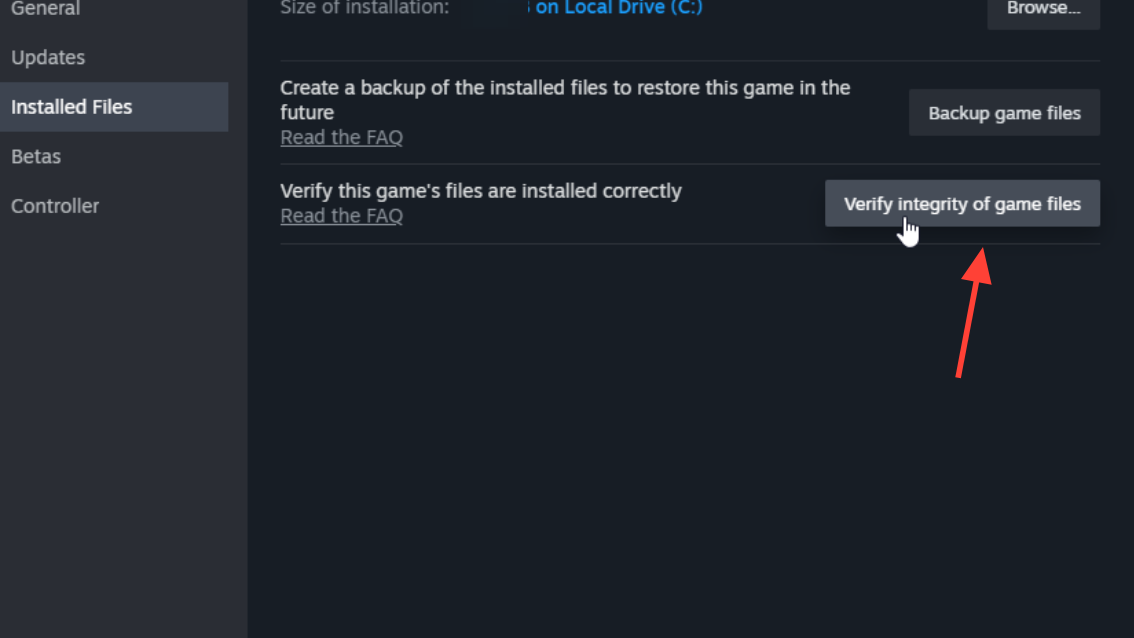
Step 2: Navigate to the Installed Files tab and click "Verify integrity of game files." Let the process complete and redownload any flagged files.
Step 3: Launch the game from Steam. If the error was caused by missing or damaged local files, this should clear it.
How to tell the fix worked
A successful resolution is straightforward — the game loads past the login screen, and you see your character selection or the main world. If you previously saw a "Start" button instead of "Resume," a working login restores the Resume option and your existing progress. Cloud saves are stored server-side, so no progress is lost from reinstalling or clearing cache; only the local install data is affected.
If the error keeps returning after every method above, and other players on your platform can log in normally, the issue may be account-specific enforcement or a region-related block. Players in regions where the game is not officially available (such as India or Iran) have reported persistent login failures even with workarounds like TapTap installs or guest accounts. In those cases, contacting customer support at wherewindsmeet@global.netease.com with your account details is the most direct path to a resolution.