

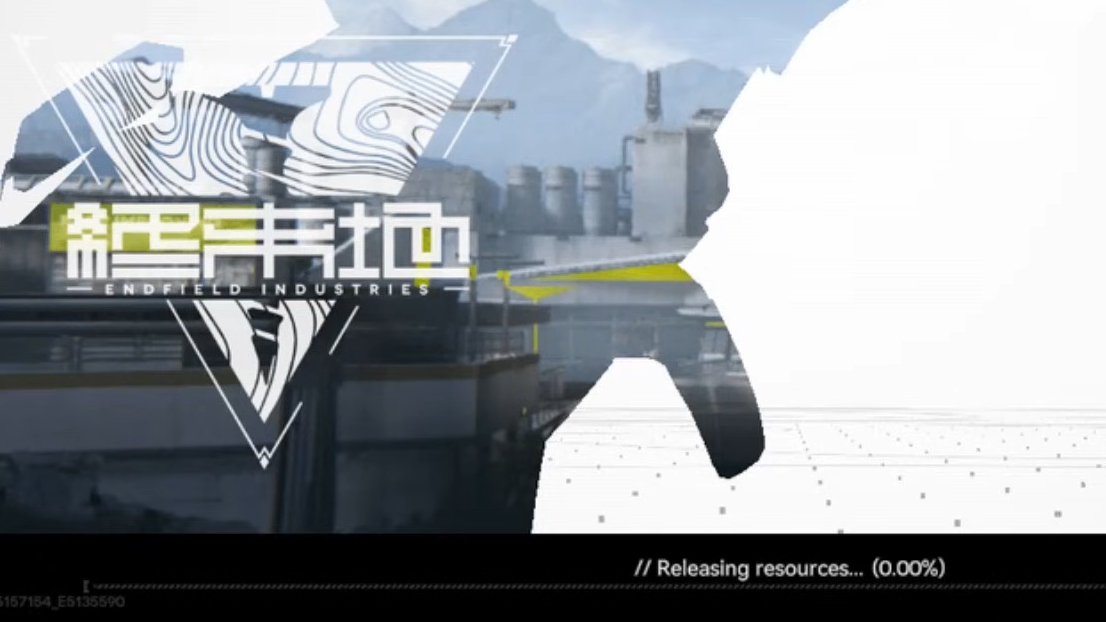
The “Releasing Resources” screen is one of the most common early pain points in Arknights: Endfield right now. The game finishes patching, you hit Play, the bar appears… and then nothing. It can sit at 0 percent or barely move for long stretches, sometimes never reaching the title screen.
That hang is treated as a known issue for Version 1.0 on PC, and players on both PC and PS5 are running into it in slightly different ways. The good news is that several consistent workarounds are emerging.
What the “Releasing Resources” screen is doing
When Arknights: Endfield shows “Releasing Resources,” it is preparing game data before the title screen. That includes unpacking or validating assets, sometimes compiling shaders, and doing a few checks against your storage and configuration. On slower hardware or hard drives, it can look like it is frozen even though it is technically still working.
The problem appears when that process never completes. On PC, the bar can remain at 0 percent indefinitely. On PS5, the same stage can be blocked by storage errors even if the console reports plenty of free space.
Known bug status and the official PC recommendation
“Stuck in Releasing Resources” is listed as a Version 1.0 known issue for PC. The current recommended workaround is to launch Arknights: Endfield with administrator privileges, which can give the game the file access it needs to finish resource handling.
Beyond that specific bug entry, the broader troubleshooting advice from the developers includes checking game integrity through the GRYPHLINE client, restarting the game and your device, keeping system software and GPU drivers updated, and watching official notices for further bugfix patches on the Arknights: Endfield website or the main X account.
Fix 1 (PC): Run the game executable as administrator
Running only the launcher as admin is often not enough. The most reliable pattern is to elevate the actual game executable.
Step 1: Find the Endfield install directory. If you have a desktop shortcut, right-click it and choose Open file location. This should drop you inside the GRYPHLINK or Endfield game folder.
Step 2: Inside the installation directory, locate the main Endfield application file. On many systems this sits under a path similar to Program Files\Gryphline\Games\Endfield Game\ and appears as “Endfield” in the Type column as an application.
Step 3: Right-click the Endfield application file, choose Properties, then open the Compatibility tab. Enable Run this program as an administrator, then confirm with Apply and OK.
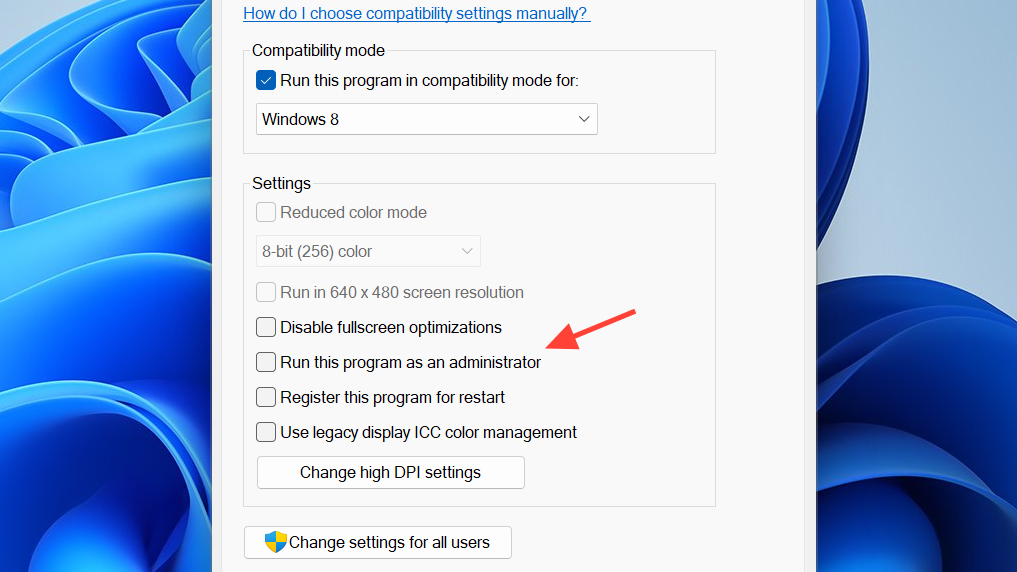
Step 4: Close any running instance of the launcher or game. Start Endfield again from the launcher or directly from the executable and wait on the “Releasing Resources” screen for at least a minute before assuming it is stuck again.
Many players report that setting the game executable to always run as admin is enough to push past the frozen loading bar. Some also set the GRYPHLINK launcher itself to run as administrator in the same way, which is worth trying if only elevating the game file does not help.
Fix 2 (PC): Switch to DirectX 11, then back from Vulkan if needed
The renderer choice can influence whether Endfield gets through its first resource release and shader compilation. The most successful pattern is to temporarily force DirectX 11, let the game complete its initial load, then optionally switch back to Vulkan.
Step 1: Open the GRYPHLINK client and locate Arknights: Endfield in your game list. Look for the launch options where you can choose between Vulkan and DirectX.
Step 2: Select the option to launch with DirectX 11. Confirm the choice so the client uses DX11 for the next run.
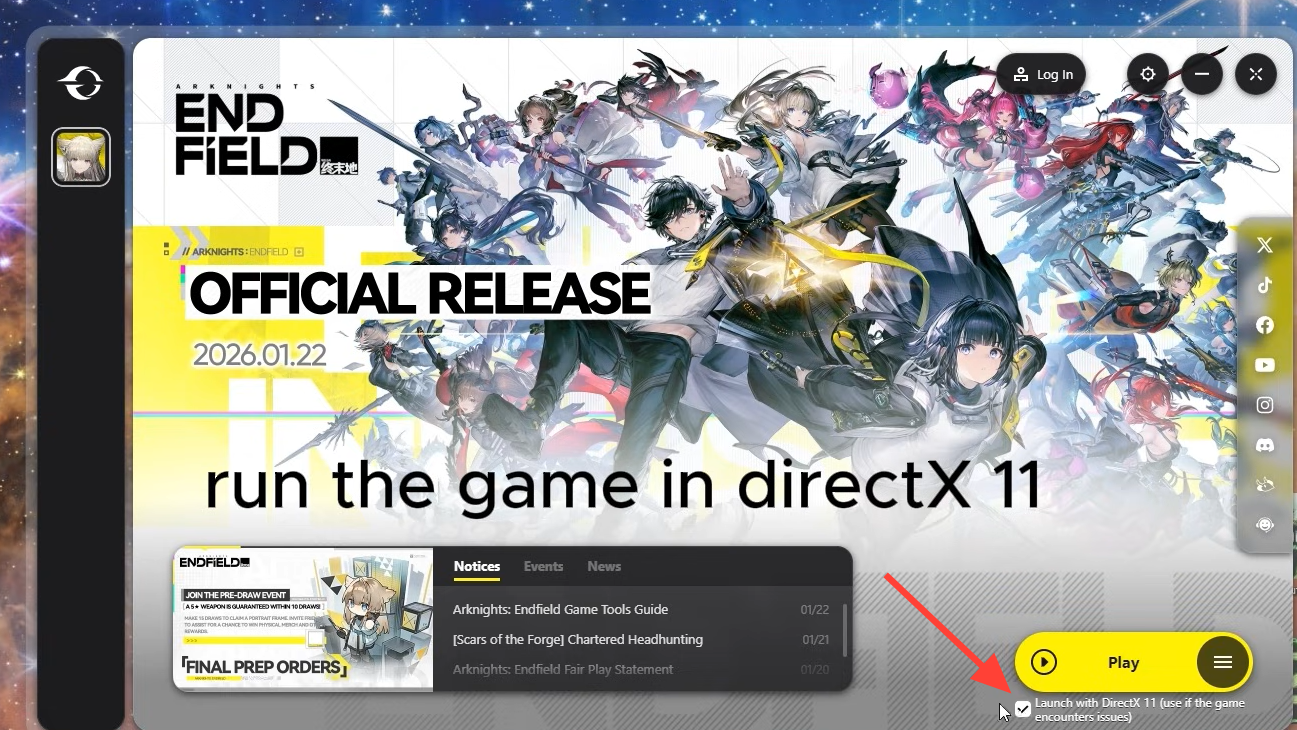
Step 3: Start the game and again wait at the “Releasing Resources” bar. On many mid-range or older PCs, the bar finally progresses in this mode, followed by shader compilation and the server-select screen.
Step 4: Once you have reached the title screen successfully at least once on DX11, you can close the game, switch the renderer back to Vulkan in the launcher if you prefer, and try launching again. Several players report that Vulkan runs fine after the first successful DX11 initialization.
Fix 3 (PC): Verify game file integrity through the GRYPHLINE client
Corrupted or partially downloaded files can also stall resource handling. The GRYPHLINE client includes a built-in file integrity check that has resolved “Releasing Resources” hangs for some players without any other changes.
Step 1: Fully close Arknights: Endfield. Make sure it is not still running in the background by checking the Task Manager and ending any leftover processes.
Step 2: Open the GRYPHLINE launcher, select Arknights: Endfield, and look for the option labeled Check Game Integrity or similar in the game’s menu.
Step 3: Start the integrity scan and wait for it to complete. If the client detects damaged or missing files, let it redownload or repair them.
Step 4: When the check finishes, launch Endfield again in your preferred renderer, ideally with the administrator setting still in place, and watch the “Releasing Resources” bar.
It is worth running this integrity check at least once, especially if you have already installed patches or changed drives and the error appeared afterward.
Fix 4 (PC): Restart the PC and relaunch Endfield
A full system restart clears hung background processes and frees memory and file locks that can interfere with Endfield’s startup.
Step 1: Close Endfield and the GRYPHLINE client. If the game is unresponsive, end it via Task Manager under the Processes tab.
Step 2: Restart your PC instead of using Sleep or Hibernate. This forces Windows to reload drivers and services.
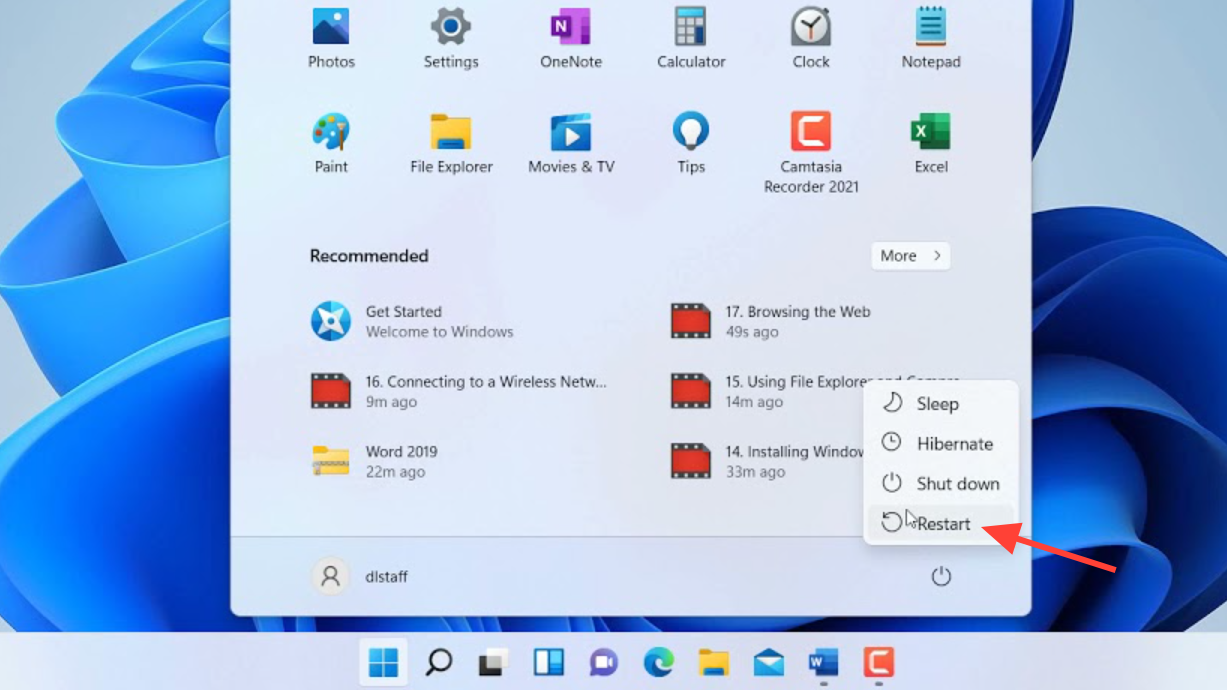
Step 3: After the reboot, avoid opening heavy third-party overlays or filter tools. Launch the GRYPHLINE client, then start Endfield, preferably with the “run as administrator” and DX11 settings already configured.
For some players, a restart combined with the admin flag was enough to move from an infinite “Releasing Resources” hang straight into shader compilation.
Fix 5 (PC): Bypass the launcher and run the game directly
In a few cases, the GRYPHLINE launcher itself seems to be the bottleneck. Launching the game executable directly can sidestep launcher-specific issues.
Step 1: Navigate to the Endfield installation folder using File Explorer. You can use a shortcut’s “Open file location” option, as described earlier, to jump directly there.
Step 2: Confirm that the Endfield application file is set to run as administrator in its Compatibility tab.
Step 3: Double-click the Endfield application to start the game without first opening the GRYPHLINE client window. If it asks you to sign in, log in as usual and wait through “Releasing Resources.”
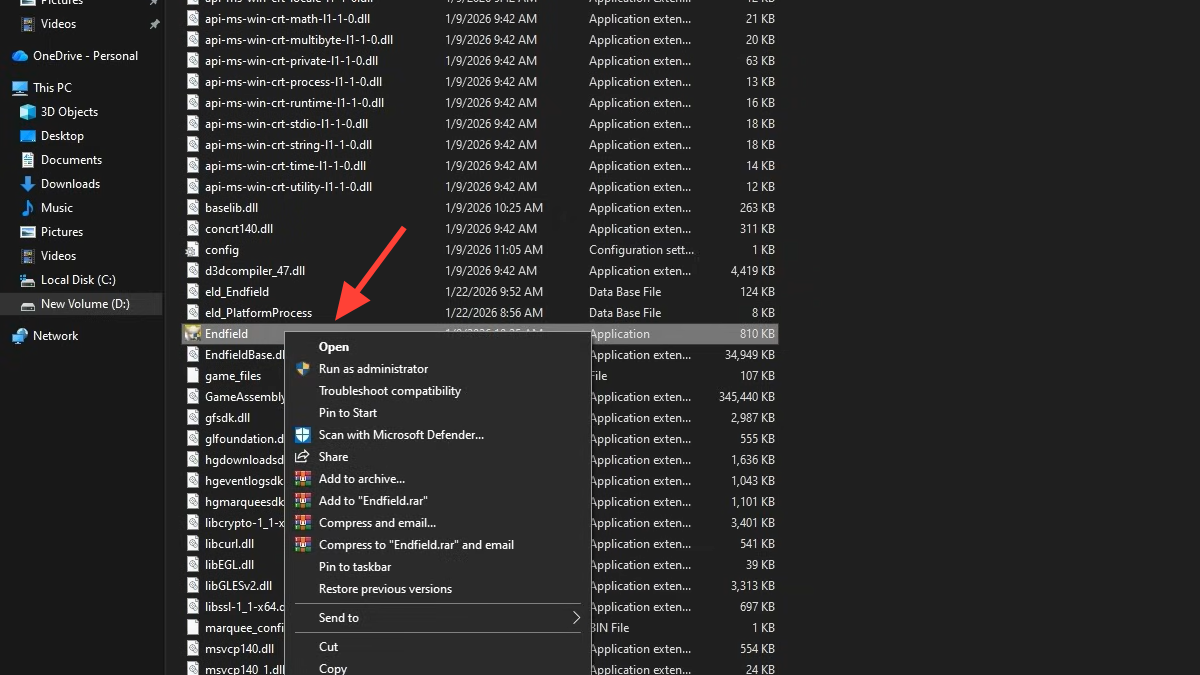
Fix 6 (PC): Free up storage and avoid slow or external drives
Resource release and shader compilation are extremely disk-heavy. Attempting them from a nearly full or slow drive, especially an external HDD, can make the progress bar look frozen for long stretches or fail entirely.
Step 1: Check free space on the drive where Endfield is installed. Aim for at least tens of gigabytes of free space; players report success after clearing drives to roughly the game’s full install size or more in free room.
Step 2: If Endfield is installed on a mechanical HDD or external drive, consider moving it to an internal SSD. Even a SATA SSD will generally handle resource unpacking and shader work much more smoothly than an HDD.
Step 3: After freeing enough space or moving the install, run a game integrity check through the GRYPHLINE client, then launch again with the earlier admin and renderer settings.
On older laptops and systems with external drives, “Releasing Resources” may complete eventually, but can take significantly longer. If the bar has not moved at all after many minutes, the other fixes above are more promising than simply waiting.
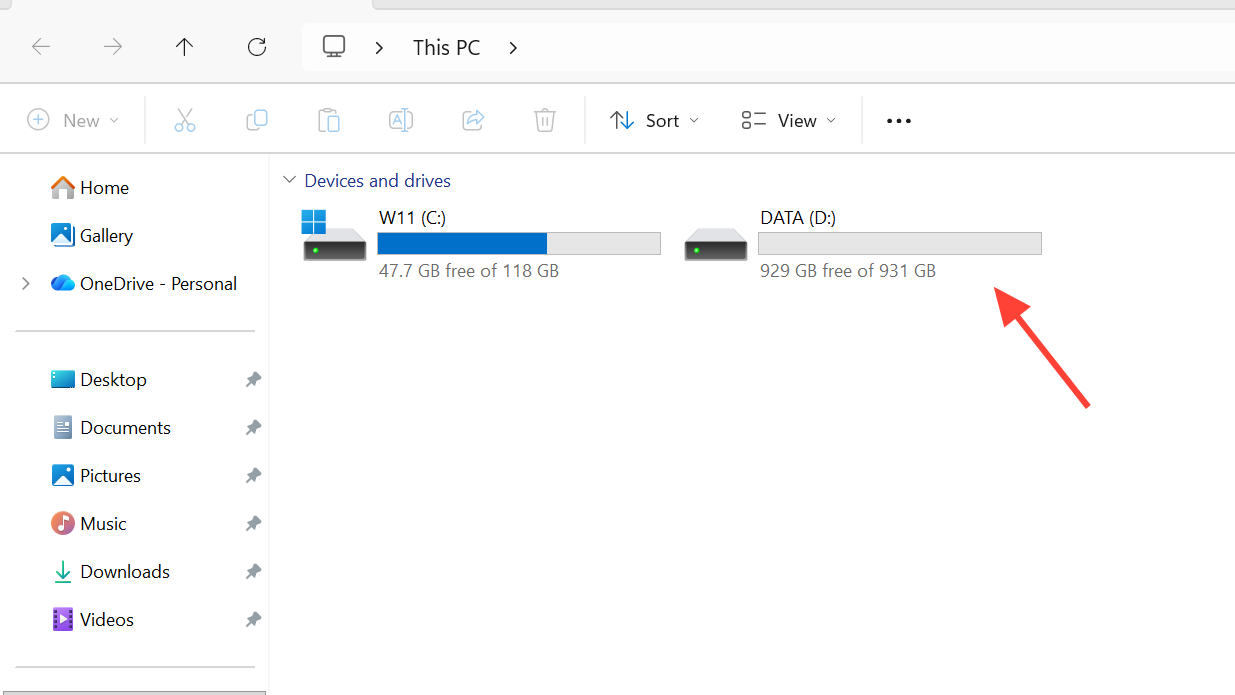
Fix 7 (PC): Check language/region settings if nothing else works
There are scattered reports of language and region configuration affecting whether Endfield gets through its initial loading. This is not an officially documented fix, but it is simple to test if you are still stuck.
Step 1: Open Windows settings and go to the language and region section.
Step 2: Temporarily set your country/region to the United States and the Windows display language to English (United States). Apply changes and sign out if the system asks you to.
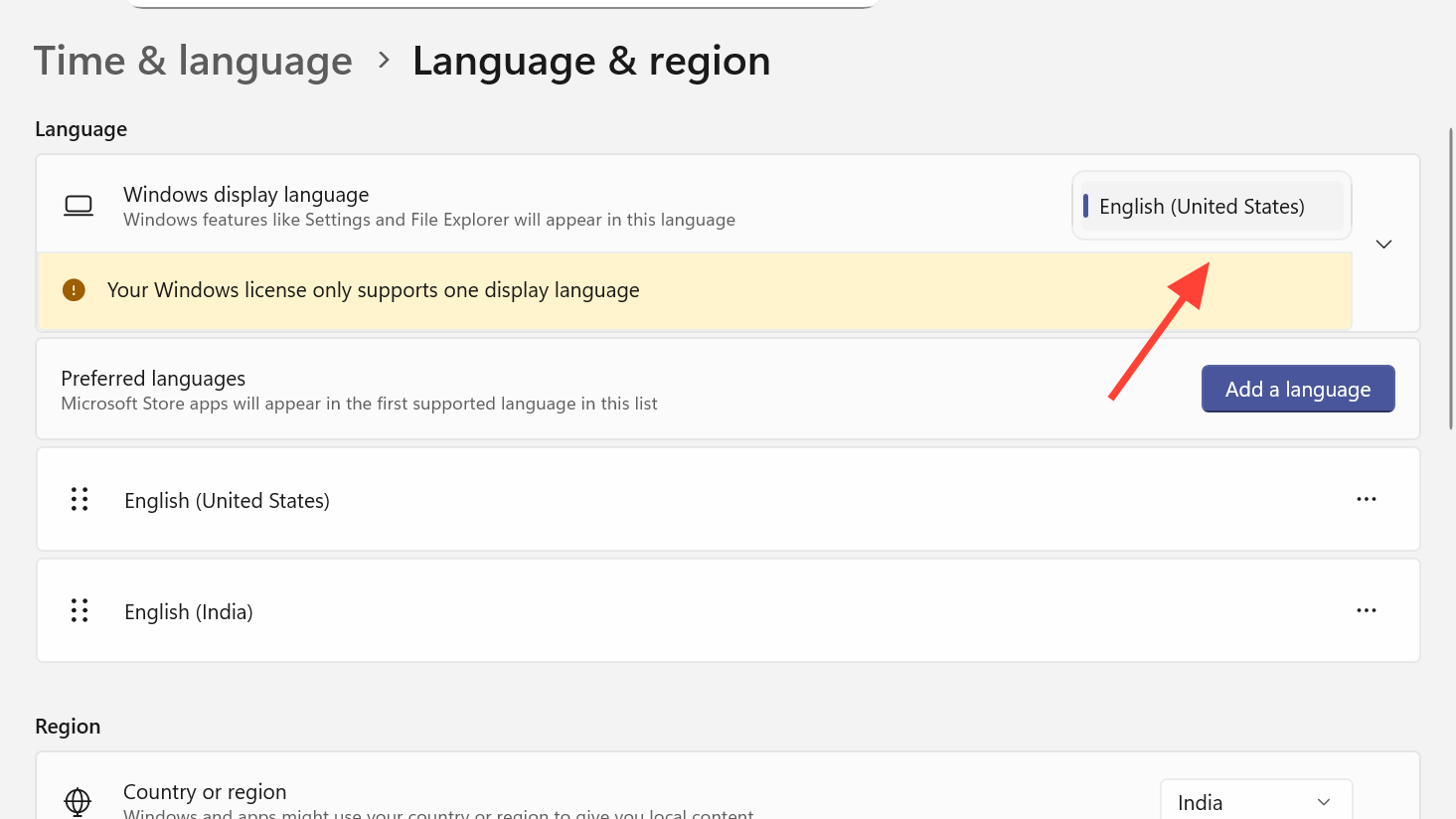
Step 3: Restart the PC, then launch Endfield again with your preferred renderer and administrative settings.
If this resolves the hang, you can experiment with switching your system language back after the first successful login. If it does not help, revert to your usual settings.
Fix 8 (PC): Disable conflicting third‑party overlays and filters
Another cluster of early issues is linked to third‑party applications that hook into the game to apply image filters or AI frame interpolation. These apps can freeze Endfield during gameplay and may also interfere with the startup resource phase.
Step 1: Close overlays and enhancement tools that inject into games, such as frame interpolation utilities, filter injectors, or aggressive screen recorders.
Step 2: If the tool runs at startup, disable its in‑game features for Endfield specifically or exit it fully from the system tray.
Step 3: Restart Endfield and observe whether the “Releasing Resources” bar now progresses normally.
If you rely on those apps, re-enable them one by one after you have a stable Endfield launch to see whether a specific feature is causing the conflict.
Fix 9 (PC): Update system software and graphics drivers
Running Endfield below the listed minimum requirements or on outdated drivers raises the risk of odd startup failures, including hangs before the title screen.
Step 1: Ensure Windows is up to date via the usual system update tool. Install pending updates that require a restart, then reboot the PC.
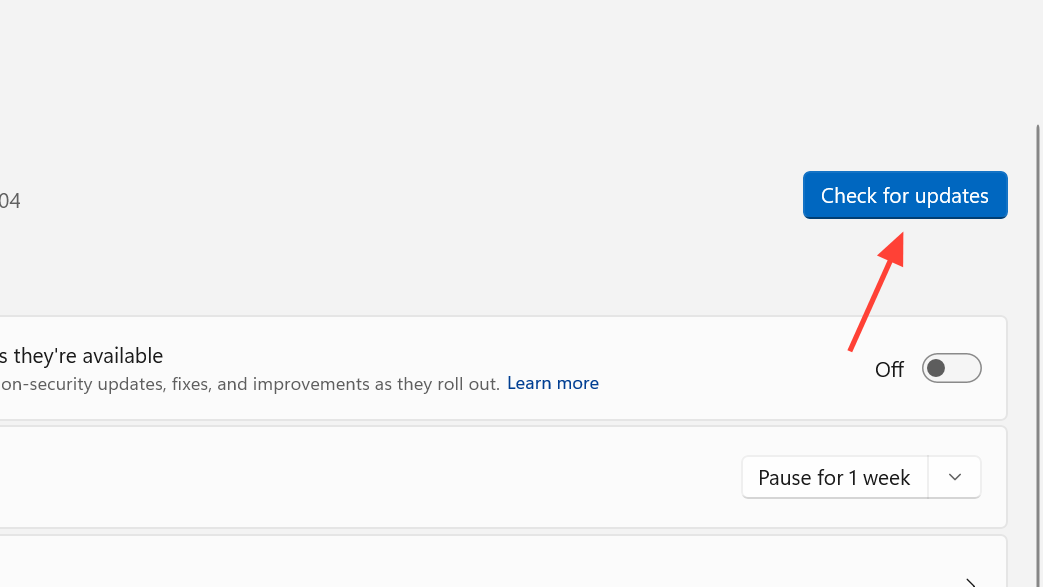
Step 2: Update your GPU drivers through your vendor’s official tools. For NVIDIA and AMD hardware, use their respective control panels to fetch the latest stable driver that supports recent games.
Step 3: After updating and rebooting, start Endfield again with the earlier admin and renderer settings and wait through “Releasing Resources.”
Fix (PS5): Reinstall Arknights: Endfield to clear storage errors
PS5 players see a different flavor of the same problem. The console can claim that there is not enough space to install or run Endfield, even when the storage menu shows plenty of free room. This storage error is called out among the launch issues for Version 1.0.
Step 1: From the PS5 home screen, highlight Arknights: Endfield, press the Options button, and delete the game.
Step 2: Check your storage menu and, if necessary, remove unused games or captures to give Endfield a generous amount of free space relative to its install size.
Step 3: Redownload Arknights: Endfield from the PlayStation Store and complete installation again.
Step 4: Launch the game once the install is finished and watch whether “Releasing Resources” now completes and lets you through to the title screen.
Because this storage behavior is recognized for PS5, future patches may reduce how often it appears. For now, a clean reinstall is the main workaround when the console complains about space despite reporting otherwise adequate capacity.
General troubleshooting patterns that still matter
Alongside the targeted fixes above, the usual baseline steps remain useful for Endfield’s current launch build:
- Restart the game when progress stalls, using Task Manager on PC if you cannot close it normally.
- Restart your device if restarting the game does not help, whether it is a PC, PS5, or mobile device.
- Keep device firmware and OS updated to ensure compatibility with the latest Endfield patches.
- Monitor official notices in the in‑game News section under Updates, as well as on the Arknights: Endfield website and main social channels, for confirmation that specific bugs have been hotfixed.
If you have worked through these options and are still permanently stuck at “Releasing Resources,” the most likely remaining causes are an edge‑case bug that needs a server‑side fix, heavily constrained hardware, or a particularly bad combination of external drive speed and storage overhead. In that situation, keeping an eye on upcoming patches and known‑issues notices is the most realistic path forward until a more permanent fix lands.