

Arc Raiders on PlayStation 5 has a very specific failure mode: you hear everyone clearly, your microphone works in every other game and in PS5 party chat, but in Arc Raiders you get no mic activity and nobody ever hears you. That behaviour usually comes from how PS5 handles game voice chat and how Arc Raiders splits party and proximity channels, not from your headset itself.
Check the PS5 Game Base voice chat settings
On PS5, Game Base can mute in-game voice chat for all titles, including Arc Raiders. When this is on, your mic looks fine in system tests, but the game never receives your voice.
Step 1: Press the PS button and select the Game Base icon in the control center.
Step 2: Press the Options button on your controller and choose Go to Game Base.
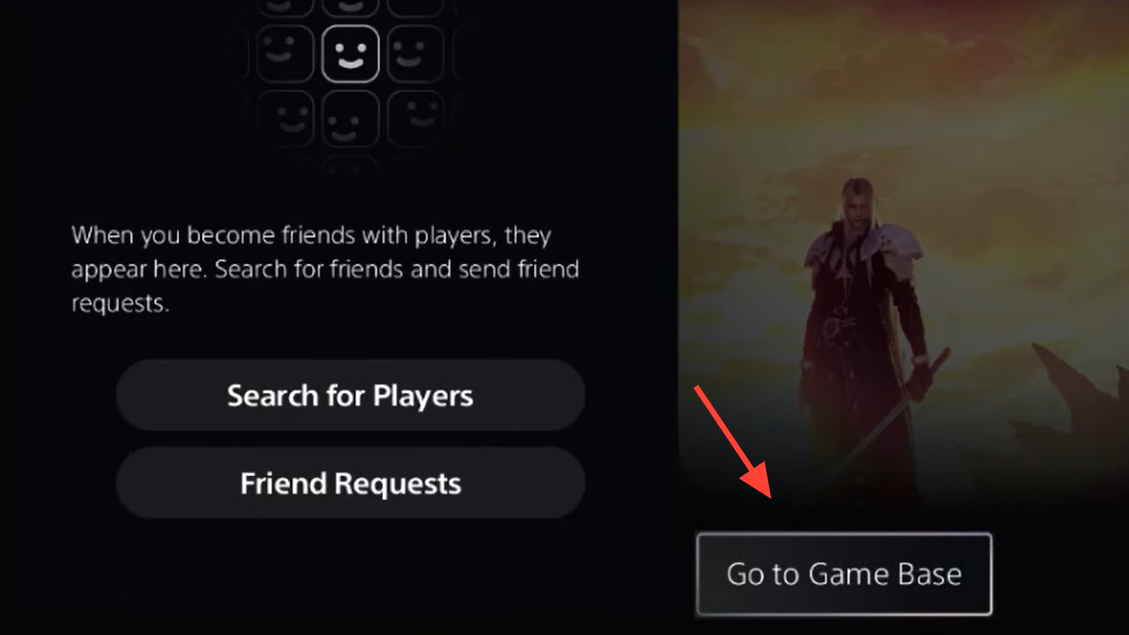
Step 3: Move right past Friends, Parties, and Messages to the icon with two lines and circles, then open Game Base Settings.
Step 4: Open Voice Chat Settings.
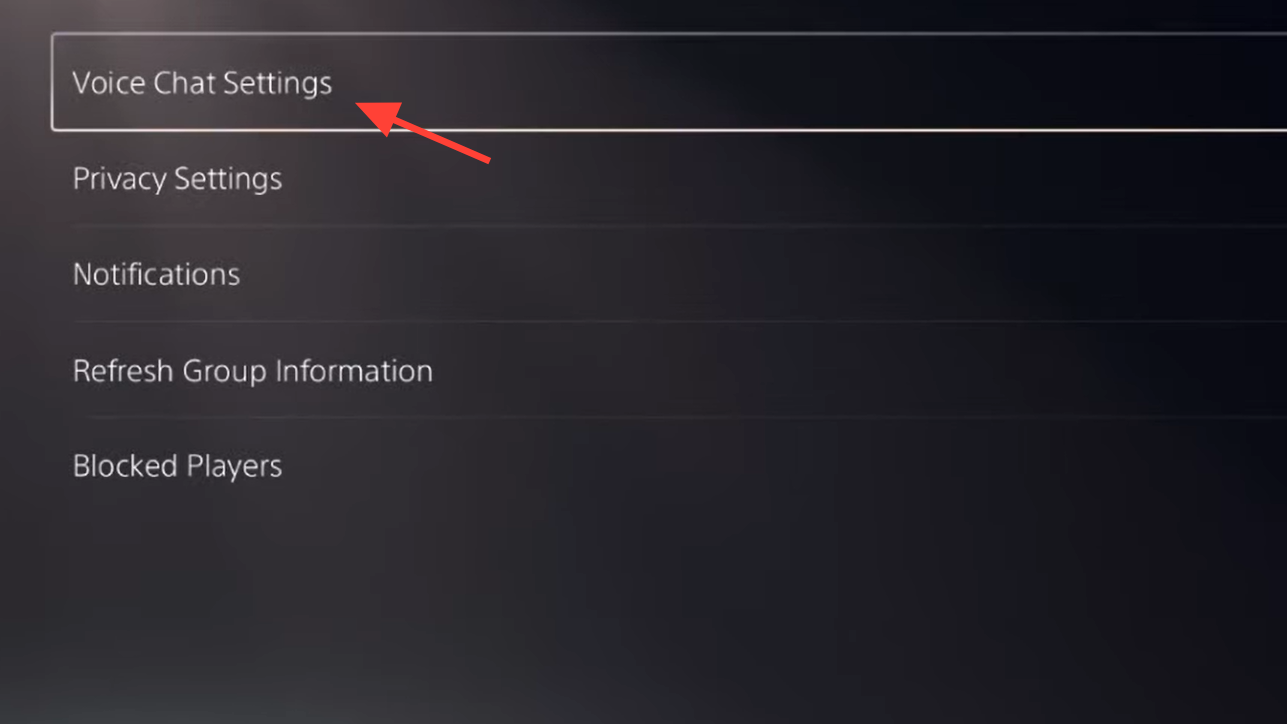
Step 5: Set Mute Game Voice Chat to Off (toggle to the left).
Step 6: Under that, set Share Your Voice to Allow so other players can hear you in-game.
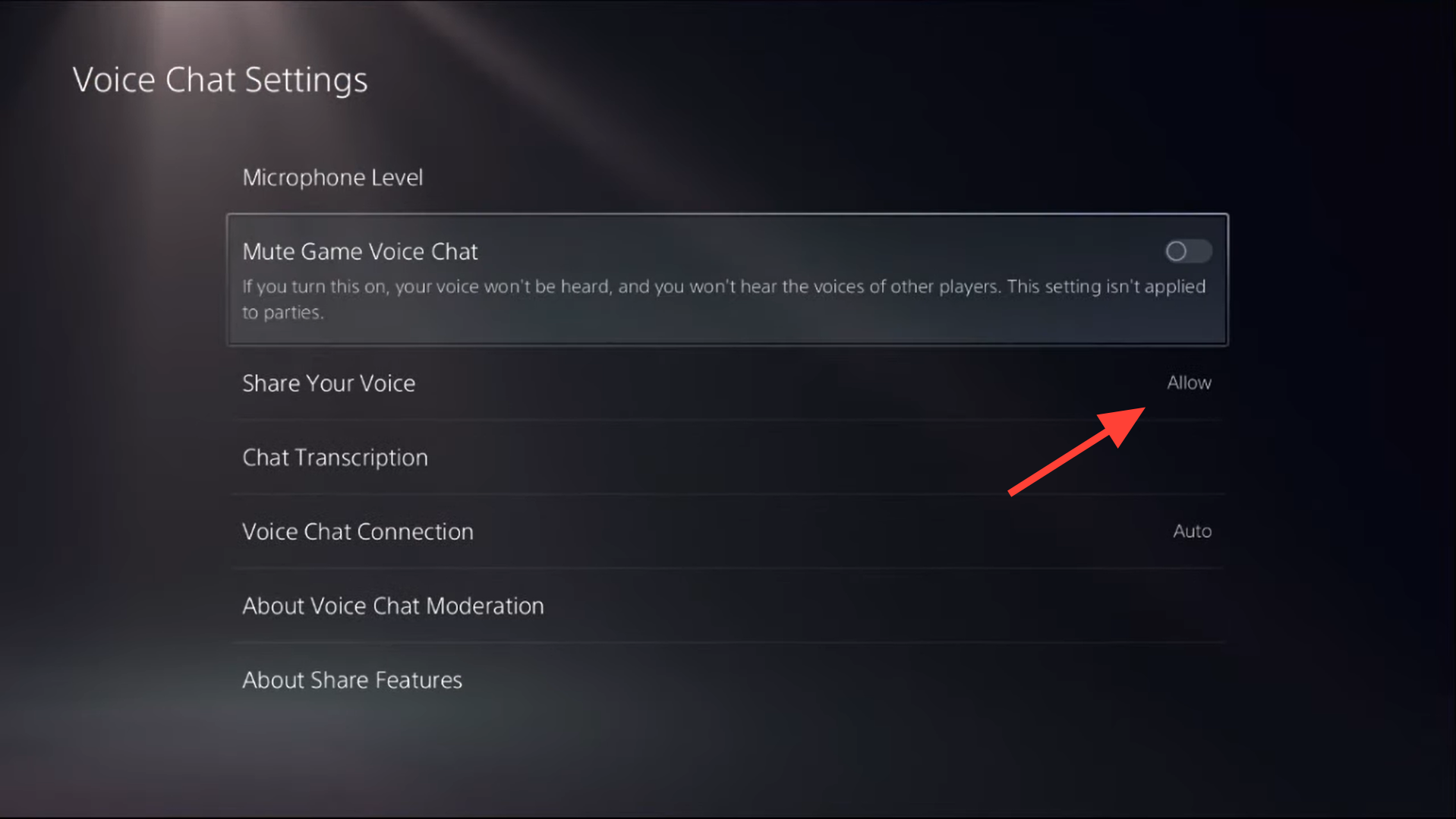
These are global settings; once corrected, they apply to Arc Raiders and other games without needing to repeat them.
Turn off “Mute game voice chat” in the PS5 sound quick menu
PS5 has a second place where game voice chat can be muted: the sound card in the quick menu. Many players accidentally toggled this off while using party chat in other games, which then silently blocked Arc Raiders voice.
Step 1: While Arc Raiders is running, press the PS button to open the control center.
Step 2: Scroll to the Sound icon (speaker symbol) and open it.
Step 3: Find the option labeled Mute game voice chat and make sure it is Off.
Once this is disabled, your in-game mic icon should start responding to your voice if the rest of the setup is correct.
Decide between PS5 party, Discord, and in‑game chat
PS5 does not reliably share your mic with multiple voice apps at once. If you sit in a PS5 party or Discord on the console, Arc Raiders often shows the proximity chat icon with an “X” and refuses to transmit your voice.
Step 1: If you want Arc Raiders proximity or in-game party chat, leave any active PS5 party voice chat.
Step 2: If you use Discord on PS5, close or disconnect from the Discord voice channel before relying on in-game chat.
Once you are only using the Arc Raiders channel, the yellow proximity mic icon should appear without a strike-through when you enable it, and other players can hear you.
Enable and configure voice chat inside Arc Raiders
With console-level mutes cleared, Arc Raiders still needs its own options aligned. Party chat and proximity chat have separate modes, and mismatched settings are a common cause of silence.
Step 1: From Sepanza or in a match, open the Arc Raiders Settings menu and go to Audio.
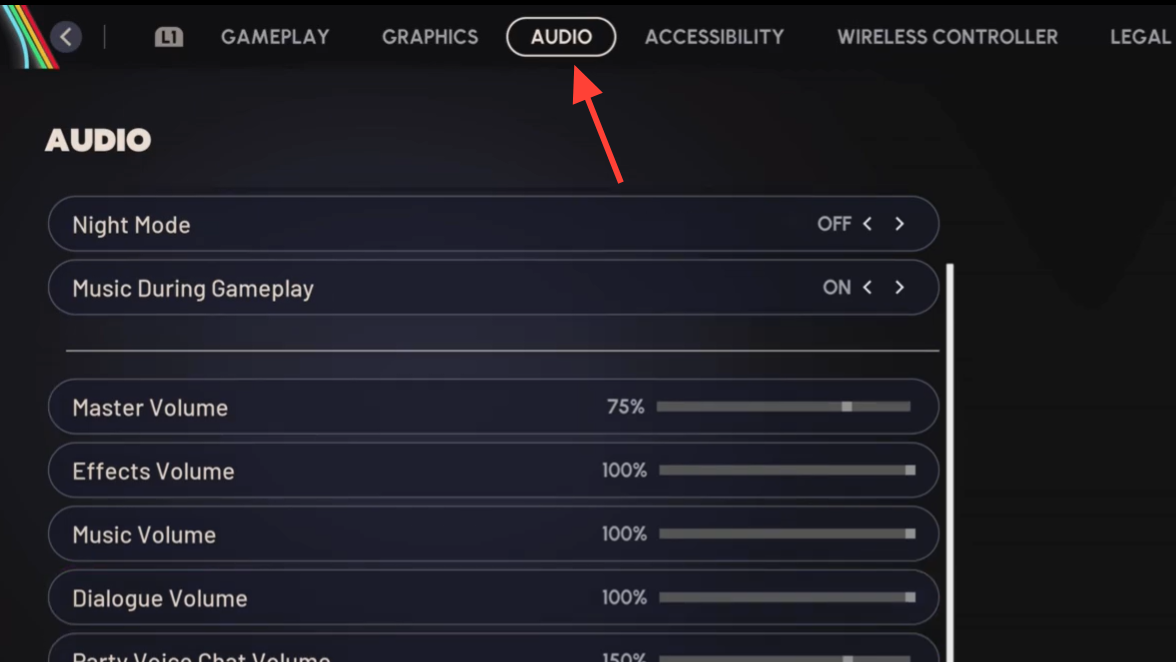
Step 2: Make sure Enable Voice Chat is turned On.
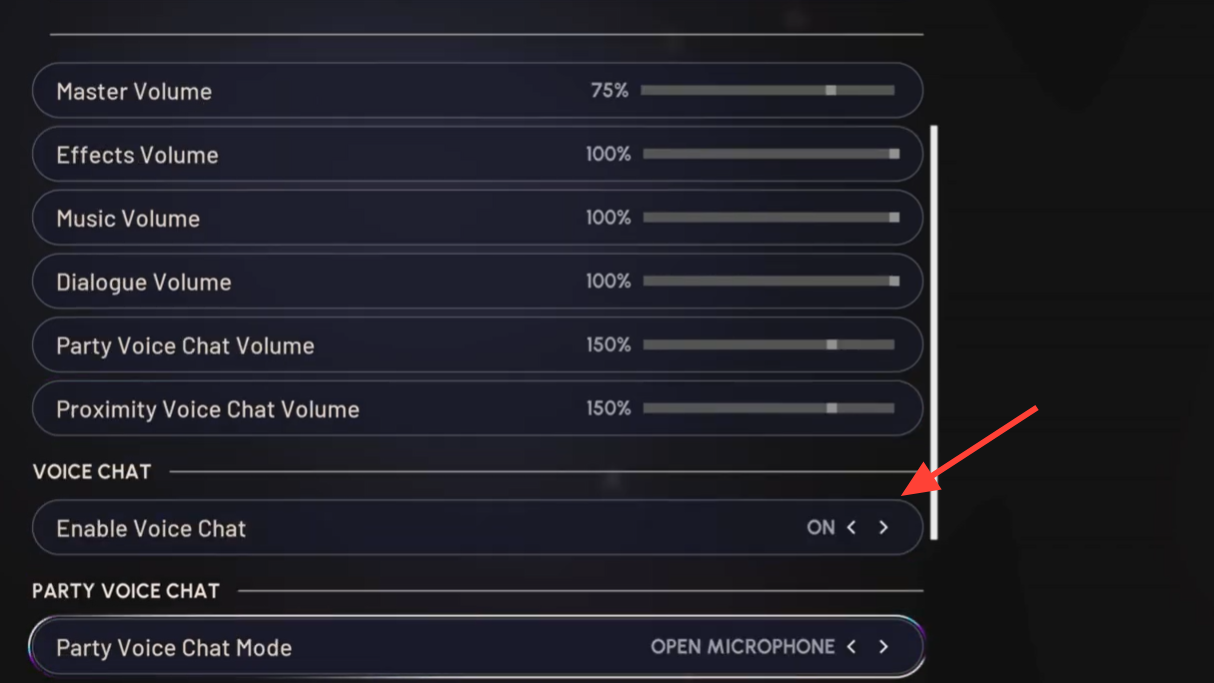
Step 3: Raise Party voice chat volume and proximity/chat volumes to a clearly audible value (for example, 100% or higher) so you can hear others.
Step 4: For testing, set both Party voice chat and Proximity voice chat input mode to the same option. Many players report the most reliable behaviour when both are set to Toggle to talk or both to Push to talk, rather than mixing modes.
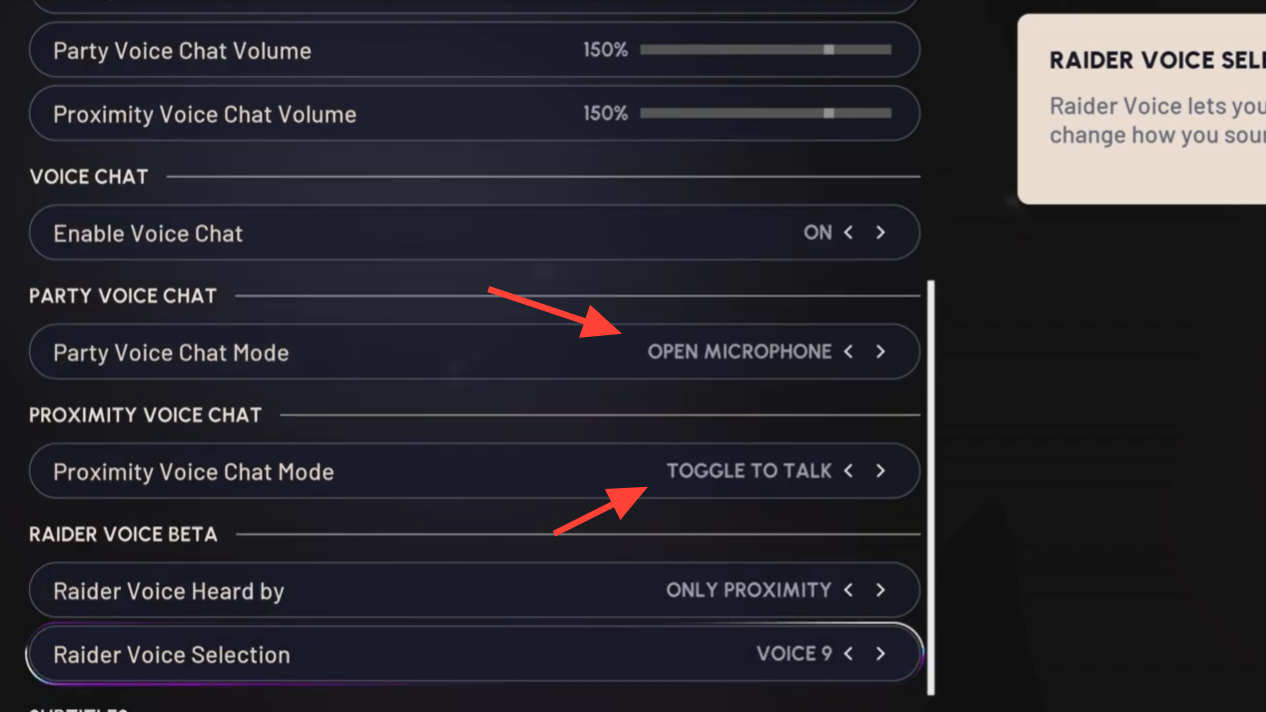
Once these are aligned, the in-game UI becomes more predictable: the orange icon corresponds to proximity chat and the grey icon to party chat, and each should light up when its channel is active.
Turn on proximity chat with the D‑pad
Even when everything is configured, proximity chat is not always active by default. Arc Raiders expects you to manually enable it mid‑match.
Step 1: While you are on the ground in a raid, press the Down direction on the D‑pad.
Step 2: Look at the bottom left of the screen near your health bar. A yellow/orange microphone or speaker icon should appear when proximity chat is active. If there is an “X” beside it, the channel is muted.
For squad-only chat, Arc Raiders uses a separate indicator and binding, but public proximity chat specifically depends on that D‑pad toggle.
Check PS5 party settings for Arc Raiders game chat
When you do use a PS5 party, the party can override Arc Raiders voice unless you explicitly allow game chat through.
Step 1: Join or create a PS5 party while Arc Raiders is running.
Step 2: Open the party’s voice chat card from the control center.
Step 3: Open the More (three dots) menu, then look for options related to Game Voice Chat and Mute Game Voice Chat.
Step 4: Make sure game voice chat is not muted and, where offered, that Arc Raiders game chat is enabled for that party.
If you still cannot get both party and in-game audio simultaneously, treat Arc Raiders chat and PS5 party/Discord as either-or. Using only in-game chat is currently the most reliable way to ensure proximity and party chat work.
Use crossplay toggles and restarts as last resorts
Some players have cleared stubborn mic issues only after forcing Arc Raiders to rebuild its session state.
Step 1: In Arc Raiders settings, temporarily turn Crossplay Off and try to queue for a match.
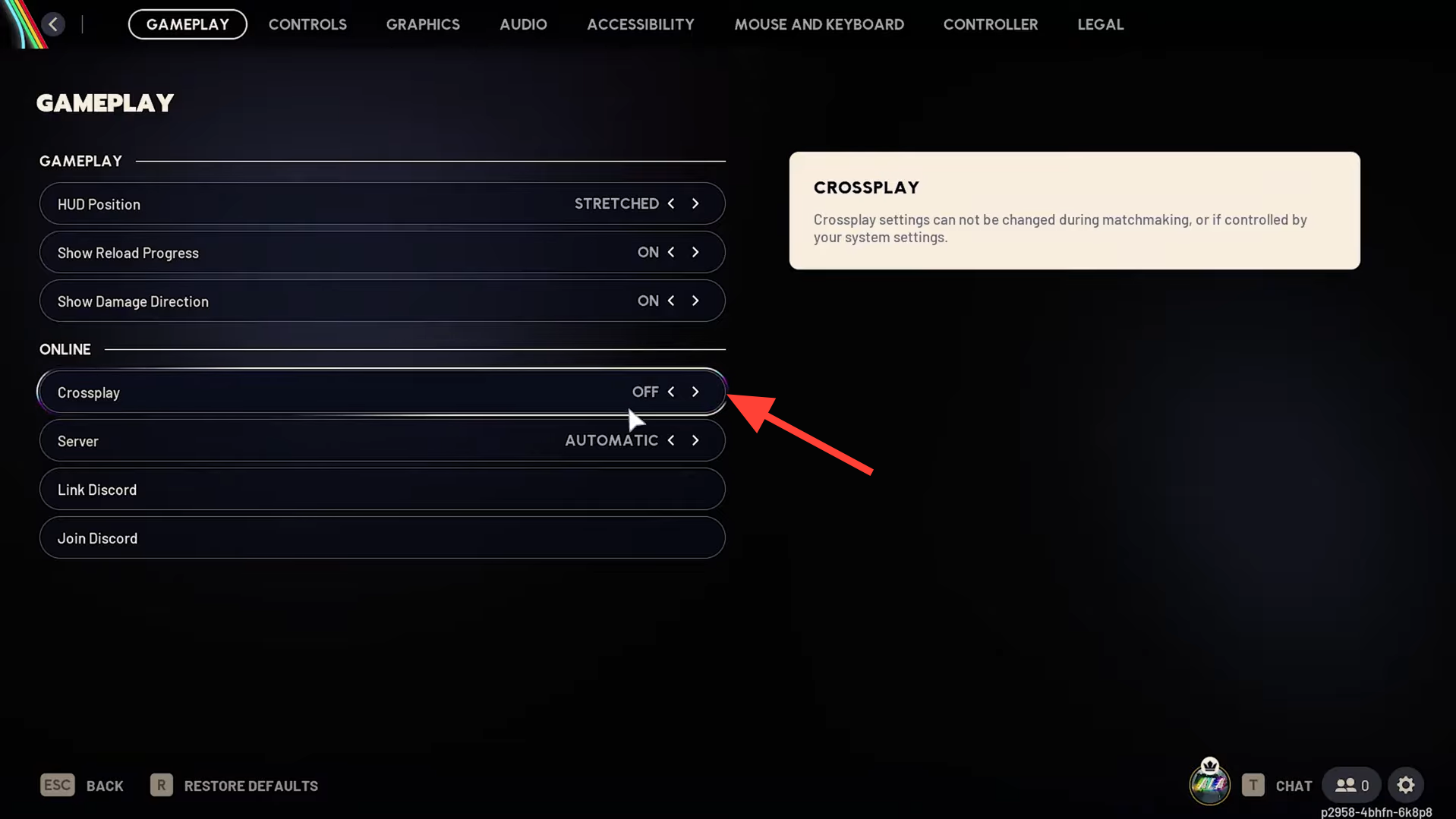
Step 2: After the queue begins, toggle Crossplay back On and play a new match to see if the mic icon and voice transmission recover.
Step 3: If the behaviour does not change, close Arc Raiders, fully power down the PS5, wait a few seconds, then reboot and try again.
Step 4: As a final software step, delete and reinstall Arc Raiders from your library. This clears game-side settings that might have become inconsistent.
These measures are not guaranteed fixes, but have resolved cases where all obvious settings were correct, and the orange mic icon still showed a line through it.
When to contact support
If your microphone passes the PS5 mic level test, works in other games, the PS5 voice chat settings match the steps above, and Arc Raiders still never shows mic activity or transmits your voice, treat it as a support case rather than spending more time swapping hardware.
Step 1: Confirm again that Mute Game Voice Chat is off and Share Your Voice is allowed in Game Base, and that you are not in a PS5 party or Discord while testing Arc Raiders chat.
Step 2: If the issue persists across multiple sessions and reinstall attempts, submit a ticket through the official Arc Raiders help center at https://id.embark.games/arc-raiders/support, including your PS5 model, headset model, a short description of your settings, and whether the orange or grey mic icons ever light up.
Arc Raiders leans heavily on spatial voice for squad coordination and encounters, so it is worth working through the console and game settings carefully. On PS5, most “I can hear others, but they can’t hear me” problems come from a small cluster of toggles: Game Base’s Mute Game Voice Chat, the sound card’s mute, conflicting party or Discord sessions, and mismatched in‑game channel modes. Once those are aligned, in-game proximity and party chat usually behave as expected.