

The “You do not have permission to use this command” message in Hytale usually appears when the game or server does not recognize your account as having operator (admin) rights. Even if you are in Creative mode, commands like changing time, spawning mobs, or switching game modes are blocked until your profile is granted the right level of access.
Fixing it comes down to two ideas: making yourself “OP” in single-player or local Creative, and making sure your account has the correct permissions on a dedicated server.
Fix the permission error in single‑player and local Creative
In single‑player or when you are hosting a local world, you can promote your own profile to operator directly from the in‑game console. Once you do that, Hytale treats you as an admin for that world and unlocks command access.
Step 1: Open the command console by pressing the forward slash (/) key on your keyboard. You should see a prompt where you can enter commands.
Step 2: Type the following command exactly and then press Enter:
/op self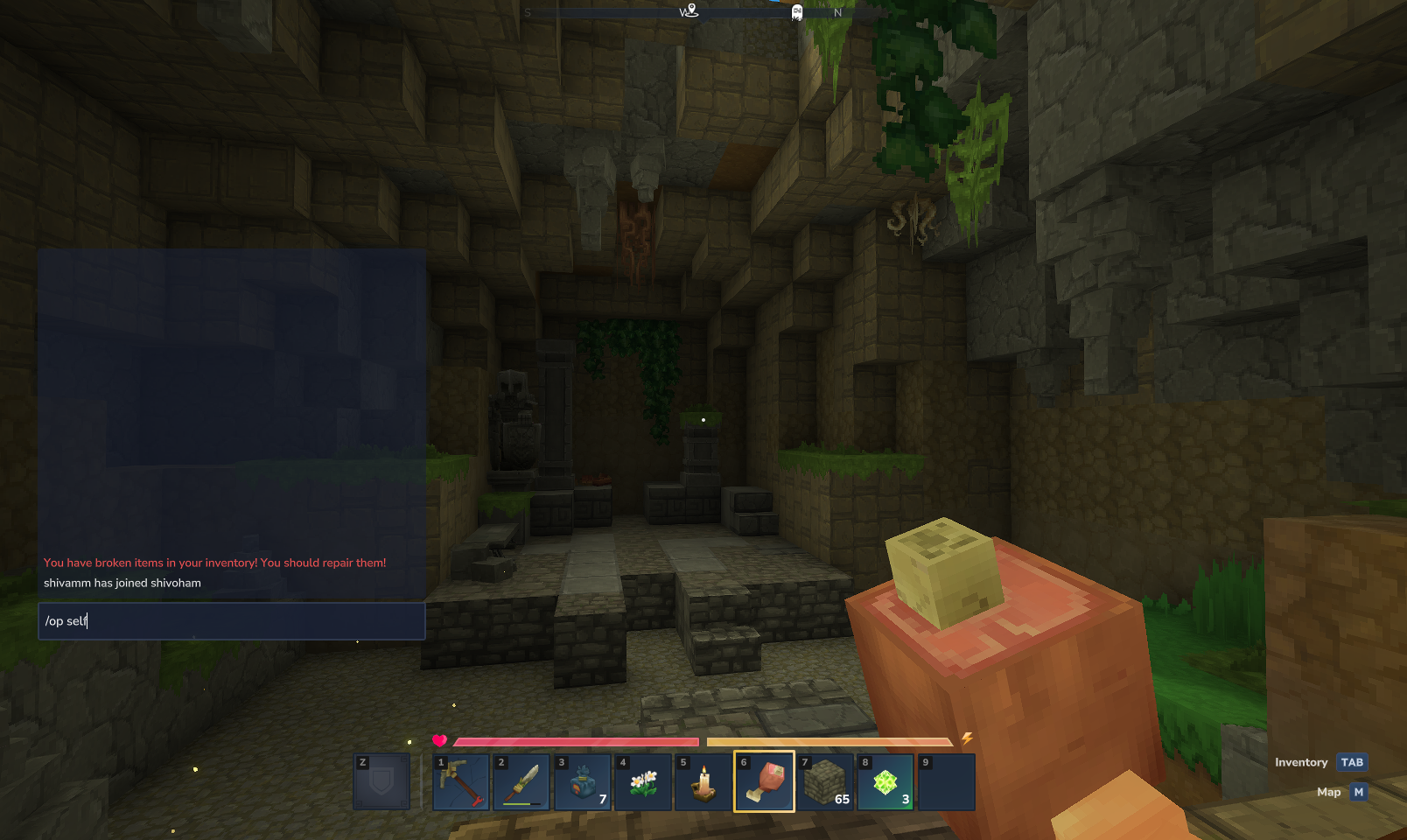
Step 3: Wait for the confirmation message that your profile is now “OP”. After this, try the command that previously failed, such as changing your game mode or spawning entities.
Once the operator flag is set on your profile, you can use Creative‑style cheats and admin commands without seeing the permission error. This setup is similar in spirit to enabling cheats in other sandbox games: the world itself must explicitly allow your profile to act as an operator.
Step 4: If commands still show the same error after becoming OP, close Hytale completely and restart it, then reload the world and try again. A full restart clears transient issues that sometimes prevent new permissions from applying immediately.
Fix the permission error on dedicated Hytale servers
On dedicated servers, permission checks are stricter. The server process runs independently and decides who can use which commands based on configuration files and authentication, not just local game state. If you see the permission error on a dedicated server, one of three things is usually happening: you are not recognized as an operator, your profile lacks the required permission in permissions.json, or the server is not reading your latest changes because it is still running.
Check how Hytale servers store permissions
Hytale dedicated servers keep their world and configuration data in a structured file tree. By default, the important files for access control live alongside your universe data:
| Path / File | Role in permissions |
|---|---|
universe/ |
Holds world and player save data; ties profiles to specific worlds. |
permissions.json |
Defines which profiles, groups, or roles can use which commands. |
bans.json |
Lists banned players who cannot join at all. |
whitelist.json |
Limits who can join if whitelisting is enabled. |
config.json |
Holds general server configuration, including behavior that can affect multiplayer access. |
Configuration files such as config.json and permissions.json are read when the server starts and then updated automatically when you perform in‑game administrative actions, like assigning permissions through commands.
Note: Manual edits to these files while the server is running are likely to be overwritten once the server saves its state. For persistent changes, shut the server down, edit the configuration, and then restart.
Method 1: Become an operator using server commands
On servers you control, the cleanest way to fix the permission error is to grant your own profile the appropriate permissions from the server console or from an existing admin account.
Step 1: Make sure you have console access to the server process or are logged in with an account that already has admin rights.
Step 2: Use the server’s built‑in permission or operator command to promote your player profile. The exact command name depends on how the server’s permission system is configured, but the underlying effect is the same: your profile is added to a group that is allowed to run privileged commands.
Step 3: Disconnect and rejoin the server after your role is updated. On many setups, a reconnect is enough for new permissions to take effect on the client side.
If you are renting a server from a game hosting provider and do not see a way to promote yourself, check their control panel for permission presets or contact their support so they can grant your account the correct role.
Method 2: Adjust permissions.json safely
For server administrators who manage permissions centrally, direct edits to permissions.json can resolve widespread permission issues. This is more advanced than promoting a single user in‑game, but it gives fine‑grained control.
Step 1: Stop the server process cleanly. Do not kill the process abruptly, to avoid corrupting configuration or universe data.
Step 2: Open the server directory and locate permissions.json. This file holds the mapping between player identities, groups, and allowed actions.
Step 3: Add or adjust entries so that your account (by UUID or profile identifier) belongs to a role that can execute the commands you need. Follow the existing structure of the file; preserve syntax, spacing, and commas so that the server can parse the file on startup.
Step 4: Save the file, then start the server again. Join with your account and test the command that previously failed.
Tip: Keep a backup copy of permissions.json before making changes. If you make a mistake that prevents the server from starting, you can revert to the last known good version.
Method 3: Confirm your server is properly authenticated
Some permission‑related problems on dedicated servers are side effects of authentication issues. Hytale servers use OAuth‑based tokens to prove that they are allowed to run and to validate players who join.
Authenticated servers can:
- Create game sessions tied to the operator’s Hytale profile.
- Validate player identities when they connect.
- Access game assets and version information required for multiplayer.
If tokens are missing, expired, or lack necessary entitlements, the server can reject actions with “forbidden” responses at the API level, which may be exposed in‑game as failed or blocked commands.
Step 1: On servers where you have console access, use the authentication commands to confirm status. The key commands are:
| Command | Purpose |
|---|---|
/auth status |
Shows whether the server is currently authenticated and which profile it uses. |
/auth login device |
Starts a device login flow suitable for headless servers. |
/auth login browser |
Starts a browser‑based login flow on servers with a desktop environment. |
/auth logout |
Clears the current authentication state. |
Step 2: If /auth status shows that the server is not authenticated, initiate a login with /auth login device and follow the on‑screen steps using the verification URL and code presented by the server. The OAuth endpoints for Hytale accounts live under the oauth.accounts.hytale.com domain.
Step 3: Once the server reports a valid session, reconnect as a player and try the command again. While authentication mainly controls server‑level capabilities and player validation, resolving it eliminates a class of “forbidden” errors that can look similar to permission problems.
For game server providers running large fleets, Hytale supports a sessions.unlimited_servers entitlement that removes the default limit of 100 concurrent server sessions. Providers can request this through the Hytale support portal at support.hytale.com under the Game Server Provider topic.
How configuration and protocol versions can affect command behavior
Even with correct permissions, other server‑side factors can influence whether commands appear to work.
Configuration write timing. Hytale writes configuration files such as permissions.json when in‑game actions modify them. If the server is under heavy load or is shut down abruptly, recent permission changes may not be fully saved, and you might see the permission error reappear after a restart. Performing administrative changes during relatively quiet periods and shutting down servers cleanly reduces this risk.
Protocol version compatibility. Hytale uses a protocol hash to ensure that the client and server are running compatible versions. If they do not match exactly, the connection is rejected before commands can be executed at all. Current builds require a perfect protocol match; work is planned to allow a small version tolerance window, but until that lands, keep the server updated to the same version as your client. If the server is outdated, you may see connection failures rather than permission errors, but from the player perspective both scenarios can feel like “the server isn’t letting me do anything.”
Keeping servers healthy so permissions stay predictable
Once the immediate error is fixed, a few operational habits help prevent command permission problems from returning.
Monitor server resources. Hytale servers require at least 4GB of memory and use both CPU and RAM heavily depending on player behavior. High entity counts and lots of exploring increase CPU and memory pressure. When a server is resource‑starved, features that depend on regular file writes, like saving player permissions, can become unreliable.
Respect startup and shutdown boundaries. Because configuration files are read on startup and overwritten by in‑game changes, treat the running server as the source of truth. Edit files like permissions.json only while the server is offline, and always restart fully after making changes.
Use authenticated update tools. For production servers, the Hytale Downloader CLI can pull the latest server and asset files using OAuth2. It is available as a hytale-downloader.zip archive for Linux and Windows at downloader.hytale.com/hytale-downloader.zip. Keeping servers updated reduces version mismatches that can complicate debugging permission and command issues.
Once your profile is set as OP with /op self in Creative, and your dedicated servers are correctly authenticated and configured, the “You do not have permission to use this command” message should disappear for commands you are intended to use. If the error persists despite these steps, capture the exact text of the message and any related server log entries, then contact Hytale support through the official help center so they can review your specific setup.