

Highguard’s connection errors are usually caused either by overloaded servers on busy days or by issues on your own network. The fastest way to make progress is to rule out server problems first, then clean up your local connection and PC.
Quick answer: If many players are timing out or stuck in queues, the issue is likely Highguard’s servers and you must wait. If not, restart your PC and router, switch to a wired Ethernet connection, and ensure firewalls or VPNs are not interfering with Highguard.
Common causes of Highguard connection errors
- Launch congestion and server overload – A surge of players, especially around launch or peak hours, can flood the login and matchmaking servers. This leads to errors such as “online error,” disconnections, and the Cormorant code when the client loses contact with the server.
- Unstable or slow internet connection – High latency, packet loss, or intermittent drops on your line will cause rubber-banding, packet burst issues, and full disconnects mid‑match.
- Wi‑Fi interference – Playing over congested or weak wireless networks increases jitter and packet loss, which Highguard treats as a lost connection.
- Local restrictions – Firewalls, antivirus suites, or restrictive network environments can block or throttle Highguard’s traffic, breaking matchmaking and queues.
- Third‑party routing issues – Poor routes between your ISP and Highguard’s servers can cause long matchmaking times, failed queues, and frequent disconnects.
- Background tools (VPNs, plugins) – VPNs and unverified overlays or plugins can destabilize connections, introduce extra latency, or even trigger anti‑cheat or security checks.
Check Highguard server and login status first
Before changing your setup, confirm whether Highguard itself is having trouble.
- Look at Highguard’s official social or community channels (such as Discord or X) for outage, maintenance, or queue notices.
- If players are reporting Cormorant errors, long login queues, or mass disconnects at the same time, the issue is almost certainly server‑side.
When the servers are down or overloaded, the only real options are to wait, retry periodically, or play outside peak hours.

Restart Highguard, your PC, and your network
Short, temporary glitches often clear with a full restart of both your system and network hardware.
- Close Highguard completely, including any launcher windows.
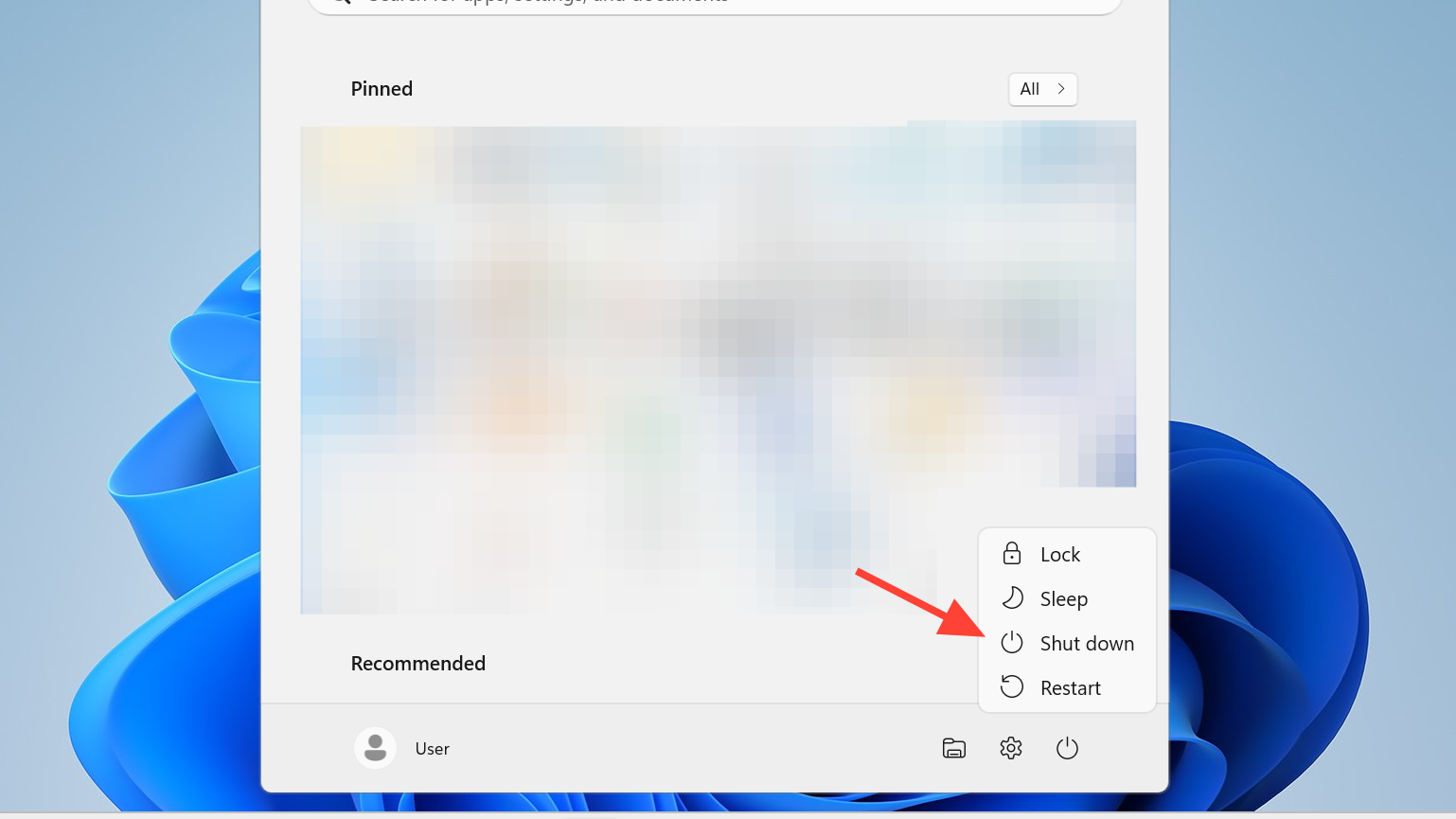
- Shut down your PC.
- Turn off your modem and router and unplug them from power.
- Wait about 60 seconds, so they fully discharge.
- Plug the modem and router back in and wait until all status lights indicate a stable connection.
- Turn your PC back on and launch Highguard again through Steam or your platform of choice.
This refreshes your IP lease, clears router memory, and reinitializes the network stack, which often fixes unexplained lag spikes and random disconnections.
Use a wired Ethernet connection instead of Wi‑Fi
Highguard relies on a stable, low‑latency link. Wi‑Fi often introduces interference, jitter, and packet loss that trigger network error messages and mid‑match kicks.
- Connect your PC or console directly to the router with a quality Ethernet cable.
- If you must stay on Wi‑Fi, keep the device and router in the same room, minimize walls and metal obstacles, and avoid streaming or downloads on other devices during play.
Players switching from Wi‑Fi to LAN typically see immediate improvements in ping stability, fewer packet burst issues, and fewer queue cancellations.
Test your internet speed, latency, and packet loss
Even on Ethernet, a weak line can cause Highguard to drop its connection.
- Run a reputable speed and ping test against a nearby server.
- Check that download and upload speeds comfortably exceed the minimum for online gaming, and that ping is low with no major spikes.
- If you notice high latency, heavy jitter, or packet loss, contact your ISP and report the issue so they can investigate.
Persistent packet loss is one of the main technical causes of repeated disconnection errors and failed matchmaking.
Disable VPNs and unneeded background tools
VPNs and certain background utilities can interfere with Highguard’s network traffic.
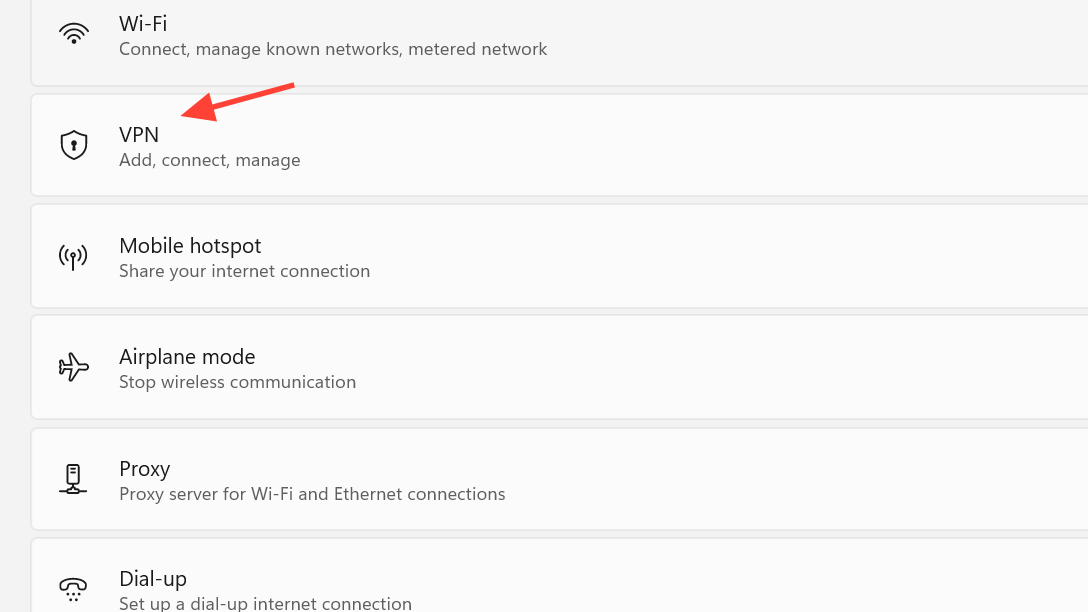
- Turn off any VPN client before launching Highguard.
- Close bandwidth‑heavy apps such as streaming services, large downloads, or cloud backup tools.
- Avoid unverified plugins or overlays that hook into the game; they can destabilize both performance and connectivity.
VPNs in particular often route you through nodes that are far from Highguard’s servers, which raises latency and can break matchmaking or queue connections.
Allow Highguard through Windows Firewall and antivirus
If Highguard cannot freely communicate over the network, it may fail to start matchmaking, drop from queues, or throw generic connection errors.
Add Highguard to Windows Firewall’s allowed apps
- Open the Windows Start menu and search for Windows Security, then open it.
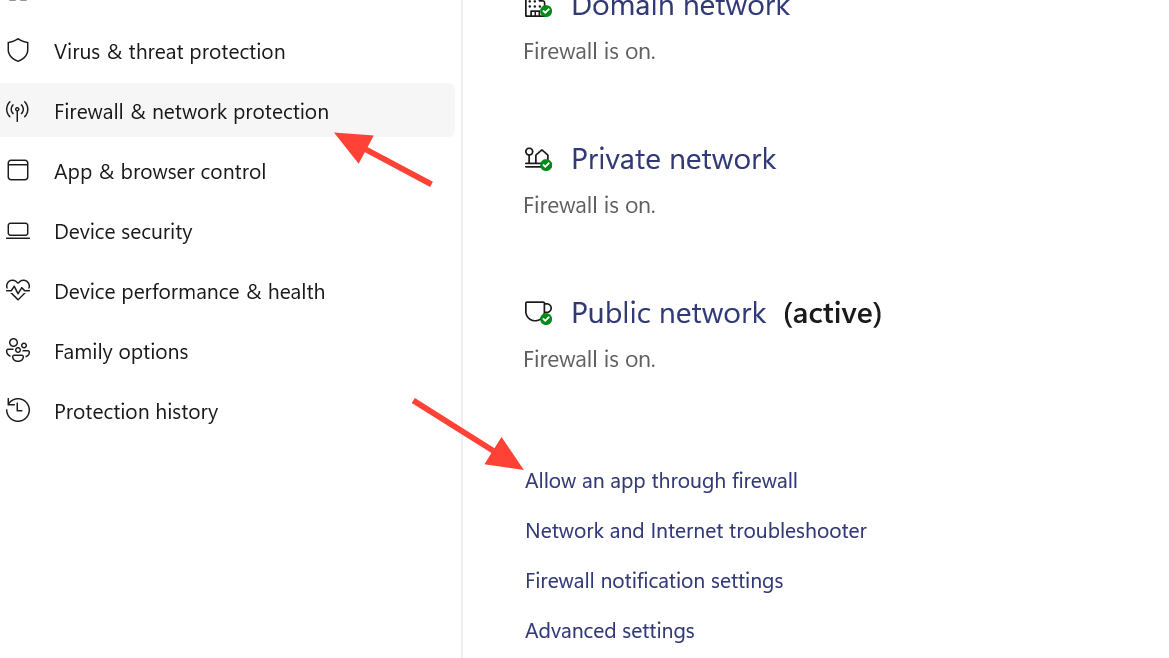
- Select Firewall & network protection.
- Click Allow an app through firewall.
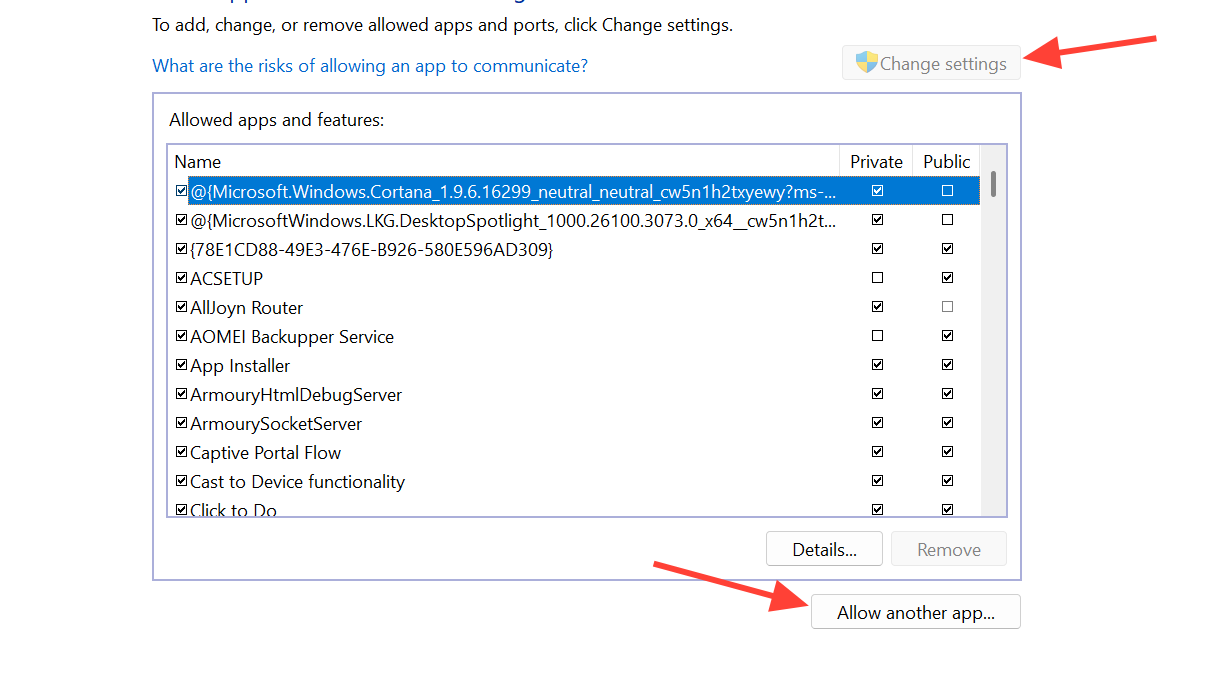
- Choose Change settings and confirm any prompts.
- If Highguard appears in the list, enable it for Private (and Public if you use public networks) and confirm with OK.
- If it is missing, use Allow another app…, browse to Highguard.exe, add it, then enable the appropriate network types.
Find Highguard.exe if installed via Steam
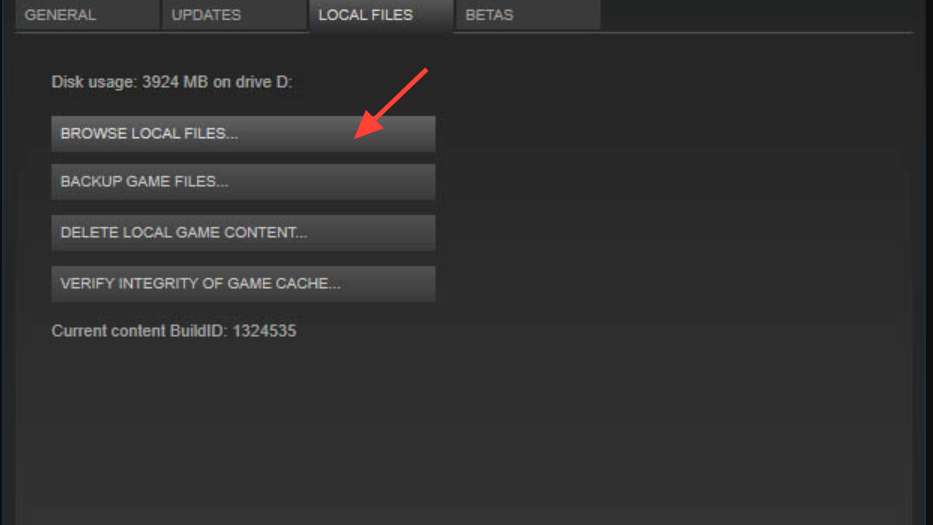
- Open Steam and go to your Library.
- Right‑click Highguard and select Manage or Properties.
- Open the Local Files tab and choose Browse Local Files to locate the executable.
If your antivirus solution has its own application control, add Highguard to its trusted or allowed list as well, instead of fully disabling your security software.
Fix Highguard lag, stutter, and “packet burst” symptoms
Not every connection problem appears as an outright disconnect. Stuttering, freezing, and packet burst behavior often point to either driver issues or unstable routing.
Update Windows and key drivers
- Ensure Windows Update has installed the latest stable updates.
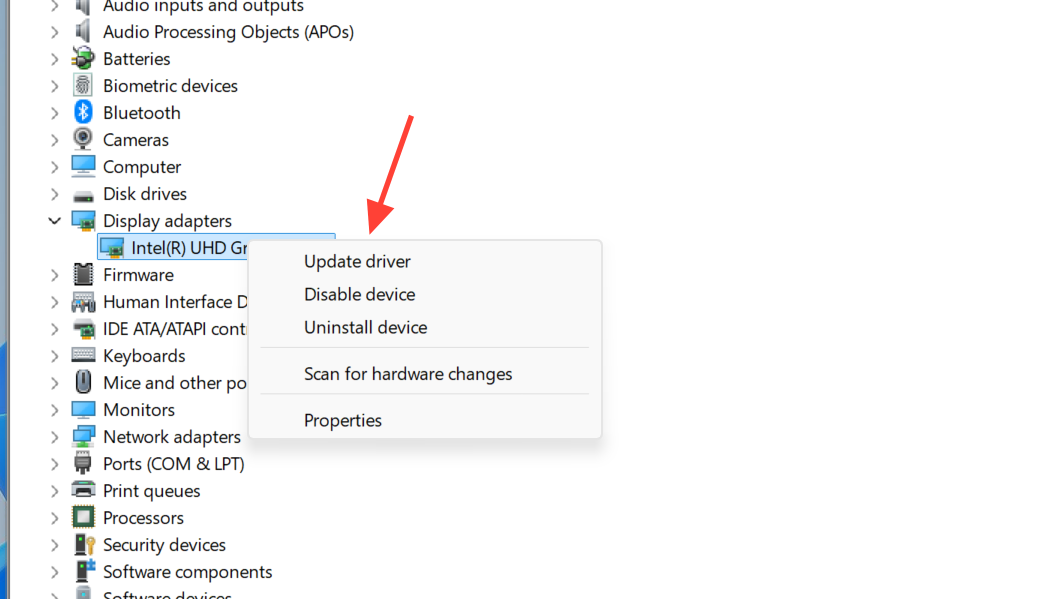
- Open Device Manager, expand relevant categories (especially network adapters and display adapters), right‑click the device, and select Update driver where needed.
Out‑of‑date network drivers can handle congestion poorly, showing up in Highguard as intermittent freezes or severe lag when the action spikes.
Optimize your local network load
- Limit the number of devices using the network while you play, especially those streaming high‑definition video or running large downloads.
- Keep Highguard and any essential tools open, and close browsers or apps you do not need during matches.
Reduce Highguard matchmaking and queue failures
Some players encounter specific matchmaking problems: the game refuses to start matching, queues cancel immediately, or the timer runs for a long time before failing.
- Confirm Highguard can reach the internet freely by checking firewall and antivirus rules as described above.
- Stick to a stable, wired connection whenever possible.
- Avoid VPNs or tools that alter your apparent region, since they often route you away from the nearest Highguard data centers and increase failure rates.
When all local factors check out and matchmaking still fails repeatedly for you and others in your region, the problem is usually upstream on the route between your ISP and Highguard’s servers or on the servers themselves.
When Highguard error code Cormorant appears
The Cormorant error code appears when Highguard loses connectivity with its servers, often around login or in a queue.
- First, treat it as a potential server‑side issue, especially around launch or during major events: overloaded servers can drop connections before login completes.
- Ensure your own connection is not dropping by following the restart and wired‑connection steps.
- Use the error reporting tools linked in the Cormorant message so the development team can see how widespread the problem is.
When many players hit Cormorant in the same window of time, there is usually nothing more to change on your end; future patches or server adjustments are needed.
Handle persistent disconnects and when to wait
If you have:
- Checked that Highguard’s servers are up,
- Restarted your PC and networking gear,
- Switched to a wired Ethernet connection,
- Updated drivers and Windows, and
- Ensured firewalls, antivirus, and VPNs are not blocking the game,
Yet you still disconnect frequently, the remaining causes are typically:
- Ongoing server instability or overload during peak times.
- Structural issues on your ISP’s route to Highguard’s servers that only they or the game’s network team can address.
In these situations, your best options are to play at less congested times, report the problem through official support channels with as much detail as possible, and wait for server or routing improvements.