

Where Winds Meet lets your character do more than just stand still when you stop moving. Different idle poses and weapon stances change how your character looks when out of combat, including popular sword-holding animations that many players notice in towns and hubs.
The catch: the settings are buried in a submenu that is easy to overlook, and some poses can cause odd behavior in cutscenes or appear to “relock” if you are not sure what menu controls what.
What “idle pose” means in Where Winds Meet
An idle pose is the standing animation your character plays when you are not pressing movement or attack inputs. In Where Winds Meet, idle pose options cover both general body stance and weapon-flavored idles, such as holding a sword.
These poses are purely cosmetic. They do not change stats or combat performance, but they can affect how your character appears in cutscenes and in the world, especially if the pose involves drawing a weapon while “idle.”
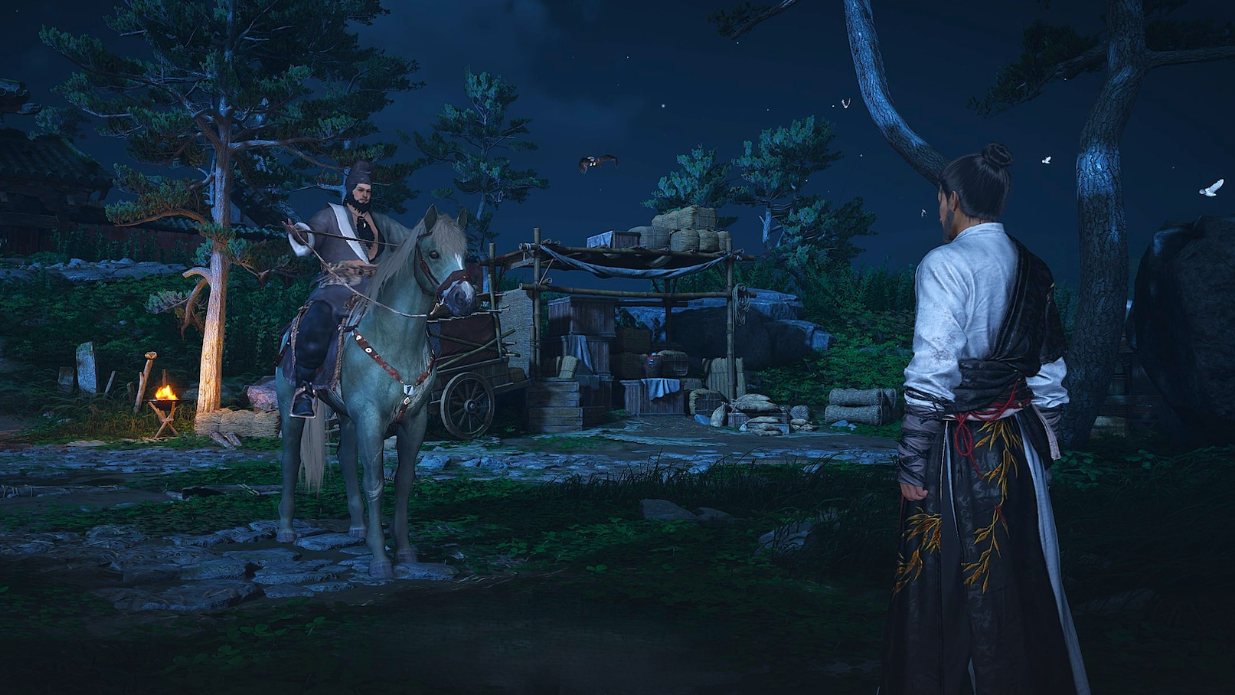
Change idle pose on keyboard and mouse (PC)
The core setting for idle pose lives under the Appearance menu, inside an Extras tab. On PC with keyboard and mouse, the flow is:
Step 1: Press the Esc key (or the key you use to open the pause/system menu). This opens the main menu overlay.
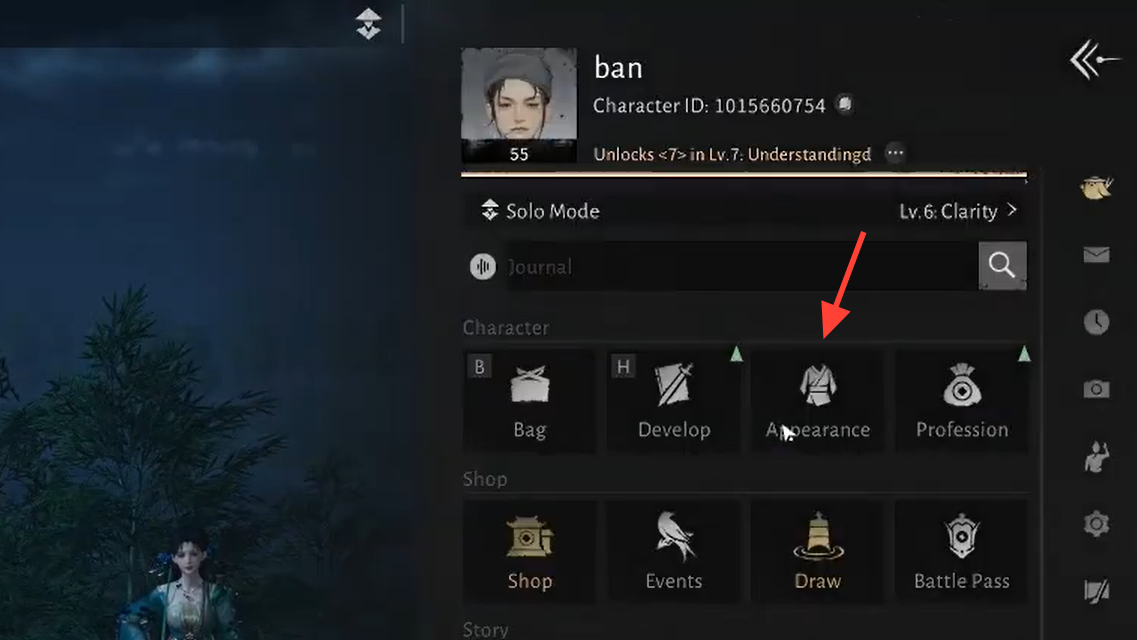
Step 2: Select the Appearance option. This is the same area used for character customization and cosmetics.
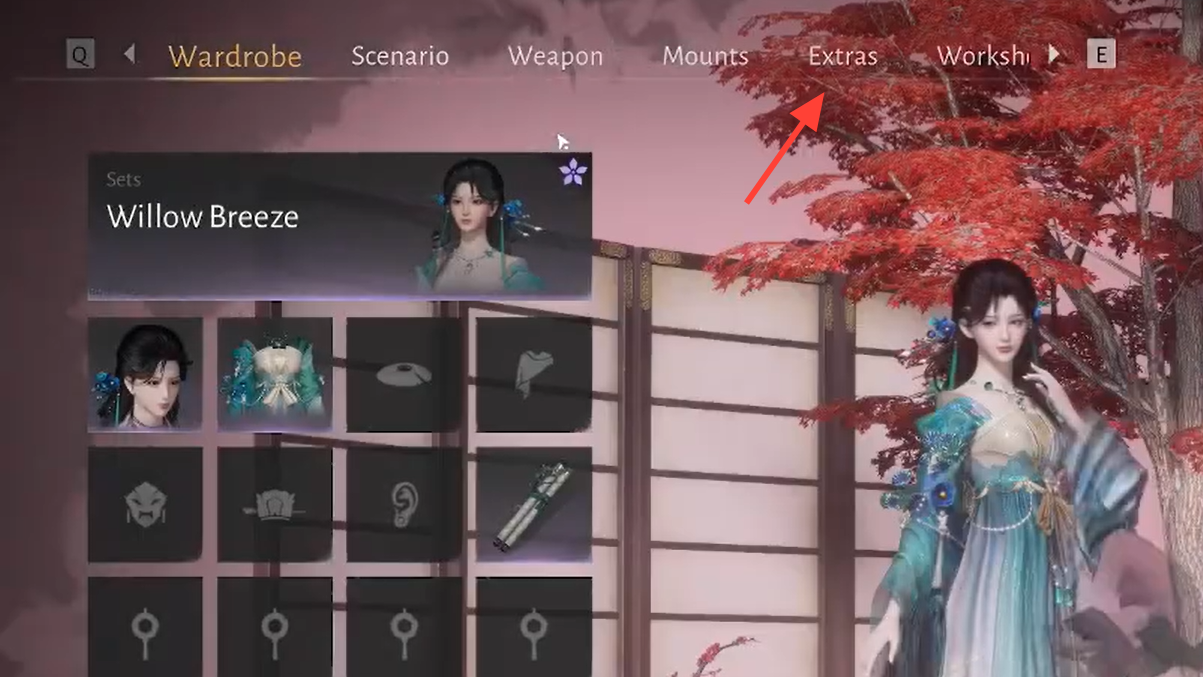
Step 3: In the Appearance screen, switch to the Extras tab. Idle pose lives here alongside other auxiliary cosmetic options.
Step 4: Scroll down to find Idle Pose (sometimes labeled as idle animation). Highlight it to open the list of available poses.
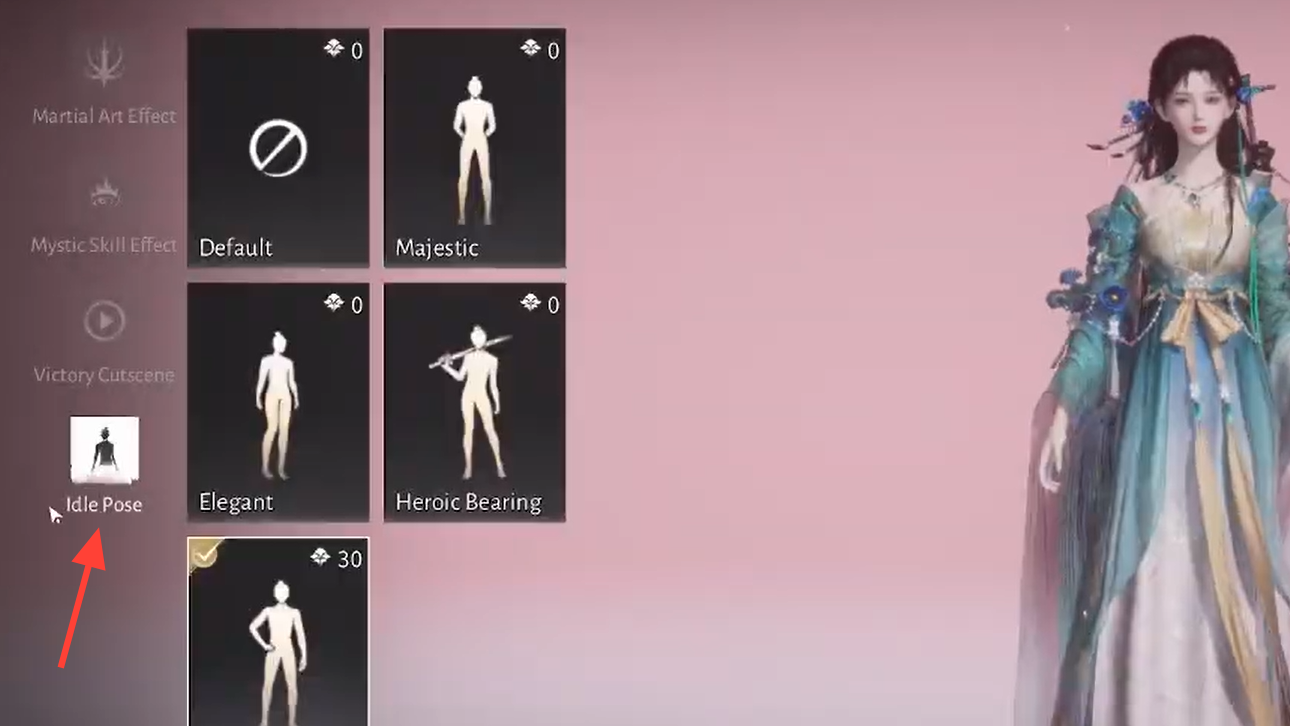
Step 5: Choose the pose you want and confirm. Your character preview should update to show the new idle stance.
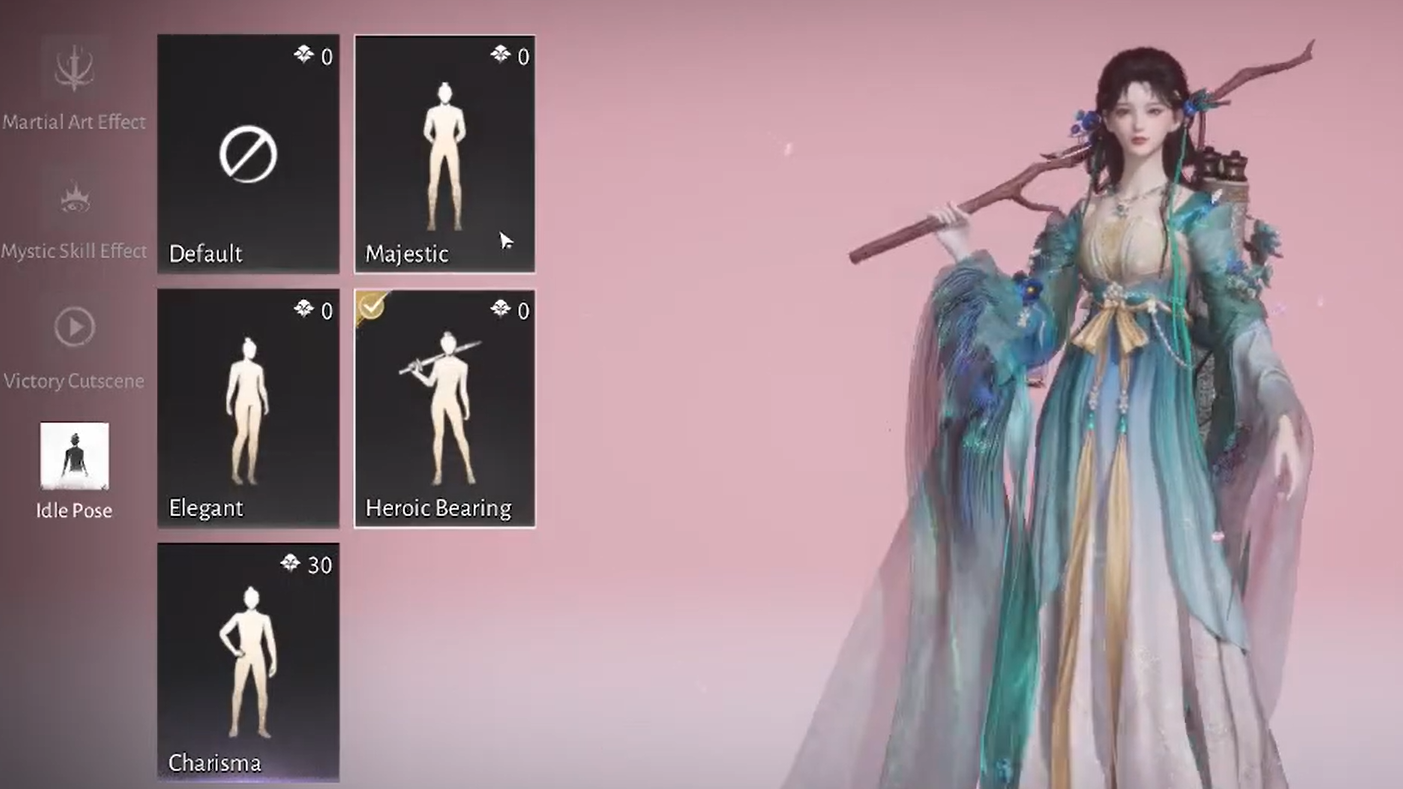
Once selected, the new idle pose will apply across normal gameplay when your character comes to rest.
Change idle pose on controller
On gamepads, the path is the same, but the buttons differ slightly.
Step 1: Press the Options (or equivalent pause/menu) button on your controller to open the game menu.
Step 2: Select Appearance from the menu.
Step 3: Use the right bumper (for example, R1) to move to the Extras tab inside Appearance.
Step 4: Move down to Idle Pose and open it.
Step 5: Highlight the stance you prefer, then confirm to equip it.
The change takes effect immediately and can be done from almost anywhere outside of combat and cutscenes.
Switching off weapon-centric idle poses
Many players pick a weapon-focused pose during character creation, such as an animation where the character pulls out and holds a sword when standing still. This looks stylish in free roam, but it can cause visual oddities in story scenes, where the sword might remain in your hand during dialogue or cutscenes.
To remove that behavior, you do not need to remake your character. You only need to swap the idle pose:
Step 1: Open the Appearance menu and go to the Extras tab as described above.
Step 2: Open Idle Pose and pick a more neutral standing animation that does not draw a weapon.
After this, your character should stop auto-drawing the sword when standing still, reducing the chance of a blade clipping through outfits or appearing in scenes where it does not belong.
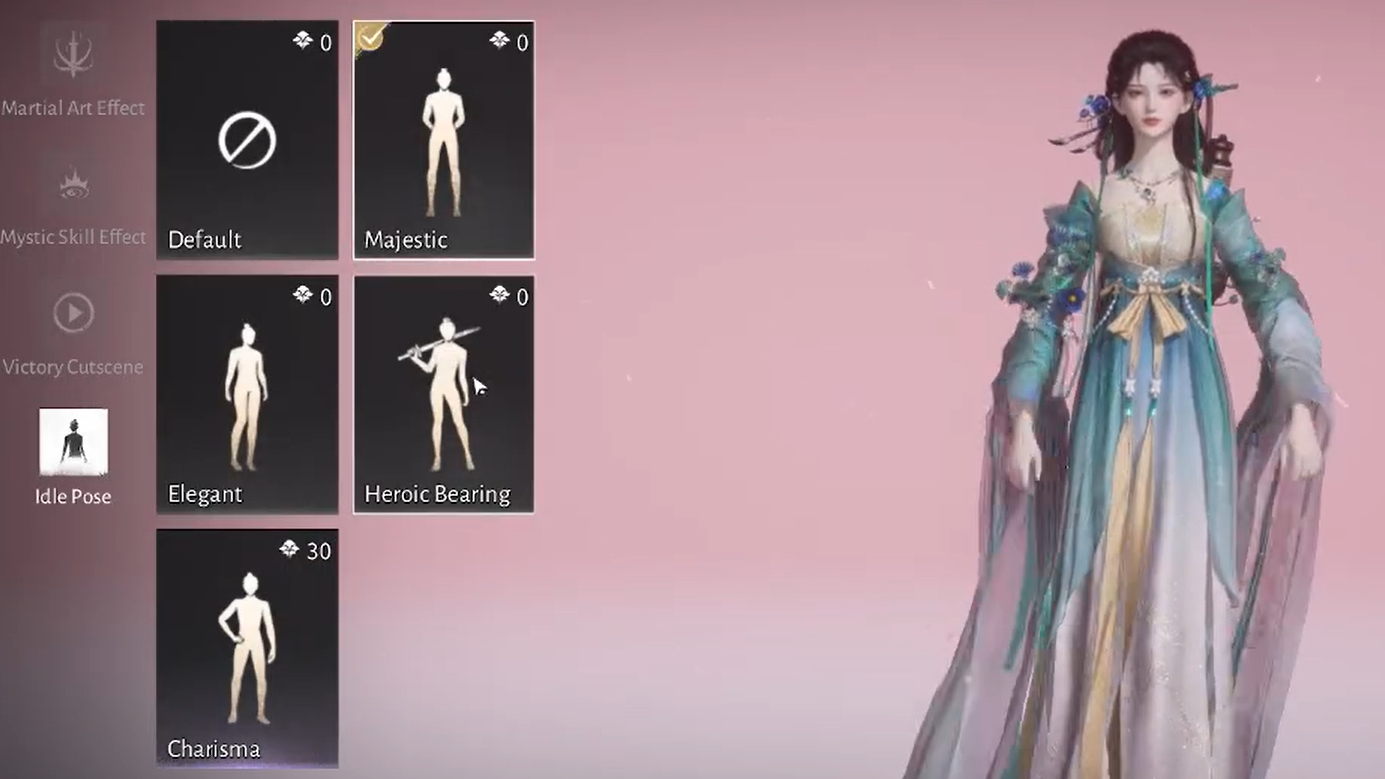
Hiding weapons outside of combat
Beyond the pose itself, Where Winds Meet allows you to hide weapons when you are not fighting, which can clean up screenshots and story moments.
Players can:
- Use a key (commonly Z on keyboard) to quickly toggle weapon visibility, or
- Adjust a setting that keeps weapons hidden when out of combat, reachable from the game’s appearance or settings menus.
Both options are separate from the idle pose choice. Even if your pose involves a weapon, hiding weapons outside of combat can override some of the visual clutter when you are simply standing around.
Why some weapon idle animations look like “emotes”
Weapon idle animations in Where Winds Meet can resemble emotes because they are more elaborate than a basic standing stance. For example, a sword idle might have your character shift weight, adjust grip, or rest the blade in a particular way. These play automatically when you stop moving, without you needing to trigger an emote wheel.
These weapon idles are chosen the same way as other idle poses, through the Appearance > Extras > Idle Pose path. There is no separate “weapon idle” menu. If you see another player holding their sword differently while idle, they have likely equipped a different idle pose in that menu.
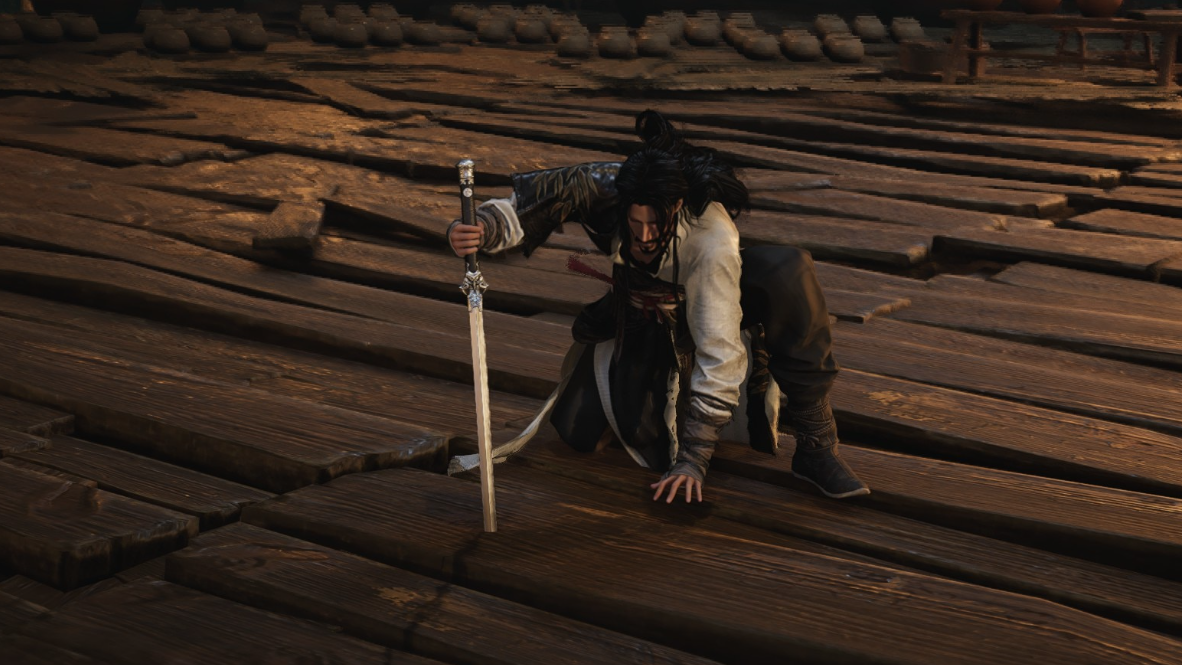
Why some poses or emotes appear to relock
Players sometimes report that an animation, such as the one where you carry another player, appears to unlock, then later shows up as locked again. That specific behavior stems from how the game gates certain emotes and poses behind progression, events, or conditions.
Common reasons an animation may show as locked again include:
- It is tied to a time-limited event or scenario that ended.
- It requires a specific relationship or co-op condition, so it only appears usable when those conditions are met.
- It comes from content that has been reset, changed, or phased in the current build.
In contrast, the generic idle poses in the Extras tab are more stable. Once unlocked and selected, they remain available unless the game itself changes them in a patch. If a core idle pose you already used suddenly appears locked permanently, that is more likely a bug and worth reporting through the game’s official feedback or support channels.
Quick reference: menu paths and controls
| Action | Keyboard / Mouse | Controller | Menu Path |
|---|---|---|---|
| Open main menu | Esc |
Options / Menu button | System pause overlay |
| Open idle pose settings | Esc → Appearance → Extras → Idle Pose | Options → Appearance → Extras (R1) → Idle Pose | Appearance > Extras > Idle Pose |
| Toggle weapons visibility (quick) | Commonly Z |
Varies by layout | Keybind or controller mapping |
Once you know where the Extras tab lives, idle pose changes are a quick quality-of-life tweak. You can keep a dramatic sword stance while roaming the open world, then swap to a calmer pose before a story arc if weapon glitches start distracting from the scene.