

Microsoft Edge on Windows 11 ships with Copilot, Bing chat, shopping helpers and other AI‑leaning features wired directly into the browser. You can’t remove Edge itself in any supported way, and new AI hooks keep arriving with updates, but you can strip out almost everything AI‑related.
This walkthrough focuses on Edge running on Windows 11. It starts with the UI switches, then moves into policy and registry controls that keep Copilot and the chat experiences out of sight and largely inactive.
What “AI in Edge” actually means
| Feature | Where it shows up | What it does | Can you turn it off? |
|---|---|---|---|
| Copilot sidebar / chat | Right sidebar, toolbar button | LLM chat, page analysis, writing help | Yes, via Edge settings or policy |
| Copilot icon in toolbar | Top‑right of the browser | Opens Copilot panel or Bing chat | Yes, hide via app‑specific settings or policy |
| Chat on Bing result pages | Top or side of Bing search | Auto‑generated chat answers for queries | Yes, via Bing/Copilot settings |
| Microsoft 365 Copilot chat icon | Enterprise Edge toolbars | Work content Copilot for Microsoft 365 tenants | Yes, via Edge policy / registry |
| Shopping and recommendation helpers | Sidebar, address bar suggestions, new tab | Price comparisons, product suggestions | Yes, via Edge policies |
Edge also has a long list of “smart” features—autofill, spelling suggestions, personalization—that rely on cloud services and telemetry. These aren’t branded as AI, but if you are trying to reduce automated decision‑making and data sharing, you likely want them gone as well.
Disable Copilot in Edge’s own settings
The first step is to shut down the Copilot UI that Edge exposes by default.
| Task | Menu path in Edge |
|---|---|
| Open Edge settings | … (top‑right) > Settings |
| Open sidebar settings | Left navigation: Sidebar (or “Side panel” on some builds) |
| Find Copilot controls | Under “App specific settings”, choose Copilot |
| Turn Copilot off | Disable Show Copilot and Show shopping notifications |
If you don’t see “App specific settings” or “Copilot” on the left, maximize the settings window and make sure the left navigation rail is fully visible; some people only see these options once Edge has enough horizontal space.
After toggling these off, close all Edge windows and relaunch the browser. The Copilot button should disappear from the toolbar, and the sidebar should no longer expose Copilot or its shopping prompts.

Disable chat responses on Bing result pages
Edge can still surface AI chat on Bing search pages, even when the Copilot sidebar is turned off. That behavior is controlled in the search experience.
- Open a new tab and go to Bing (or Copilot for web).
- Access the settings for search and chat (this can be reached from the profile or settings menu in the Bing header).
- Locate the option labeled “Chat response on result page” (wording can vary slightly) and turn it off.
With this disabled, scrolling to the top of a Bing results page should no longer pop open an automatic chat box.

Use Edge’s Copilot management page (where available)
Microsoft exposes additional Copilot controls in a dedicated management page for Edge. On builds that support it, you can reach that page through Edge help content under the Copilot section, which links directly to the Copilot management settings for the browser at https://learn.microsoft.com/en-us/copilot/edge.
That page walks through where Copilot can be controlled in consumer, business, and managed environments. The key point: make sure you’ve disabled every Copilot toggle Edge exposes, not just the button on the toolbar.
Turn off the Microsoft 365 Copilot chat icon with a registry policy
On some Windows 11 systems—especially joined to Microsoft 365 tenants—Edge shows a Microsoft 365 Copilot chat icon. That icon is controlled by an Edge policy that can be set directly in the registry.
To disable it system‑wide:
- Open
cmd.exeas an administrator (start menu search, right‑click, “Run as administrator”). - Run the following command exactly:
REG ADD "HKEY_LOCAL_MACHINE\SOFTWARE\Policies\Microsoft\Edge" ^
 /v "Microsoft365CopilotChatIconEnabled" /t REG_DWORD /d "0" /f

This creates or updates the Edge policy key and explicitly disables the Microsoft 365 Copilot chat icon. Close all Edge windows and restart the browser for the policy to take effect. On managed machines, Group Policy refresh may enforce the same setting if your admin uses the official policy templates.
Strip out other “smart” and AI‑adjacent Edge features via policies
If your goal is to remove anything that feels automated, predictive or promotional, you can go further by setting more Edge policies. These live under the same registry path and can be scripted in one block.
Run an elevated Command Prompt (cmd.exe as administrator) and apply the following commands:
REG ADD "HKEY_LOCAL_MACHINE\SOFTWARE\Policies\Microsoft\Edge" /v "AllowGamesMenu" /t REG_DWORD /d "0" /f
REG ADD "HKEY_LOCAL_MACHINE\SOFTWARE\Policies\Microsoft\Edge" /v "AlternateErrorPagesEnabled" /t REG_DWORD /d "0" /f
REG ADD "HKEY_LOCAL_MACHINE\SOFTWARE\Policies\Microsoft\Edge" /v "AutoImportAtFirstRun" /t REG_DWORD /d "4" /f
REG ADD "HKEY_LOCAL_MACHINE\SOFTWARE\Policies\Microsoft\Edge" /v "AutofillAddressEnabled" /t REG_DWORD /d "0" /f
REG ADD "HKEY_LOCAL_MACHINE\SOFTWARE\Policies\Microsoft\Edge" /v "AutofillCreditCardEnabled" /t REG_DWORD /d "0" /f
REG ADD "HKEY_LOCAL_MACHINE\SOFTWARE\Policies\Microsoft\Edge" /v "AutofillMembershipsEnabled" /t REG_DWORD /d "0" /f
REG ADD "HKEY_LOCAL_MACHINE\SOFTWARE\Policies\Microsoft\Edge" /v "BackgroundModeEnabled" /t REG_DWORD /d "0" /f
REG ADD "HKEY_LOCAL_MACHINE\SOFTWARE\Policies\Microsoft\Edge" /v "BrowserSignin" /t REG_DWORD /d "0" /f
REG ADD "HKEY_LOCAL_MACHINE\SOFTWARE\Policies\Microsoft\Edge" /v "DefaultBrowserSettingEnabled" /t REG_DWORD /d "0" /f
REG ADD "HKEY_LOCAL_MACHINE\SOFTWARE\Policies\Microsoft\Edge" /v "EdgeShoppingAssistantEnabled" /t REG_DWORD /d "0" /f
REG ADD "HKEY_LOCAL_MACHINE\SOFTWARE\Policies\Microsoft\Edge" /v "HideFirstRunExperience" /t REG_DWORD /d "1" /f
REG ADD "HKEY_LOCAL_MACHINE\SOFTWARE\Policies\Microsoft\Edge" /v "HubsSidebarEnabled" /t REG_DWORD /d "0" /f
REG ADD "HKEY_LOCAL_MACHINE\SOFTWARE\Policies\Microsoft\Edge" /v "ImportOnEachLaunch" /t REG_DWORD /d "0" /f
REG ADD "HKEY_LOCAL_MACHINE\SOFTWARE\Policies\Microsoft\Edge" /v "MAMEnabled" /t REG_DWORD /d "0" /f
REG ADD "HKEY_LOCAL_MACHINE\SOFTWARE\Policies\Microsoft\Edge" /v "MicrosoftEdgeInsiderPromotionEnabled" /t REG_DWORD /d "0" /f
REG ADD "HKEY_LOCAL_MACHINE\SOFTWARE\Policies\Microsoft\Edge" /v "NewTabPageAllowedBackgroundTypes" /t REG_DWORD /d "3" /f
REG ADD "HKEY_LOCAL_MACHINE\SOFTWARE\Policies\Microsoft\Edge" /v "NewTabPageContentEnabled" /t REG_DWORD /d "0" /f
REG ADD "HKEY_LOCAL_MACHINE\SOFTWARE\Policies\Microsoft\Edge" /v "NewTabPageHideDefaultTopSites" /t REG_DWORD /d "1" /f
REG ADD "HKEY_LOCAL_MACHINE\SOFTWARE\Policies\Microsoft\Edge" /v "PasswordManagerEnabled" /t REG_DWORD /d "0" /f
REG ADD "HKEY_LOCAL_MACHINE\SOFTWARE\Policies\Microsoft\Edge" /v "PersonalizationReportingEnabled" /t REG_DWORD /d "0" /f
REG ADD "HKEY_LOCAL_MACHINE\SOFTWARE\Policies\Microsoft\Edge" /v "PromotionalTabsEnabled" /t REG_DWORD /d "0" /f
REG ADD "HKEY_LOCAL_MACHINE\SOFTWARE\Policies\Microsoft\Edge" /v "SearchSuggestEnabled" /t REG_DWORD /d "0" /f
REG ADD "HKEY_LOCAL_MACHINE\SOFTWARE\Policies\Microsoft\Edge" /v "ShowMicrosoftRewards" /t REG_DWORD /d "0" /f
REG ADD "HKEY_LOCAL_MACHINE\SOFTWARE\Policies\Microsoft\Edge" /v "ShowRecommendationsEnabled" /t REG_DWORD /d "0" /f
REG ADD "HKEY_LOCAL_MACHINE\SOFTWARE\Policies\Microsoft\Edge" /v "SpellcheckEnabled" /t REG_DWORD /d "0" /f
REG ADD "HKEY_LOCAL_MACHINE\SOFTWARE\Policies\Microsoft\Edge" /v "SpotlightExperiencesAndRecommendationsEnabled" /t REG_DWORD /d "0" /f
REG ADD "HKEY_LOCAL_MACHINE\SOFTWARE\Policies\Microsoft\Edge" /v "StartupBoostEnabled" /t REG_DWORD /d "0" /f
REG ADD "HKEY_LOCAL_MACHINE\SOFTWARE\Policies\Microsoft\Edge" /v "SyncDisabled" /t REG_DWORD /d "1" /f
REG ADD "HKEY_LOCAL_MACHINE\SOFTWARE\Policies\Microsoft\Edge" /v "TyposquattingCheckerEnabled" /t REG_DWORD /d "0" /f
REG ADD "HKEY_LOCAL_MACHINE\SOFTWARE\Policies\Microsoft\Edge" /v "UserFeedbackAllowed" /t REG_DWORD /d "0" /f
REG ADD "HKEY_LOCAL_MACHINE\SOFTWARE\Policies\Microsoft\Edge" /v "WebWidgetAllowed" /t REG_DWORD /d "0" /f
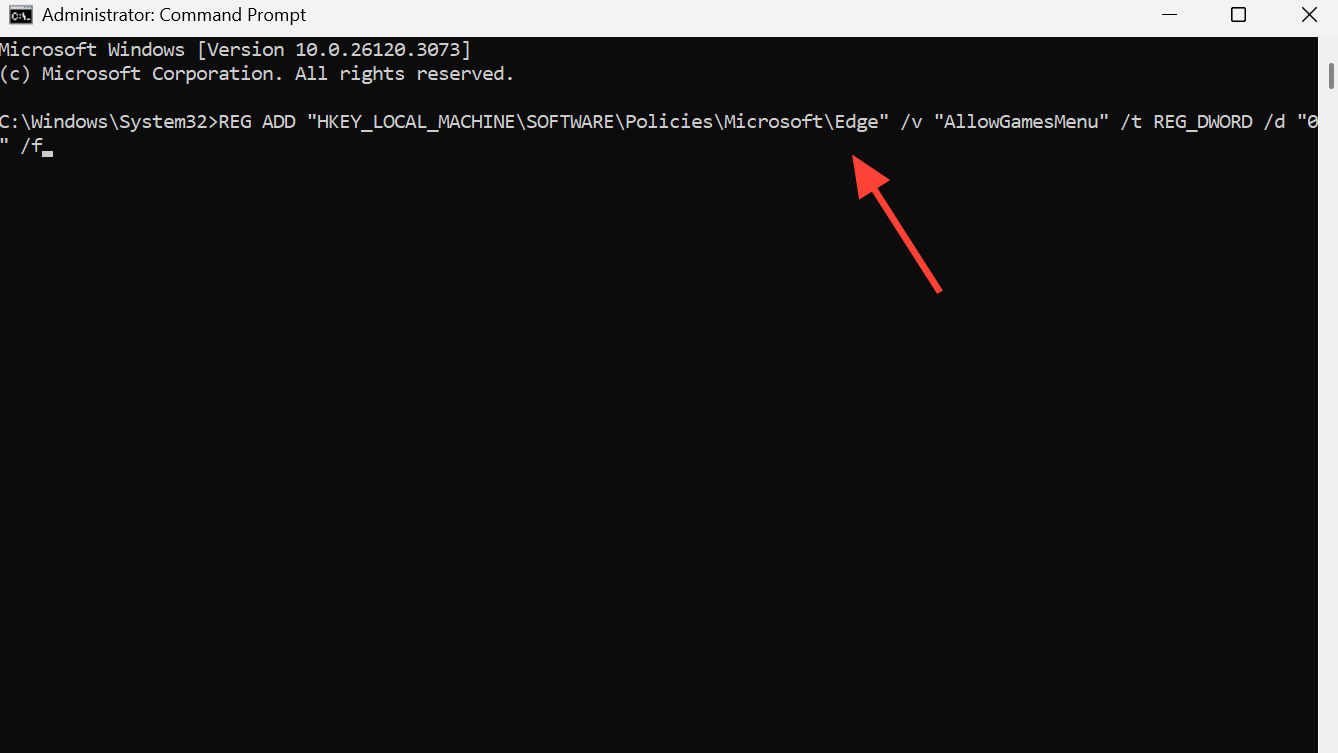
These values don’t all target branded AI, but they remove a lot of automated helpers, suggestions, personalized content, and background behavior that often ride alongside it. Edge reads these policies at startup, and in managed environments, they’re the same knobs that administrators set through the official policy templates documented at https://learn.microsoft.com/en-us/deployedge/microsoft-edge-policies.
Restart Edge when you’re done. You should see a much more static browser: no shopping overlays, no personalization reporting, no recommendation tabs, no Microsoft Rewards badges, and no search suggestions in the address bar.
Use Group Policy Editor instead of raw registry edits (Pro/Enterprise)
On Windows 11 Pro and Enterprise, you don’t have to touch the registry directly. You can use the Group Policy Editor to manage Edge and Copilot settings in a supported way.
| Policy scope | Editor path | What to look for |
|---|---|---|
| Windows Copilot (system‑wide) | User Configuration > Administrative Templates > Windows Components > Windows Copilot |
Set “Turn off Windows Copilot” to Enabled |
| Edge‑specific AI features | Computer Configuration > Administrative Templates > Microsoft Edge |
AI‑related policies exposed by the Edge ADMX templates |
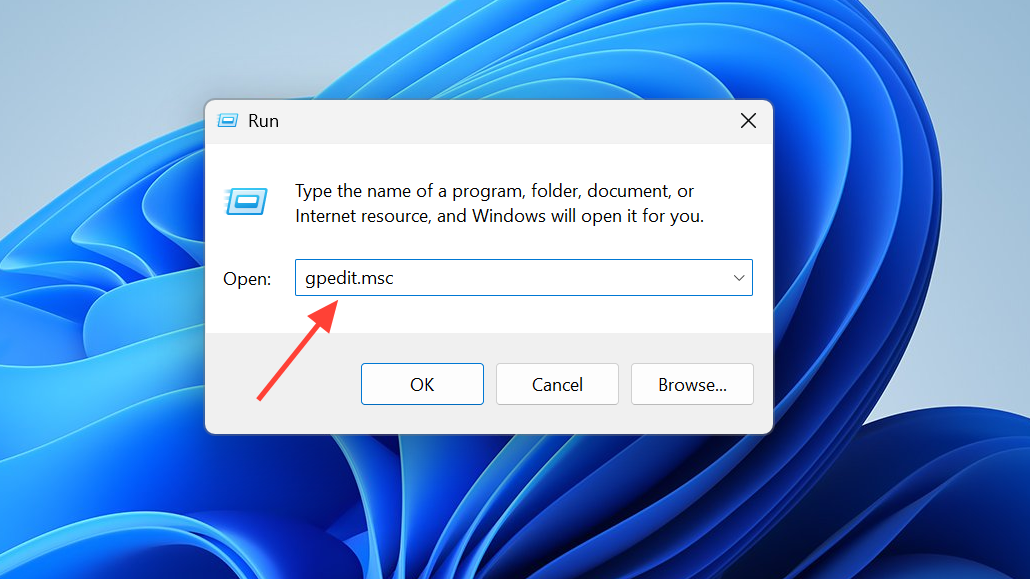
To open the editor, press Win + R, type gpedit.msc and press Enter. After changing policies, run gpupdate /force in an elevated Command Prompt or simply restart the machine.
Edge respects these policies in the same way it respects registry values under the Policies\Microsoft\Edge key. The difference is that Group Policy makes it easier to see what’s configured and to keep those settings enforced after feature updates.
Hide or block Copilot at the Windows level
Edge is only one surface for Copilot on Windows 11. The OS itself exposes Copilot in the taskbar and system UI. If you’re serious about avoiding AI features, you should turn that off as well, so the browser isn’t summoned indirectly through the OS.
Microsoft documents Copilot controls for Windows 11 at https://learn.microsoft.com/en-us/answers/questions/4080180/how-do-i-disable-copilot-and-all-other-ai-function, and the pattern is consistent:
- In Settings, go to
System > Copilotand switch Copilot off if that option exists on your build. - In
Settings > Personalization > Taskbar, turn off “Copilot” to remove the button. - In the registry, under
HKEY_CURRENT_USER\Software\Policies\Microsoft\Windows, create a key namedWindowsCopilotand inside it a DWORDTurnOffWindowsCopilotset to1, then restart.

That combination disables the system‑level entry points for Copilot. With those gone, Edge is much less likely to open a Copilot pane unexpectedly.
If you still see AI icons: what’s left and what you can’t change
Even after all of this, you may still notice remnants:
- A grayed‑out Copilot button on some toolbars, especially in work environments where policies are centrally enforced.
- Occasional UI experiments that appear after an Edge update and disappear again a few releases later.
- Generic “search with …” entries that reference Copilot or Bing, even when the chat behavior is shut off.
Those elements are part of how Edge and Windows are currently designed. Microsoft’s own support responses are clear on one point: there is no official way to install Windows 11 or Edge with zero AI‑linked components, and future feature updates are moving in the direction of more integration, not less.
If you’re on a managed PC, it’s also possible that your organization is pushing down its own Edge and Copilot policies that override what you change locally. In that case, the only real fix is to ask your administrator to switch those settings off.
With Edge’s Copilot UI turned off, Bing chat disabled on search pages, AI‑adjacent features shut down through policy, and Windows’ own Copilot entry points removed, you end up with a browser that behaves much more like a traditional, static web client. Edge is still part of the operating system, and some pieces of AI infrastructure remain under the hood, but day‑to‑day you won’t see panes popping open or chatbots trying to answer your searches for you.