People have been loving the dark mode since it started making its way into apps and websites. The dark mode not only helped to reduce the battery consumption of smartphones, but it is also easier on your eyes too.
Google Chat is one of the major platforms people use to communicate for their personal as well as professional day-to-day communications. It holds true especially in the wake of recent events that have led to a paradigm shift in our daily communication.
Now, dark mode in Google Chat can really be helpful to you if you are a nocturnal being or you just simply enjoy the aesthetics of dark mode. Whatever be the reason, enabling dark mode in Google Chat is a cakewalk.
Enabling Dark Mode in Google Chat on Web (Desktop)
If you use Google Chat mainly for work-related purposes, chances are you might be using it majorly on your computer. So let’s get started.
First, go to chat.google.com using your preferred browser on your Windows or macOS device. Then, if you are not logged in to your Google account, you will need to sign in to it using your credentials. Once signed in, you will see the ‘Loading Chat’ screen.
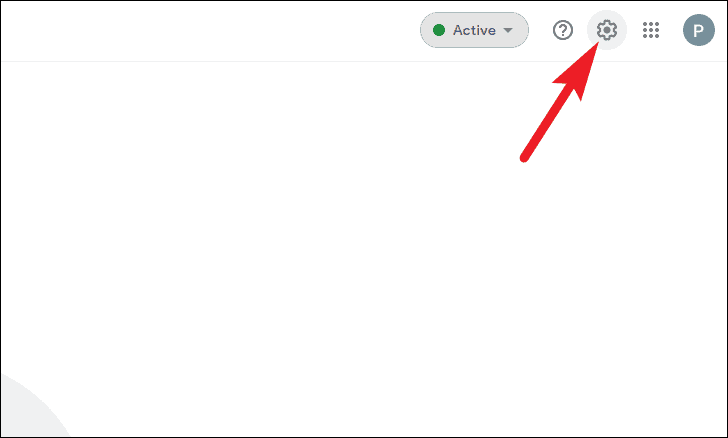
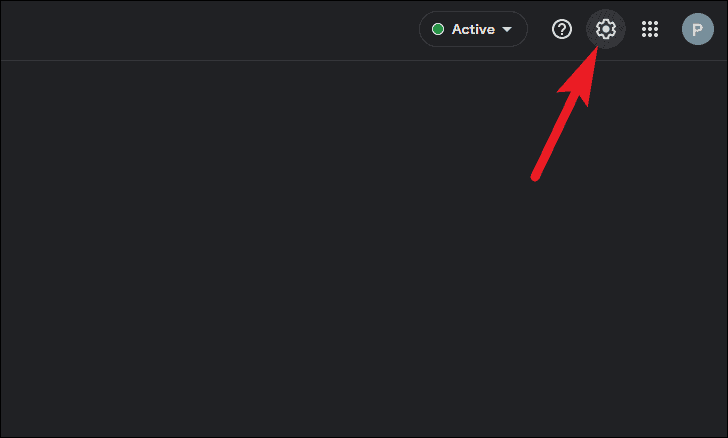
Once the Chat has been loaded, click on the ‘gear’ icon present on the top right section of the window to access ‘Chat settings’. This will open an overlay window on your screen.
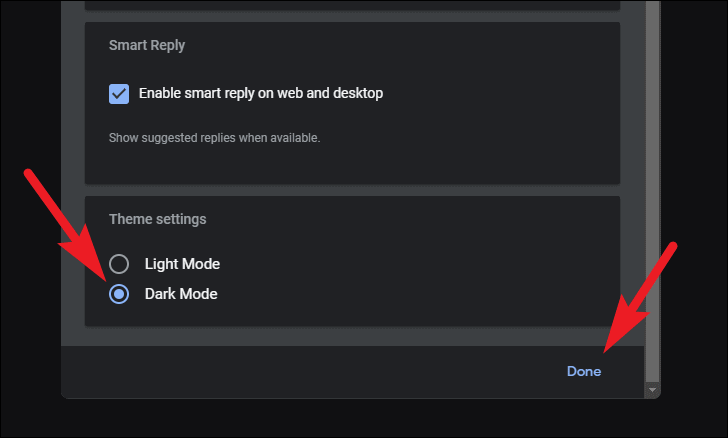
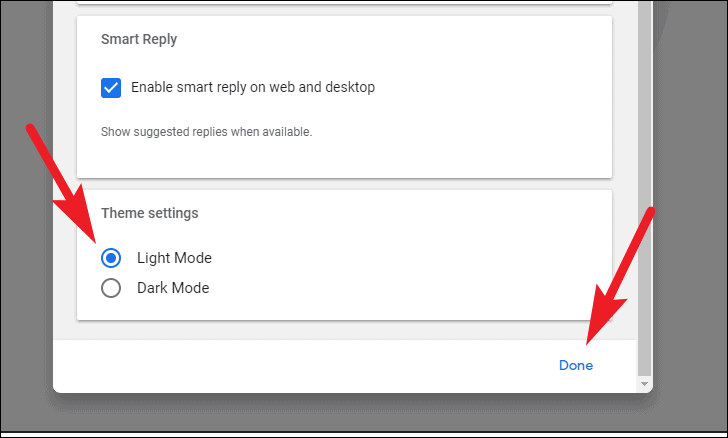
Now, scroll down and locate the ‘Theme settings’ section on the overlay window. Then, click on the radio button preceding the ‘Dark Mode’ option. The dark mode will be enabled immediately for you. Next, click on the ‘Done’ button to close the ‘Chat settings’ overlay window.
Enabling Dark Mode in Google Chat Mobile App (Android)
You can also set Google Chat on a different theme than your system theme on your Android device. Moreover, it just takes a couple of taps from your side to do that.
First, launch the Google Chat app from the home screen or the app library of your android device.
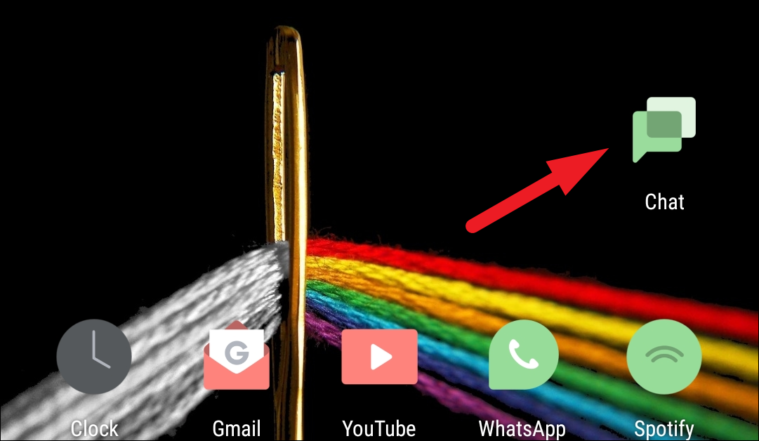
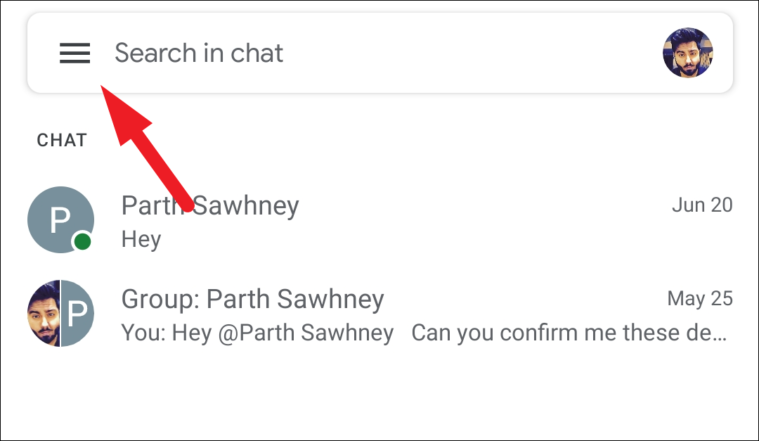
Next, click on the hamburger icon (three horizontal lines) present on the top left section of the app.
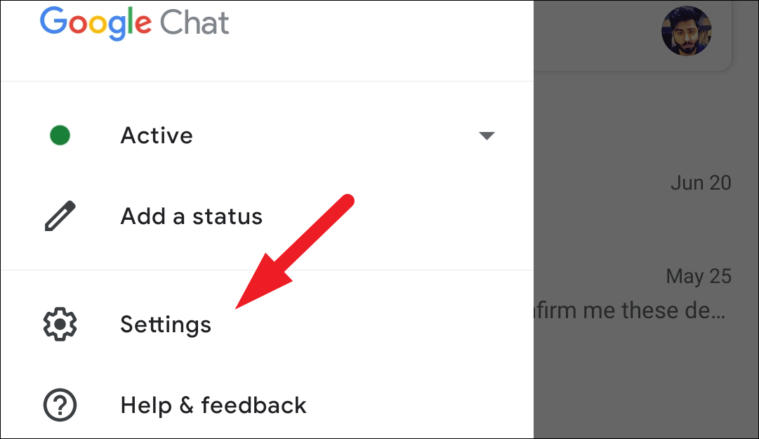
Then, tap on the ‘Settings’ option from the list.
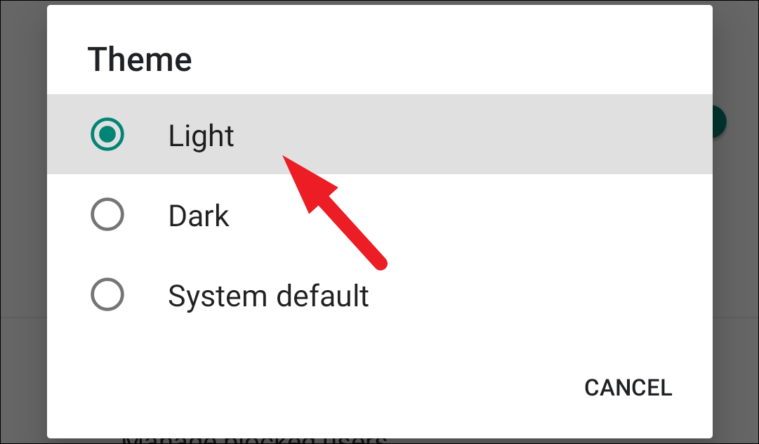
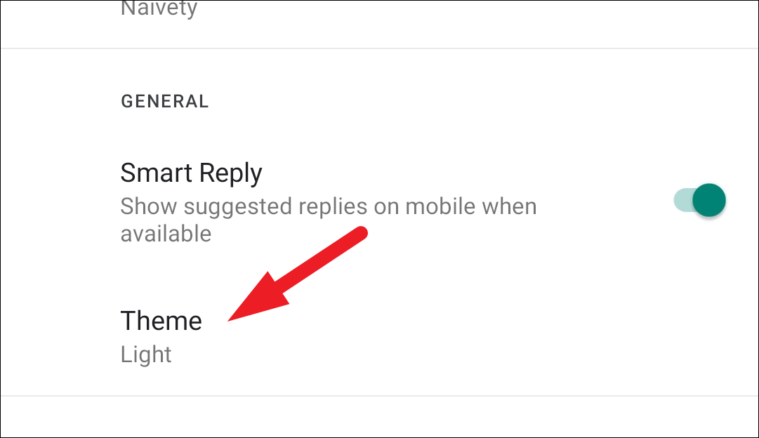
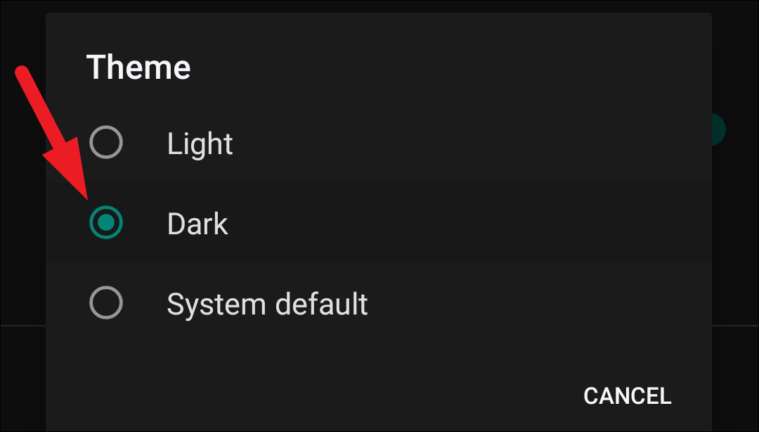
Now, locate the ‘General’ section on the ‘Settings’ screen and tap on the ‘Theme’ option. This will open an overlay window on your screen.
Now, tap on the radio button preceding the ‘Dark’ option to enable the dark mode. Dark mode will be enabled immediately on the app.
How to Disable Dark Mode in Google Chat
In case you have the dark mode enabled in Google Chat and are now stuck with it because you don’t know how to turn it off, here’s a quick guide to help you.
Disable Dark Mode on Google Chat Web (Desktop)
First, go to chat.google.com using your preferred browser on your Windows or macOS device. Then, sign in using your account credentials if you are not logged in to your Google account on the browser. Once signed in, you will see the ‘Loading Chat’ screen.
After that, click on the ‘gear’ icon present on the top-right section of your screen to access the ‘Chat settings’ menu. This will open an overlay window on your screen.
Now, scroll down to locate the ‘Theme settings’ section on the overlay screen. Then, click on the radio button preceding the ‘Light Mode’ option. The light mode will be enabled for you immediately. Next, click on the ‘Done’ button to close the ‘Chat settings’ overlay window.
Disable Dark Mode in Google Chat Mobile app (Android)
On your Android device, head to the Google Chat app from the home screen or from the app library of your screen.
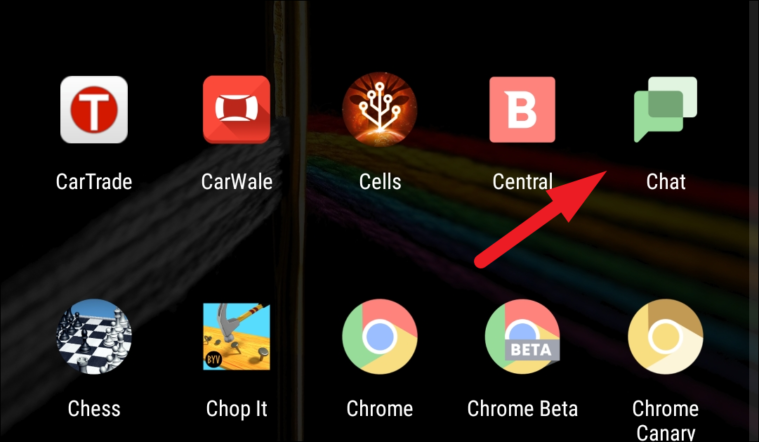
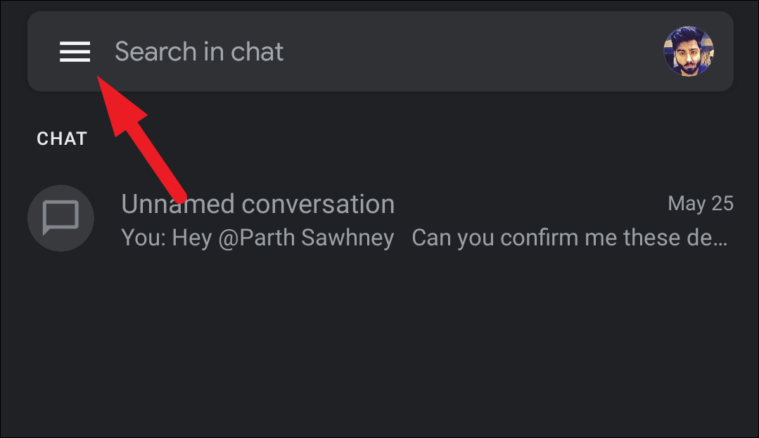
Next, tap on the hamburger icon (three horizontal lines) present on the top left section of your screen.
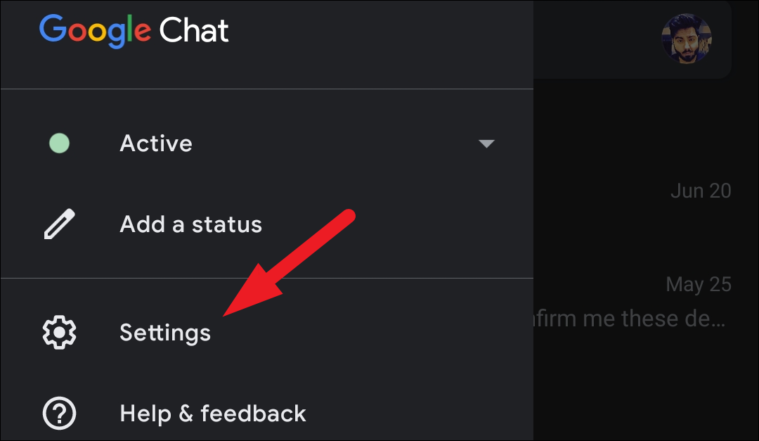
After that, tap on the ‘Settings’ option present on the overlay menu.
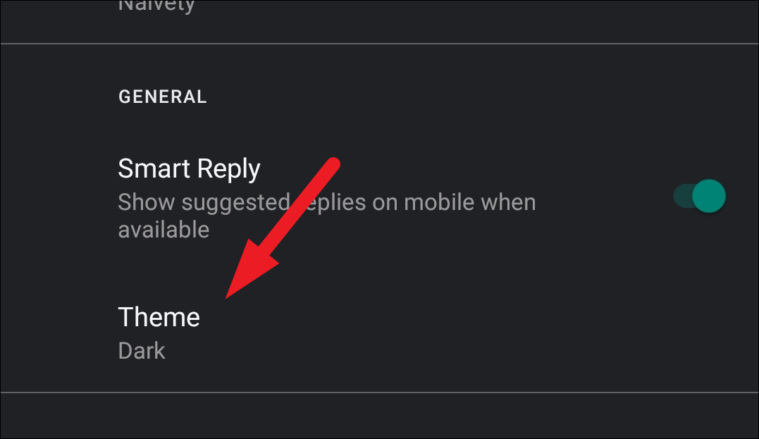
Then, tap on the ‘Theme’ option located in the ‘General’ section on the ‘Settings’ screen. This will open an overlay window on your screen.
Now, tap on the radio button preceding the ‘Light’ option to enable the light mode. The changes will take effect immediately.