

ARC Raiders relies on always-online servers, so when “Online connection error. Online services are currently unavailable.” appears, the game effectively stops there. On some days, it is a short-lived outage. On others, it can lock specific platforms or even specific home networks out for hours.
The error often comes with codes like ARAU0287 or ARAU0297, but the underlying causes fall into a few repeatable buckets: server-side outages, time and date mismatches, DNS and routing issues, platform-specific bugs (particularly on Xbox/Windows handhelds), and rare cases where a single public IP seems to get blocked.
1. Check for a server outage first
Before changing anything on your own setup, assume the simplest explanation: the ARC Raiders backend may be down or unstable.
Typical signs of a backend issue:
- Players on multiple platforms (PC, Xbox, PS5) all start seeing the online connection error at roughly the same time.
- People are being kicked out mid-raid, then cannot reconnect and see “Online services are currently unavailable” on the title screen.
- The error appears even though other online games on the same device and network are completely fine.
In those cases, the only realistic “fix” is to wait until the servers come back. Players regularly report the game suddenly working again after an hour or a couple of days without any change on their side.
Two quick sanity checks help here:
- Launch another always-online Embark title, THE FINALS. If it also fails while other games work, it points at Embark’s services or how your network reaches them.
- Check a live outage tracker like Downdetector. A spike in reports for ARC Raiders almost always aligns with widespread “online connection error” complaints.
When many players across platforms are hit simultaneously, avoid wasting hours reinstalling or changing drivers. Treat it as a server issue and retry later.
2. Fix ARC Raiders connection errors on PC (Steam / Windows)
On PC, the error often includes ARAU0287 or ARAU0297. There are a few repeat offenders on Windows: time and date drift, DNS or routing problems, and client-side quirks.
2.1 Sync Windows time and time zone
ARC Raiders’ authentication can fail if your system clock is far from the real time. Syncing your clock is a low-risk first step that has resolved ARAU0287 for some players.
Method: Sync time on Windows
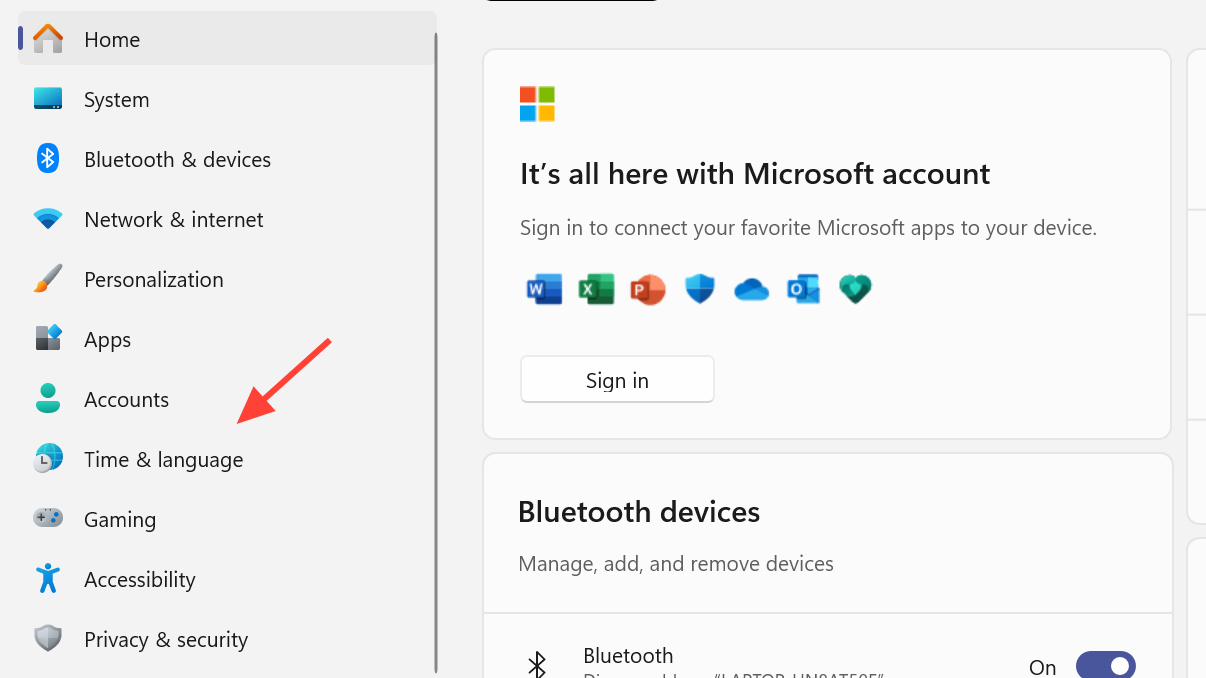
Step 1: Press Windows + I to open Settings, then select Time & language.
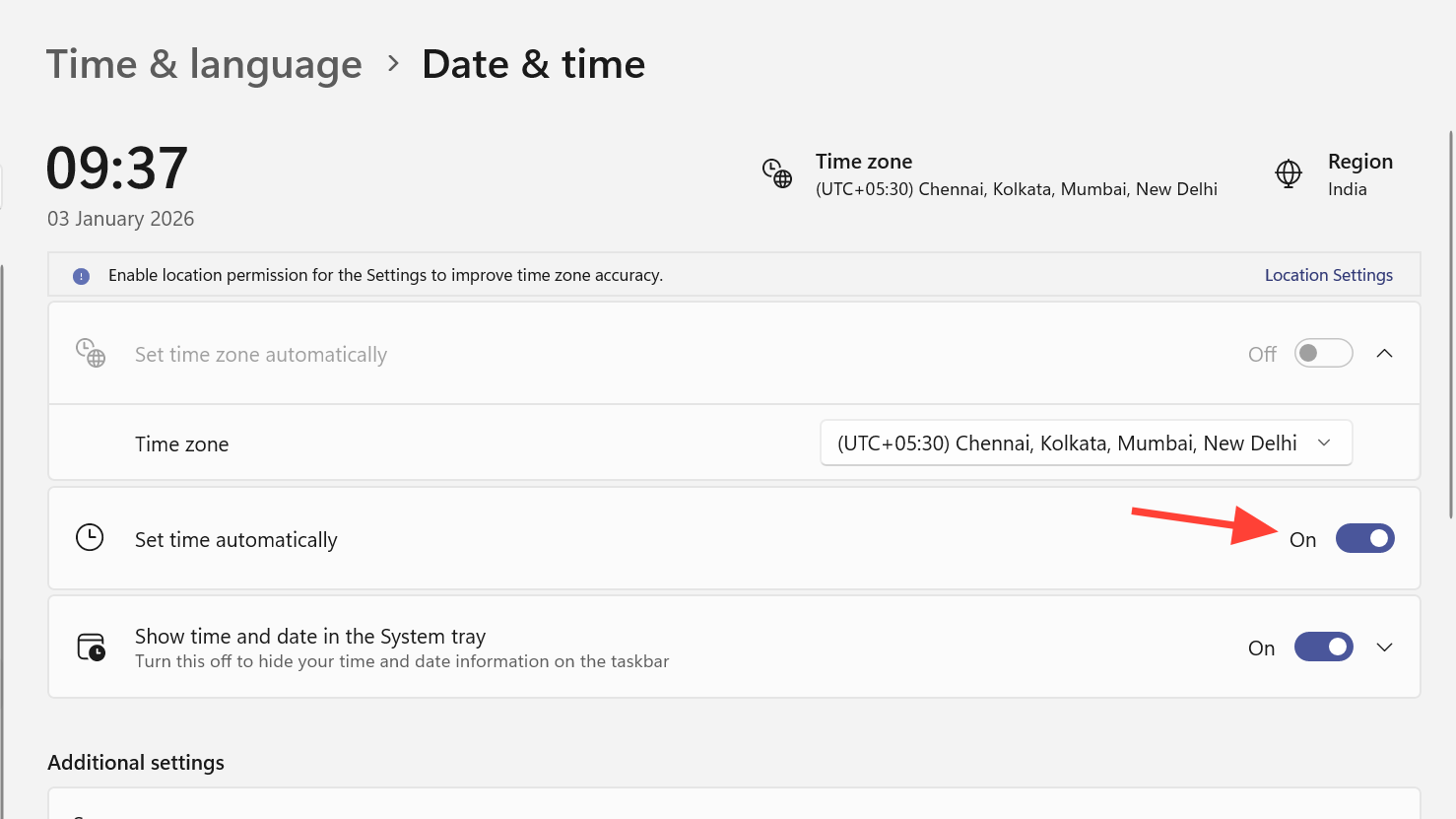
Step 2: Open Date & time, enable Set time automatically, and make sure your Time zone matches your location.
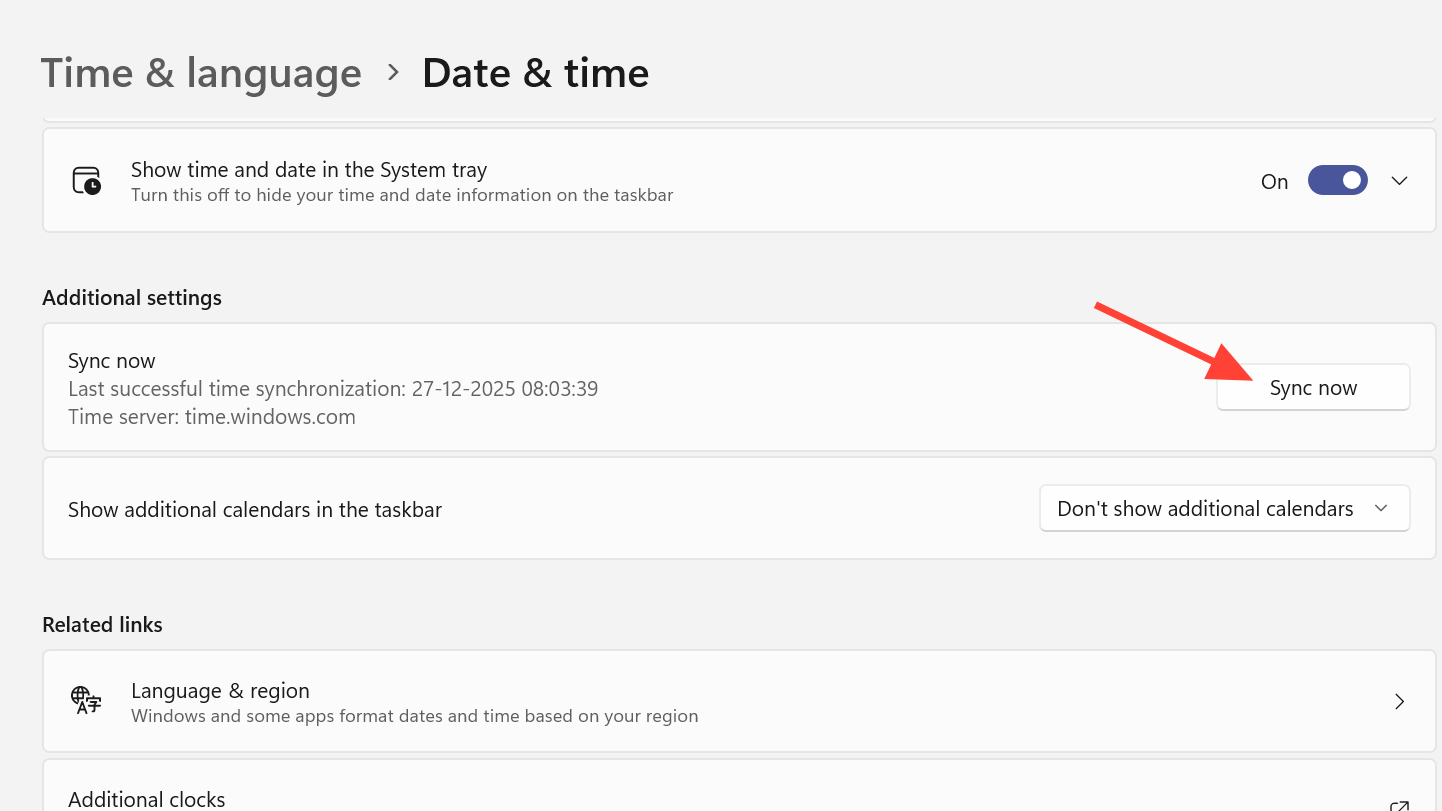
Step 3: Scroll down and use the Sync now button if it is available, then restart ARC Raiders.
Some players have cleared the issue by briefly turning automatic time off and back on. The important part is forcing Windows to resync the clock.
2.2 Confirm your matchmaking region in ARC Raiders
On PC, ARC Raiders lets you pick a server region. For most people this should be left on automatic.
Method: Set matchmaking region to Automatic (PC)
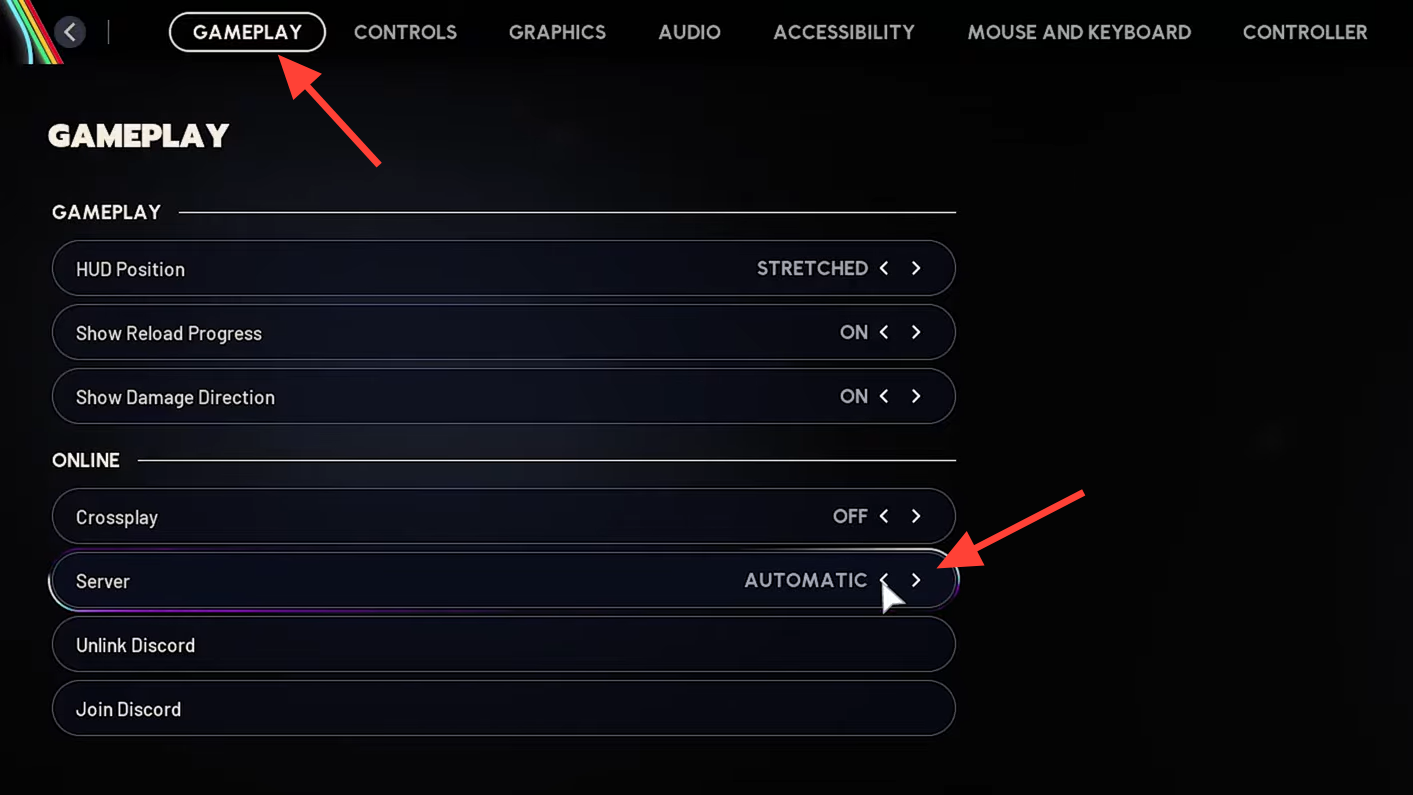
Step 1: From the ARC Raiders main screen, click the gear icon in the lower-right corner.
Step 2: Go to Gameplay > Server and set the region to Automatic.
Step 3: Restart the game and try connecting again.
2.3 Reset IP and DNS on Windows
If other games are fine but ARC Raiders shows connection errors for more than a day, resetting your network stack is worth trying. Several players have gone through the full sequence of release/renew and DNS flushing.
Method: Renew IP and flush DNS
Step 1: Close ARC Raiders and any browsers or launchers using the internet.
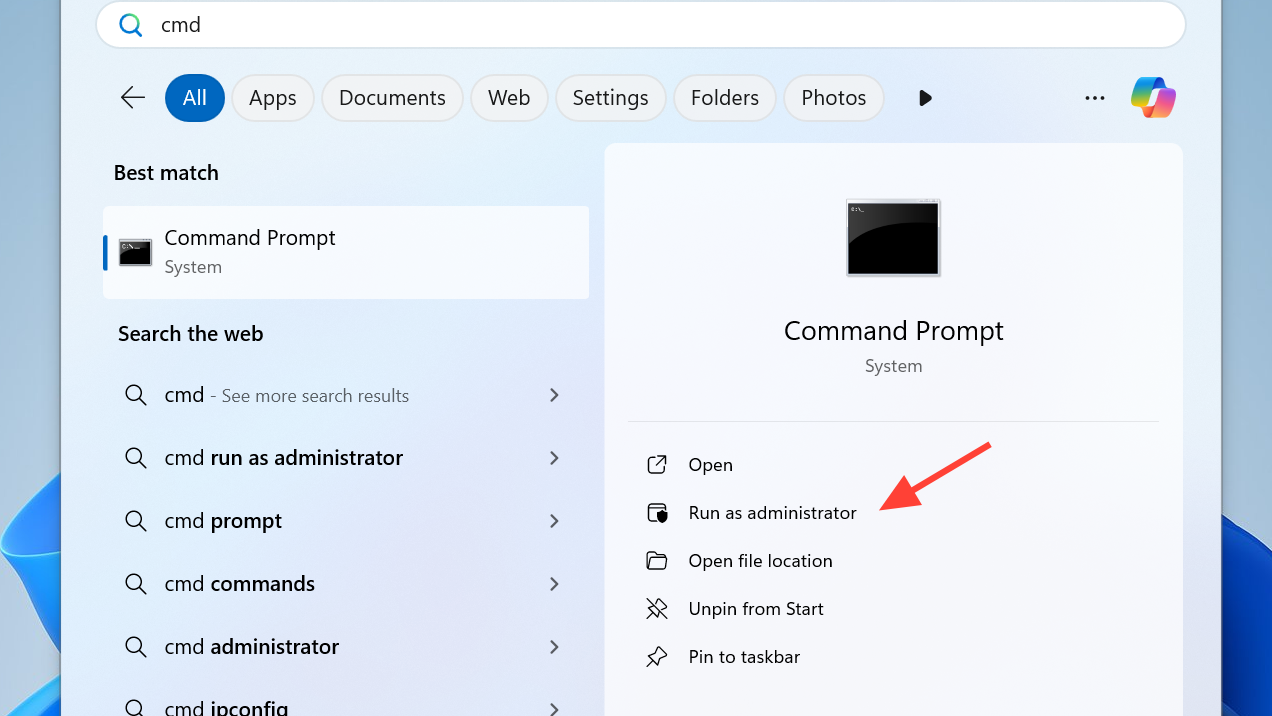
Step 2: Press the Windows key, type cmd, right-click Command Prompt, and run it as administrator.
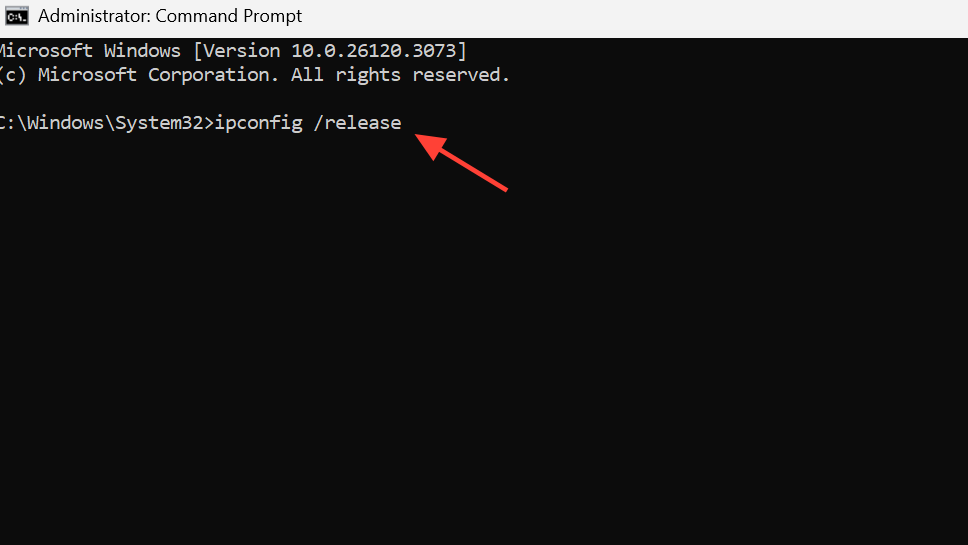
Step 3: Run these commands one by one, pressing Enter after each:
ipconfig /release
ipconfig /renew
ipconfig /flushdns
Step 4: Restart your PC, then launch ARC Raiders.
2.4 Switch to a public DNS (Google or Cloudflare)
DNS issues can stop your PC from reaching Embark’s servers, even if everything else looks fine. Public DNS services are a common workaround.
| Provider | Primary DNS | Secondary DNS |
|---|---|---|
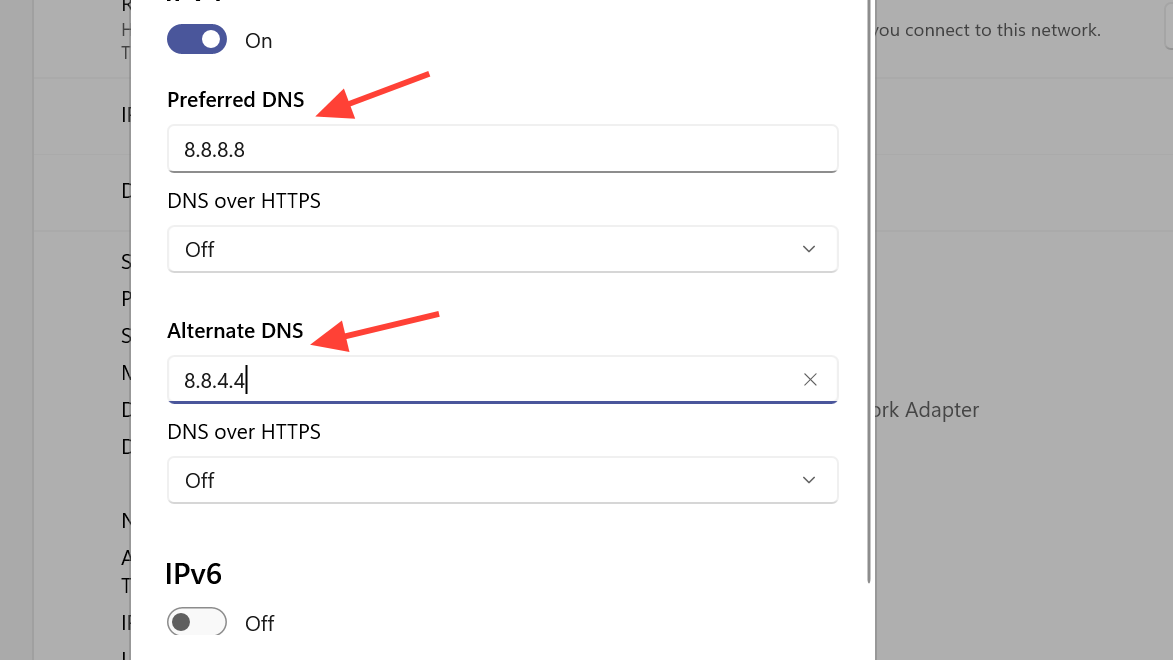
| Google Public DNS | 8.8.8.8 | 8.8.4.4 |
| Cloudflare DNS | 1.1.1.1 | 1.0.0.1 |
Method: Change DNS on Windows adapter
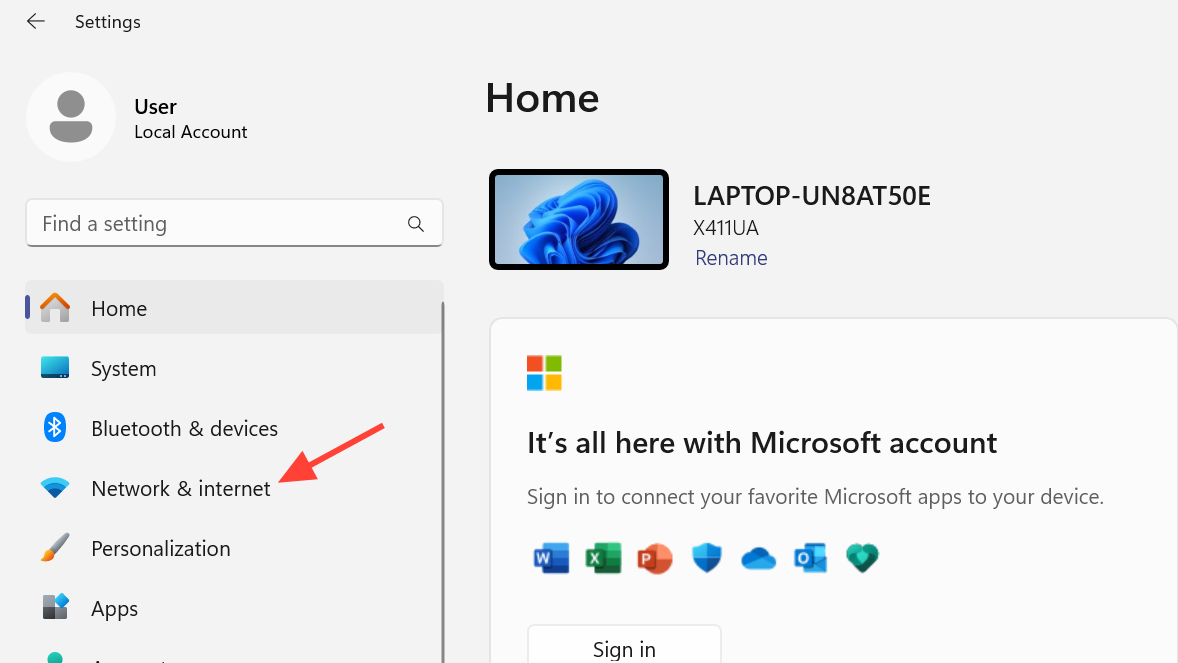
Step 1: Open Settings and go to Network & Internet.
Step 2: Select WiFi or Ethernet, depending on your connection, and choose your connection. Then, click and open the connection Properties.
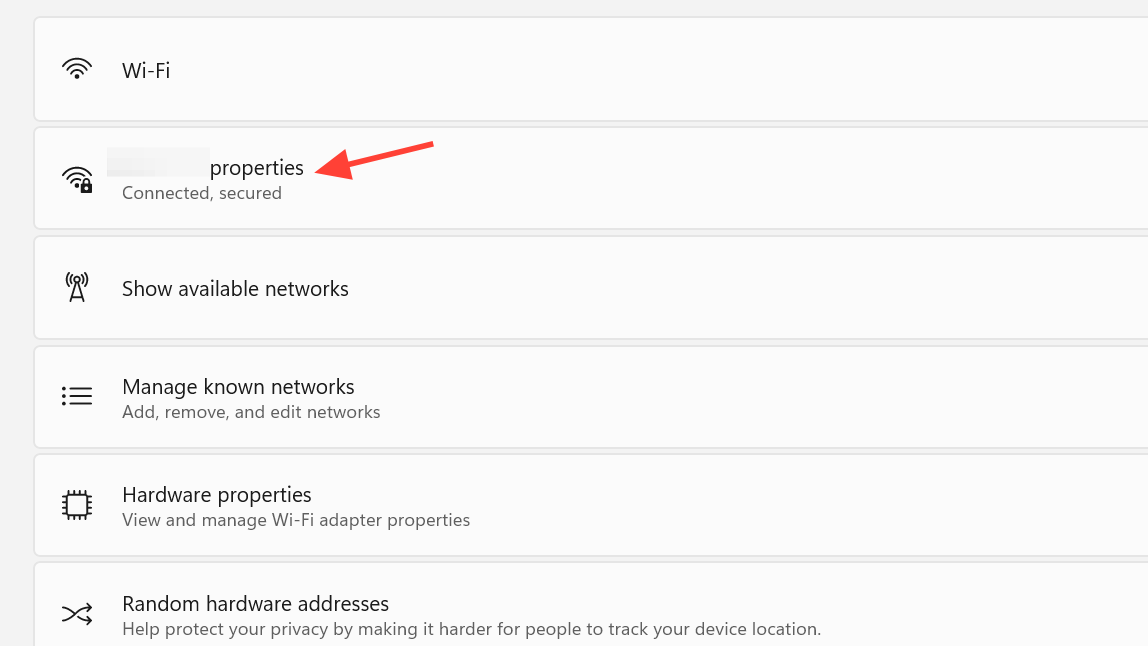
Step 3: Select Internet Protocol Version 4 (TCP/IPv4), click Properties, choose Use the following DNS server addresses, and enter one of the public DNS pairs above. Apply the changes and restart your PC, or at least restart ARC Raiders.
Several console players have fixed the same error by pointing their PS5 to Cloudflare DNS (1.1.1.1 / 1.0.0.1), which reinforces that DNS routing can be a factor.
2.5 Use Windows’ network troubleshooter and disable peer-to-peer updates
Windows includes a basic troubleshooter that can fix obvious adapter or driver issues, and turning off peer-to-peer update sharing can free up bandwidth.
Method: Run the Windows network troubleshooter
Step 1: Open Settings and go to Network & Internet > Status.
Step 2: Select Advanced network settings, then choose Network troubleshooter.
Step 3: Pick your active connection and follow the on-screen instructions.
Method: Disable Delivery Optimization (Windows 10)
Step 1: Go to Settings > Update & Security > Windows Update.
Step 2: Open Advanced options, then Delivery Optimization.
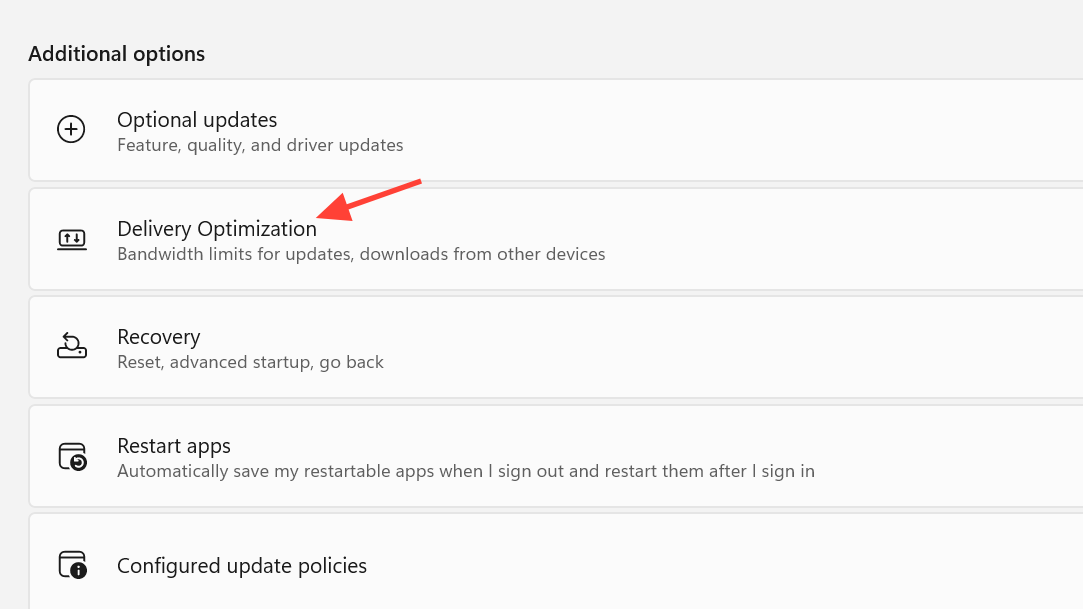
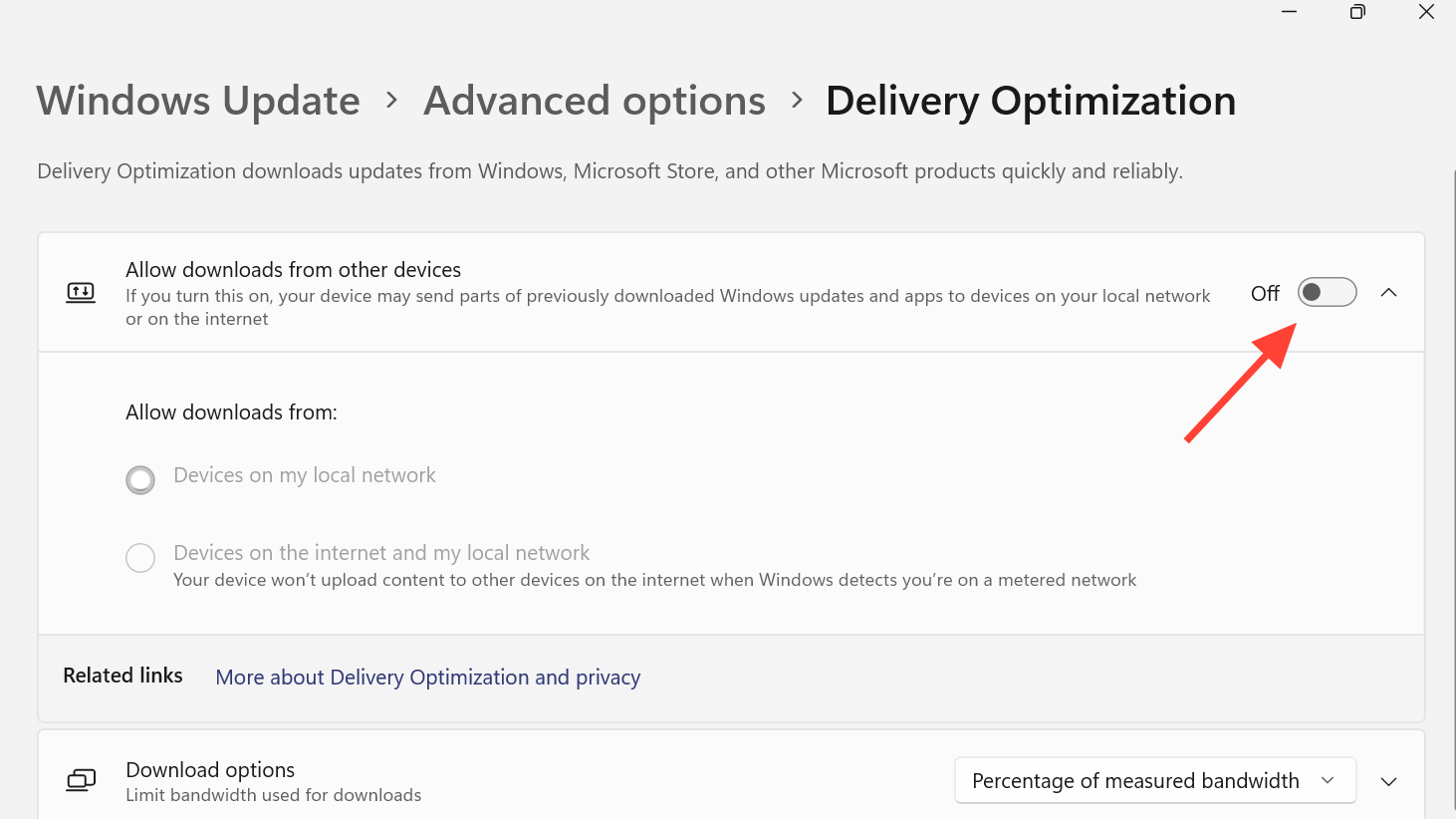
Step 3: Turn off Allow downloads from other PCs.
2.6 Update Steam client and restart
Some PC players reported ARC Raiders locking up on “Online services are currently unavailable” after a game update, only to start working again once the Steam client itself was updated.
Method: Check for Steam client updates
Step 1: In Steam, open the Steam menu in the top-left corner.
Step 2: Click Check for Steam Client Updates and install any pending update.
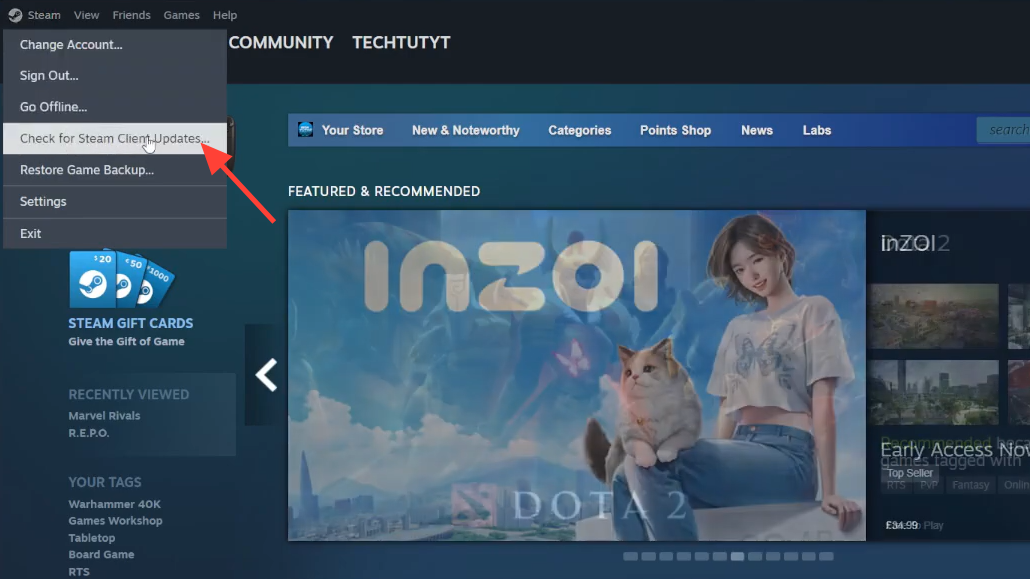
Step 3: Restart Steam completely, then launch ARC Raiders again.
Verifying ARC Raiders’ game files and reinstalling Easy Anti-Cheat are standard steps as well, but some users have gone through all of that without resolving the error when the real issue was on the server side.
3. Fix ARC Raiders connection errors on Xbox and handheld Windows devices
On Xbox consoles and Windows handhelds running the Xbox app (ROG Ally X, MSI Claw, Lenovo Legion Go, etc.), the pattern is a little different. Players report that:
- ARC Raiders runs fine on an Xbox Series X|S but fails with “online connection error” on a handheld using the Xbox app / Play Anywhere copy.
- The same handheld can run ARC Raiders without problems if the game is purchased and launched through Steam instead of the Xbox app.
- Other Xbox titles remain online, suggesting a specific interaction between Embark’s games and the Xbox storefront/app environment.
3.1 Join the Xbox Insider / Update Preview (Series X|S)
One concrete fix that has worked for some Xbox Series X|S owners is opting in to the Xbox Insider program and installing the console update preview. This pulls in newer system components that seem to interact better with ARC Raiders’ networking.
Method: Opt into Xbox Update Preview
Step 1: On your Xbox Series X|S, install the Xbox Insider Hub app from the Microsoft Store.
Step 2: Open Xbox Insider Hub, go to Previews, and join Xbox Update Preview.
Step 3: Apply any system updates offered to your console, then restart and try ARC Raiders again.
There is always some risk in running preview firmware, but for certain users this was the only way to make ARC Raiders connect again.
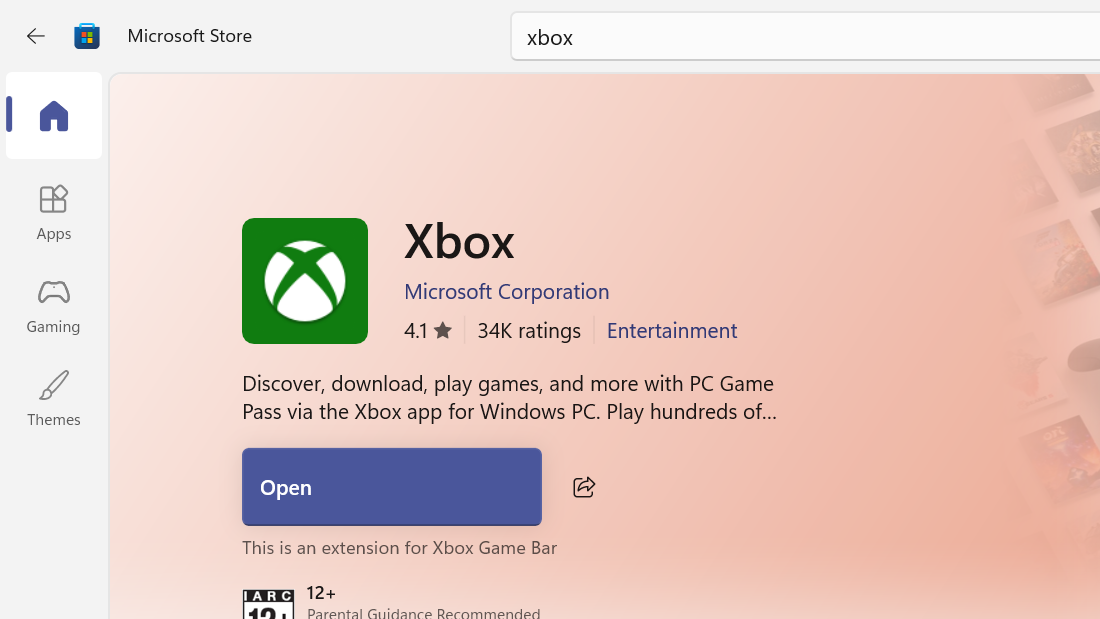
3.2 Update Xbox app and Game Bar on ROG Ally X and similar devices
On ROG Ally X and other portable Windows devices, ARC Raiders sometimes fails only when running the Xbox version. One workaround has been to move those devices onto newer Xbox app and Game Bar builds by joining their insider channels.
Method: Update Xbox components on Ally X (Windows)
Step 1: On the device, join the relevant Insider/preview program so the Xbox app and Game Bar can receive preview updates.
Step 2: Open the Microsoft Store and update Xbox, Game Bar, and related Xbox services.
Step 3: Run Windows Update and install all available updates, including optional ones tied to those previews.
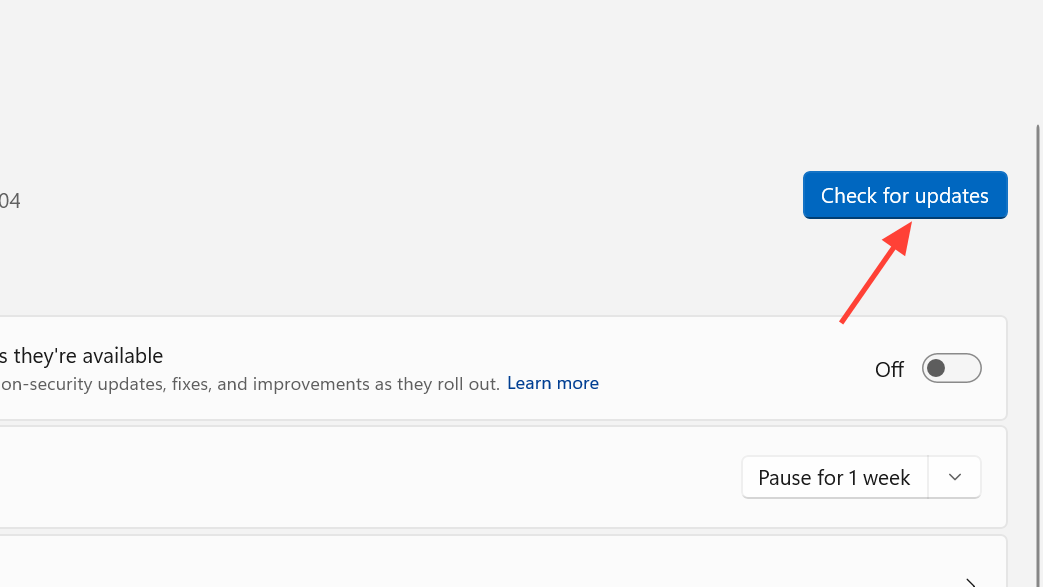
Step 4: Restart the device, then launch ARC Raiders again from the Xbox app.
Players who took this route report that ARC Raiders started logging in instantly afterward, while the same hardware remained blocked when stuck on older Xbox app builds.
3.3 Try the Steam version instead of Xbox Play Anywhere
In several cases, the Xbox Play Anywhere version of ARC Raiders would not connect on handheld PCs, but the Steam version running on the same device, network, and Windows install worked without any issue.
This is not an ideal solution if you already own the game, but as a diagnostic step, it is revealing. If Steam ARC Raiders connects while the Xbox copy fails, the problem is almost certainly in the Xbox app stack or its interaction with Embark’s backend rather than your hardware or router.
4. Fix ARC Raiders connection errors on PS5
PlayStation 5 players see the same “online connection error” dialog, sometimes with the ARAU0297 code. For widespread outages, this behaves like PC and Xbox: everyone drops at once, nothing fixes it, and it quietly resolves when the backend stabilizes.
When it seems isolated to your PS5 or your home network, a couple of targeted changes have helped players get back online.
4.1 Change DNS on PS5 to Cloudflare
Several PS5 users have restored connectivity by switching the console’s DNS servers to Cloudflare’s 1.1.1.1 and 1.0.0.1. This mirrors the DNS workaround that helps on PC.
Method: Set Cloudflare DNS on PS5
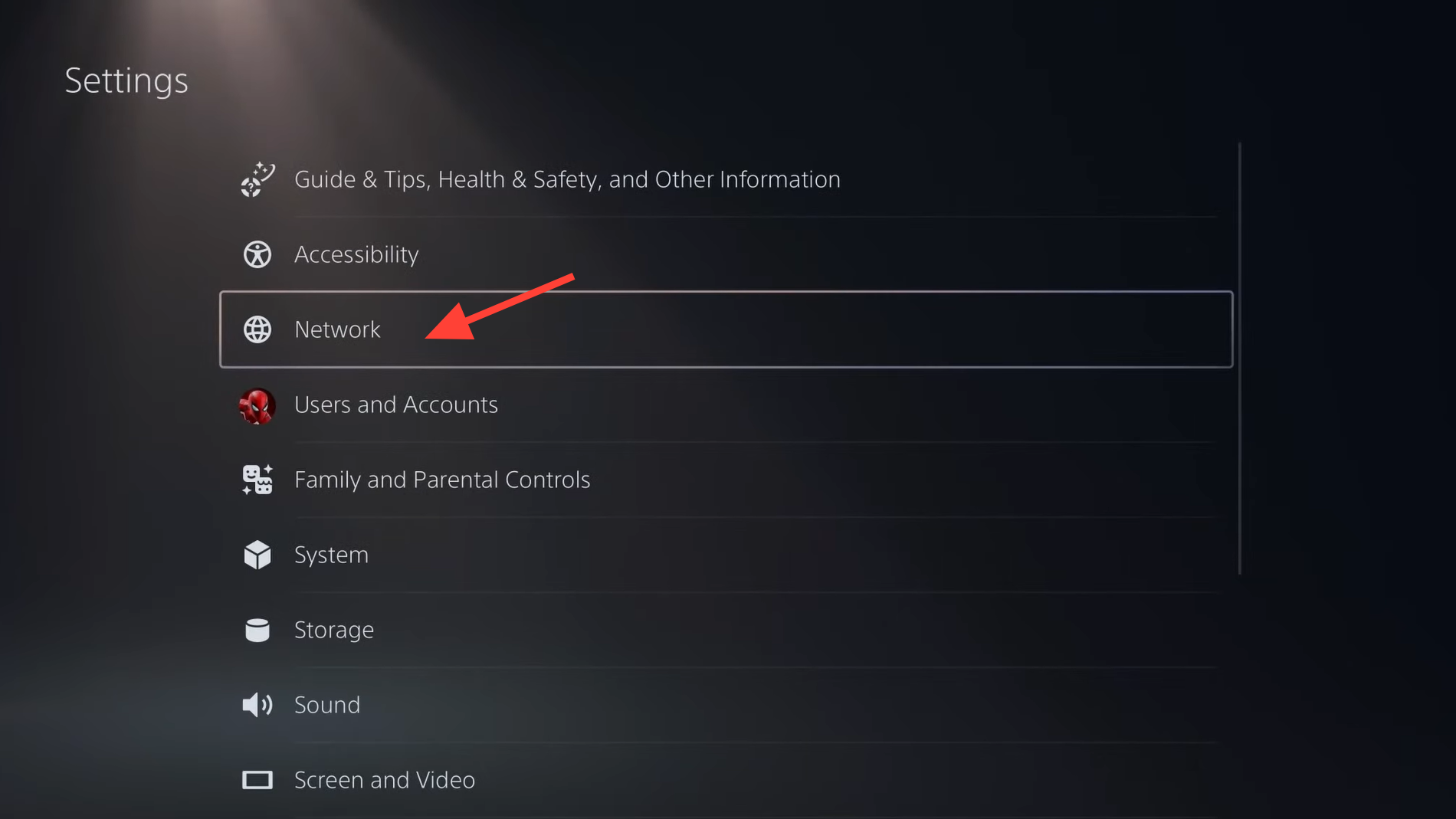
Step 1: On your PS5, go to Settings > Network and select your active internet connection.
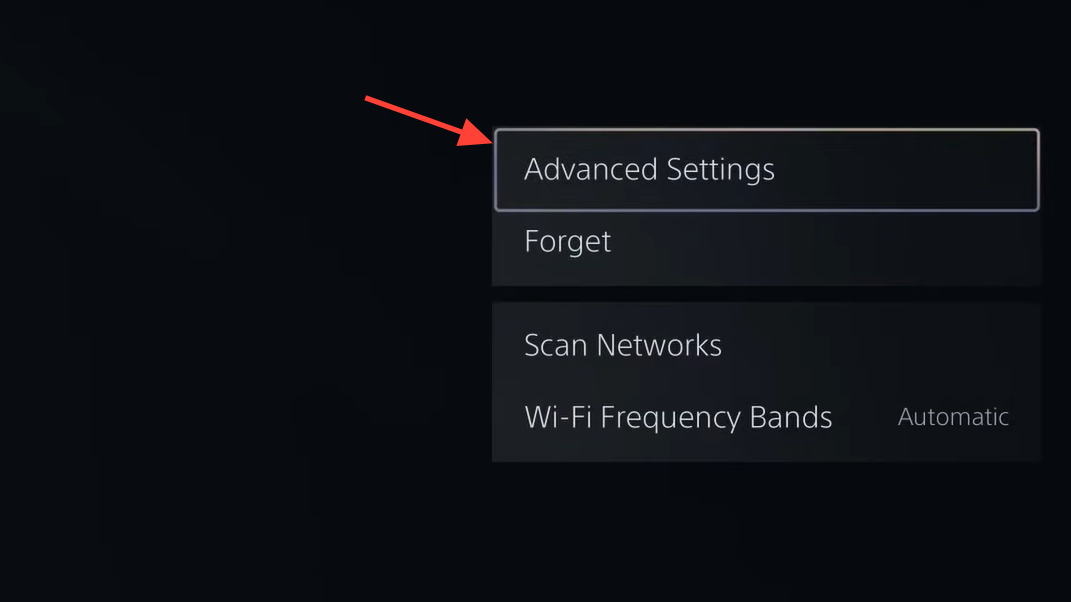
Step 2: Press the Options button and choose Advanced Settings.
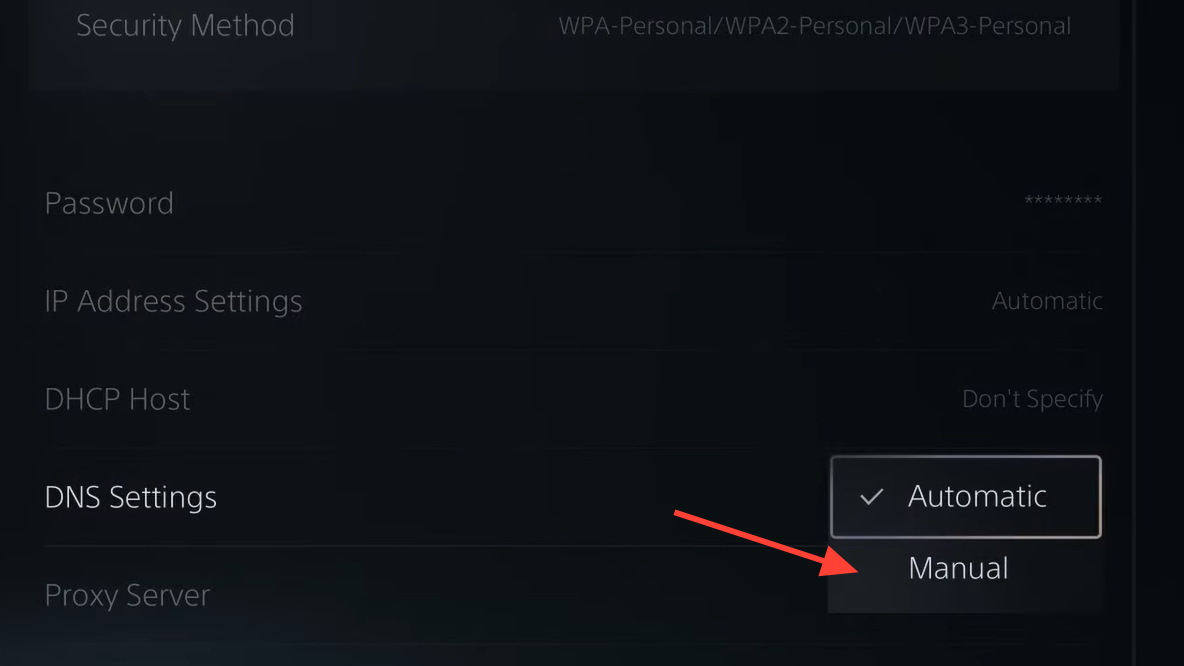
Step 3: Set DNS Settings to manual. For Primary DNS enter 1.1.1.1, and for Secondary DNS enter 1.0.0.1.
Step 4: Confirm the changes, restart the console, then start ARC Raiders again.
For at least some PS5 players, the error disappeared immediately after this change.
4.2 Simple PS5-side resets
A few people have cleared a persistent error on PS5 by doing nothing more than a full console restart. Others say they forced the game through the error screen by repeatedly confirming the prompt until it finally authenticated.
Method: Basic reset on PS5
Step 1: Fully power down the PS5 (not Rest Mode), wait 30 seconds, then turn it back on.
Step 2: Launch ARC Raiders and try connecting again. If you still see the error, press the confirm button repeatedly for several minutes to see if it eventually proceeds.
These are crude approaches, but they cost little time and have helped in scattered cases.
5. When the problem is your home network or IP address
There are edge cases where ARC Raiders refuses to connect from a specific home network, while the same console or PC works immediately on a different connection, such as a phone hotspot. That points at routing or reputation problems with your current public IP address.
Players have described scenarios like:
- PS5 cannot log in on home Wi-Fi, but wit rks as soon as it is tethered to mobile data.
- Connecting a PC or console directly to the modem (bypassing the router) forces the ISP to hand out a new IP address, and suddenly, ARC Raiders works.
- Calling the ISP and requesting an IP change, or asking them to “allow” the game, restores access when nothing else has helped.
That behavior looks similar to an IP-level block or a bad route somewhere between your ISP and Embark’s servers.
Method: Test with a different network
Step 1: Connect the same device (PC, Xbox, PS5) to a different internet source, such as a smartphone hotspot.
Step 2: Launch ARC Raiders and try to connect.
If it works on the hotspot but never on home broadband, focus your effort on the router and ISP rather than the console or PC.
Method: Request a new IP from your ISP
Step 1: Power off your modem and router for an extended period (many ISPs require hours before assigning a new address) and try again, or contact your ISP directly.
Step 2: Explain that one specific game cannot reach its servers on your current IP, but works on other networks, and ask whether they can assign a new IP or check if any filters apply to that traffic.
In at least one reported case, the ISP manually changed the IP and explicitly “allowed” ARC Raiders traffic, and the game started working immediately afterward.
6. General connection checklist (all platforms)
When the error persists and does not appear to be part of a broad outage, these cross-platform basics are still worth covering:
- Use the right region: In ARC Raiders’ settings on PC or console, keep server selection on Automatic unless you have a strong reason to pin it.
- Prefer wired connections: Ethernet is more reliable than Wi-Fi for any always-online game.
- Update your system software: Make sure Windows, Steam, Xbox system firmware, and PS5 system software are all up to date.
- Restart hardware in order: Power-cycle your modem, then your router, then your PC or console.
- Avoid peak troubleshooting during obvious outages: If everyone in your squad suddenly gets kicked, give servers some time before diving into deep fixes.
ARC Raiders’ “online connection error” covers a lot of ground, from simple backend outages to awkward interactions between specific store versions and system software. The fastest path forward is to rule things out in order: first, a potential outage, then your device’s time and region, then DNS and IP routes, and finally platform-specific quirks like Xbox app builds or PS5 DNS settings. When the error lifts without any local change, it is almost always the servers—and the next time it appears, that is worth remembering before spending another afternoon reinstalling the game.