

Arknights: Endfield has been plagued by persistent download and installation failures on PC since its early access period. The most widespread issues are Download Error Code 2, which appears after the download finishes but before the game installs, and Error IS-0009 ("Install Failed"), which claims installation information cannot be loaded. Both errors strike regardless of free disk space — players with well over a terabyte available have hit them repeatedly — and neither switching drives nor reinstalling the launcher reliably resolves the problem on its own.
Quick answer: The root cause of Error Code 2 is usually the launcher failing to decompress its own downloaded archive. You can fix it by manually extracting the Beyond_Release zip file from the game's decompress folder using WinRAR or 7-Zip, then copying the extracted files into the main game directory.
Why the error happens
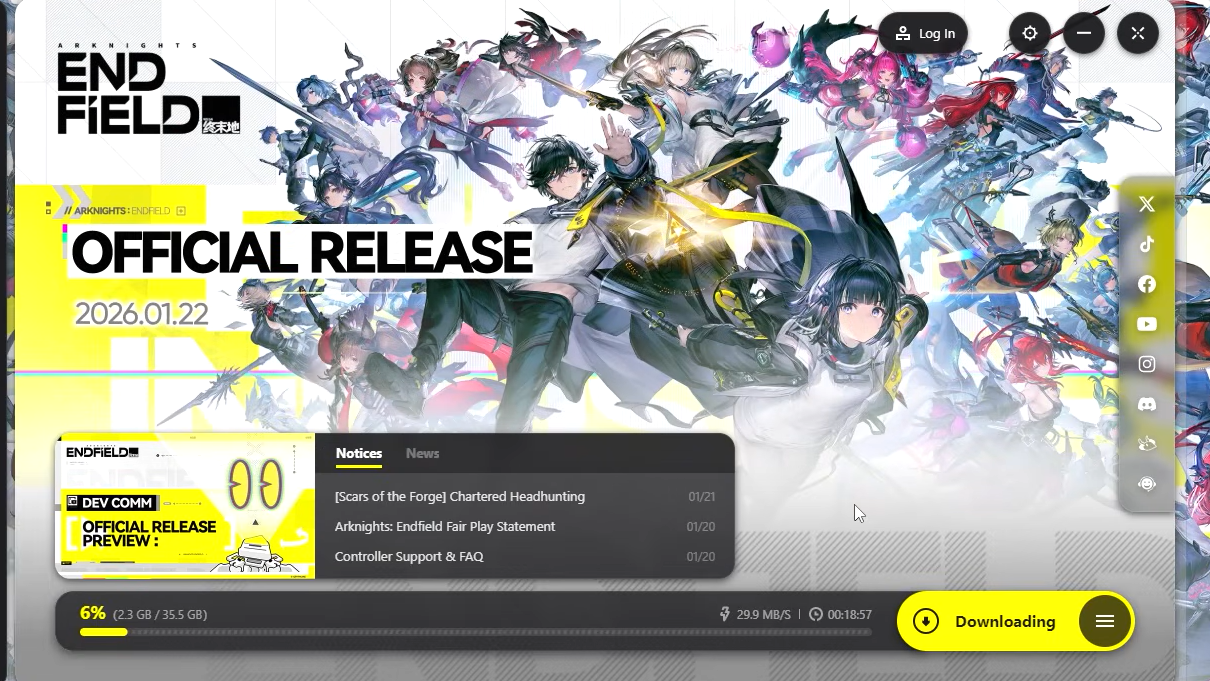
After the Endfield launcher finishes downloading the game data, it attempts to decompress a large archive file automatically. For many players, this decompression step silently fails, triggering Error Code 2 or IS-0009. The launcher then reports an installation failure even though the download itself completed successfully. Windows Defender and other antivirus software can make the situation worse by blocking or quarantining files mid-extraction, and OSD monitoring tools (like those from MSI Afterburner or EVGA Precision) have also been identified as interference sources. In at least one case, faulty RAM was the underlying hardware issue preventing successful decompression.
Manual decompression fix for Error Code 2
This is the most widely confirmed workaround. It bypasses the launcher's broken extraction routine entirely.
Step 1: Let the download run until the error message appears, then close the Endfield launcher completely. Open Task Manager (right-click the taskbar or press Ctrl + Shift + Esc) and end any remaining Arknights: Endfield or GRYPHLINK processes.
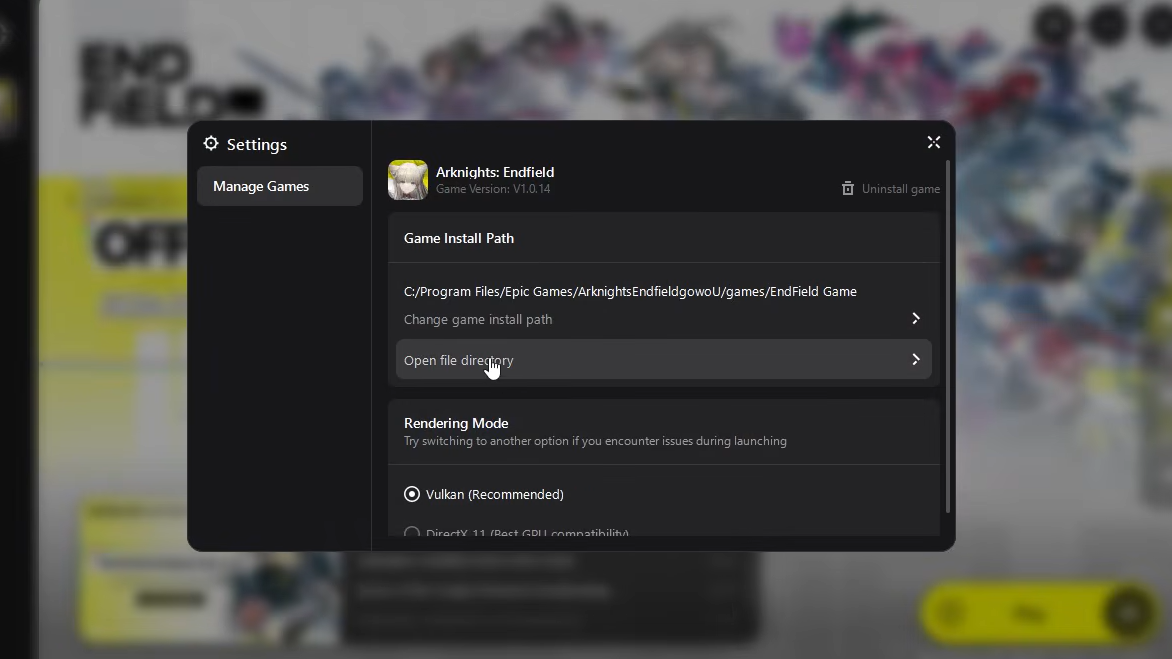
Step 2: Navigate to your game installation folder. The default path is typically C:\GRYPHLINK\games\EndField Game. Inside that folder, open the launcher_tmp directory, then look for a subfolder called decompress. You may need to navigate through an intermediate folder with a long alphanumeric name to reach it.
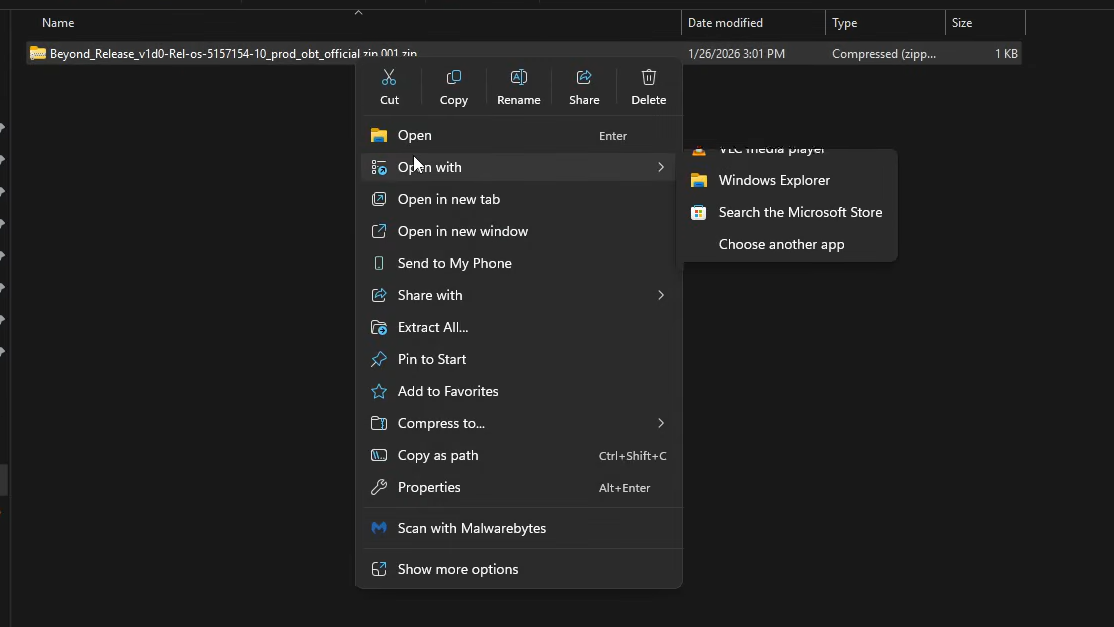
Step 3: Inside the decompress folder, locate the file named something like Beyond_Release_v1d0-Rel-os-5157154-10_prod_obt_official.zip.001. Right-click it and open it with WinRAR, 7-Zip, or any archive tool that handles split zip files. The archive is very large, so extraction will take a while.
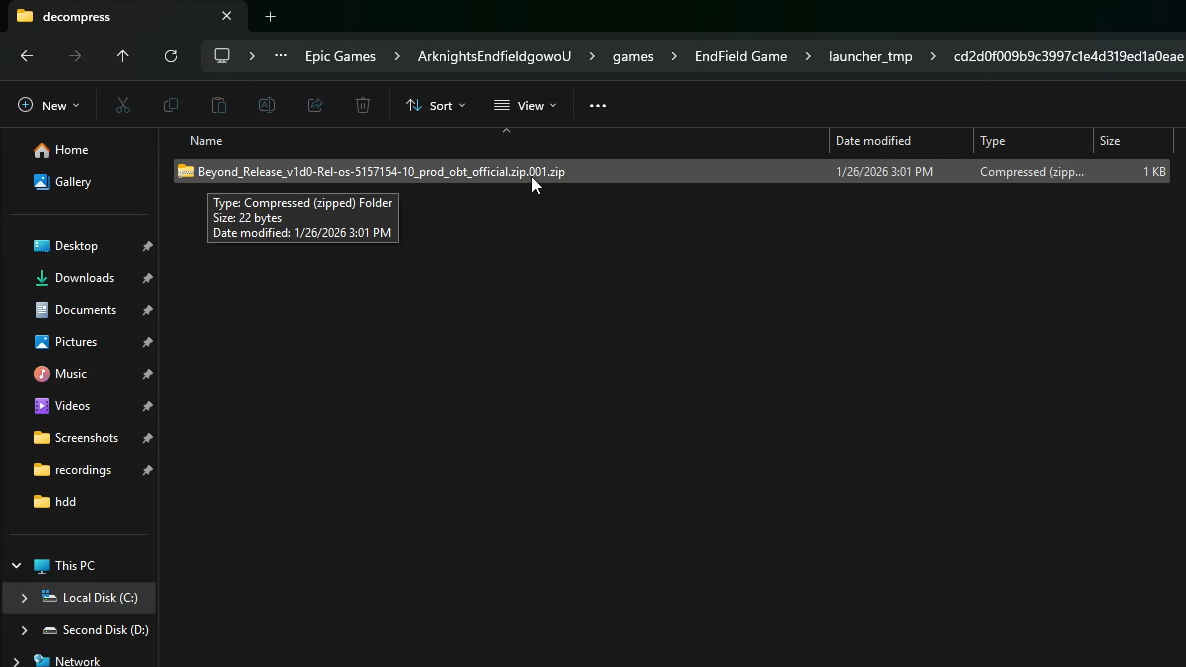
decompress folder, locate the file named something like Beyond_Release_v1d0-Rel-os-5157154-10_prod_obt_official.zip.001 | Image credit: Gryphline (via YouTube/@GPSOLVED)Step 4: Copy all the extracted contents into your main game folder — the same GRYPHLINK\games\EndField Game directory. Once everything is copied, you can safely delete the launcher_tmp folder to reclaim disk space.
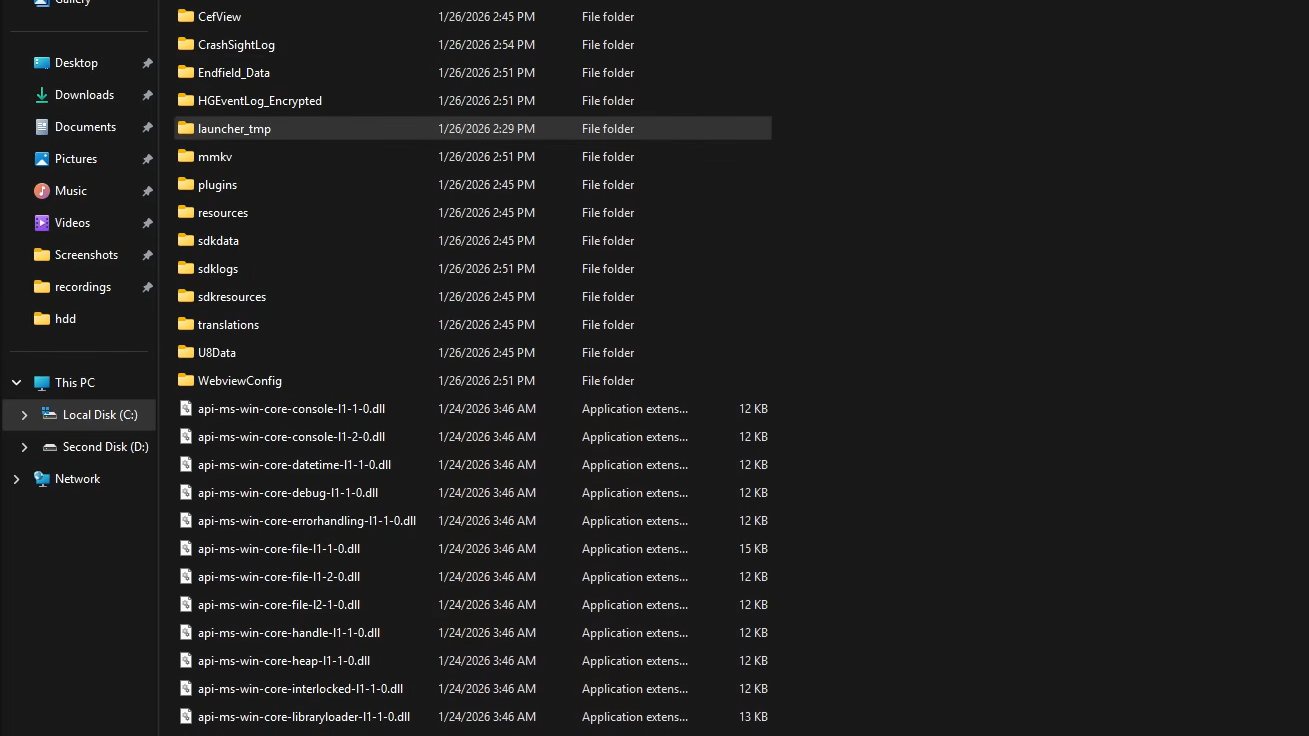
Step 5: Try launching the game from the GRYPHLINK launcher. If it does not start, run endfield.exe directly from the game folder. If that still fails, right-click the exe, go to Properties, and enable "Run as administrator" under the Compatibility tab.
Disable antivirus and OSD software before installing
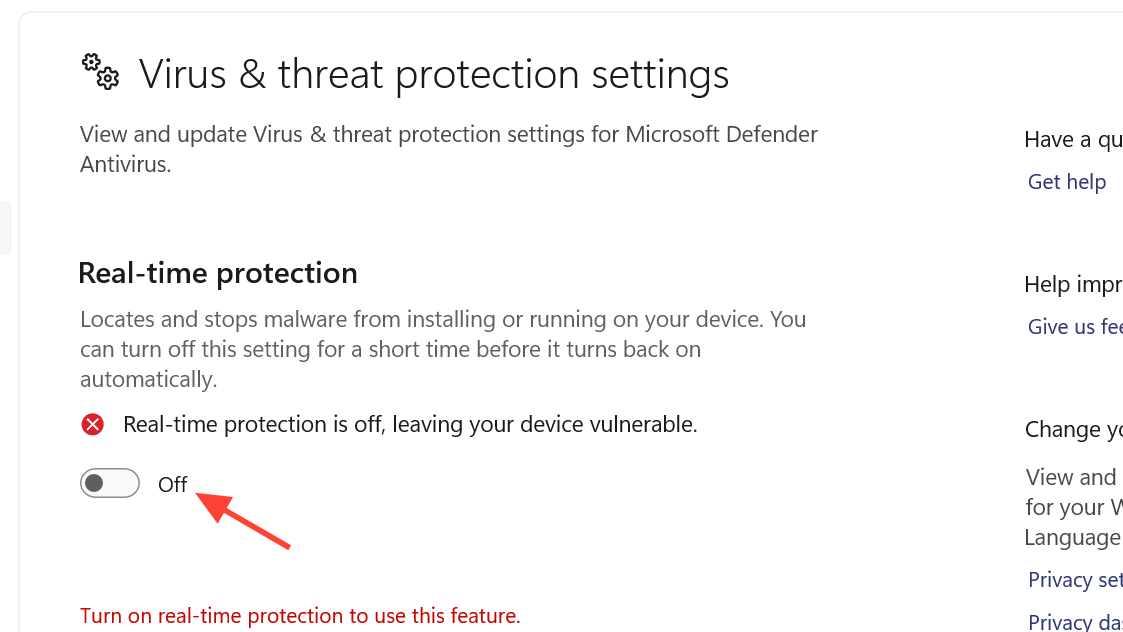
Windows Defender has been confirmed to interfere with both the download and decompression stages of the Endfield installation. If you haven't already tried the manual extraction method above, temporarily disabling real-time protection before starting the download can prevent the launcher from failing in the first place.
Step 1: Open Windows Security, go to Virus & threat protection, then Manage settings, and toggle off Real-time protection. Keep it off for the entire download and installation process.
Step 2: Close any OSD (on-screen display) monitoring programs such as MSI Afterburner, RTSS, EVGA Precision, or similar GPU/CPU overlay tools. These have been reported to cause conflicts during installation.
Step 3: Download and install the game. Once installation completes and you can reach the title screen, re-enable your antivirus and restart your monitoring tools.
Verify files through Epic Games (if using Epic)
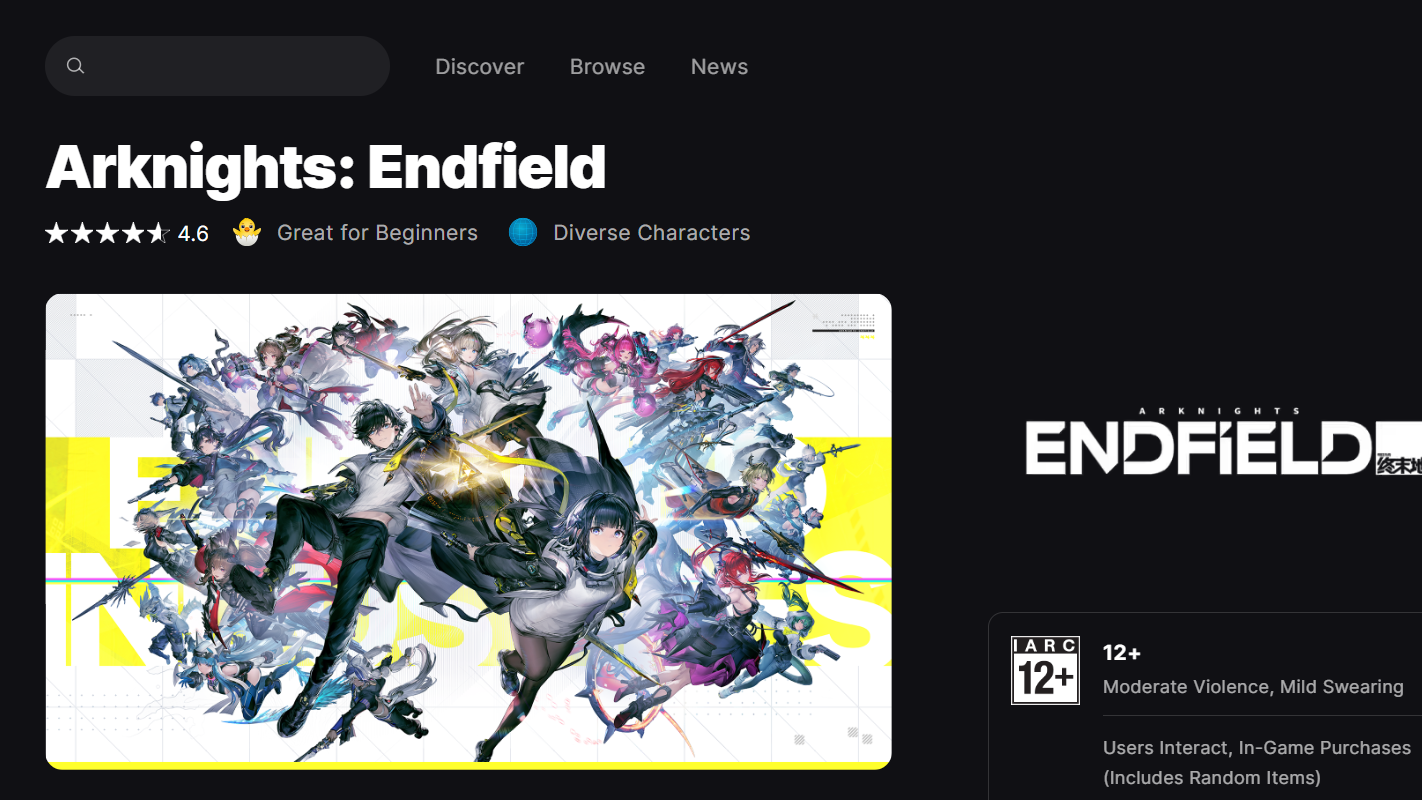
If you installed Arknights: Endfield through the Epic Games Store, the platform's built-in verification tool can sometimes resolve corrupted or incomplete downloads without requiring manual extraction.
Step 1: Close the Endfield launcher entirely, including from the system tray. Open Task Manager and end any lingering Endfield processes.
Step 2: In the Epic Games Launcher, find Arknights: Endfield in your library. Click the three-dot menu next to it, select Manage, then click Verify next to "Verify Files." Wait for the process to complete.
Step 3: After verification finishes, launch the game and attempt the download again. If the error persists, you can also use the Endfield launcher's own integrity check: click the three horizontal lines next to the Play button, select "Check game integrity," and click "Start checking." This scans for missing and corrupted files and attempts a repair.
Update the launcher to version 1.02 or later
Early versions of the GRYPHLINK launcher (version 1.0 in particular) had more frequent decompression failures. Checking your launcher version and updating it can eliminate the problem for some users.
Step 1: Open the Endfield launcher and go to Settings, then About. Check the version number displayed there.
Step 2: If the version is 1.0, update the launcher. You may need to uninstall it completely, re-download the installer from the official website, and install fresh to get the latest version. Version 1.02 and later include fixes for some of the decompression issues.
Step 3: After confirming you're on the latest launcher version, re-download the game. For best results, install both the launcher and the game on the same drive and in the same parent folder.
Additional causes to rule out
| Potential cause | Symptom | Fix |
|---|---|---|
| Faulty RAM | Repeated decompression failures across all methods | Run Memtest86 to check for bad memory modules; remove or replace faulty sticks |
| External or secondary drive | Error appears only when installing to non-primary drives | Install to the C: drive instead; some launcher versions handle non-default paths poorly |
| Network connectivity (Linux/Proton) | Download stays at 0% with network error | Native Linux support is not official; connectivity issues under Proton are expected |
| Browser extensions interfering with Epic | Download errors when initiating through Epic's web flow | Disable or remove unnecessary Chrome extensions, especially ad blockers, before launching the download |
No official fix has been issued by Hypergryph or Gryphline for Error Code 2 or IS-0009 as of early 2026. The manual decompression method remains the most reliable community-tested solution, and it works because the downloaded data itself is typically intact — only the launcher's automated extraction step is broken. If you've exhausted every option above and the game still won't install, the most productive next step is to submit a support ticket through the official Endfield website and include your launcher version, OS details, and a screenshot of the error.