

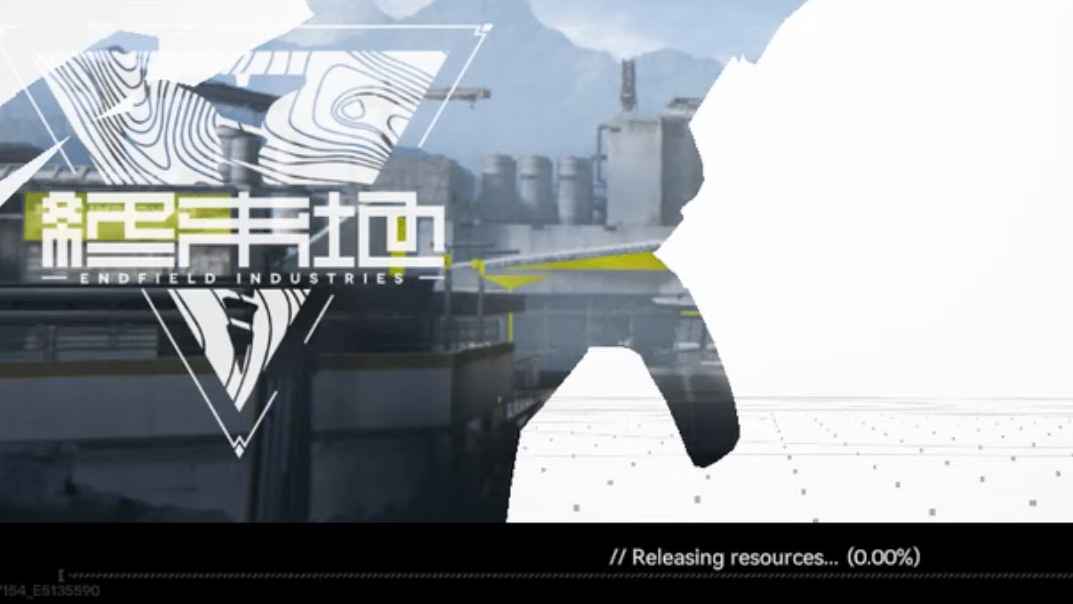
Arknights: Endfield's "Releasing Resources" screen appears right after patching finishes, and you hit Play. The game is supposed to unpack assets, validate files, and compile shaders before dropping you at the title screen. For a large number of PC and PS5 players, though, the progress bar sits at 0 percent and never moves — sometimes for hours. The bug has been present since Version 1.0 launched and is officially acknowledged as a known issue on the Arknights: Endfield website.
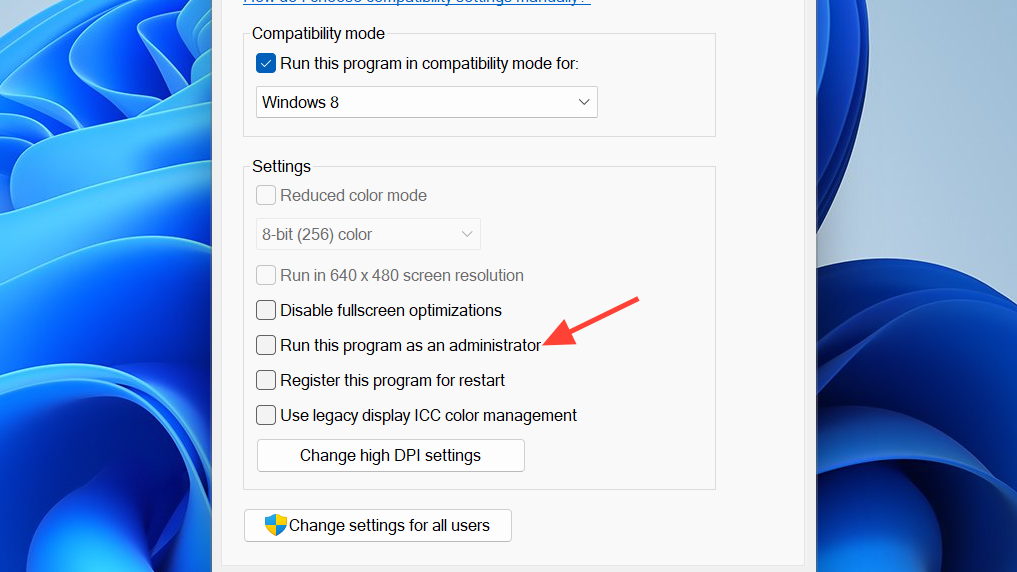
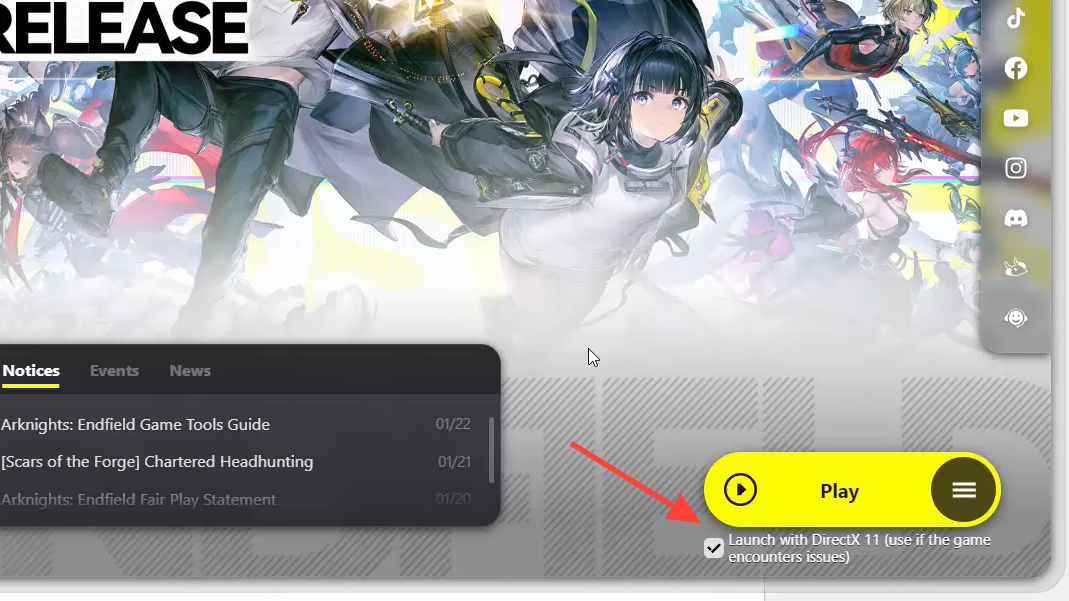
Quick answer: On PC, right-click the Endfield game executable (not just the launcher) inside its install folder, open Properties → Compatibility, enable "Run this program as an administrator," then relaunch. If that alone doesn't work, also switch the renderer to DirectX 11 in the GRYPHLINE launcher before starting the game.
Why the loading bar freezes
During the "Releasing Resources" phase, Endfield unpacks compressed game data, checks storage configuration, and begins shader compilation. On PC, the process can stall when the game executable lacks sufficient file-system permissions, when the Vulkan renderer fails its first initialization pass, or when corrupted files block asset validation. On PS5, a separate storage-related bug can report insufficient space even when the console has plenty of room, blocking the same loading stage.
The root cause varies by system, which is why no single fix works for everyone. The workarounds below are ordered roughly by how often they resolve the problem, starting with the most effective.
Fix 1 — Run the game executable as administrator (PC)
This is the officially recommended workaround and the single most successful fix. Running only the GRYPHLINE launcher as admin is often not enough — you need to elevate the actual game binary.
Step 1: Open File Explorer and navigate to the Endfield install directory. A typical path looks like Program Files\Gryphline\Games\Endfield Game\. If you have a desktop shortcut, right-click it and choose Open file location to jump straight there.
Step 2: Find the main Endfield application file inside that folder. Right-click it, select Properties, then open the Compatibility tab.
Step 3: Check the box labeled Run this program as an administrator. Click Apply, then OK.
Step 4: Close any running instance of the game or launcher. Relaunch Endfield and wait at the "Releasing Resources" bar for at least a full minute before assuming it's still stuck.
Fix 2 — Switch the renderer to DirectX 11 (PC)
Endfield defaults to Vulkan on many systems, and the first Vulkan initialization can fail silently, leaving the resource bar permanently frozen. Temporarily switching to DirectX 11 lets the game complete its initial asset unpacking and shader compilation. You can switch back to Vulkan afterward if you prefer its performance characteristics.
Step 1: Open the GRYPHLINE client and locate Arknights: Endfield in your library. Look for the launch-options menu where you can choose between Vulkan and DirectX.
Step 2: Select DirectX 11 and confirm the change.
Step 3: Launch the game. On many mid-range and older PCs, the progress bar finally moves under DX11, followed by shader compilation and the server-select screen.
Step 4: Once you've successfully reached the title screen at least once on DX11, you can close the game, switch the renderer back to Vulkan in the launcher, and try again. Multiple players confirm that Vulkan works fine after the first successful DX11 boot.
Fix 3 — Verify game file integrity (PC)
Corrupted or partially downloaded files can stall the resource-handling stage entirely. The GRYPHLINE client has a built-in integrity checker that has resolved the hang for some players without any other changes.
Step 1: Fully close Arknights: Endfield. Check Task Manager and end any leftover processes.
Step 2: In the GRYPHLINE launcher, select Endfield and look for the option labeled Check Game Integrity (accessible from the three-line menu next to the Start Game button).
Step 3: Let the scan finish. If the client finds damaged or missing files, allow it to redownload them.
Step 4: Relaunch the game — ideally with the administrator and DX11 settings already in place — and watch the progress bar.
Fix 4 — Restart your PC, then relaunch (PC)
A full restart clears hung background processes, releases file locks, and reloads drivers. Several players report that a restart combined with the admin flag was the exact combination that moved them from an infinite hang straight into shader compilation. Use an actual restart rather than Sleep or Hibernate so Windows fully reinitializes.
After rebooting, avoid opening heavy third-party overlays or game clients (Steam, Epic, etc.) before launching Endfield. Closing competing launchers has independently fixed the issue for some players.
Fix 5 — Bypass the GRYPHLINE launcher (PC)
In some cases, the launcher itself is the bottleneck. You can start the game directly by double-clicking the Endfield application file in its install folder. Make sure the executable is already set to run as administrator. If the game asks you to sign in, log in as usual and wait through "Releasing Resources."
A useful variation: log into your account inside the GRYPHLINE launcher first, then close the launcher and launch the game executable directly. Some players only see success with that specific order.
Fix 6 — Allow Endfield through Windows Firewall (PC)
If the launcher's news panel shows a connection error, the firewall may be blocking the game from reaching the server during resource validation.
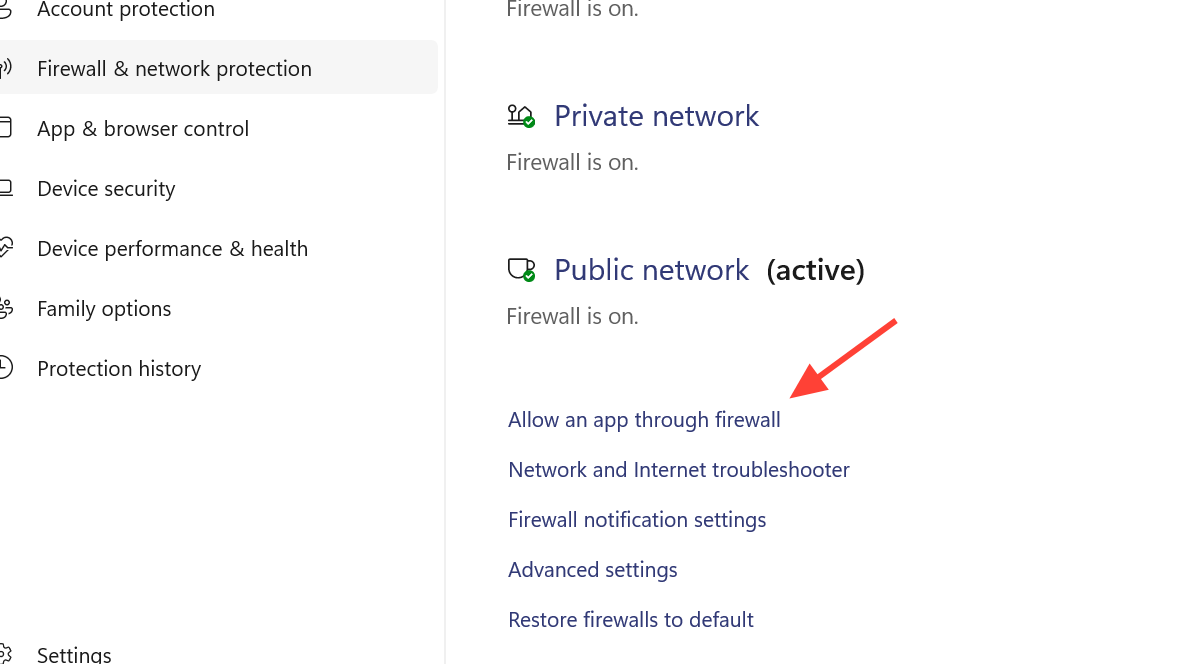
Step 1: Open Windows Defender, go to Firewall & network protection, and select Allow an app through firewall.
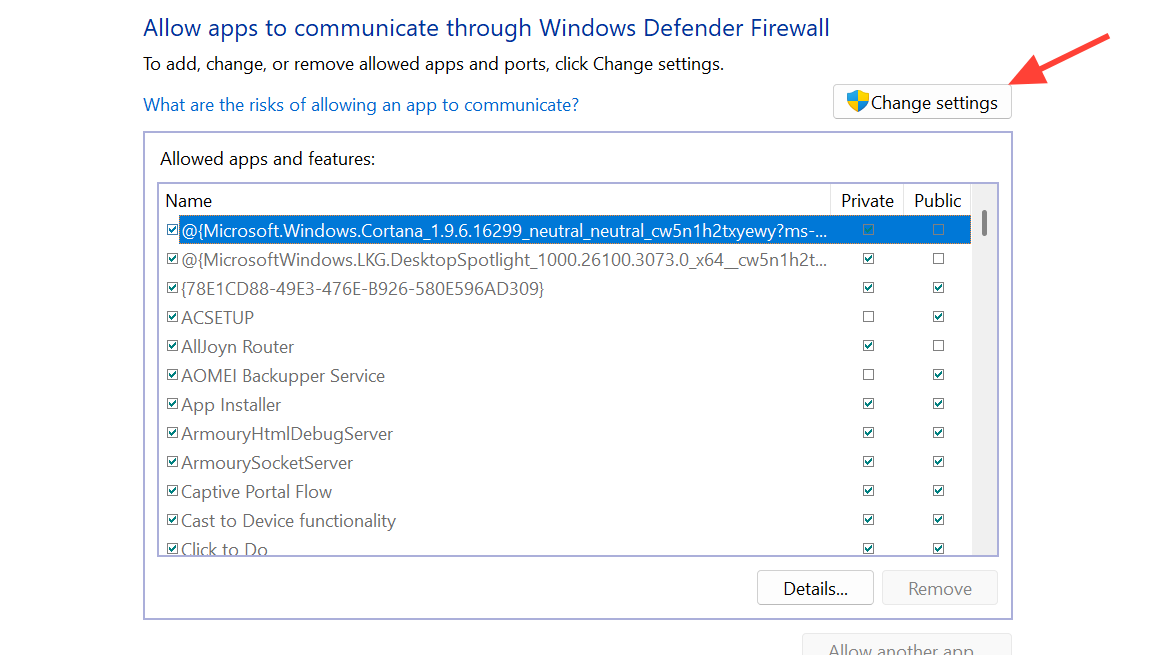
Step 2: Click Change settings, then Allow another app. Browse to the Endfield install folder and select Endfield.exe.
Step 3: Confirm and relaunch the game.
Additional PC workarounds for stubborn cases
When the standard fixes above don't work, several less common adjustments have helped individual players push past the freeze. The table below summarizes them.
| Workaround | What to do |
|---|---|
| Change Windows language/region | Temporarily set your region to United States and display language to English (United States) in Windows Settings → Language & region. Restart the PC and try again. Revert after a successful first login if desired. |
| Adjust Advanced Sharing Settings | In Windows network settings, open Advanced sharing settings. Turn off public folder sharing and turn on password-protected sharing. Relaunch the game. |
| Set compatibility mode to Windows 7 | In the Endfield executable's Properties → Compatibility tab, set the compatibility mode to Windows 7 in addition to the admin flag. |
| Clear temp files | Delete the contents of your Windows Temp folder (%temp%), then relaunch. |
| Disable antivirus temporarily | Windows Defender has been known to interfere with Endfield's file unpacking. Temporarily disable real-time protection, launch the game, then re-enable it. |
| Move the install to an SSD | Resource release and shader compilation are extremely disk-heavy. If Endfield is on a mechanical HDD or external drive, moving it to an internal SSD can resolve the hang or dramatically reduce wait times. |
| Disable third-party overlays | Close frame-interpolation tools, filter injectors, and aggressive screen recorders before launching. Re-enable them one by one after a stable boot. |
| Update GPU drivers | Install the latest stable NVIDIA or AMD driver through the vendor's official tool, reboot, and try again. |
Fix for PS5 — Reinstall Arknights: Endfield
PS5 players encounter a different flavor of the same problem. The console may claim there isn't enough storage to run Endfield even when the storage menu shows ample free space. This is a recognized Version 1.0 issue.
Step 1: From the PS5 home screen, highlight Arknights: Endfield, press the Options button, and delete the game.
Step 2: Free up additional space if possible by removing unused games or captures, giving Endfield a generous buffer beyond its install size.
Step 3: Redownload Endfield from the PlayStation Store and complete the installation.
Step 4: Launch the game and check whether "Releasing Resources" now completes normally.
Some PS5 players also report that simply waiting one to five minutes on the stuck screen eventually lets it through, suggesting intermittent server-side slowdowns rather than a local storage problem.
How to tell it worked
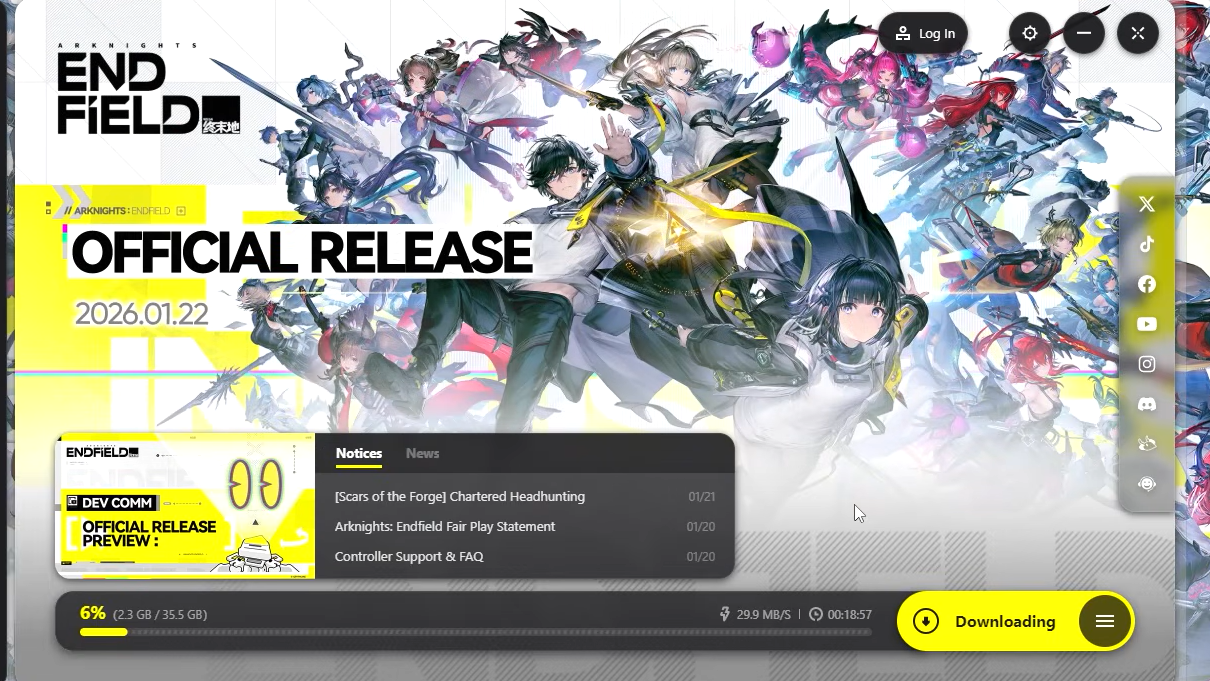
Once "Releasing Resources" successfully finishes, the game transitions into a shader compilation phase — you'll see a new progress bar labeled accordingly. After that completes, the server-select screen appears, and you can log in normally. If the bar still hasn't moved after several minutes with the admin and DX11 changes in place, cycle through the remaining workarounds above before attempting a full reinstall.
Because this bug is tracked as a known Version 1.0 issue, future patches from the development team may reduce or eliminate it entirely. Until then, the combination of running the game executable as administrator and switching to DirectX 11 remains the most consistently effective path through the freeze.