

ARC Raiders leans heavily on Embark Game Boot and Easy Anti-Cheat (EAC) to start up. When either of those stumbles, you see a wall of errors instead of the title screen: “Embark Game Boot fatal error”, “An error has occurred”, “Failed to install EasyAntiCheat”, or “Detected software / cheat software found”.
Those messages look different, but they cluster around three root causes:
- Easy Anti-Cheat not installing or initializing correctly
- Background software (macros, overlays, input hooks) being flagged as “cheat software”
- Embark Game Boot failing to talk to the anti-cheat servers because of routing or firewall issues
The sections below walk through each category with focused fixes. Start with the one that matches your error text most closely.
Fix ARC Raiders “An error has occurred” in Embark Game Boot
When Embark Game Boot shows a plain “An error has occurred” during login or launch, it usually means the launcher cannot reach the anti-cheat backend even though your internet looks fine. The problem tends to sit between you and the game servers rather than inside your PC.
Method 1: Stabilize your local network
Step 1: Switch to a wired Ethernet connection if possible. Plug your PC directly into the router with a known-good cable and ensure both ends are firmly seated.
Step 2: Power-cycle the router. Turn it off, wait 30–60 seconds, then turn it back on and wait for it to fully reconnect before trying ARC Raiders again.
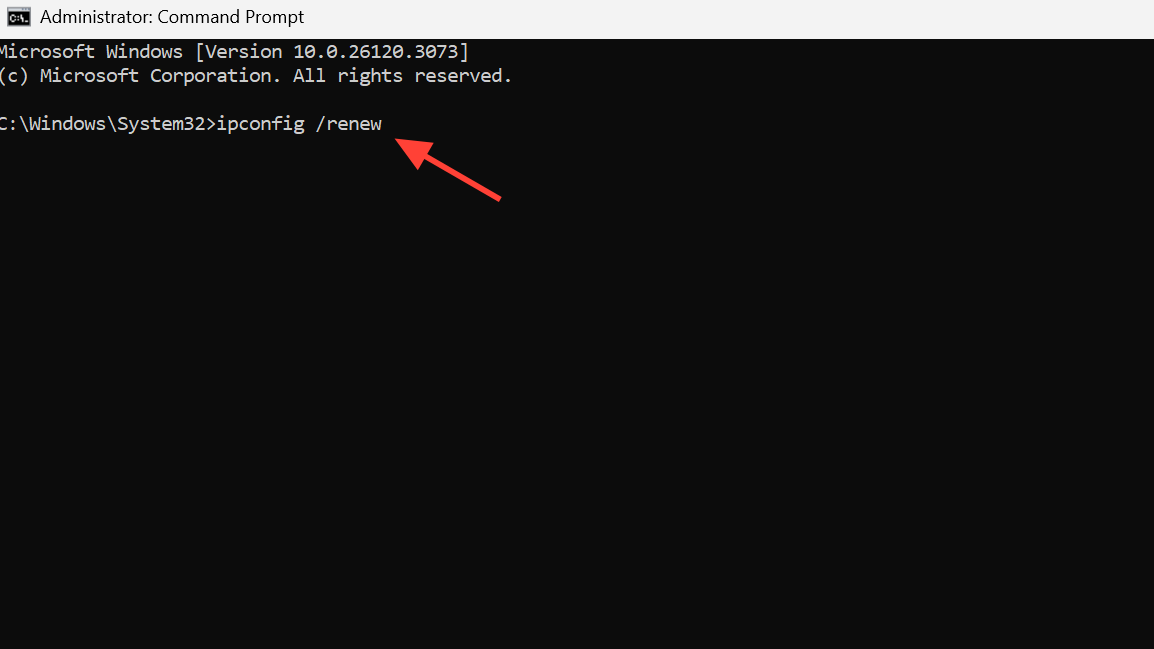
Step 3: Refresh your IP configuration. On Windows, open Command Prompt and run ipconfig /renew, then relaunch Embark Game Boot.
If the error persists with a clean wired connection, the issue is more likely on the route out of your home network.
Method 2: Reroute traffic with a game booster or VPN
Some ISPs or backbone nodes intermittently block or throttle connections ARC Raiders uses for anti-cheat. Rerouting through a different path often clears the “An error has occurred” message.
Step 1: Install a routing tool that can target specific games, such as GearUP Booster, from its official site at gearupbooster.com.

Step 2: Open the client, add ARC Raiders, and choose a node or server region close to your real location to keep latency manageable.
Step 3: Start the acceleration or tunneling session, then launch ARC Raiders through Embark Game Boot while the booster is active.
Method 3: Check updates, firewall, and basic permissions
Step 1: Confirm that ARC Raiders and Embark Game Boot are fully updated in Steam, Epic Games Store, or the Xbox app. Install any pending patches and reboot once.
Step 2: Allow ARC Raiders and Embark-related executables through Windows Defender Firewall. Add them to the allowed apps list, or temporarily disable the firewall for a quick test (turn it back on after).
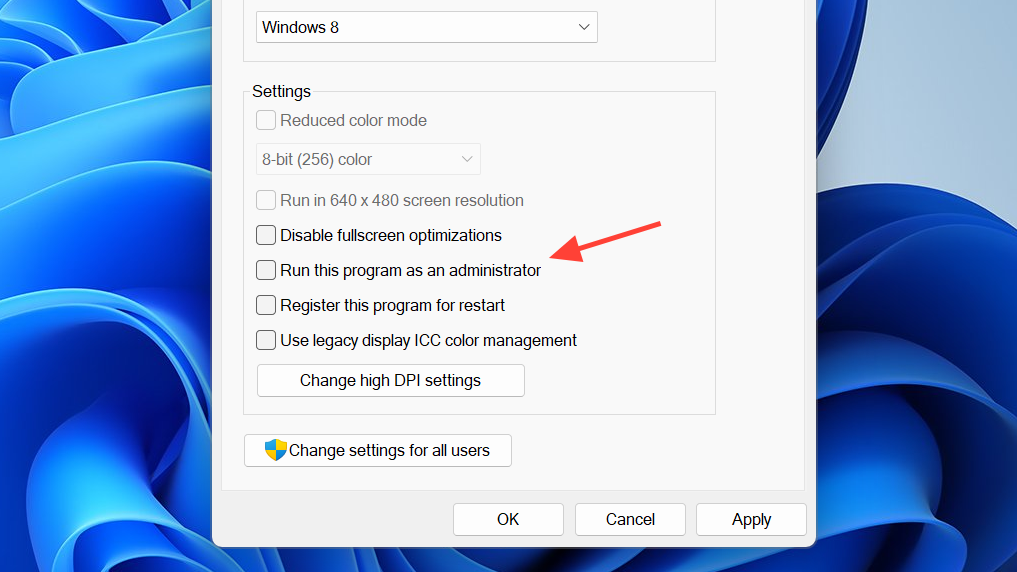
Step 3: Run ARC Raiders as administrator. Right-click the game in your launcher or browse to the .exe in the install folder and choose “Run as administrator”.
Fix “Failed to install EasyAntiCheat” and EAC startup errors
Embark Game Boot will refuse to start ARC Raiders if Easy Anti-Cheat is missing, corrupted, or stuck in a half-installed state. Typical messages include “Failed to install EasyAntiCheat” and EAC error codes like 20006.
Method 1: Run the EasyAntiCheat_EOS installer as admin
Step 1: Open your game library (for example in Steam), right-click ARC Raiders, choose “Manage”, then “Browse local files” to open the install directory.
Step 2: Open the EasyAntiCheat folder inside the game directory.
Step 3: Right-click EasyAntiCheat_EOS_Setup.exe and choose “Run as administrator”. Accept any prompts and follow the on-screen instructions to repair or install Easy Anti-Cheat, then try launching the game.
If the setup window flashes and disappears without installing, EAC is likely stuck at the driver level.
Method 2: Force Easy Anti-Cheat to regenerate its driver
This method targets the shared EasyAntiCheat_EOS driver in Program Files (x86), which ARC Raiders may be mis-detecting after a reinstall.
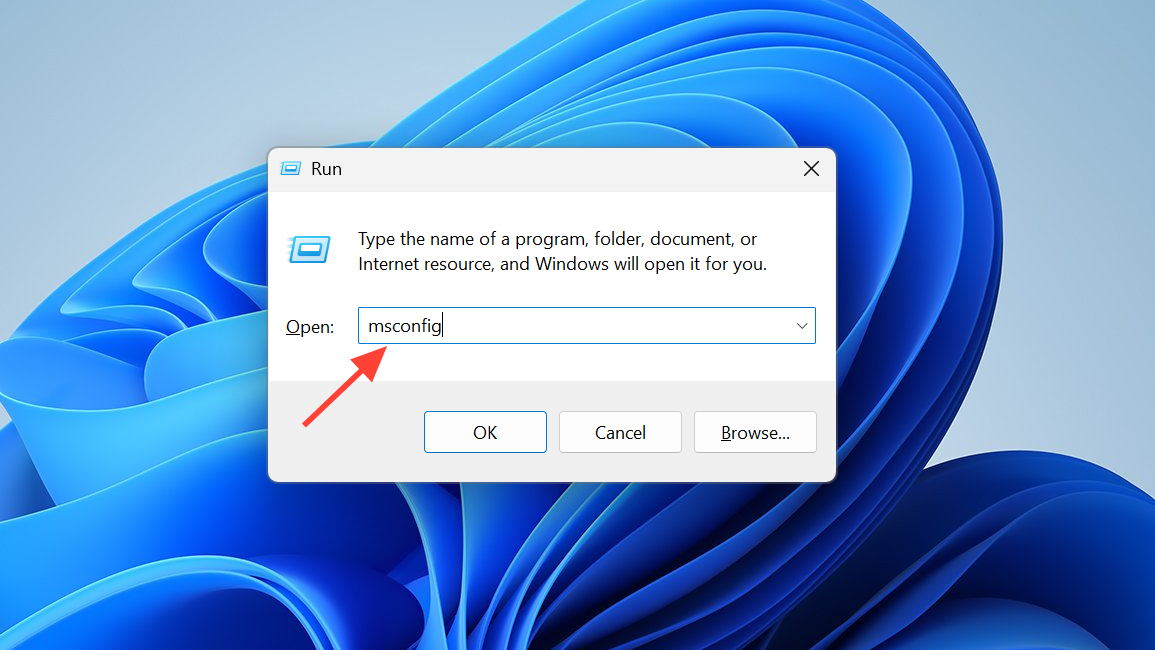
Step 1: Press Win + R, type msconfig, and press Enter. Go to the “Services” tab and temporarily disable services with names that clearly reference Easy Anti-Cheat or EasyAntiCheat_EOS.
Step 2: Restart your PC so those services stop running.
Step 3: After reboot, open File Explorer and navigate to C:\Program Files (x86)\EasyAntiCheat_EOS. Delete the EasyAntiCheat_EOS.sys driver file (you may need admin rights).
Step 4: Restart your PC again, then launch ARC Raiders. Embark Game Boot should prompt to reinstall Easy Anti-Cheat or silently recreate the driver, which often clears 20006 and similar install errors.
Method 3: Clean out EAC and reinstall ARC Raiders
If repeated reinstalls still leave you stuck at “Failed to install EasyAntiCheat”, cleaning all ARC Raiders–related traces and starting from a blank slate can help.
Step 1: Uninstall ARC Raiders from your launcher.
Step 2: Use an advanced uninstaller tool that can do a leftover scan (for example, Revo Uninstaller) to remove remaining ARC Raiders and EasyAntiCheat entries. Select and delete the residual files it finds.
Step 3: Reboot, then reinstall ARC Raiders fresh — ideally to your primary system drive (C:) if you previously used another internal drive.
Step 4: Launch the game once and allow any Easy Anti-Cheat installation prompts to complete before changing any settings.
Several players report that moving ARC Raiders from a secondary drive to C: and then reinstalling EAC finally allowed Embark Game Boot to complete initialization.
Fix Embark Game Boot fatal error “Detected software / cheat software found”
Another class of Embark Game Boot fatal errors appears as “Detected software” or “cheat software found”, sometimes with an additional warning that repeating the behavior could result in a ban. ARC Raiders explicitly calls out tools like AutoHotkey, but it can also flag overlays and macro utilities bundled with other apps.
Method 1: Manually close obvious macro and overlay tools
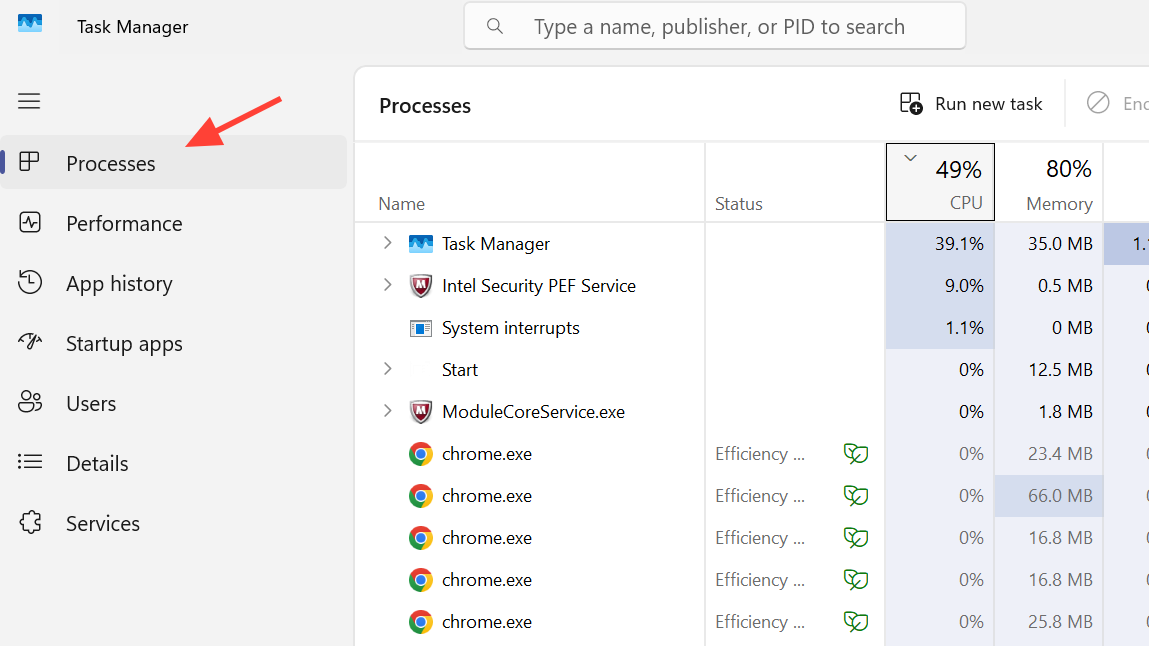
Step 1: Press Ctrl + Shift + Esc to open Task Manager and switch to the “Details” or “Processes” tab.
Step 2: Look for common culprits, such as:
AutoHotkey.exeand scripts built on AutoHotkeyAutoIt3.exeand similar automation tools- Mouse and keyboard suites that add macros or overlays (Logitech G Hub, Razer Synapse, etc.)
- Other apps mentioning “macro”, “hook”, “remap”, or “overlay” in their names
Step 3: Right-click each suspect process and select “End task”, then try starting ARC Raiders again.
This alone is often enough when the error text explicitly mentions AutoHotkey or macro tools.
Method 2: Remove leftover input drivers that keep triggering detection
Even if you uninstall a macro tool, its low-level driver can linger and keep tripping anti-cheat.
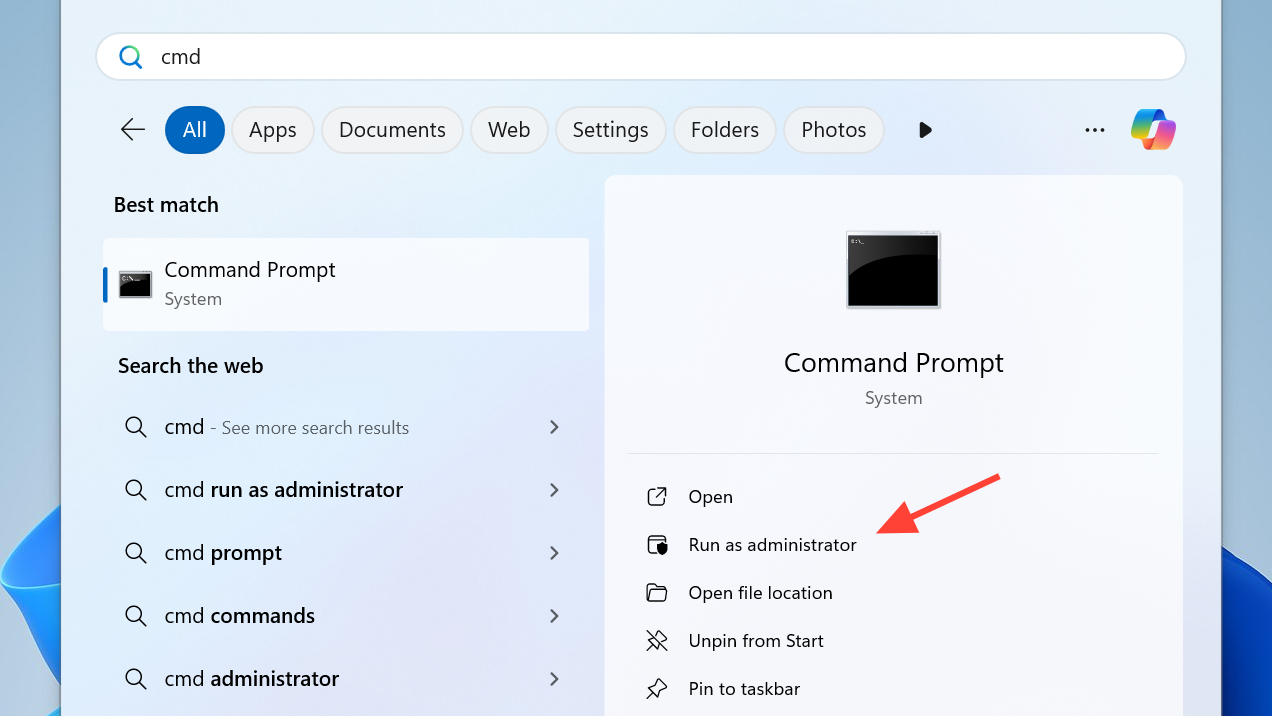
Step 1: Open Command Prompt as administrator.
Step 2: Enumerate driver services related to input remapping with the command shown in the same video project (it searches for services whose names include AutoHotkey-style patterns).
Step 3: For any leftover remapping or AutoHotkey drivers that clearly no longer belong to active software, disable or delete the service with the appropriate sc delete <drivername> command.
Step 4: Restart your PC and try ARC Raiders again.
This approach should be reserved for users who already know which remapping drivers they have installed, as deleting the wrong driver can destabilize other applications.
Method 4: Test in a clean boot to isolate conflicts
If the error persists and you cannot see an obvious culprit, running ARC Raiders in a “clean boot” environment helps prove whether some third-party service is involved.
Step 1: Open msconfig again, this time, disable all non-Microsoft services, and disable all startup items in Task Manager’s “Startup” tab.
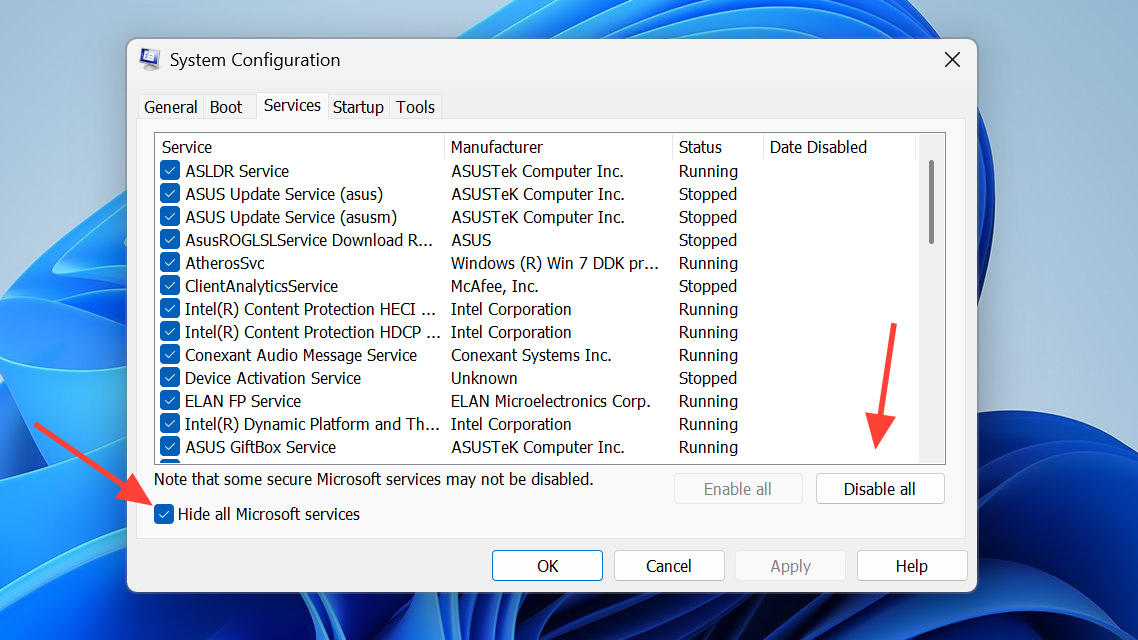
Step 2: Restart your PC and launch ARC Raiders. If the game runs without the fatal error, re-enable your services and startup items in small groups until the problem comes back. The last group you turned on usually contains the conflicting software.
Fix ARC Raiders exit code 210 (Embark Game Boot fatal error)
Some players see a more generic “Embark Game Boot fatal error – the game has crashed, exit code is 210”. This is less specific but still usually linked to launch chain problems: permissions, EAC, or compatibility settings.
Method 1: Restart the obvious bottlenecks
Step 1: Close ARC Raiders, then exit your launcher entirely (Steam, Epic Games Launcher, or Xbox app). Reopen the launcher and try again.
Step 2: If that fails, restart your PC. Fresh boots clear stuck processes in the Embark/EAC chain that a simple app restart might miss.
Method 2: Launch the game directly from the install folder
Step 1: Use your launcher’s “Browse local files” option for ARC Raiders to open its install directory.
Step 2: Double-click the main game executable (commonly named along the lines of PioneerGame.exe) to start ARC Raiders directly.
Step 3: If that fails, right-click the same executable and choose “Run as administrator”. You can also enable “Run this program as an administrator” in its Properties > Compatibility tab, test, then disable it later if not needed.
Step 4: Inside the binaries folder (for example, Binaries\Win64), repeat the same test on the primary .exe found there.
Method 3: Adjust compatibility and fullscreen settings
Step 1: Right-click the main game .exe, open Properties, and go to the Compatibility tab.
Step 2: Temporarily enable “Disable fullscreen optimizations” and try a compatibility mode such as Windows 8. Apply and test-launch the game.
Step 3: If these toggles do not help, revert them to default to avoid side effects.
Method 4: Repair Easy Anti-Cheat and verify game files
Step 1: From the ARC Raiders install folder, run EasyAntiCheat_EOS_Setup.exe as administrator again and use any “repair” or “install” option presented.
Step 2: In Steam, open ARC Raiders’ Properties > Installed Files tab, and select “Verify integrity of game files”. On Epic Games Launcher, use the “Verify” option from the game’s menu. Let the scan and any re-downloads finish before launching.
Step 3: Reboot once more and test launch.
When Embark Game Boot is stuck on loading or crashes at welcome screen
Not every problem shows a clear error dialog. Some players get stuck on the Embark Launcher loading bar, or the game crashes at or just after the welcome screen.
Method 1: Toggle VPN and overlays
Step 1: If you use a VPN, try the game with it turned off first. Some players only get past EAC initialization once their VPN is disconnected.
Step 2: If your game fails without a VPN, try enabling one and connecting through a different region; this can work around ISP routing issues similar to the “An error has occurred” case.
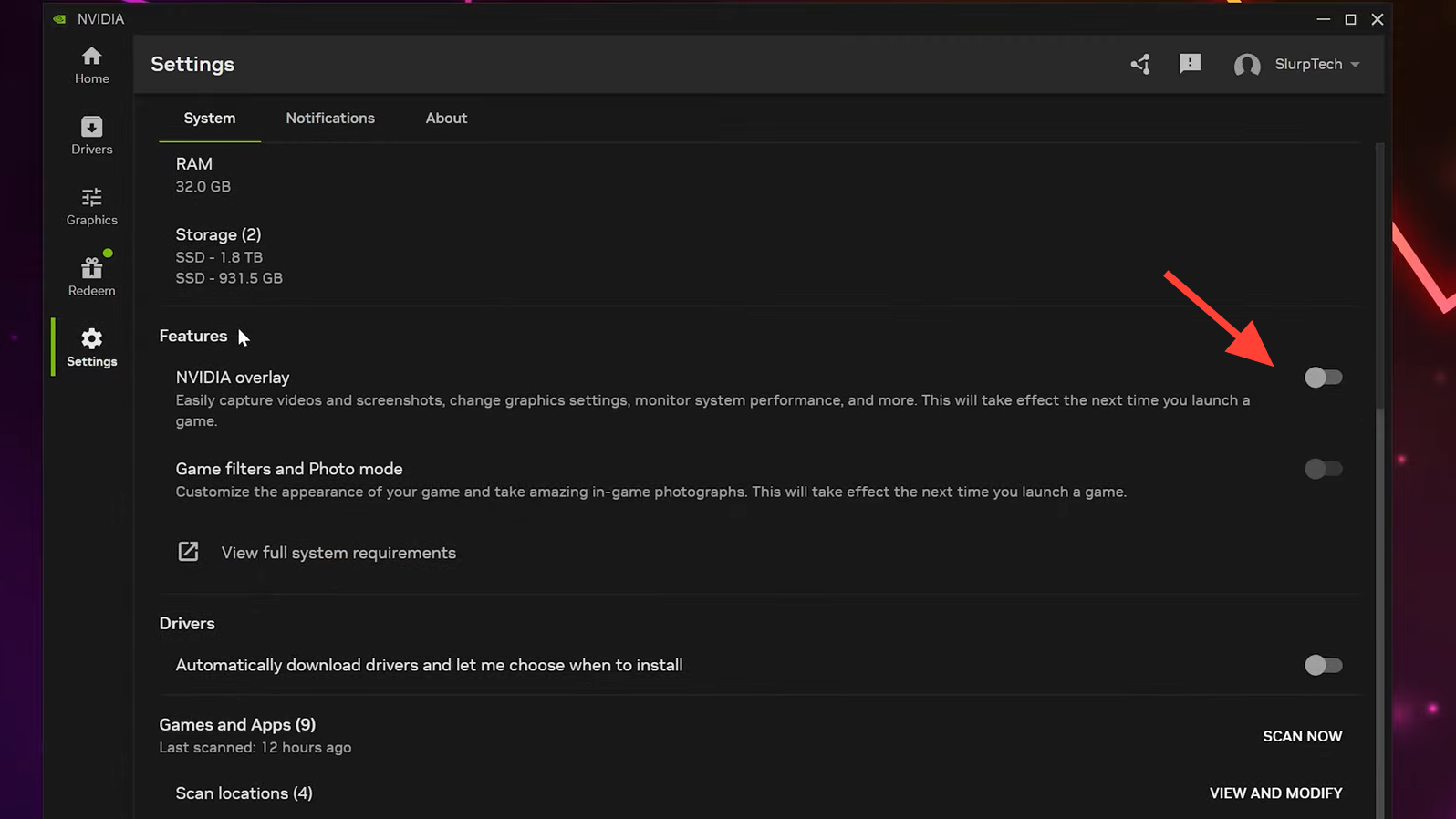
Step 3: Disable overlays. Turn off the NVIDIA overlay, Discord overlay, and any in-game performance overlays from GPU tools. In Steam, toggle the “Enable the Steam Overlay while in-game” setting and test both on and off.
Method 2: Update or roll back your GPU drivers
Graphics instability can look like an Embark Game Boot issue when the crash happens immediately after the anti-cheat passes control to the game.
Step 1: Download the latest driver for your GPU from the official NVIDIA or AMD site.
Step 2: Run the installer, and choose a “clean installation” or equivalent custom option, wiping previous settings.
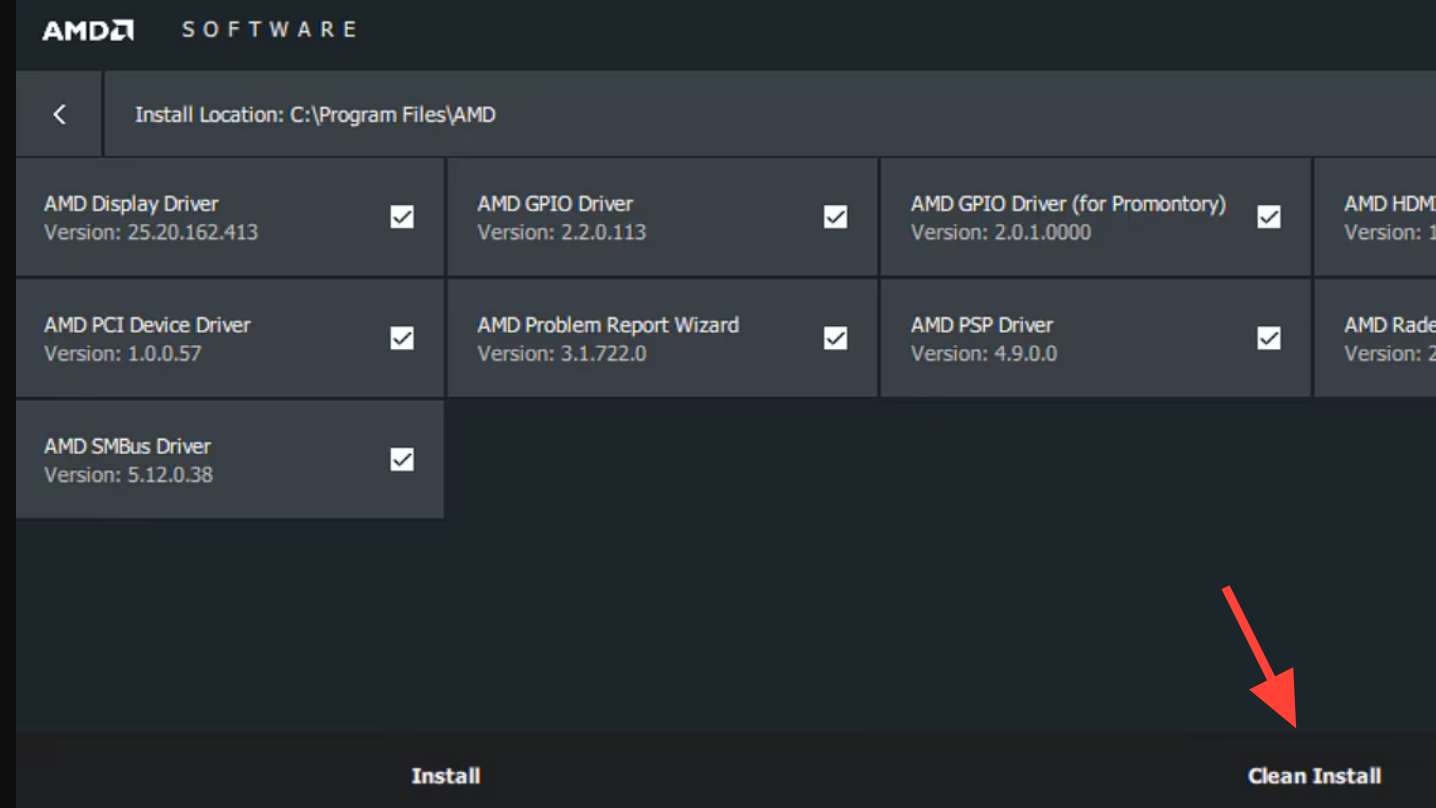
Step 3: Reboot and try launching ARC Raiders. If things get worse on the newest driver, install a slightly older version using the same clean-install process.
Method 3: Check install drive and move the game if needed
Some players report EAC or startup issues when ARC Raiders sits on a secondary drive with limited free space.
Step 1: Ensure your system drive (C:) has sufficient free space and no major health issues.
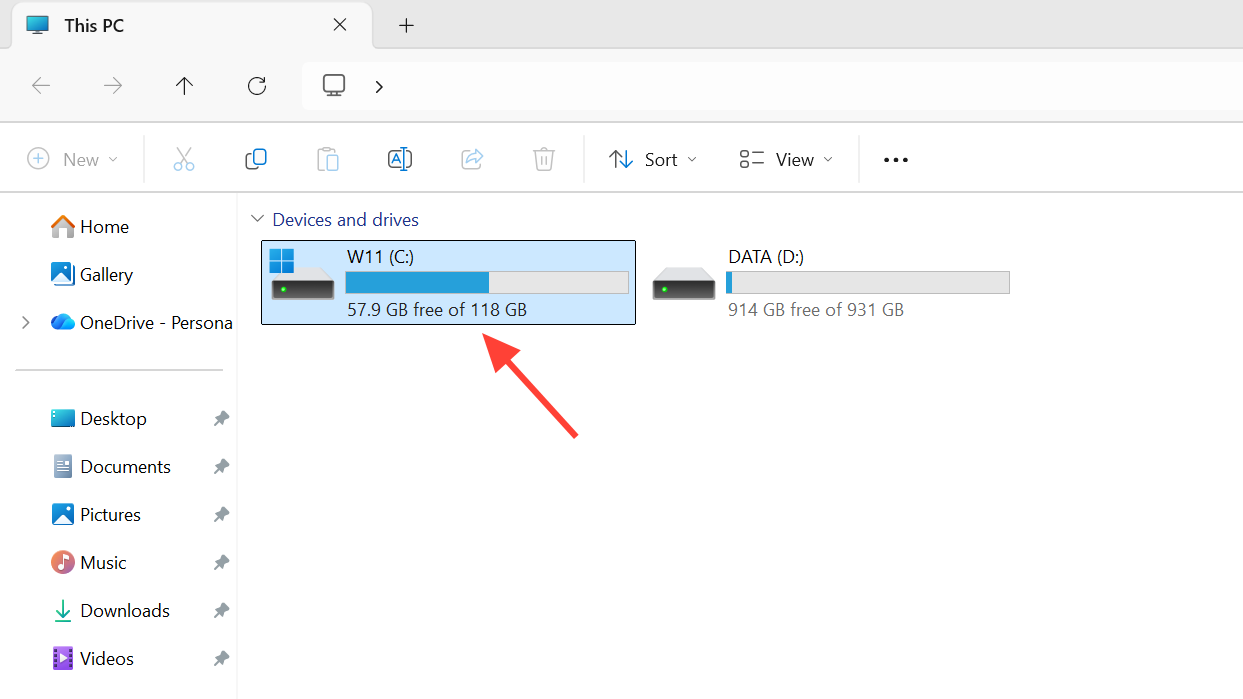
Step 2: If ARC Raiders is installed on another internal drive, move it to C: using your launcher’s move function or by uninstalling and reinstalling to C: specifically.
Step 3: After moving, let the launcher verify files once, then open Embark Game Boot and attempt to start the game.
Embark Game Boot sits at the intersection of ARC Raiders, Easy Anti-Cheat, your drivers, and your network path. That makes its failures noisy but also predictable: they almost always stem from a misbehaving EAC install, a background macro or overlay tool, or a route that blocks anti-cheat servers.
Once you work through those three buckets — repairing or regenerating Easy Anti-Cheat, closing or uninstalling suspicious background utilities, and stabilizing or rerouting your connection — Embark Game Boot errors usually give way to a normal launch and the only thing left to fight is ARC itself.