

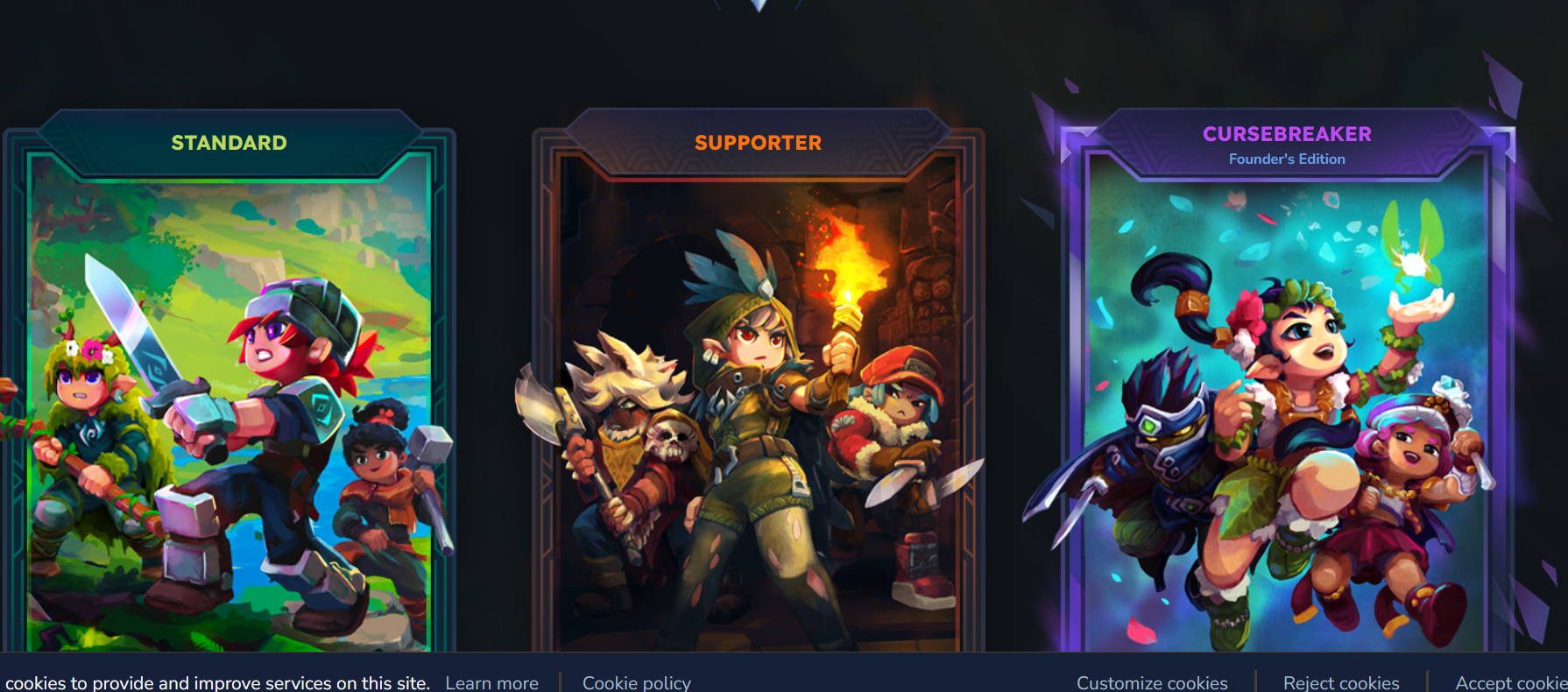
The Hytale Store checkout flow is throwing a specific message for some players: Something went wrong: A basket with that identifier does not exist. It usually appears right after you click to purchase a Hytale edition and confirm the early access notice, and it prevents the order from going through.
That message points to a problem with the temporary “basket” the store assigns to your purchase session. In practice, it tends to be triggered by browser quirks, extensions that interfere with the page, or stale cookies. The steps below walk through the fixes that are currently working for most players.
Fix the Hytale Store “A basket with that identifier does not exist” error by changing browser
Switching browsers is the most reliable way to clear this error, because it forces the store to create a fresh basket in a completely separate environment with different extensions, cache, and cookie state.
Step 1: Close the Hytale Store tab in your current browser after you see the error. This makes sure that broken basket is no longer active in that session.
Step 2: Open a different modern browser that you have installed (for example, move from Firefox to Chrome, or from Chrome to Edge). Avoid using older or niche builds for this step.
Step 3: Go to the official Hytale Store page in the new browser and sign in to your Hytale account when prompted. If you are not logged in, the store will redirect you to the login screen before you can purchase anything.
Step 4: Once signed in, select the Hytale edition you want, click the purchase button, acknowledge the early access notice, and proceed through checkout again. In most cases, the error does not reappear on a fresh browser profile.
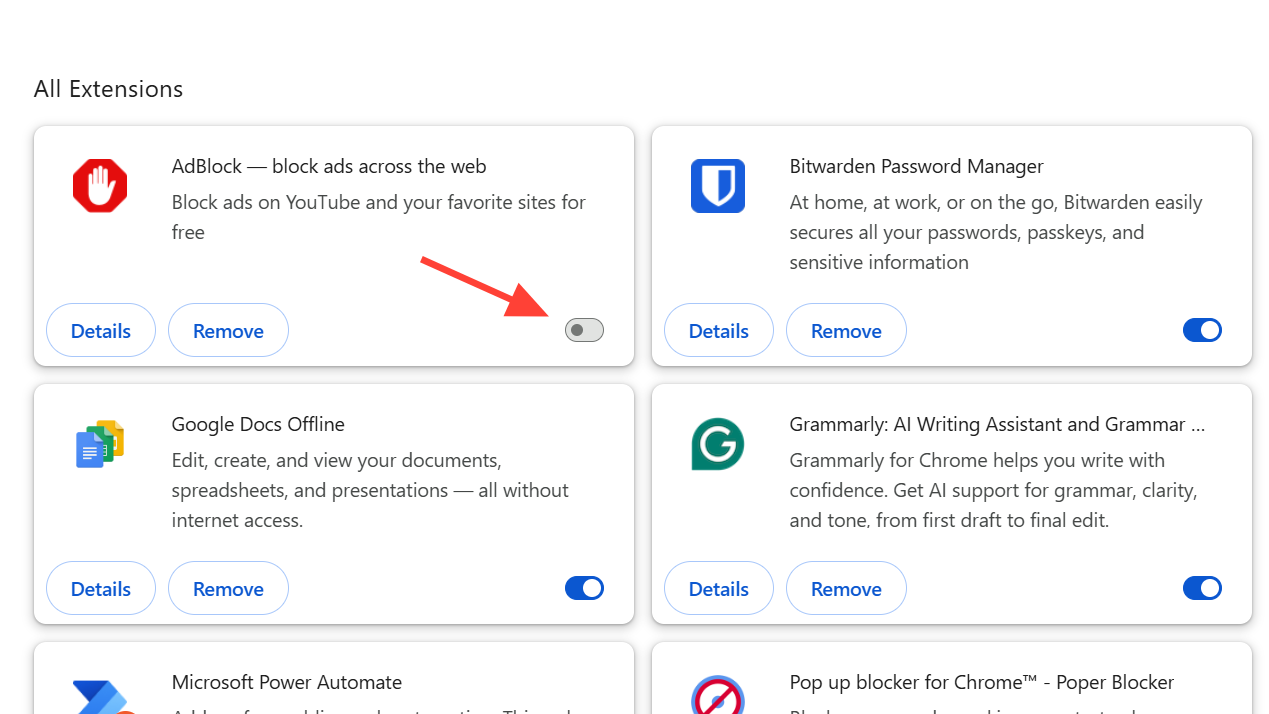
Fix the Hytale Store error by disabling adblockers and other extensions
Adblockers, privacy tools, and script filters can block parts of the checkout flow. If a script that creates or updates your basket is blocked, the backend no longer finds the basket identifier and throws this error.
Step 1: In the browser where you see the error, temporarily turn off any adblocker or content-filtering extension. Most extensions let you pause protection on the current site via their toolbar icon.
Step 2: Disable any additional privacy or security add-ons that modify requests, block trackers, or strip cookies for commerce sites. Focus on tools that commonly interfere with payment and checkout pages.
Step 3: After disabling these extensions, refresh the Hytale Store page and sign in again if prompted. Then repeat the purchase steps and confirm the early access notice.
Step 4: If the purchase succeeds, you can re-enable your extensions afterward. If the error persists, leave extensions disabled until you have tried the next methods, or switch to a browser where no extensions are installed.
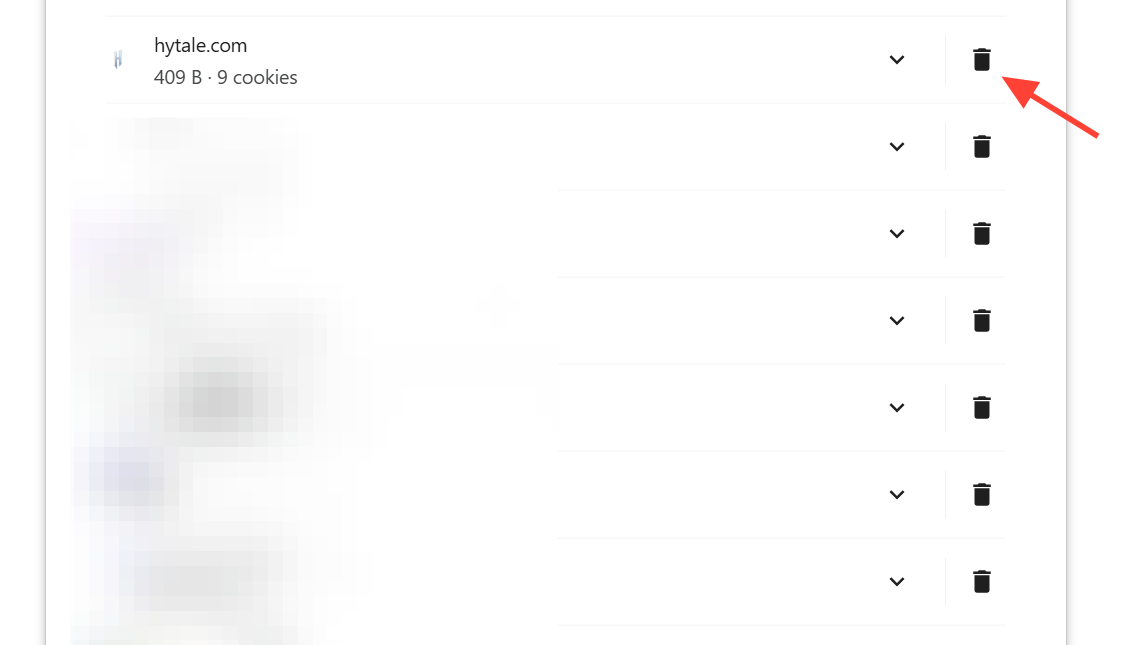
Fix the Hytale Store error by clearing cookies and site data
Hytale’s store relies on cookies and local storage to track your session and the current basket. Corrupted or outdated data can leave the backend looking for a basket that no longer exists.
Step 1: Open your browser’s settings and navigate to the section that manages cookies and site data.
Step 2: Use the option to clear data only for the Hytale website, rather than wiping all cookies. Most browsers let you search for the site name and remove its data selectively.
Step 3: Close all tabs from that browser, then fully quit and restart the browser. This forces a clean session the next time you visit the store.
Step 4: Return to the Hytale Store, log in again, and attempt your purchase. A fresh session should create a new basket identifier and avoid the earlier error.
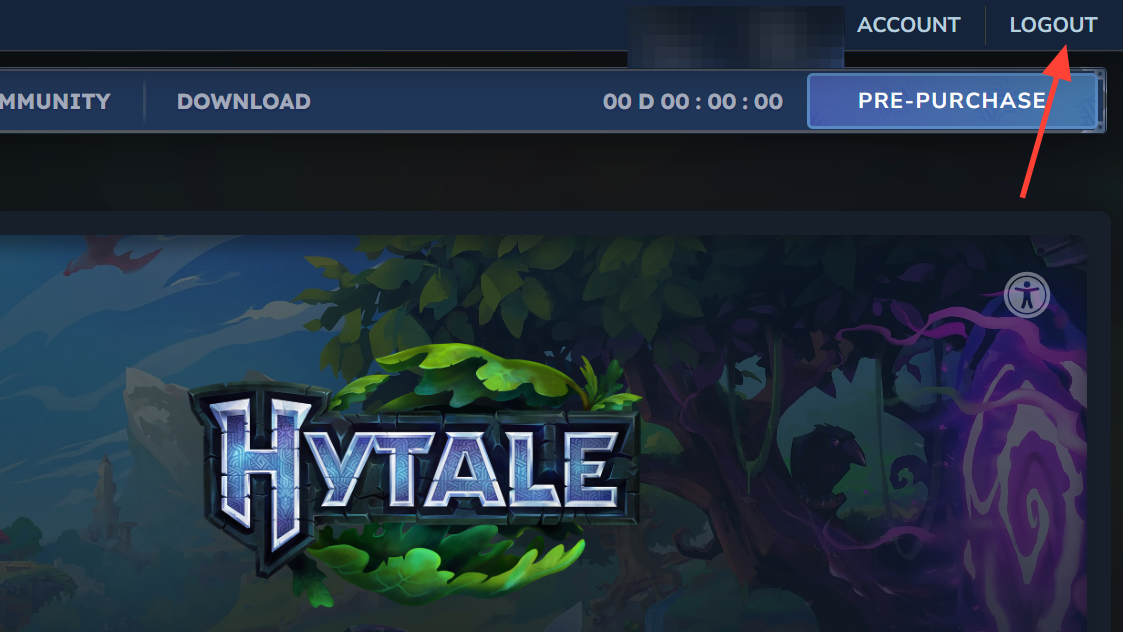
Other quick checks that can clear the basket error
Alongside the main fixes, a few simple actions can sometimes resolve the issue without deeper changes.
Step 1: Refresh the checkout page once, then click back to the edition selection and add Hytale to your cart again. This can regenerate the basket if the first attempt timed out.
Step 2: Log out of your Hytale account from the store, close the tab, then sign back in from the home page before starting the purchase again. This resets your authentication session along with the cart.
Step 3: Avoid using multiple devices or browser tabs to buy the game at the same time. Keeping a single active checkout tab removes potential conflicts between baskets.
When to contact Hypixel support about the Hytale Store basket error
If the error continues in multiple browsers, with extensions disabled and cookies cleared, the problem is more likely to be on the store’s side or linked to your account. At that point, the next step is to reach out to support.
Step 1: Go to the official Hytale Support portal at https://support.hytale.com and choose the option to submit a ticket.
Step 2: Enter the email address associated with your Hytale account, select the category for purchases and refunds, and add a short, clear subject line mentioning the exact error text.
Step 3: In the description field, include the full error message, which browsers you tried, and note whether you disabled extensions and cleared cookies. The more precise this information is, the easier it is for support to identify what is happening with your basket.
Step 4: Submit the ticket and monitor your inbox, including spam or promotions folders, for a reply from Hypixel’s team. Avoid repeatedly retrying the purchase while waiting for a response, to reduce the risk of duplicate pending transactions.
Hytale’s early access launch has created heavy demand on its infrastructure, so occasional store and launcher errors are not unusual. The basket error, however, is often fixable on your side with a new browser session, a cleaner extension setup, or a reset of site data. If those steps do not resolve it, support can manually review your account and payment attempts to help you complete the purchase safely.