

Quick answer: The most common fix is restarting the server you're trying to join. If you don't control the server, ask the host to restart it. If that doesn't work, try syncing your system clock, setting your system language to English (United States), or resetting your avatar customizations before connecting.

What "Connection Aborted by Peer (0)" means in Hytale
The full error message reads Failed to connect to server: an unexpected error occurred (Connection aborted by peer (0).). It means the server actively terminated the connection attempt before your client could finish joining. The "(0)" code doesn't point to a specific sub-error — it's a generic indicator that the remote side dropped the handshake. This can happen for several distinct reasons, and the fix depends on which one is actually blocking you.
Hytale currently relies entirely on player-hosted servers and peer-to-peer friend joins rather than official matchmaking infrastructure. That means connection stability depends heavily on the host's setup, router configuration, and whether both sides are running the same game version. The friend-join system is still maturing, and Hypixel Studios has acknowledged it won't work flawlessly for everyone yet.
Avatar customization bug
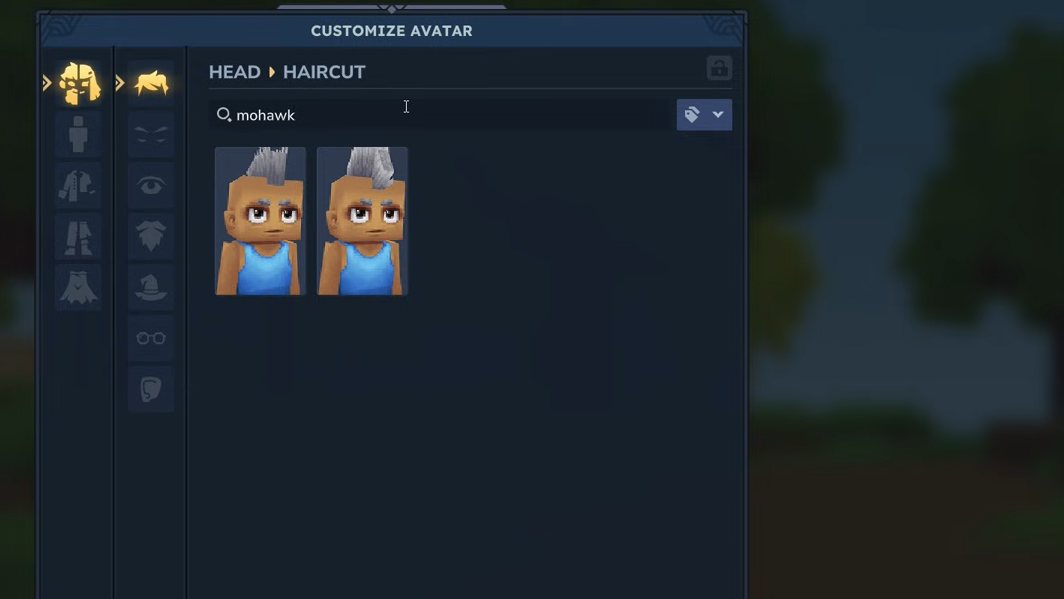
One of the more surprising triggers for this error is changing your avatar's appearance — particularly adding accessories like glasses. Multiple players have reported that customizing their avatar immediately before joining a server causes the connection to be refused. Reverting the customization on the client side alone doesn't always fix it; the server itself may need to be restarted to clear whatever state the previous connection attempt left behind.
If you recently changed your avatar and started getting this error, ask the server host to restart. After the restart, try connecting without making further avatar changes. The customization system hasn't been fully optimized for multiplayer yet, so certain combinations of accessories can cause the server to reject the join packet.
Version mismatch between client and server
A mismatch between your Hytale client version and the server version will produce this same error. After any game update, the server host needs to update the server software before players on the new version can connect. Even if the host says the versions match, confirm the exact build number — Hytale updates can roll out at slightly different times, and a minor patch difference is enough to trigger the rejection.
If you're the only player who can't connect while others on the same server are fine, the issue is less likely to be a version mismatch and more likely one of the other causes below.
Sync your system clock
Hytale's authentication handshake can fail when your system clock is out of sync with the server. This is a known quirk that ideally shouldn't cause a hard connection failure, but it does.
Step 1: On Windows, right-click the clock in your taskbar and select "Adjust date/time." On macOS, open System Settings → General → Date & Time.

Step 2: Enable "Set time automatically" if it isn't already on. On Windows, also click "Sync now" to force an immediate update.
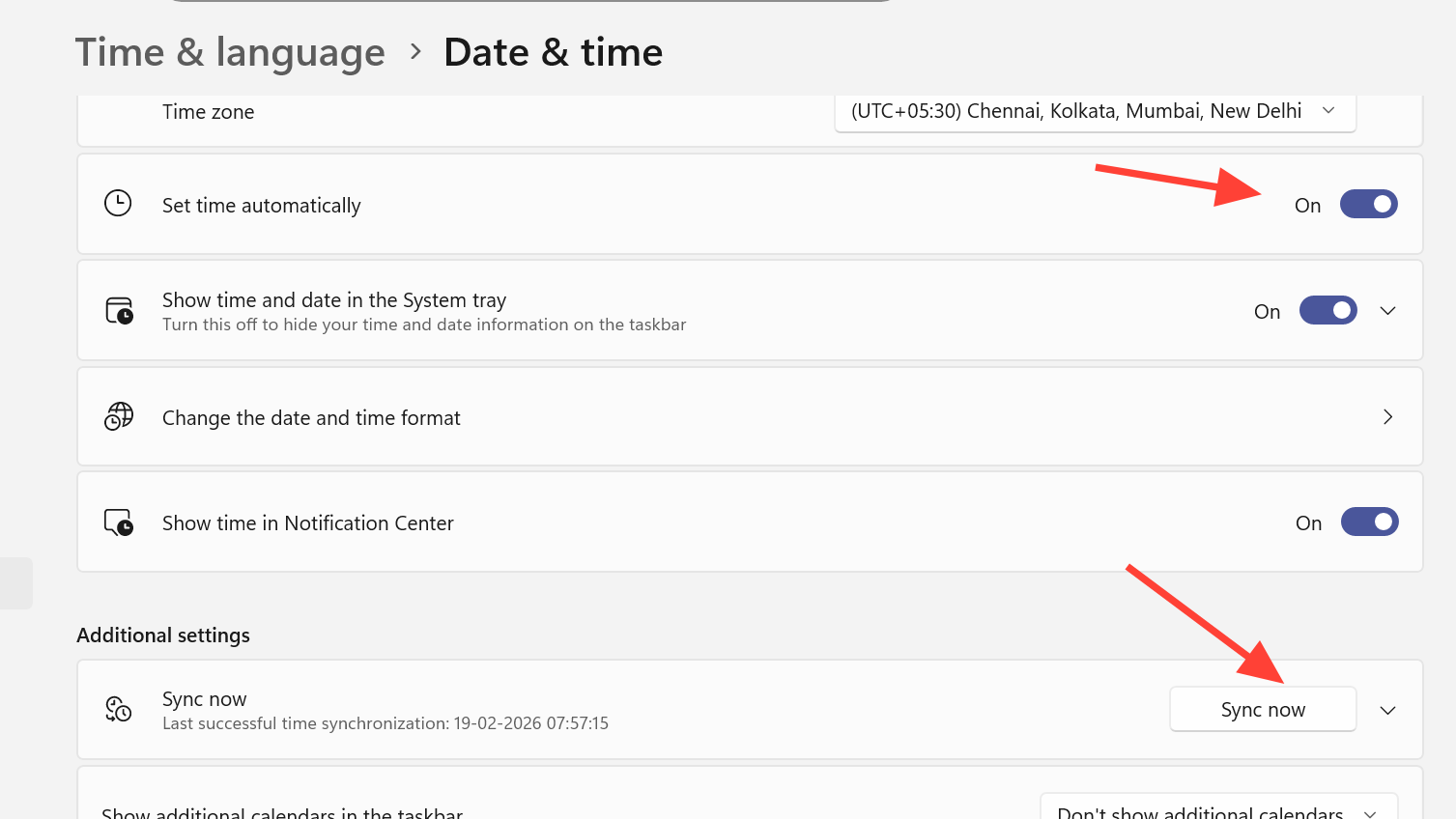
Step 3: Restart Hytale and attempt to reconnect.
Set system language to English (United States)
Hytale currently only supports English, and a system language mismatch can cause connection errors — including the I18nModule.getMessages failure that sometimes manifests as a generic connection abort. Changing your display language resolves this for many players.
Step 1: On Windows, go to Settings → Time & Language → Language & Region. Set the Windows display language to English (United States) and the regional format to the same.
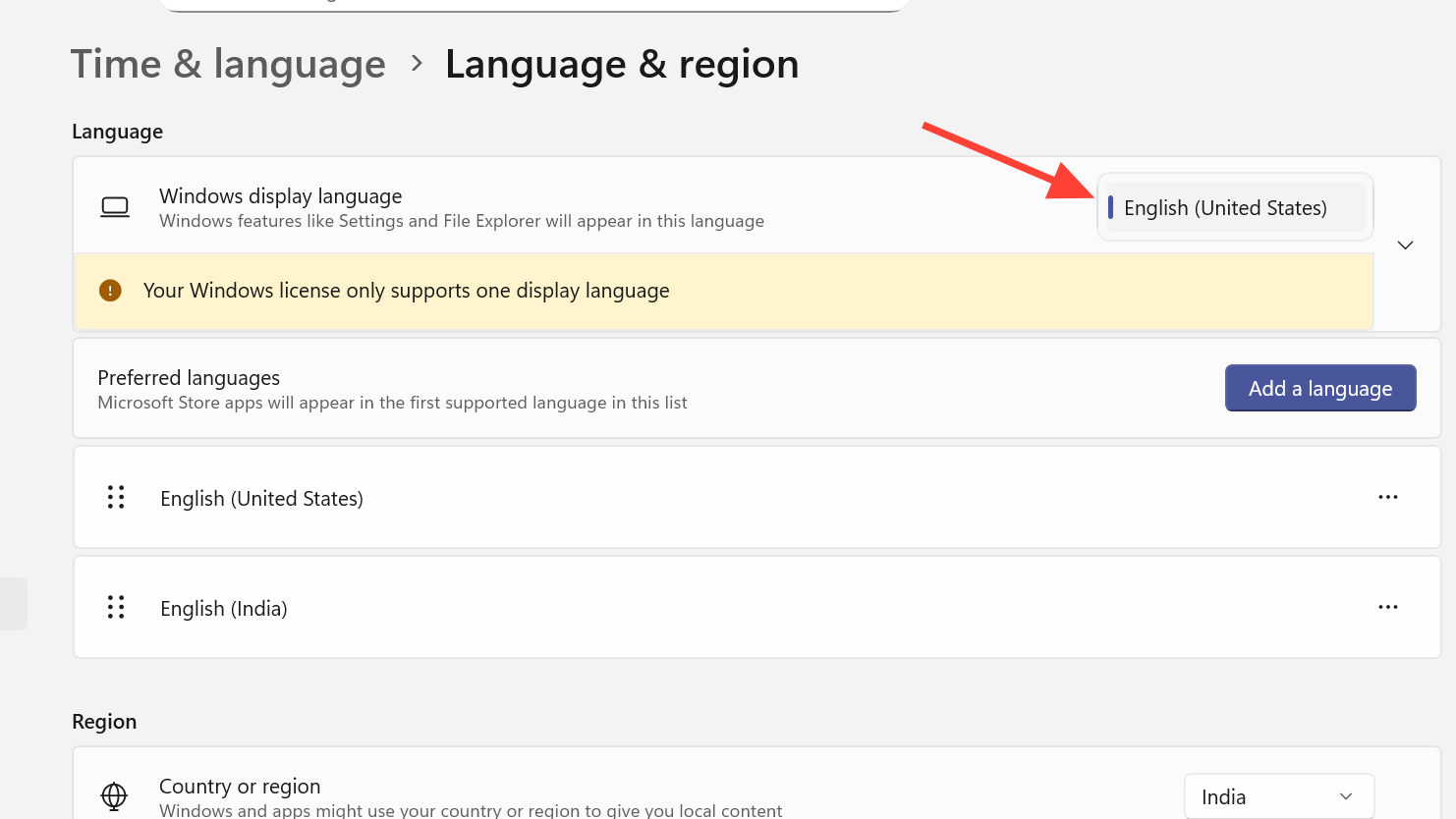
Step 2: On macOS, open System Settings → General → Language & Region. Set the primary language to English and the region to United States.
Step 3: Fully restart Hytale — not just the server browser, but the entire client.
Firewall and network configuration
Windows Defender Firewall can block Hytale's network traffic silently, even if the game worked before an update. Updates sometimes change the executable path or add new components that need separate firewall rules.
Step 1: Search for "Windows Defender Firewall" in the Start menu and click "Turn Windows Defender Firewall on or off." Temporarily disable it for both private and public networks, then try connecting.
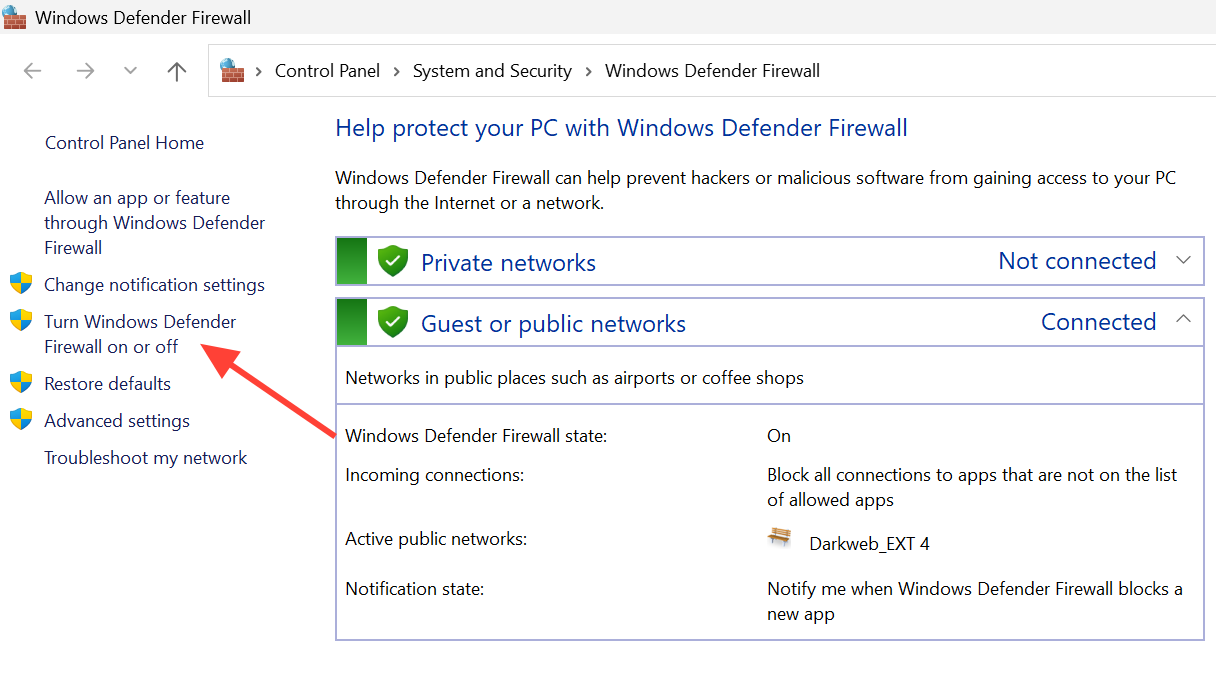
Step 2: If disabling the firewall lets you connect, re-enable it immediately. Then go to "Allow an app or feature through Windows Defender Firewall," click "Allow another app," and browse to your Hytale installation folder. Make sure both Private and Public boxes are checked for every Hytale entry, including any Java-related entries.
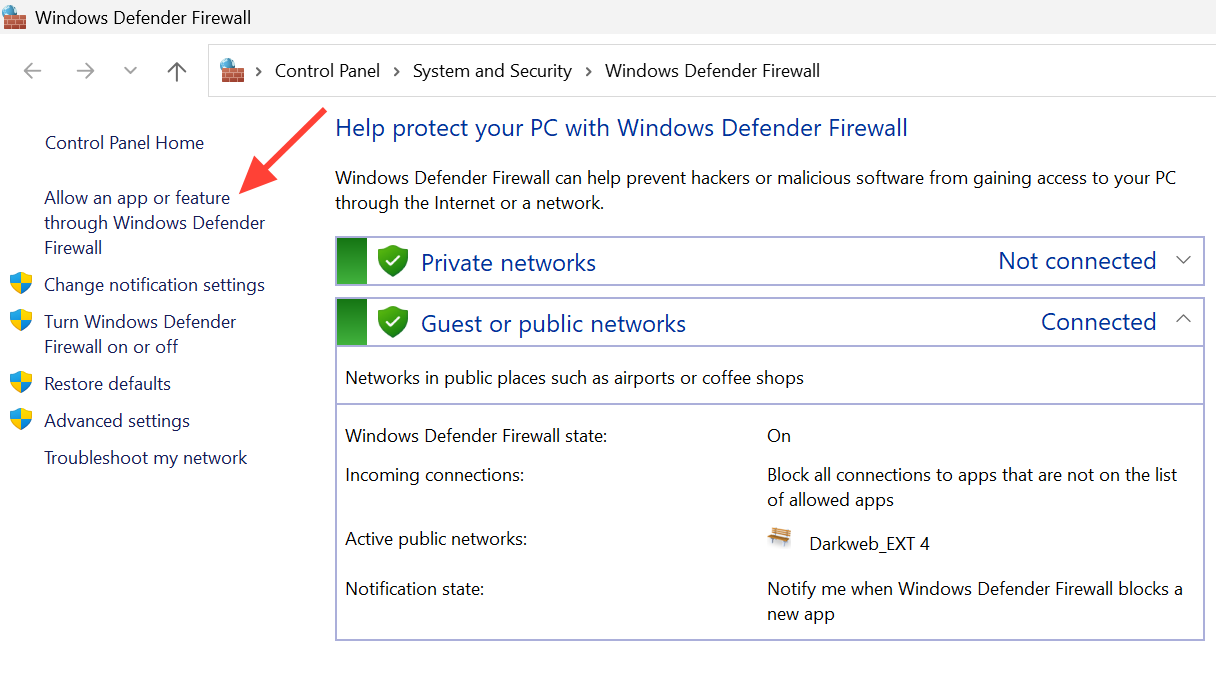
Leaving your firewall disabled is a genuine security risk. Always whitelist the specific application rather than keep the firewall off permanently.
Restart the server
This is the single most effective fix when the error appears suddenly on a server that was working moments ago. A simple server restart clears corrupted session state, stale authentication tokens, and any avatar-related data that might be causing the rejection. Multiple players have confirmed that a restart resolved the issue immediately with no other changes needed.
If you don't have access to restart the server yourself, contact the host. For rented servers from providers like Nitrado, Apex Hosting, GPORTAL, Shockbyte, or Dathost, the restart option is typically available in the hosting control panel.
Recover a corrupted world (singleplayer or self-hosted)
If the error appeared after a crash — especially one that froze your PC — the world save itself may be corrupted. This variant of the problem prevents you from loading the world entirely, not just connecting to it remotely.
Step 1: Right-click the affected world in Hytale's world list, click the settings option, and open the world folder.
Step 2: Inside that folder, open the backup subfolder. Select the most recent archive and extract it to a temporary location.
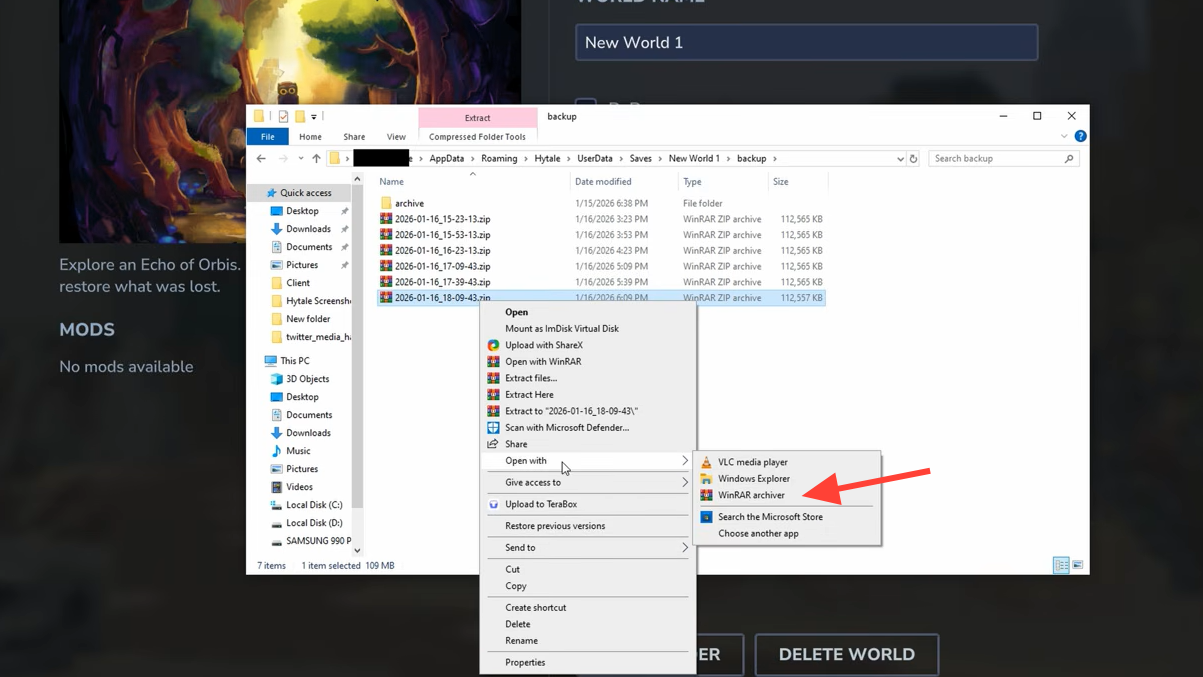
Step 3: Go back to the world folder, open the universe subfolder, and delete everything inside it.
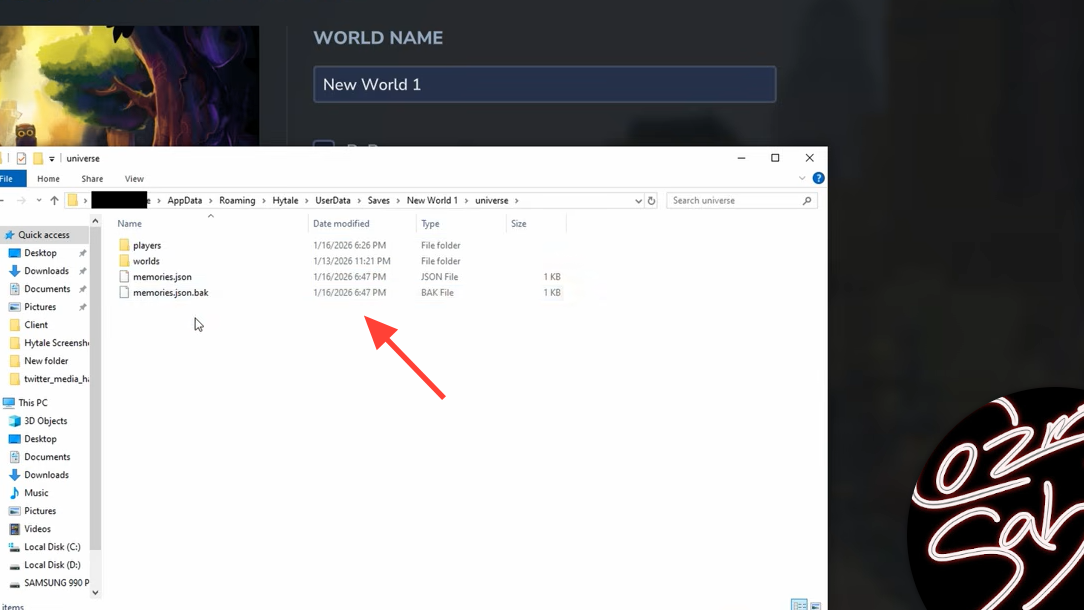
Step 4: Move the extracted backup files into the now-empty universe folder. Launch the world again.
You'll lose some progress — whatever happened between the last backup and the crash — but the world should load and accept connections again.
Alternative connection methods when nothing else works
Hytale's official support documentation recommends Tailscale as a fallback when direct connections fail. Tailscale creates a peer-to-peer VPN tunnel using WireGuard that bypasses NAT and firewall issues entirely. It's free for personal use, and Hytale automatically detects Tailscale addresses and includes them in share codes as high-priority connection candidates.
Another option is simply swapping who hosts. Different network configurations mean one player may be able to host while another cannot. If you have an existing world to share, copy the save folder from %appdata%\Hytale\saves\ and send it to your friend so they can host instead.
For groups larger than a few players, a dedicated server from a hosting provider eliminates most connection headaches. The host handles networking, port forwarding, and authentication automatically, and the server stays online even when no one is actively playing.
Advanced network adapter settings
If none of the above fixes work, certain network adapter settings on Windows can interfere with Hytale's connection. Open Device Manager, expand Network adapters, right-click your active adapter, and select Properties → Configure → Advanced. The settings worth checking include Priority & VLAN (try disabling it), Receive Segment Coalescing (disable both IPv4 and IPv6 variants), and any power-saving features like Energy Efficient Ethernet, Advanced EEE, or Green Ethernet.
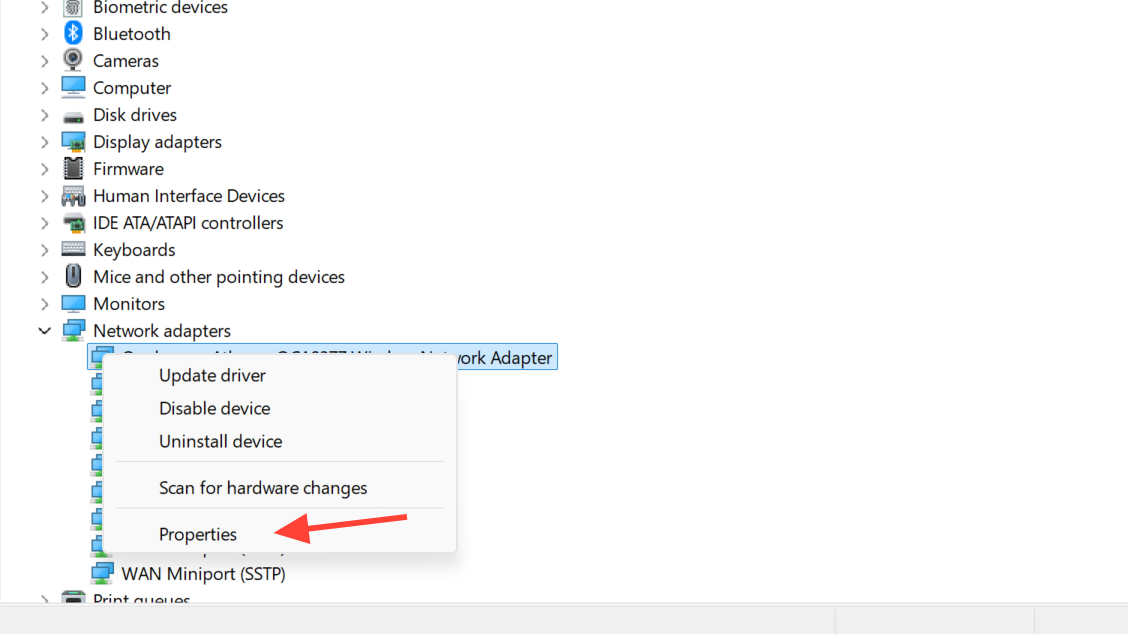
Change these one at a time and test after each change. These settings can break your internet connection entirely if misconfigured, so revert any change that doesn't help. Switching to a wired Ethernet connection instead of Wi-Fi is also worth trying, since it eliminates wireless interference and reduces packet loss.
Hytale's multiplayer connectivity is still a work in progress. Hypixel Studios has indicated that improvements to IPv6 support and NAT hole punching are planned, which should reduce the frequency of these errors over time. For now, the combination of a server restart, clock sync, and firewall whitelist resolves the "Connection aborted by peer" error for the vast majority of players.