

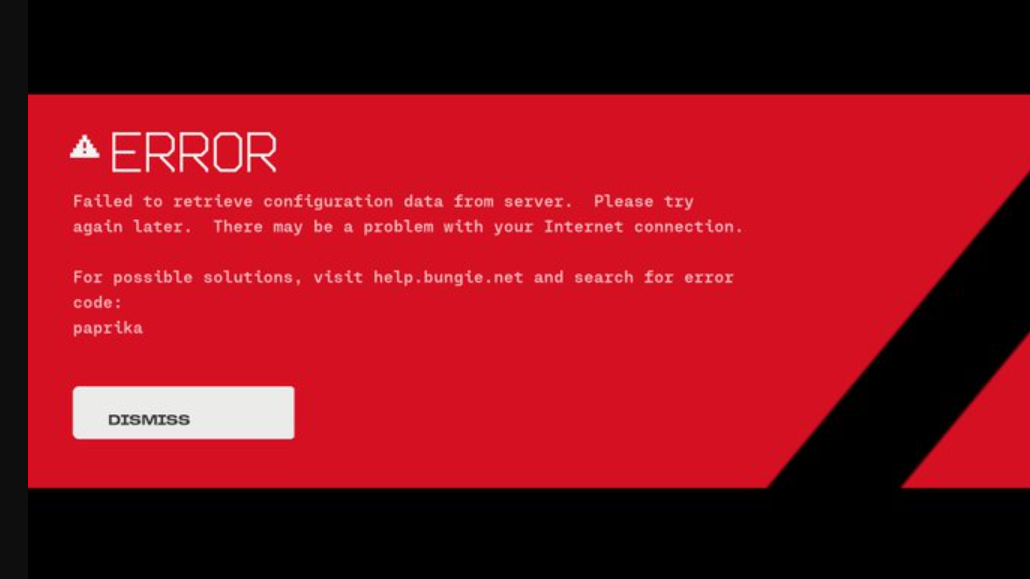
Error code PAPRIKA is one of Marathon's named disconnection errors — the kind Bungie labels with a single English word rather than a numeric string. It signals a general failure to connect to Marathon's servers and shares symptoms with the broader W:8 connection timeout. You'll typically see it on the disconnect screen after the game fails to establish or maintain a link to Bungie's backend, and it can appear on PC, PlayStation, or Xbox.
Quick answer: Fully close Marathon, restart your router and modem (wait at least 60 seconds before reconnecting), then relaunch the game. If the error persists, disable or fully close any third-party antivirus or firewall software — particularly Kaspersky — and verify your game files through your platform's launcher.
What PAPRIKA means
Marathon error codes follow a naming convention that uses everyday English words for animals, plants, or musical instruments. PAPRIKA falls into this family alongside codes like WEASEL, MARIONBERRY, and BANJO. Each code maps to a different type of disconnection, helping Bungie and platform partners diagnose what went wrong. PAPRIKA specifically indicates a general connection failure — the client could not reach or stay connected to Marathon's servers. It does not point to a single narrow cause, which is why the troubleshooting steps cover several possibilities.
Check Marathon and platform server status first
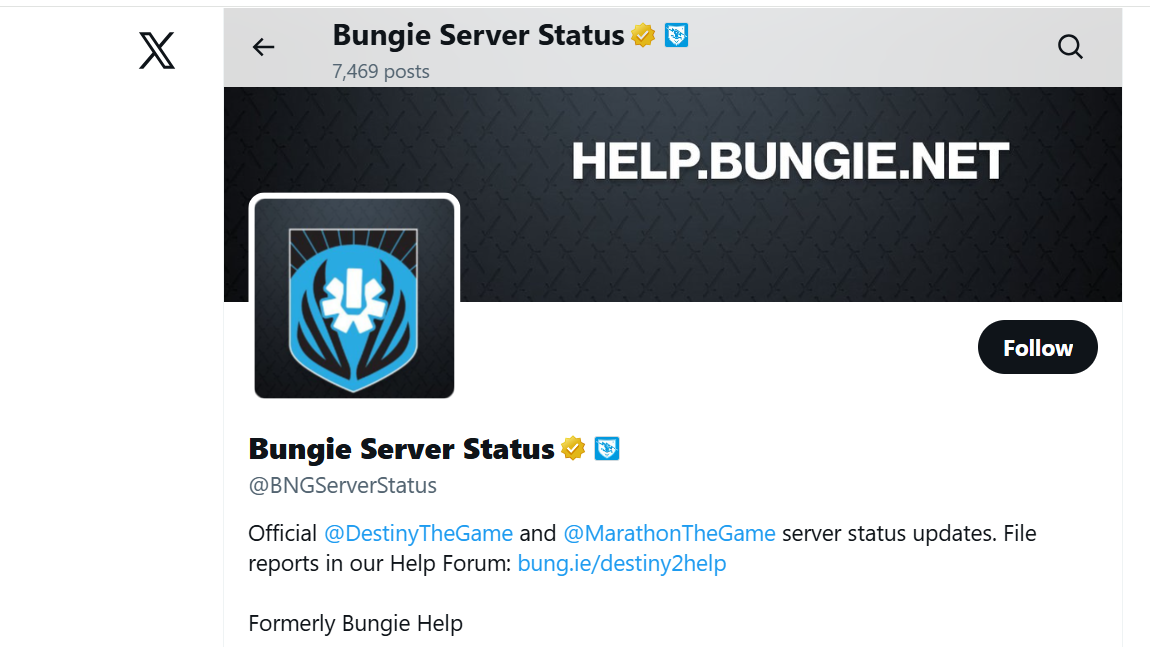
Before changing anything on your end, rule out a server-side outage. Bungie posts real-time status updates through the @BNGServerStatus account on X (formerly Twitter). PlayStation, Xbox, and Steam each maintain their own service-status dashboards as well. If Marathon's servers are down or degraded, no amount of local troubleshooting will help — you'll need to wait for Bungie to resolve the issue.
Restart Marathon and your network hardware
Step 1: Fully close the Marathon application. On PC, make sure no background processes are lingering in Task Manager. On console, use the system menu to force-close the app rather than just returning to the home screen.
Step 2: Power-cycle your router and modem. Unplug both devices, wait a full 60 seconds, then plug the modem back in first and let it finish booting before powering on the router. This clears stale routing tables and refreshes your connection to your ISP.
Step 3: Relaunch Marathon. If you get past the connection screen without seeing PAPRIKA, the issue was likely a transient network hiccup.
Disable third-party antivirus and firewall software
One of the most consistently reported fixes for Marathon connection errors involves third-party security software. Kaspersky, in particular, has been flagged by numerous players as a direct cause of connection failures. Simply pausing Kaspersky's protection may not be enough — fully closing the application through its system-tray icon or ending its processes has proven more reliable.
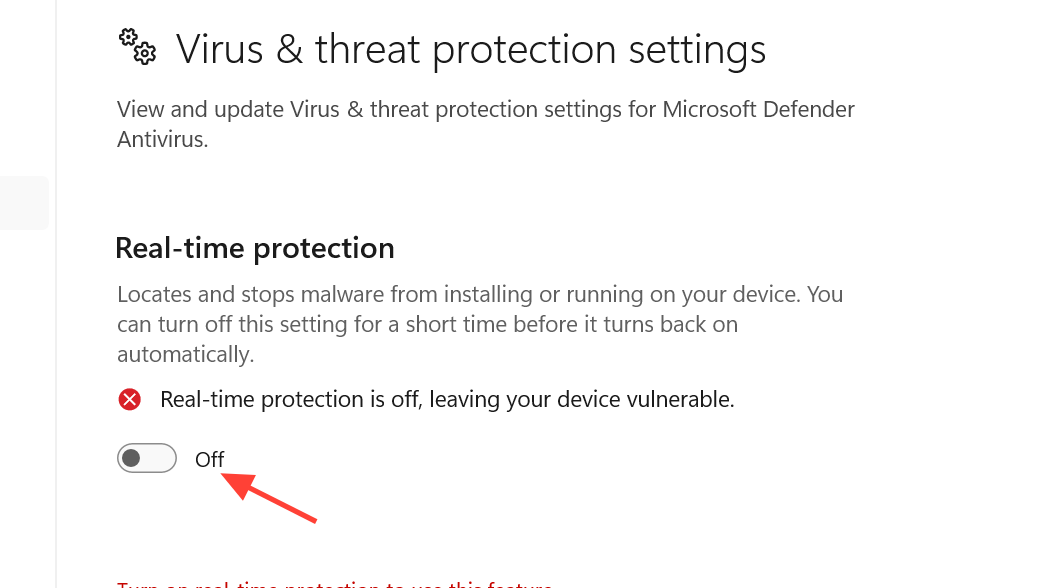
Windows Defender can also interfere. If you're running Defender alongside Marathon, try temporarily disabling its real-time protection before launching the game. Remember to re-enable it after your session.
The underlying issue is that these security tools sometimes block or throttle the connection between Marathon's client and BattlEye, the game's anti-cheat system. When BattlEye can't authenticate properly, the server rejects the connection and throws an error code like PAPRIKA or the related W:8 timeout.
Verify game files
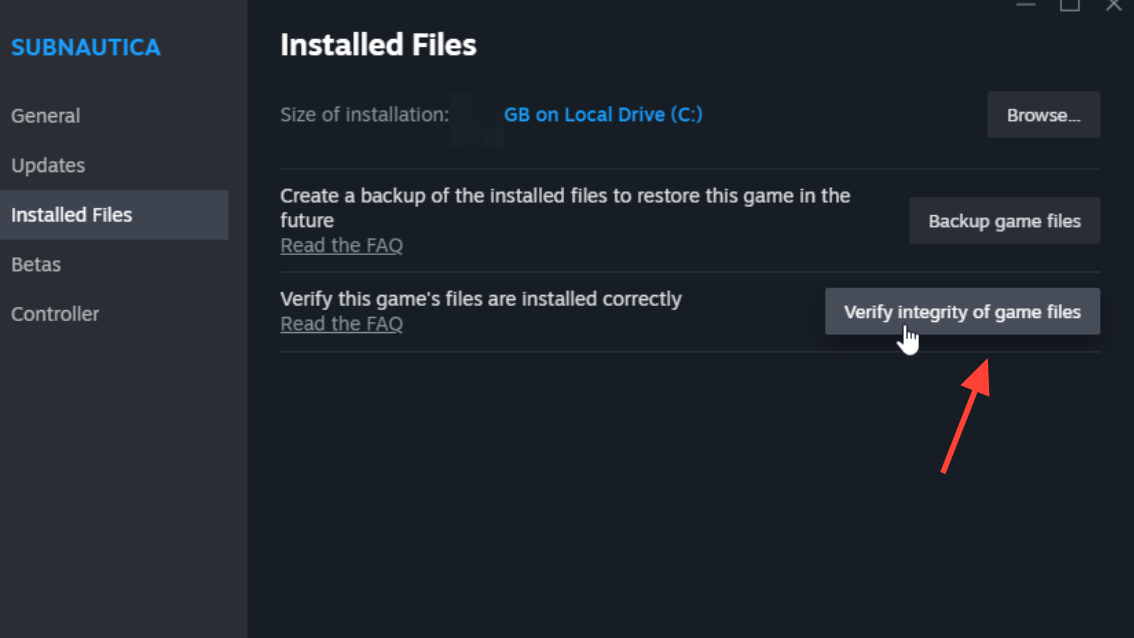
Corrupted or incomplete installation data can trigger repeated PAPRIKA errors. On Steam, right-click Marathon in your library, go to Properties → Installed Files → Verify integrity of game files. The process takes a few minutes and will automatically re-download anything that's damaged or missing. On PlayStation and Xbox, the equivalent option sits in the game's storage or manage-game menu.
Several players have reported that verifying files resolved the error even when a full reinstall did not, which suggests the problem can stem from a small number of corrupted files rather than a wholesale installation failure.
Switch to a wired connection
Wi-Fi introduces packet loss and latency spikes that Marathon's netcode handles poorly, especially during the initial server handshake. If you're on a wireless connection and seeing PAPRIKA repeatedly, plugging an Ethernet cable directly into your router is one of the most effective long-term fixes. This eliminates interference from other devices on your network and provides a more stable data stream to Bungie's servers.
Additional steps for persistent PAPRIKA errors
If the error keeps appearing after trying everything above, a few more options remain. Clearing your platform's cache can remove stale session data that might be confusing the connection process. On PlayStation, this means fully powering down the console (not rest mode) and restarting. On Xbox, hold the power button for ten seconds to perform a hard reset.
Contacting your Internet Service Provider is worth considering if you notice the error correlates with specific times of day or network activity. ISP-level issues like upstream congestion, packet loss, or unstable routing to Bungie's data centers won't show up in standard speed tests but can absolutely cause named error codes in Marathon.
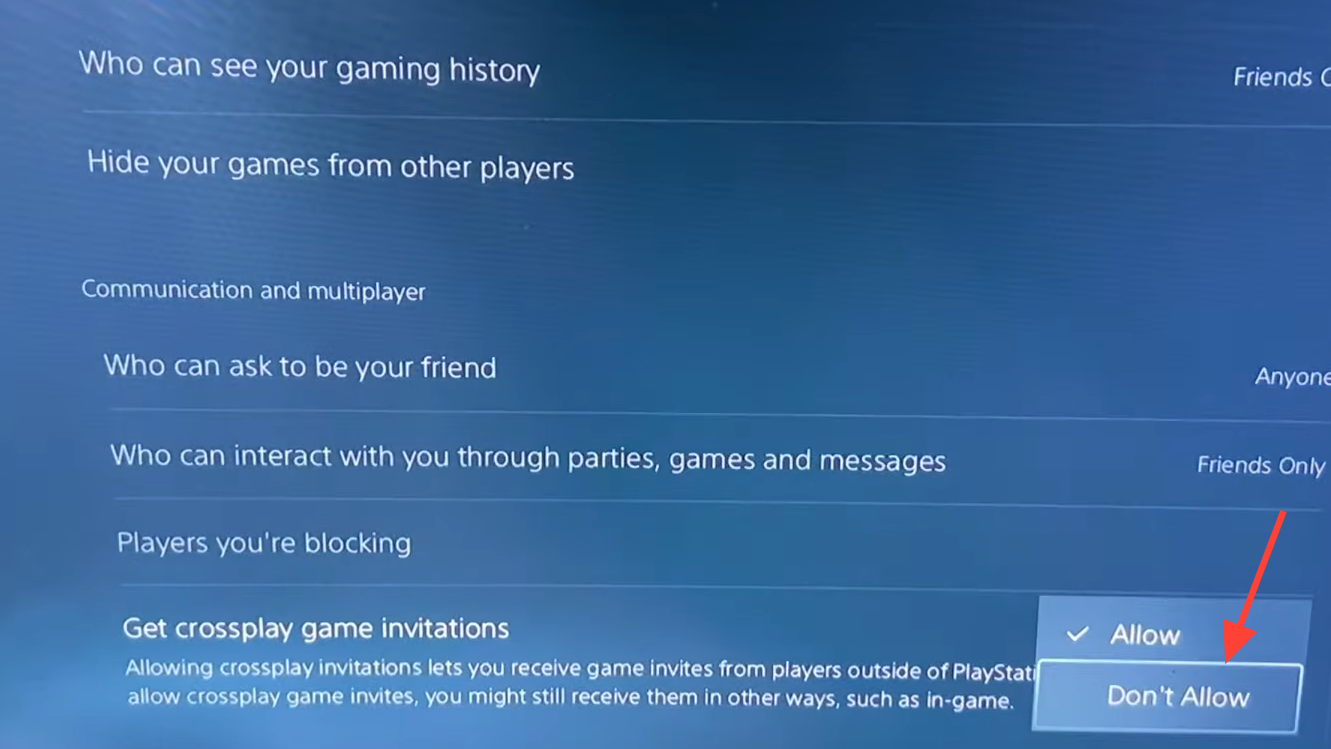
Some players on PlayStation have also reported that disabling crossplay through the in-game settings (accessible from the lobby screen's gear icon) allowed them to connect more quickly. This workaround reduces the matchmaking pool but may bypass whatever server-side bottleneck is triggering the error.
How to tell if the fix worked
A successful connection is straightforward to confirm. Marathon will move past the initial "Connecting" screen and load you into the lobby or tutorial without displaying an error code. If you see the main menu and can queue into a match, the PAPRIKA error is resolved. Should the error return mid-session or on your next launch, revisit the antivirus and network steps — intermittent recurrence usually points to security software re-enabling itself or Wi-Fi instability.
Marathon's named error codes can be frustrating, but PAPRIKA is one of the more fixable ones since it typically traces back to local network conditions or security software interference rather than a deep server-side problem. Keeping your antivirus configured to allow BattlEye, staying on a wired connection, and verifying your game files after updates will prevent most repeat encounters.