

Error Code 2100 in Marvel Rivals is a login or connection error that blocks access to the game, typically appearing after updates or during peak server times. The problem stems from ISP routing issues, conflicting network signals between Wi-Fi and Ethernet, or server handshake failures. PC players with wired connections report this error most frequently, though it affects players across all platforms.
Quick answer: Disable Wi-Fi and Ethernet, connect via your phone's 5G hotspot to log in, then reconnect your Ethernet cable. This bypasses ISP blocks and works for most players.
Check server status first
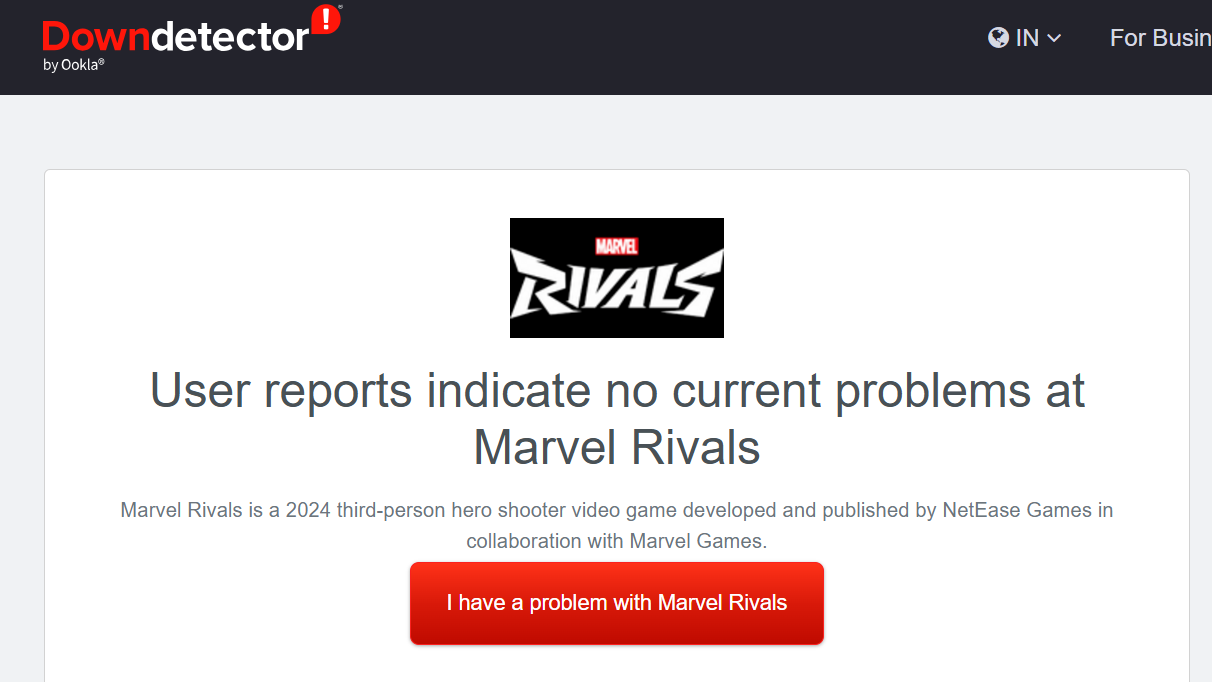
Before troubleshooting your connection, verify that Marvel Rivals servers are operational. Visit the official Marvel Rivals Discord, X (Twitter), the game's news page, or third-party websites like Downdetector to confirm whether servers are experiencing downtime. If servers are down, wait for them to come back online rather than attempting fixes.
Restart your network hardware
Step 1: Unplug your router or modem for 30 seconds, then plug it back in. Wait for all lights to stabilize before proceeding.
Step 2: Toggle Wi-Fi off and on through your system settings, or use the physical Wi-Fi button on your router if available.
Step 3: Relaunch Marvel Rivals and attempt to log in.
This simple reset often clears temporary network state issues that trigger the error.
Use the mobile hotspot method
The most effective workaround involves temporarily switching to your phone's mobile data. This bypasses ISP routing blocks that may be preventing the connection handshake.
Step 1: On your PC, disable both Wi-Fi and Ethernet connections entirely.
Step 2: Enable 5G (or 4G LTE if 5G is unavailable) on your phone and activate the mobile hotspot feature in your phone's settings.
Step 3: Connect your PC to the mobile hotspot network.
Step 4: Launch Marvel Rivals and log in. The game should connect successfully.
Step 5: Once logged in, disconnect from the hotspot and reconnect your Ethernet cable. You can then play normally on your regular connection.
This approach works because mobile networks use different routing paths than your ISP, avoiding the blocks causing the error.
Flush DNS and switch to public DNS
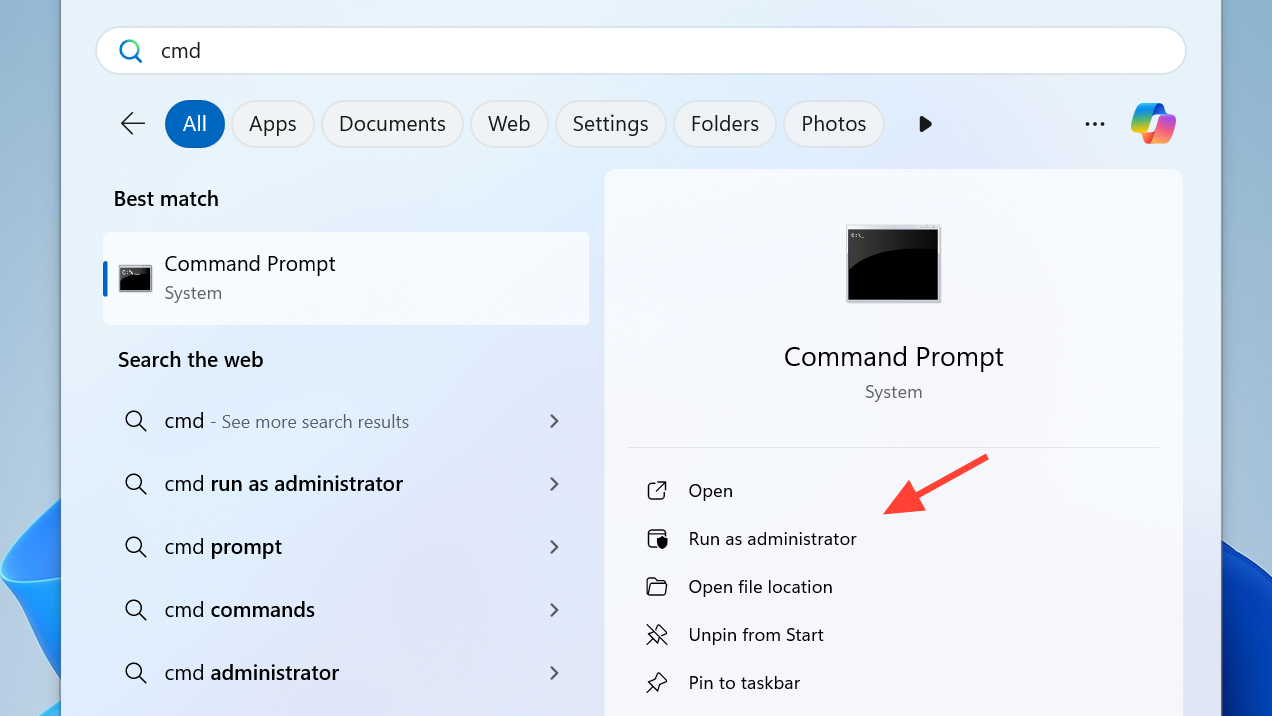
Step 1: Open Command Prompt as Administrator (right-click and select "Run as administrator").
Step 2: Enter the following commands one at a time, pressing Enter after each:
ipconfig /flushdns
ipconfig /release
ipconfig /renew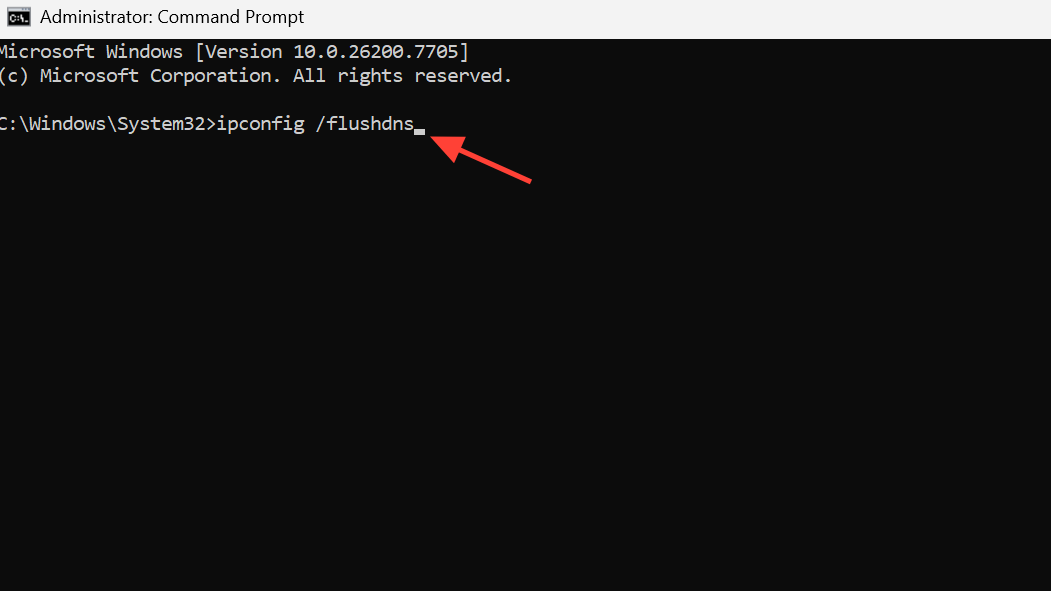
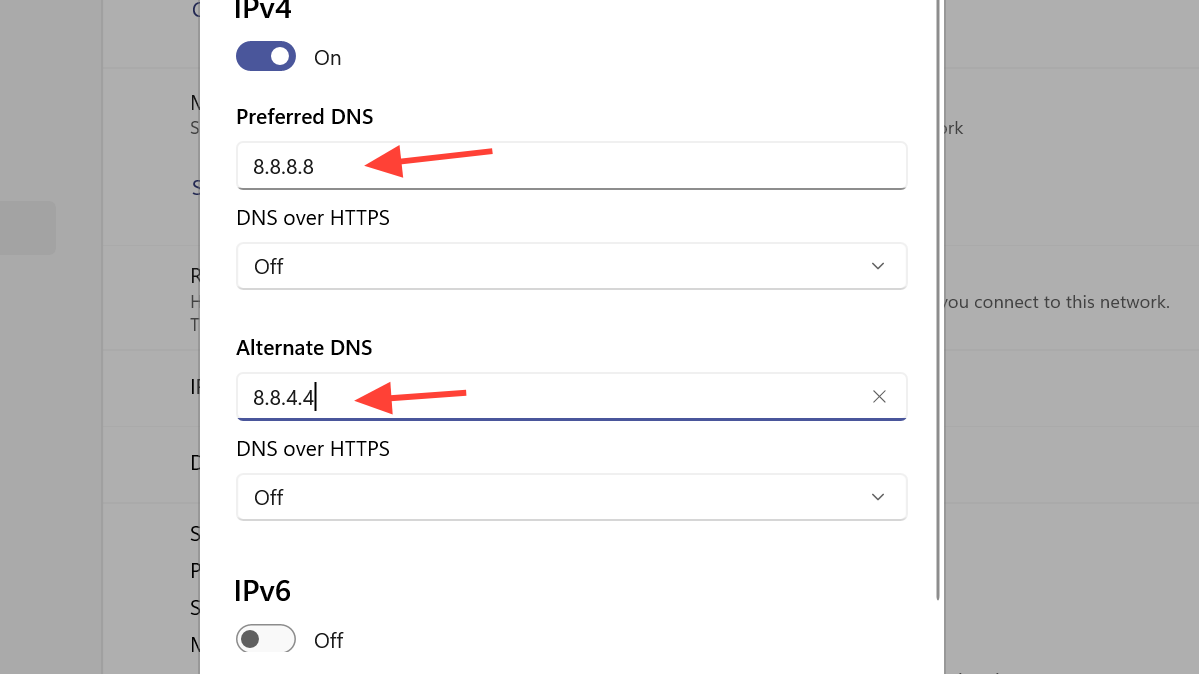
Step 3: After the commands complete, change your DNS settings to Google's public DNS (8.8.8.8 and 8.8.4.4) through your network adapter settings or router configuration.
Step 4: Restart your PC and try logging in again.
DNS flushing clears cached network data that may contain stale or incorrect routing information.
Clear launcher cache and verify game files
If network fixes don't resolve the issue, the problem may involve corrupted launcher or game data.
Step 1: Close Marvel Rivals and its launcher completely.
Step 2: Navigate to your launcher's cache folder (location varies by platform—check your launcher's settings for the cache directory) and delete all cached files.
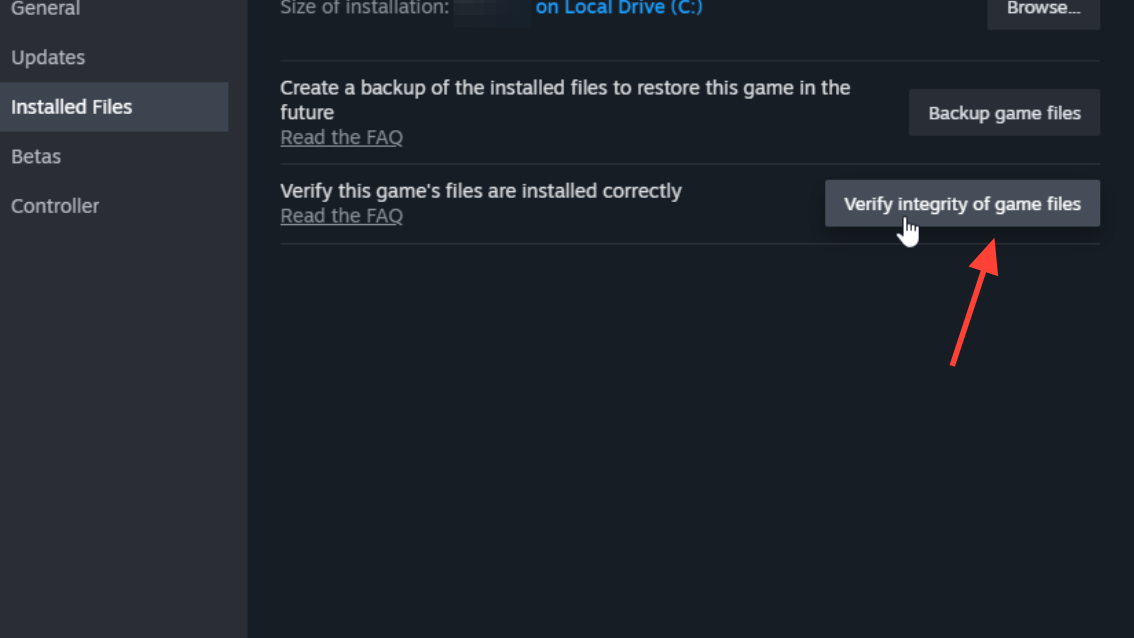
Step 3: Reopen the launcher and verify game files through the integrity check option. On Steam, right-click the game, select Properties, go to Local Files, and choose "Verify integrity of game files." On Epic Games, select the three-dot menu and choose "Verify."
Step 4: Once verification completes, launch the game and attempt to log in.
If verification fails or the error persists, uninstall and reinstall the game entirely.
Verify your system time is correct
Server handshake failures can occur if your system clock is significantly out of sync. Check that your computer's date and time match your actual timezone. Adjust it through your system settings if needed, then restart the game.
When to contact support
If you've completed all steps above and still encounter Error Code 2100, contact Marvel Rivals support directly. Provide details about your ISP, network setup, and which fixes you've already attempted. Persistent errors after these steps often indicate ISP-level routing blocks or account-specific issues that require official intervention.