

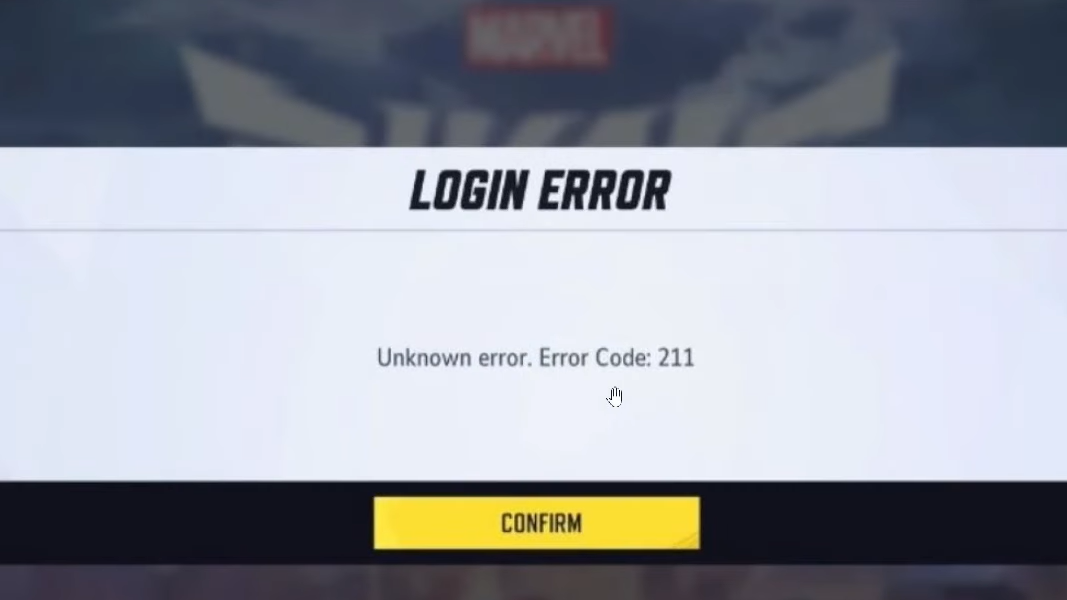
Error code 211 in Marvel Rivals is a login-side failure that appears when the game cannot establish a connection between your Steam client and the Marvel Rivals servers. The on-screen message typically reads "Failed to connect to Steam. Error Code: 211," and it stops you dead at the title screen. The error has been reported since the game's launch in late 2024 and continues to surface for Steam players, though it does not appear to affect console users or those running the game through Epic Games Store.
Quick answer: Force-close Steam entirely through Task Manager, relaunch it as an administrator, and start Marvel Rivals again. If that doesn't work, reset your network adapter or switch your DNS to Cloudflare (1.1.1.1 / 1.0.0.1).
What causes error code 211
There is no single confirmed root cause. The error is tied to the game's authentication handshake with Steam, and several conditions can break that handshake. Players have reported it appearing after changing their Steam password, after a Windows or Steam client update, or seemingly at random with no obvious trigger. Network instability — particularly on 5 GHz Wi-Fi connections — has also been linked to the problem. Because the cause varies, you may need to try more than one fix before the error goes away.
Force-close and restart Steam as administrator
The fastest and most commonly successful fix is a full restart of the Steam client. Simply closing the Steam window isn't always enough because background processes can linger.
Step 1: Right-click the Windows taskbar and open Task Manager. Find every Steam-related process in the list, select each one, and click "End task."
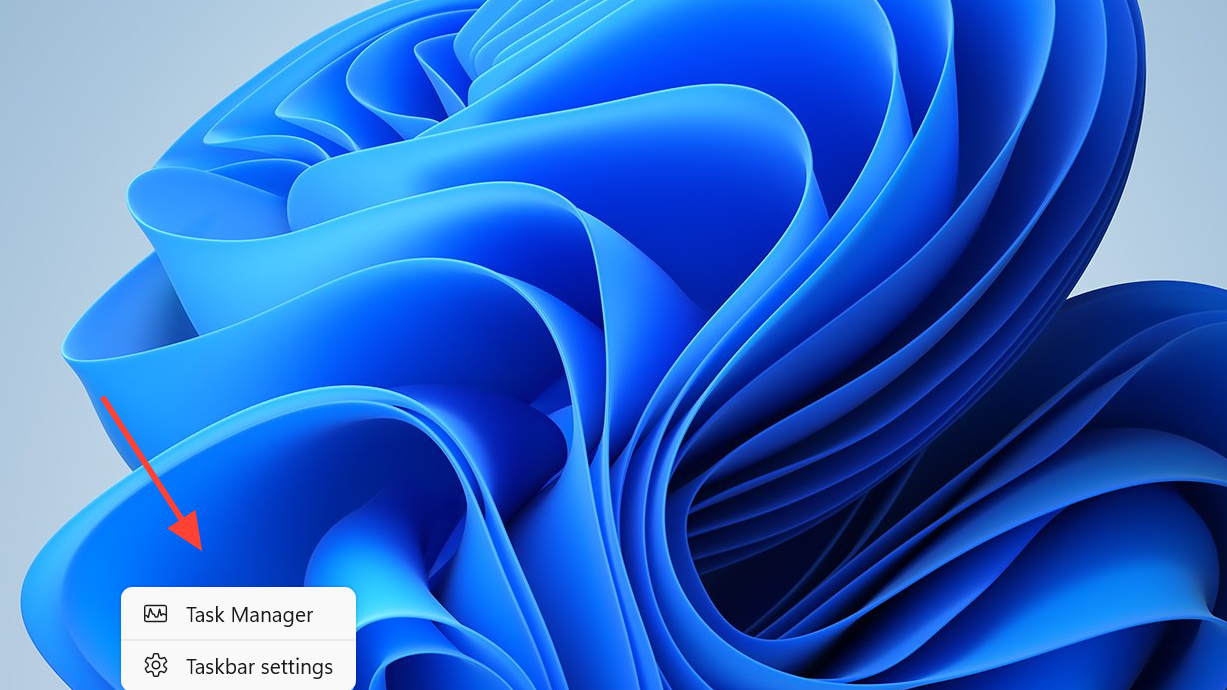
Step 2: Right-click the Steam shortcut on your desktop or Start menu and select "Run as administrator." Log into your account and launch Marvel Rivals from your library.
Running Steam with elevated permissions can resolve permission conflicts that occasionally prevent the game from authenticating properly. If Marvel Rivals loads past the title screen, the issue is resolved.
Verify game file integrity
Corrupted or missing game files can interfere with the login sequence even though the error message points to a Steam connection problem.
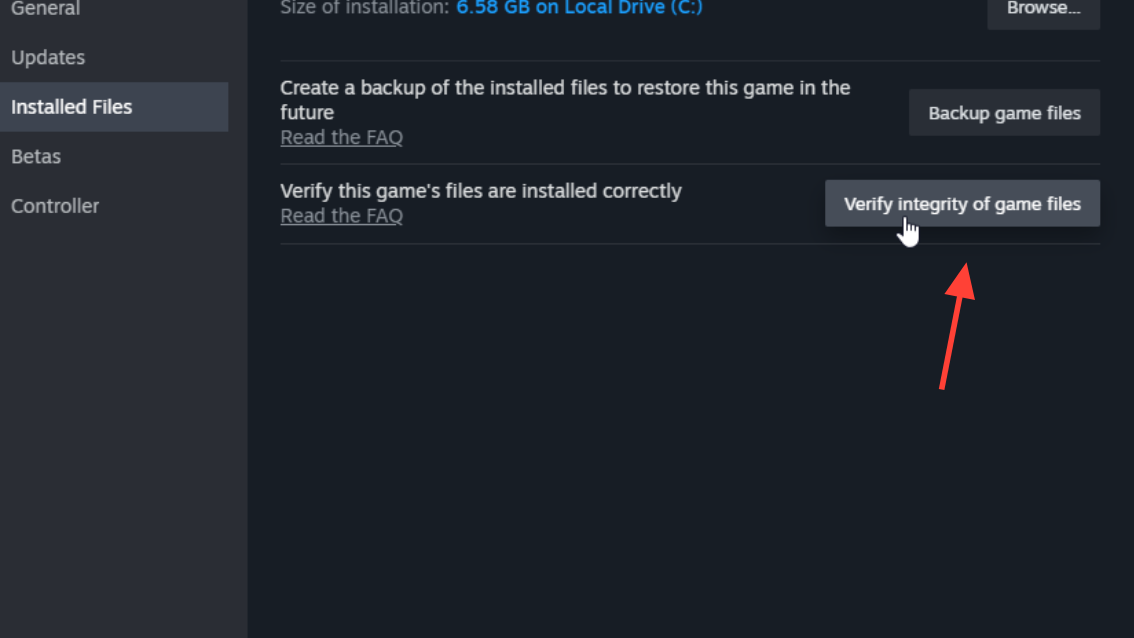
Step 1: Open your Steam library, right-click Marvel Rivals, and select "Properties."
Step 2: Navigate to the "Installed Files" tab and click "Verify integrity of game files." Steam will scan, remove any corrupted files, and re-download replacements automatically.
Step 3: Once verification finishes, launch the game. If the error persists, move on to the network-level fixes below.
Reset your network adapter
Error code 211 is fundamentally a network issue, and stale adapter configurations or leftover VPN settings can silently interfere with the connection to Marvel Rivals' servers.
Step 1: Open the Windows search bar, type "Network reset," and open the result.
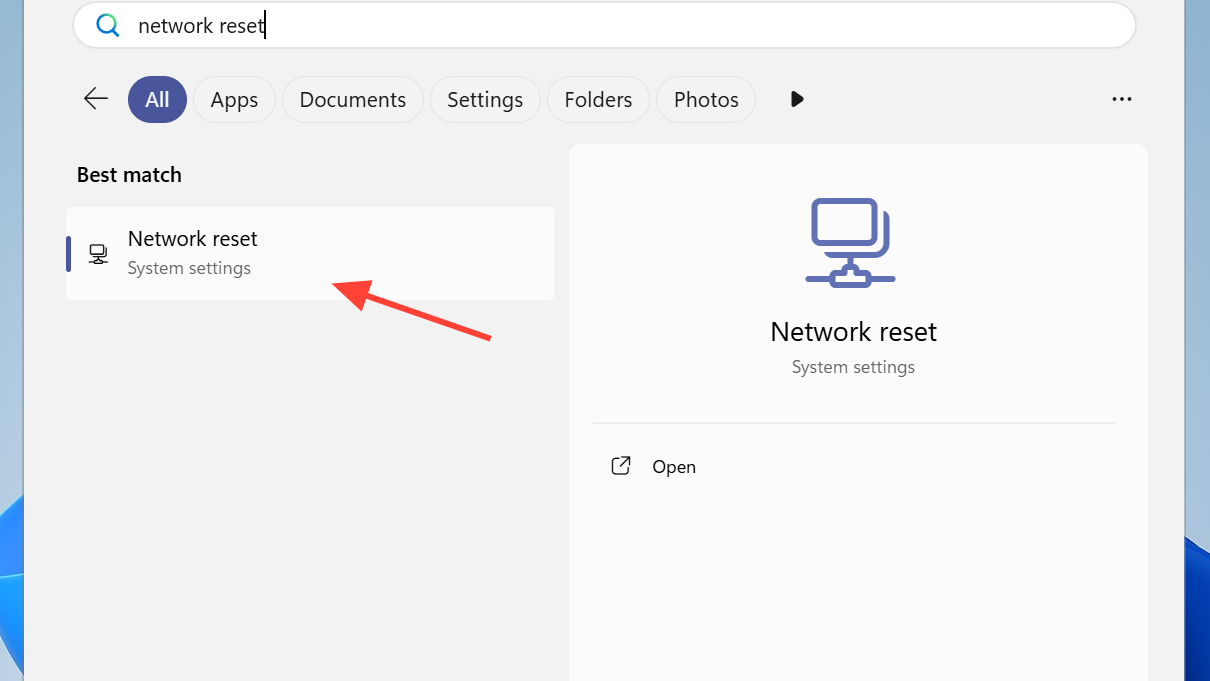
Step 2: Click "Reset now." Windows will remove and reinstall all network adapters and clear any residual VPN or proxy configurations. Your PC will restart automatically.
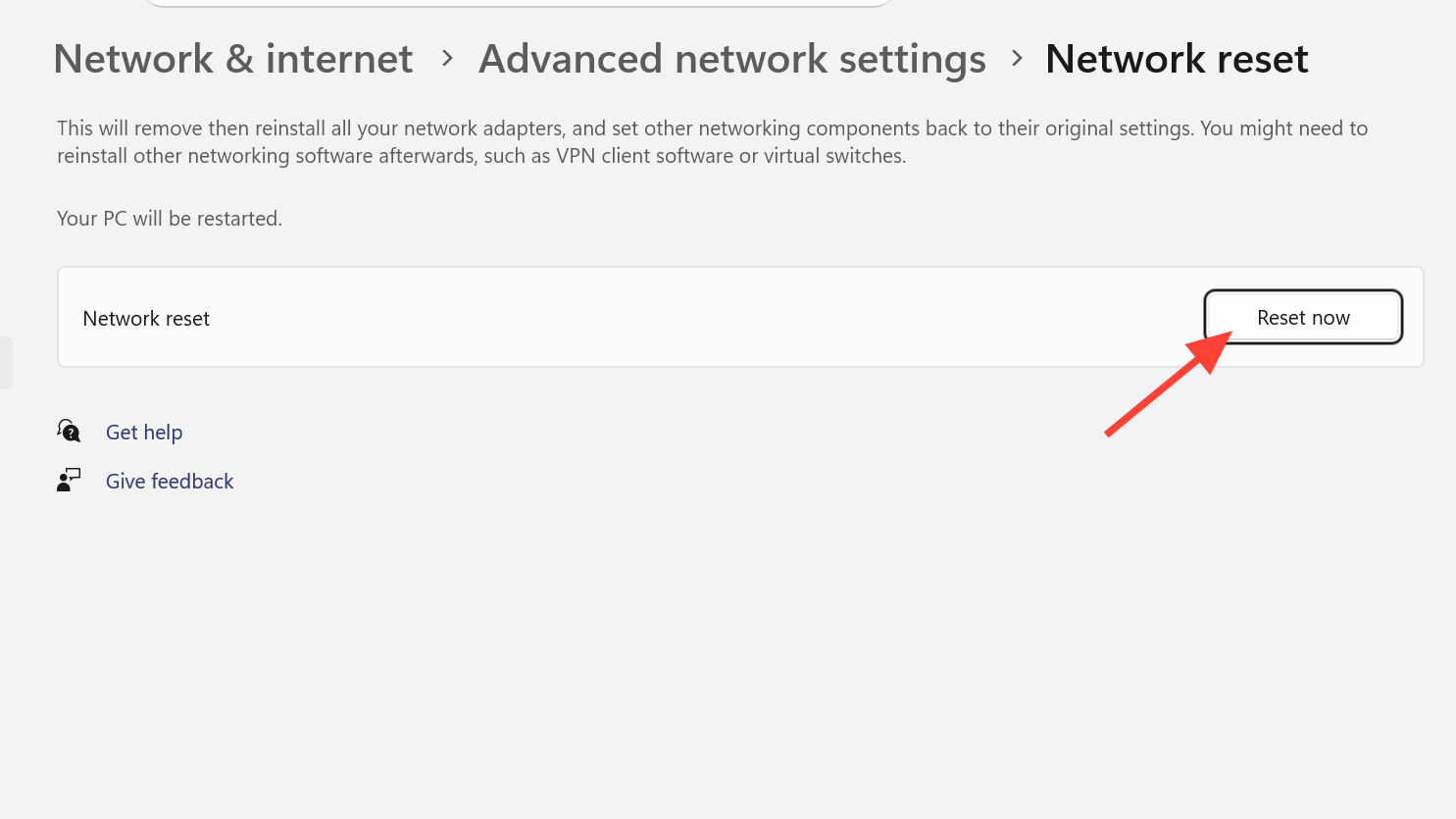
After the restart, reconnect to your network and try launching the game. This approach wipes adapter-level problems that more targeted fixes might miss.
Switch to Cloudflare DNS
Default DNS settings from your ISP can occasionally cause routing issues with game servers. Switching to a public DNS provider like Cloudflare often improves connection reliability.
Step 1: Open the Windows search bar, type "Network connections," and open the result. Right-click your active connection (Ethernet or Wi-Fi) and select "Properties."
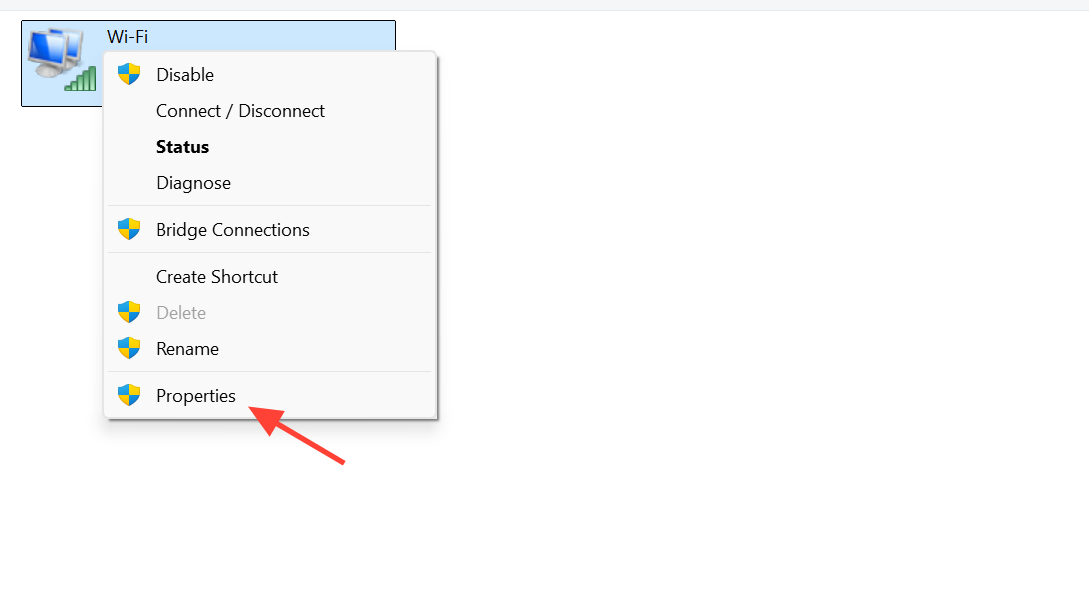
Step 2: Select "Internet Protocol Version 4 (TCP/IPv4)" and click "Properties." Choose "Use the following DNS server addresses" and enter 1.1.1.1 as the preferred server and 1.0.0.1 as the alternate.
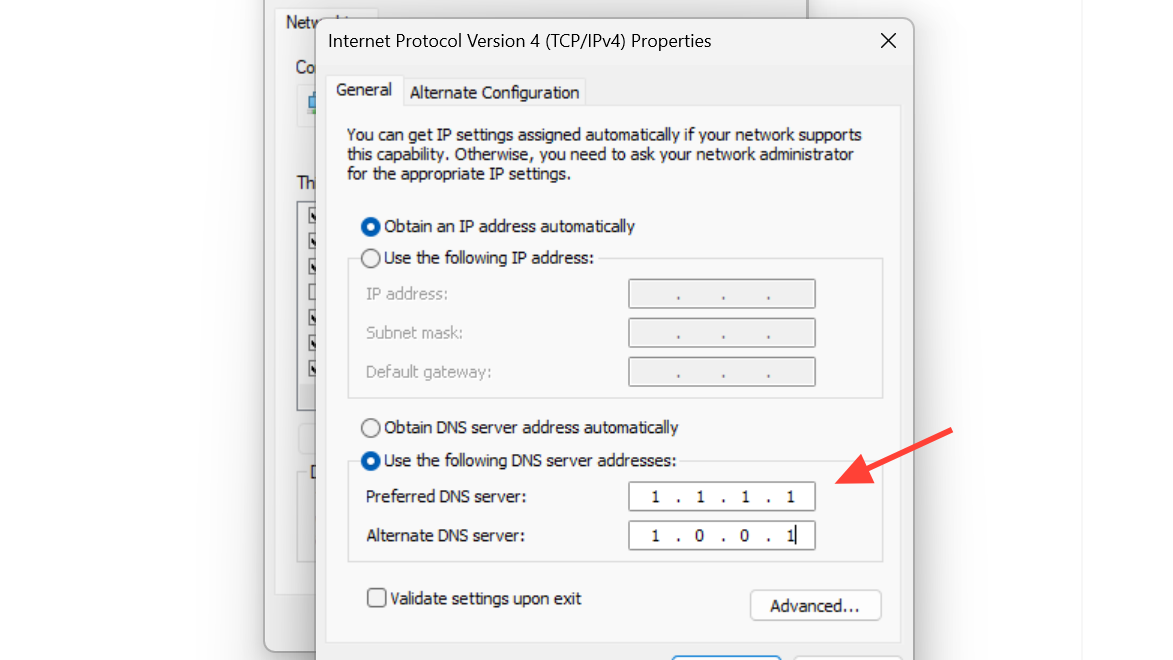
Step 3: Click OK, close all dialogs, and restart your computer before launching Marvel Rivals.
Allow Marvel Rivals and Steam through Windows Firewall
Windows Firewall can block the specific ports or executables Marvel Rivals needs for its Steam authentication call. Even if you haven't changed your firewall settings manually, a Windows update can reset app permissions.
Step 1: Press Win + R to open the Run dialog, type firewall.cpl, and press Enter.
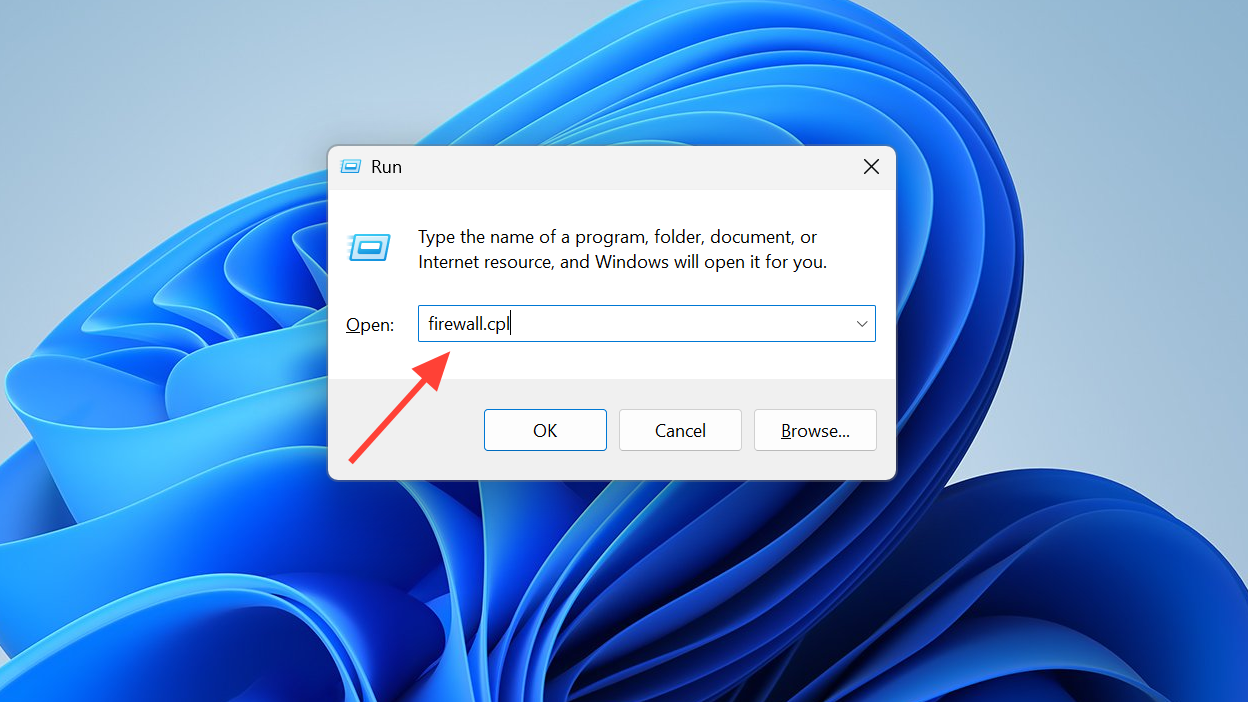
Step 2: Click "Allow an app or feature through Windows Defender Firewall," then click "Change settings."
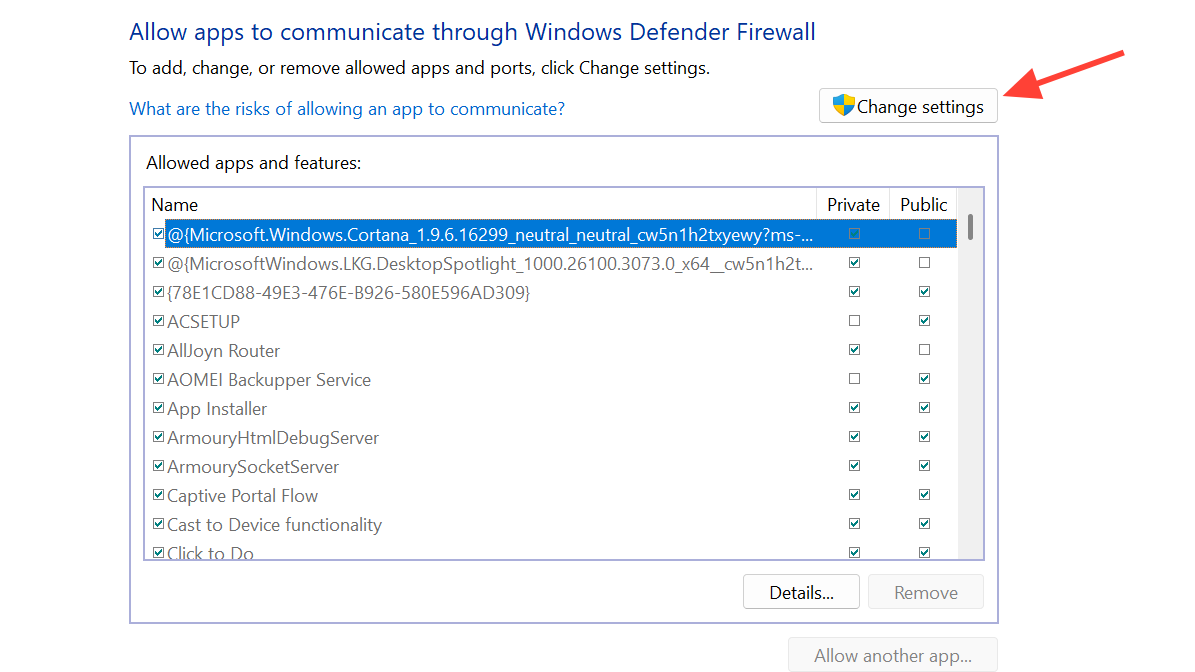
Step 3: Find both Marvel Rivals and Steam in the list. Make sure the "Private" and "Public" checkboxes are ticked for each. If Marvel Rivals isn't listed, click "Allow another app" and browse to its executable. Click OK to save.
Switch from 5 GHz to 2.4 GHz Wi-Fi
This fix sounds counterintuitive — 5 GHz is faster, after all — but multiple players have confirmed that switching to a 2.4 GHz band resolved persistent error 211 and related disconnection issues. The 2.4 GHz band has longer range and better wall penetration, which can produce a more stable (if slower) connection to distant game servers.
To make this change, log into your router's admin panel (usually at 192.168.0.1 or 192.168.1.1 in a browser) and either disable the 5 GHz band temporarily or connect your device to the 2.4 GHz SSID if your router broadcasts them separately. Test Marvel Rivals on the 2.4 GHz connection before reverting.
Use a VPN as a temporary workaround
If none of the above fixes work, connecting through a free VPN service before launching the game can bypass whatever routing issue is causing the authentication failure. Launch the VPN, connect to a nearby server, start Marvel Rivals, and once you're past the login screen and into the main menu, you can disconnect the VPN and continue playing on your normal connection. This isn't a permanent solution, but it confirms whether the problem is a network routing issue between your ISP and the game's servers.
Try Marvel Rivals through Epic Games Store
Because error code 211 is specifically a Steam authentication failure, downloading and running Marvel Rivals through the Epic Games Store sidesteps the problem entirely. Your in-game progress is tied to your Marvel Rivals account, not your storefront, so you won't lose anything by switching platforms. This is worth considering if the error keeps recurring despite every other fix.
Check Marvel Rivals server status
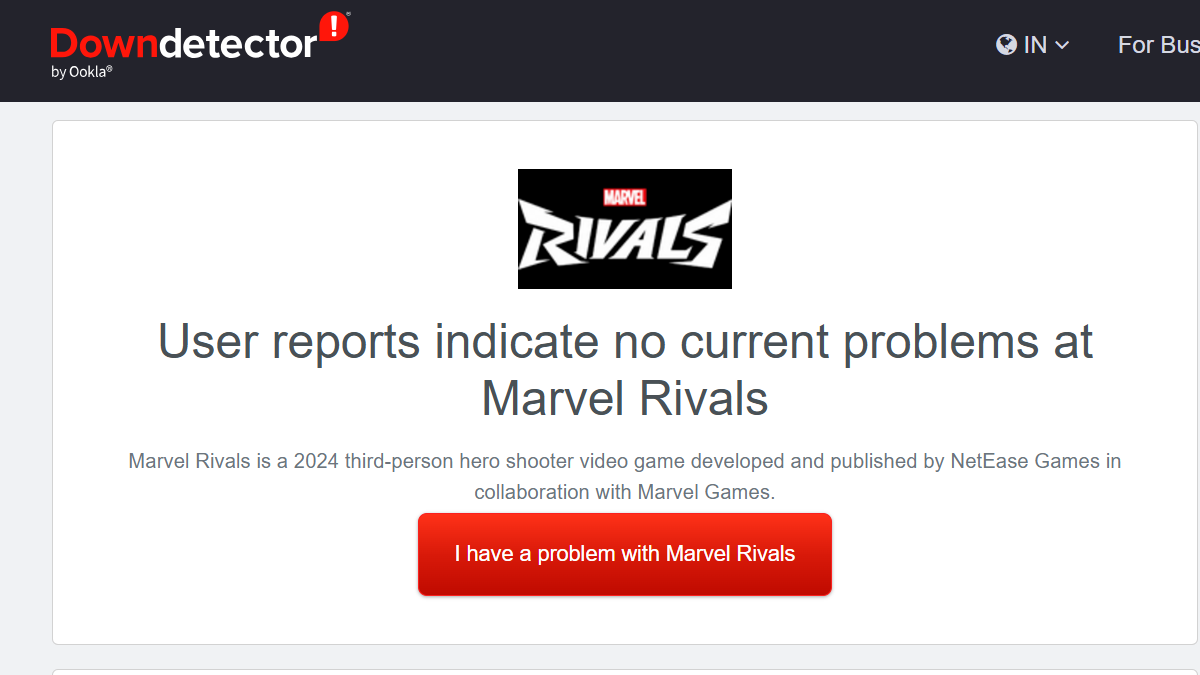
Sometimes error 211 isn't on your end at all. Server-side outages or maintenance windows can produce login errors that no local fix will resolve. The Marvel Rivals team posts server status updates and maintenance notices on their official X (formerly Twitter) account and their official Discord server's announcement channel. If the servers are down, the only fix is to wait for them to come back online.
How to confirm the fix worked
A successful fix is straightforward to verify. After applying any of the methods above, launch Marvel Rivals. If you pass the title screen without seeing the "Failed to connect to Steam. Error Code: 211" message and reach the main menu or character select, the error is resolved. If it reappears after a few days, the underlying cause may be intermittent — in that case, the DNS change and firewall configuration tend to be the most durable long-term fixes.
Error code 211 is frustrating precisely because it has no single cause, but the trade-off is that most players can resolve it without reinstalling the game or contacting support. Start with the Steam restart, work through the network fixes, and fall back to Epic Games Store if nothing else sticks.