

Error code CE-107891-6 on the PlayStation 5 means content isn't installing properly on your console. It can appear when you try to launch a game, download an update, or copy a title from an external storage device to the PS5's internal SSD. The error has been reported across a wide range of titles, from large free-to-play games like Fortnite and Call of Duty: Warzone to single-player releases like Baldur's Gate 3 and various sports titles.
Quick answer: Delete the affected game from your PS5 storage, then download and install it again from scratch. There is no reliable partial fix — a full reinstall is the standard resolution.
What causes CE-107891-6
The error signals that game data on your PS5 has become corrupted or incomplete. This most commonly happens in a few scenarios. A download or update may have been interrupted by a network drop, a power loss, or the console entering rest mode at the wrong moment. The error also frequently appears when copying a game from an external USB hard drive to the PS5's internal NVMe SSD, suggesting the transfer process can sometimes produce bad data that the system later rejects.
Games with very large install sizes — often exceeding 100 GB — seem to trigger the error more often, likely because longer transfers have more opportunities for something to go wrong. Repeated patches and updates to live-service games can also leave behind mismatched files that eventually cause the installation check to fail.
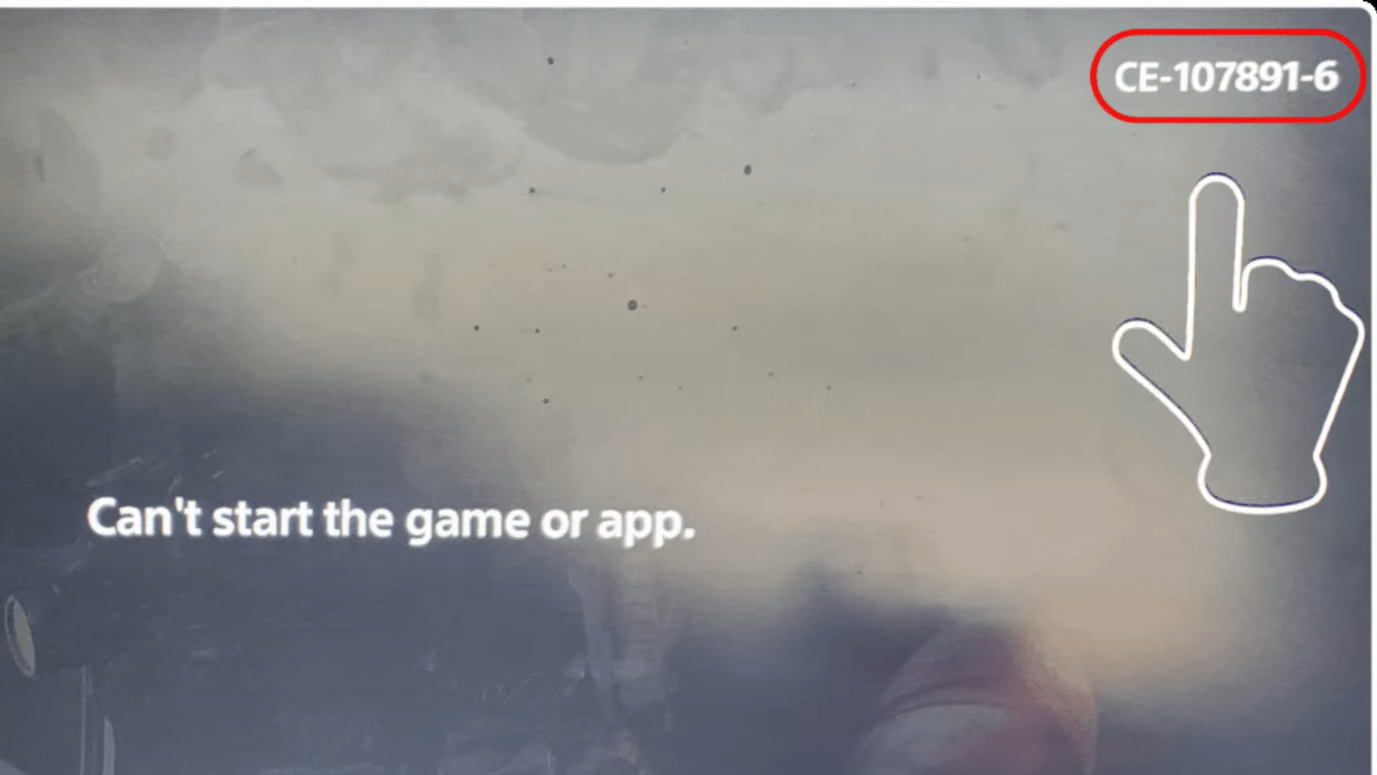
Delete and reinstall the game
The officially recommended fix is straightforward but time-consuming, especially for large games.
Step 1: On your PS5, go to Settings → Storage. Select the storage location where the problematic game is installed (either Console Storage or an extended USB drive).
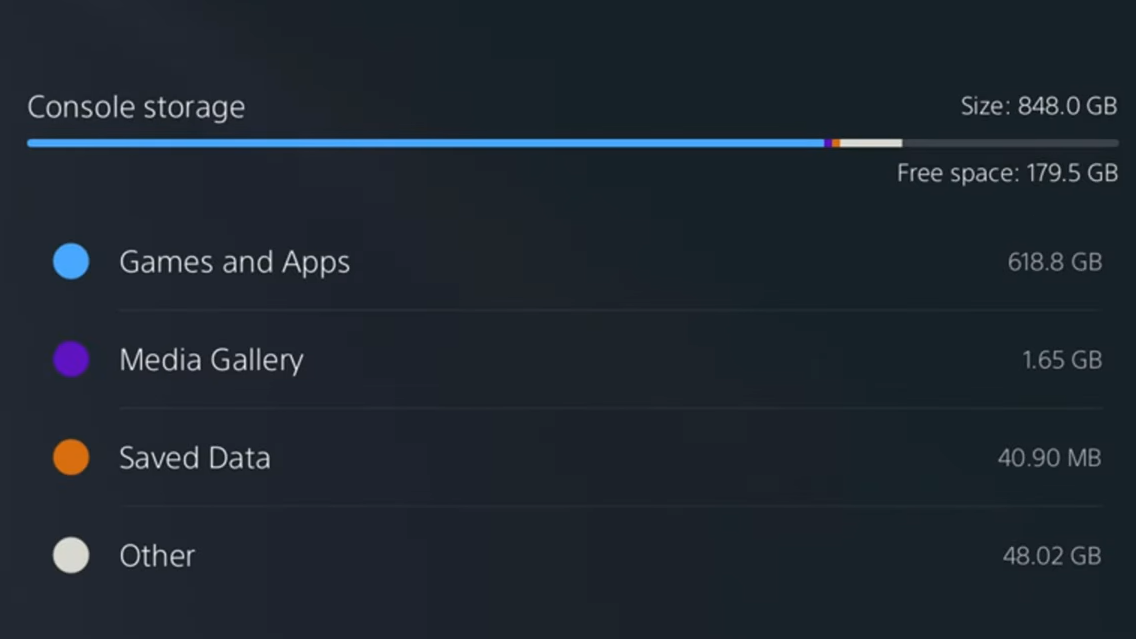
Step 2: Find the game that triggered the error and delete it. This removes all local game data. Your save files stored in cloud storage through PS Plus remain unaffected, but any local-only saves will be lost unless you back them up to a USB drive first.
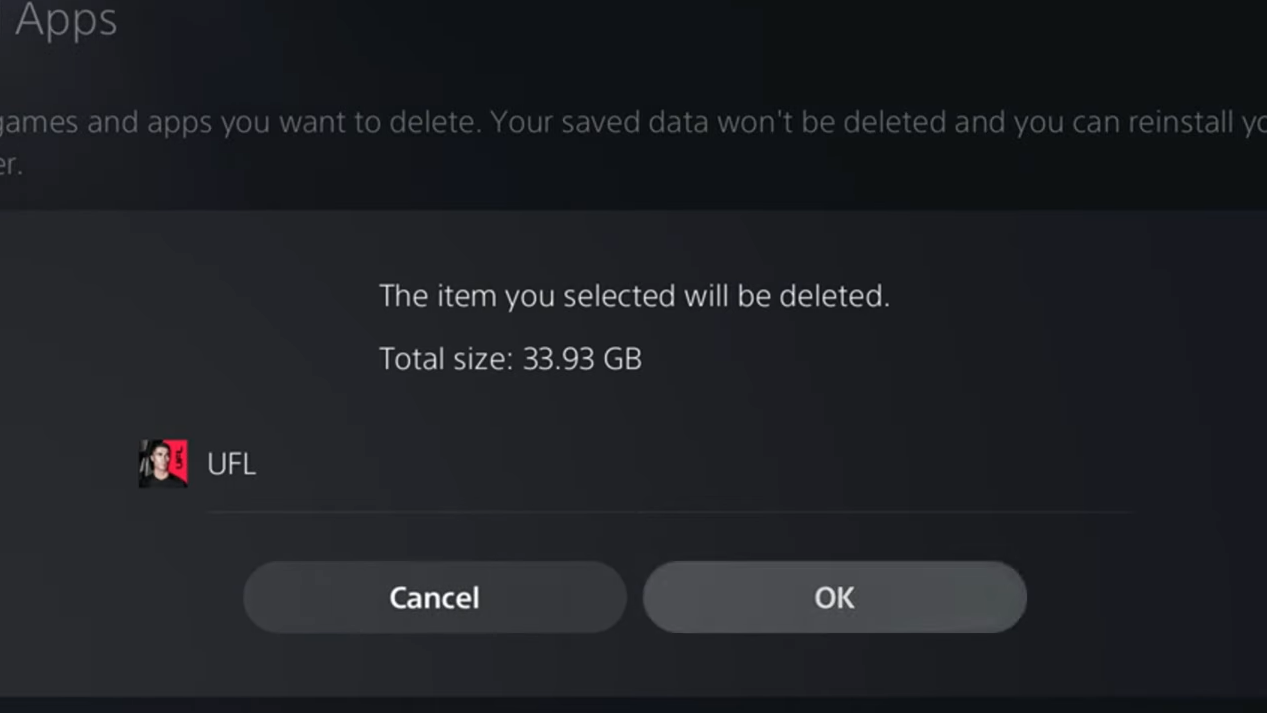
Step 3: Reinstall the game. You can re-download it from your Game Library on the PS5 home screen, or reinstall from a disc if you own a physical copy. Let the full installation and any available patches complete before launching the game.
Once the reinstall finishes and you can launch the game without seeing the error, the fix worked. If the game opens normally and loads into its main menu or title screen, the corrupted data has been replaced.
If the error keeps coming back
For most people, a single reinstall permanently resolves CE-107891-6. But some users have reported the error recurring multiple times with the same game, particularly titles that receive frequent large updates. If you find yourself stuck in a cycle of deleting and redownloading, a few additional steps are worth trying.
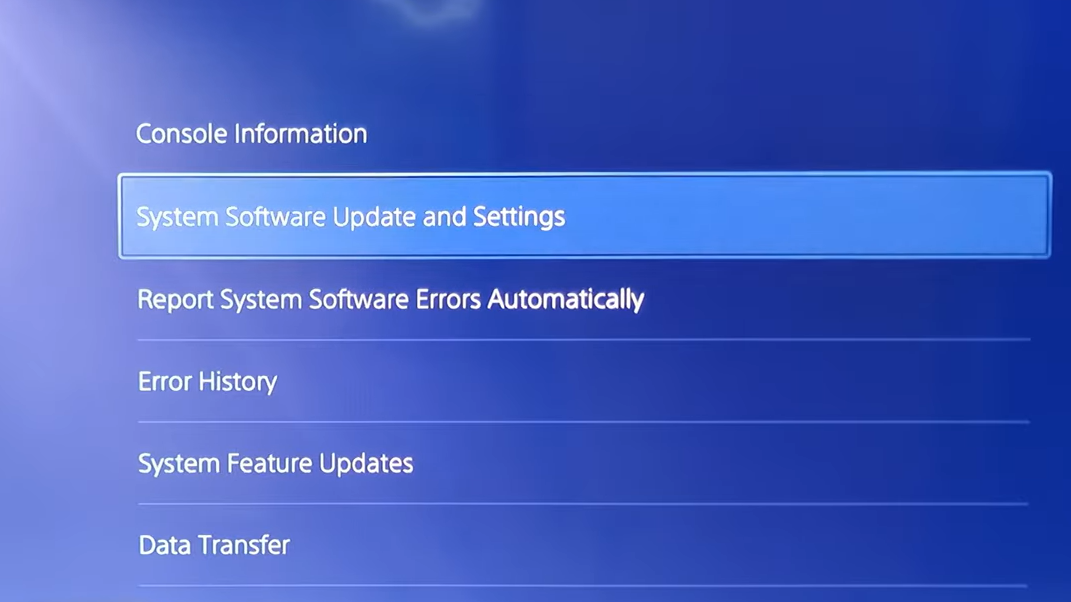
First, make sure your PS5 system software is fully up to date. Go to Settings → System → System Software → System Software Update and Settings and check for any pending updates. Outdated firmware can sometimes cause installation issues that newer versions have already patched.
Second, if you were copying the game from an external USB drive when the error appeared, avoid that transfer method going forward. Download the game directly to the PS5's internal storage instead. External drives connected via USB can introduce data integrity problems during large file copies, and the internal SSD is the more reliable target for installation.
Third, rebuild the PS5's database. Power off the console completely, then hold the power button until you hear a second beep to enter Safe Mode. Select Rebuild Database from the menu. This process reorganizes data on the internal drive and can clear up lingering file system issues without deleting your games or saves. It typically takes a few minutes.
When to contact PlayStation Support
If you've reinstalled the game multiple times, updated your system software, rebuilt the database, and the error still appears, the problem may point to a hardware issue with your console's storage. A failing internal SSD can produce persistent installation errors that no amount of software troubleshooting will fix. At that point, reaching out to PlayStation Support directly is the right move — they can walk you through further diagnostics or arrange a repair if needed.
CE-107891-6 is one of those PS5 errors that looks alarming but almost always resolves with a clean reinstall. The main inconvenience is the download time, which can be significant for games that weigh in at 100 GB or more. Keeping a stable wired internet connection and avoiding transfers from external USB drives will reduce the chances of running into it again.