

The “Invalid access token” error in Hytale has become one of the most frustrating blockers at launch. It can appear when you try to create or enter a world, and in many cases it prevents you from playing at all, even in what looks like single‑player. The wording makes it sound like an account or payment problem, but for most players it comes down to something much simpler: how your PC’s clock and network are interacting with Hytale’s authentication system.
What the Hytale “Invalid access token” error actually means
Hytale uses time‑limited tokens to confirm that your launcher, game client, and account are allowed to talk to its backend services. Those tokens are only valid for a short window, and they rely on your system clock lining up closely with internet time. When that check fails, the game treats your token as invalid and refuses to start worlds or connect to services.
That’s why players see the error even when they have a paid account and a stable connection, and why the same account can work fine on one PC but not another. In practice, the most common trigger has been a Windows clock that has drifted or is using the wrong time server.
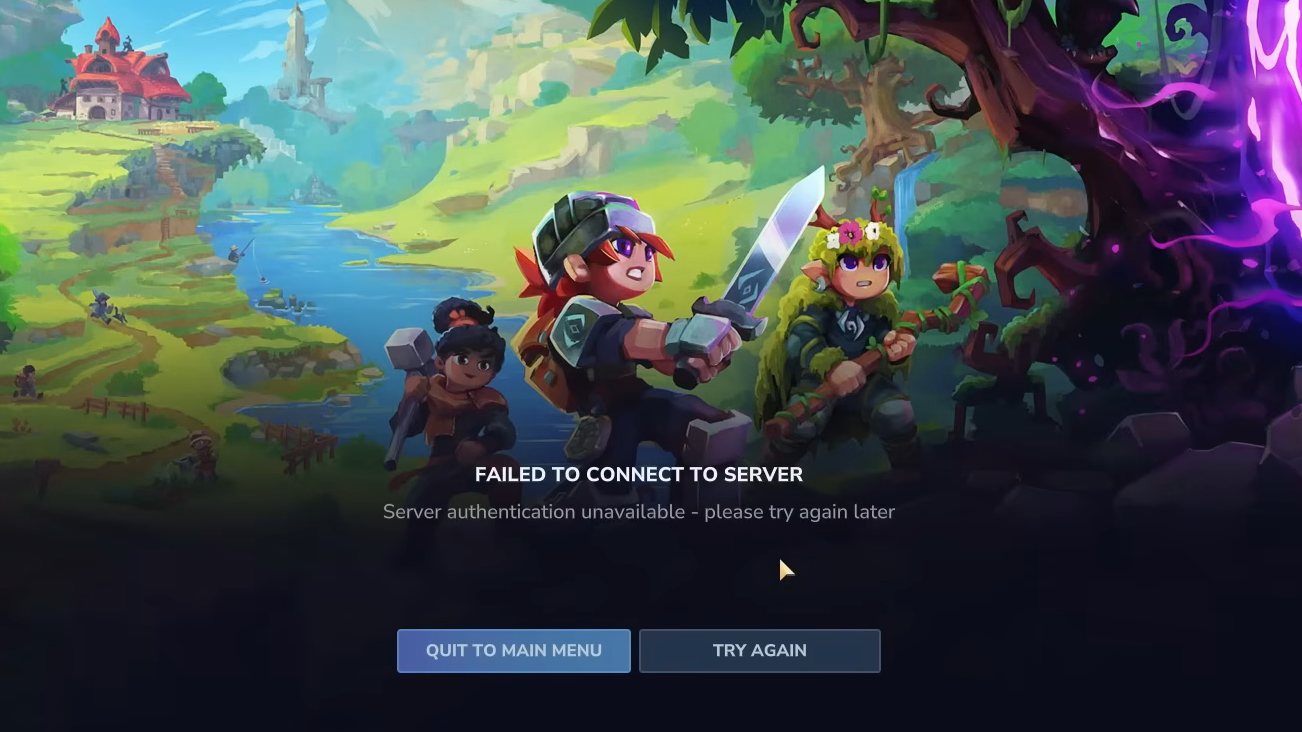
Fix Hytale “Invalid access token” by syncing your Windows clock
For many players, properly synchronizing the Windows clock has cleared the error immediately. The important part is not just hitting “Sync now”, but making sure Windows is actually talking to a working time server and applying the adjustment.
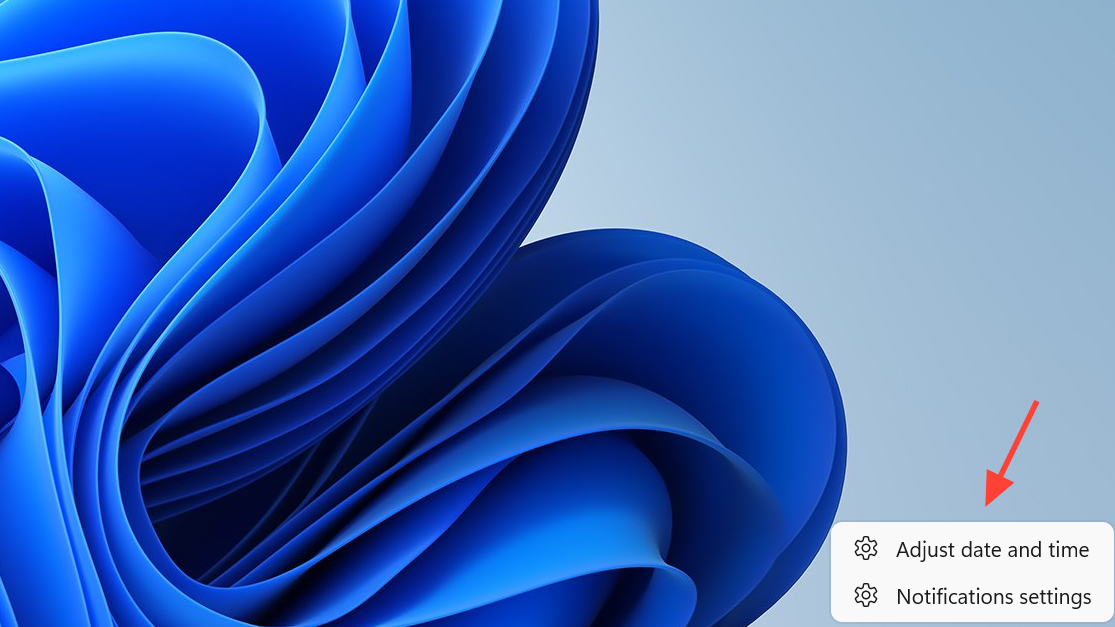
Step 1: Open the Windows date and time settings. On Windows 10 and 11, right‑click the clock in the taskbar and choose Adjust date and time.
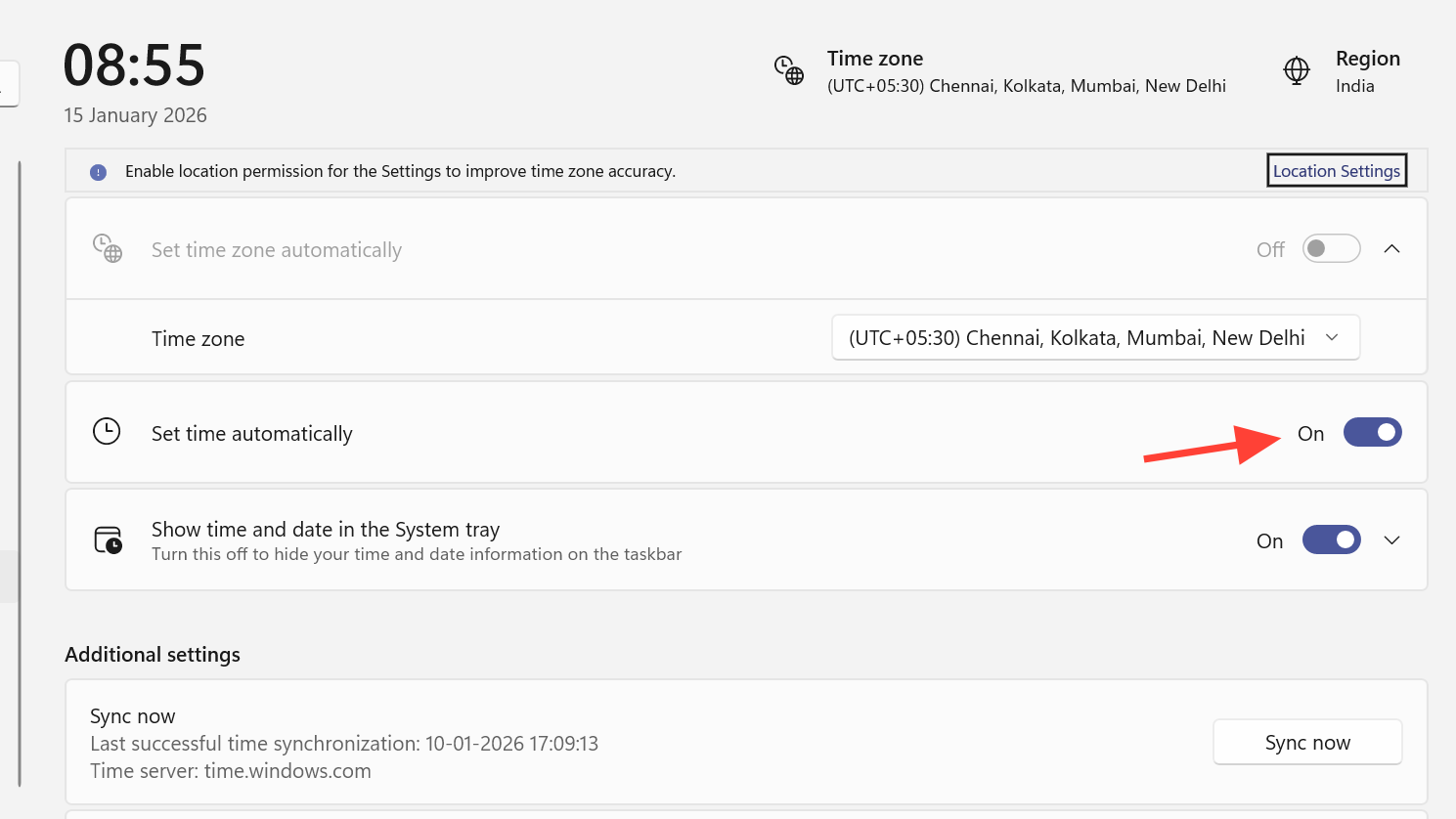
Step 2: Make sure Set time automatically is turned on. If it is already on, toggle it off, wait a few seconds, then toggle it back on to force a refresh.
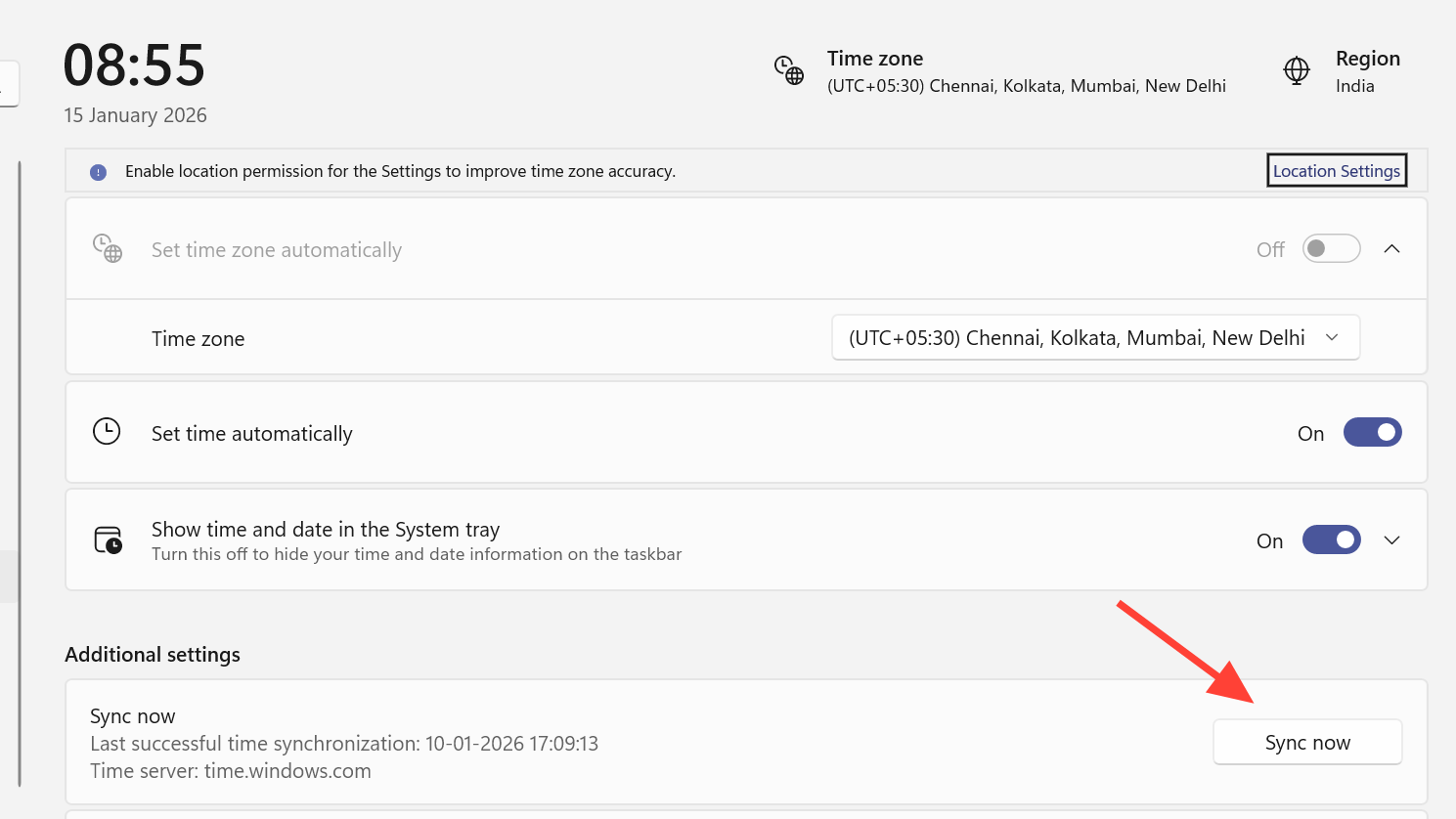
Step 3: Scroll to the Additional settings or Sync now area. Click Sync now and confirm that Windows reports a successful synchronization.
Step 4: If automatic sync does not help, switch to a known working time server. On older Control Panel flows, that means opening Date and Time → Internet Time tab → Change settings… and picking a server such as time.windows.com or another regional NTP server.
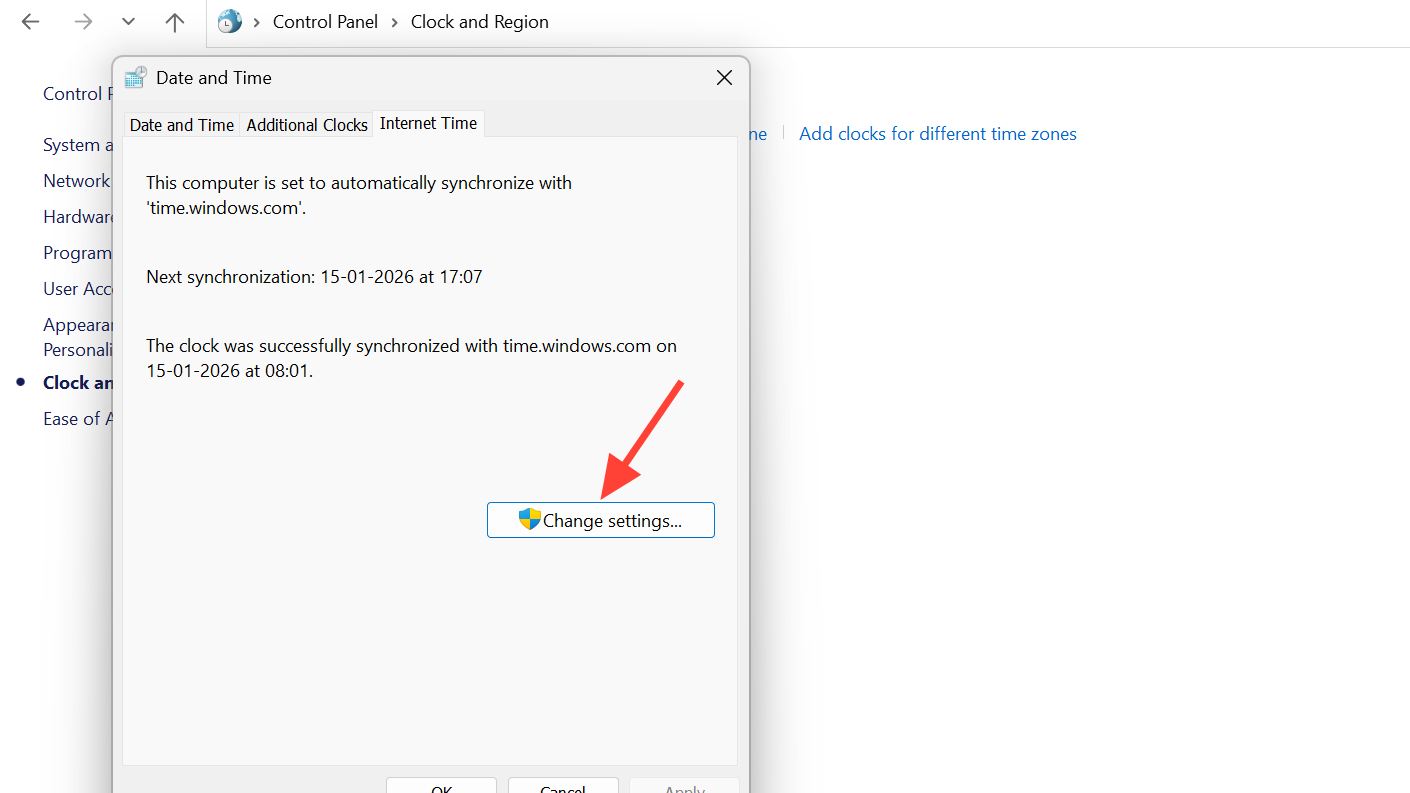
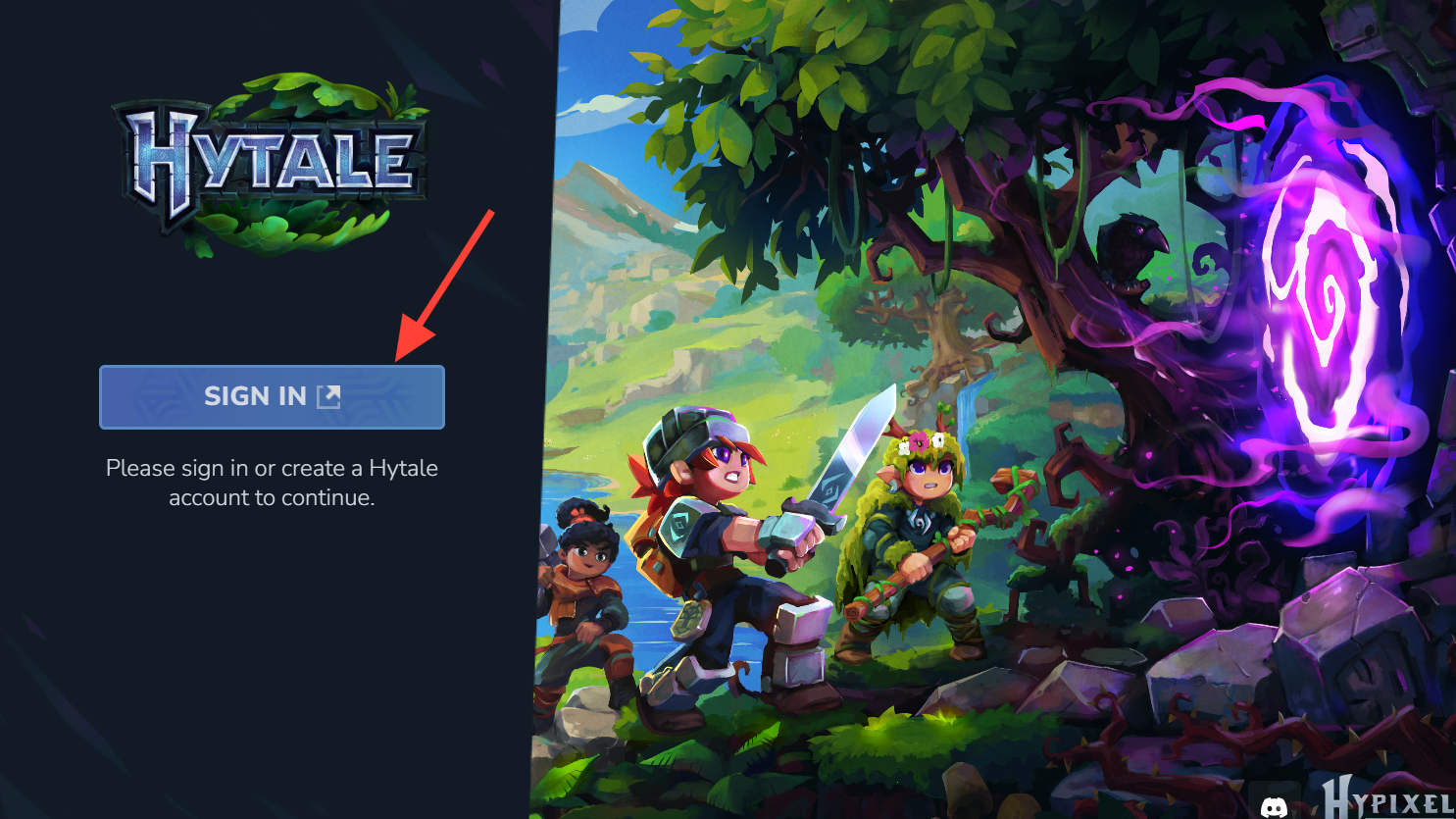
Step 5: Apply the settings, run the sync, then fully close both the Hytale launcher and any running Hytale processes. Reopen the launcher, sign in, and try entering or creating a world again.
Players have reported that changing to a regional NTP server (for example, pool.ntp.br in Brazil) and running sync twice in a row was what finally made the game accept the token. If you switch servers, give it at least two attempts before assuming it failed.
Other things to check when the error persists
Clock drift is the standout cause, but a few other factors can keep Hytale from validating your token properly.
Check for offline or degraded launcher status
When Hytale’s services are overloaded or temporarily unreachable from your region, the launcher may flip into an “offline” mode and still present stale tokens. In that state, you might see token errors when creating worlds or be told you are offline even though your internet is fine.
Step 1: Close the launcher completely. Use Task Manager to make sure no Hytale or launcher processes remain.
Step 2: Power‑cycle your router or modem if possible. This clears some transient routing or NAT quirks that can interfere with authentication.
Step 3: Reopen the launcher, sign in again, and watch for any banner or popup that suggests services are offline. If the client explicitly reports that online services are unavailable, token errors are likely a symptom rather than the root cause, and you may need to wait for service stability.
Make sure Windows security tools aren’t blocking Hytale’s components
On some systems, Windows Smart App Control and related security features have blocked critical Hytale DLLs, such as SDL3.dll or networking components used by the OpenJDK runtime. When that happens, the launcher may claim to go “offline” after you click Play, and the game either never opens or closes immediately with cryptic errors.
Windows will usually show a notification that “Part of this app has been blocked” and name the file involved. If you see those messages around the time you hit Play, fix them before continuing to chase token issues.
Step 1: Open Settings → Privacy & security → Windows Security → App & browser control.
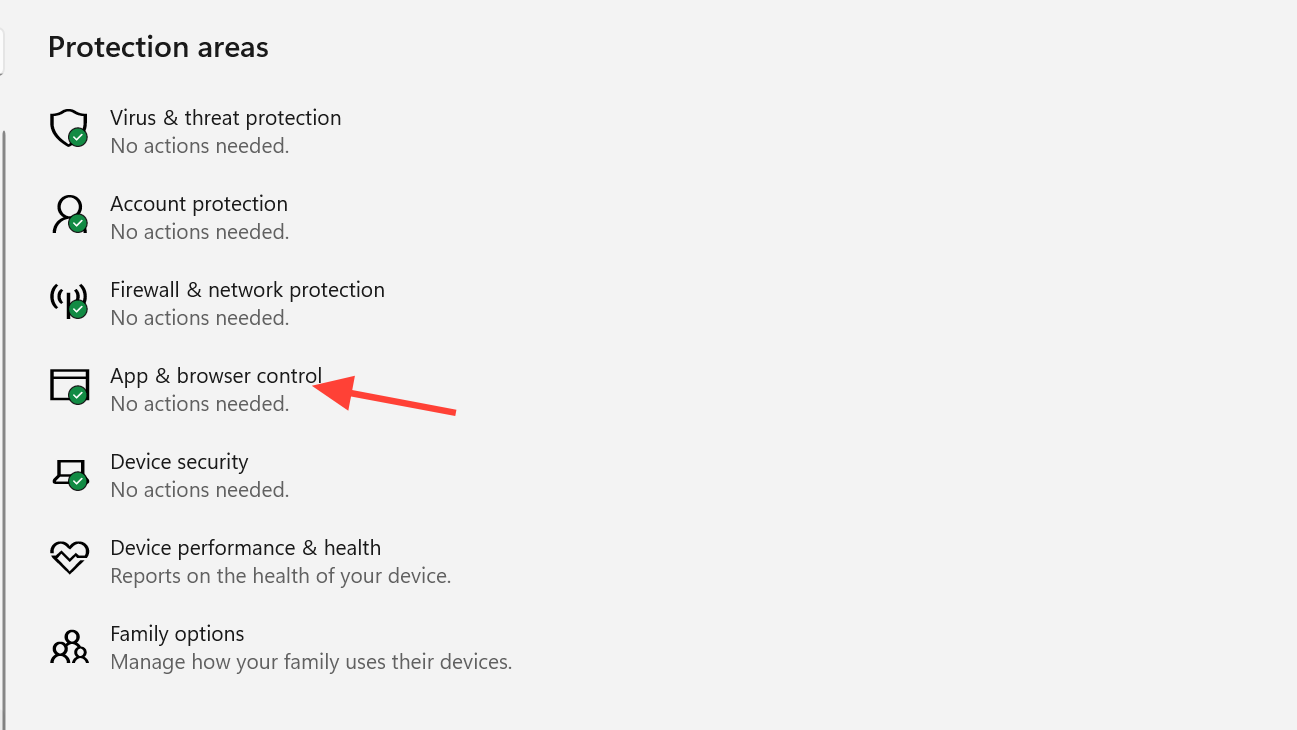
Step 2: In Smart App Control settings, check whether it has recently blocked any of Hytale’s binaries. Some players have temporarily turned Smart App Control off to get the game running, but that is a broad security change and should only be done if you understand the implications.
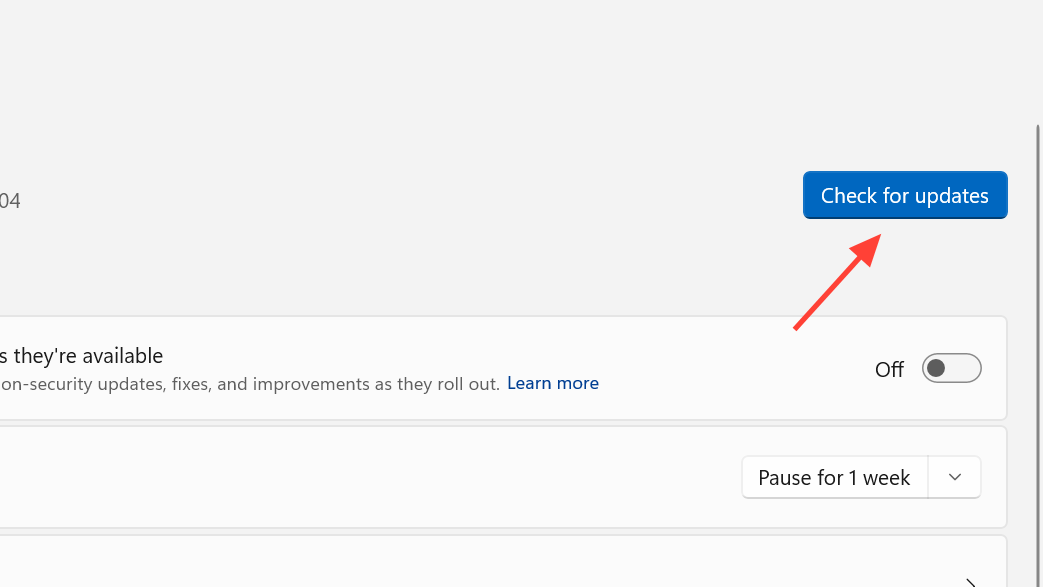
Step 3: Run Windows Update and install the latest security intelligence updates for Microsoft Defender. In at least one case, a Defender definition update was what stopped the blocking and allowed Hytale to launch normally afterward.
Step 4: If you run a third‑party antivirus, review its quarantine or block lists for Hytale files and restore them if they were incorrectly flagged.
When “Invalid access token” shows up on servers
There is a separate class of token problems that affect dedicated servers and hosting providers. Instead of a simple client error, the server console can log messages about a missing “server session token” and an inability to request an auth grant. In that case, the fix is not on the player’s PC but in how the server authenticates itself.
Hytale’s server authentication system expects each server to complete a one‑time device login flow so it can obtain and refresh an auth token in the background. If that never happens, or the saved credentials are removed, players can see connection issues and token‑related failures even though the game client looks fine.
Step 1: Start the Hytale server and let it reach its idle “running” state.
Step 2: In the server console, run the device login command exactly as documented for Hytale servers (for example, a command named along the lines of /auth login device).
Step 3: The server will print a short code or URL. Open that URL in a browser and complete the device authorization using the Hytale account that should own the server.
Step 4: Back in the console, confirm that the server reports a successful login and that a persistent auth configuration has been saved, as described in the official server manual at support.hytale.com.
If you rent a server from a provider, they may expose this same flow through their control panel, or they may expect you to paste in your credentials or a token once. If you see “server session token not available” style errors in their panel, check their Hytale documentation; many hosts now walk you through the device login sequence explicitly.
When the clock fix does not help
A subset of players continue to see token errors even after syncing time and checking security tools. Early launch builds have surfaced a few patterns that are worth working through methodically.
Try a different network or disable aggressive VPNs
Some network paths appear to be more fragile than others during heavy load. If your PC is behind a strict NAT, ISP‑level firewall, or a VPN that reroutes traffic through another country, Hytale’s auth requests may timeout or reach a different regional edge that is stressed.
Step 1: If you use a VPN, temporarily turn it off and try launching Hytale again.
Step 2: If you are on Wi‑Fi, try a wired connection to the same router to rule out unstable wireless conditions.
Step 3: If possible, test from a different network entirely, such as tethering from a phone or trying another home connection, just long enough to see if the error behavior changes. If it disappears on another network, that strongly points to a routing or ISP issue rather than your PC.

Reinstall the launcher and clear local Hytale data
Corrupted launcher state or half‑downloaded game files can also manifest as repeated auth failures. When combined with Smart App Control or antivirus interference, reinstalling from scratch can be more effective than repeated retries.
Step 1: Uninstall the Hytale launcher from Windows.
Step 2: Manually delete the Hytale folder under your user profile’s AppData\Roaming if it exists, or at least rename it so the next install starts clean. Be aware this may remove local settings and cached data.
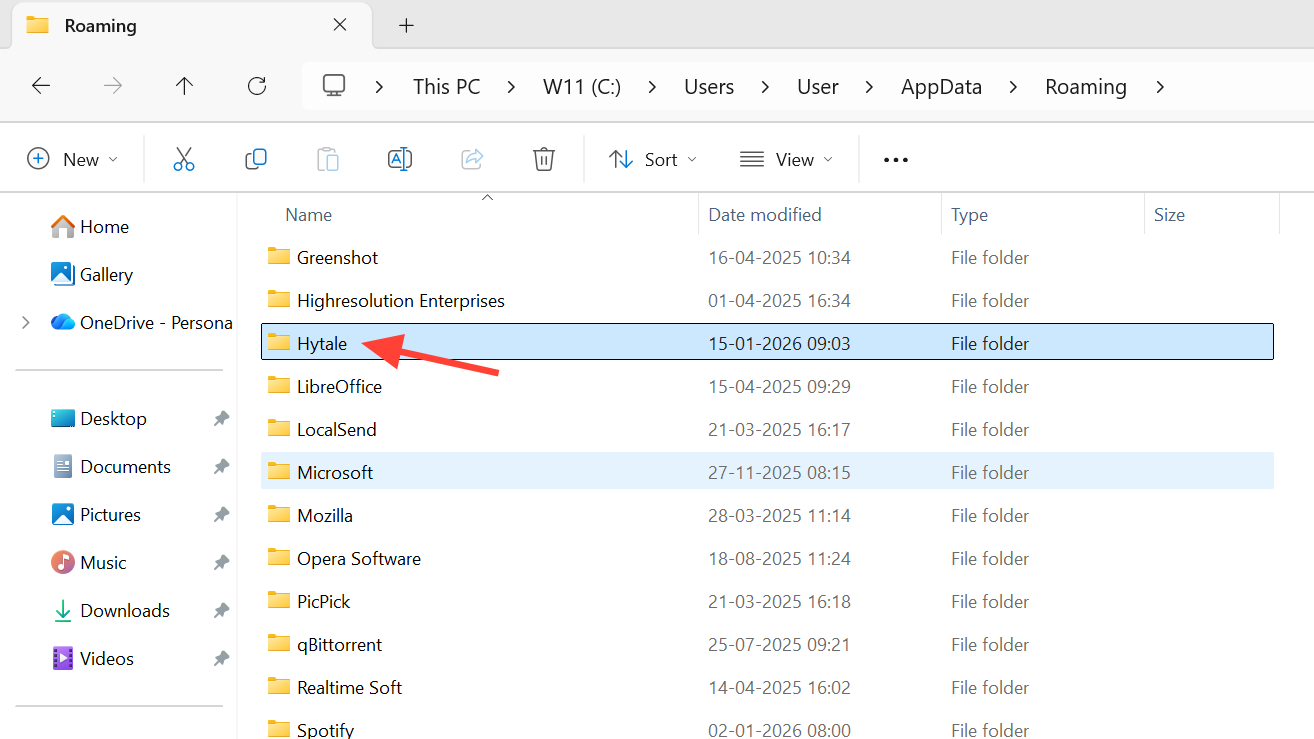
Step 3: Download the current launcher installer from the Hytale accounts page at accounts.hytale.com/download and install it again.
Step 4: Run the launcher as a standard user first. Only escalate to “Run as administrator” if Windows permission errors appear. Some players have also needed to adjust folder permissions under AppData\Roaming\Hytale so their user account can write there without errors.
When to escalate to Hytale support
If your clock is fully synchronized, Windows security is no longer blocking Hytale components, you have reinstalled the launcher, and the error still appears on every attempt to create or join a world, it is time to loop in official support.
The Hytale team provides a support and feedback form at support.hytale.com. Before submitting, gather the following:
- The exact error message text (“Invalid access token” or any variations).
- Launcher and game logs from the
UserData\Logsfolder under the Hytale directory inAppData\Roaming. - Whether your Windows time sync is set to automatic and whether you changed NTP servers.
- Any Windows Security or Smart App Control pop‑ups that occurred around launch time.
Providing those details makes it easier for support to distinguish between a local configuration problem and a backend issue, such as a stuck account state or a mis‑issued token on their side.
Most Hytale token failures at launch have turned out to be mundane clock and security issues rather than anything to do with your purchase or account. Start with time synchronization, check for blocked DLLs, and only then move on to more invasive steps like reinstalling or changing networks. Once those basics line up, the “Invalid access token” screen usually gives way to a working character select and a world that finally loads.