

If you've been greeted by a cryptic "Pre Key is Wrong or Expired" popup when trying to launch Where Winds Meet, you're not alone. This frustrating error has hit players across PC, mobile, and PS5, appearing before the main menu loads and forcing the game to shut down. The good news? It's almost certainly not your fault, and there are several ways to fix it.
What's causing the error
The "Pre Key is Wrong or Expired" message appears to be a server-side authentication issue rather than a problem with your individual account or installation. The error has surfaced during periods when the development team pushes updates or performs backend maintenance, causing temporary authentication failures across all platforms. Your account data is safe—this isn't an indication that you've lost progress or been banned.
The timing of widespread reports suggests the error often coincides with launcher or client updates being deployed, which can briefly break the authentication handshake between your game client and the servers.
How to fix it
Players have reported success with several different approaches. You don't need to try all of these—pick whichever is most convenient for your platform and situation:
- Wait and retry: For many players, the issue resolved itself within minutes as server-side fixes were deployed. Simply closing and relaunching the game after a short wait often works.
- Restart your device: A full restart of your PC, mobile device, or console has cleared the error for numerous players.
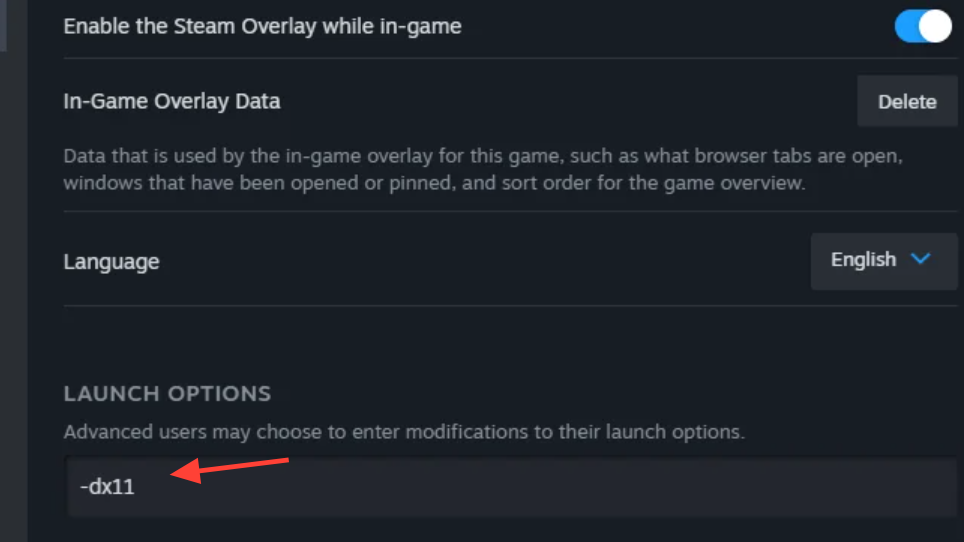
- Switch to DirectX 11: On PC, changing your graphics API from DirectX 12 to DirectX 11 in the launcher settings has resolved the issue. You can switch back to DX12 after successfully launching.
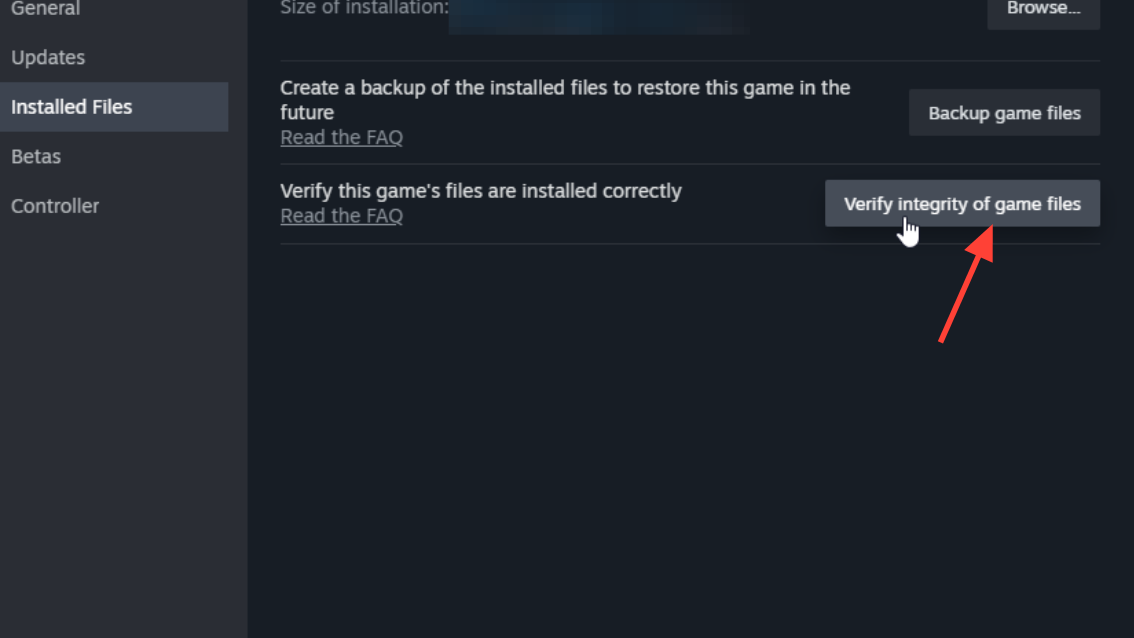
- Verify or repair game files: On Steam, use the "Verify integrity of game files" option. On the standalone launcher, use the repair function to check for corrupted files.
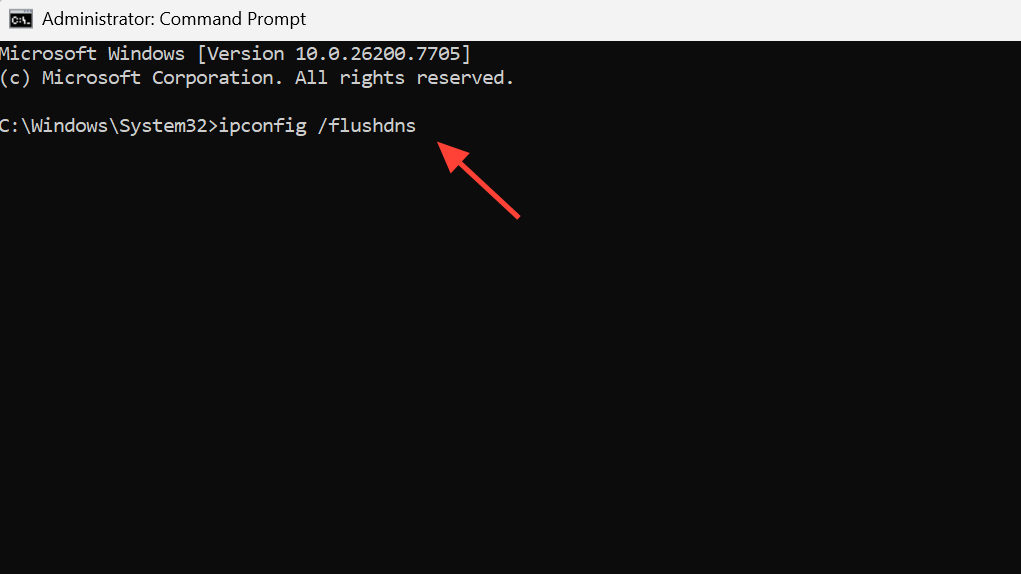
- Flush your DNS cache: Open Command Prompt as administrator and run
ipconfig /flushdns, then try launching again.
- Check for updates: On mobile, check your app store for pending updates—some players found a 1.2GB update waiting that resolved the issue once installed.
- Reinstall (last resort): On PS5, where options are more limited, deleting and reinstalling the game has worked when restoring licenses did not.
Does it resolve on its own?
In most cases, yes. The error tends to be temporary, with the development team typically pushing fixes within minutes to hours of widespread reports. If you're not in a rush, simply waiting and trying again later is often the easiest solution. For those who need to get back in immediately, the workarounds above should do the trick.