

The “Profile Query Failed” error in Fortnite appears during login when the game cannot retrieve your account profile from Epic’s services. When it happens, the game typically returns to the login screen and blocks access to Battle Royale, Save the World, or other modes.
Quick answer: The error usually resolves by waiting for servers to stabilize or by restarting the game or console to clear cached session data.
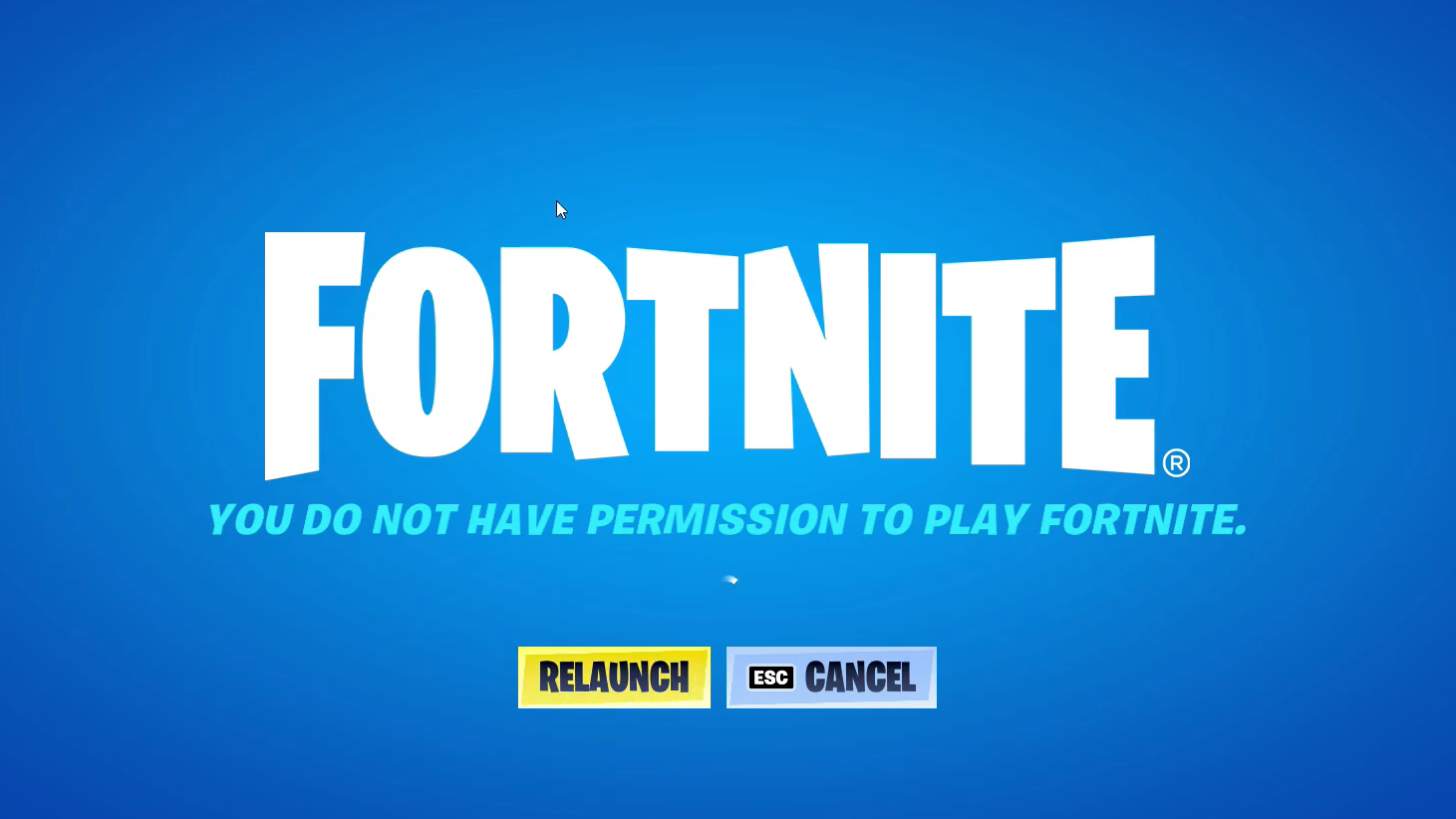
What the “Profile Query Failed” Error Means
Fortnite must load your account profile before you can access menus, matchmaking, cosmetics, or purchases. The profile contains account settings, inventory data, and progression details stored on Epic’s servers. If the game cannot retrieve this data during login, the session stops and displays the “Profile Query Failed” message.
This failure normally occurs when the game client and server cannot complete the profile request handshake. It does not indicate a ban, hacked account, or lost progress. The issue is almost always temporary.
| Component | What It Does | Effect When It Fails |
|---|---|---|
| Account profile request | Fetches player inventory, cosmetics, and progress | Login stops before the main menu loads |
| Server synchronization | Confirms the client version and session state | Game rejects login session |
| Local cache data | Stores recent login and configuration data | Outdated cache may trigger profile request errors |
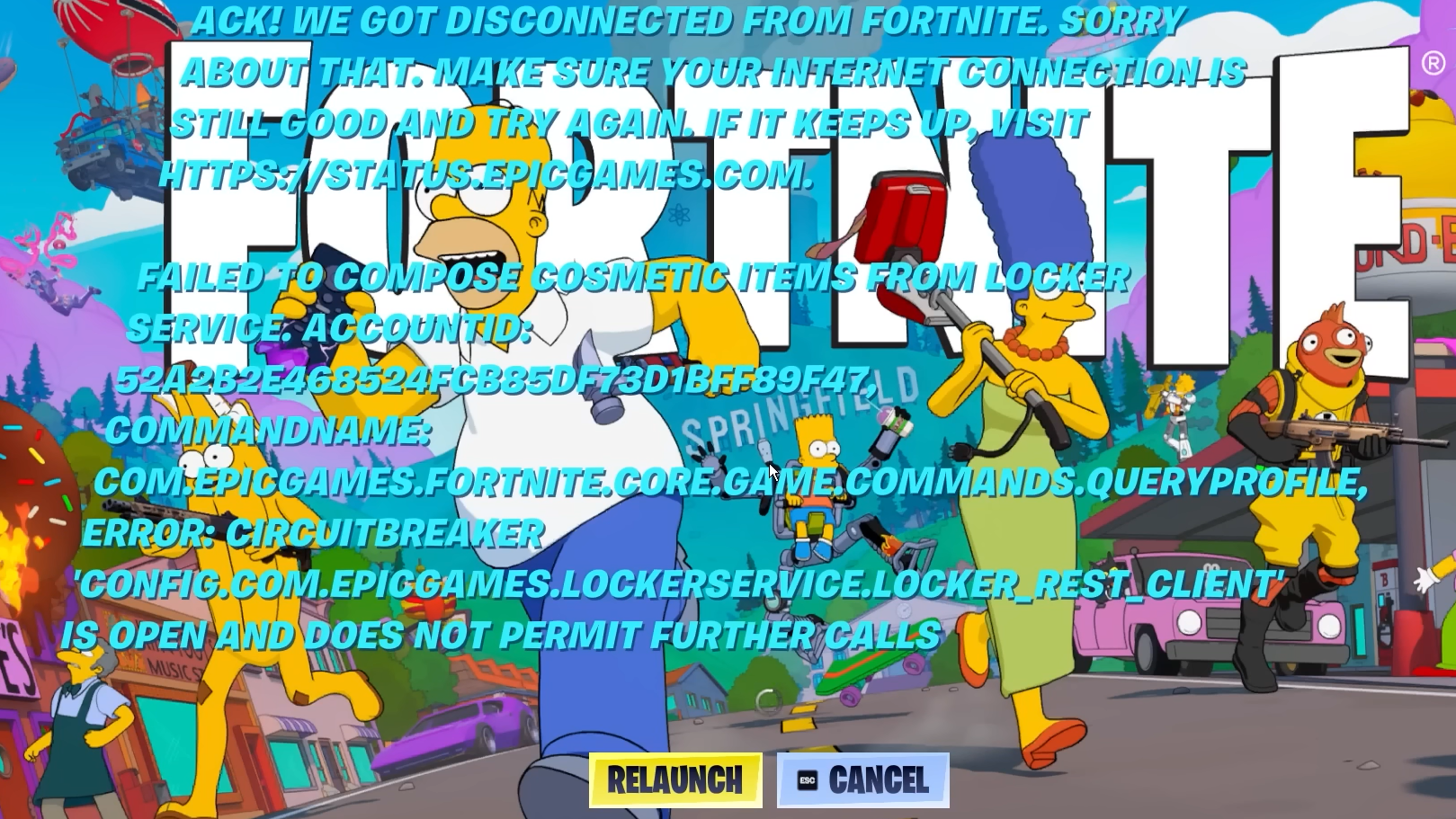
Most Common Cause: Fortnite Server Issues
The most frequent trigger is a temporary service disruption affecting login or matchmaking services. During outages or immediately after a major patch, large numbers of players attempt to reconnect at the same time. If the server cannot respond to the profile request quickly enough, the game returns the error.
During widespread outages, the error appears across multiple platforms, including PC, PlayStation, Xbox, and Nintendo Switch. In these situations, there is nothing to fix locally. Waiting for server stability is the only solution.
Local Cache or Session Data Conflicts
If servers are functioning normally, the next likely cause is cached session data stored on the device running the game. Fortnite stores temporary configuration and login data locally. When this data becomes outdated or corrupted, the client may send an invalid request to the server.
This mismatch prevents the game from confirming the account profile request and triggers the error.
A full restart clears that session state and forces the client to create a fresh login request.
Fix: Restart Fortnite or Your Device
Step 1: Close Fortnite completely. Do not leave it running in the background or suspended mode.
Step 2: Restart your platform. On consoles, use the system power menu to fully restart the device rather than entering rest mode.
Step 3: Launch Fortnite again and sign in normally. The game will rebuild its session and request a new account profile from the server.
Step 4: If the login succeeds, the main lobby should load normally, and all cosmetics and progress will appear.
Verification: The error is resolved when Fortnite reaches the main menu, and the locker, item shop, and matchmaking options are accessible.
Platform-Specific Cache Fixes
If the error continues after a restart, clearing the cache or rebuilding system data can resolve corrupted temporary files.
| Platform | Typical Fix | Result |
|---|---|---|
| PlayStation | Restart system or rebuild database from Safe Mode | Removes corrupted temporary data |
| Xbox | Power cycle the console | Flushes cached system memory |
| PC | Restart Epic Games Launcher or clear launcher cache | Refreshes login session |
| Mobile | Clear app cache or relaunch the app | Resets temporary profile data |
Situations That Commonly Trigger the Error
Several gameplay scenarios can indirectly trigger the login failure. These situations typically break the server sync process and force the game back to the login screen.
| Scenario | What Happens |
|---|---|
| Major game update | Client version mismatch during login |
| Server maintenance | Profile services temporarily unavailable |
| Heavy player traffic after downtime | Login requests exceed server capacity |
| Corrupted session after a crash | Client sends outdated profile request |
The error usually disappears once the client reconnects successfully or the server stabilizes. Restarting the game or device resolves most cases within minutes, restoring normal access to the Fortnite lobby and account profile.