Annoyed by the TMP 2.0 error while playing Valorant despite having the component? Here are a few simple fixes that'll help resolve the issue.
Annoyed by the TMP 2.0 error while playing Valorant despite having the component? Here are a few simple fixes that’ll help resolve the issue.
by Parth Sawhney
Valorant, the acclaimed first-person shooter by Riot Games, has become a staple for gamers worldwide. However, some players on Windows 11 are experiencing a TPM 2.0 and Secure Boot error when attempting to launch the game, even if their systems meet the requirements.
This persistent error can be a significant hurdle, but there are several remedies you can try. In this guide, we’ll walk you through various methods to fix the Valorant TPM 2.0 error on your Windows 11 computer.
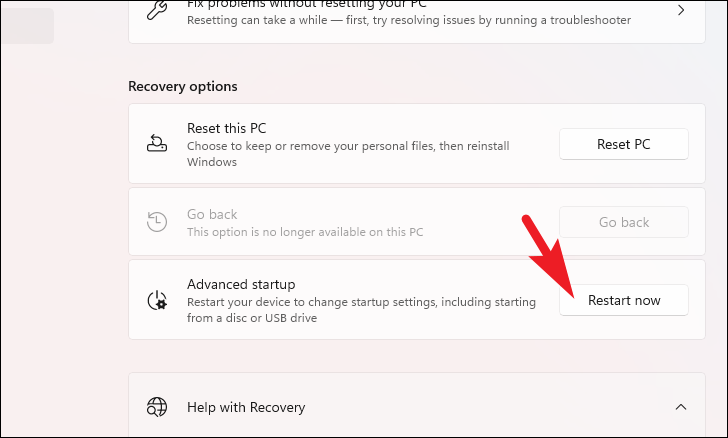
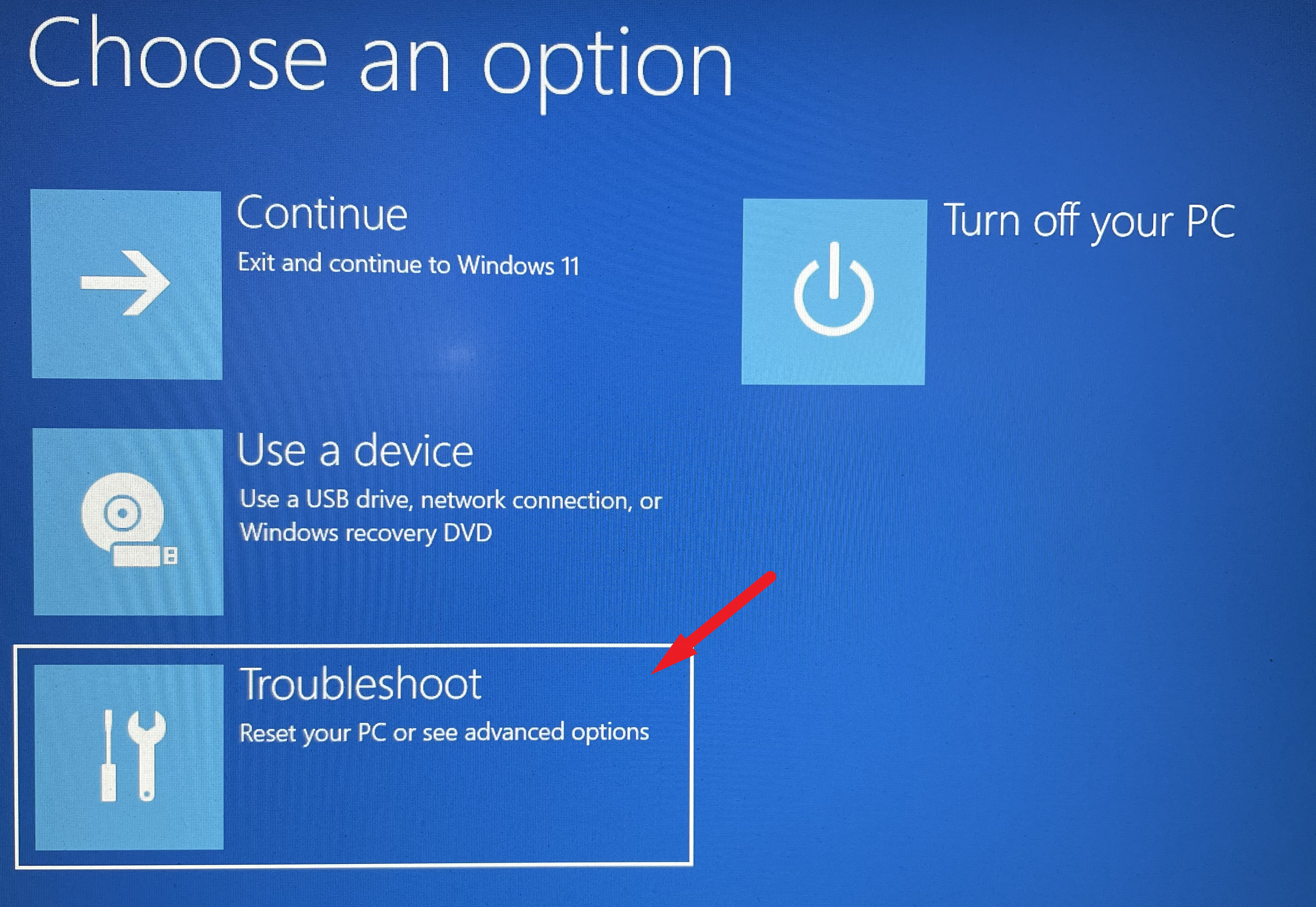
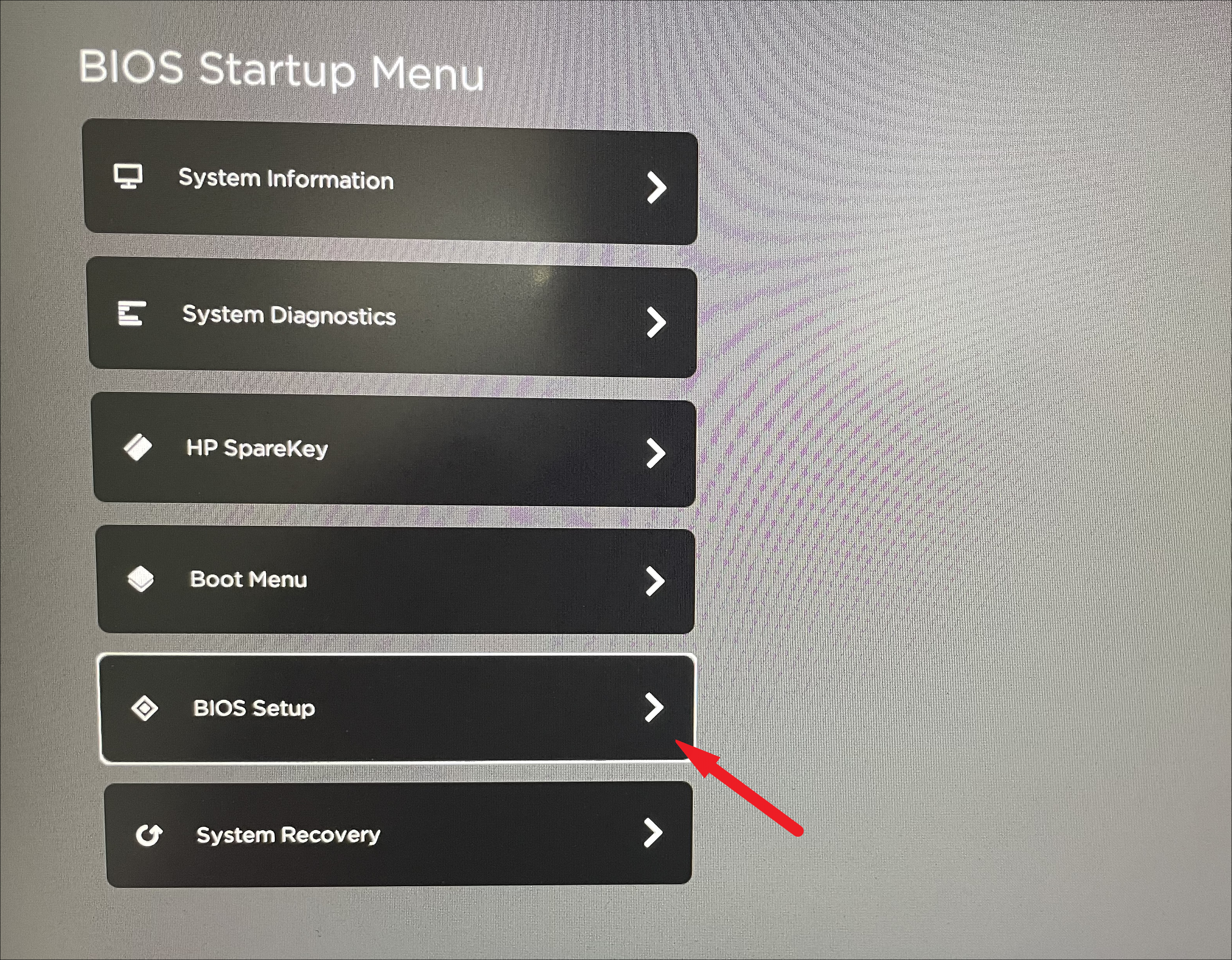
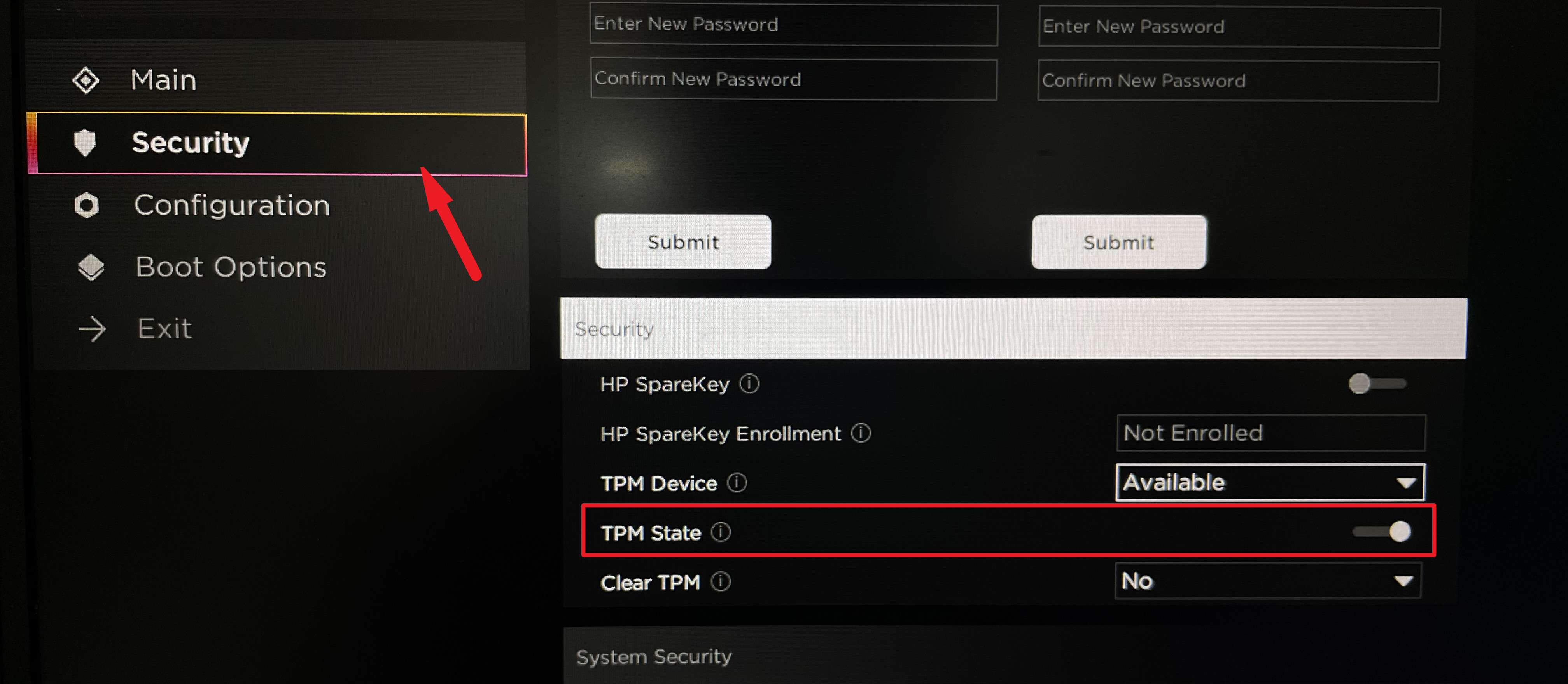
Enable TPM 2.0 and Secure Boot
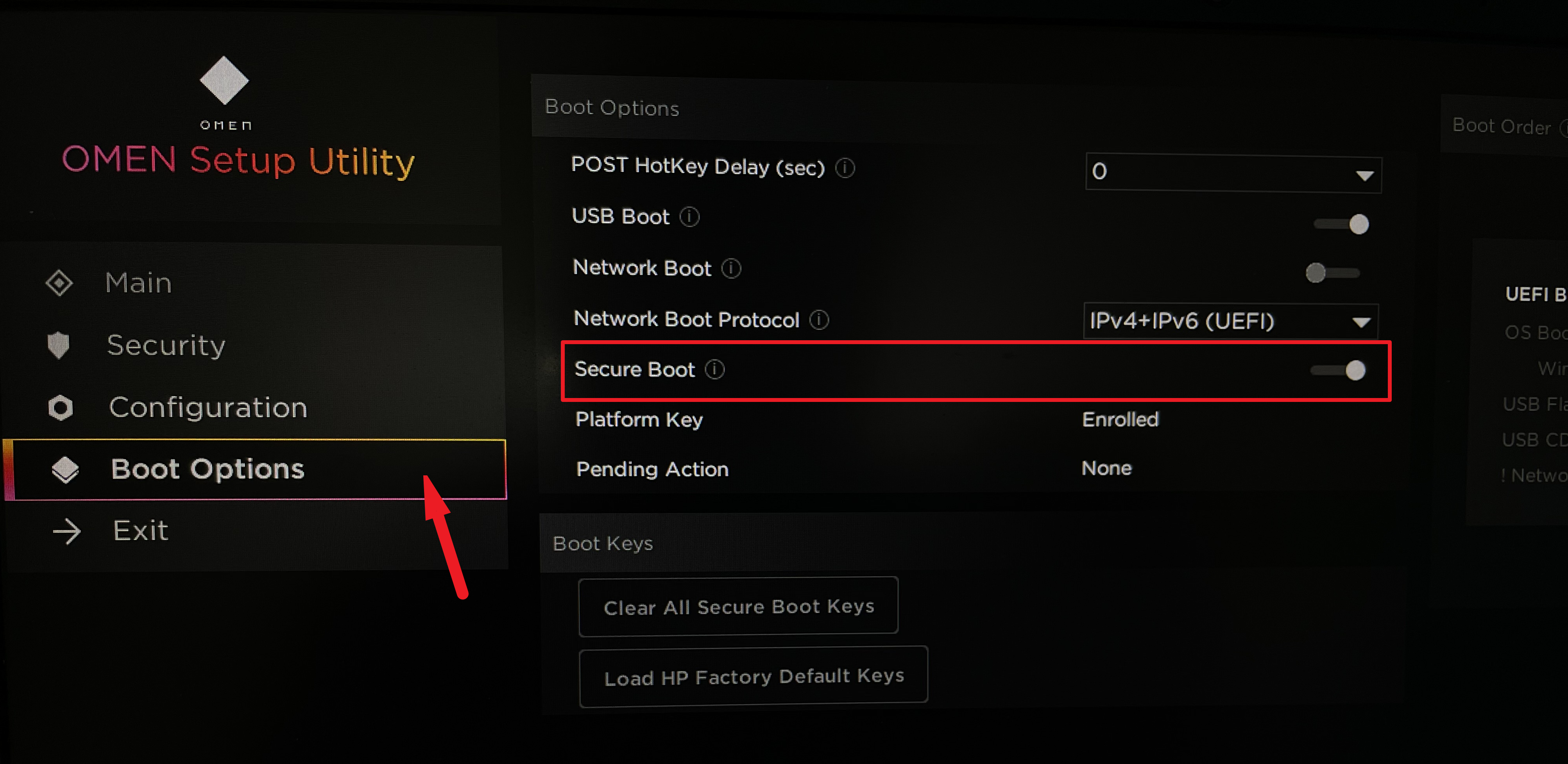
Even if TPM 2.0 and Secure Boot are installed on your system, they might not be enabled. Activating these components is essential for Valorant to function correctly.
After rebooting, launch Valorant to check if the error persists.
Disable Discord’s Automatic Startup
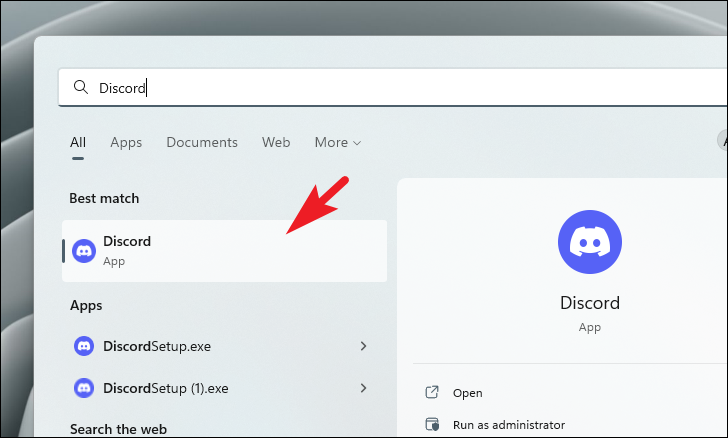
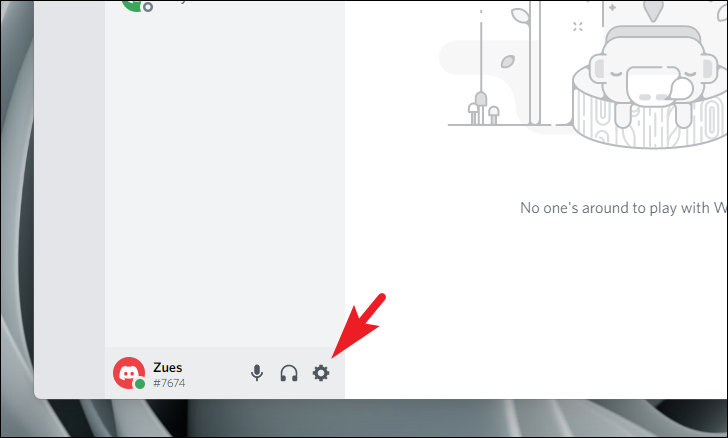
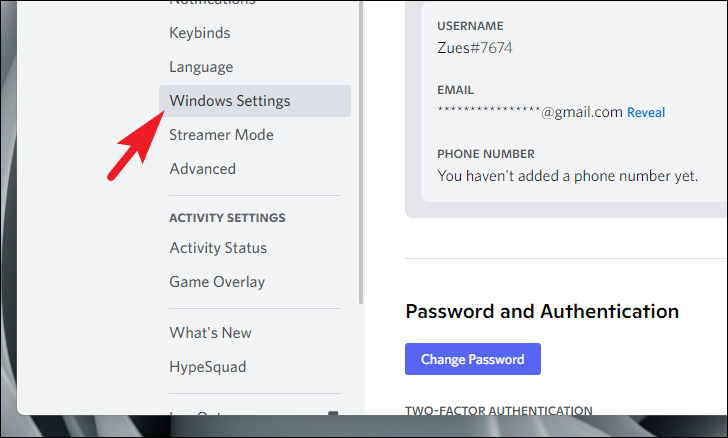
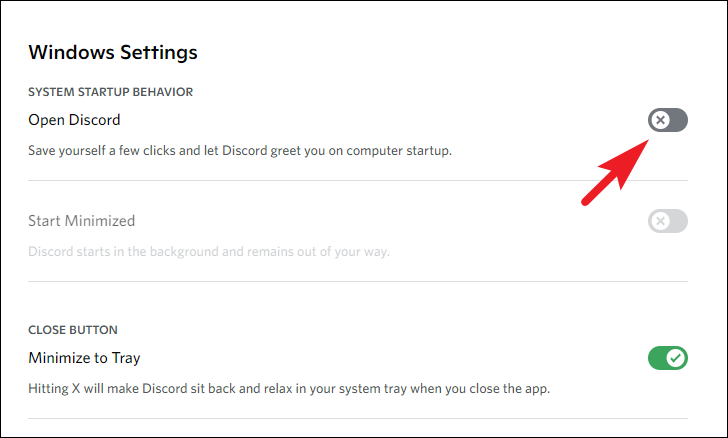
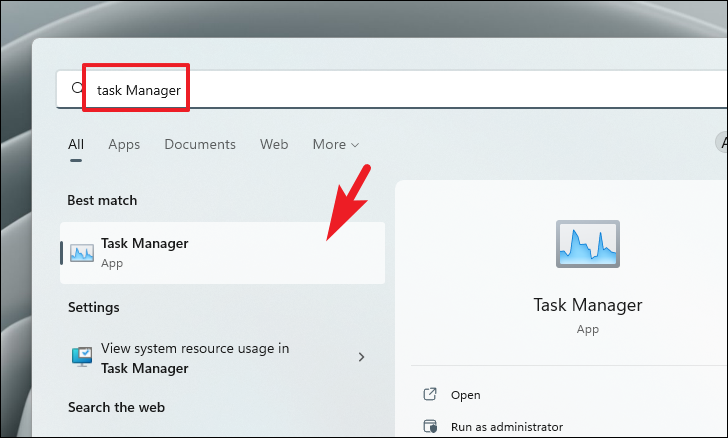
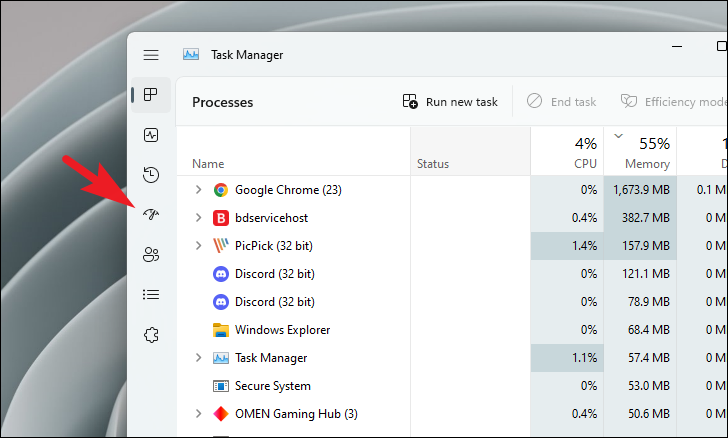
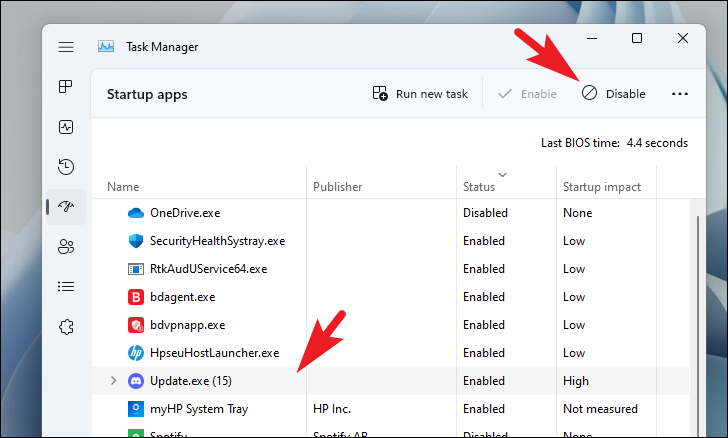
Some users have resolved the TPM 2.0 error by disabling Discord’s automatic startup. If Discord launches automatically with Windows, turning off this feature might help.
Restart your computer and try running Valorant to see if the error has been resolved.
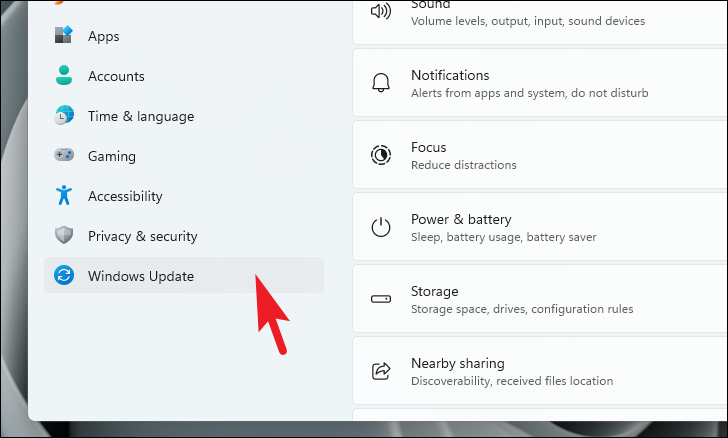
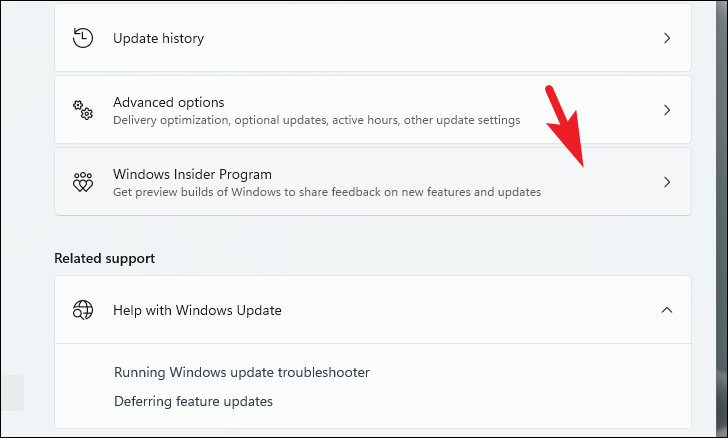
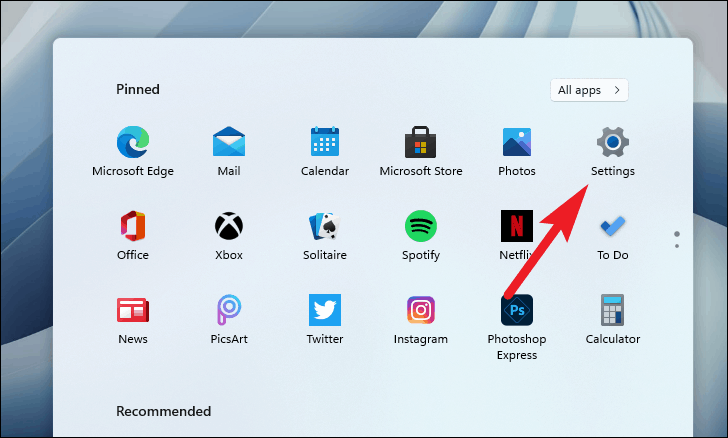
Leave the Windows Insider Program
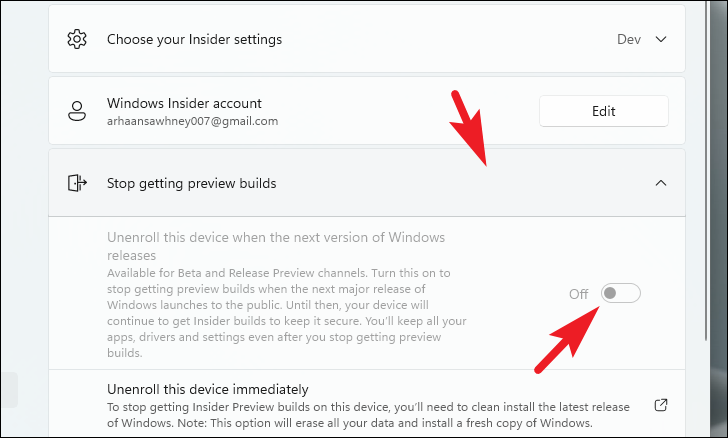
If you’re using a Windows Insider preview build, it might be causing compatibility issues with Valorant. Exiting the Windows Insider Program can help you return to a stable build of Windows 11 compatible with the game.
Leaving the Windows Insider Program won’t immediately transition you to a stable build. You’ll only receive the stable version when it’s officially released by Microsoft. Until then, the error might persist.
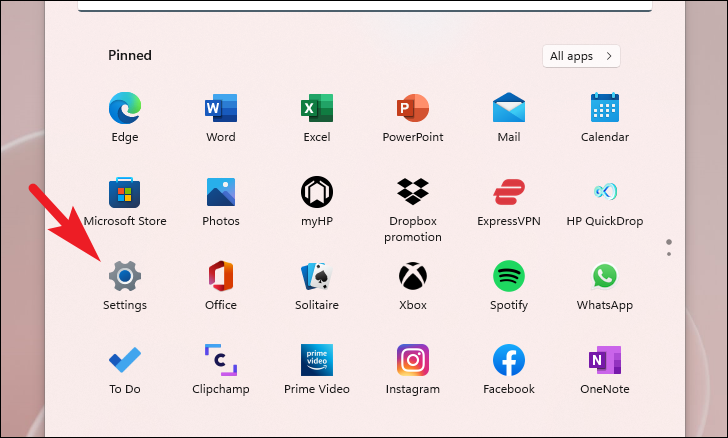
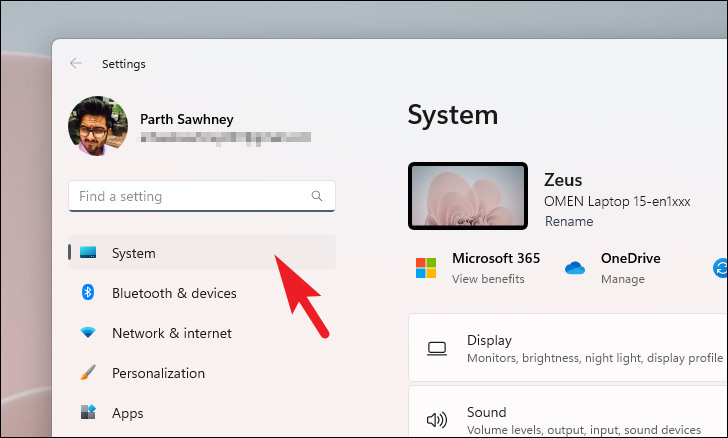
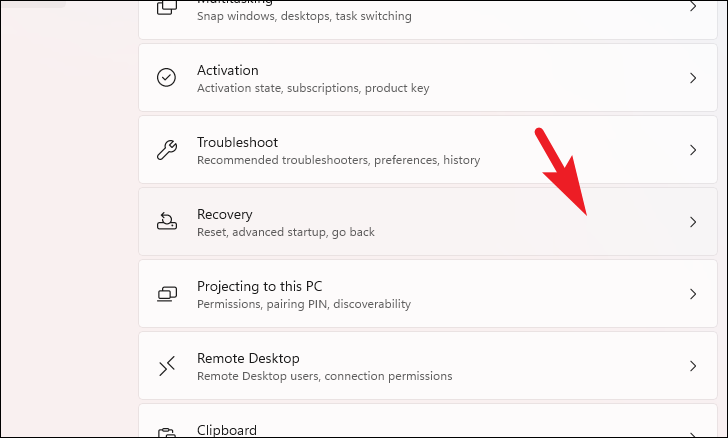
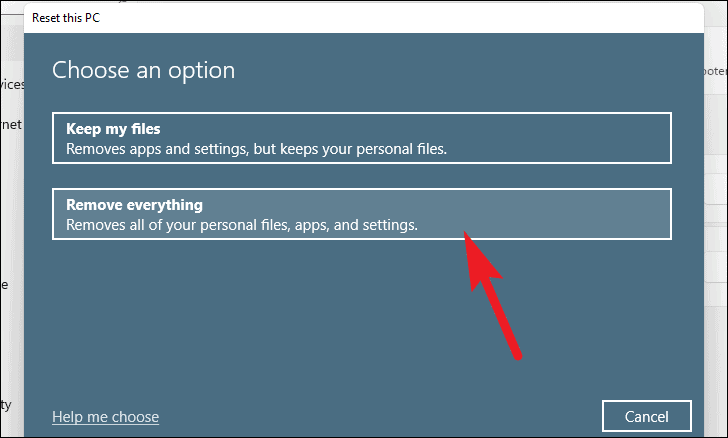
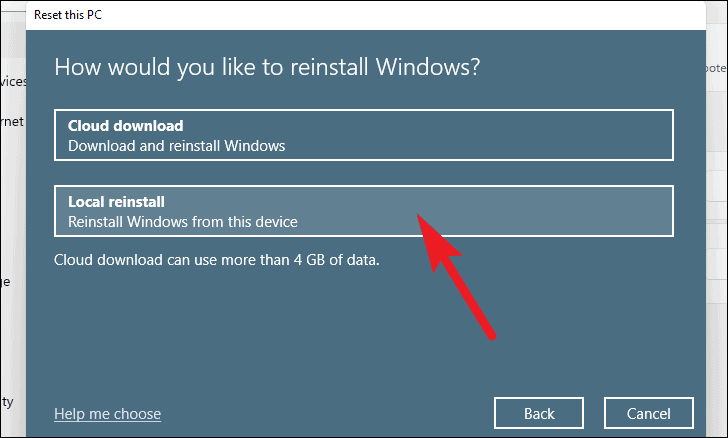
Select Local reinstall to use files on your device, or Cloud download to get fresh files from Microsoft. The cloud option requires an internet connection and at least 4 GB of data.