

Black Ops 7 finally lets you pull in most of your existing Call of Duty settings instead of rebuilding your setup line by line. The feature lives quietly inside the options menu, but once you know where it is, the import takes seconds.
There are a few catches: the option was not present in the beta, and only supported settings from previous titles carry over. Anything brand new to BO7 still needs to be tuned manually. But for controller layouts, sensitivity, and audio, the importer does most of the heavy lifting.
Where the Black Ops 7 settings import lives
The import feature is tucked under the account and network area of the options menu. You do not trigger it from the main settings categories like controller or graphics, even though that is what it changes.
| Step | Menu location | What you should see |
|---|---|---|
| 1 | Main screen → Options | Standard options layout for BO7 |
| 2 | Account & Network tab | Account, online, and connectivity settings |
| 3 | Top of Account & Network | An entry labeled Import Settings |
On supported builds, Import Settings appears as the first selectable item in the Account & Network tab. If it is not there, you are either on an early build (such as the beta) or on a version where import is not yet active.
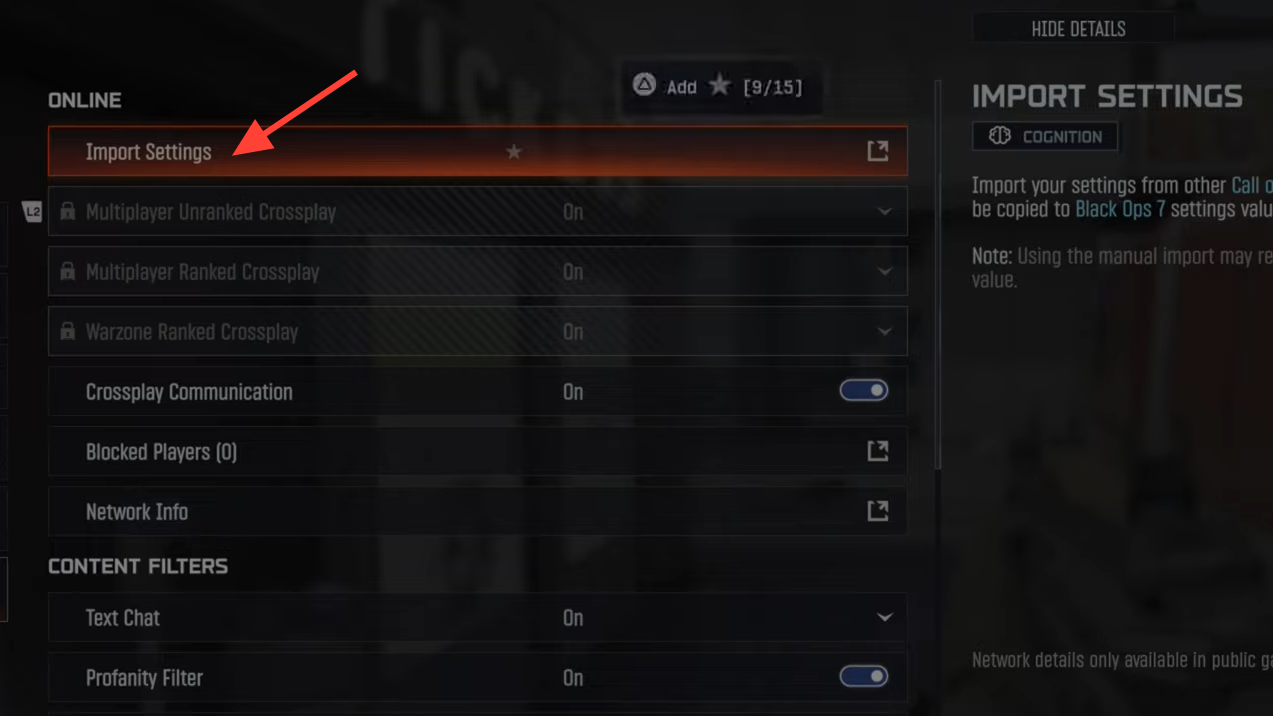
How to import settings in BO7 (Black Ops 6 → Black Ops 7)
Once you are in the right menu, the import flow is very simple. The game handles the actual transfer; all you do is confirm that you want your previous configuration.
| Action | What to do | What BO7 does with it |
|---|---|---|
| Open the import tool | Select Options → Account & Network → highlight Import Settings and press confirm | Loads the import dialog for earlier Call of Duty titles |
| Choose previous title | Pick the previous supported game (for most players, that will be Black Ops 6) | Reads stored profile settings from that title |
| Start the import | Confirm the import prompt (e.g., “Import from previous title”) | Copies your existing options into BO7 in one pass |
| Finish and verify | Back out of Account & Network and open your controller, audio, and other menus | Shows your old values now applied inside BO7 |
The import is designed to be one click once you reach the Import from previous title prompt. There is no need to export files or adjust platform storage; the game uses your existing Call of Duty profile data.
What BO7 actually imports (and what it does not)
The import option is focused on gameplay-relevant settings rather than cosmetics. The emphasis is on saving you from re-tuning how the game feels and sounds.
| Likely included | Likely not included |
|---|---|
| Controller configuration (button layout, stick layout) | Skins, operators, and purchased items (those follow a separate inventory carry-forward system) |
| Controller sensitivity settings | Brand-new BO7-only settings that did not exist in BO6 |
| Audio options (volume levels, voice chat levels) | Any per-mode presets that BO7 handles differently |
| Other compatible options from the previous title | Settings that were removed or renamed between games |
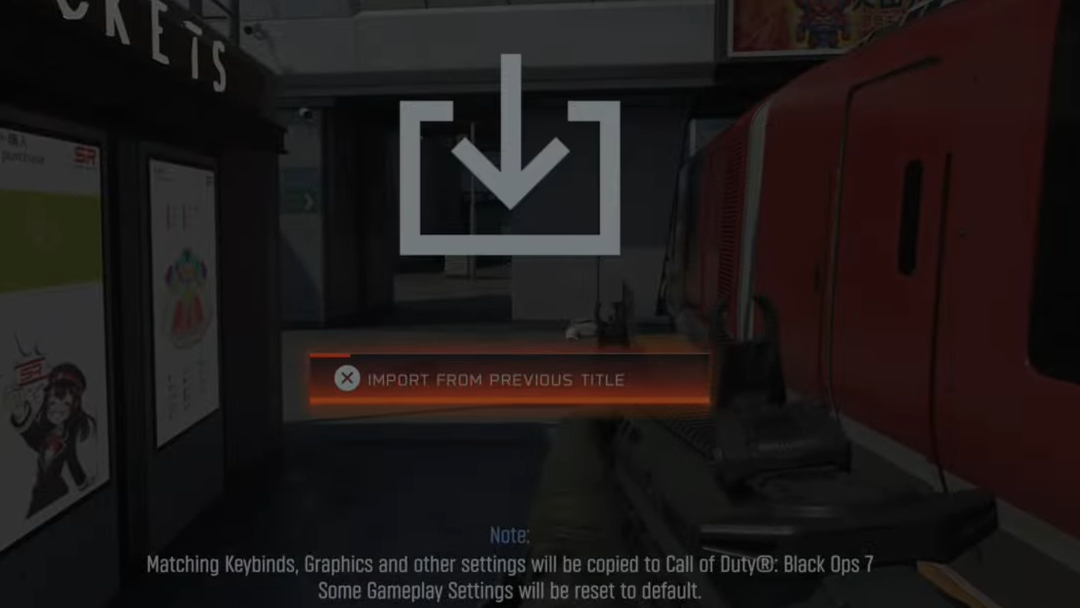
Why some players did not see import in the BO7 beta
Many players opened the Black Ops 7 beta expecting a carry-over button and found nothing. In that build, the importer was not available at all; everyone had to re-enter their options by hand. Some players also reported the same pattern in a previous release, where the import only appeared in the full game.
If you are still on a pre-release or test version, do not expect the import entry to appear. The option is tied to the released build rather than early access tests, which is why older screenshots and clips show it even when beta players did not have it.
What to do if “Import Settings” is missing in BO7
If you follow the menu path and the top of Account & Network does not show an import entry, run through a short checklist.
| Check | What to verify | What it means |
|---|---|---|
| Game version | Confirm you are on the current released version of Black Ops 7, not an older beta build | Beta or outdated versions may hide the import feature entirely |
| Profile continuity | Make sure you are signed into the same platform account you used for BO6 | The importer relies on finding an existing profile from a previous Call of Duty title |
| Previous game ownership | Check that you actually played a supported previous title on this account | No earlier data means nothing to import, so the option may not surface |
If all of those are correct and the option is still missing, you are effectively limited to configuring your BO7 settings manually, at least until a patch changes how the importer is exposed.
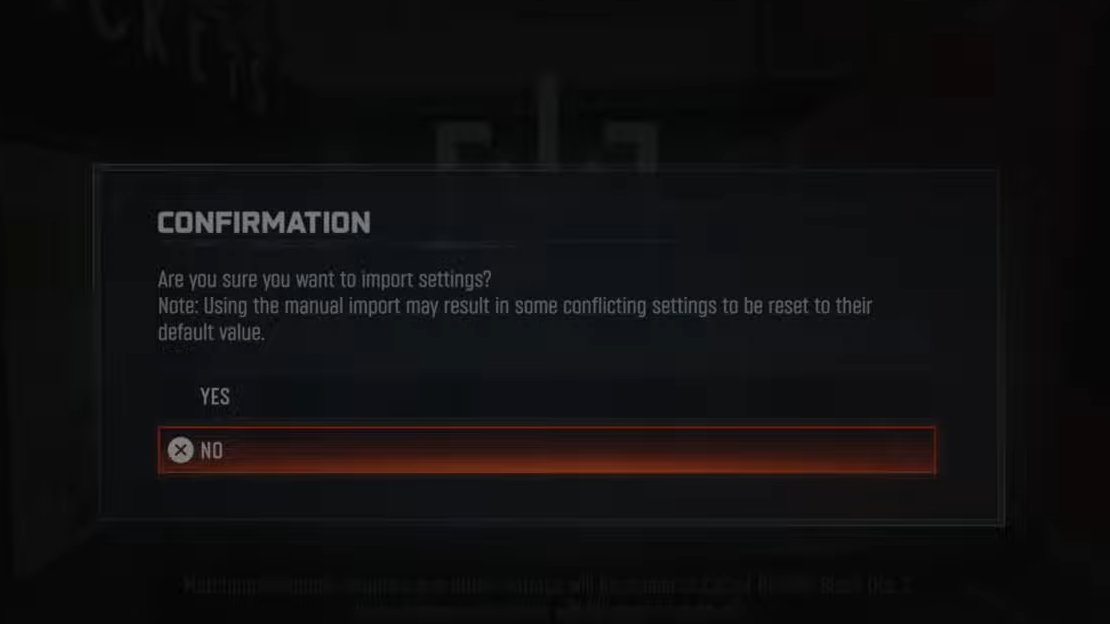
After you import: double-check key settings
Even when the import works, it is worth spending a few minutes verifying that BO7 is using the values you expect, especially where the new game introduces fresh mechanics or tuning.
| Menu | What to confirm after import |
|---|---|
| Controller | Button layout, stick layout, sensitivity, and aim response feel the same as in BO6 |
| Audio | Master volume and voice chat levels are reasonable for BO7’s mix |
| Accessibility or interface | Any assist options or HUD tweaks that matter to you are still in place or re-enabled |
Once you know that the Import Settings option hides under Options → Account & Network, moving from Black Ops 6 to Black Ops 7 becomes much less tedious. The game takes care of most of your controller and audio preferences, and you only need to spend time on the new or changed options that are unique to BO7.