

Hytale is built around multiplayer worlds that run on dedicated servers. To join one of these worlds, you usually need a server address, often called the “server IP,” plus a network port number.
Every Hytale server listens on a specific UDP port. The game’s default server port is 5520. Many servers use this default, but some administrators change it, so it is common to see addresses written in the form IP:Port.
Once you know the address and port, you can enter them directly in the Hytale menu to connect, whether the server is hosted at home, rented from a hosting company, or run by a community.
Requirements before connecting to a Hytale server
Before you can join any multiplayer world, a few basics must be in place.
Game installation and account: Install Hytale and log in with a Hytale account. The client and account system are provided through the official website at https://hytale.com.
Matching game and server version: Hytale requires the client and server to run the exact same game version. If the versions differ, you will see errors such as “Version Mismatch” or “Incompatible Version” and the connection will fail.
Server details: You need the address and port of the server you want to join. The address can be either a numeric IP (for example 192.168.1.100) or a hostname (for example play.example-server.com), plus the port number (commonly 5520).
How Hytale server addresses and ports work
A Hytale server can be identified in two main ways: by a raw IP address or by a hostname that resolves to an IP. In both cases, the address is combined with a port number so the game knows which service to talk to.
Addresses are typically written as host:port. Here are common forms you might receive from a server owner:
| Type | Example | Notes |
|---|---|---|
| Public IP with port | 203.0.113.25:5520 |
Directly uses the server’s public IP and the default port. |
| Hostname with port | play.myserver.com:5520 |
Uses a DNS name that resolves to the server’s IP. |
| Local network (LAN) | 192.168.1.50:5520 |
Used when both client and server are on the same home network. |
If the server uses the default port 5520, some menus may let you enter only the IP or hostname and omit the port. When in doubt, include the full IP:Port pair exactly as provided by the server owner.
Method 1: Direct connect to a Hytale server by IP
Direct connect is the primary way to join a specific Hytale server when you already know its address.
Step 1: Open Hytale and wait for the main menu to appear after logging in with your account.
Step 2: From the main menu, select Servers.
Step 3: Select the option to enter a custom address, usually named Direct Connect or Add Server. This opens a field where you can type the server details.
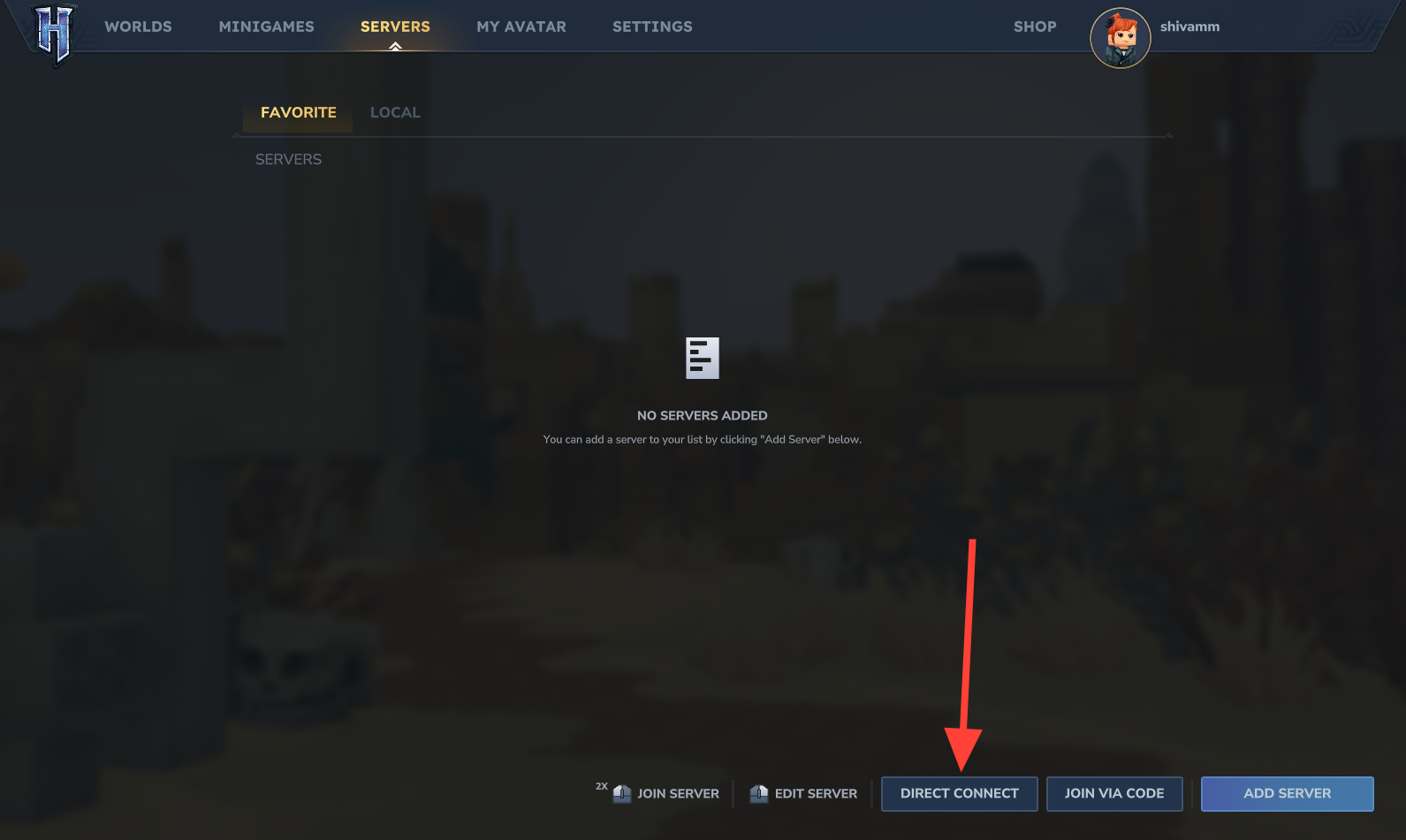
Step 4: In the address box, enter the server information in the format IP:Port. For example, 192.168.1.100:5520 or play.myserver.com:5520. Take care to type it exactly as given, including any custom port.
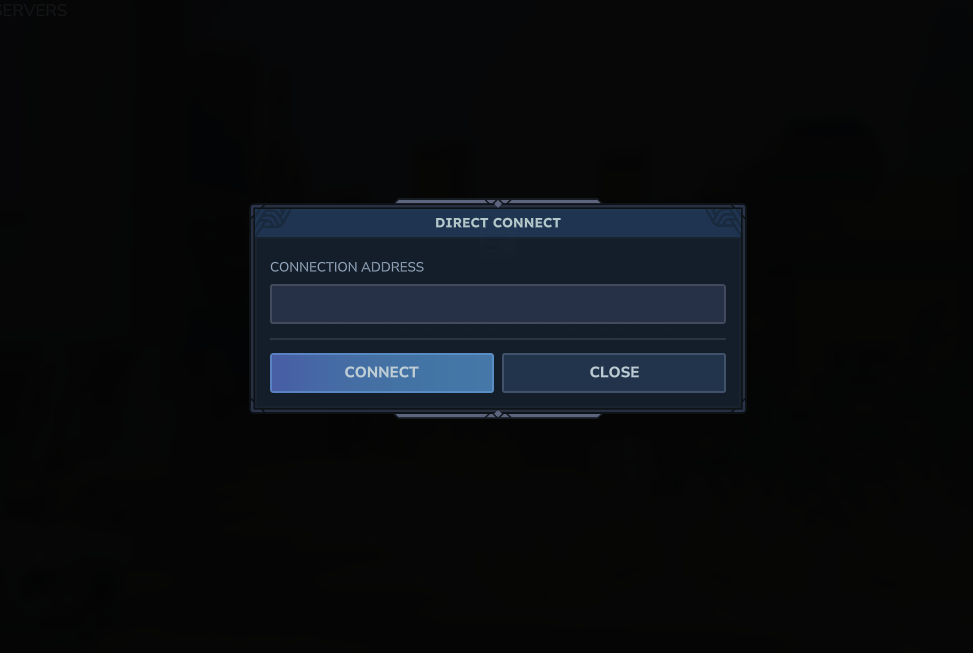
Step 5: Confirm the connection by selecting the button labeled Connect or Join. If the server is online, reachable, and running the same version of Hytale as your client, you will load into the world after a short delay.
Direct connect works the same way for home-hosted servers, rented servers, and community servers. The only difference is who provides the address and how they manage the hardware.
Playing Hytale on a local network (LAN)
When both the server and the players are on the same home or office network, you can use local IP addresses. This avoids internet routing and does not require any port forwarding on your router.
Step 1: On the machine running the Hytale server, find its local IPv4 address. On Windows, open Command Prompt and run ipconfig, then look for the “IPv4 Address” entry that typically starts with 192.168..
Step 2: Note that IPv4 address and combine it with the server’s port, for example 192.168.1.50:5520 if the port is still the default.
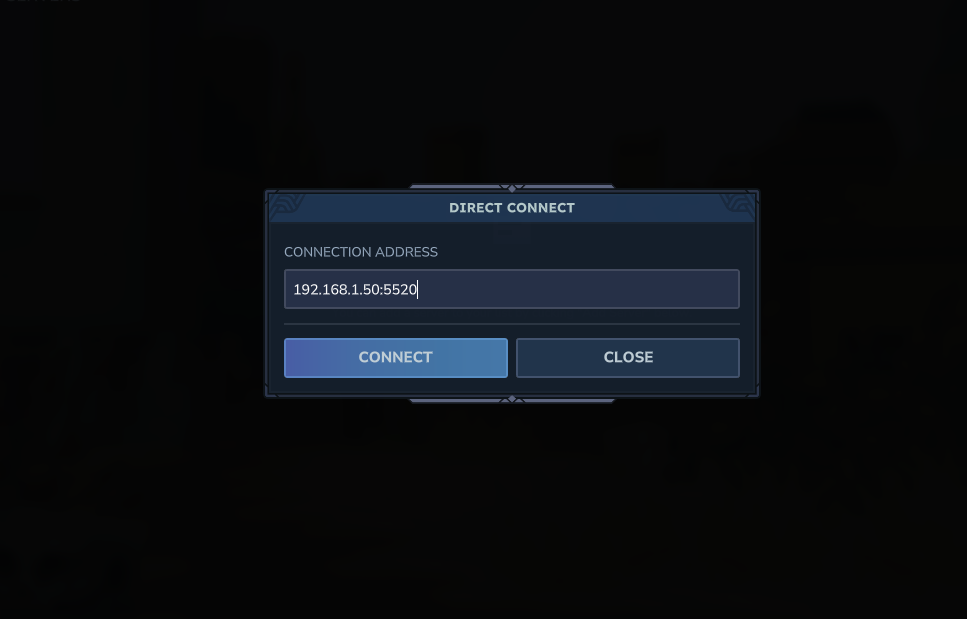
Step 3: On each player’s computer, use the Direct Connect steps described earlier and enter the local address instead of a public IP or hostname.
As long as all devices are on the same network segment and the host machine’s firewall allows Hytale traffic, players will be able to join without extra networking changes.
Finding Hytale servers and getting their IP addresses
To join by address, you first need to know which servers you want to play on. There are several common ways to obtain a server IP and port.
Private servers run by friends: Many players host small worlds for their own group. Ask the person who runs the server to share the address and port. They may send you either a public IP or a hostname along with the port number.
Public community servers: Various community-run lists catalogue public Hytale servers, often grouped by region, game mode, or rules. These listings usually show the address in IP:Port form or provide a hostname and port.
Discord and community hubs: Hytale-focused Discord servers and other community spaces frequently advertise new or popular servers. Server owners typically post their connection details, descriptions, and any rules in dedicated channels.
Rented servers from hosting providers: If you rent a server from a hosting company, the provider will supply the address and port in the management panel or welcome email. Share that address with your players so they can join via Direct Connect. Hytale’s server-side modding means custom content installed on the server is delivered to players automatically when they connect, so they do not need extra mod launchers.
A built-in Hytale server browser is planned for a future update. It is designed to let players discover servers directly from the main menu, browse by name, mode, or region, view player counts and descriptions, apply filters, and join with a single click. Until that feature is available, entering an address manually remains the standard way to connect to a specific server.
Common connection errors when joining Hytale by IP
Connecting by address is usually straightforward, but several recurring errors can appear. These messages point to different underlying problems.
“Connection Timed Out” or “Cannot Connect”
This typically means your client never received a response from the server. Common causes include typing the address incorrectly, the server being offline, or network devices blocking traffic.
Step 1: Carefully retype the address and port. A single wrong digit or missing colon can prevent a successful connection.
Step 2: Confirm with the server owner that the server is running and accepting connections.
Step 3: Temporarily disable local firewall software on your machine as a test, then try connecting again. If the connection works only with the firewall disabled, add an exception for Hytale and re-enable protection.
Step 4: If you still cannot connect, ask the server owner to confirm the correct port. Hytale’s default is 5520, but a custom port might be in use.
“Version Mismatch” or “Incompatible Version”
These errors indicate that the game version on your computer does not match the version running on the server.
Step 1: Start the Hytale launcher and check for updates, then update the game if prompted.
Step 2: If you are already up to date, the server may still be on an older build. The server owner must update their installation to match yours before you can join.
Hytale requires exact version alignment between server and client, so this error persists until both sides run the same build.
“Connection Refused”
“Connection Refused” usually appears when something is actively rejecting or not listening for your connection attempt.
Step 1: Ask the server owner to check that the Hytale server software is actually running and has fully started.
Step 2: Verify that the configured port in the server settings matches the port you are trying to connect to.
Step 3: Ensure that the server’s firewall or security software permits UDP traffic on the selected port. Hytale uses UDP; if the server or network is restricted to TCP only, connections will fail.
Lag, rubberbanding, or high ping
Performance issues after connecting usually stem from distance, hardware load, or local connection quality rather than from the IP itself.
Step 1: Prefer servers in regions geographically closer to you, which generally gives lower latency.
Step 2: Test your own internet connection for instability or bandwidth limits.
Step 3: If lag worsens when many players are online, the server may be running at or beyond its capacity. In that case, the owner might need to reduce player counts, trim heavy custom content, or move to stronger hardware.