

Windows 11 has a built-in switch that decides where apps are allowed to come from. Flip it to the strictest setting and the system stops anyone on the PC from installing software that didn't come from the Microsoft Store. No extra utility or registry hack is needed, and the same control exists in Windows 10 under a slightly different name.
Block third-party app installations in Windows 11
The setting lives inside the Apps section of Windows Settings. Once it's on, any attempt to run an installer from a website or other outside source is refused, and only Store apps go through.
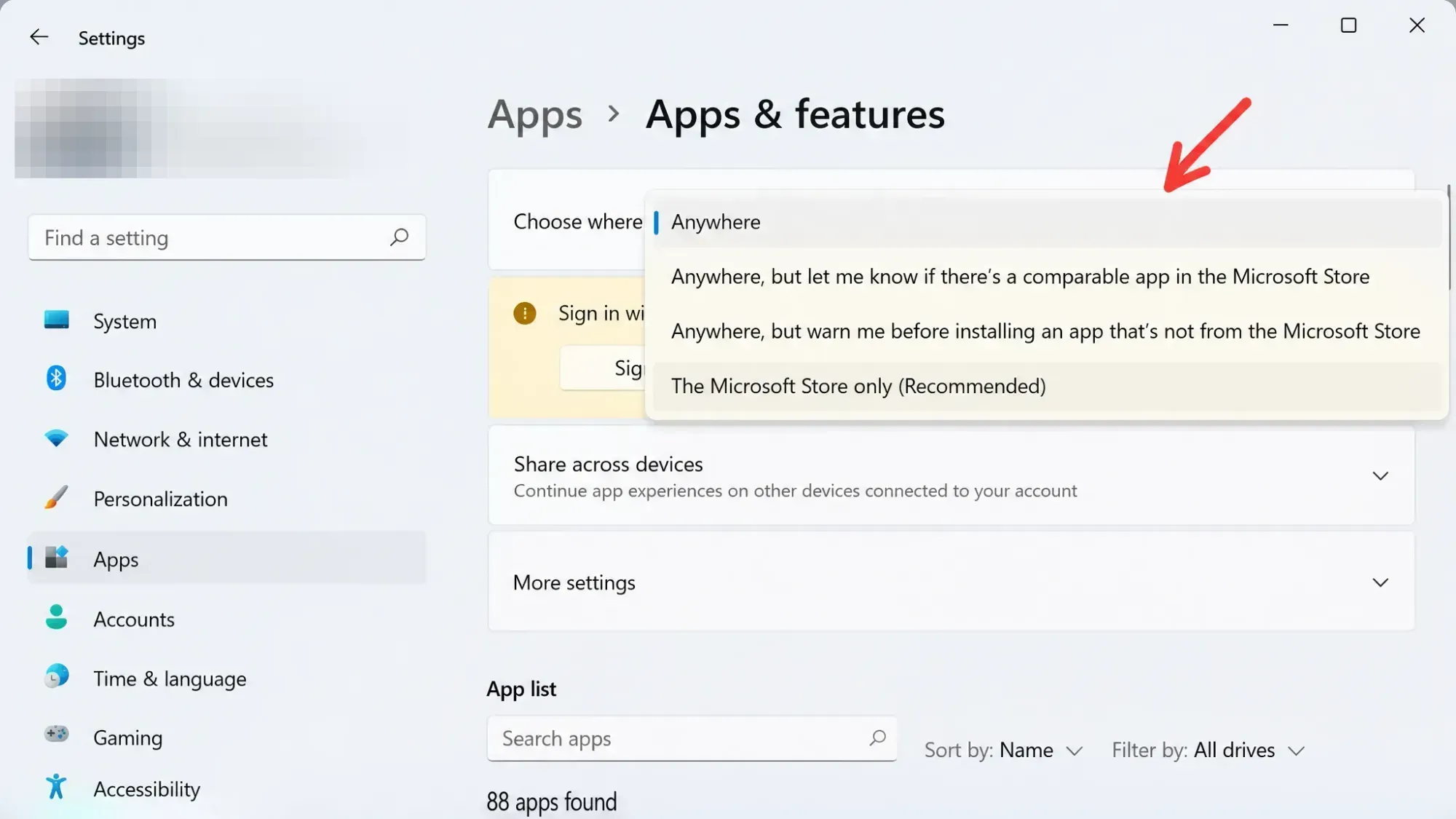
Step 1: Press Win+I to open Windows Settings. This is the fastest way to land on the main settings page.
Step 2: Click the Apps tab in the left sidebar. This holds every option related to installed software.
Step 3: Open Advanced app settings. This screen controls how apps are installed and updated on the device.
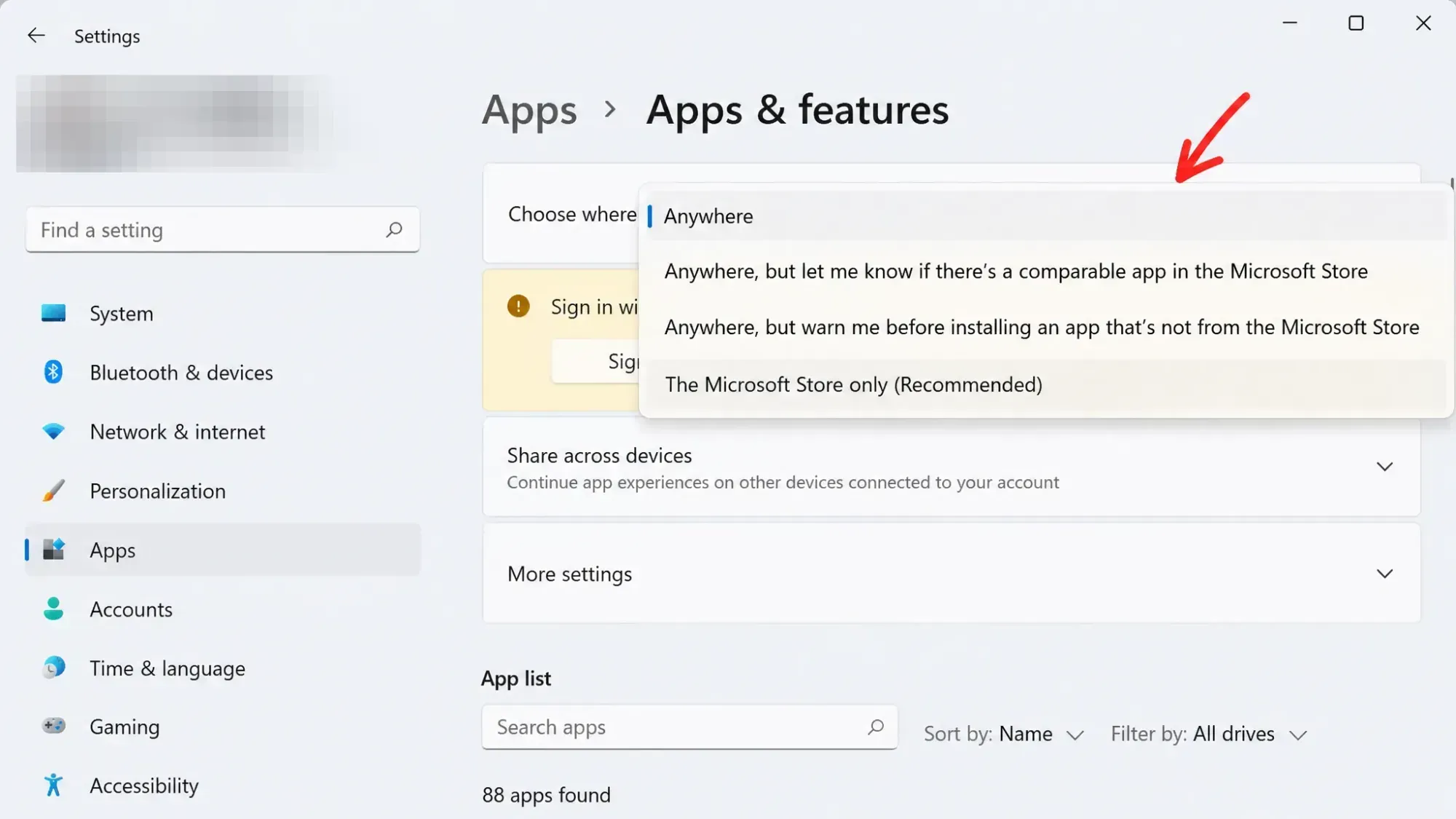
Step 4: Expand the Choose where to get apps drop-down menu and pick The Microsoft Store only. From this point on, installers from outside the Store are blocked.
You'll know it worked when someone tries to launch an outside installer and sees the message Your PC's settings only let it install verified apps from the Store. That confirmation is the sign the block is active.
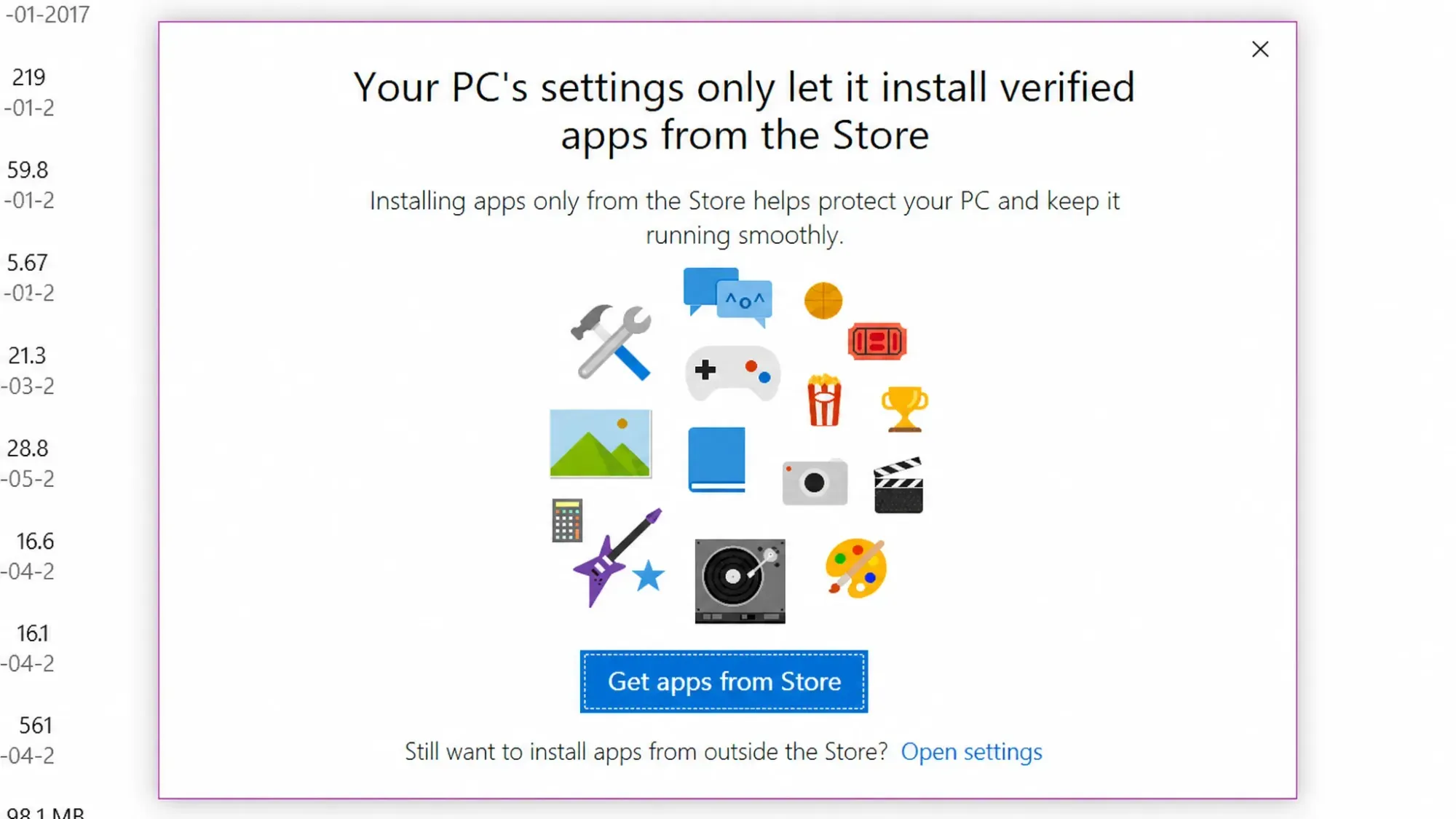
What each "Choose where to get apps" option does
The drop-down isn't all-or-nothing. There's a middle setting that still lets you install outside software after a confirmation, which is useful if you want a warning rather than a hard wall.
| Setting | What happens |
|---|---|
| Anywhere (Allow apps from anywhere) | Default. Apps install from any source with no extra prompt. |
| Warn me before installing apps from outside the Store | Shows Get apps from Store and Install anyway buttons each time, so third-party apps still work after you confirm. |
| The Microsoft Store only | Blocks all outside installers and shows the verified-apps-only message. |
The Microsoft Store now carries plenty of regular desktop apps such as Firefox and Opera, not just packaged UWP apps, so locking to the Store doesn't shut out every familiar program.
Block third-party app installations in Windows 10
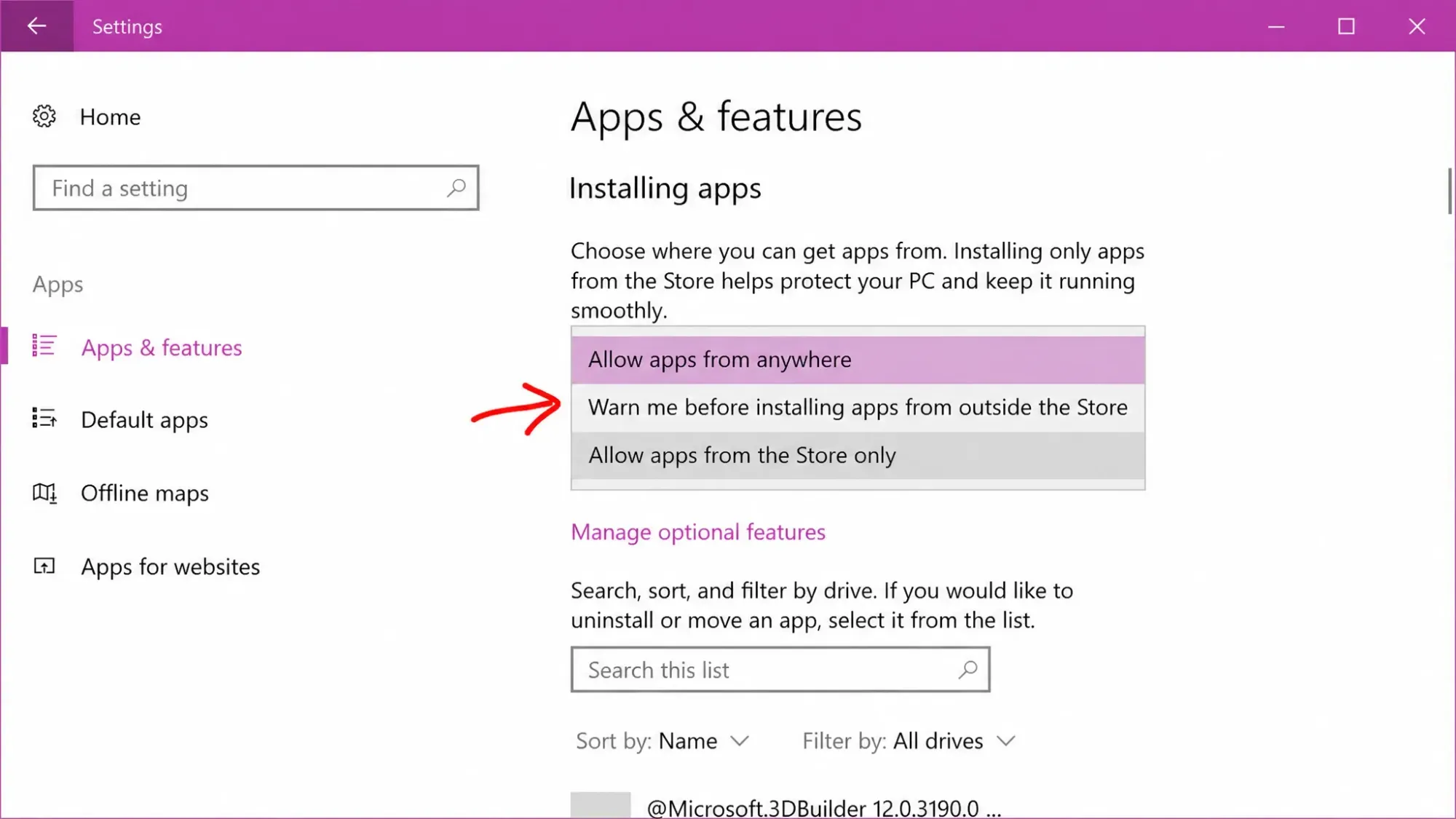
The same control exists in Windows 10, just under a different label. Head to Settings → Apps → Apps & features, then find Installing apps on the right. By default it reads Allow apps from anywhere.
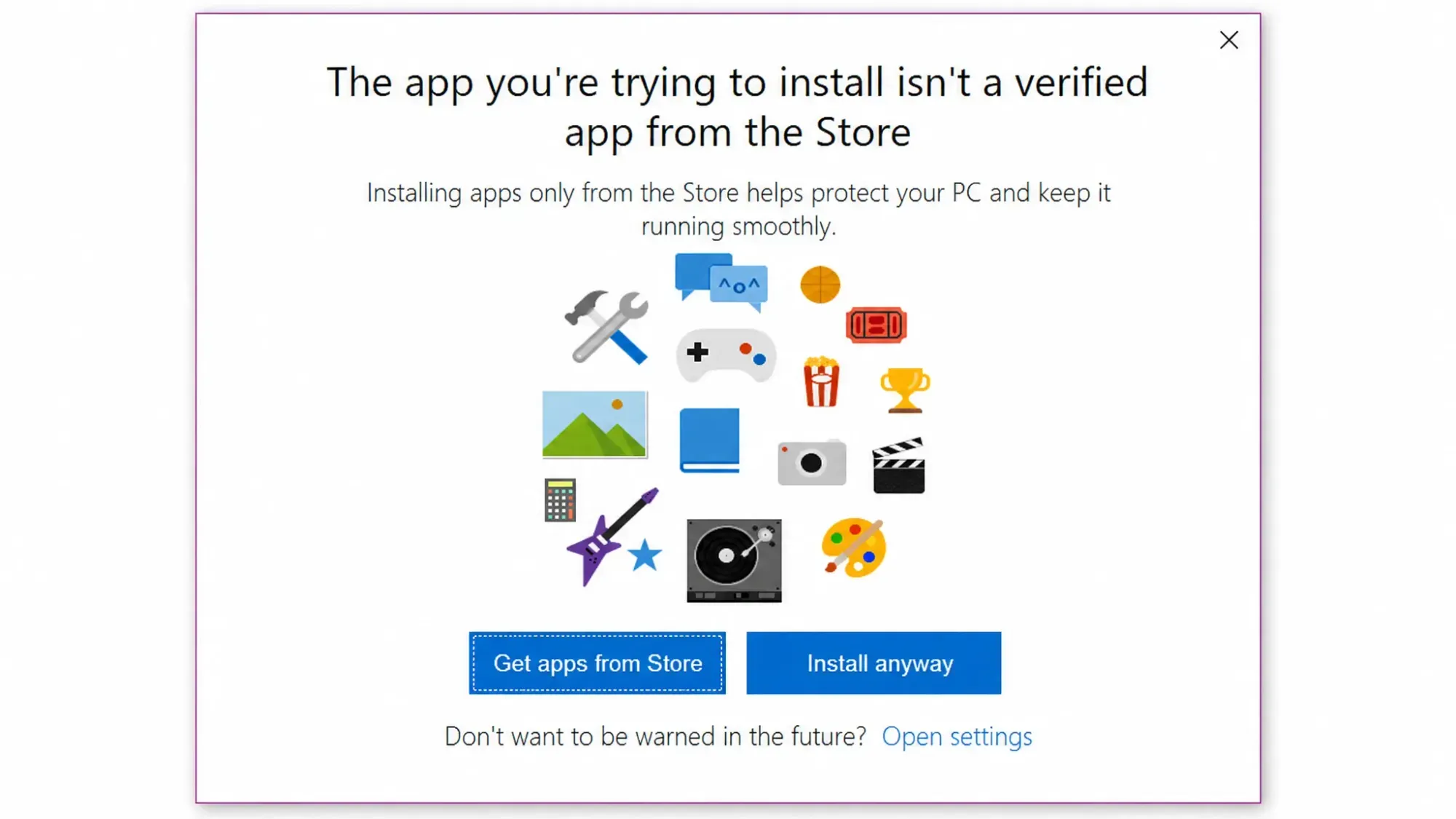
Switch it to Allow apps from the Store only to stop other users from installing software, or pick Warn me before installing apps from outside the Store if you'd rather confirm each install instead of blocking it outright.
Lock the setting so it can't be changed
On its own, the drop-down can be flipped back by anyone using the PC without needing a password. To stop that, the Group Policy Editor on Pro editions can freeze the choice in place.
Step 1: Press Win+R, type gpedit.msc, and press Enter to open the Group Policy Editor.
Step 2: Navigate to the SmartScreen policy folder at the path below.
Computer Configuration\Administrative Templates\Windows Components\Windows Defender SmartScreen\ExplorerStep 3: Double-click Configure App Install Control and select Enabled. This activates the locking behavior.
Step 4: In the Options drop-down, choose Allow Apps from Store Only, then click Apply and OK. Restart the PC for the change to take hold.
After the restart, return to Advanced app settings and the Choose where to get apps menu will appear grayed out and unchangeable. To undo it later, set the same policy back to Not Configured or Disabled.
For most setups, the Store-only switch alone covers the goal of keeping outside software off a machine used by children, employees, or anyone you don't want installing programs. Add the Group Policy lock when you also need to make sure that switch stays put.